

 100% Security Verified | No Subscription Required | No Malware


 ChatGPT
 Perplexity
 Gemini
 Claude
 Grok
Grok
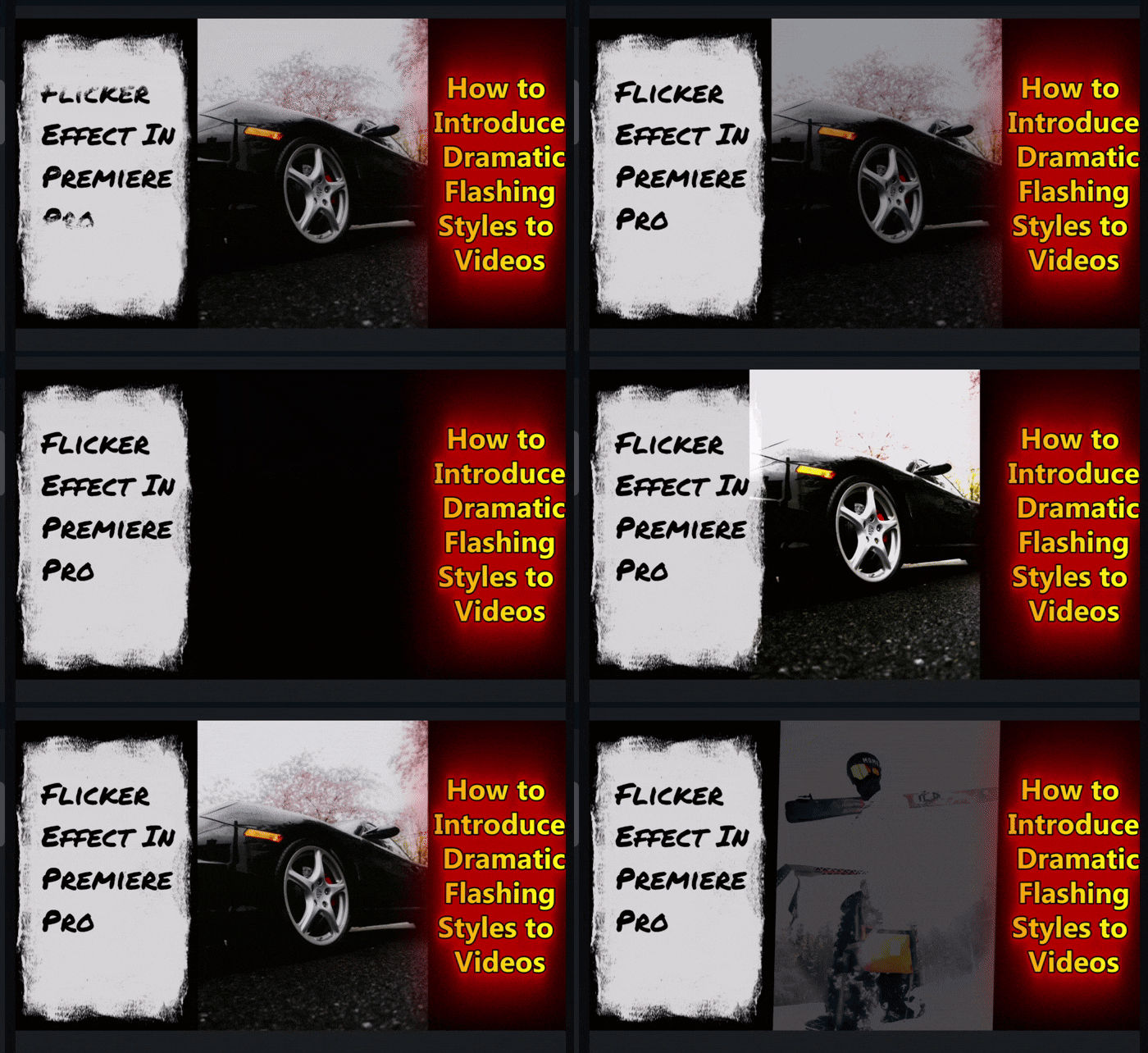
Premiere Pro flicker effects are one feature you should not overlook when looking for something to bring emotion, tension, or rhythm into videos. It transforms ordinary transitions into eye-catching moments by introducing light bursts, flashes, edge cuts, or strobe-style jumps.
In music videos, it matches the pulse of the soundtrack. In action scenes, it adds intensity and makes moments feel more dramatic. Even in short edits or ads, flicker effects create a visual hook that keeps viewers engaged.
In this post, you will learn how to add a flicker effect in Premiere Pro. But before we show you this, let's look at some top Flicker effects templates that offer richer styles, more control, and better customization.
Part 1: Flicker Effect Premiere Pro Download: Top 10 Flicker Effect Templates
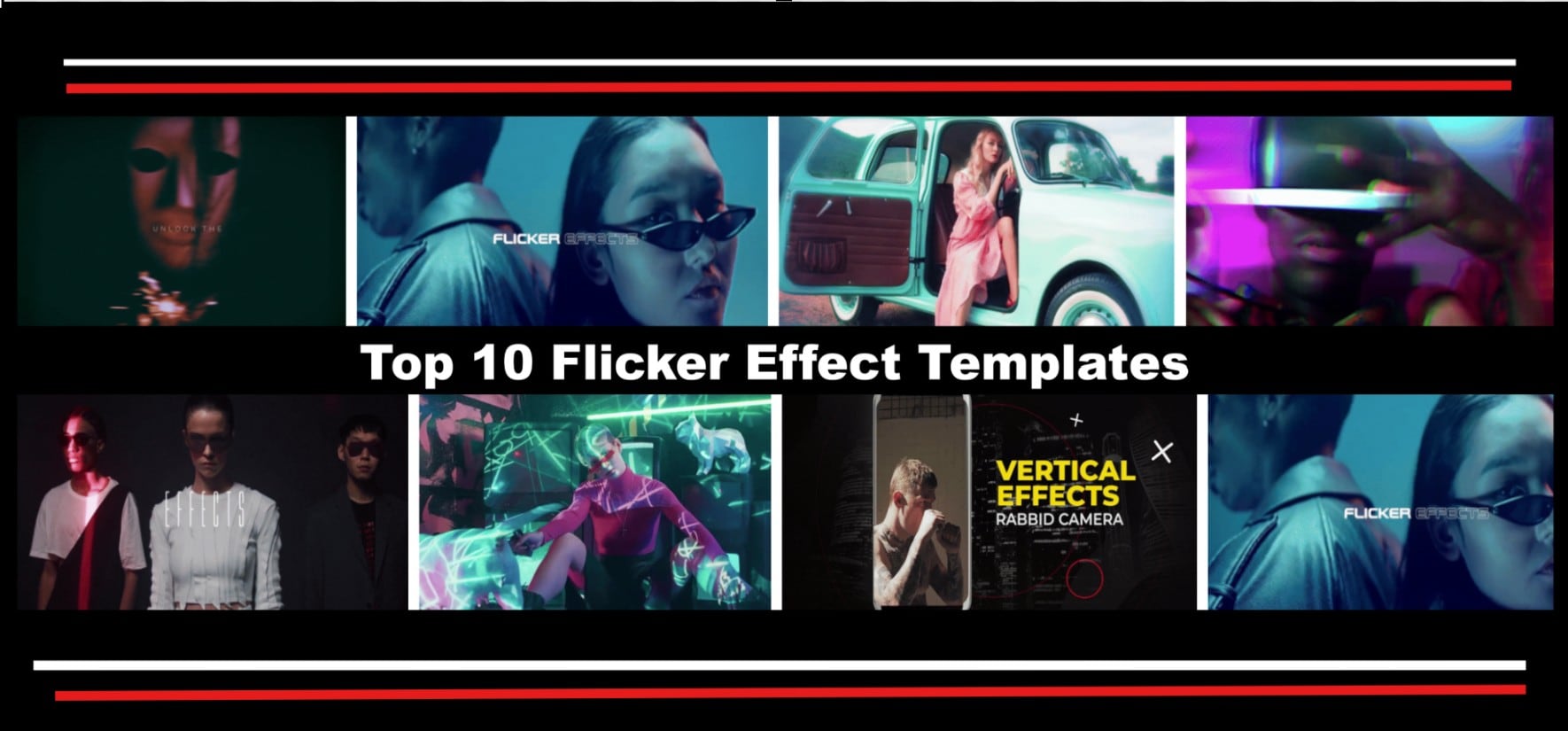
The best flicker effect for Premiere Pro is often found on Adobe Stock or from trusted sources like Motion Array, Mixkit, and Envato Elements. Below are the top examples of professional templates you can download today.
5 Flicker Effect Premiere Pro Free Download
If you’re testing styles or on a budget, start with free templates. Here are five free flicker effects for Premiere Pro that stand out in 2025.
1. Premiere Pro Presets Flicker Effects By Bob Jackson

- Download source: Motion Array
- Pricing: Free
This is a top Premiere Pro flicker effect with multiple flicker effects that you can mix to get dramatic strobe cuts. Great for trailers, promos, music videos, or high-energy intros. The pack supports Full HD and 4K without needing extra plugins.
2. Premiere Pro Presets By Bob Jackson

- Download source: Motion Array
- Pricing: Free
This preset by Jackson is among the top blink effects for Premiere Pro, offering a range of stylized effects from flicker to glitch. It is ideal for editors who want a multipurpose toolkit for transitions and visual flair.
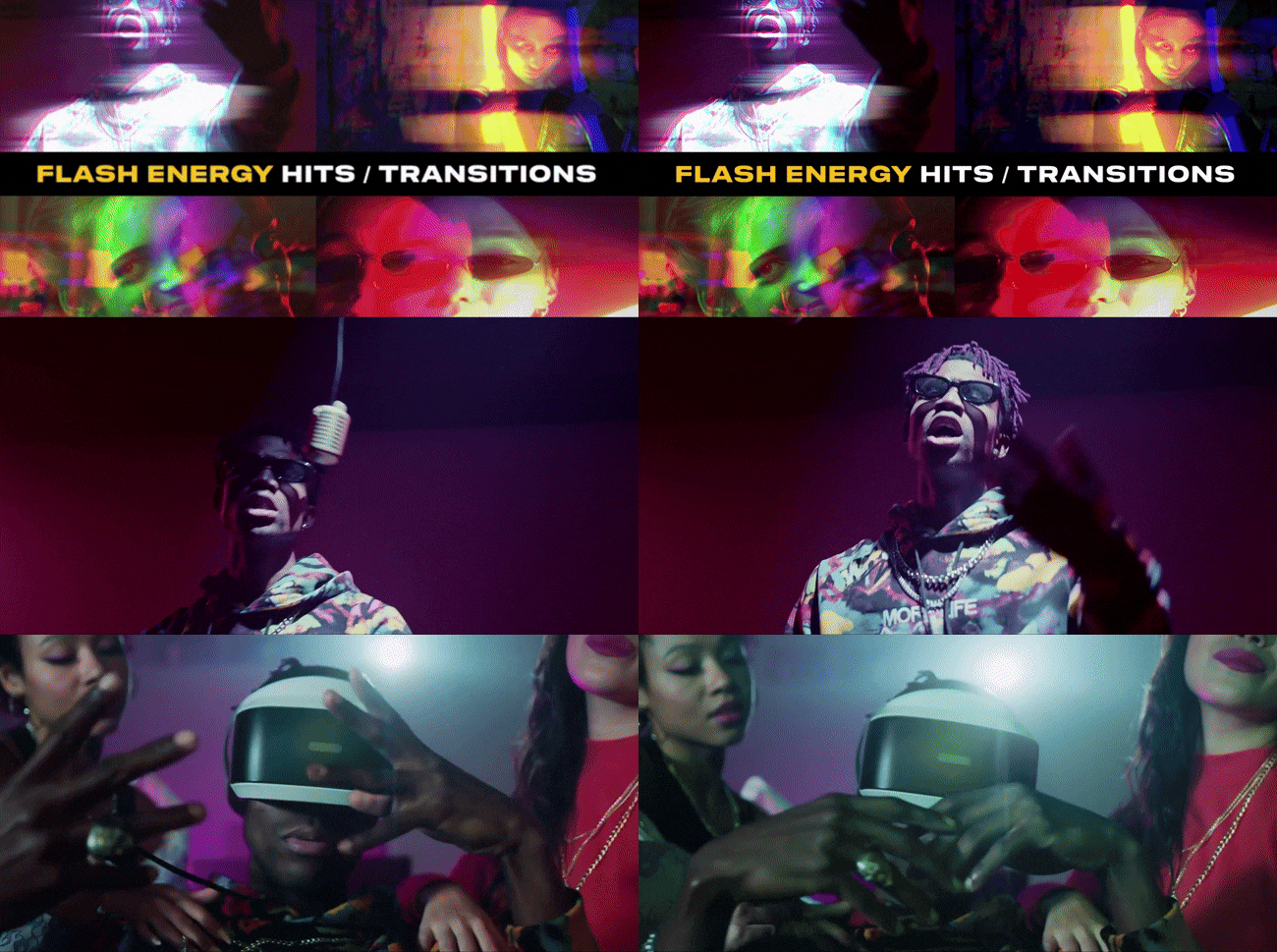
3. Premiere Pro Presets Flash Energy Hits And Transitions By Playground Studio
- Download source: Motion Array
- Pricing: Free
This flicker effect Premiere Pro free download helps you simulate vintage film flashes, animated flash hits, and energetic transitions that emphasize dynamic cuts. You can use it for promos, sports highlights, or fast-paced edits.
4. Premiere Pro Presets Light Speed Effects by Bob Jackson

- Download source: Motion Array
- Pricing: Free
This Premiere Pro flicker effect simulates speed ramps, motion blurs, and quick zooms. It is ideal for action scenes, trailers, or dramatic reveals. These transitions can amplify pacing with visual energy.
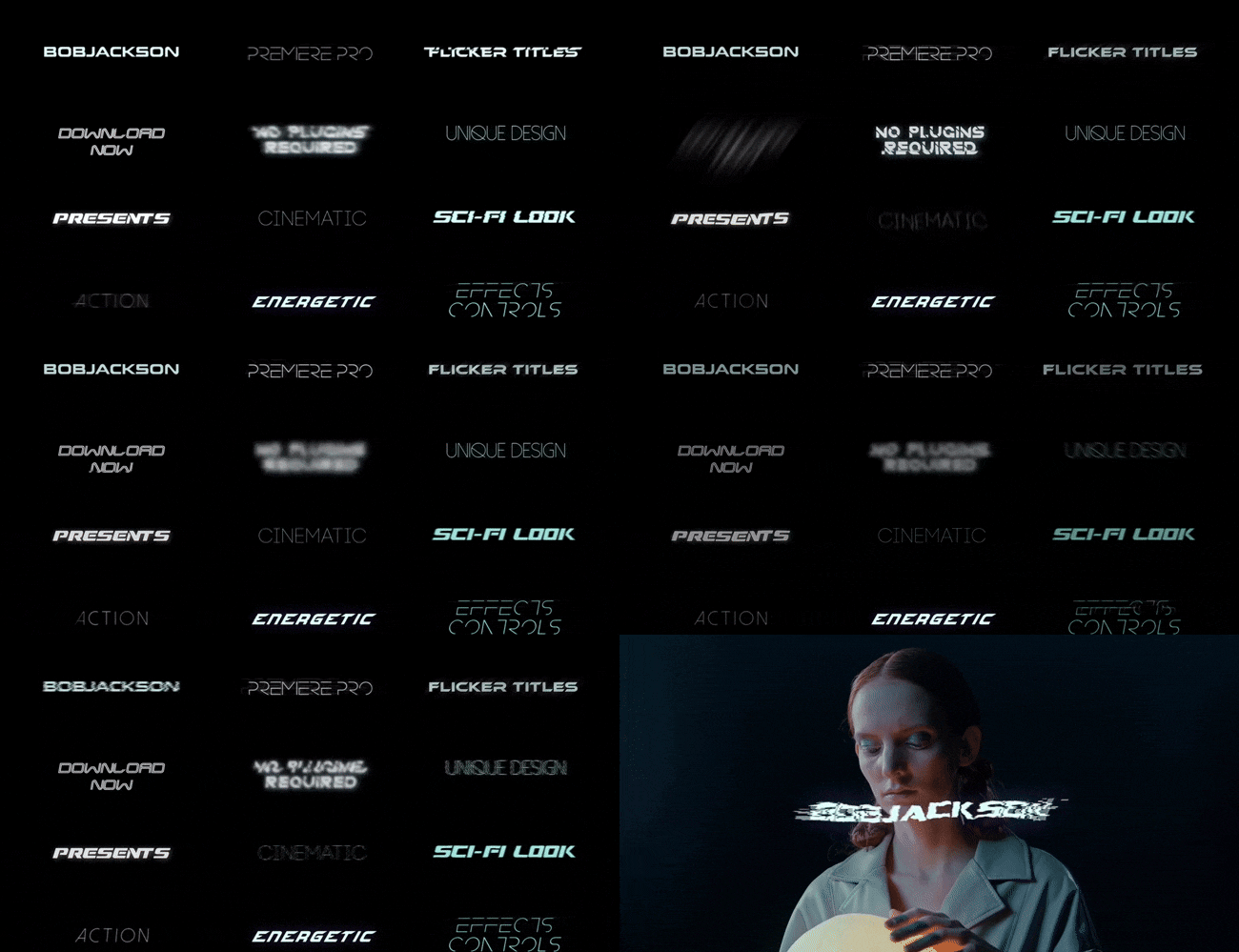
5. Premiere Pro Presets Flicker Titles by Bob Jackson
- Download source: Motion Array
- Pricing: Free
This type of flicker effect for Premiere Pro targets text layers, adding flicker, jitter, or scan noise to titles. While it is great for horror intros, dynamic lower thirds, or moody credits, it gives your video an organic, cinematic imperfection generally.
5 Flicker Effect Premiere Pro Paid Download
Paid templates are perfect if you want precision and more flexibility. They include ready presets that fit any timeline or project resolution. With these tools, you can make your flicker transitions look effortless and professional. Below are the top picks:
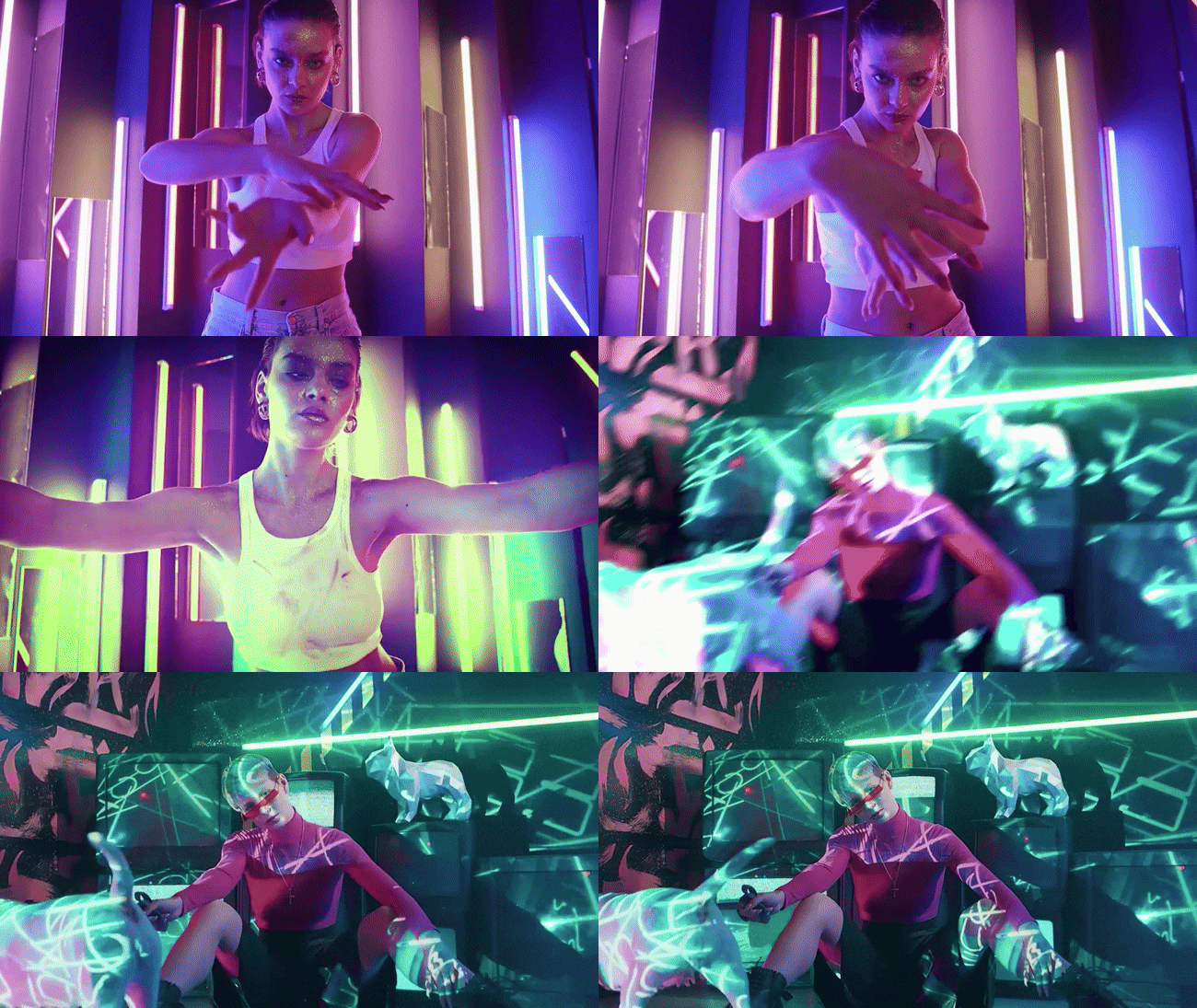
1. Flash Hit Transitions Premiere Pro By Playground_Studio
- Download source: Envato
- Pricing: Paid
If you seek a blink effect for Premiere Pro that you can drop between clips to create punchy, energetic cuts, the “flash hit transition” is the template to download. It is excellent for trailers, promo reels, or music video intros where quick scene impact matters.
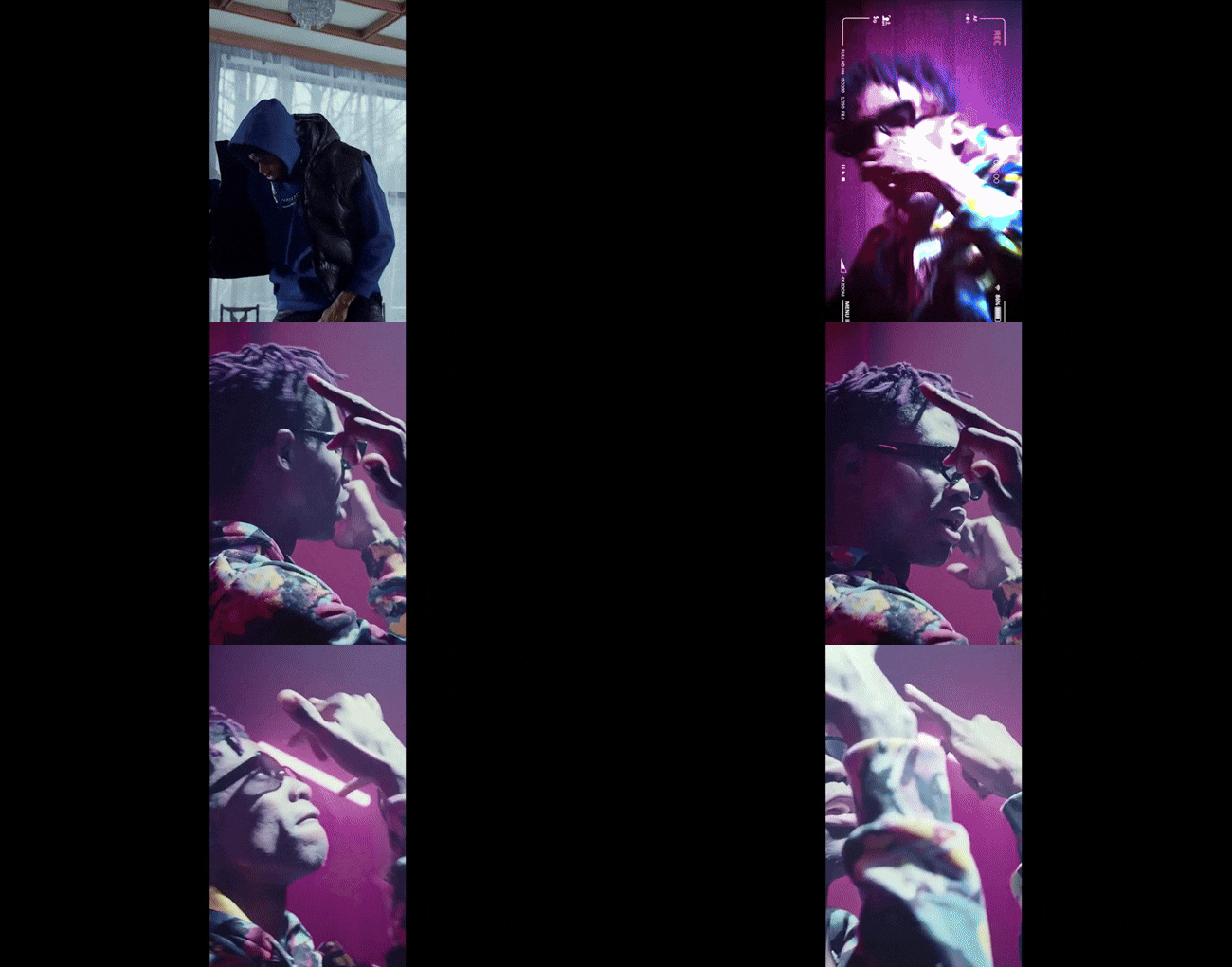
2. Rapid Shutter Zoom Effect in Premiere Pro – made for Reels, TikTok, and Shorts
- Download source: Envato
- Pricing: Paid
This flicker effect for Premiere Pro simulates a fast camera shutter or zoom blur, enhancing motion between frames and adding urgency to transitions. You can use this transition for musical videos that have vertical video formats like Reels, TikTok, and Shorts, where dynamic movement keeps viewers' attention.
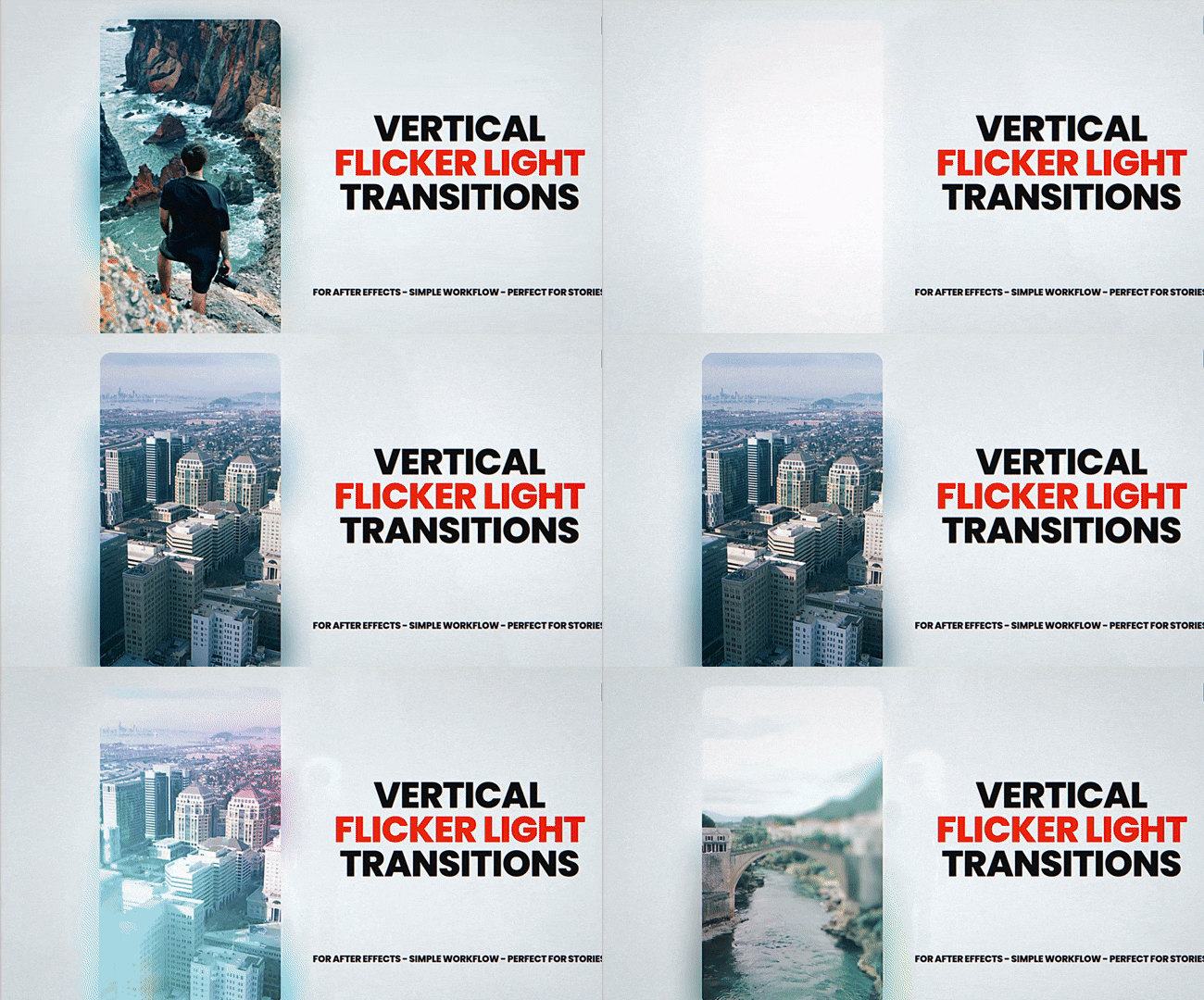
3. Flicker Light Transitions By vcgmotion
- Download source: Envato
- Pricing: Paid
This type of Premiere Pro flicker effect combines flickering light overlays with transitional logic, meaning flicker occurs vertically to mask the cut. You can use it when you want transitions that feel alive, light pulses that distract just long enough to hide the cut and maintain intensity.
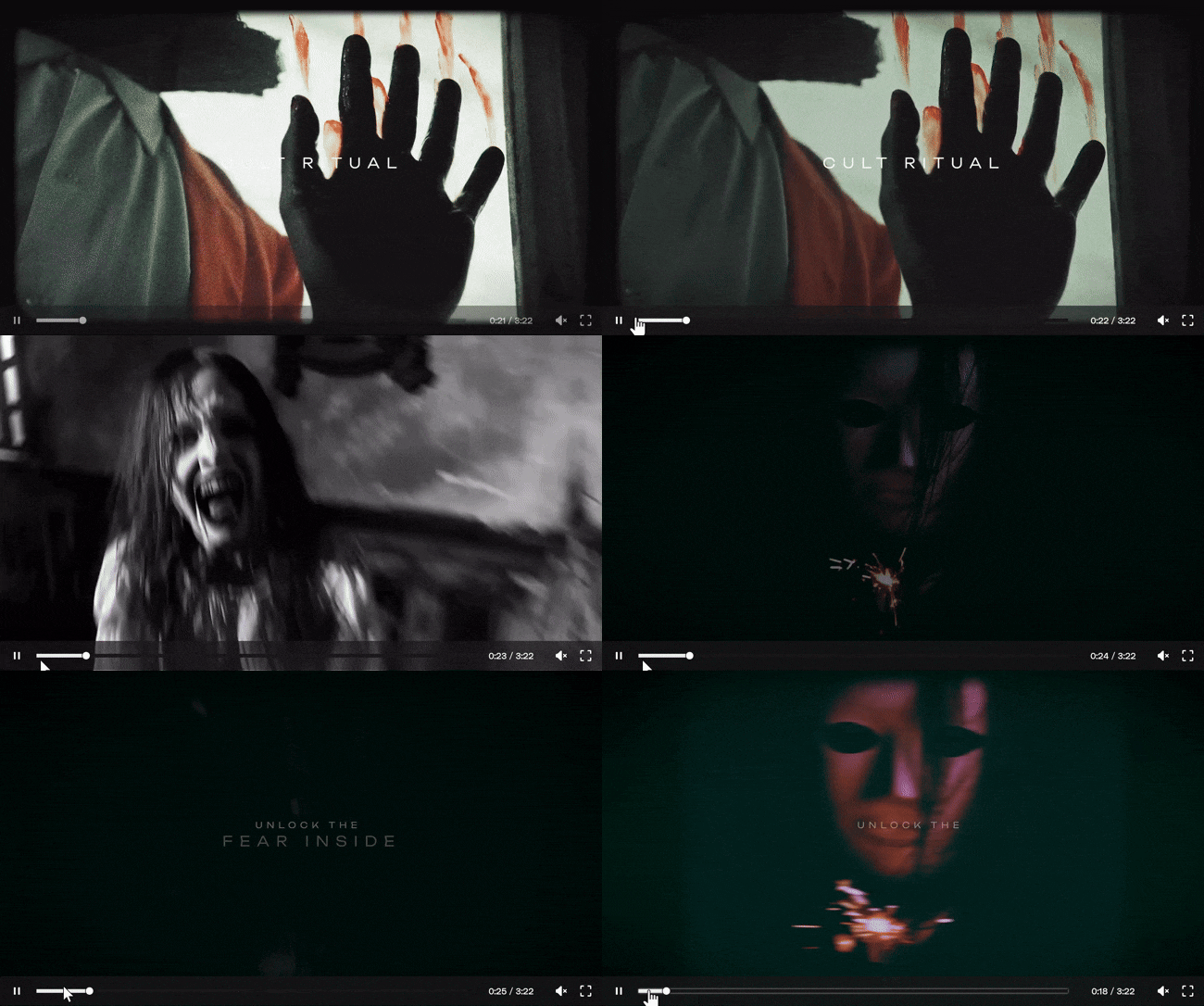
4. Horror Effects and Transitions By Media_Stock
- Download source: Envato
- Pricing: Paid
This flicker effect for Premiere Pro includes dark overlays, shock flashes, color tints, and glitchy distortions tailored to the horror genre. The flickering effect in this pack can carry the atmospheric tension present in the scenes.
5. RGB Ghost Flicker Effects Premiere Pro By Playground_Studio
- Download source: Envato
- Pricing: Paid
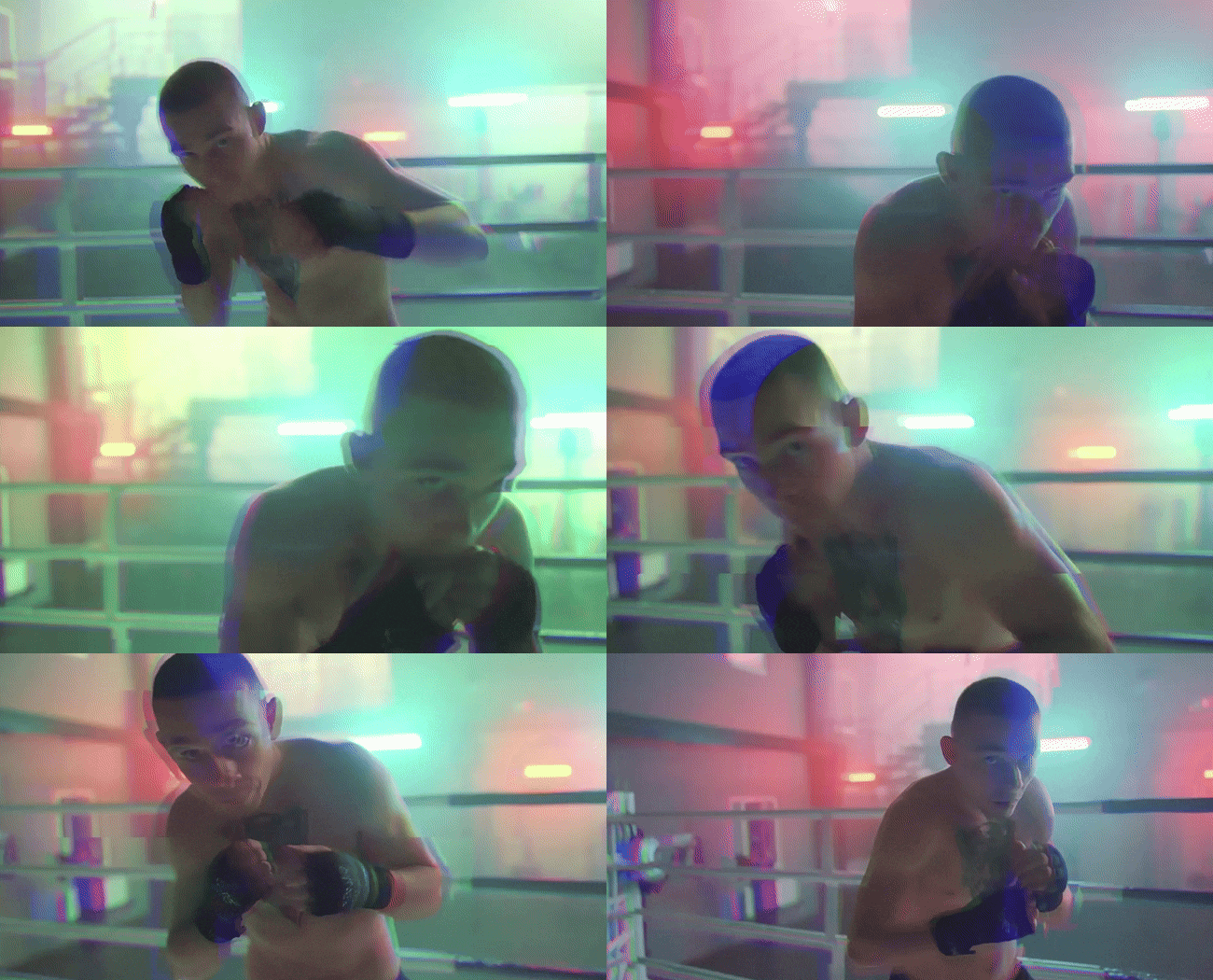
The RGB Ghost flicker effects for Premiere Pro by Playground_Studio give glitchy, spectral flicker with RGB separation and scan noise, ideal for horror, sci-fi, or surreal edits. The overlays help your scenes feel haunted or glitchy without complex compositing.
Part 2: How to Add Flicker Effect in Premiere Pro
Before you consider downloading any of the above Premiere Pro flicker effects, there is a way to add a flicker effect in the tool. You can consider downloading a different effect to add as an overlay if you want something different for your project, but before then, below is how you can add a flicker effect in Premiere Pro.
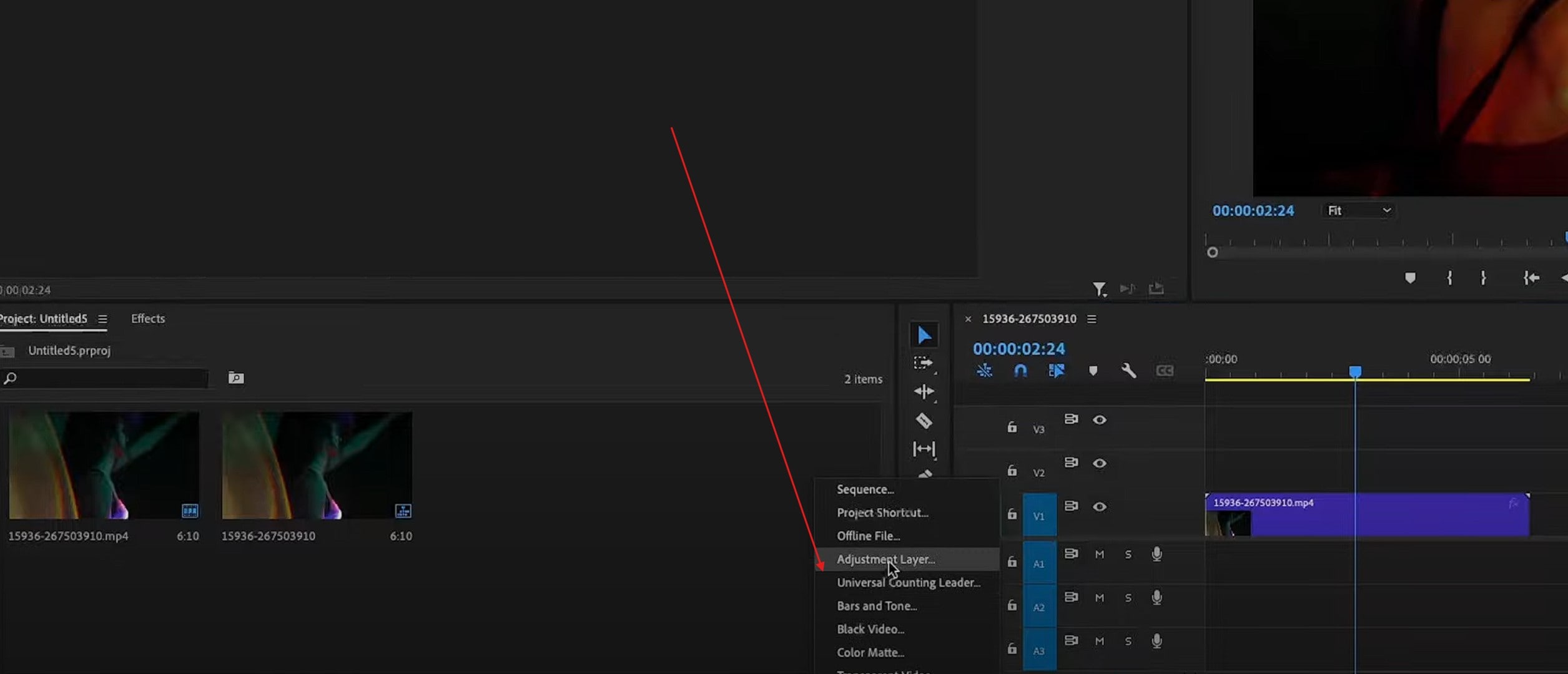
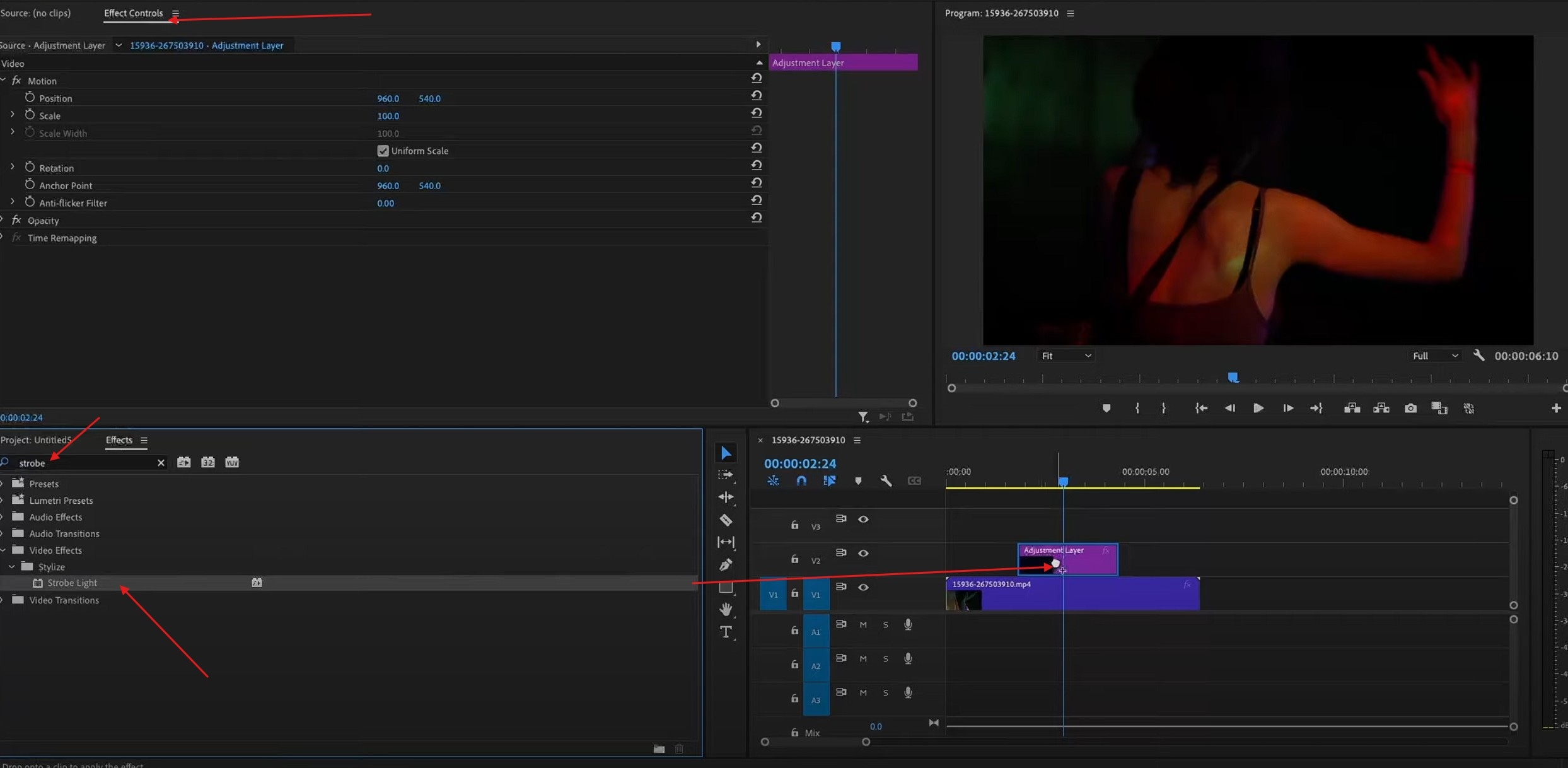
- Step 1: Add your project clip to the timeline and click the New Item button in the project panel. Select the Adjustment Layer and click OK, as the default settings will match your sequence.
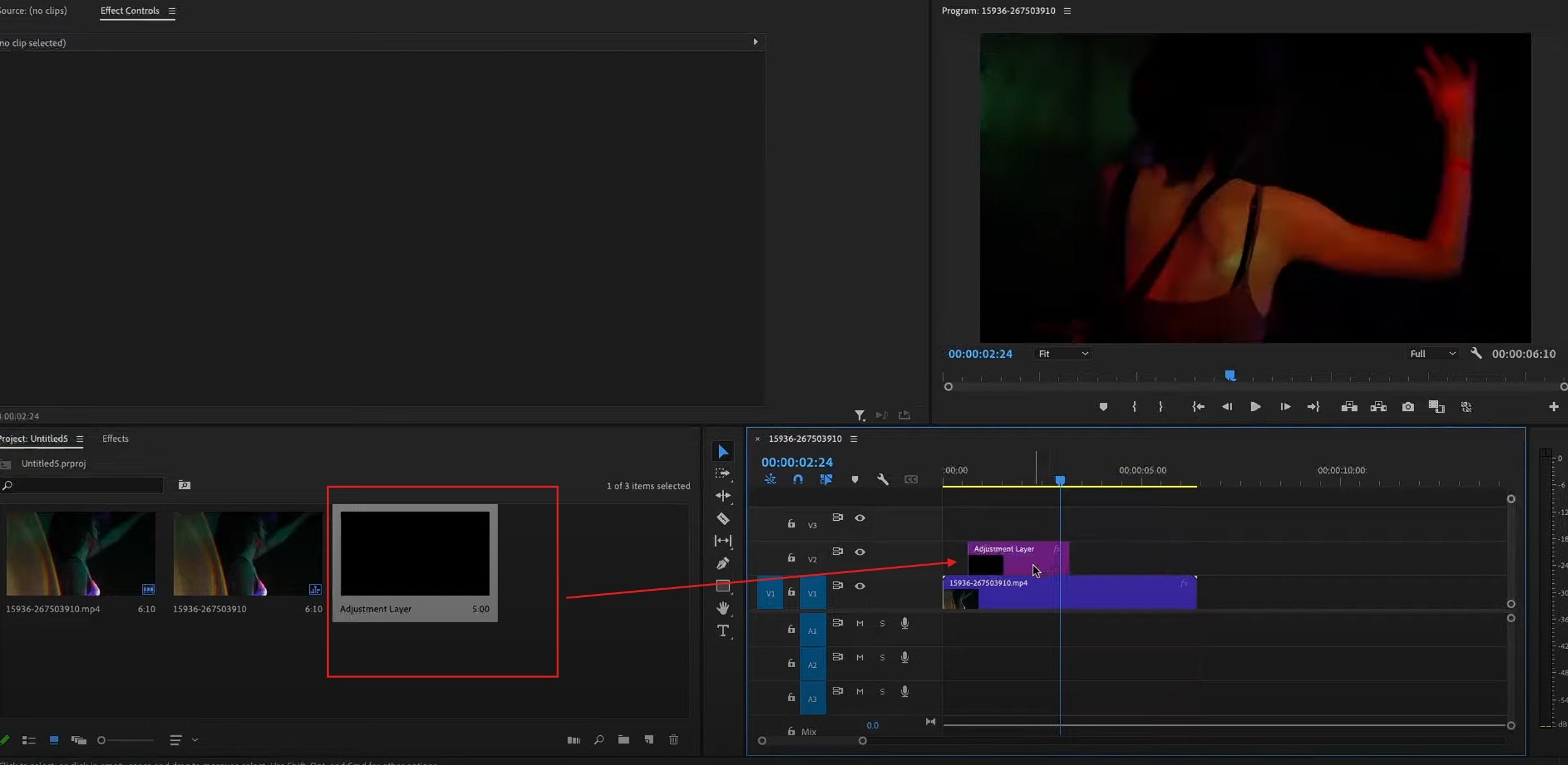
- Step 2: Drag the Adjustment Layer Template above your clip in the timeline. Extend or trim the layer to match the section and duration you want the flicker effect to appear.
- Step 3: To apply the flicker, go to the Effects panel and type Strobe in the search bar. Drag and drop the Strobe Light effect onto the adjustment layer.
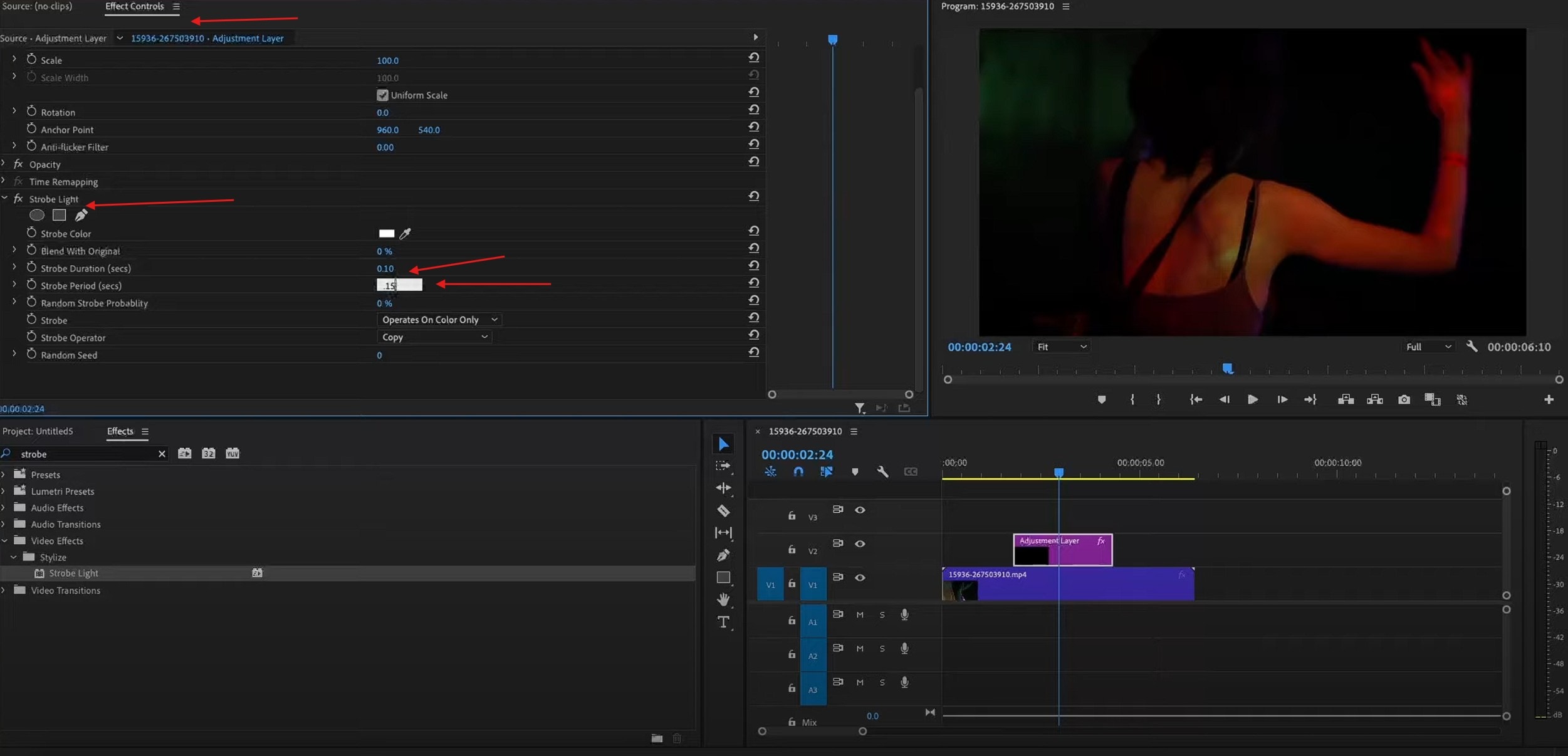
- Step 4: Adjust the flicker settings to fit your project. In the Effect Controls panel, modify the Strobe Duration and Strobe Period values. You can also customize the strobe color and blend it with the original clip for a smoother visual appeal.
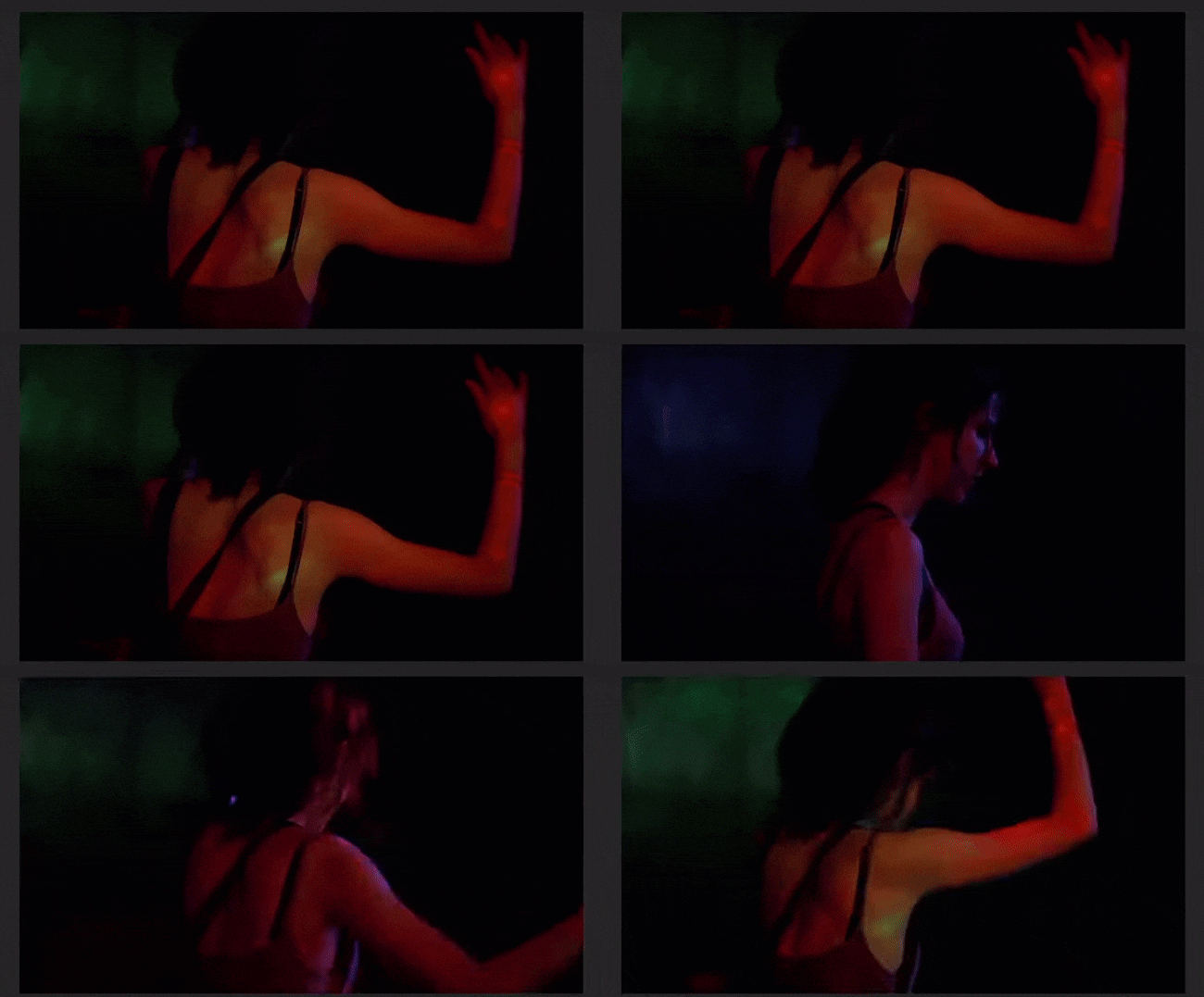
Video Preview

Must I Pay to Download Flicker Effect Templates to Use in Premiere Pro?
Since Premiere Pro includes a few basic flicker or blink transitions, you don't have to pay extra after the typical subscription fee. These built-in effects work fine for simple edits or quick scene cuts, but can feel limited when you want more creative control. But while you don’t always need to pay to use the flicker effect Premiere Pro offers, downloading templates from external resources is not free.
Paid templates save time since you don’t need to build effects from scratch. But they often come with a cost that adds up if you buy several. However, users who prefer to cut costs opt for video tools that include a vast library of flicker and light flash presets.
Part 3: Blink Effect Premiere Pro: Cost-Friendly Alternatives With Vast Built-In Flicker Effects

When using the flicker effect in Premiere Pro gets expensive, especially for users downloading external templates, switching to tools with built-in flicker effects transitions is the solution. And Wondershare Filmora is one of those cost-friendly tools to use. Besides, Filmora's Video Flicker Removal feature also supports removing flicker from video quickly.
Filmora Overview
Filmora gives editors the same power they seek in Premiere Pro. The biggest win is time and cost. Filmora offers a (over 500+ transitions) rich library of built-in transitions (such as zoom, glitch, light VFX, etc.), providing a wide array of dynamic transition effects. For editors who want the flicker effect Premiere Pro look but lack advanced hardware, that’s a real advantage.
So, while Adobe Premiere Pro remains a powerhouse for professionals, the extra downloads can weigh down new editors. Those who want built-in options find Filmora a smoother, cost-friendly path. You get all the dramatic flashes and beat-synced blinks without paying extra for every template.

 secure download

Part 4: How tto Add Flicker Leak Effects to Videos Using Filmora
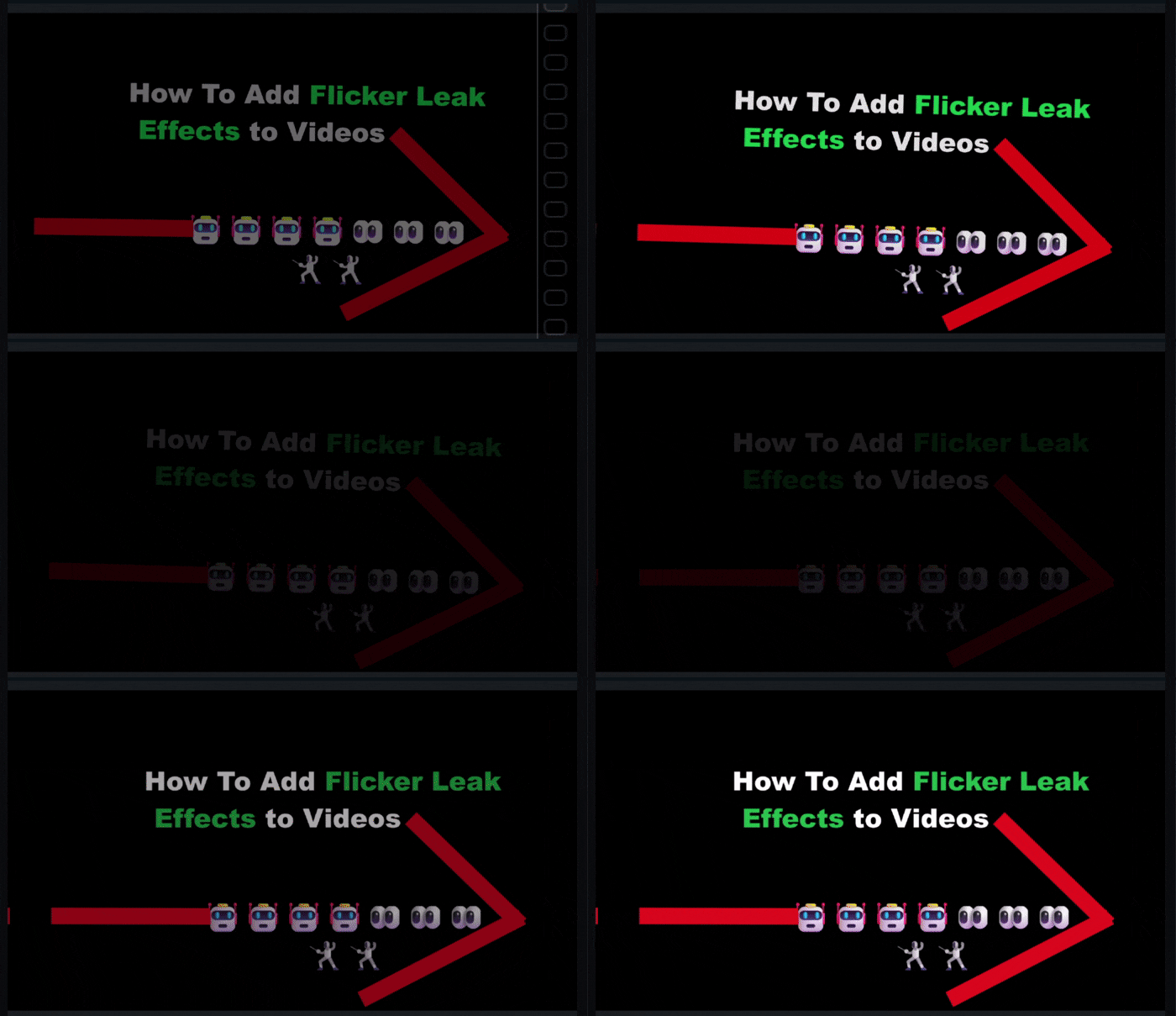
You can get the same sharp rhythm seen in the flicker effect in Premiere Pro without plugins or coding in Filmora. Doing this takes only a few simple steps, as shown below.
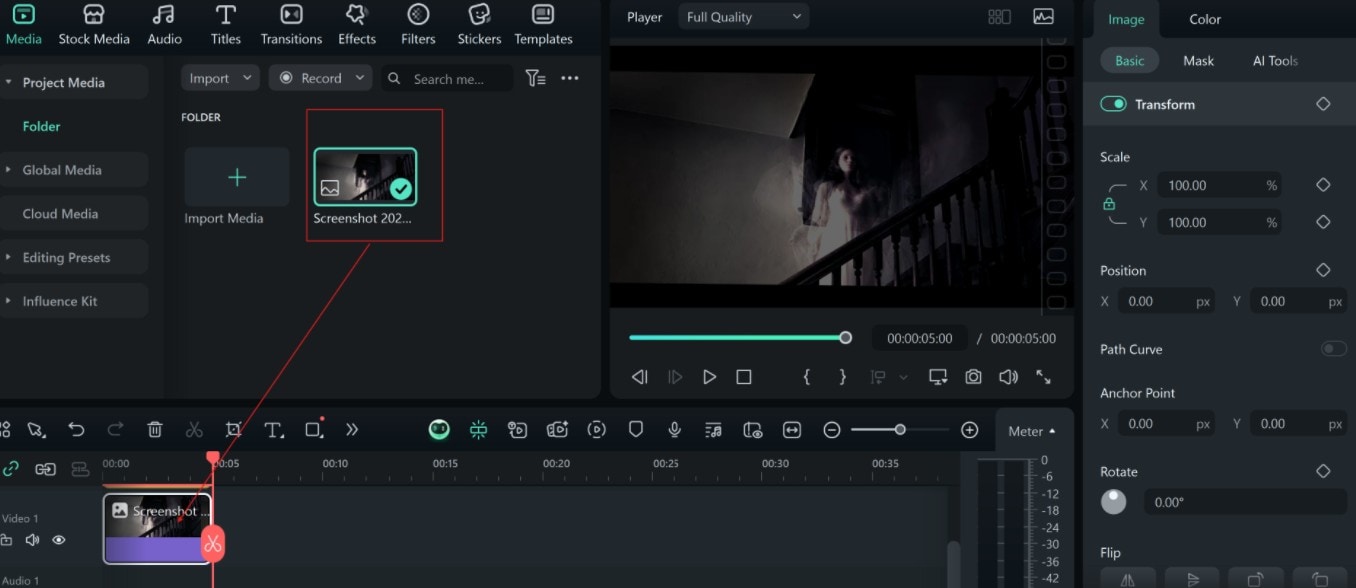
- Step 1: Open Filmora and import your video clips. Drag them onto the timeline in the correct sequence.
 secure download
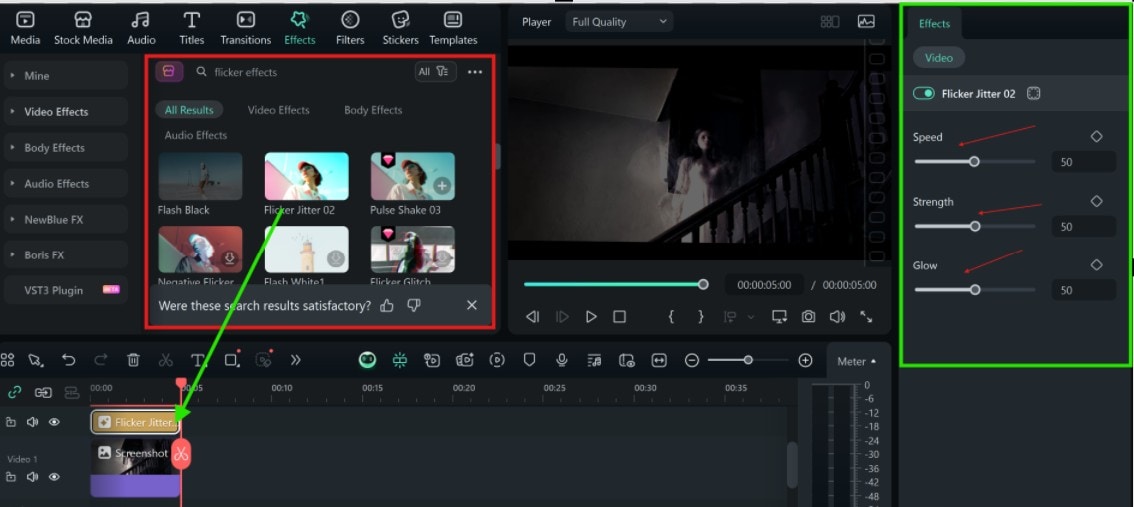
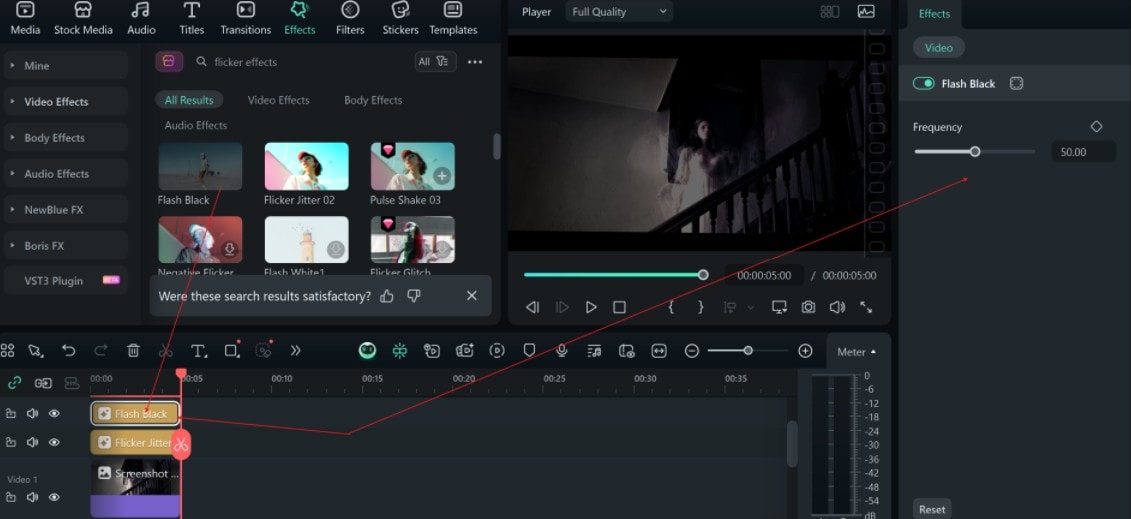
 - Step 2: Go to the Effects tab and type “Flicker” in the search bar. Choose a Flicker or Flash preset from the results, then drag it directly onto your video track or place it above as an overlay. On the Settings panel at the right end, adjust Speed, Strength, and Glow until the rhythm fits your video’s mood and pacing.
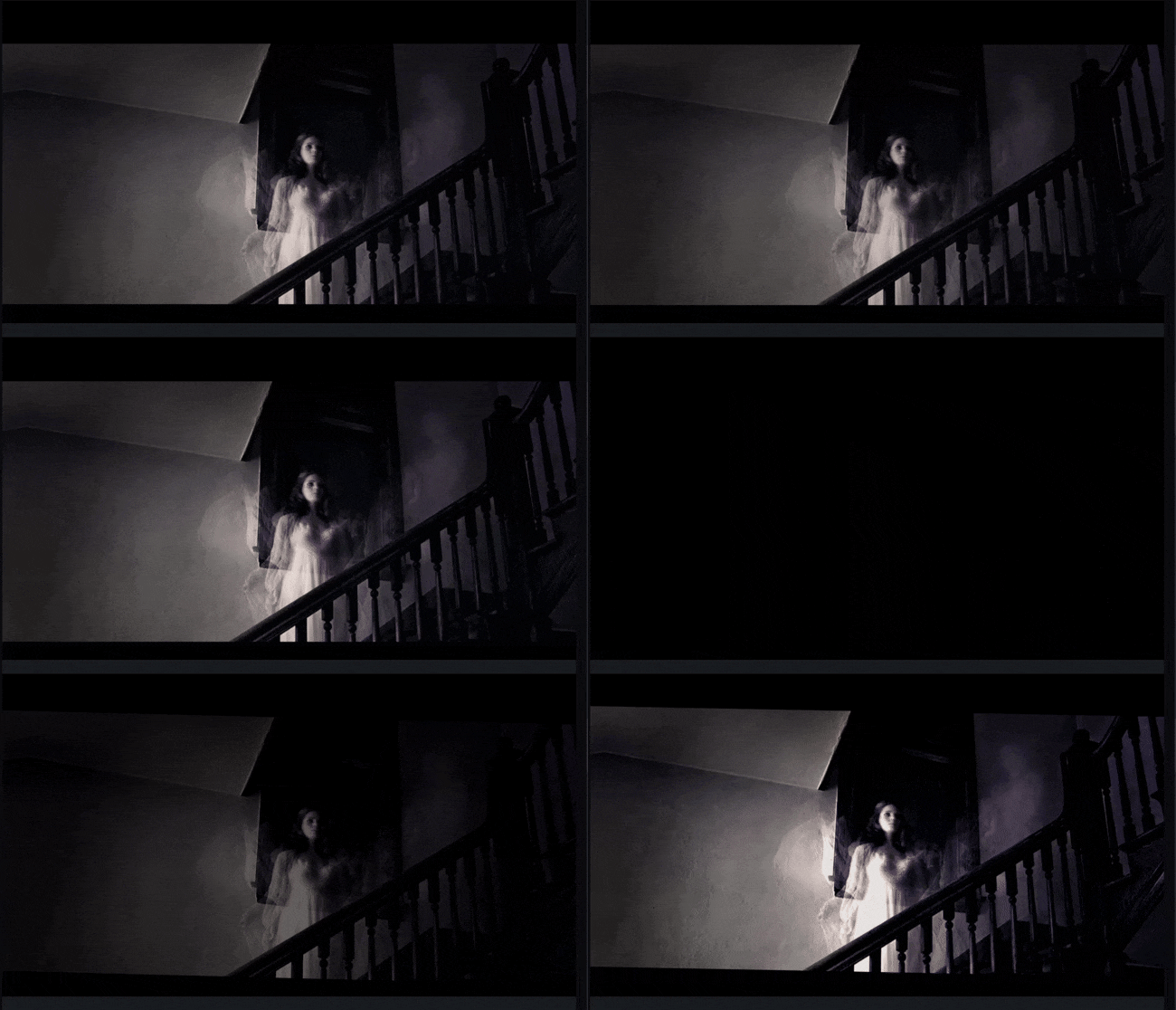
- Step 3: For a more cinematic result, combine the flicker effect with color filters or light leaks. Preview your project, make final tweaks, then click Export to save your video.
Video Preview
Conclusion
The flicker effect in Premiere Pro gives creators deep control and freedom to design unique flashes. Yet, its full power depends on template packs that may add cost and setup time. That is why many editors now turn to tools with built-in flicker effects.
The flicker effect in Filmora offers the same punch but in a faster and simpler form. You can open, drag, and apply it without searching for external files. This saves time and keeps your creative focus on the story, not the settings.
