

 100% Security Verified | No Subscription Required | No Malware

Beach clips can look flat straight from your phone, but the right Instagram-style filter instantly adds turquoise water, sun-kissed skin tones, and a cohesive coastal aesthetic to your grid.
Below are 12 beach video filters for Instagram-style content that you can easily recreate or approximate in Filmora, complete with suggested uses and quick editing tips for ocean content and travel reels.
In this article
Warm Sunrise and Sunset Beach Filters
Sunrise Haze
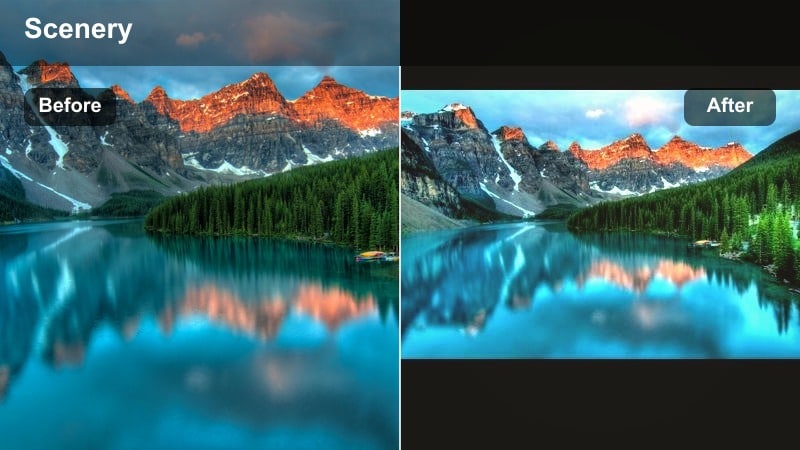
- Effect look: Soft warm glow with lifted blacks, subtle pink highlights, and gentle bloom around the sun.
- Best for: Early morning walks, sunrise yoga on the sand, and quiet golden-hour ocean shots for Instagram beach accounts.
- Editing tip: Slightly lower contrast, add a warm temperature shift, and use Filmora’s glow or blur on highlights at low intensity for a dreamy haze.
Sunrise Haze is designed to transform cool, bluish dawn footage into a romantic warm glow that feels straight out of an aesthetic travel Reel. By lifting the blacks and adding a subtle bloom around the brightest parts of the sky, you get pastel gradients and soft transitions that flatter both the ocean and the shoreline.
In Filmora, combine a warm white-balance tweak with gentle highlight glow to keep details visible while still leaning into a hazy, cinematic look. This filter works especially well for static tripod shots, slow pans, or minimal camera movement when you want viewers to sink into the calm of early-morning beach scenes.
Pro tip: Keep the horizon clean for a cinematic sunrise feel
Frame your sunrise clips with the horizon roughly on the top or bottom third of the frame, then apply Sunrise Haze to keep the sky gradients smooth and cinematic.
Reduce clarity or sharpness just a little on distant elements so the glow feels natural and not over-processed in your Instagram beach posts.
Match Your Beach Filters to a Consistent Ocean Palette
If your Instagram is full of sand, surf, and travel content, using one consistent color palette across all your filters makes your grid instantly recognizable. A unified mix of turquoise water, warm tans, and gentle neutrals helps every clip feel like part of the same coastal story.
Filmora’s color tools let you save presets and reuse the same tones for new clips, so your turquoise water, warm tans, and coastal neutrals stay unified from posts to Reels. Create a custom ocean palette once, then apply it to every new beach video for automatic brand consistency.
 secure download

Preview Beach Filters on Real Ocean Footage
Before you commit to a new signature look, it helps to see how your filters treat real-world ocean colors and skin tones. Testing warm, pastel, and bold grades on a short 10 to 15 second clip lets you quickly spot which styles keep water vivid without breaking skin tones.
In Filmora, you can use split-screen or side-by-side preview to compare versions of the same shot. Drop in a beach sample, duplicate it on the timeline, and apply different looks so you can immediately choose the filter that best fits your next Reel or Story.
secure download1000+ Video Filters and 3D LUTs
Filmora includes a large library of built in filters, effects, and 3D LUT style looks that you can stack and tweak to match your ideal beach aesthetic. Instead of building every grade from scratch, you can start with a filter that is close to your goal and fine tune contrast, HSL, and curves for your ocean footage.
Once you find a style that works, save it as a custom preset so you can apply the same coastal mood to future beach trips and travel campaigns with a single click.
secure downloadGolden Tan Boost
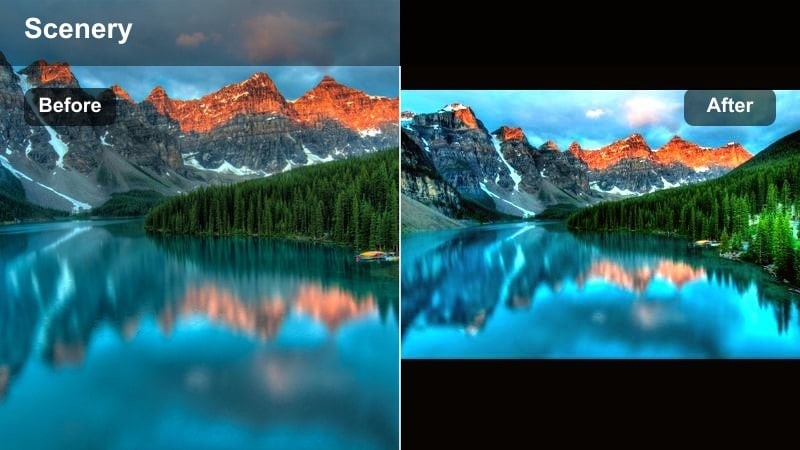
- Effect look: Rich golden tones, luminous skin, and slightly deeper blues for water and sky.
- Best for: Close-up beach selfies, bikini content, and travel blogger talking clips in warm sunlight.
- Editing tip: Gently increase warmth and vibrance, then add selective HSL tweaks to push oranges slightly more golden while keeping reds under control.
Golden Tan Boost focuses on flattering skin while keeping the sea and sky punchy, making it ideal for portrait style shots and influencer content. By deepening blues and enriching warm midtones, the filter creates a sun kissed vacation feel that still looks clean and modern.
Inside Filmora, use HSL to nudge oranges toward a more golden hue and slightly deepen blues so the background supports your subject without stealing attention. It pairs nicely with subtle face smoothing or beauty effects when you want polished but believable beach portraits.
Pro tip: Balance tan enhancement with natural skin tones
If skin starts looking too orange, reduce saturation in the orange channel while keeping luminance slightly raised for a clean glow.
Film a quick white object in the frame, like a towel or T-shirt, and use it to judge whether your warmth is still natural after applying the filter.
Sunset Copper Coast
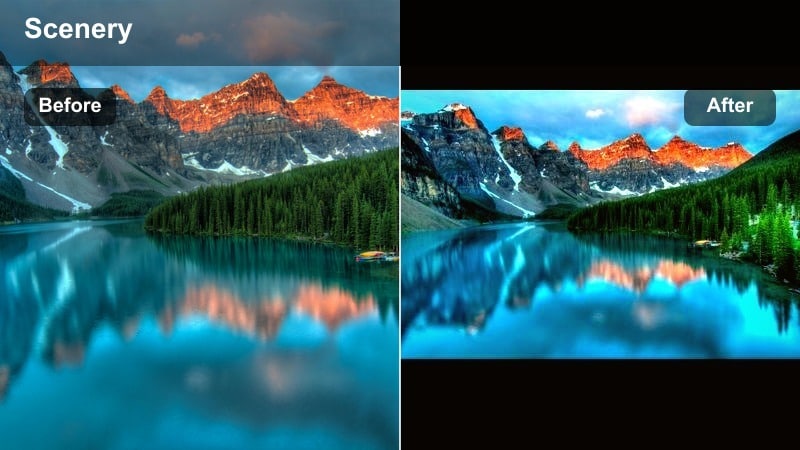
- Effect look: Deep copper shadows, warm magenta skies, and a cinematic fade in blacks.
- Best for: Sunset silhouettes, waves crashing against rocks, and moody romantic reels.
- Editing tip: Lift the blacks slightly, add split-toning with warm highlights and cool shadows, and lower saturation of yellows for a richer copper look.
Sunset Copper Coast leans hard into the drama of golden hour, emphasizing contrast between warm skies and darker foregrounds. The copper tinted shadows and magenta highlights give ordinary sunsets a stylized, cinematic edge that stands out in fast scrolling feeds.
In Filmora, you can combine split-toning with curves to dodge and burn the frame subtly, keeping attention on silhouettes and wave movement. It is particularly effective on clips that are slightly underexposed, where there is still detail in the clouds and horizon for the color work to grip.
Pro tip: Expose a bit darker for dramatic sunsets
Slightly underexpose your original footage so sky details are preserved, then apply the copper filter to avoid clipped highlights.
In Filmora, use curves to add a gentle S-curve after coloring to deepen the mood without crushing all detail in the shadows.
Turquoise Ocean and Pool Aesthetic Filters
Turquoise Tides
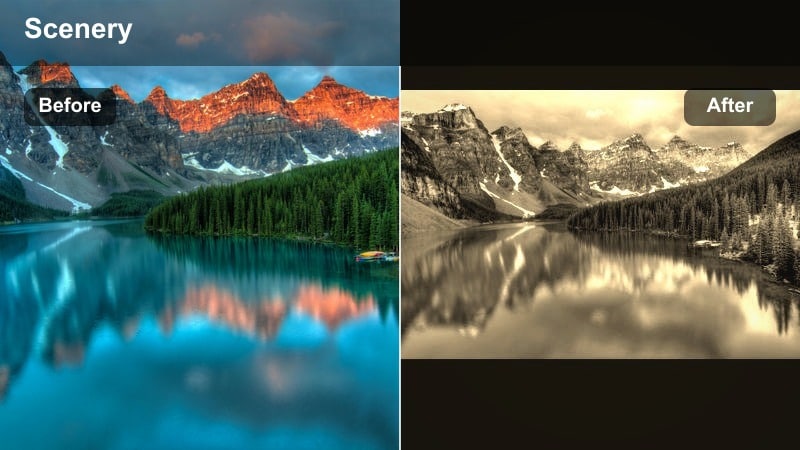
- Effect look: Bright turquoise water, crisp whites, and a clean, sun-washed aesthetic.
- Best for: Drone shots over clear water, snorkeling clips, and tropical resort walkthroughs.
- Editing tip: Push aqua and blue hues toward cyan, raise vibrance more than saturation, and keep highlights clean with a touch of highlight recovery.
Turquoise Tides is built to make any clear water destination look like a high end tropical postcard. By shifting blues toward cyan and keeping whites brilliant but controlled, it turns dull or slightly gray seas into glowing turquoise lagoons.
In Filmora, focus your HSL adjustments on the aqua and blue channels so you do not accidentally shift skin tones. Pair the color grade with a small vibrance boost and a bit of highlight recovery to keep sunlit ripples and foam detailed, especially in drone or overhead shots.
Pro tip: Use selective color to protect skin tones
When pushing water toward turquoise, limit your HSL changes to aqua and blues so skin stays natural and not overly cyan.
If sand turns too red or yellow, slightly desaturate yellows while boosting luminance to keep the beach bright without color shifts.
Aqua Pool Pop
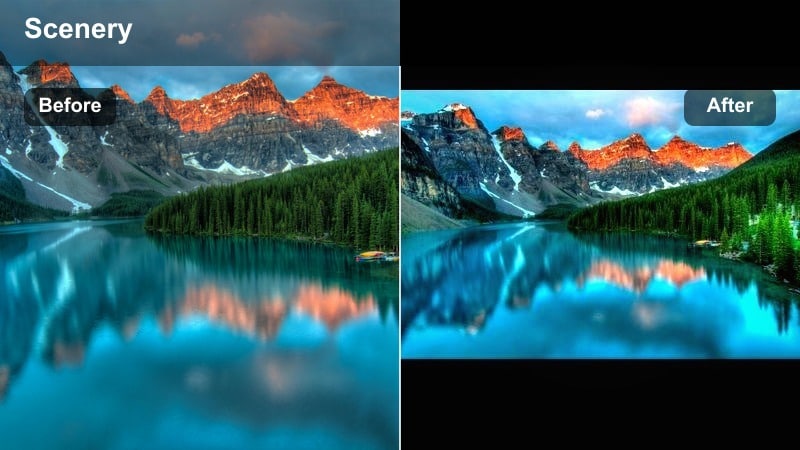
- Effect look: Punchy aqua pools, high contrast edges, and a playful saturated vacation feel.
- Best for: Hotel pool reels, floatie shots, and playful Instagram Stories at beach clubs.
- Editing tip: Increase contrast and midtone clarity, then selectively boost saturation in aqua while slightly muting greens for a modern, polished pool look.
Aqua Pool Pop is all about crisp lines and vivid color, which makes pool tiles, floaties, and swimwear stand out sharply on mobile screens. The filter pushes aqua saturation while controlling greens so the water feels fresh and chic rather than overly neon.
Inside Filmora, add a touch of sharpening and local contrast around edges to emphasize splashes and motion without introducing noise. Use this style for upbeat vacation montages or fast cut Reels where each frame needs to read clearly even at a glance.
Pro tip: Protect highlights on bright pool surfaces
Lower highlight levels before adding contrast so white tiles and reflections do not blow out when you push the Aqua Pool Pop look.
If your subject is in the water, add a gentle vignette to keep focus on them and reduce distraction from highly reflective areas.
Ocean Film LUT Vibes
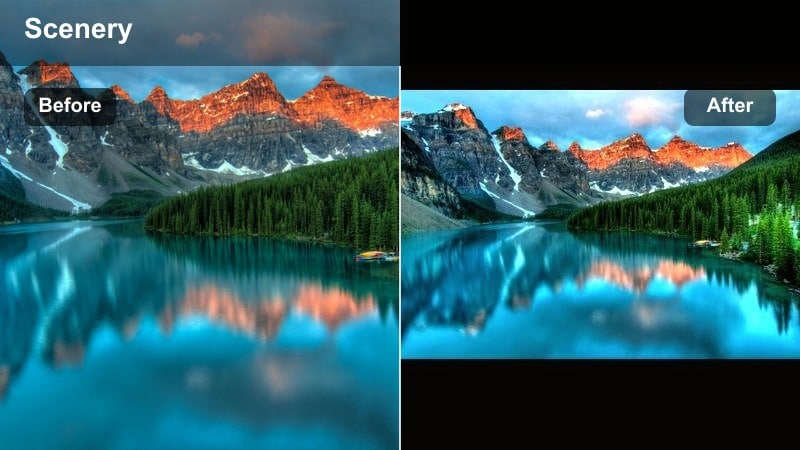
- Effect look: Soft film contrast, slightly teal water, warm skin tones, and subtle grain-like texture.
- Best for: Travel blogger voiceovers, cinematic b-roll of waves, and slow-motion ocean reels.
- Editing tip: Use Filmora’s color grading wheels to add teal into shadows and warmth into midtones, then decrease overall saturation for a filmic touch.
Ocean Film LUT Vibes mimics the popular teal and orange style but tuned for beach scenes, where teal shadows and warm midtones create a cinematic travel look. The softer contrast curve keeps highlights gentle and gives your clips the feel of a film LUT without harshness.
Apply this in Filmora when you are building story driven edits, like narrated trips or reflective beach montages. Add a subtle noise overlay and slightly slower shutter footage to complete the film inspired mood while still keeping Instagram friendly clarity.
Pro tip: Add subtle texture to mimic film grain
Overlay a light noise or grain texture in Filmora at low opacity to complete the film-inspired ocean look.
Keep shutter speed slightly higher when filming to avoid too much motion blur, which can fight against the filmic texture style.
Soft Coastal Aesthetic and Minimal Beach Filters
Coastal Pastel Minimal
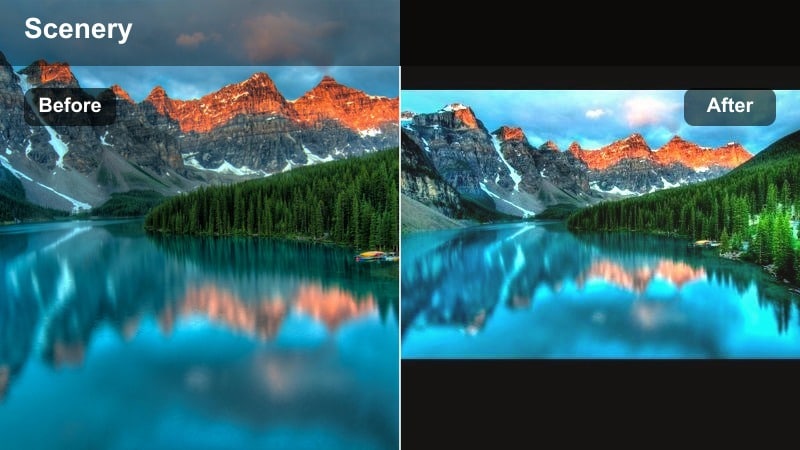
- Effect look: Muted blues, creamy highlights, and gentle pastel tones across the whole frame.
- Best for: Calm ocean content, minimalist flat lays on sand, and neutral travel blogger feeds.
- Editing tip: Reduce overall saturation, slightly lift shadows, and nudge blues toward softer pastel tones while keeping whites warm and clean.
Coastal Pastel Minimal is ideal for creators who want a light, airy feed without heavy contrast or intense color. By muting blues and softening shadows, it turns busy beach scenes into calming, scroll friendly visuals that work beautifully with neutral outfits and props.
Use Filmora to gently desaturate the entire image, then fine tune blues and aquas toward pastel tones so the water feels soft rather than electric. This look pairs especially well with slow movement, flat lays, and clips where typography or overlays play a big role.
Pro tip: Shoot in soft light to match the aesthetic
Film during overcast conditions or just before sunrise for naturally diffused light that pairs perfectly with a pastel minimal filter.
If you must shoot in harsh sun, reduce contrast and highlights more aggressively before applying the pastel look to avoid crunchy textures.
Sand & Foam Neutral
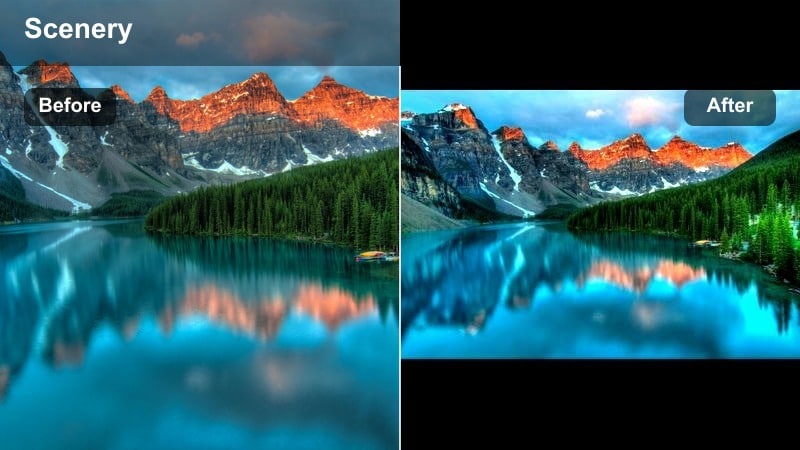
- Effect look: Balanced, neutral whites, gentle beige sand, and slightly desaturated blues for a calm look.
- Best for: Aesthetic top-down shots of waves, minimalist reels with text overlays, and curated brand feeds.
- Editing tip: Aim for accurate white balance first, then selectively desaturate blues and greens just a little to keep the scene neutral and clean.
Sand and Foam Neutral keeps your color story understated so composition and design can take center stage. With slightly desaturated blues and clean whites, it is perfect for brands and creators who want a consistent, editorial style beach grid.
In Filmora, correct white balance before doing any creative grading, then gently dial down saturation in the blue and green channels. This approach keeps water and sky present but subtle, making it easier to layer legible titles and graphics on top for reels or story slides.
Pro tip: Design around text overlays
Leave intentional negative space in the sky or sand where on-screen text will sit so the neutral aesthetic stays readable.
In Filmora, add your titles after coloring so you can preview how contrast and brightness affect text visibility.
Overcast Coastal Mist
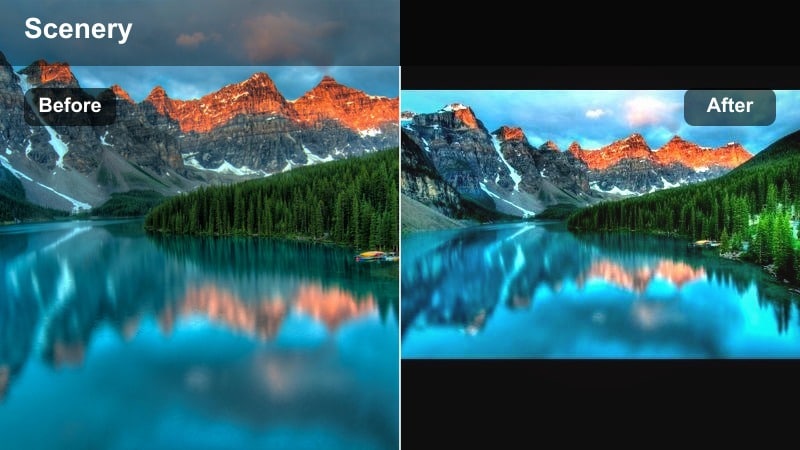
- Effect look: Cool, misty tones with softened contrast and a slightly bluish-gray cast.
- Best for: Foggy cliff views, moody stormy seas, and storytelling reels about reflective travel moments.
- Editing tip: Lower contrast and clarity, cool the white balance slightly, and add a hint of blue to shadows for a moody misty feel.
Overcast Coastal Mist embraces gray skies and soft light, turning what might feel like throwaway cloudy clips into atmospheric, story rich visuals. The low contrast and cool tone make waves, cliffs, and distant horizons feel dreamy and introspective.
Inside Filmora, reduce clarity and sharpen just enough to keep subjects defined while letting backgrounds fall into a gentle haze. This filter pairs well with slow motion and voiceover content where the mood matters more than bright, punchy color.
Pro tip: Use slow motion and gentle camera moves
Pair this filter with slow pans and subtle push-ins to enhance the moody atmosphere in your overcast beach clips.
Stabilize handheld shots in Filmora so the soft low-contrast look feels intentional and cinematic instead of shaky.
Bold Instagram Beach Filters for Reels and Viral Clips
Punchy Beach IG
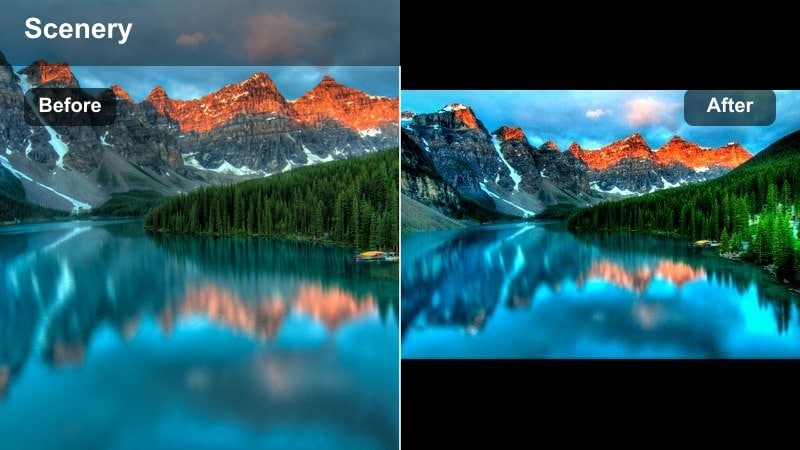
- Effect look: High contrast, deep ocean blues, and snappy highlights that pop on small screens.
- Best for: Fast-paced beach montages, transition-heavy Reels, and action clips like surfing or volleyball.
- Editing tip: Boost contrast and local clarity, then add slight sharpening and saturation focusing on blues and oranges for a bold IG-friendly look.
Punchy Beach IG is tuned for the way Reels and Stories are viewed, maximizing impact with deep blues and bright highlights that cut through busy feeds. It adds bite to action shots, making splashes, spray, and quick transitions feel energetic and dynamic.
In Filmora, combine a strong contrast curve with targeted saturation in blues and oranges so the scene stays vibrant without looking cartoonish. Apply a touch of sharpening and stabilization to keep motion clean, especially for handheld surf or sports footage.
Pro tip: Edit for vertical viewing first
Compose shots with the subject in the center third so they remain visible when cropped for vertical Reels.
In Filmora, create a vertical project, then fine-tune the Punchy Beach IG look so it stays bold but not overly harsh on mobile screens.
Tan Lines Retro
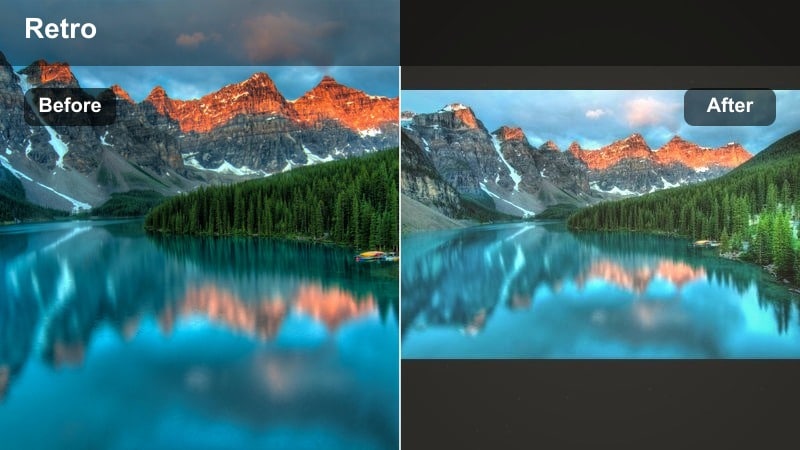
- Effect look: Warm, slightly faded colors with retro-inspired contrast and soft halation around bright spots.
- Best for: Throwback beach days, vintage vacation edits, and nostalgic storytime voiceovers.
- Editing tip: Lower overall contrast, lift blacks a touch, add warm split-toning to highlights, and reduce sharpness for a retro vibe.
Tan Lines Retro gives modern footage a nostalgic, sun washed feel that is perfect for storytime Reels and memory focused edits. Soft highlights and lifted blacks mimic older film stocks, making beach days feel like they were captured years ago.
Use Filmora to add warm split toning and a slight fade to the shadows, then back off sharpness so edges look smoother and more analog. Layer in subtle film dust or light leaks from Filmora’s effects to sell the throwback aesthetic even more.
Pro tip: Mix retro color with modern pacing
Use modern transitions and upbeat music with the retro filter to keep your Reels feeling current while still nostalgic.
Consider adding a subtle vignette and very light film dust overlay in Filmora to complete the throwback feeling.
Neon Sunset Party
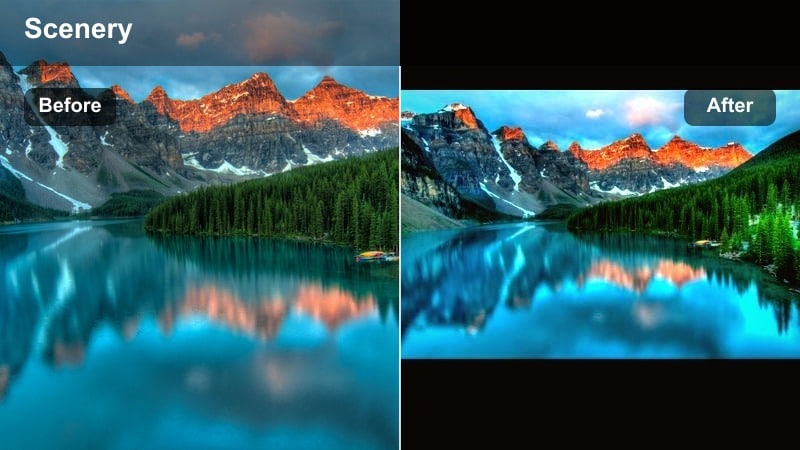
- Effect look: Hyper-saturated pinks, purples, and oranges with dramatic contrast and stylized skies.
- Best for: Beach parties, DJ sets by the water, and high-energy transitions synced to music in Reels.
- Editing tip: Crank saturation in magenta and orange, add targeted HSL to push skies toward purple, and use a slight vignette to keep the focus centered.
Neon Sunset Party pushes sunset colors into a highly stylized, festival friendly palette that is perfect for party and nightlife clips. The intense pinks and purples give even simple horizons a club flyer energy that pairs well with fast cuts and beat synced transitions.
In Filmora, intensify magenta and orange channels and use vignettes or masks to guide attention toward the crowd or DJ. Combine the color grade with speed ramps, flashes, and music synced transitions to build high energy Reels that feel like a beach rave highlight reel.
Pro tip: Sync color hits with the beat
Cut your clips on the beat and apply quick punch-ins or speed ramps when the neon colors are most intense.
Try animating Filmora’s color controls or adding flashes between clips to emphasize drops and build hype in your Reels.
Tips for Using Beach Video Instagram Filter Filters in Filmora
- Film a short reference clip in similar lighting each beach day and use it to quickly match colors across all your edits.
- Avoid pushing saturation too far on blues and aquas or compression on Instagram may introduce banding in the sky and water.
- Stabilize handheld beach shots before heavy color work so motion blur and shakes do not distract from your filter style.
- Export a high-quality version from Filmora, then let Instagram handle only one final compression step to preserve your filter details.
- Use Filmora’s scopes and preview windows to double-check that skin tones stay natural even when you stylize water and sky.
- Stack Filmora filters and color tools on adjustment layers so you can tweak or swap your beach looks without redoing every clip.
- Test your filters on both bright midday clips and softer golden-hour shots to ensure they are versatile enough for different beach conditions.
- Build a small set of three go-to filters, like warm, neutral, and bold, and rotate them in a pattern to keep your beach grid cohesive but not repetitive.
With the right beach video filters for Instagram, you can turn everyday sand and sea clips into a polished coastal aesthetic that fits perfectly into your Reels and main feed.
Experiment with warm, pastel, and bold looks in Filmora, save your favorite ocean-inspired presets, and keep your travel and beach content visually consistent from trip to trip.
secure download