

 100% Security Verified | No Subscription Required | No Malware

The Cinematic Landscape Filter: Epic Contrast & Depth preset is built for filmmakers who want their nature footage to feel powerful, moody, and theatrical. It enhances skies, deepens shadows, and sculpts your landscapes with a filmic sense of scale.
Whether you are shooting epic landscapes or towering mountains, this dramatic scenery filter helps you turn flat daylight clips into high contrast nature sequences with a polished film landscape look that cuts straight into your narrative.
In this article
Heroic Mountain Drama Filters
Deep Contrast Ridge
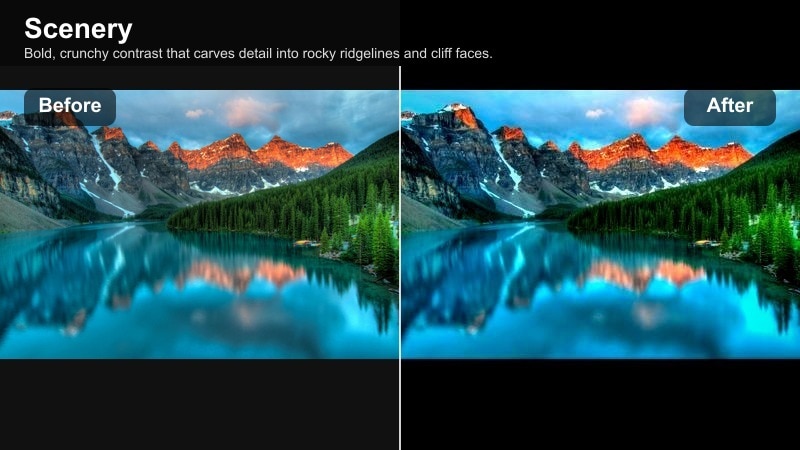
- Effect look: Bold, crunchy contrast that carves detail into rocky ridgelines and cliff faces.
- Best for: Mountain close-ups, telephoto peaks, and moody hero shots of ridges at golden hour.
- Editing tip: Dial back overall contrast by 5-10 percent if you plan to add a separate film grain layer, so shadows do not clip too early.
Deep Contrast Ridge pushes micro-contrast in mountains to create a rugged, cinematic profile with strong definition. In Filmora, this filter dials in a punchy contrast curve that chisels out rock textures, snow lines, and craggy details, giving your ridges a powerful, big-screen presence even when shot on compact cameras or drones.
Use it on telephoto shots of peaks, hero frames of climbers on a spine, or golden hour close-ups where you want every edge to stand out. Apply the filter, then fine tune with Filmora s curve and color tools to balance skies and foreground, ensuring your high contrast nature look stays dramatic without crushing valuable detail.
AI-Assisted Cinematic Color for Landscapes
Filmora s AI-driven color tools help you push cinematic contrast in your landscapes without sacrificing natural detail. The Cinematic Landscape Filter: Epic Contrast & Depth preset is designed to cooperate with these AI adjustments, giving you a fast starting point that still feels handcrafted.
You can let AI balance exposure and white balance, then apply the filter to add drama, or start with the filter and use AI to fine tune tricky shots like backlit mountains and hazy valleys. This workflow keeps your scenery cinematic, dramatic, and consistent across an entire timeline.
Explore how AI color tools and cinematic filters can work together to shape your scenery into a film-ready palette.
 secure download

See Dramatic Scenery Filters in Action
Use split-screen previews in Filmora to compare your raw mountain and landscape footage with the Cinematic Landscape Filter applied. You will quickly see how contrast and depth bring out texture in ridges, forests, and skies, making your scenery feel more story-driven.
Test a few presets from this pack on the same clip, then adjust intensity and basic exposure until the image supports the emotion of your scene rather than overpowering it. This approach keeps your grade cinematic and controlled instead of overly stylized.
Load a short epic landscape or mountain clip and audition the filters side by side to pick the most cinematic foundation.
secure downloadMatch Filters with LUTs for a Film Landscape Look
After building contrast and atmosphere with the Cinematic Landscape Filter, layer a subtle LUT on top to lock in a cohesive film landscape look across your entire project. This is ideal when you are cutting between sunlit ridges, dark valleys, and shifting weather.
Keep LUT opacity low so you retain the dynamic range and detail created by the filter while unifying color across scenes. In Filmora, small LUT adjustments go a long way toward making your high contrast nature footage feel like a single cinematic world.
Combine your favorite dramatic scenery filter with a gentle LUT to finish your grade with a polished, cinematic signature.
secure downloadMisty Cinema Peak
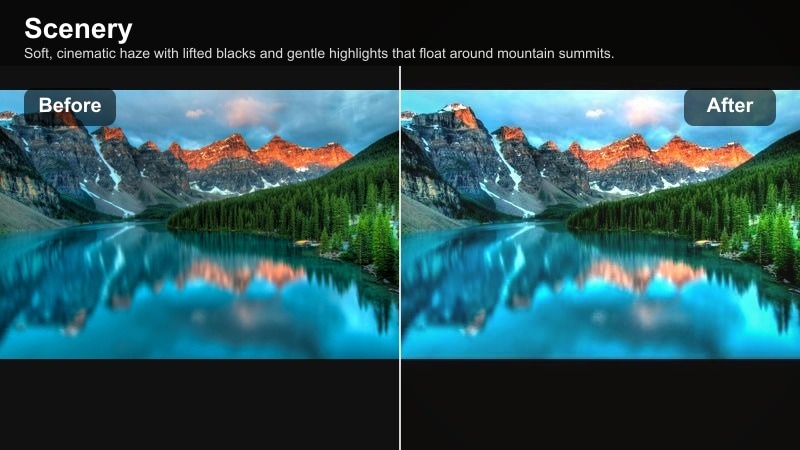
- Effect look: Soft, cinematic haze with lifted blacks and gentle highlights that float around mountain summits.
- Best for: Foggy mountain mornings, valley mist, and drone shots rolling over peaks.
- Editing tip: Increase local contrast or clarity only in the mid-ground using masks to keep the soft, dreamy mood in the distance.
Misty Cinema Peak blends atmospheric haze with a filmic contrast curve to romanticize misty mountain shots. Blacks are lifted and highlights are softened, so your summits feel dreamy and layered rather than flat and gray.
In Filmora, combine this filter with masks on the mid-ground to add a touch of clarity where your subject or ridge line sits while preserving soft, ethereal layers in the background. The result is a scenery cinematic dramatic look that feels emotional and immersive without losing depth.
Epic Ridge Trails
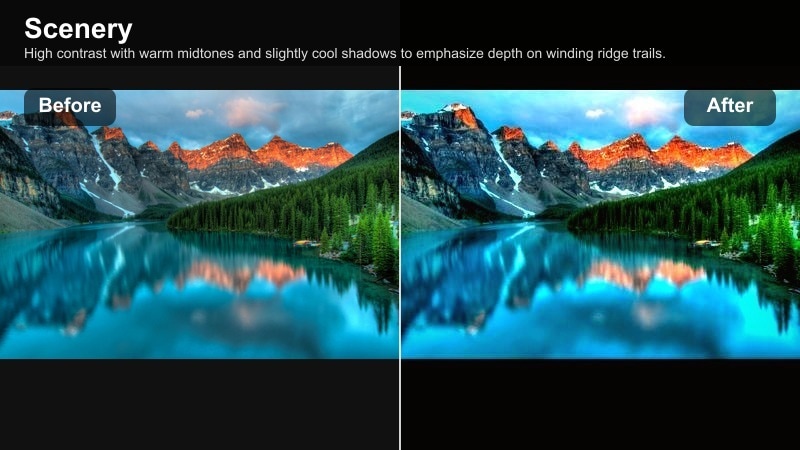
- Effect look: High contrast with warm midtones and slightly cool shadows to emphasize depth on winding ridge trails.
- Best for: Hiking POV shots, gimbal walks on ridgelines, and dynamic trail sequences.
- Editing tip: Lower saturation on greens by a small amount so the warm trail tones and subject skin stay visually dominant.
Epic Ridge Trails adds a blockbuster-style split tone that warms midtones and cools shadows, making ridge paths feel three-dimensional and adventurous. The trail becomes a visual guide through the frame, ideal for POV hikes and gimbal moves.
Inside Filmora, this filter pairs well with subtle saturation reductions on greens and selective sharpening along the trail. Together, these tweaks direct attention to the path and your subject, giving your travel or adventure sequence a focused, film-ready landscape look.
Moody Forest and Valley Looks
Shadowed Valley Cinema
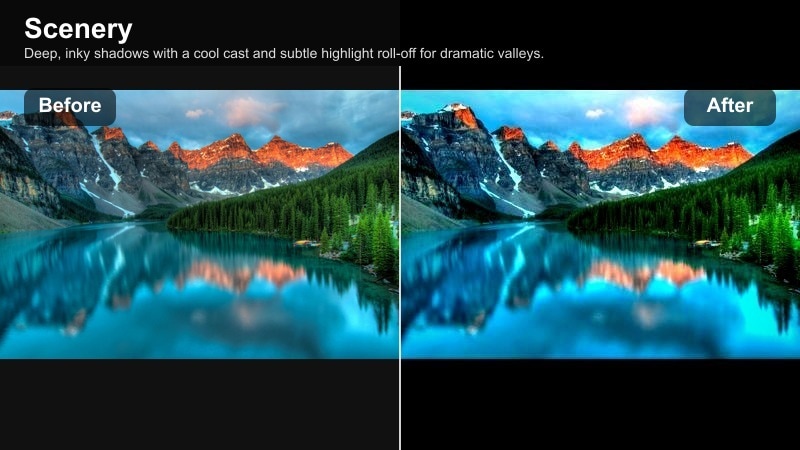
- Effect look: Deep, inky shadows with a cool cast and subtle highlight roll-off for dramatic valleys.
- Best for: Steep valleys, river canyons, and sequences that need an ominous, high stakes tone.
- Editing tip: Raise exposure a fraction before applying the filter if your valley is underexposed, then refine blacks with a soft curve.
Shadowed Valley Cinema turns flat valley scenes into tense, cinematic environments with rich shadow depth and a cool, foreboding palette. It is ideal when you want your canyon or gorge shots to carry suspense or a sense of danger.
In Filmora, lightly lift exposure before applying the filter if the footage is very dark, then shape blacks with the curves tool to avoid muddy areas. Combine with selective noise reduction in the deepest shadows to keep the image clean yet atmospheric.
Emerald Forest Film
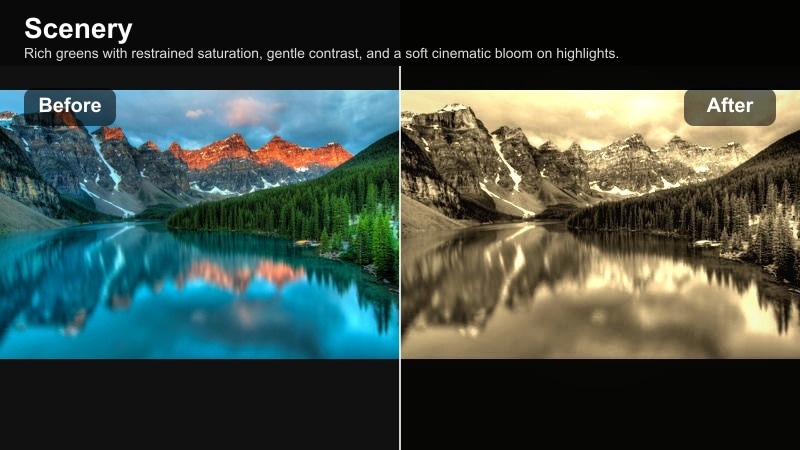
- Effect look: Rich greens with restrained saturation, gentle contrast, and a soft cinematic bloom on highlights.
- Best for: Dense forests, mossy ground shots, and slow-moving gimbal passes through trees.
- Editing tip: Add a touch of diffusion or glow in post to canopy highlights for an even more magical forest feel.
Emerald Forest Film polishes forest colors into a cinematic palette while keeping foliage organic and believable. Greens are controlled so they do not overpower the frame, and highlights gain a subtle bloom that feels like dappled light through leaves.
In Filmora, use HSL controls to nudge greens away from skin tones and dial in a slight glow effect on bright leaves or sun patches. This keeps your subject separate from the background and gives slow forest moves a dreamy, premium film look.
Foggy Valley Drift
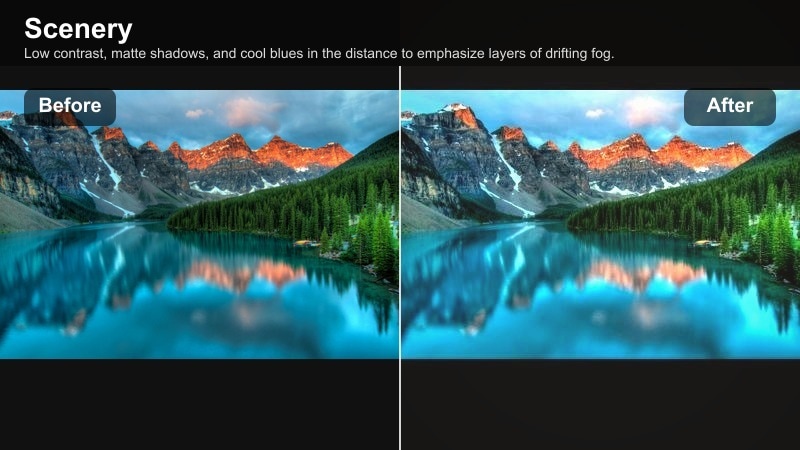
- Effect look: Low contrast, matte shadows, and cool blues in the distance to emphasize layers of drifting fog.
- Best for: Slow pans across foggy valleys, drone reveals above cloud layers, and introspective nature sequences.
- Editing tip: Reduce clarity a touch in the background while keeping foreground elements sharper to highlight atmospheric depth.
Foggy Valley Drift builds a dreamy, layered atmosphere for valleys filled with fog or low-lying clouds. By lowering contrast and adding cool tones into the distance, it makes each layer of mist feel separated and cinematic.
Apply it in Filmora to slow drone reveals, time-lapses, or reflective travel moments, then refine clarity with masks so foreground rocks or trees stay defined. This balance lets the fog become a storytelling device instead of a flat white blanket.
Sunlit Ridges and Dramatic Skies
Golden Ridge Cinema
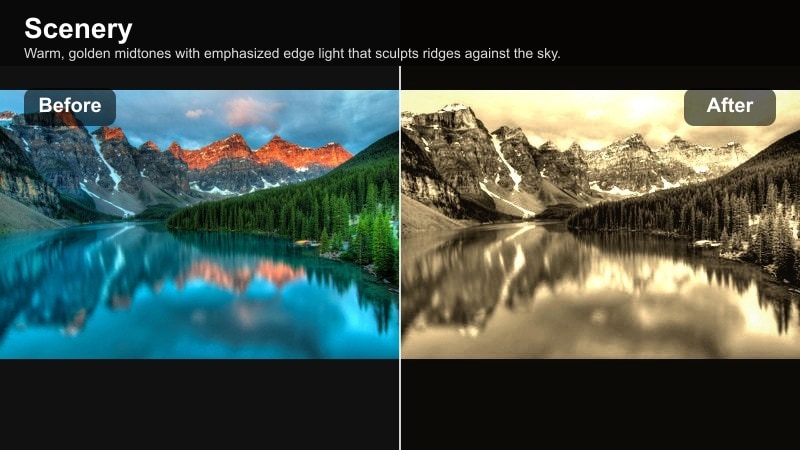
- Effect look: Warm, golden midtones with emphasized edge light that sculpts ridges against the sky.
- Best for: Backlit ridges at sunrise and sunset, silhouettes, and sweeping lateral drone moves.
- Editing tip: Protect highlight detail by slightly lowering whites before adding any global exposure bumps.
Golden Ridge Cinema transforms backlit ridgelines into glowing silhouettes with a strong golden hour mood. Edge light is emphasized to sculpt mountains and subjects against the sky, perfect for sunrise or sunset establishing shots.
In Filmora, reduce whites slightly before boosting exposure or saturation so the sunlit edges do not clip. Combine with gentle lens flare overlays or natural light artifacts to enhance the cinematic glow without losing control over your highlights.
Stormfront Drama
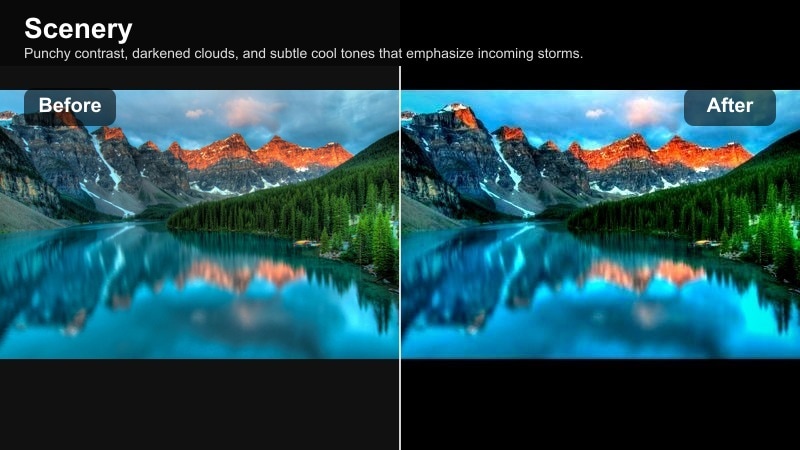
- Effect look: Punchy contrast, darkened clouds, and subtle cool tones that emphasize incoming storms.
- Best for: Time-lapses of storm clouds, mountain weather changes, and tense transitional scenes.
- Editing tip: Use keyframes to gradually increase contrast and saturation as the storm builds for a dynamic visual arc.
Stormfront Drama amplifies storm clouds and shifting light to create a tense, dramatic sky over your landscapes. It darkens cloud bases and cools the palette, making weather changes feel like major story beats.
When editing in Filmora, keyframe the filter intensity, contrast, and saturation so the grade grows more intense as the storm rolls in. This turns simple cloud movement into a visual crescendo that supports your narrative pacing.
Sunburst Horizon Film
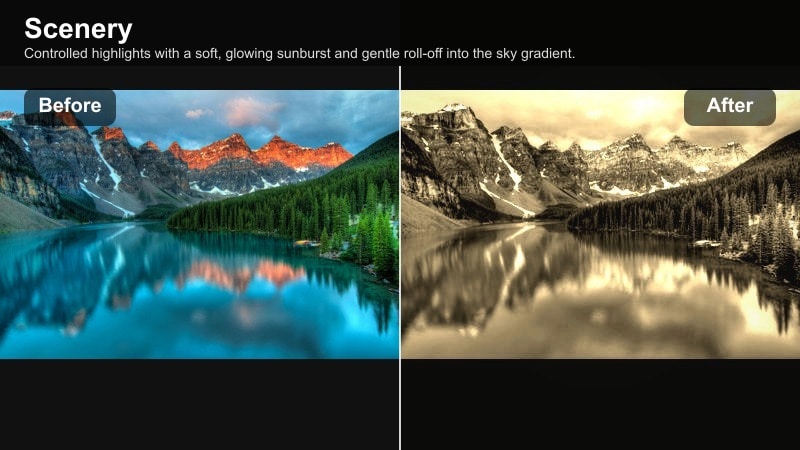
- Effect look: Controlled highlights with a soft, glowing sunburst and gentle roll-off into the sky gradient.
- Best for: Wide establishing shots, horizon reveals, and drone push-ins toward the sun.
- Editing tip: Add a radial mask over the sun and slightly increase exposure and warmth only within that area for extra focus.
Sunburst Horizon Film manages bright suns and horizons, keeping a cinematic glow without harsh clipping or ugly banding. It smooths highlight roll-off so the transition from sun to sky is soft and filmic.
In Filmora, enhance the effect with a radial mask around the sun, nudging warmth and exposure up only in that area. This ensures viewers eyes land on your focal point while the rest of the landscape retains balanced, detailed tones.
Epic Travel and Adventure Sequences
Roaming Landscape Journey
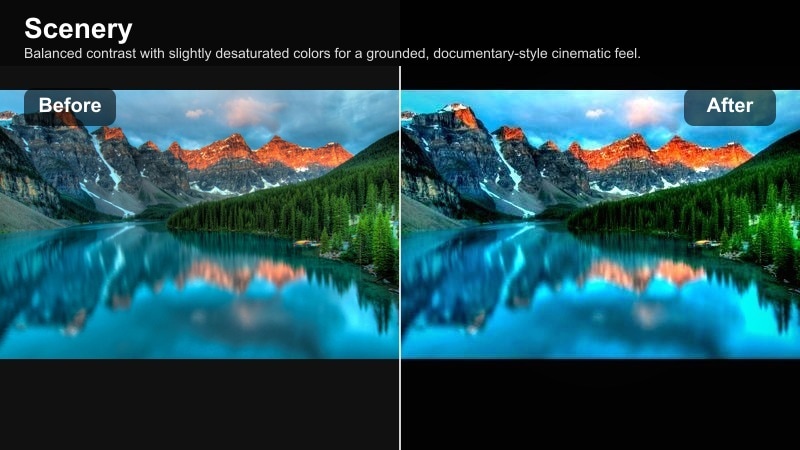
- Effect look: Balanced contrast with slightly desaturated colors for a grounded, documentary-style cinematic feel.
- Best for: Travel montages, road trip sequences, and fast cuts between multiple landscapes.
- Editing tip: Apply the filter as a base grade across the whole sequence, then fine-tune individual clips for consistency.
Roaming Landscape Journey unifies varied travel footage with balanced contrast and restrained color, giving your montage a cohesive, slightly gritty film tone. It keeps landscapes cinematic without pushing them into an overly stylized look.
Use it as a base grade in Filmora across an entire sequence, then tweak exposure and white balance clip by clip. This workflow ensures quick consistency while still letting you refine important hero shots or key transitions.
Summit Hero Shot
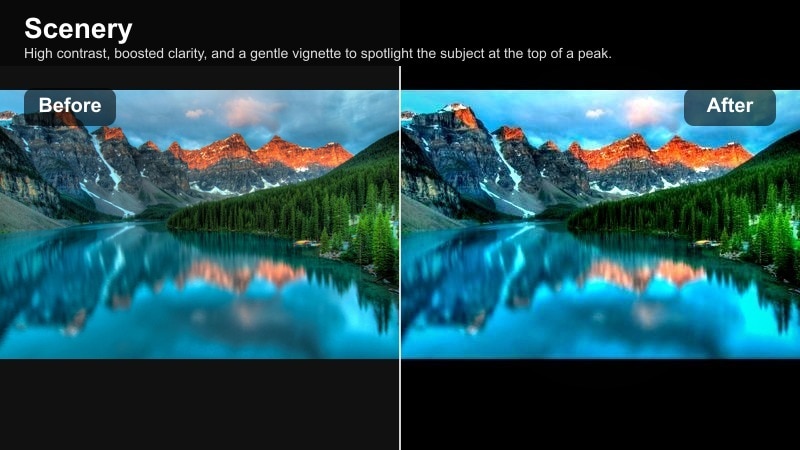
- Effect look: High contrast, boosted clarity, and a gentle vignette to spotlight the subject at the top of a peak.
- Best for: Character-on-summit moments, victory poses, and emotional cutaways at the end of a climb.
- Editing tip: Slow down the footage slightly and layer subtle sound design to let the visual impact fully land.
Summit Hero Shot turns peak moments into iconic frames, pushing contrast and clarity around your subject while adding a soft vignette for focus. It is perfect for the emotional high point of a travel vlog or adventure film.
In Filmora, combine this filter with a slight slow motion effect and carefully chosen ambient or musical cues. The combination of strong visual punch and considered pacing gives your summit scenes the weight they deserve.
Trail to Sunset Cut
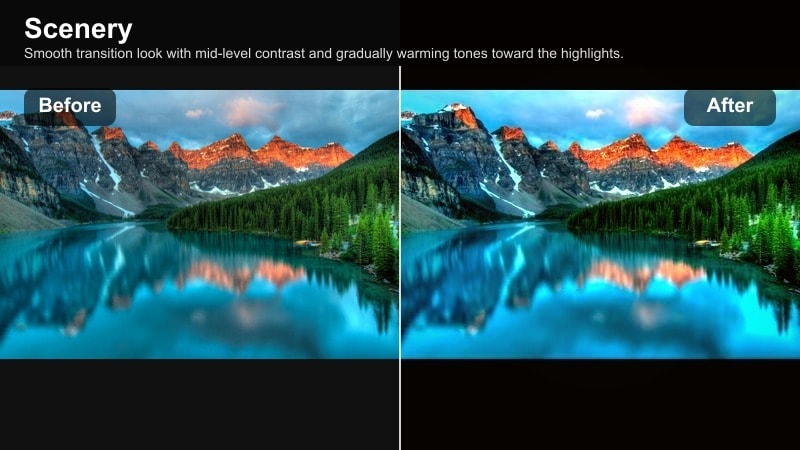
- Effect look: Smooth transition look with mid-level contrast and gradually warming tones toward the highlights.
- Best for: Sequences that move from day into golden hour or sunset across multiple landscape clips.
- Editing tip: Stack keyframed white balance adjustments under the filter so color temperature shifts feel organic across the timeline.
Trail to Sunset Cut is designed for sequences that pass from daytime into golden hour, gently warming highlights while keeping contrast controlled. It bridges shots from different times of day into a single, flowing visual story.
Apply it across your timeline in Filmora, then keyframe white balance to gradually warm the image as the sequence progresses. This creates a smooth sense of time passing, ideal for travel edits, hike recaps, and narrative transitions into evening scenes.
Tips for Using Scenery Cinematic Dramatic Filters in Filmora
- Expose slightly flatter in camera and let the cinematic landscape filter create the final contrast, protecting highlight and shadow detail.
- Match color temperature across shots before applying dramatic scenery filters so your mountains and skies feel consistent.
- Use masks and keyframes to limit heavy contrast filters to landforms while keeping skies and clouds more natural.
- Keep an eye on noise in dark valleys when pushing high contrast nature looks and apply targeted noise reduction only where needed.
- Combine subtle camera movement with strong contrast filters to enhance depth and scale in epic landscape shots.
The Cinematic Landscape Filter: Epic Contrast & Depth preset gives filmmakers a fast, reliable way to turn ordinary scenery into dramatic, film-ready visuals. By sculpting contrast, managing highlights, and controlling color, it helps your mountains, valleys, and skies carry more emotion on screen.
Experiment with multiple variations from this filter family, then refine each shot with masks, keyframes, and Filmora s AI tools until your entire sequence feels unified, powerful, and ready to cut into your next cinematic travel or adventure film. Note: This preset can be especially effective when paired with a scenery sunset filter to transition your story into warm, emotional closing scenes.
secure downloadNext: Scenery Sunset Filter: Cinematic Glow for Golden Hour Landscapes
