

 100% Security Verified | No Subscription Required | No Malware


 ChatGPT
 Perplexity
 Gemini
 Claude
 Grok
Grok
Cinematic storytelling starts with visuals that instantly tell your audience how to feel, and the right cinematic storytelling video filter can transform everyday footage into a film-like narrative sequence.
Below you will find 12 scene-based cinematic filters designed for content creators, each with a specific look, use case, and editing tip so you can quickly match your grade to the story you want to tell.
In this article
Warm Golden-Hour Storytelling Moments
Sunlit Nostalgia
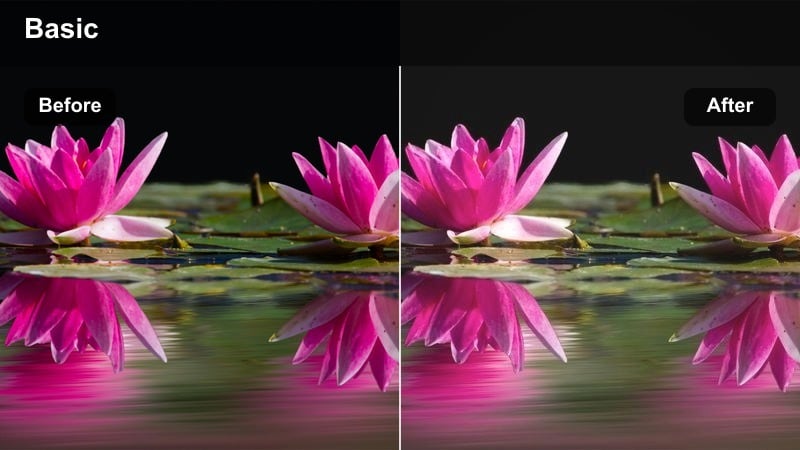
- Effect look: Soft warm highlights with gentle halation and a slight fade in the shadows for a nostalgic daytime feel.
- Best for: Vlogs, memory montages, and family or travel stories shot during golden hour.
- Editing tip: Lower contrast slightly and add a subtle vignette around faces to draw attention to your subject's emotions.
Sunlit Nostalgia wraps your footage in a soft, golden wash that instantly suggests memory, comfort, and warmth. In Filmora, this cinematic storytelling video filter is ideal when your scene already has natural golden-hour light, because the added halation and faded shadows amplify what is in the frame without looking artificial.
Apply this filter on an adjustment layer above your clips, then slightly reduce overall contrast and add a gentle vignette to center attention on faces and key details. For even more cinematic storytelling, combine it with slow push-in keyframes or mild speed ramps in Filmora so your visuals feel like drifting into a cherished memory.
Match Filters to Your Story with AI-Powered Color Tools
Filmora's AI color tools help you quickly match your cinematic storytelling video filter to the mood of your scene without needing advanced grading skills. You can analyze each clip, detect existing lighting conditions, and then nudge exposure, contrast, and color balance toward the emotion you want viewers to feel.
Once the base is balanced with AI, your chosen cinematic filter will sit more naturally on top, keeping skin tones believable while still delivering a strong narrative look. This is especially useful when you shoot with different cameras or in mixed lighting and want a consistent story mood.
 secure download

Preview Cinematic Filters on Your Timeline in Real Time
With Filmora's real-time preview, you can quickly cycle through different cinematic filters directly on your timeline and instantly see how each one reshapes the emotional tone of your story. Instead of guessing from thumbnails, you judge the grade in motion as characters move, light shifts, and scenes cut together.
Scrub across key beats in your narrative while swapping filters on an adjustment layer, and watch how the pacing and mood change. This lets you select the look that best supports your storytelling without committing to heavy manual color correction.
secure download1000+ Video Filters and 3D LUTs for Layered Cinematic Looks
Filmora includes a large library of video filters and 3D LUTs you can stack to craft layered, film-like grades. Start with a cinematic LUT that sets the overall color character, then add scene-specific filters to fine-tune mood for interiors, exteriors, and different character beats.
This combination lets you create a cohesive visual language across your entire project while still giving each sequence its own emotional flavor. You can quickly toggle LUTs and filters on and off to compare options and lock in a signature style for your channel or series.
secure downloadAmber Journal
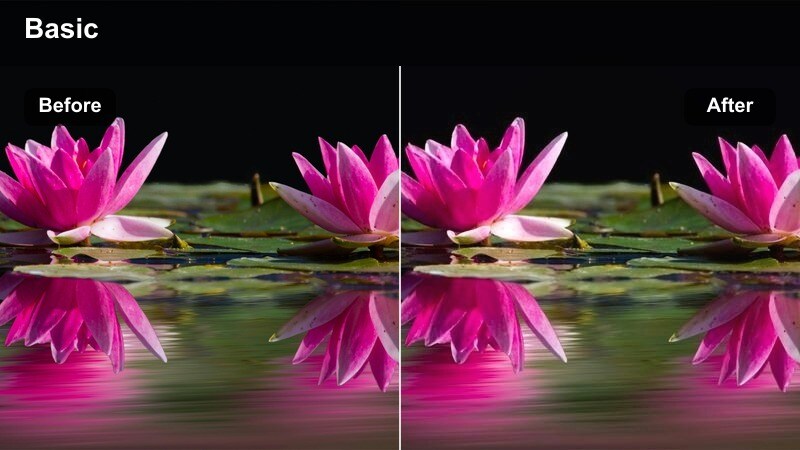
- Effect look: Rich amber midtones with slightly desaturated primaries and a soft filmic curve.
- Best for: Diary-style sit-down videos, narrative voiceovers, and city-walk storytelling sequences.
- Editing tip: Combine with gentle background blur and minimal on-screen text so the viewer focuses on your voice and expressions.
Amber Journal gives your footage the cozy, confessional feel of reading a well-loved notebook. In Filmora, this cinematic storytelling video filter shifts midtones into warm amber while gently pulling back primary colors, which keeps the image rich but not overwhelming.
Use this preset on talking-head timelines where your voiceover carries the story, then add a touch of background blur with Filmora's effects to separate you from the environment. Keep titles simple and sparse, letting the warm grade and your expressions do the narrative heavy lifting for vlog diaries and reflective monologues.
Hazy Backlit Tales
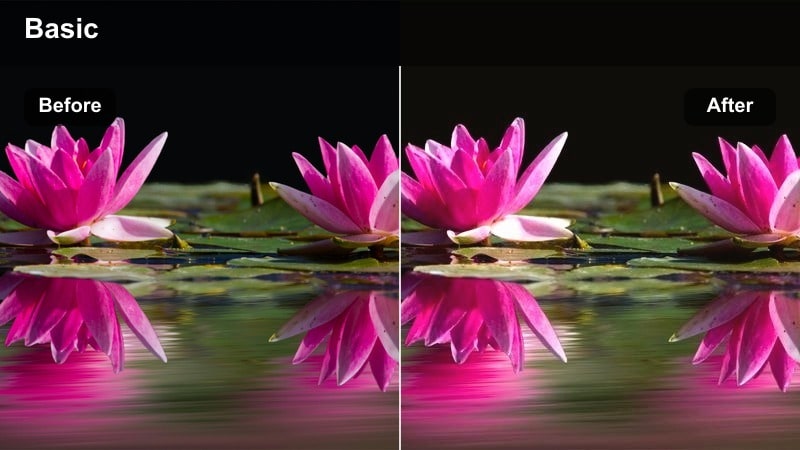
- Effect look: Bright, low-contrast highlights with a subtle glow and muted cool shadows for dreamy backlit shots.
- Best for: Backlit rooftop scenes, reflective walks, and dreamy character introductions.
- Editing tip: Slightly slow down your footage and add gentle lens flare overlays to enhance the ethereal mood.
Hazy Backlit Tales softens harsh backlight into a dreamlike glow, perfect for character introductions or reflective sequences against the sky. In Filmora, apply this filter to clips where your subject is framed against bright windows or sunsets so silhouettes and outlines feel intentional and cinematic.
Enhance the look by using Filmora's speed controls to slow the footage just enough to let the glow linger, then add subtle flare overlays from the effects library. Keep camera movement stable or gently handheld, and your backlit scenes will feel like fleeting memories drifting across the screen.
Urban Character-Driven Scenes
City Protagonist
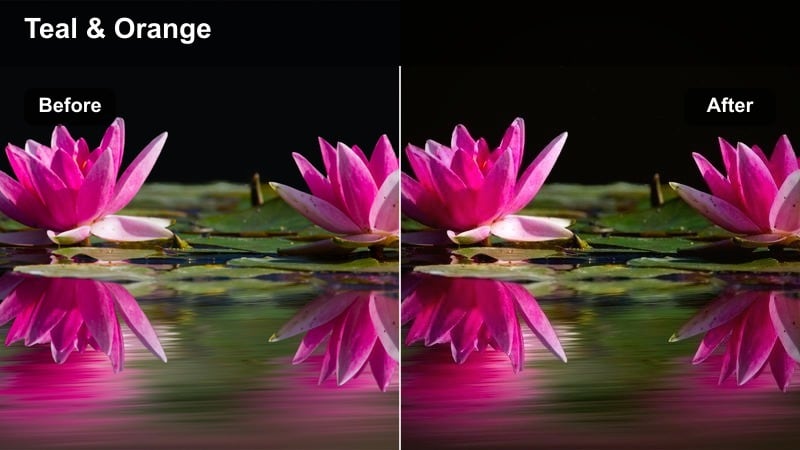
- Effect look: Neutral cinematic contrast with soft teal shadows and warm skin tones for a modern film look.
- Best for: Character portraits, city interviews, and narrative talking-head stories.
- Editing tip: Increase local contrast around faces with subtle sharpening while keeping backgrounds slightly softened.
City Protagonist gives your subject the crisp, balanced look of a lead character in a modern drama. In Filmora, the soft teal cast in the shadows contrasts with warm skin tones, creating a polished cinematic palette that works well for interviews and character-driven vlogs.
Place this filter on an adjustment layer over your dialogue sequence, then use Filmora's sharpen and portrait tools to emphasize facial detail while lightly blurring the background. Cut between close-ups and medium shots with the same grade to maintain continuity and keep the viewer anchored to your subject's emotional journey.
Subway Monologue
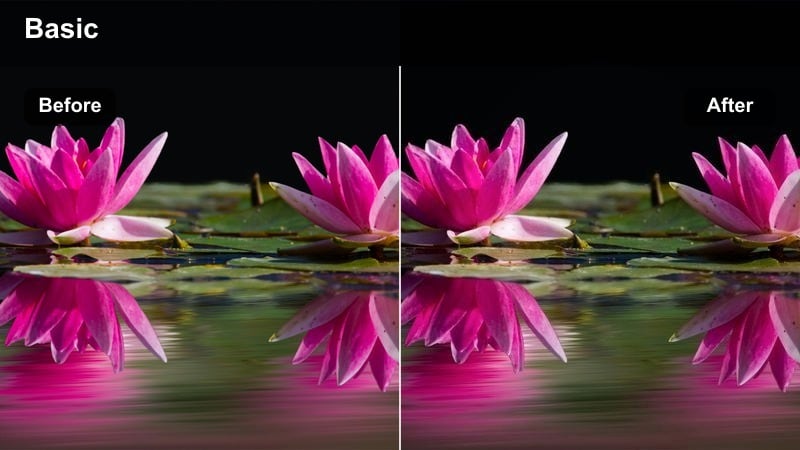
- Effect look: Cool, slightly desaturated tones with lifted blacks and subtle grain for introspective city transit scenes.
- Best for: Metro rides, late-night commute vlogs, and reflective inner monologue sequences.
- Editing tip: Layer ambient subway sounds underneath a soft voiceover to reinforce the internal, cinematic mood.
Subway Monologue is built for quiet, inward-looking moments surrounded by city motion. The cool toning, slight desaturation, and lifted blacks in Filmora make trains, platforms, and buses feel like liminal spaces where characters think instead of speak.
After applying the filter, add a touch of Filmora's grain or noise effects to reinforce the documentary vibe, then drop in ambient audio loops beneath your voiceover. Use J-cuts and L-cuts so the sounds of doors, tracks, and station announcements bleed across edits, keeping the mood continuous as you move between shots.
Neon Crossroads
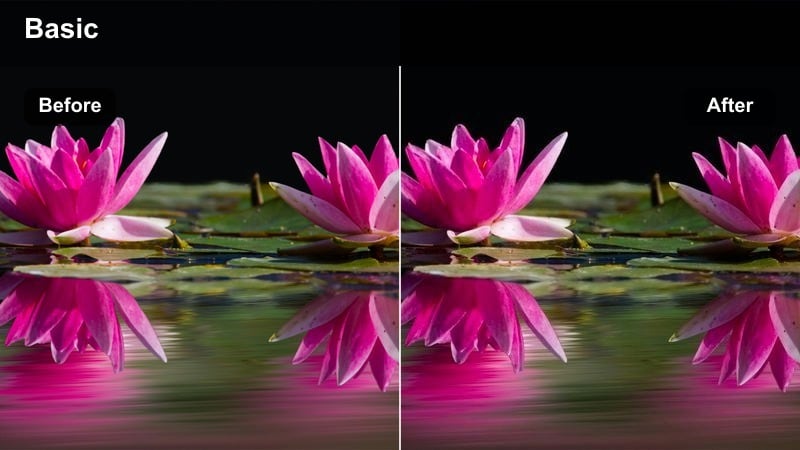
- Effect look: Punchy contrast with emphasized neon blues, magentas, and oranges against deep shadows.
- Best for: Night street scenes, cyberpunk-style city B-roll, and pivotal decision moments at intersections.
- Editing tip: Shoot at slightly higher shutter speed to keep neon edges crisp, then let the filter push colors for drama.
Neon Crossroads turns ordinary night streets into stylized, high-energy set pieces with bold accent colors. In Filmora, this cinematic storytelling video filter deepens shadows and amplifies neon hues, making signs, reflections, and traffic lights feel like narrative symbols.
Use it on clips captured at higher shutter speeds so light edges stay sharp, then fine-tune exposure and highlights in Filmora to avoid clipping the brightest signs. Repeat similar color groupings across several scenes to build visual motifs, and reserve the most intense neon shots for turning points where your character faces big decisions.
Quiet Interior Drama and Conversations
Windowlight Confessions
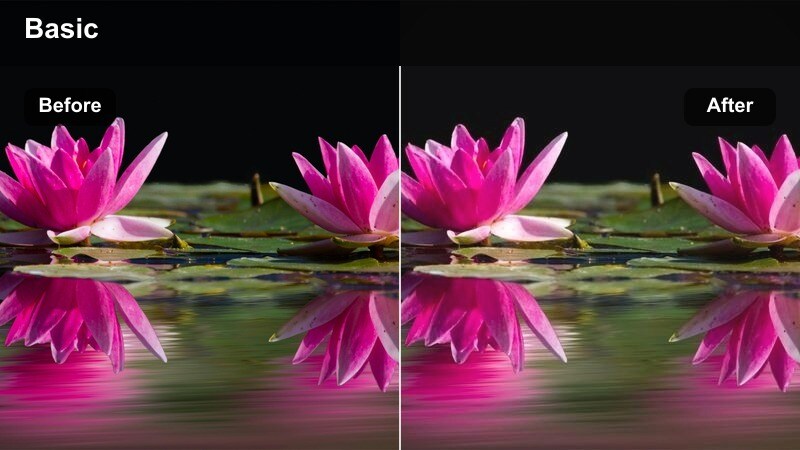
- Effect look: Soft contrast with warm key light and cool, gently faded shadows for intimate interior scenes.
- Best for: Honest sit-down talks, emotional confessionals, and personal storytelling indoors.
- Editing tip: Cut out dead space in your dialogue but hold slightly longer on reaction shots to let the emotion land.
Windowlight Confessions is crafted for quiet, revealing conversations lit by natural light. When you apply this filter in Filmora, it gently warms the key side of the face while letting background shadows cool and soften, giving a subtle cinematic separation between subject and space.
Record your confessionals near windows or doorways, then drop the filter on an adjustment layer over the entire sequence. Trim silence and stumbles in Filmora's timeline, but hold slightly longer on close-ups and reaction shots so the soft contrast and color separation have time to register emotionally with your audience.
Kitchen Table Dialogue
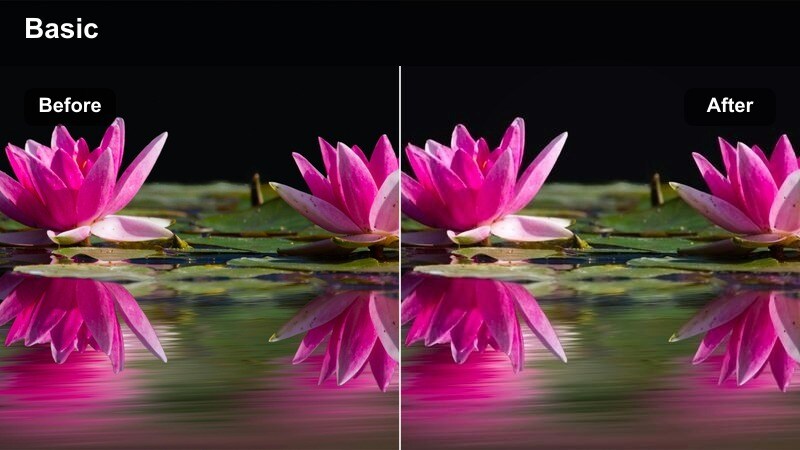
- Effect look: Balanced, natural tones with slightly lifted blacks and gentle warmth for everyday interiors.
- Best for: Conversations around a table, casual podcast-style videos, and relationship scenes.
- Editing tip: Alternate angles between speakers on each line, keeping the color consistent so the scene feels like one continuous moment.
Kitchen Table Dialogue gives everyday interiors a grounded, cinematic polish without drawing attention away from the conversation. In Filmora, the lifted blacks and light warmth smooth minor lighting imperfections, which is perfect for quick setups in real home kitchens or dining rooms.
Apply the filter to all angles in your dialogue scene using a single adjustment layer, then cut between over-the-shoulder and wide shots while maintaining the same grade. Make sure your white balance is consistent before adding the filter so the color remains steady across edits and viewers feel like they are watching one uninterrupted moment.
Studio Rehearsal
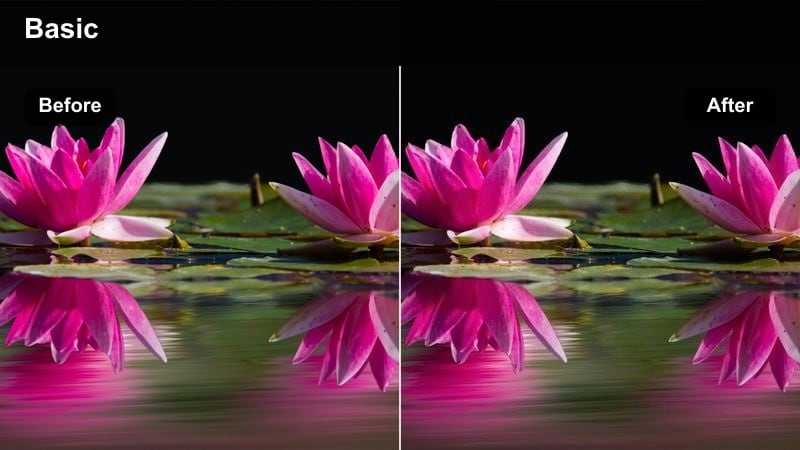
- Effect look: Slightly cool, low-saturation grade with controlled contrast for behind-the-scenes rehearsal vibes.
- Best for: BTS content, creative work sessions, and documentary-style planning scenes.
- Editing tip: Mix handheld shots with locked-off tripod angles to suggest both spontaneity and structure.
Studio Rehearsal is tailored to behind-the-scenes footage, planning sessions, and creative meetups. In Filmora, this filter cools the palette slightly and holds saturation back, giving your footage a focused, documentary feel that still looks clean on social platforms.
Use it when you want to show the process behind your projects, layering the filter over handheld shots, whiteboard close-ups, and gear setups. Alternate between steady tripod angles and more spontaneous handheld clips in the timeline, keeping the same grade so viewers feel they are watching one cohesive creative session unfold.
Travel Transitions and Journey Sequences
Departure Gate
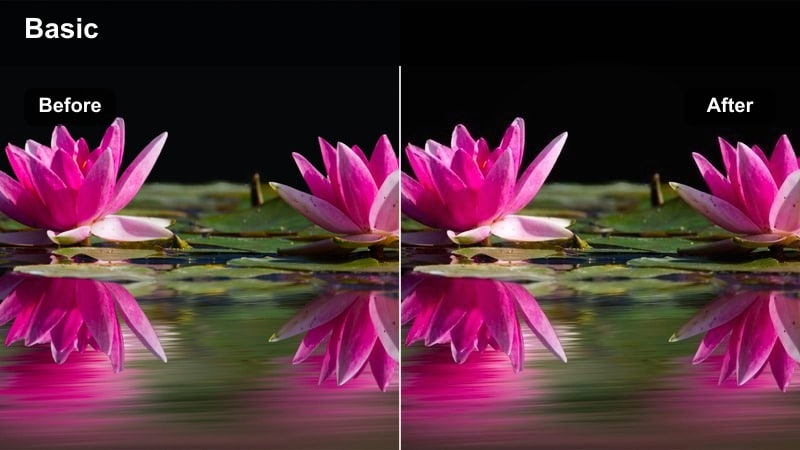
- Effect look: Clean, slightly cool highlights with crisp detail and subtle vignette to frame travel scenes.
- Best for: Airport sequences, train station departures, and starting-point travel montages.
- Editing tip: Cut on movement like walking past camera or doors opening to hide transitions between locations.
Departure Gate is designed to mark the beginning of a journey with clear, focused visuals. In Filmora, the slightly cool highlights and gentle vignette keep viewers attention centered on your traveler while terminals, platforms, and gates stay present but not distracting.
Use this cinematic storytelling video filter on the first shots of each trip, then cut on strong movements such as doors opening or walking past camera to transition between locations. By keeping this filter consistent across all departure moments, you create a recognizable visual cue that a new chapter in the story is starting.
City Arrival
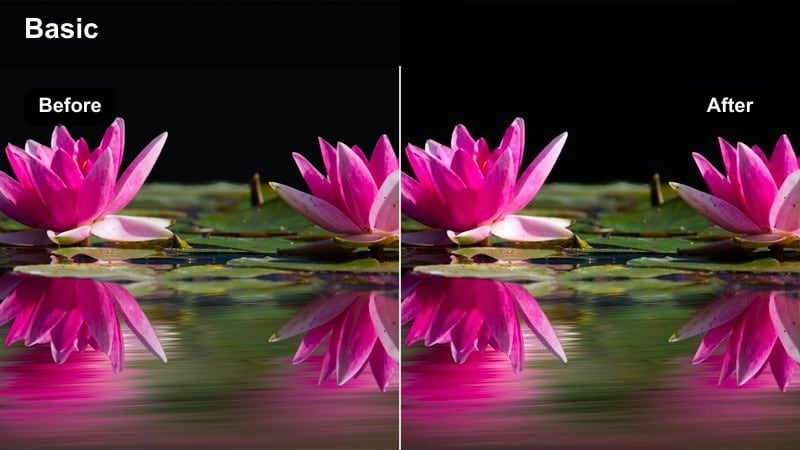
- Effect look: Vibrant but controlled saturation with warm highlights and neutral shadows for first impressions of a new place.
- Best for: First steps out of a station, taxi window views, and establishing shots of a new city.
- Editing tip: Use a wide establishing shot, then cut quickly to medium details that match the same graded color palette.
City Arrival captures the excitement and sensory rush of stepping into a new environment. In Filmora, this filter lifts saturation just enough to make skylines, street art, and architecture pop, while neutral shadows keep the overall image grounded and cinematic.
Place it on your establishing shots, taxi POVs, and first walk-through clips, then cut from wide city views into closer details like signs and storefronts. Keeping the same grade across these edits makes the location feel like a new character joining your story, with a distinct look that viewers recognize instantly.
Late Night Return
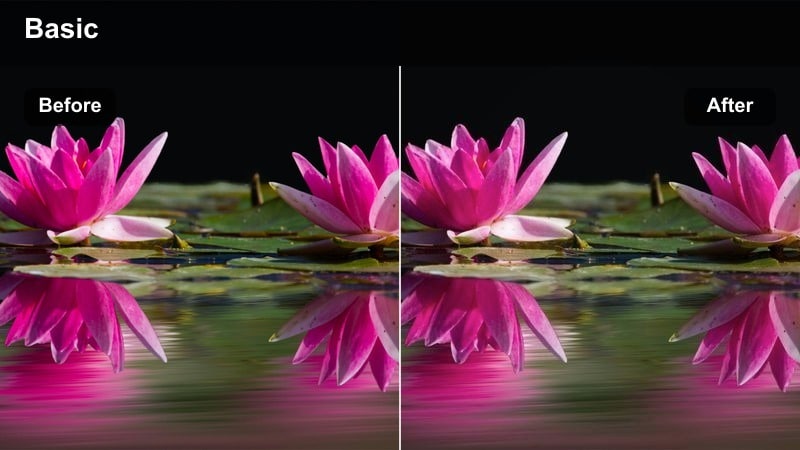
- Effect look: Muted colors with lifted blacks, soft bloom on practical lights, and a gentle cool shift for end-of-day scenes.
- Best for: Returning home at night, last shots of the day, and reflective walk-backs through city streets.
- Editing tip: Hold shots a beat longer than usual and lower the music slightly to signal the story winding down.
Late Night Return is all about quiet endings and reflective outros after a long day of travel or activity. In Filmora, the cooled tones, lifted blacks, and blooming streetlights turn otherwise simple walk-home shots into calm, introspective closing visuals.
Apply this filter to your final sequence and slightly extend clip durations on the timeline so moments breathe and feel unhurried. Lower your soundtrack volume or switch to softer ambient music, letting footsteps, distant traffic, and environmental sounds carry the emotion as the story gently fades out.
Tips for Using Cinematic Storytelling Video Filter Filters in Filmora
- Plan your cinematic filter choices during pre-production or storyboarding so each scene supports a clear emotional goal.
- Keep white balance and exposure consistent across shots in the same scene before adding filters to avoid jarring shifts in tone.
- Apply cinematic storytelling video filters on adjustment layers in Filmora so you can tweak an entire sequence at once instead of clip by clip.
- Use subtler grades for everyday moments and reserve stronger contrast or color shifts for key turning points in your narrative arc.
- Combine Filmora filters with LUTs sparingly, testing different stacks in real-time preview to make sure the image does not become over-processed.
- Check your graded video on phones, tablets, and larger monitors to confirm that shadows, highlights, and colors hold up everywhere.
- Save your favorite filter and LUT combinations as presets in Filmora to maintain a consistent visual identity across episodes or series.
Cinematic storytelling video filters are more than just aesthetic effects; they are tools that help you guide your audience's emotions from one scene to the next.
Experiment with these presets in Filmora, then refine your favorites into a repeatable visual style that viewers instantly recognize as your cinematic voice.
secure downloadNext: Dark Moody Cinematic Lut
