

 100% Security Verified | No Subscription Required | No Malware


 ChatGPT
 Perplexity
 Gemini
 Claude
 Grok
Grok
The Fashion Runway Style Video Filter preset collection is designed for content creators who want their fashion videos to look like they just walked off a luxury catwalk broadcast.
Use these curated Filmora filters to dial in glossy lighting, sharp silhouettes, and editorial contrast so every step, pose, and fabric movement feels like a front-row runway experience.
In this article
Backstage Glamour and Pre-Show Runway Moments
Soft Backstage Glow
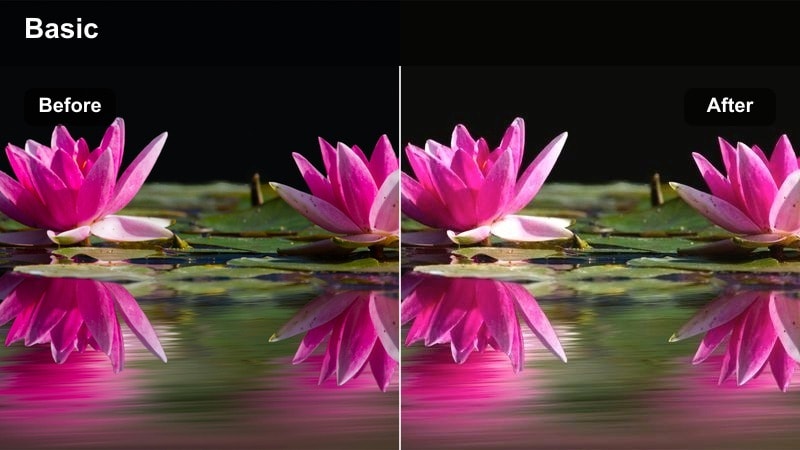
- Effect look: Warm, diffused glow that softens skin and adds subtle highlight to faces and fabrics.
- Best for: Behind-the-scenes dressing room clips, makeup touch-ups, hair styling, and candid model interactions before the show.
- Editing tip: Lower the filter intensity slightly and add a light vignette to keep focus on faces while preserving backstage detail.
Soft Backstage Glow adds a flattering haze that wraps around faces and fabrics, mimicking the warmth of vanity bulbs and soft boxes. In Filmora, you can use this preset on close-ups of makeup artists, stylists, and models to smooth minor imperfections while keeping expression and gesture clear.
Apply this filter to your backstage layer, then fine-tune exposure and white balance so skin tones stay natural rather than overly yellow. Combine it with gentle camera movement or slow motion to turn quick prep moments into cinematic interludes that transition smoothly into your main runway footage.
Match Every Runway Look with AI-Powered Color Control
Filmora's AI color tools help you keep outfits, skin tones, and runway lighting consistent across your entire Fashion Runway Style Video Filter preset workflow. Even when clips come from different cameras or creators, AI color matching can rapidly align the look.
Use AI color match on a hero outfit or key runway look, then apply that reference to backstage, catwalk, and street style shots so the whole edit feels like a single, cohesive fashion film.
 secure download

See Fashion Runway Filters in a Real Edit
Build a tight 30-second sequence that moves from backstage prep to runway walks and ends on street style exits, using these Fashion Runway Style Video Filters as your base. This lets you see how each preset behaves when lighting, camera angles, and pacing shift.
Stack subtle adjustments like vignette, sharpening, and speed ramps on top of the filters in Filmora, so you can test how far you can push style while keeping your footage polished and watchable on any platform.
secure downloadCombine Runway Filters with Cinematic LUTs
Layering Fashion Runway Style Video Filters with Filmora's cinematic LUTs can elevate your footage from basic event coverage to a campaign-ready look. Start with a filter to define mood and texture, then add a subtle LUT to unify color and contrast.
Keep LUT intensity low so it supports, rather than replaces, the character of your chosen runway filter, giving your entire collection video a consistent, branded finish.
secure downloadMirror Lights Halo
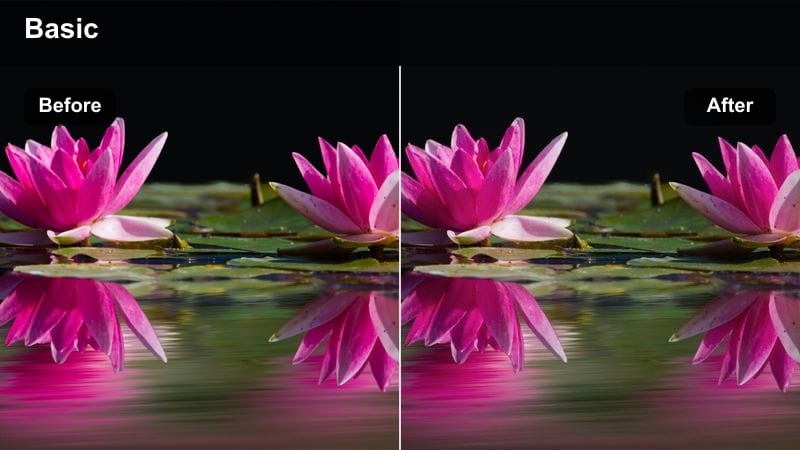
- Effect look: Bright, crisp highlights around light bulbs and mirrors with a subtle halo bloom effect.
- Best for: Close-up shots of models at mirror stations, jewelry adjustments, and last-minute wardrobe checks near bright bulbs.
- Editing tip: Add a gentle sharpen and a touch of clarity after applying this filter to keep eyes and accessories tack sharp against the halo glow.
Mirror Lights Halo intensifies the glow around vanity bulbs and reflective surfaces, giving your backstage footage a glossy, editorial feel. It adds a polished halo bloom that makes jewelry, hair accessories, and reflective fabrics stand out without obscuring facial detail.
In Filmora, combine this filter with slight sharpening on the subject so eyes, lashes, and metallic accents remain crisp against the softened halo. Adjust exposure carefully to prevent bulb highlights from clipping, and frame mirror lights near the edges of the shot to create a natural, luxurious border around your talent.
Editorial Prep Matte
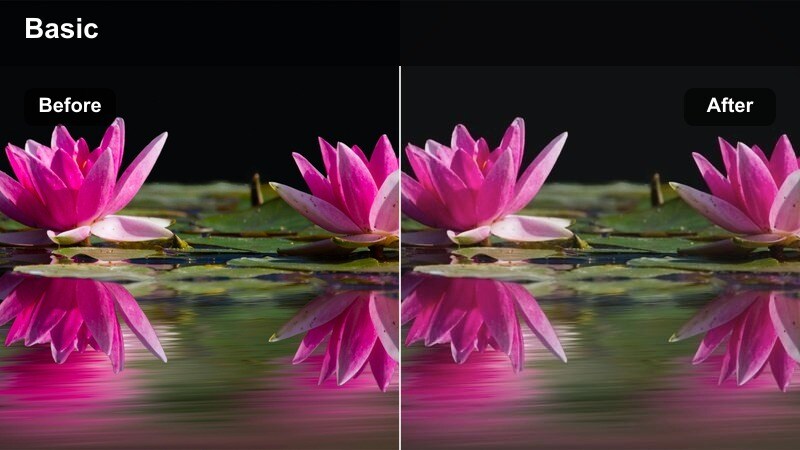
- Effect look: Slightly desaturated, matte finish with controlled contrast and clean skin tones.
- Best for: Backstage interviews, designer close-ups, and quiet preparation moments you want to feel premium and editorial.
- Editing tip: Combine with a subtle tilt-shift blur at the frame edges to draw attention to faces and logos while preserving runway branding.
Editorial Prep Matte pulls back harsh backstage contrast and shine, replacing it with a smooth, magazine-like matte finish. Colors become a touch more muted while skin tones stay clean and natural, ideal for interview bites or designer soundbites that you want to feel timeless and sophisticated.
Use this preset on spoken segments in Filmora, then add light edge blur or tilt-shift to keep eyes, logos, and key wardrobe elements as the focal points. Avoid heavy sharpening; instead, use local clarity on faces via masking to maintain detail where it matters while preserving the overall matte aesthetic.
Runway Walk and Spotlight Catwalk Shots
Platinum Runway Contrast
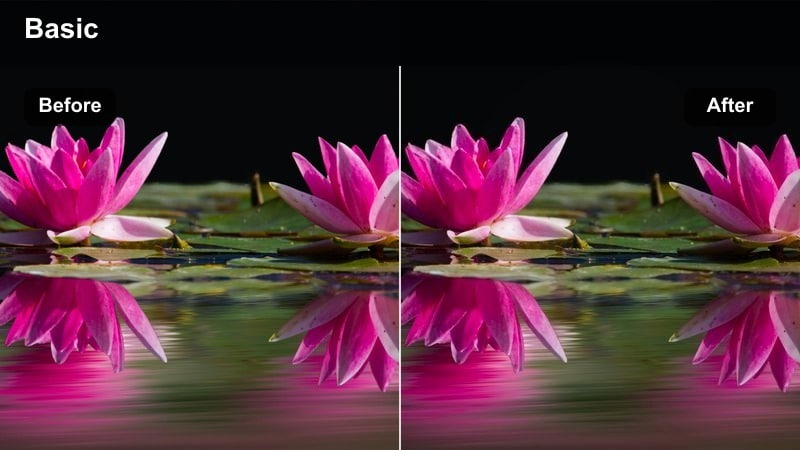
- Effect look: High-contrast, cool-toned finish with crisp whites and deep blacks for dramatic catwalk lighting.
- Best for: Main runway walks, front-row angle shots, and wide catwalk reveals where lighting is directional and bold.
- Editing tip: Dial down saturation slightly to keep clothing colors true while using the contrast boost to emphasize silhouettes and strong poses.
Platinum Runway Contrast gives your main catwalk footage a sleek, high-fashion edge by cooling overall tones and pushing contrast. Spotlights appear sharper, blacks deepen, and silhouettes become more defined, which is perfect for emphasizing structure and tailoring in each look.
In Filmora, apply this filter to your A-cam runway angle and then fine-tune saturation so fabrics retain their original color without looking oversaturated under the intensified lights. If the venue lighting is already extreme, ease back the filter strength and complement it with a gentle S-curve on the color panel to avoid crushing shadows while still achieving a dramatic, editorial style.
Front Row Spotlight
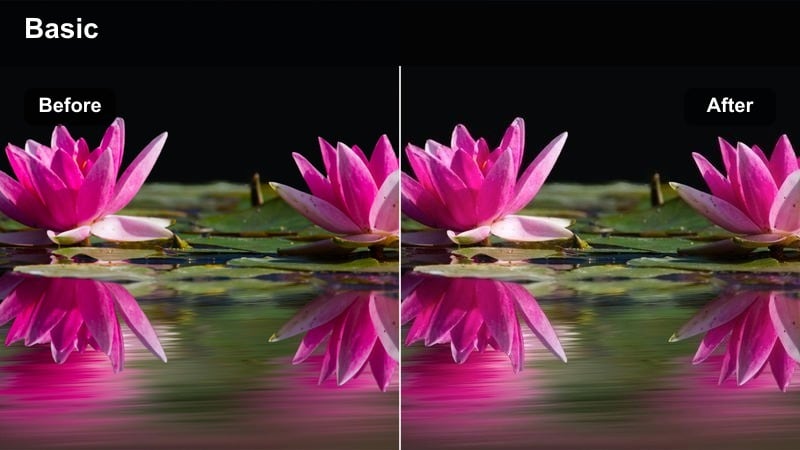
- Effect look: Bright center spotlight with subtle vignette and enhanced midtones for skin and fabric texture.
- Best for: Front-row runway captures, tracking shots along the catwalk, and hero looks you want to feature in thumbnails.
- Editing tip: Add a slow-motion ramp on the strongest pose and slightly increase this filter's intensity during that moment for a hero highlight.
Front Row Spotlight mimics the experience of sitting close to the catwalk, brightening the center of the frame while gently darkening the edges. It boosts midtone detail so skin, fabric textures, and garment shapes read clearly even when the background falls slightly into shadow.
Use this preset in Filmora on your best poses and end-of-runway pauses, then combine it with speed ramps and freeze frames to create thumbnail-ready hero shots. For standout moments, keyframe the filter intensity to peak at the exact pose you want viewers to remember, adding extra impact without overexposing surrounding frames.
Catwalk Neon Edge
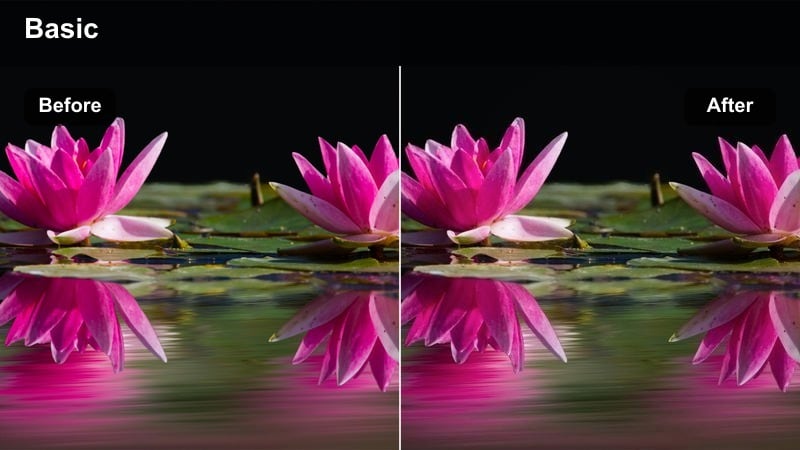
- Effect look: Punchy contrast with vivid neon highlights and cool shadows for high-energy night runway shows.
- Best for: Evening runway events, LED-lined stages, and streetwear runway collections with bold colors and fast pacing.
- Editing tip: Sync filter intensity with music beats by keyframing strength during bass drops to make neon elements pulse with the soundtrack.
Catwalk Neon Edge is built for nightlife-style shows and streetwear presentations, amplifying neon signage, LED strips, and stage lighting. The filter adds crisp contrast and cool-tinted shadows, which accentuate graphic prints, metallic accents, and quick movements across the runway.
In Filmora, pair this filter with energetic music and quick cuts, using keyframes on filter strength and exposure to create light pulses that match the beat. If faces start looking too blue, use selective color tuning or facial masking to warm skin tones slightly while preserving that electric, neon-rich background ambience.
Detail Shots, Fabric Movement, and Accessories
Silk Motion Soft Focus
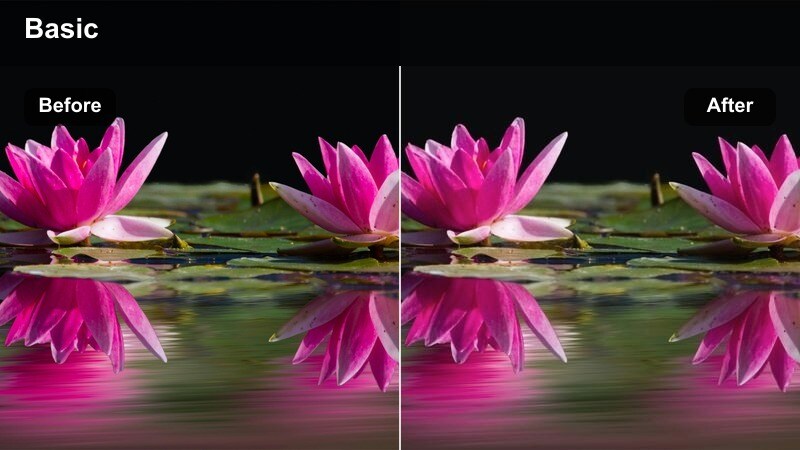
- Effect look: Gentle softness with slight bloom on highlights and enhanced motion in flowing fabrics.
- Best for: Slow-motion shots of dresses, gowns, and long coats swaying or swirling on the runway.
- Editing tip: Apply this filter only to B-roll layers of fabric shots and keep your main runway cameras crisper for contrast between texture and motion.
Silk Motion Soft Focus turns fabric movement into a dreamy visual centerpiece by softening hard edges and adding a subtle highlight bloom. Trains, capes, and wide-leg pants appear more fluid, making them perfect for slow-motion cutaways between full runway passes.
In Filmora, keep your primary runway camera angles sharp, then layer in separate B-roll tracks treated with Silk Motion Soft Focus for contrast. You can duplicate a clip, offset it slightly on the timeline, and reduce opacity to create a ghosted motion echo that this filter will accentuate beautifully, giving your sequence a luxurious, almost ethereal rhythm.
Runway Detail Crisp
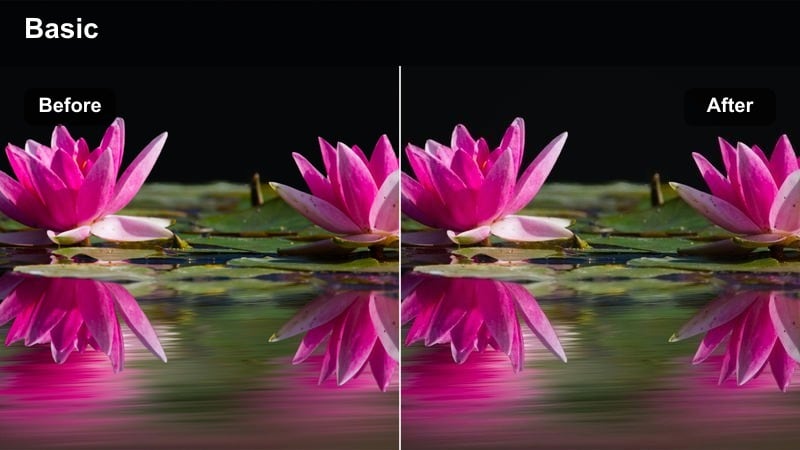
- Effect look: Clean, high-definition style with boosted micro-contrast to reveal stitching, textures, and embellishments.
- Best for: Macro shots of shoes, bags, jewelry, and close-ups of fabric details you want buyers and followers to see clearly.
- Editing tip: Shoot these shots a bit underexposed and let the filter lift midtones; this protects metallic details from blowing out on the runway.
Runway Detail Crisp is designed for the close-ups that sell craftsmanship: stitching, beadwork, embroidery, and hardware. The filter boosts fine contrast and perceived sharpness without making the image look overly processed, ideal for social clips that highlight premium details.
Apply this preset in Filmora to macro and cut-in shots, then lift midtones slightly while keeping highlights controlled so metallic elements do not blow out. For maximum impact, cut from a full-body runway frame into a brief Runway Detail Crisp close-up so viewers can connect the overall silhouette with the intricate work that went into the design.
Metallic Accent Glow
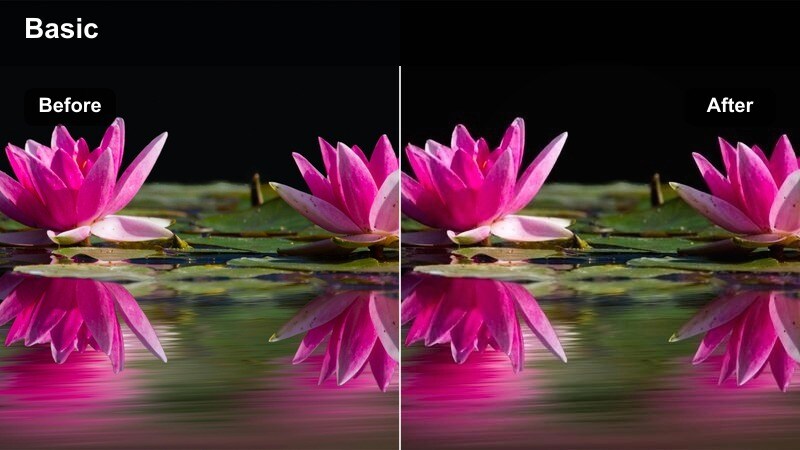
- Effect look: Selective glow and brightness on metallic elements with slightly cooled shadows for a luxe sheen.
- Best for: Jewelry, hardware on bags, sequined garments, and any look featuring reflective runway accessories.
- Editing tip: Mask the filter around key accessories if necessary so faces stay natural while hardware and sequins gain extra sparkle.
Metallic Accent Glow adds a controlled sparkle to reflective surfaces, making sequins, gemstones, and polished hardware pop under runway lights. Shadows lean a touch cooler, which helps the highlights feel more expensive and dimensional rather than harsh.
In Filmora, you can apply this filter globally to an accessory shot, then refine it with masks so only jewelry, belts, and bag clasps get the extra glow. If the effect feels too strong, reduce highlight intensity or overall exposure instead of lowering filter strength, preserving the runway atmosphere while taming hotspots.
After-Show Street Style and Fashion Recaps
Street Style Editorial Matte
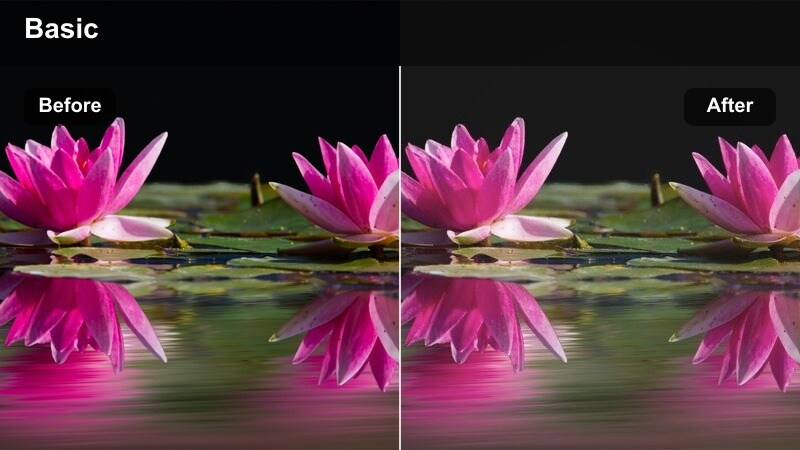
- Effect look: Soft contrast, muted highlights, and a matte finish that feels like a high-end fashion editorial spread.
- Best for: Street style captures outside the venue, candid model exits, and influencer outfit breakdowns post-show.
- Editing tip: Add letterbox bars and a slow pan across still frames to strengthen the editorial mood for social media reels and shorts.
Street Style Editorial Matte transforms busy sidewalks and venue exteriors into cinematic backdrops. By softening contrast and pulling highlights into a matte zone, it gives your outside-the-show content the feeling of a printed editorial or high-end campaign still.
In Filmora, add this filter to all your street style clips from a given event to unify the look, even if they were shot under changing daylight conditions. Combine the preset with letterbox bars, slow digital pans, and minimal motion graphics to create scroll-stopping Reels, Shorts, or TikToks that feel cohesive and premium.
Runway Recap Gloss
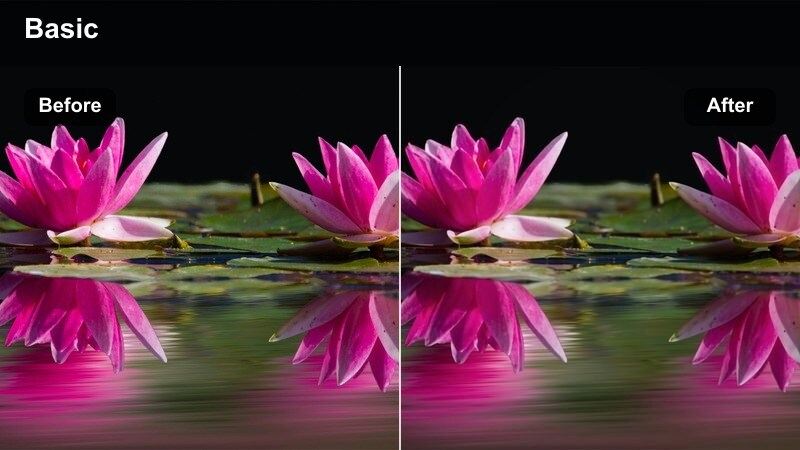
- Effect look: Polished, glossy finish with balanced saturation and clean highlights ideal for recap montages.
- Best for: Show highlight reels, TikTok or Reels recaps, and YouTube intros summarizing the runway experience.
- Editing tip: Use this filter as a final layer on your recap timeline to harmonize footage from different cameras and lighting setups.
Runway Recap Gloss is a versatile finishing filter that smooths out differences between backstage, runway, and street clips. It adds a subtle gloss, evens out saturation, and keeps highlights clean, which is perfect for quick highlight reels and end-of-day summary edits.
In Filmora, place this preset on an adjustment layer above your entire recap sequence so every clip beneath it shares the same polished finish. Once applied, you can make small global tweaks to contrast and saturation, helping you create a recognizable signature look for your channel or brand without regrading every clip from scratch.
Vogue Vlog Fade
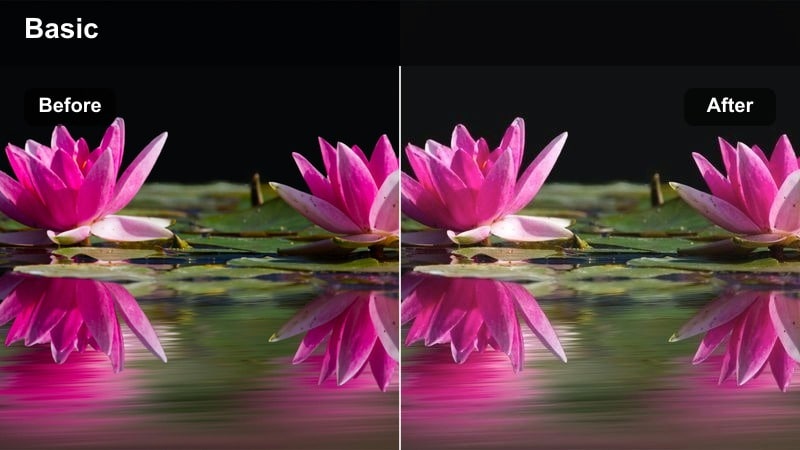
- Effect look: Soft faded blacks, gentle color shift toward cinematic neutrals, and a relaxed vlog-friendly runway tone.
- Best for: Talking-to-camera segments, seat reactions, and narrative vlogs that cut between runway and lifestyle moments.
- Editing tip: Place this filter only on vlog sections and keep raw runway clips sharper to clearly separate commentary from show footage.
Vogue Vlog Fade gives your personal commentary and reaction shots a softer, more intimate mood. Blacks lift slightly, colors lean toward balanced cinematic neutrals, and the overall feel becomes more relaxed, which works well for handheld, in-the-moment vlog segments.
In Filmora, apply this preset exclusively to A-roll of you talking to camera or filming from your seat, and leave the runway visuals with bolder filters like Platinum Runway Contrast. This clear visual separation helps viewers instantly recognize when they are seeing behind-the-scenes narrative versus the main catwalk spectacle, making the story easier to follow and more engaging.
Tips for Using Fashion Runway Style Video Filter Filters in Filmora
- Shoot a short gray card clip under the runway lights and use it as a reference layer when grading with Fashion Runway Style Video Filters for accurate color balance.
- Keep shutter speed slightly higher on the runway to preserve crisp strides, then rely on softer filters and slow motion for B-roll contrast in your edit.
- Frame vertical-safe compositions for social media and apply the same filters across vertical and horizontal versions to maintain a unified brand look.
- Create a reusable preset stack in Filmora that combines your favorite runway filter, a vignette, and your logo animation to speed up delivery after events.
- Always preview filters on both skin tones and key fabrics before committing, ensuring you do not distort the designer's intended colors or textures.
- Use masking to apply more intense filters only to the runway area while keeping audience and front-row reaction shots closer to natural color.
- Export a short 5 to 10 second test clip with music and filters applied to check whether compression is crushing blacks or causing banding on gradients.
- Organize your timeline by scene type backstage, runway, and street so you can quickly test which Fashion Runway Style Video Filter best fits each segment.
With the right Fashion Runway Style Video Filter, your footage can move from simple show documentation to a polished, editorial-grade fashion film that stands out in any feed.
Experiment with these Filmora presets across backstage, runway, and street style scenes until you find a signature combination that matches your brand and keeps viewers watching to the final look.
secure download