

 100% Security Verified | No Subscription Required | No Malware


 ChatGPT
 Perplexity
 Gemini
 Claude
 Grok
Grok
Fashion video filters can instantly turn a basic outfit clip into a polished, editorial-style moment that looks ready for social feeds or digital campaigns.
Below are curated fashion-focused filters designed for hauls, outfit videos, and lookbook shoots so fashion creators, content creators, and stylists can match the right aesthetic to every styling scenario.
In this article
Studio Hauls with Soft Glow and Clean Light
Minimal Haul Glow
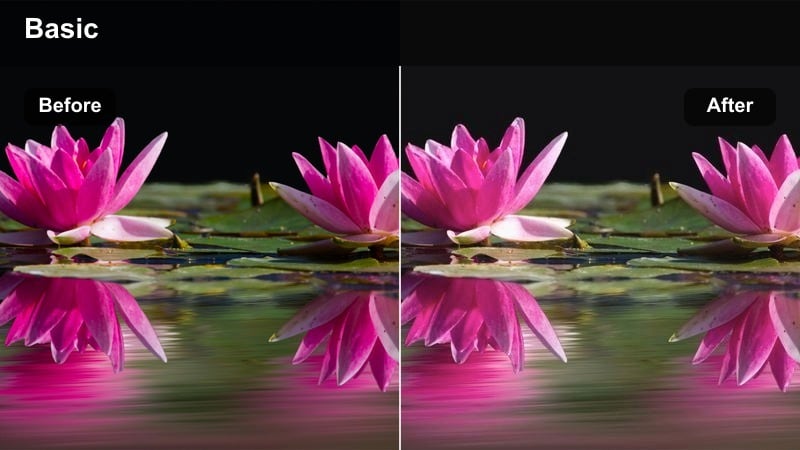
- Effect look: Soft, low-contrast glow that flatters skin tones and brightens whites.
- Best for: Try-on hauls filmed against white or beige backdrops with neutral outfits.
- Editing tip: Reduce contrast slightly and nudge exposure up so clothing textures stay visible without harsh shadows.
Minimal Haul Glow is ideal for creators who want a clean, elevated studio feel without spending hours on manual corrections. In Filmora, this look softens transitions between lights and shadows so neutral outfits appear smoother, while the background takes on a subtle glow that suggests a high-end shoot. Skin tones remain flattering and forgiving, which is especially helpful for long haul sessions where lighting can shift slightly between takes.
To use this style in Filmora, start by applying a soft glow or low-contrast filter from the preset library, then follow up with modest exposure and contrast tweaks in the Color panel. Keep saturation and vibrance controlled so beige, ivory, and taupe garments look expensive rather than washed out. For consistent results across a full haul, batch-apply the effect to all clips, then fine-tune individual shots only where textures or whites need a slight adjustment.
Match Filters to Your Outfit Palette with AI
Filmora's AI-driven color tools can automatically scan your haul or try-on clips to detect the dominant hues in your outfits. Once the palette is identified, it becomes much easier to choose fashion video filters like Minimal Haul Glow that complement your wardrobe instead of fighting it.
After analyzing your footage, test a few presets and grades while watching how they interact with your core colors, from warm beiges and off-whites to muted pastels. When you land on a combination that flatters both fabric and skin, save it as a custom preset so future hauls immediately match your established fashion aesthetic.
 secure download

Preview Fashion Filters on Hauls and Lookbooks
Filmora makes it easy to compare different fashion filters on the same clip before you commit. As you hover over presets, you can instantly see how each one treats skin, fabric weave, and studio or bedroom backgrounds without applying them permanently.
Use this preview workflow to set up a soft studio look for hauls, then contrast it with bolder editorial or cinematic grades for separate lookbooks or campaign-style videos. Once you find a filter that consistently flatters your outfits, save it as part of a reusable style stack for future projects.
secure downloadBuild a Consistent Fashion Brand Look with LUTs and Filters
Inside Filmora, you can pair built-in fashion filters with LUTs to craft a recognizable visual language for your channel or brand. The LUT sets the overall tone curve and color bias, while the filter adds final polish, glow, or punch to fabrics and skin.
Once you have tuned a LUT and filter combination that works across studio hauls, street-style clips, and night outfits, save it as a custom preset. This lets you apply the same on-brand grading to every new project in a single click, keeping your feed cohesive and professional.
secure downloadWhite Wardrobe Clean
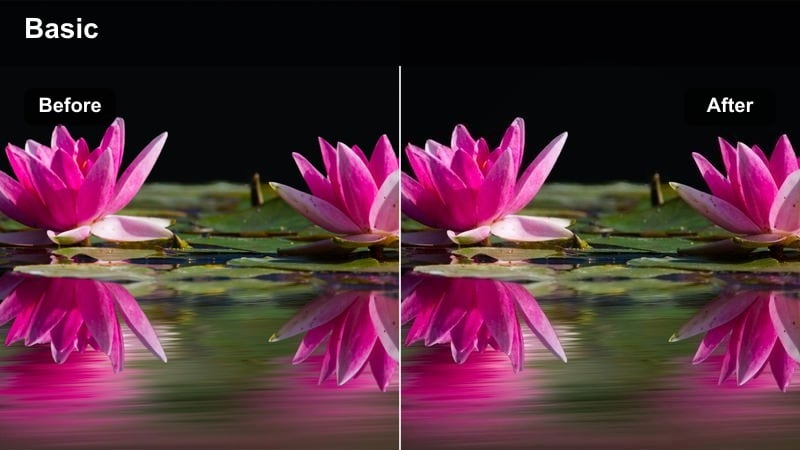
- Effect look: Bright, crisp whites with cool highlights and subtle skin smoothing.
- Best for: Closet tours, capsule wardrobe hauls, and wardrobe organization videos.
- Editing tip: Lower saturation of yellow tones to eliminate wardrobe rail discoloration and keep whites clean.
White Wardrobe Clean focuses on making every white and beige piece in your frame look as pristine as a campaign shot. Applied in Filmora, this kind of filter brightens highlight areas and cools them slightly, which helps remove the dingy or yellow tint that can show up on closet doors, shelving, and hangers. At the same time, a touch of skin smoothing keeps the on-camera stylist looking fresh next to the bright wardrobe.
In practice, apply your chosen clean-white preset, then open the HSL or advanced color controls in Filmora to selectively desaturate yellows and warm oranges. This keeps rails, storage boxes, and wall paint from distracting audiences with off-colors. If skin starts to skew too cool, warm the midtones only, preserving crisp, cool whites in the background while your face and hands remain natural and inviting.
Mirror Try-On Soft
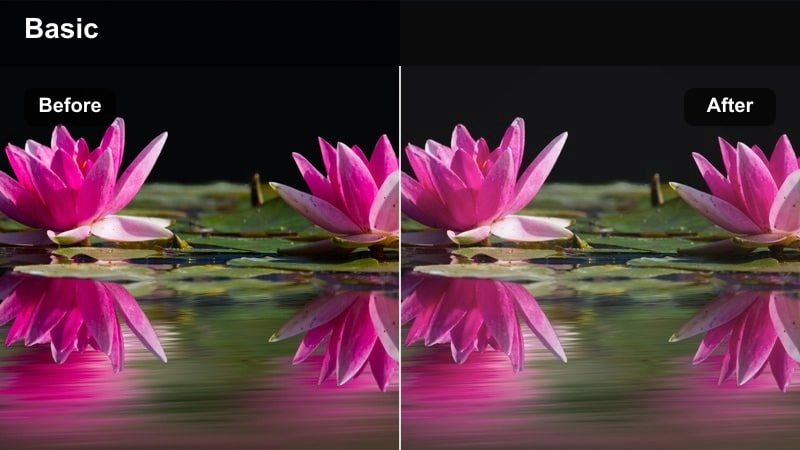
- Effect look: Soft, diffused contrast with gentle highlight roll-off and flattering midtones.
- Best for: Mirror outfit checks, quick try-on clips, and vertical selfie-style videos.
- Editing tip: Add a hint of clarity to restore fabric detail around seams and accessories while keeping faces smooth.
Mirror Try-On Soft is tailored for the quick, vertical clips creators shoot in bedrooms and dressing areas. In Filmora, this type of filter lowers overall contrast and tames bright hotspots from windows or ceiling lights, making your reflection more visible and forgiving. The result is a smoother, softer image that minimizes harsh lines while still letting viewers see how the outfit falls and moves.
To get the most out of this look, pair the soft filter with a small clarity or sharpness boost on midtones in Filmora so stitching, jewelry, and bag hardware retain definition. If you are dealing with mixed lighting from daylight and warm lamps, reduce global saturation slightly and then selectively reintroduce color into the outfit hues. This keeps the frame cohesive, lifts darker corners of the room, and makes your mirror try-ons feel polished enough for reels or shorts.
Street Style Looks in Natural Daylight
City Neutral Chic
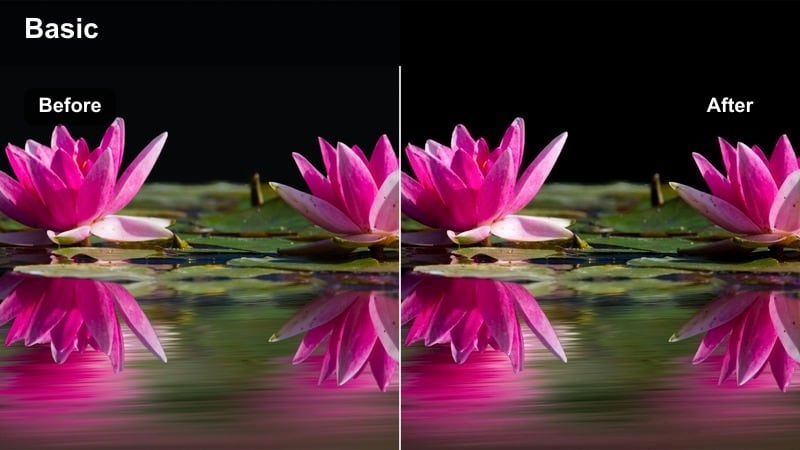
- Effect look: Muted city tones with boosted neutrals and soft teal shadows for sidewalks and streets.
- Best for: Daytime street style walks, coffee-run outfits, and urban lookbook shots.
- Editing tip: Pull saturation out of background greens and reds so the outfit palette becomes the main color story.
City Neutral Chic is meant to keep the city as a backdrop while your outfit remains the center of attention. In Filmora, you can achieve this look by muting the saturation of busy background colors like street signs, cars, and storefronts, while gently emphasizing tans, browns, grays, and creams in your wardrobe. A subtle teal cast in the shadows ties the environment together without making it feel overly stylized.
Start with a street-style preset, then fine-tune in Filmora's HSL controls to desaturate reds and greens in the background, ensuring coffee cups, traffic lights, and plants do not overpower your neutral ensemble. Slightly increase contrast on midtones to make tailoring and layering stand out as you walk, and add a soft vignette to guide the eye to the center of the frame. This setup works particularly well for walking shots filmed at eye level along sidewalks or crosswalks.
Sunlit Denim Pop
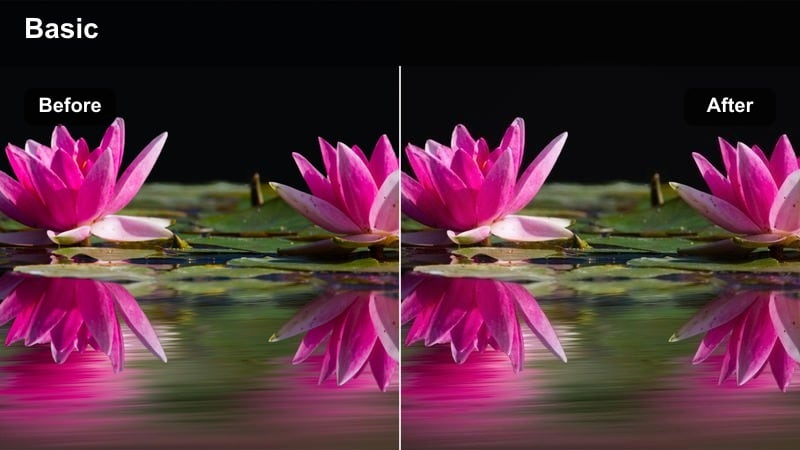
- Effect look: Punchy contrast with crisp blues and warm skin tones that favor denim textures.
- Best for: Casual jeans outfits, street-style reels, and sunny day lookbooks.
- Editing tip: Increase micro-contrast on midtones very slightly to enhance denim grain without making the image crunchy.
Sunlit Denim Pop is all about making denim and structured pieces feel vibrant under bright daylight. In Filmora, this can be achieved by raising overall contrast and clarity while selectively enhancing blue tones so jeans, jackets, and chambray shirts look extra defined. The filter should keep skin warm and inviting, balancing the cooler blues of denim with a natural glow on the face.
Apply your preferred high-energy filter, then use the color controls to target and slightly deepen blue saturation while protecting highlight detail in white tees and sneakers. Dial in micro-contrast on the midtones to bring out denim grain and stitching, but stop short of sharpening so much that the image appears harsh. If you are filming in direct sun, lower highlights first and then add contrast, keeping both sky and clothing textures intact across your daytime street shots.
Weekday Commute Film
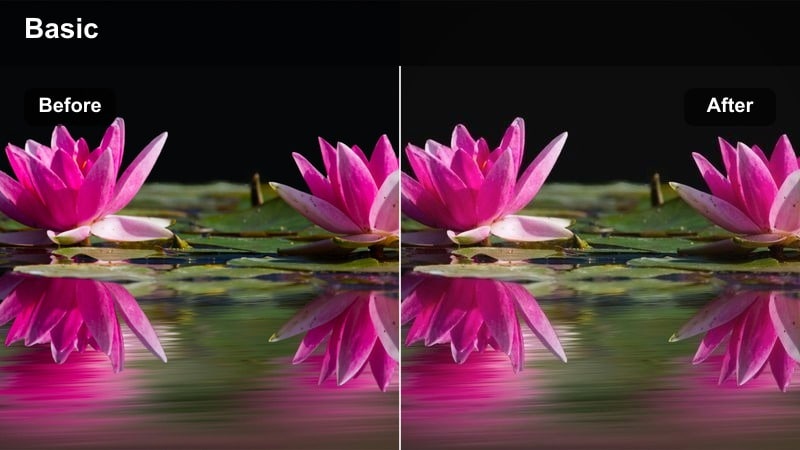
- Effect look: Subtle film-inspired fade with warm highlights and gently lifted blacks.
- Best for: Everyday commute outfits, workwear walks, and city crosswalk shots.
- Editing tip: Dial in a slight vignette to center the subject and keep the film fade from washing out the whole frame.
Weekday Commute Film gives your office and commute outfits a relaxed, cinematic feel. In Filmora, this effect usually involves slightly lifting the blacks for a soft faded look, warming highlights so sun on buildings and hair feels inviting, and reducing overall saturation just enough to evoke film stock. The result is sophisticated but approachable, perfect for showcasing blazers, trousers, and structured bags during daily routines.
To build this look, start with a film-inspired preset and then fine-tune the tone curve in Filmora, lifting shadows to introduce a gentle fade while preserving detail in darker suits or coats. Add a subtle vignette to keep focus on your walk across crosswalks or through transit hubs, and resist the urge to over-brighten shadows. Leaving some natural contrast in place helps your workwear retain depth and structure, making each frame feel like a still from a lifestyle campaign.
Studio Lookbooks with Editorial Drama
Runway Contrast Pro
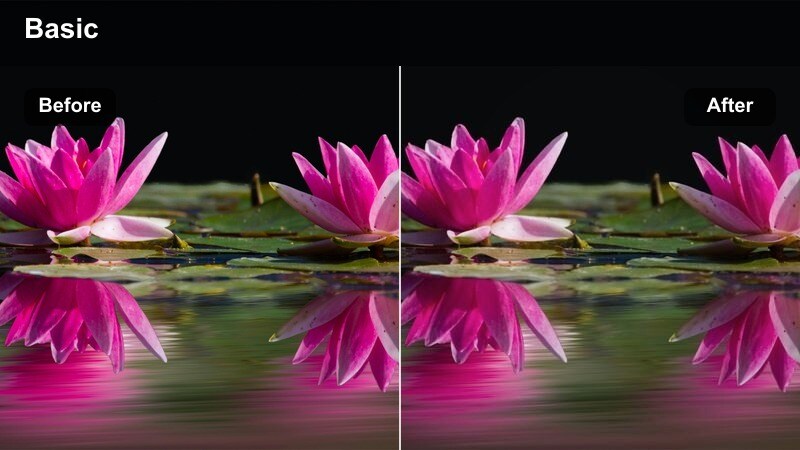
- Effect look: High contrast, deep shadows, and sharp edges with controlled highlight bloom.
- Best for: Editorial lookbooks, runway-inspired shoots, and dramatic studio posing.
- Editing tip: Use this filter sparingly on already dark scenes and consider lifting blacks slightly to preserve detail in tailored pieces.
Runway Contrast Pro pushes your studio lookbooks toward a high-fashion, editorial finish. In Filmora, this look comes from combining strong contrast, defined edges, and carefully managed highlights so silhouettes and tailoring read clearly on camera. Deep shadows emphasize shape and movement, especially when your subject rotates or walks through controlled lighting setups.
Apply a bold contrast preset and then refine with Filmora's tone curve, ensuring that blacks are rich but not clipped so texture in black suits, leather, or dark gowns remains visible. If you have very directional lighting, selectively pull back highlight intensity to keep reflective surfaces from blowing out. This treatment works best on clean, minimal sets, so consider cropping or blurring busy backgrounds that might compete with your statement pieces.
Editorial Beige Film
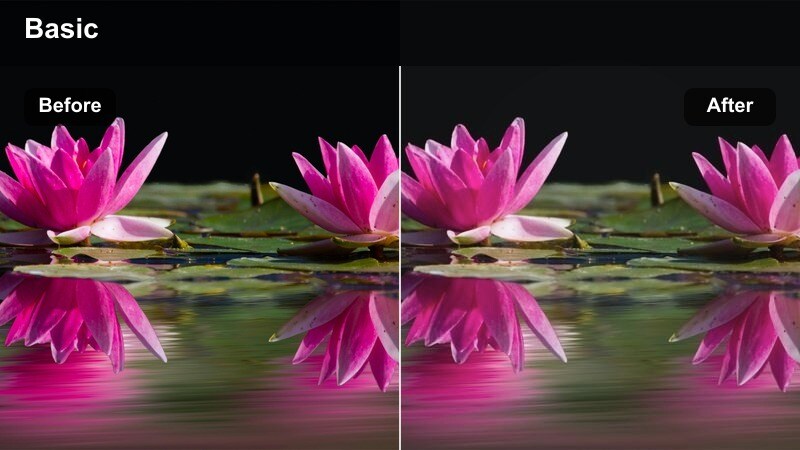
- Effect look: Creamy beige tones, gentle film grain feel, and softened primary colors.
- Best for: Monochrome outfits, neutral-heavy lookbooks, and soft studio campaigns.
- Editing tip: Slightly decrease saturation in reds and add a hair of grain or texture overlay to complete the film effect.
Editorial Beige Film is designed for neutral wardrobes and tonal studio sets where texture matters more than bright color. In Filmora, this aesthetic is achieved by warming midtones and highlights, softening strong primaries, and optionally adding a fine layer of grain to echo an editorial print look. The palette leans creamy, which flatters beige suits, knitwear, and linen ensembles, while keeping the overall mood calm and luxurious.
After applying a neutral-focused preset, use the HSL tools in Filmora to subtly dial back reds and strong blues so nothing disrupts the monochrome harmony. Introduce a small amount of grain or a texture overlay at low opacity to suggest film stock without distracting from fabrics. This treatment pairs beautifully with slow pans, close-ups of stitching, and deliberate posing, turning simple studio sessions into campaign-ready content.
Color Block Spotlight
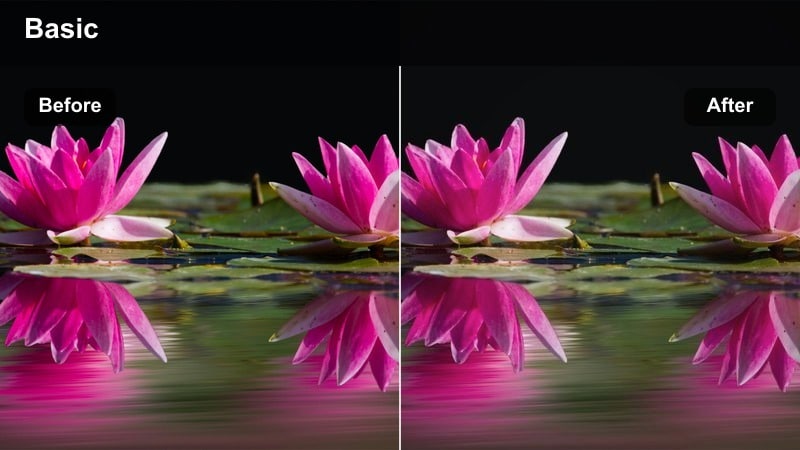
- Effect look: Punchy saturation on key hues with restrained backgrounds and crisp contrast.
- Best for: Bold color-blocked outfits, statement pieces, and campaign-style lookbooks.
- Editing tip: Use selective color controls to accent your main clothing tones and slightly mute everything else.
Color Block Spotlight is crafted for looks where bold color combinations are the main story. In Filmora, this effect involves boosting saturation and contrast on your chosen statement hues while muting the rest of the palette, allowing blocks of red, cobalt, chartreuse, or fuchsia to jump off a simple set. The background remains clean and understated so the eye goes straight to your styling choices.
To create this punchy yet controlled look, start by applying a vibrant filter, then refine using selective color tools to enhance only the outfit colors you want to feature. Gently reduce saturation on the backdrop and any secondary tones so they do not clash. This approach is especially effective in campaign-style videos with minimal props, where precise color control in Filmora helps you maintain a strong, memorable brand palette across every shot.
Evening Fashion and Cinematic Night Scenes
Golden Hour Glam
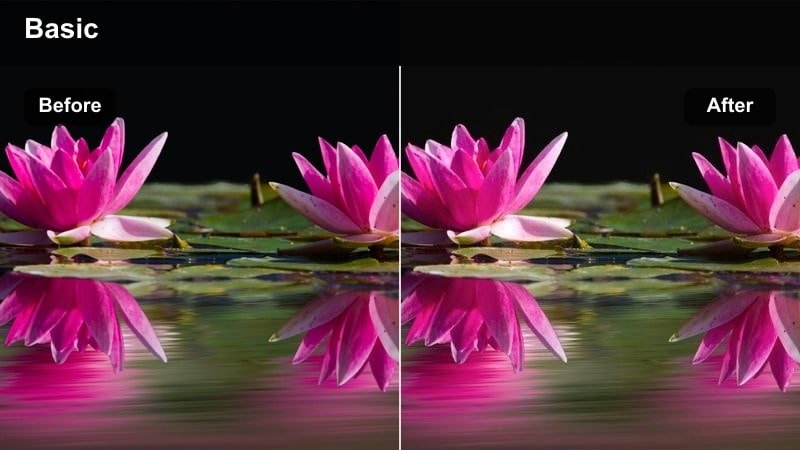
- Effect look: Warm, amber highlights with gentle flares and soft, flattering contrast.
- Best for: Sunset outfit reveals, rooftop looks, and golden hour city shoots.
- Editing tip: Lower saturation in oranges slightly so skin stays natural while still capturing the golden feel.
Golden Hour Glam amplifies the natural warmth and softness of sunset light, giving your evening outfits a cinematic glow. In Filmora, you can lean into this look by warming highlights and midtones, softening contrast just enough to reduce harsh edges, and letting subtle flares bloom around the brightest parts of the frame. Dresses, flowing fabrics, and layered outfits all benefit from the depth and glow of this style.
Apply a warm cinematic preset, then carefully manage orange saturation so skin tones remain believable rather than overly tanned. If your footage is already very golden, use Filmora's HSL controls to pull saturation back slightly while keeping warmth in the luminance values. Slow, deliberate movement like turns, hair flips, or walking toward the camera will let the filter show off shifting highlights across your outfit, emphasizing shine and texture.
Neon City Night
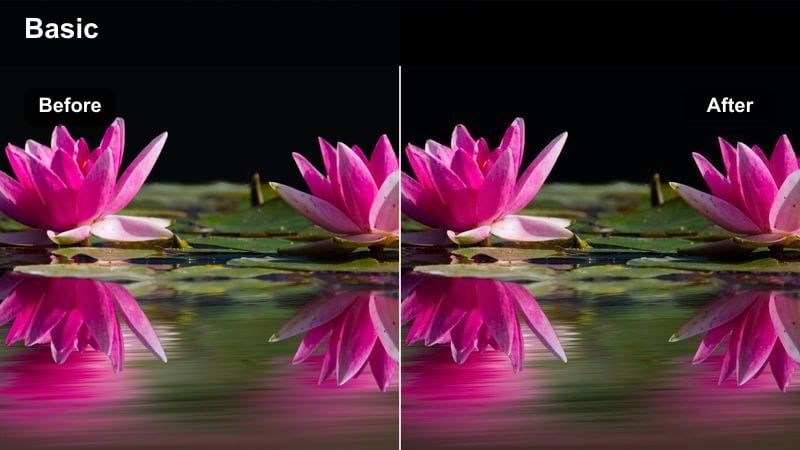
- Effect look: Deep shadows with vivid neon accents, cool highlights, and cinematic contrast.
- Best for: Night-out outfits, city lights lookbooks, and party-ready street scenes.
- Editing tip: Keep exposure slightly lower to preserve neon signage detail and avoid blown-out highlights.
Neon City Night is built for after-dark content where city lights become part of your styling. In Filmora, this kind of filter deepens shadows to create contrasty silhouettes while intensifying neon blues, pinks, and purples so they frame your outfit. The overall mood is cinematic and edgy, perfect for metallic pieces, leather, and club-ready looks.
To maintain clarity in neon-heavy scenes, start with a moody night preset and drop exposure a touch before adjusting contrast. This helps preserve thin lines and lettering in signs instead of turning them into glowing blobs. You can then selectively boost the hues that match your accessories or makeup so the environment feels coordinated with your styling. Use slower pans, locked-off shots, or subtle camera motions to keep neon edges sharp when the filter is applied.
Evening Party Soft Focus
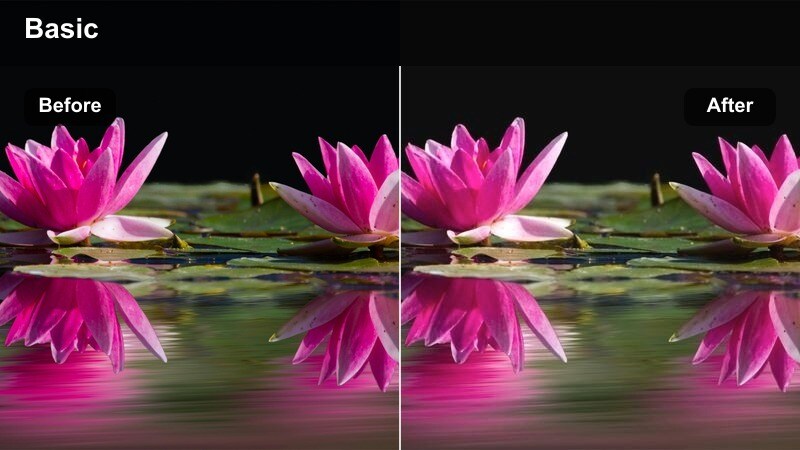
- Effect look: Soft focus glow on lights, lifted shadows, and flattering skin with subtle grain.
- Best for: Dinner outfits, indoor party fits, and low-light event lookbooks.
- Editing tip: If the image gets too hazy, add a bit of contrast to midtones and gently sharpen edges of key accessories.
Evening Party Soft Focus is tailored to dimly lit restaurants, house parties, and event spaces where you still want outfits to appear clear and glamorous. In Filmora, applying a soft-focus or glow effect to highlights while lifting shadows slightly keeps faces and clothing visible without the harshness of direct flash. Small amounts of grain add a luxe, filmic finish that suits sequins, satin, and jewelry.
Once your soft filter is in place, check that details in hemlines, shoes, and bags are still defined. If the scene feels too hazy, boost midtone contrast moderately and add gentle sharpening specifically to areas with intricate detailing. Filmora's masking or adjustment tools can help you target these enhancements, ensuring sparkle and structure are preserved while the overall scene stays dreamy and flattering.
Tips for Using Fashion Video Filters Filters in Filmora
- Batch-apply the same fashion filter across all clips in a haul or lookbook so the entire video feels cohesive and on-brand.
- Before finalizing your grade, scrub through the timeline and check difficult frames like shadowy corners or windows to avoid crushed blacks or blown highlights.
- Choose filters based on clothing color and fabric texture; some presets flatter neutrals and knits, while others are better for bold prints or metallics.
- After applying strong cinematic or editorial filters, fine-tune temperature and tint in Filmora so skin tones remain natural and consistent between shots.
- Create separate custom presets in Filmora for studio hauls, street-style days, and night looks to switch fast without rebuilding your grade from scratch.
- Use Filmora's scopes and preview window to compare how each filter treats whites, blacks, and midtones, then pick the option that best preserves outfit detail.
- Save your favorite combinations of LUT plus filter as reusable styles so every upload aligns with the same recognizable fashion identity.
Fashion video filters are one of the fastest ways to elevate hauls, outfit clips, and lookbook shoots into content that feels curated and on-brand.
Test a few of these styles in Filmora, save your favorites as presets, and build a consistent visual identity that makes every outfit instantly recognizable as yours.
