

 100% Security Verified | No Subscription Required | No Malware


 ChatGPT
 Perplexity
 Gemini
 Claude
 Grok
Grok
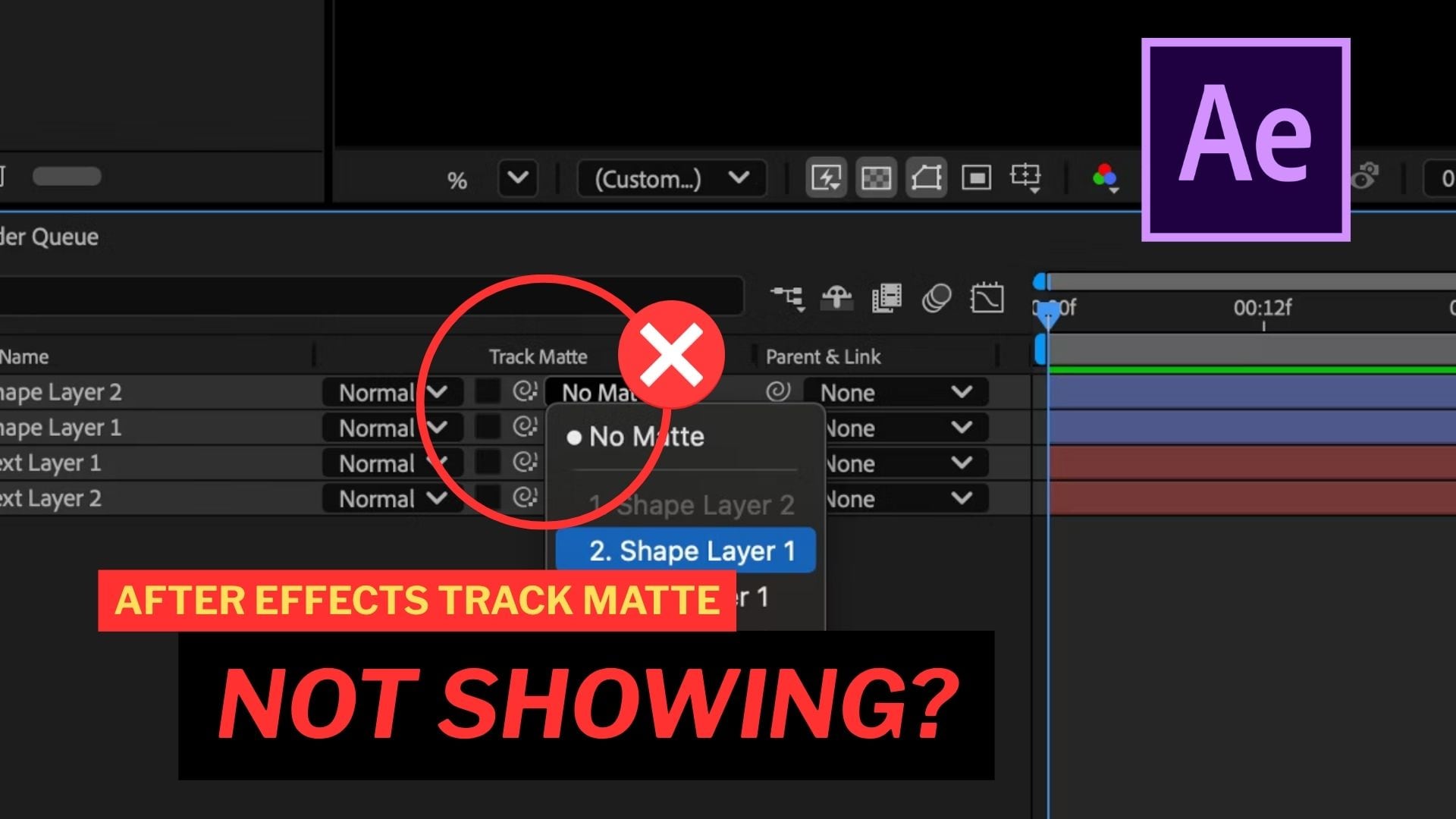
If Track Matte is not showing in After Effects, don’t panic yet. The problem may not mean the feature is broken. Actually, Adobe changed how Track Mattes work in newer versions, so older tutorials may show a TrkMat column or controls that no longer look the same.
To help you find the Track Matte controls in After Effects and get the effect working again, this article will explain why After Effects Track Matte is not showing, where to find the controls, and what to check if the matte still doesn’t work as expected.
In this article
Part 1. Why Is Track Matte Not Showing in After Effects?
A Track Matte in After Effects controls which parts of a layer remain visible based on another layer. It’s commonly used for text reveals, transitions, animated graphics, and effects that reveal footage through a specific shape or design. Usually, the Track Matte control can be found in the Timeline panel.
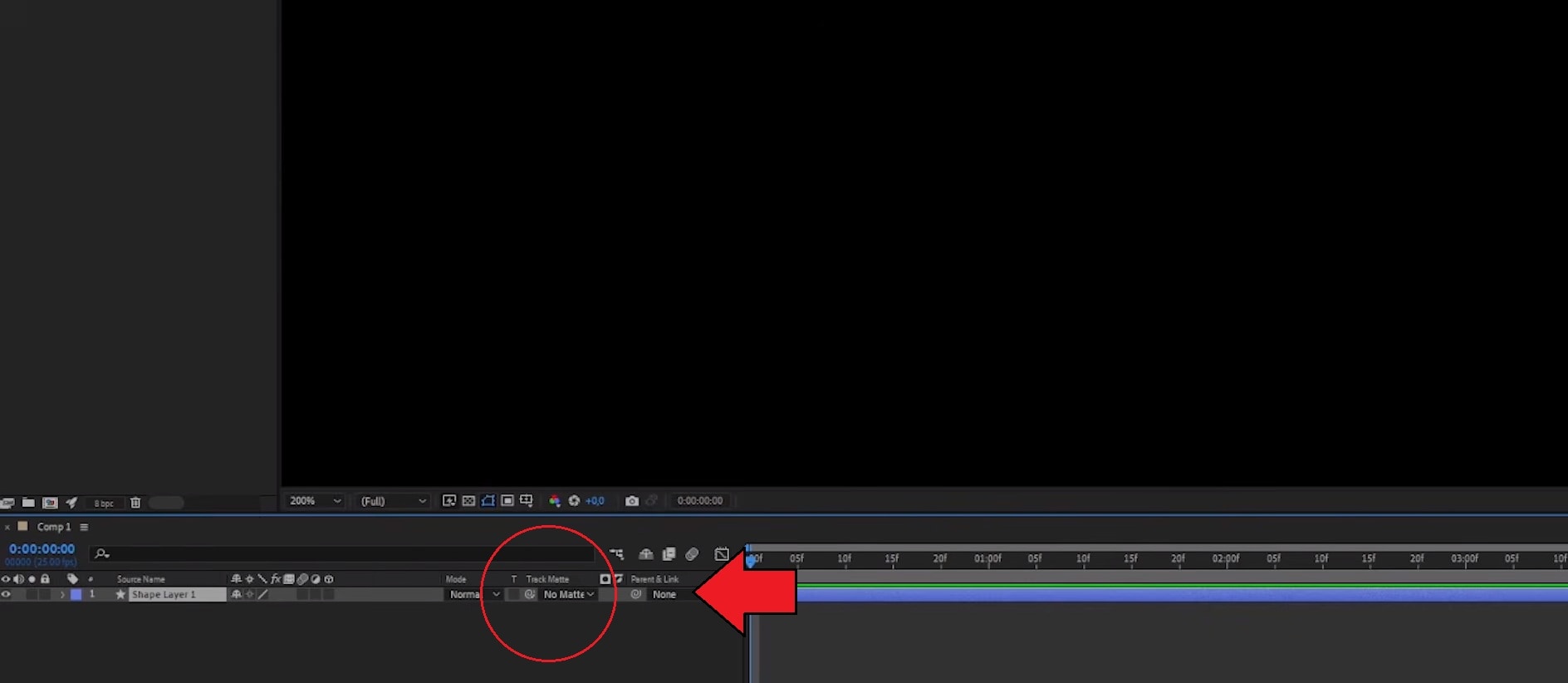
But if your Track Matte in After Effects is not showing, the feature itself may not be missing. In many cases, it's usually because of one of these three things:
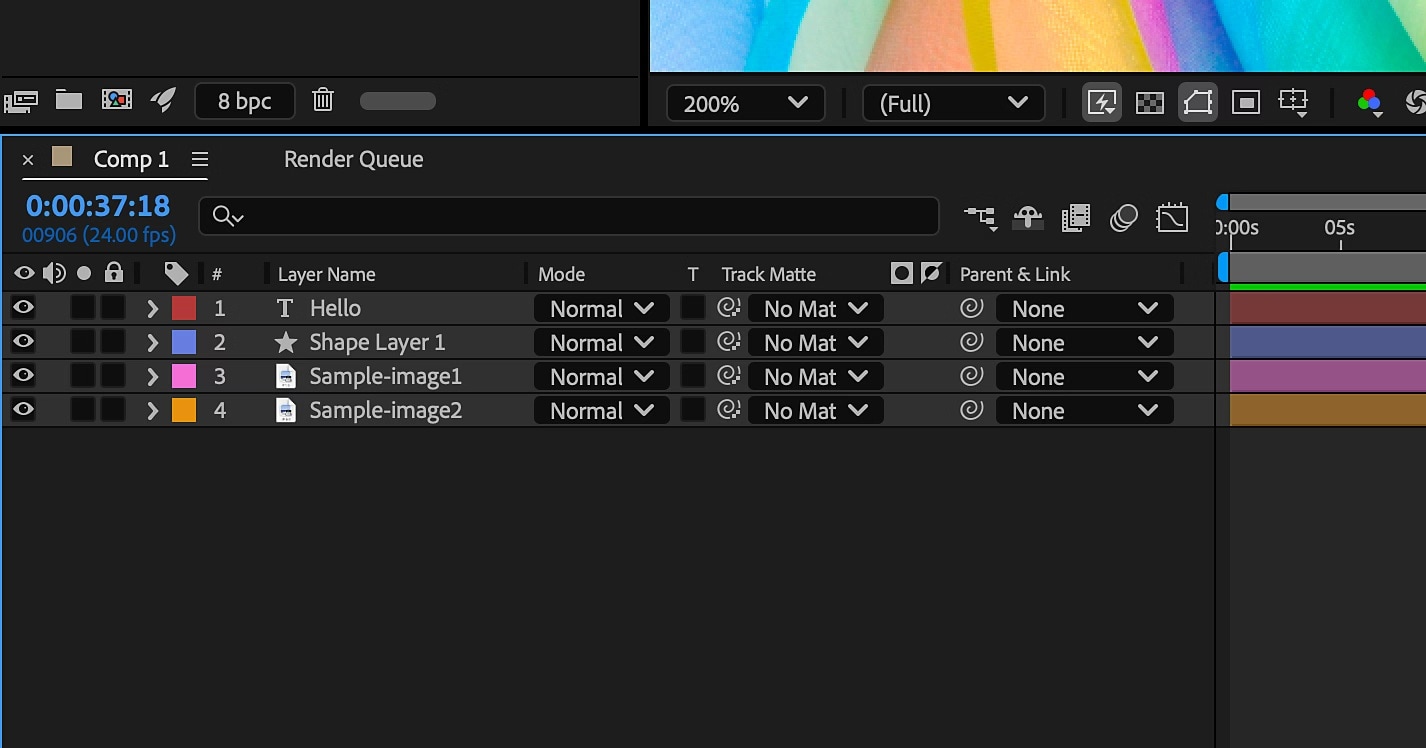
- The Modes column is hidden. Track Matte controls now live in the Modes column of the Timeline panel. If that column isn't showing, the Track Matte dropdown won't appear either.
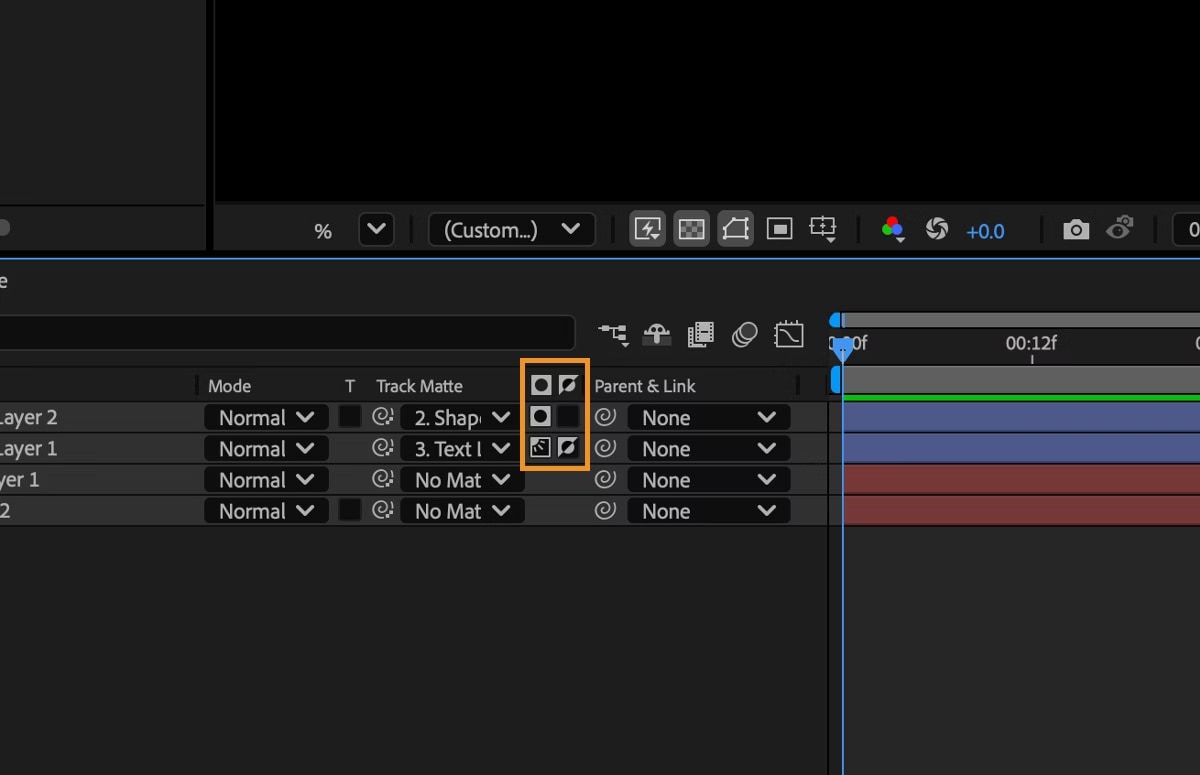
- You're following an older After Effects tutorial. Versions before 23.0 used the TrkMat dropdown to select options such as Alpha Matte and Luma Matte. In newer versions, Adobe changed the Track Matte interface, so you select the matte source from the Modes column using a layer dropdown or pickwhip instead.
- The Timeline is showing Switches instead of Modes. These two views share the same space at the bottom of the panel, so if you're on Switches, the Track Matte column simply isn’t part of that view yet.
Part 2. How to Show Track Matte in After Effects
So, how do you show the Track Matte controls in After Effects? The steps depend on which version you’re using.
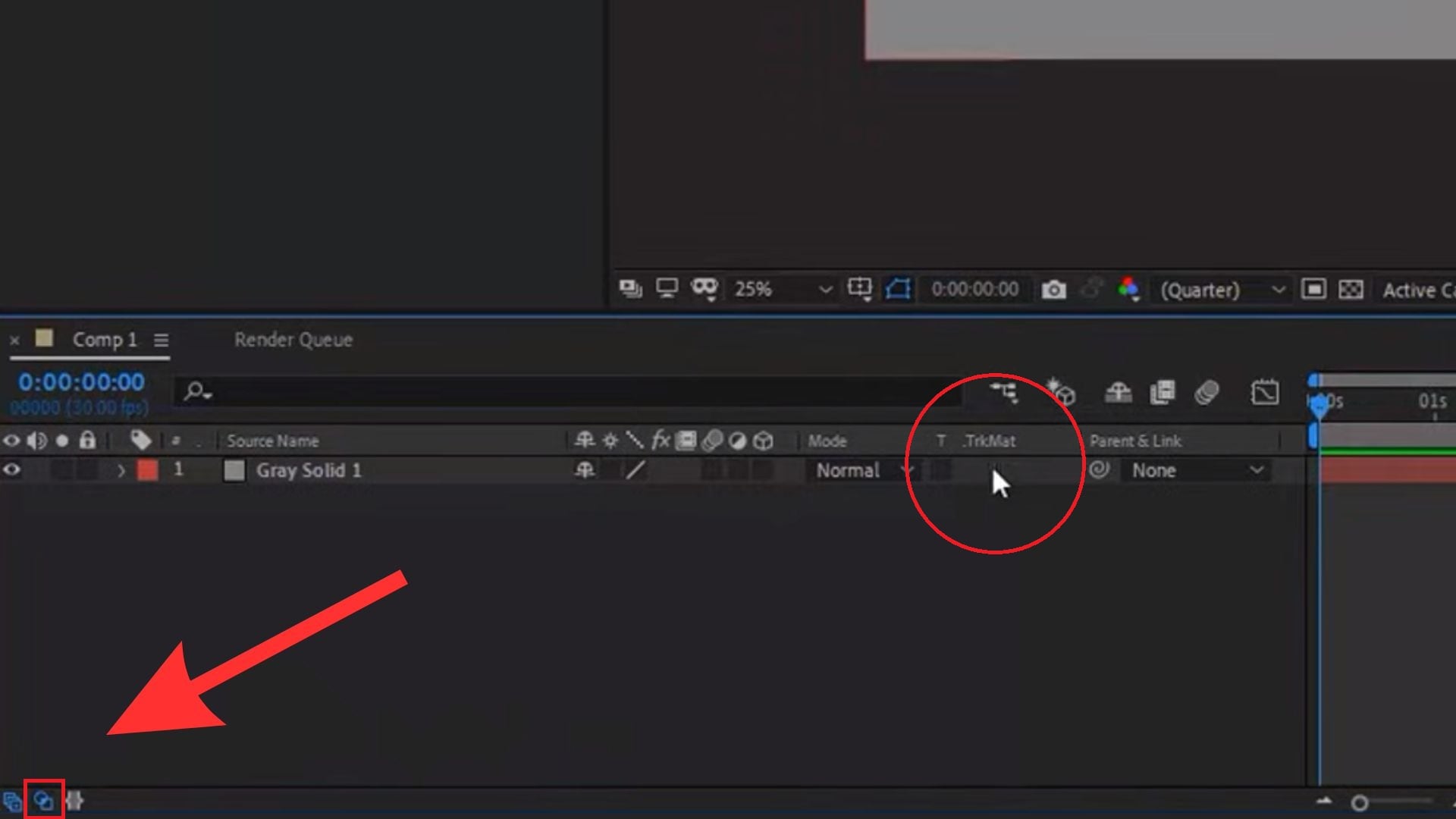
- 1. If you’re using an older version of After Effects (pre-23.0)
Click the “Toggle Switches/Modes” button at the bottom of the Timeline panel to switch to the Modes view, then look for the TrkMat controls.
- 2. If you're using the current version (23.0 and later)
Right-click on any column header in the Timeline panel, select Columns > Modes. You can also press F4 to toggle between the Switches and Modes views in the Timeline panel.
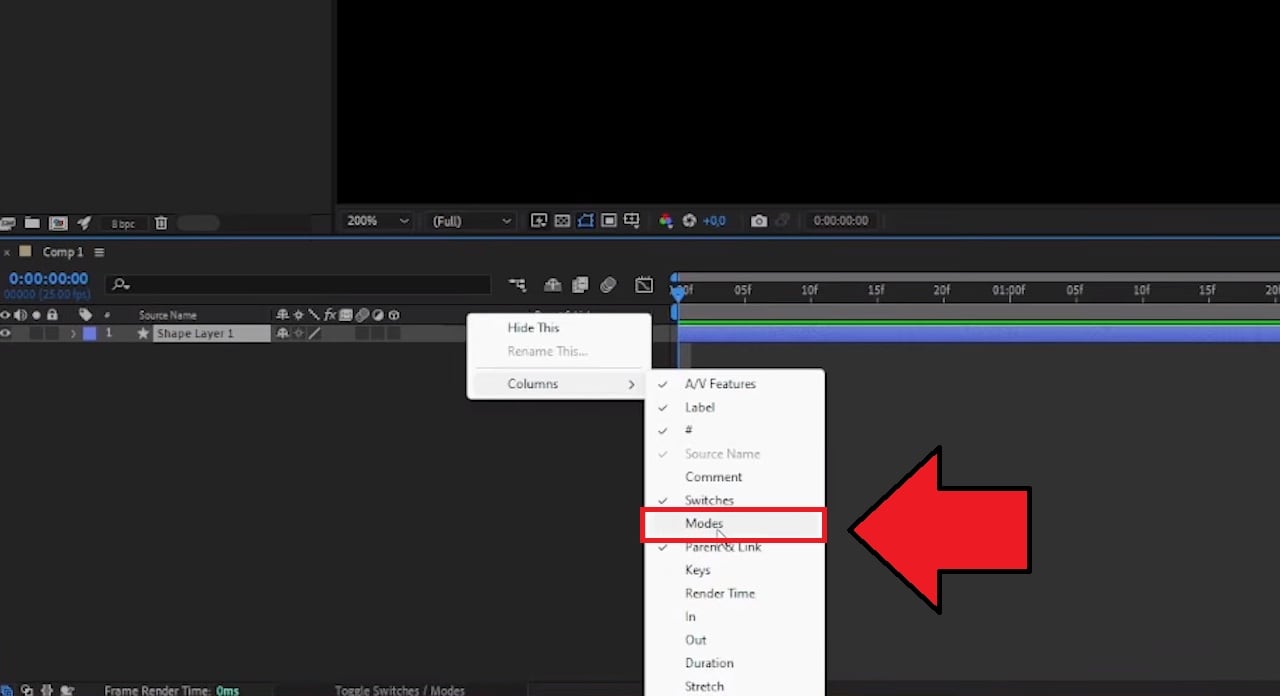
The Track Matte controls should appear in the Timeline now. You can continue using them as usual. Select the layer you want to apply the Track Matte to, then choose the matte source and adjust the Alpha or Luma settings.
Part 3. Track Matte Still Not Showing? Try These Fixes
Is the TrkMat in After Effects still not showing? Or have you found the Track Matte controls but the effect isn’t working as expected? Try the fixes below to find out what’s causing the problem and get Track Matte working again.
1. Try a Different Track Matte Setup
If the Track Matte in After Effects is not showing or working as expected, trying a different editing setup may be easier than troubleshooting the issue further. Wondershare Filmora offers a more lightweight approach to creating track matte effects, with a simpler interface that can be easier to navigate than After Effects’ broad compositing tools.

- Vast video/audio effects and creative assets.
- Powerful AI for effortless content creation.
- Intuitive, professional yet beginner-friendly.
- Works on Mac, Windows, iOS, and Android.



How to Use Track Matte in Filmora
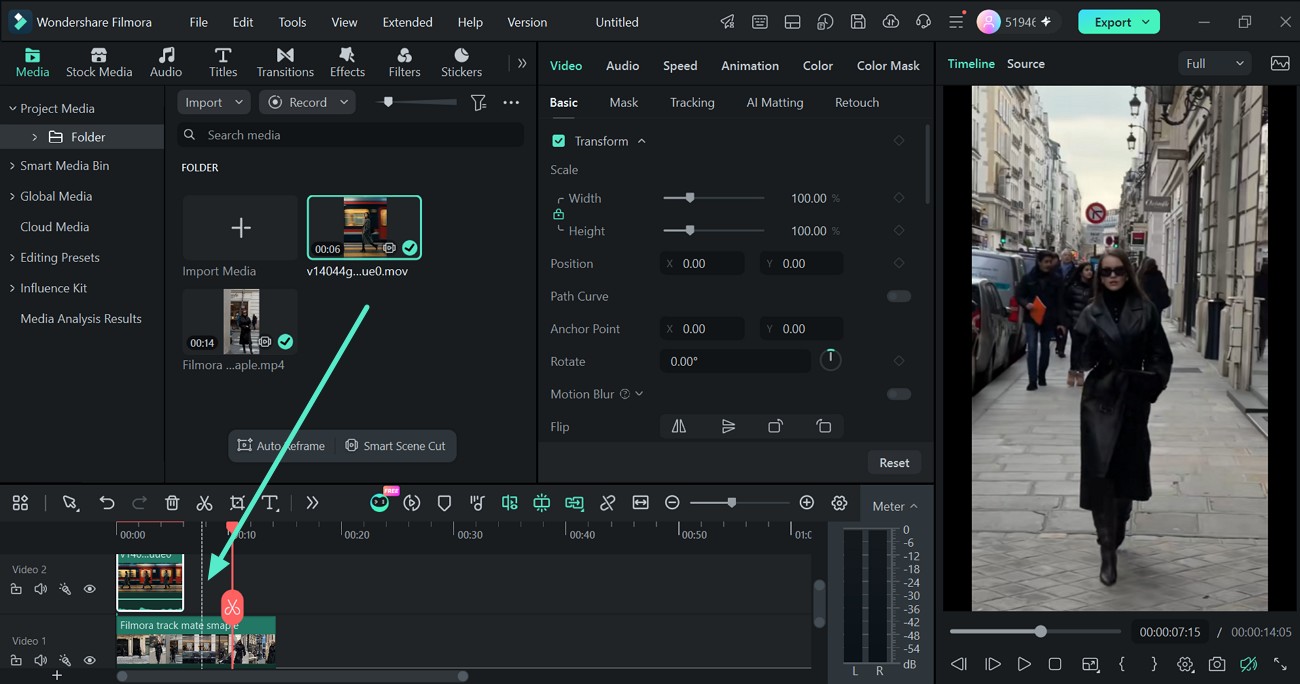
- Step 1: Import and Arrange Your Media
Open Filmora and import the clips you want to use. Place them on separate video tracks in the Timeline.
 secure download
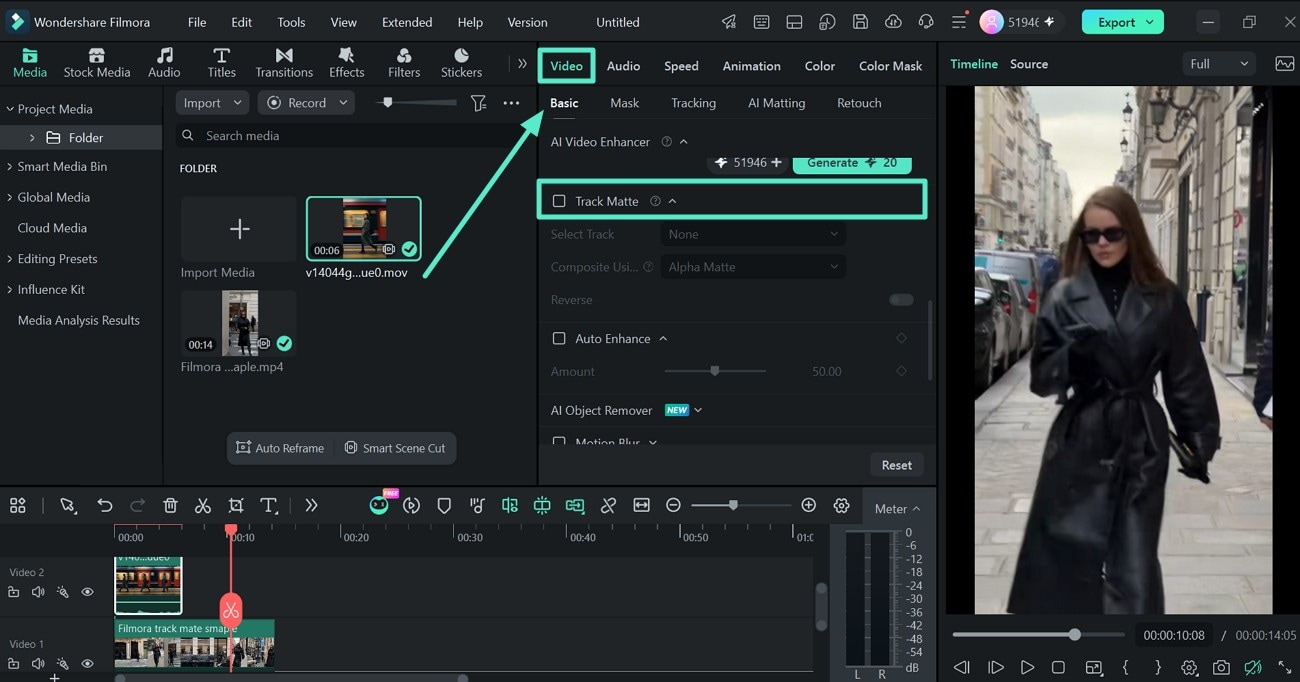
 - Step 2: Select the clip you want to reveal
Click the clip that you want the Track Matte to affect. Then open the editing panel and go to Video > Basic > Track Matte. Enable Track Matte to activate the effect.
- Step 3: Select the Matte Track and Type
Under Select Track, choose the video track that contains your matte source. Filmora uses the selected track to determine which parts of your target clip remain visible.
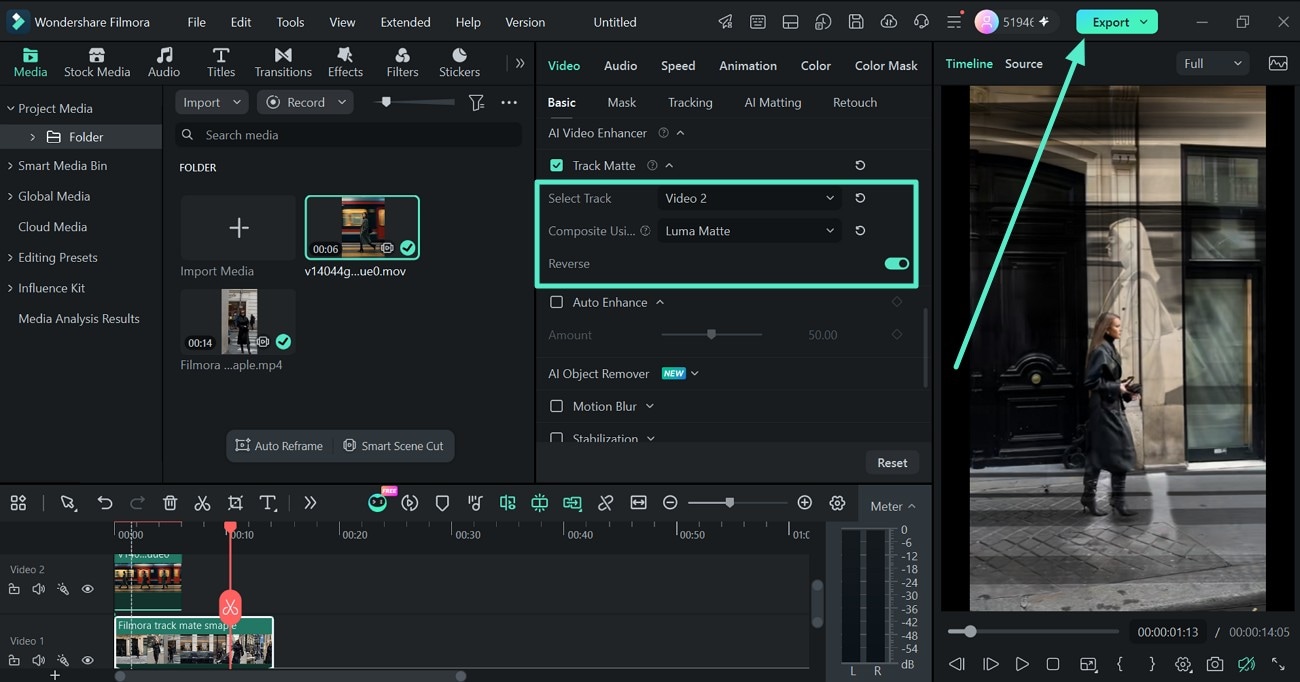
After that, open Composite Using and choose the matte type you need:
- Alpha Matte: Uses the matte source's transparency to control which parts of the target clip appear.
- Luma Matte: Uses the matte source's brightness to control visibility. Brighter and darker areas produce different levels of visibility.
If the visible and hidden areas are reversed, enable Reverse to invert the Track Matte result without changing the original matte source. Then, click Export to save the video.
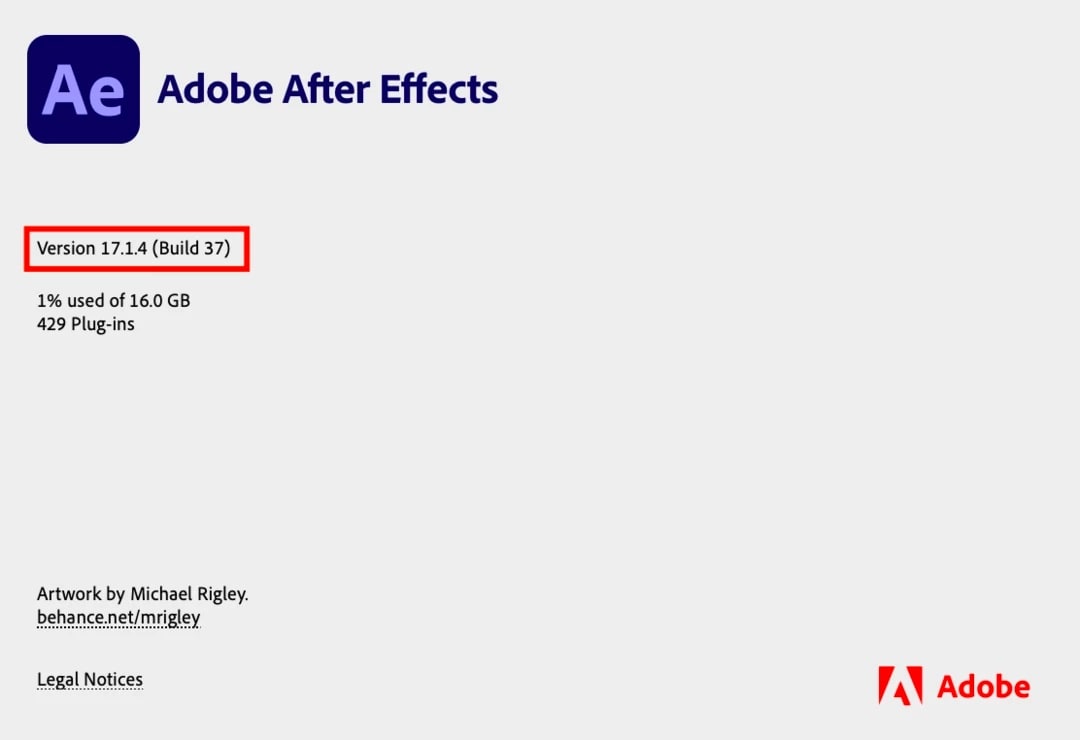
2. Check Which After Effects Version You're Using
As the Track Matte interface changed in After Effects 23.0, check your version before following any troubleshooting tutorial. Go to Help > About After Effects to see which version you have, then follow the steps that match your version. Older versions use the TrkMat column, while newer versions place the Track Matte controls in the Modes column.
3. Make Sure You're Applying the Matte to the Correct Layer
Remember that a Track Matte affects a target layer, while another layer provides the matte information. If the track matte in After Effects is not working, make sure you have selected the layer you want to reveal or hide before assigning the matte.
In newer versions of After Effects, you can check the matte source selected in the Modes column. If the wrong layer is selected, the Track Matte may appear to be working but produce an unexpected result.
4. Check the Matte's Alpha or Brightness
Your Track Matte may be set up correctly but use the wrong type of matte. Check whether you’re using Alpha or Luma based on the information in your matte layer. The rule of thumb is:
- Alpha: Uses the matte layer's transparency.
- Luma: Uses the matte layer's brightness.
For a Luma Matte, make sure the matte has enough contrast between its light and dark areas. If the result appears opposite to what you want, try the Inverted option.

5. Check Layer Visibility and Composition Settings
Make sure the target layer is visible and that you’re working in the correct composition. The matte source should also contain the shape, text, or graphic you intend to use.
After a layer is assigned as a Track Matte, After Effects may turn off its video visibility in the Composition panel. If your project contains pre-compositions or multiple layers, make sure the matte source and target layer are set up within the correct composition.
6. Restart or Update After Effects
If none of the fixes above solve the Track Matte in After Effects not showing problem, you may just need to restart After Effects. A temporary interface or project issue may be affecting the Timeline, and closing and reopening the program can clear it.
You can also try updating After Effects through the Creative Cloud app. Using the latest available version can help avoid issues that have already been addressed in newer releases.
Conclusion
When the Track Matte in After Effects is not showing, the cause may be as simple as a hidden Modes column or a difference between the current and older Track Matte interfaces. You can check your After Effects version and follow the correct Track Matte workflow according to your version.
Even with these fixes, After Effects can feel a bit complicated for a simple matte effect. If you prefer a more lightweight option, Filmora offers Track Matte tools in a more straightforward editing interface, so you can create similar effects without navigating through as many compositing controls.
