

 100% Security Verified | No Subscription Required | No Malware


 ChatGPT
 Perplexity
 Gemini
 Claude
 Grok
Grok
A marketing student opens a folder filled with product photos and struggles to describe what each image communicates for a campaign report. Manually analyzing visuals takes time, and small details are often missed. This is where AI image analysis becomes a practical solution to turn complex visual data into clear insights within seconds.
AI tools automatically detect and explain image content with high accuracy, rather than guessing colors or patterns. This guide explains how AI image analysis works and how beginners can start using it effectively.
In this article
Part 1. How to Analyze an Image with an AI Image Analyzer
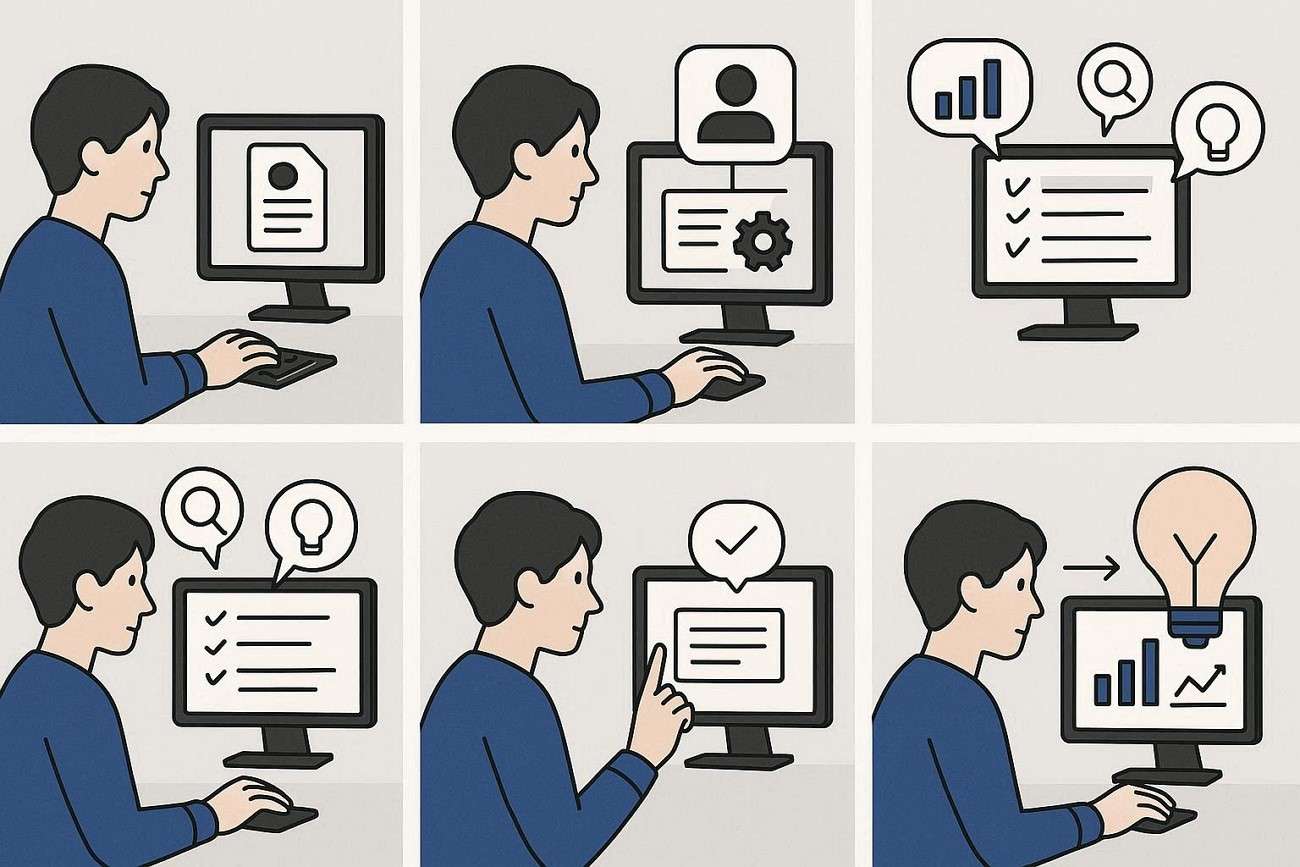
Users can consume AI tools to automatically break down content and highlight key elements. Here is the step-by-step workflow that users must follow to analyze an image:
General Workflow of AI Image Analysis
-
Upload the Image
Start by selecting and uploading the image into an AI image analysis tool. Most platforms support formats like JPG and PNG.
-
Let AI Process the Visuals
The system perform scan on the photo to detect objects and patterns using computer vision technology.
-
Review Generated Insights
The tool provides a structured breakdown, including descriptions and labels.
-
Refine or Ask Follow-Up Questions
Many tools allow users to refine results or ask specific questions about the photo for deeper understanding.
-
Use Insights for Your Purpose
Apply the analysis for research or data interpretation depending on your goal.
Example: Using iWeaver Image Analyzer
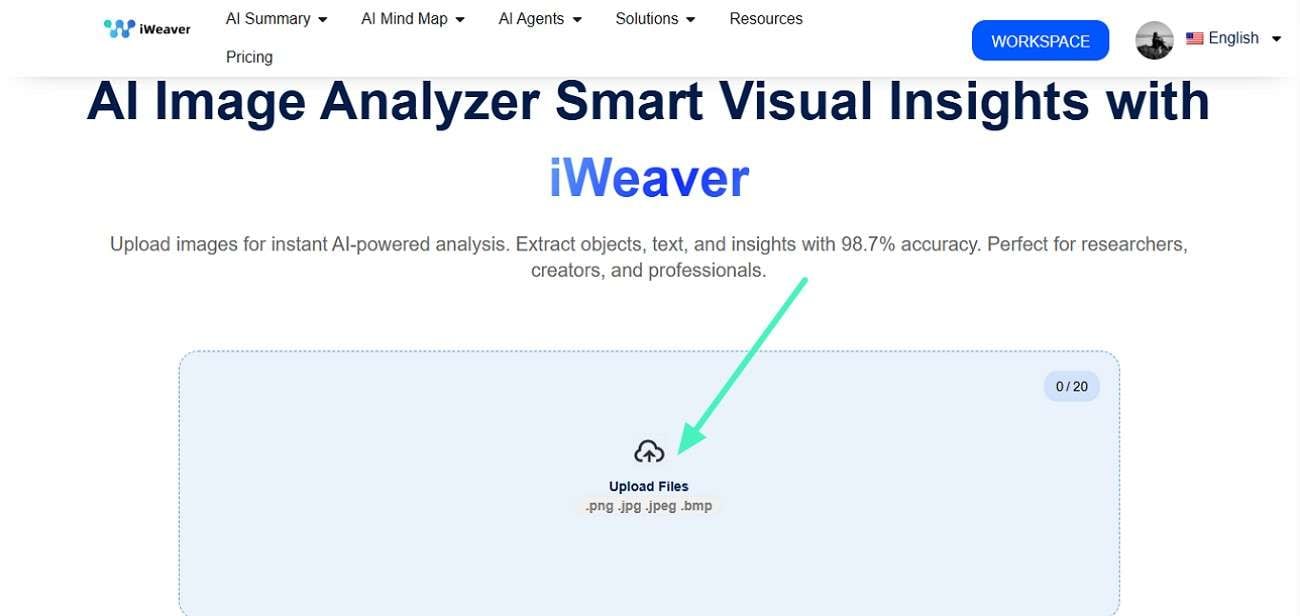
You can opt for a reliable online image analyzer like iWeaver Image Analyzer to generate relevant results. Follow the steps mentioned below to learn how to use this online tool:
Step 1. Access the image analyzer on your web browser and click the "Upload Files" option to upload the photo for analysis.
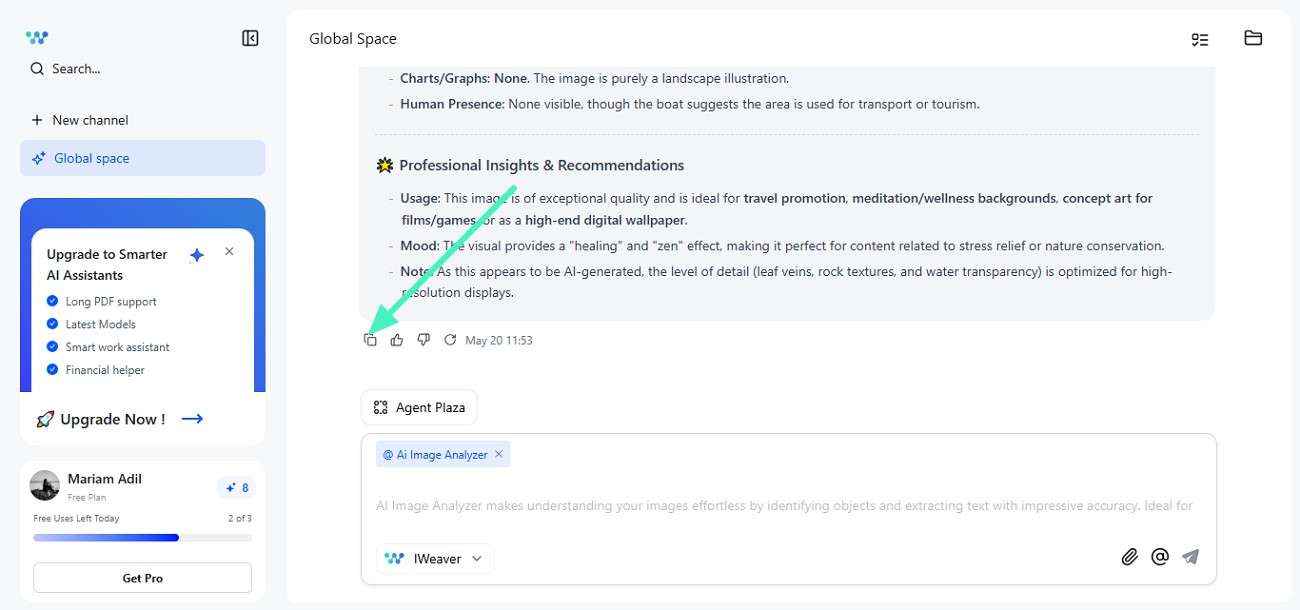
Step 2. Once you add the picture, the tool begin the analysis. An insight in form of text will be generated which you can copy and paste wherever you want.
Part 2. How to Get More Accurate AI Photo Analysis
It is important to follow a few practical techniques to help the system better understand visuals. It helps improve the quality of results from AI image analysis. Mentioned below are some helpful tips for getting more accurate analysis results:
-
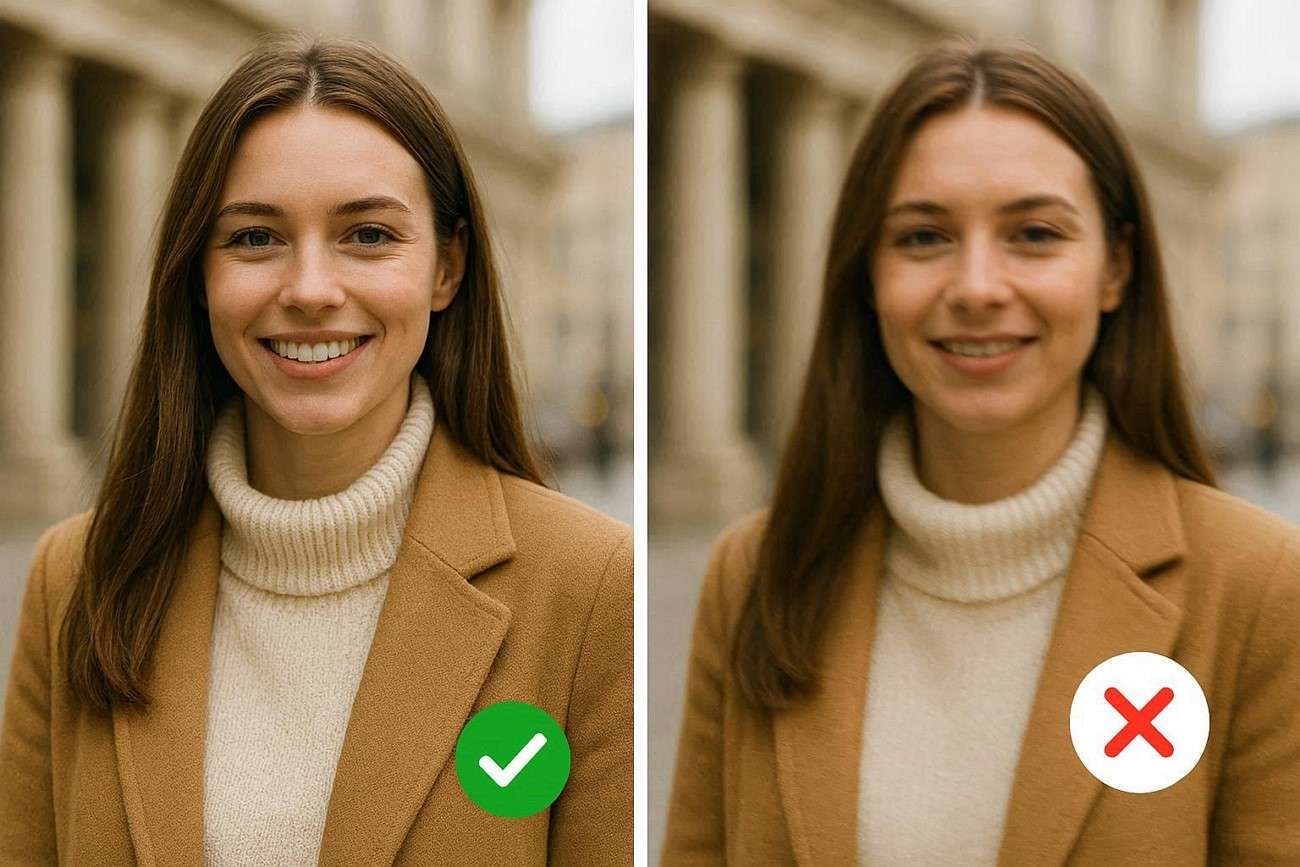
Use high-resolution images because clear visuals improve AI detection accuracy. Blurry or low-quality images reduce detail recognition and lead to weak or incomplete results.
-
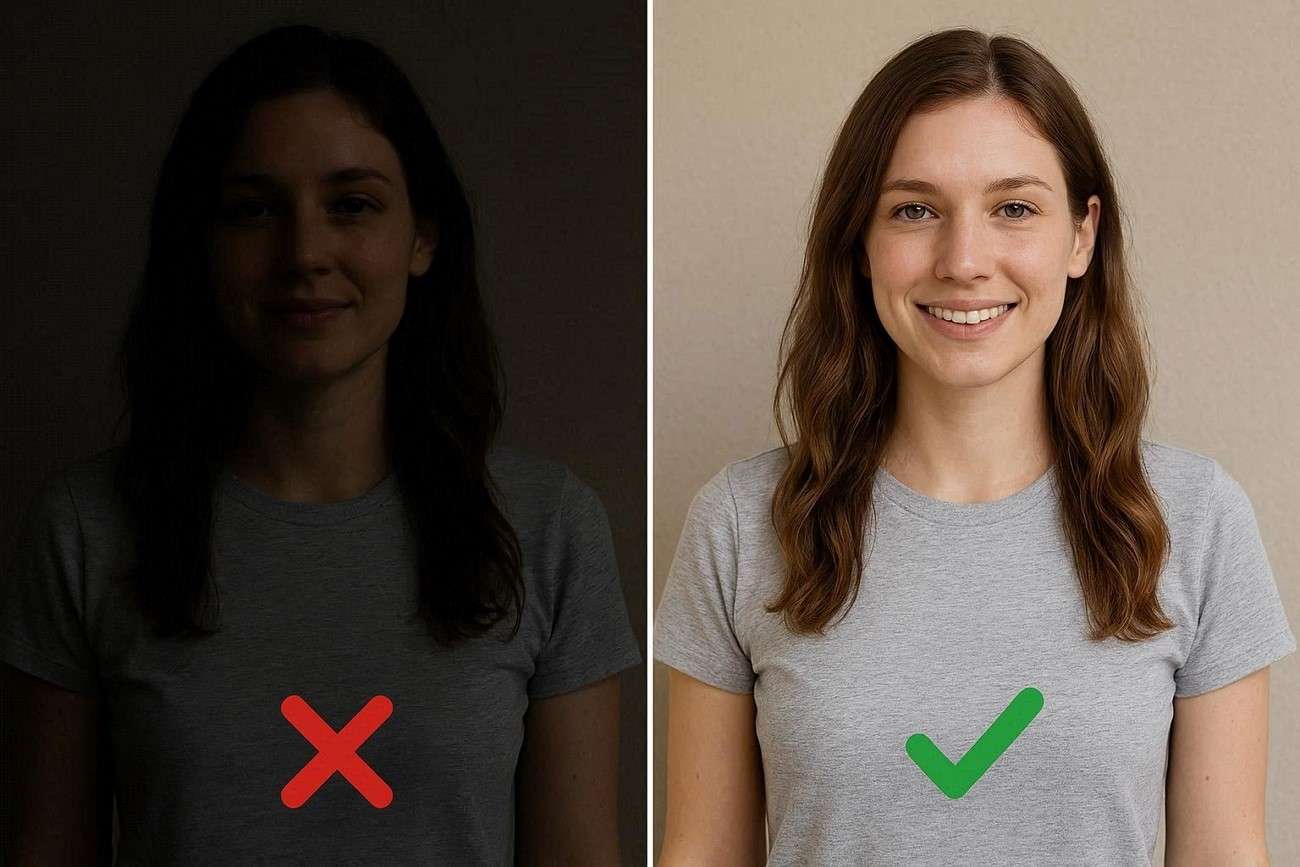
Choose proper lighting conditions as well-lit images help AI understand objects better. Dark or uneven lighting can hide important details and confuse analysis.
-
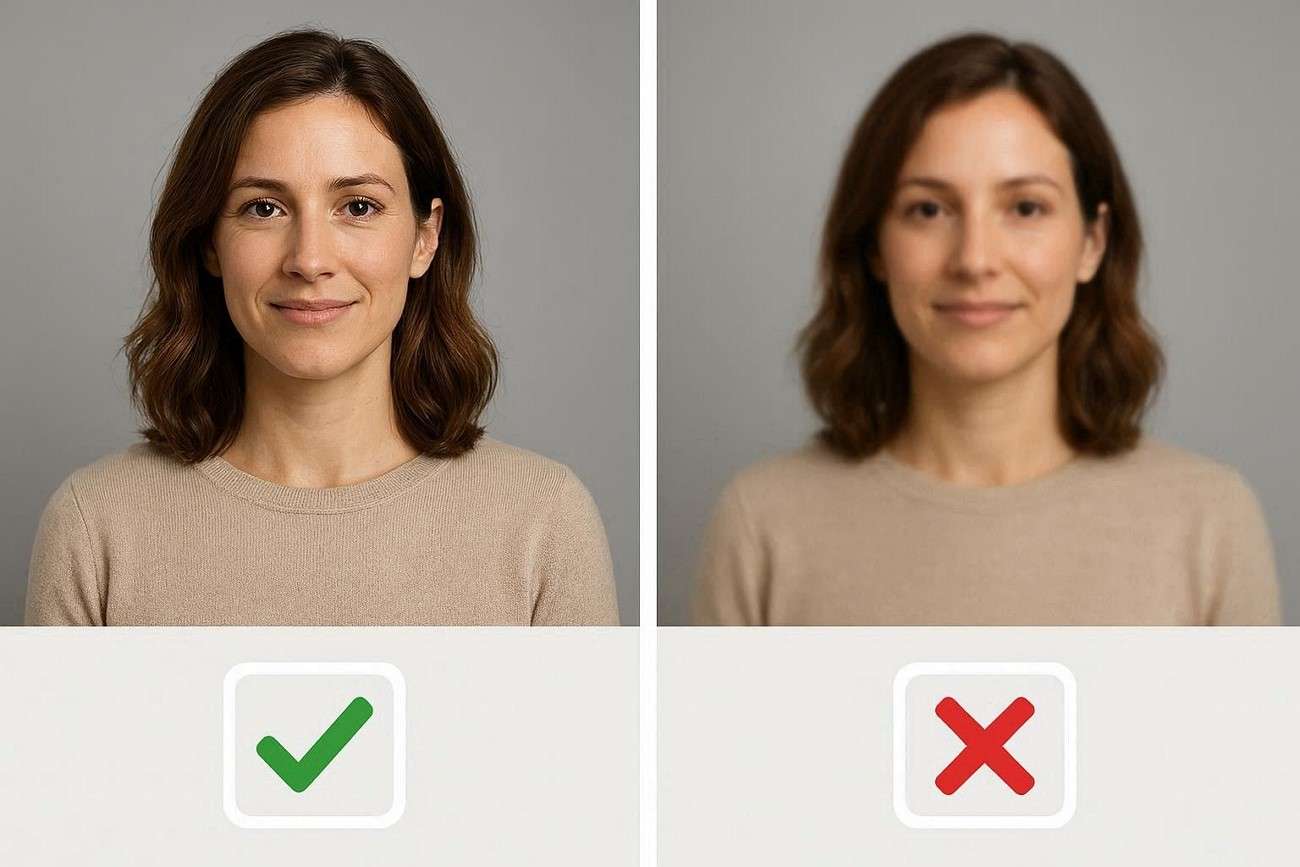
Focus on a single subject since a clear focal point allows accurate description generation. Crowded scenes with multiple subjects often lead to unclear or mixed outputs.
-
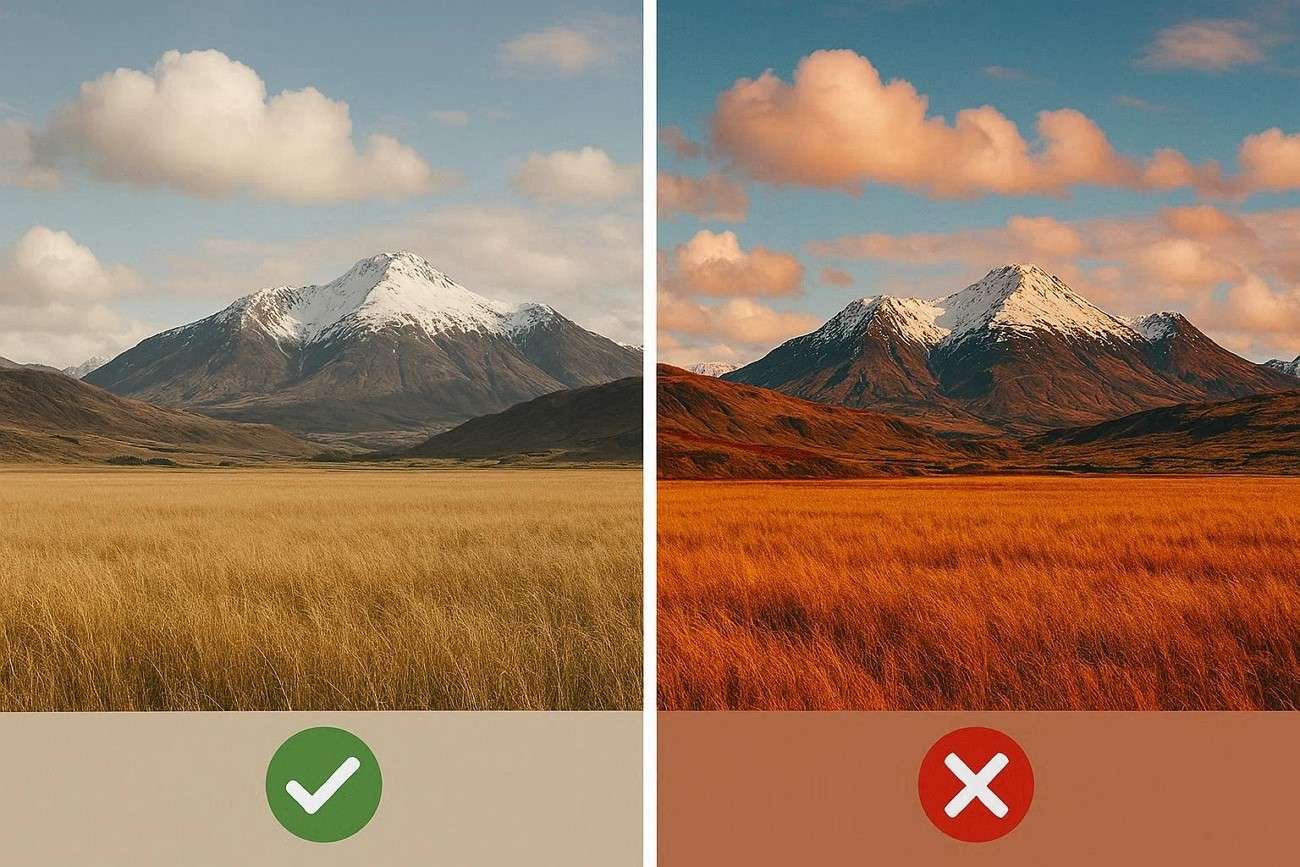
Avoid heavy filters or excessive editing because natural images ensure accurate interpretation. Over-edited visuals can distort colors and shapes, reducing analysis quality.
-
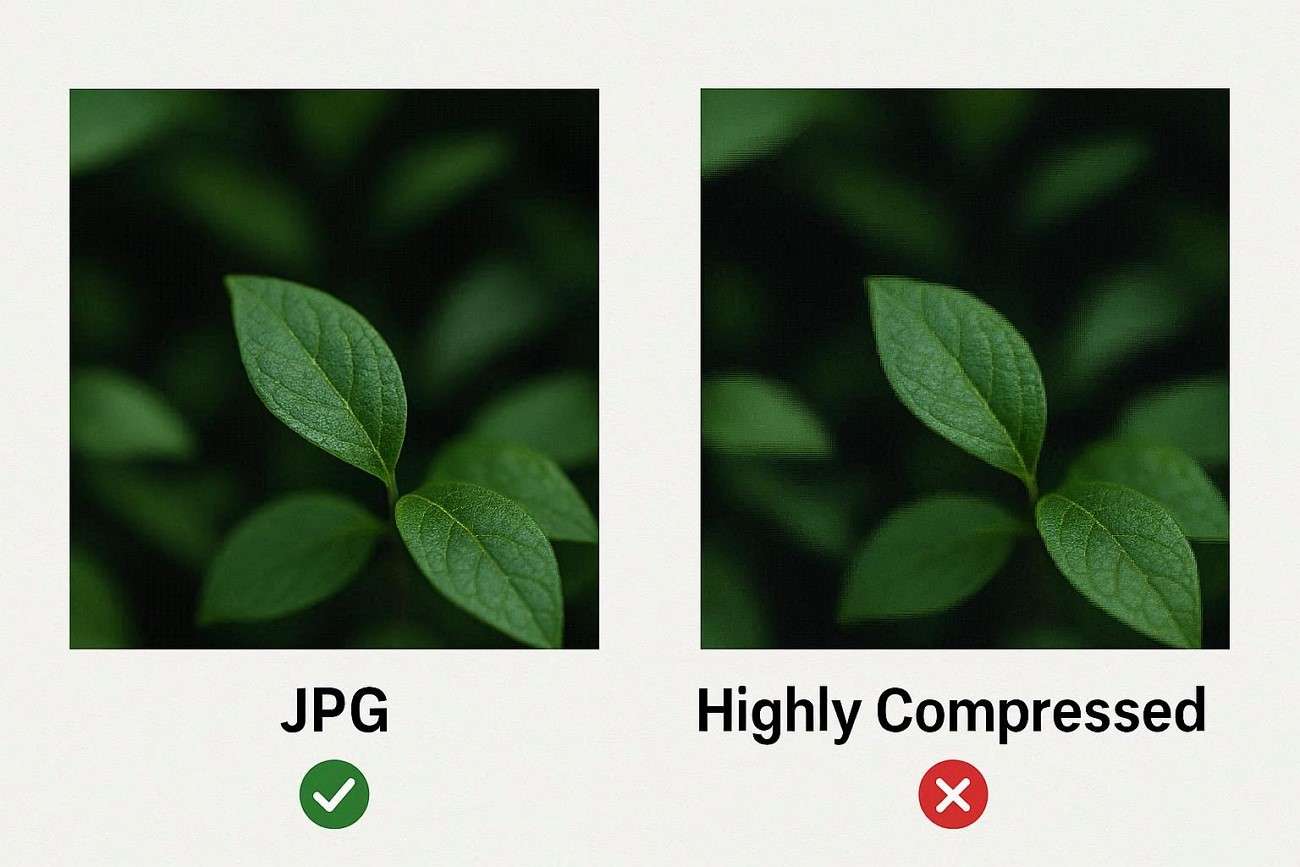
Upload standard formats like JPG or PNG as they ensure smooth processing across AI tools. Uncommon or highly compressed formats may cause errors or reduce clarity.
Part 3. Turn Image Analysis into Creative Video Prompts with Filmora
For users who want to move beyond basic AI photo analysis, Wondershare Filmora provides a powerful bridge between visual understanding and creative production. It includes an Image to Prompt feature that automatically studies an image and generates structured text descriptions. This helps users turn static visuals into usable creative ideas.
The functionality is integrated into the Image-to-Video workflow, allowing images to be transformed into dynamic video content within minutes. The generated prompts can also be refined and converted into engaging visuals. Moreover, it can then be enhanced using Filmora's built-in editing tools.
Coherent Features Offered By Filmora
- AI Image Understanding: Converts any image into structured prompts, removing the need for manual description writing.
- Seamless Image-to-Video Conversion: Turns static visuals into engaging videos, ideal for creators, marketers, and educators.
- Smart Scene Structuring: Automatically organizes generated content into logical video sequences for better storytelling flow.
- Integrated Editing Environment: Allows users to refine visuals, adjust pacing, and enhance output without switching tools.
Steps For Using Filmora Image to Prompt Feature
As discussed, Filmora's AI image analysis offers an in-depth photo description in text format. Provided below are the steps to use this function:
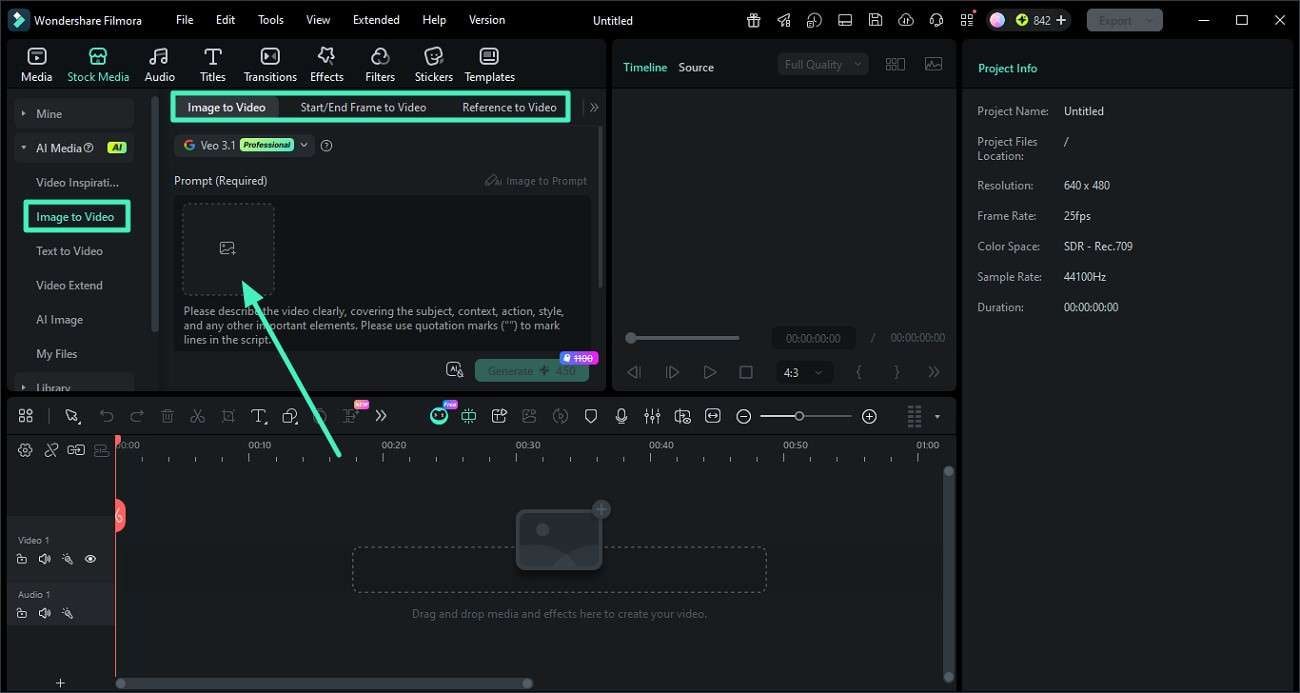
Step 1. Launch Image-to-Video Feature
Open Filmora and start a new project from the main dashboard. Navigate to the left-side menu, choose the "Image to Video" option, and upload the selected image.
 Secure download – verified & trusted

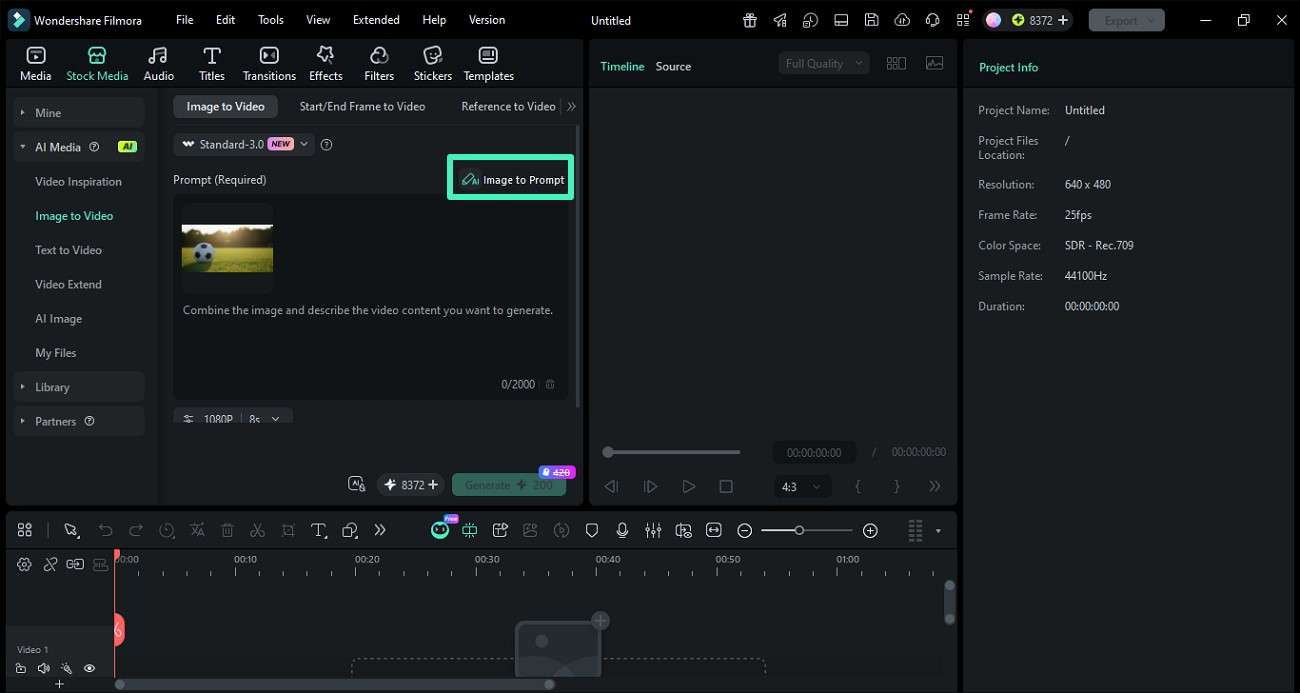
Step 2. Enable Image-to-Prompt Function
After importing the image, activate the "Image to Prompt" tool. The system automatically scans the photo and produces a detailed descriptive prompt based on visual elements.
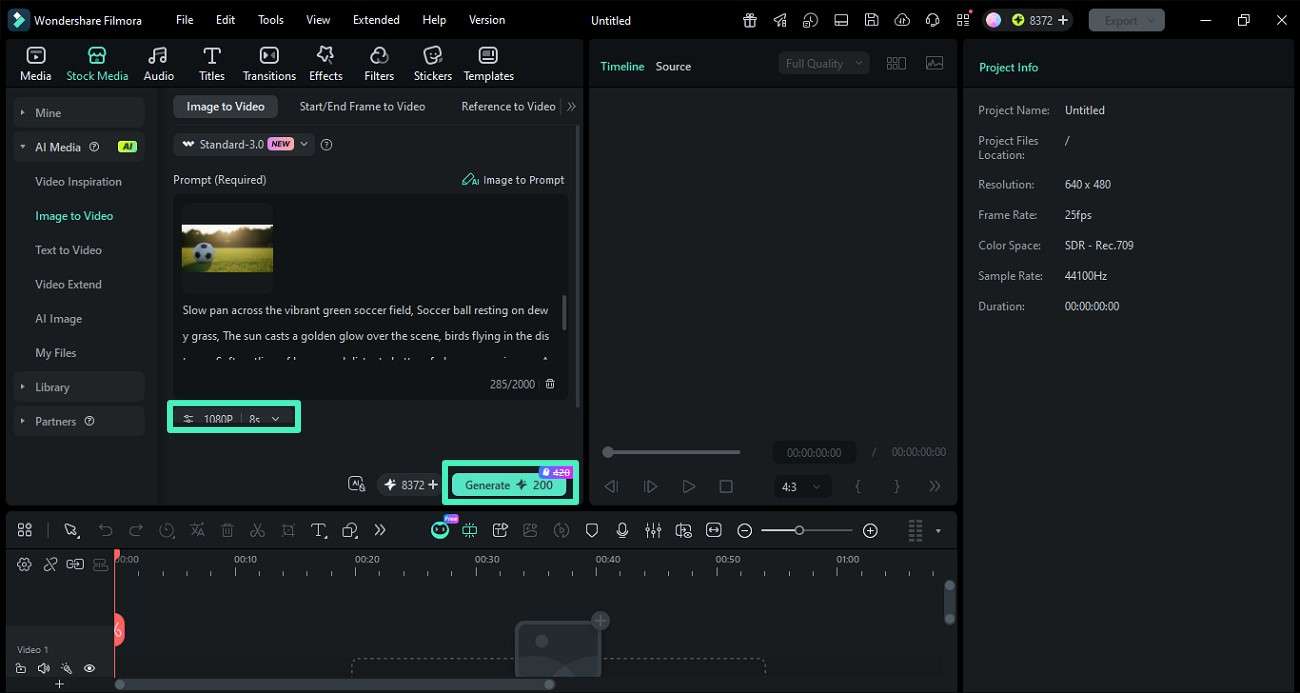
Step 3. Generate Video from Prompt
The created prompt will be displayed for review which can be adjusted or refined if required. Click the "Generate" button and optionally set resolution and video duration before processing.
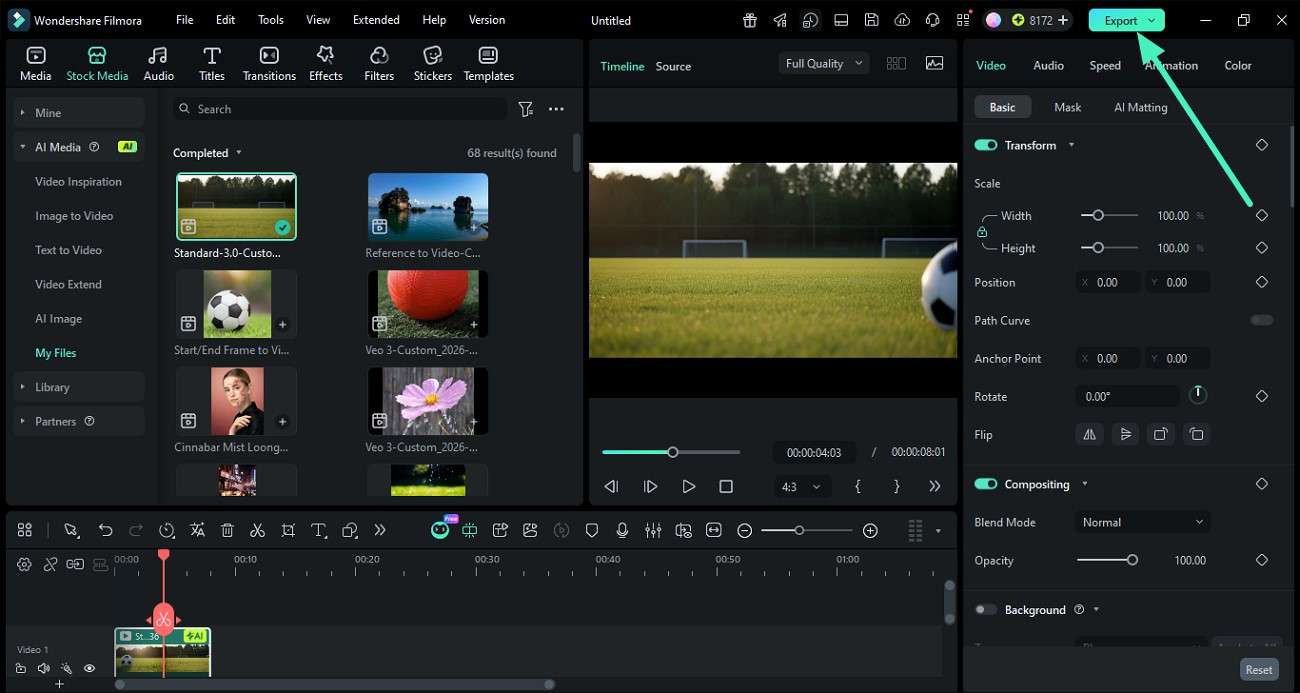
Step 4. Review and Export Final Video
Once the video is rendered, preview the output to check quality and accuracy. Press the "Export" button to save the results when you are satisfied.
Conclusion
All in all, this article provided a detailed guide on how to analyze images with AI. The article discussed how the image analyzer works and what helps make the generation more accurate. However, Filmora is one of the most reliable options when it comes to generating image descriptions with in-depth analysis. Its image-to-prompt feature works best for users who need an accurate and detailed image description.
secure download Frequently Asked Questions
-
1. What is AI image analysis used for?
AI image analysis is used to automatically detect objects and details in images. It then converts them into meaningful insights or descriptions. -
2. Do I need technical skills to analyze images with AI?
Most AI image analysis tools are designed for beginners and require no technical expertise. Simply uploading an image is enough to get instant results. -
3. Can AI turn images into creative content?
AI can transform image insights into prompts, descriptions, and even video concepts. This helps users create new content directly from static visuals. -
4. Which tool is best for turning images into videos?
Filmora is a powerful option for converting images into videos using AI tools. It combines automation with advanced editing features for better results.
