

 100% Security Verified | No Subscription Required | No Malware


 ChatGPT
 Perplexity
 Gemini
 Claude
 Grok
Grok
A student preparing a presentation needs eye-catching graphics but lacks design tools. Turning to ImageFX, they quickly generate visuals using simple descriptions. The process feels fast and intuitive. As they explore more, the tool proves useful for quick image creation.
ImageFX AI image generator is Google's free web-based tool that converts simple text prompts into high-quality, realistic images using advanced AI models. It offers an easy, conversational interface, allowing users to create and refine visuals without design skills. This article reviews its features, performance, and highlights a better alternative.
In this article
Part 1. Key Features of ImageFX AI Image Generator
For a better idea on what Google ImageFX AI has to offer, look ahead at the top features of this AI tool. This will help you get a better idea on what this tool provides in this AI-driven system:
- Prompt-Based Editing: Users can refine or modify images using natural-language instructions. This allows easy adjustments without using complex editing software.
- Style Variety Support: It supports a wide range of artistic styles, from realistic to creative illustrations. Users can experiment with different visual themes based on their needs.
- Google AI Integration: The tool is powered by Google's advanced Imagen models for accurate visual results. This ensures high-quality and context-aware image generation every time.
- Fast Image Creation: It generates high-quality images within seconds for quick creative workflows. This helps users save time during content creation or design tasks.
- Multiple Template Options: Google ImageFX offers a range of ready-made template styles to help users get started quickly. These templates make it easier to create consistent, professional-looking visuals.
Part 2. How to Access ImageFX Google AI for Free: Step-by-Step Guide
Having learned about ImageFX Google AI in detail, let us have a look at the steps for creating images using it:
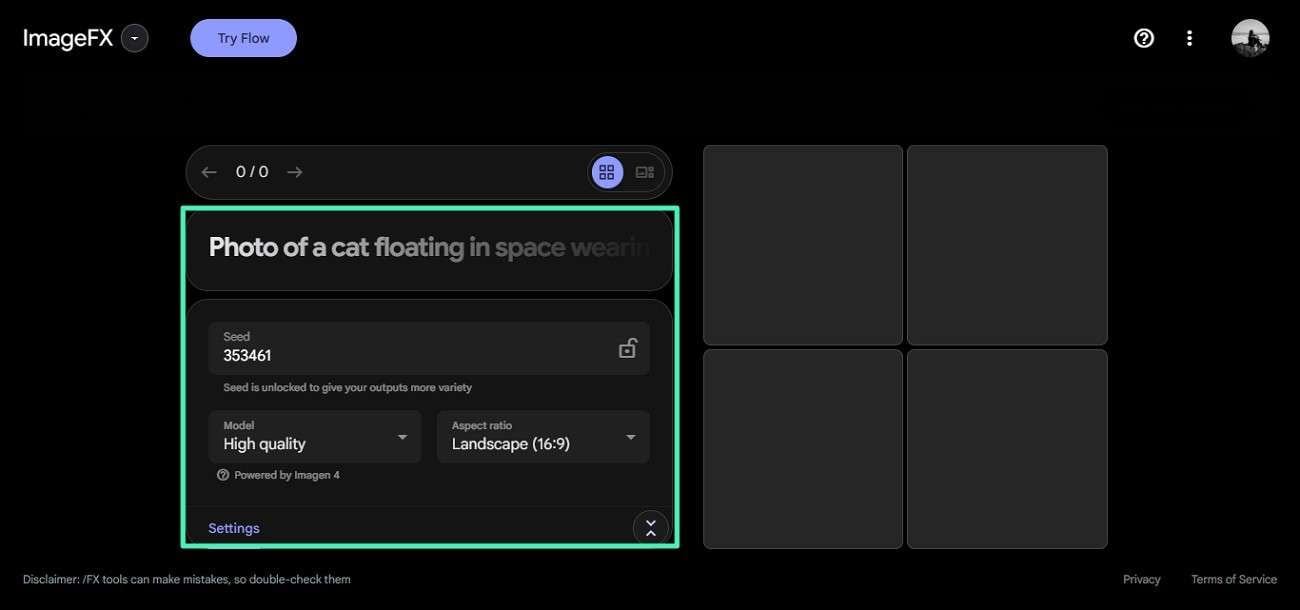
Step 1. After you have opened the tool in your browser, enter the image requirements in text form in the designated fields. Now, select the seed, quality, and aspect ratio under the "Settings" option. Once done, hit the "Create" button to execute the process.
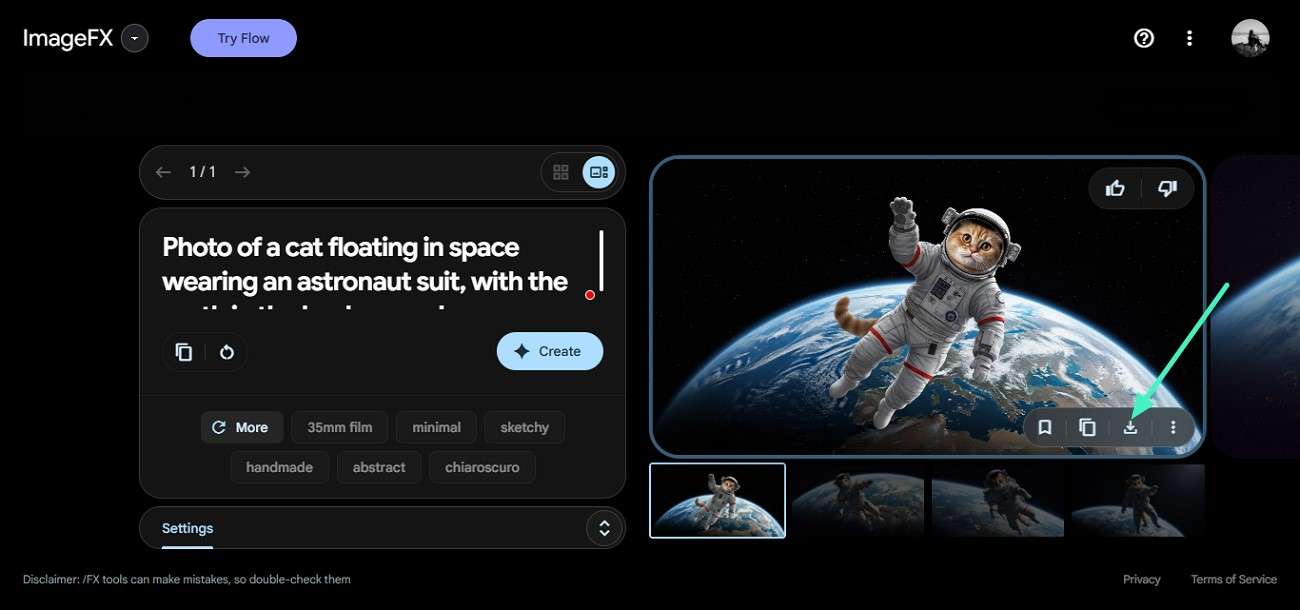
Step 2. After the images are created, preview them and press the "Download" icon to save them to your computer.
Is ImageFX Free?
Yes, ImageFX AI image generator is completely free to use for all users. It does not require any subscription, credit card, or paid plan to generate images. Users only need a Google account to access the tool and start creating AI-generated visuals instantly.
Availability and Country Restrictions
ImageFX Google free AI is available in a wide range of countries, including the U.S., Canada, Australia, Japan, and many regions across Asia, Africa, and Latin America. However, it is still not accessible in some regions, like parts of Europe and the U.K.
Limitations You Should Know Before Using
While the tool is powerful and free, it still has certain restrictions and constraints users should be aware of.
- Limited Regional Access: ImageFX is not available in all countries, so users in unsupported regions may not be able to access it.
- Google Account Requirement: You must sign in with a Google account before using the tool, which may not suit all users.
- Internet Dependency: The platform is fully cloud-based, meaning it cannot be used offline at any time.
- Prompt Sensitivity: Image quality heavily depends on how well the prompt is written, requiring practice for best results.
- Restricted Editing Control: It offers fewer advanced editing features than professional design software.
Part 3. Why Pair ImageFX With Filmora for AI Workflows
While ImageFX AI image generator is powerful for quick image creation, it still lacks advanced editing and post-production flexibility. This is where combining it with a more complete creative platform like Filmora can significantly enhance your workflow and help you turn static AI images into polished visual content.
Filmora Overview
Filmora is a powerful yet easy-to-use video editing software designed for beginners and professionals who want to create high-quality visual content without complex workflows. It offers a wide range of editing tools, including AI-powered features, drag-and-drop functionality, and ready-made templates that simplify the creative process. Users can edit videos, enhance images, add effects, transitions, text, and music with just a few clicks.
 secure download

Built-in Image-to-Prompt Tool
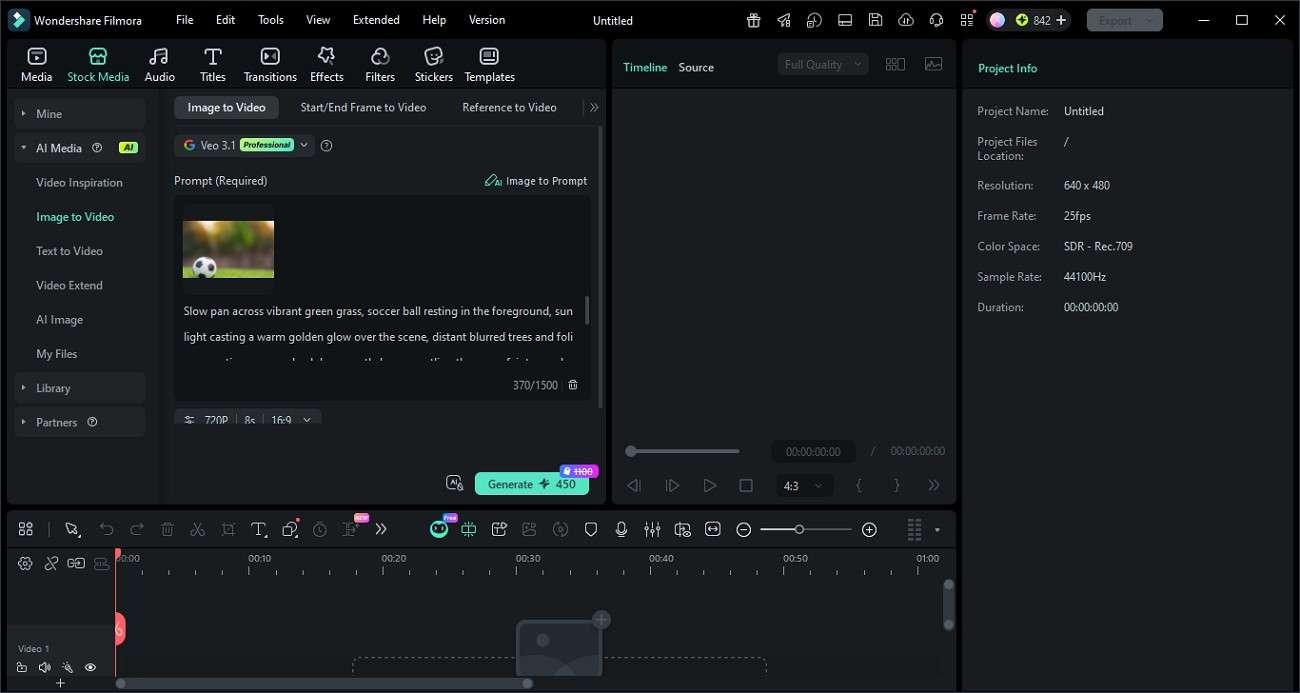
Filmora offers an advanced Image-to-Prompt feature under the Image to Video function that enables users to convert any image into a detailed AI prompt. Analyzing image elements and generating descriptive prompts allows users to refine AI outputs more effectively. This feature enhances control over style, structure, and design, making it easier to produce high-quality and consistent visual content.
Benefits of Recreating and Improving AI Visuals
Filmora allows users to upscale creativity beyond ImageFX Google AI by turning still visuals into dynamic, professional-quality content.
- Multi-Input Support: Users can work with single images, start/end frames, multiple references, or full video clips.
- Prompt Refinement Option: Generated prompts can be edited manually to improve accuracy and creative direction.
- Aspect Ratio & Resolution Settings: Users can customize video format, quality, and size before generation.
- Export-Ready Output: Final videos can be previewed and exported directly on your computer.
- Image-to-Video Conversion: It simplifies the process of turning static visuals into AI-generated videos.
Part 4. How to Use Filmora Image-to-Prompt Tool With ImageFX AI Generator
Integrating ImageFX AI image generator and Filmora, users can generate refined prompts to create more accurate results. Follow the steps mentioned below to learn how to use this feature:
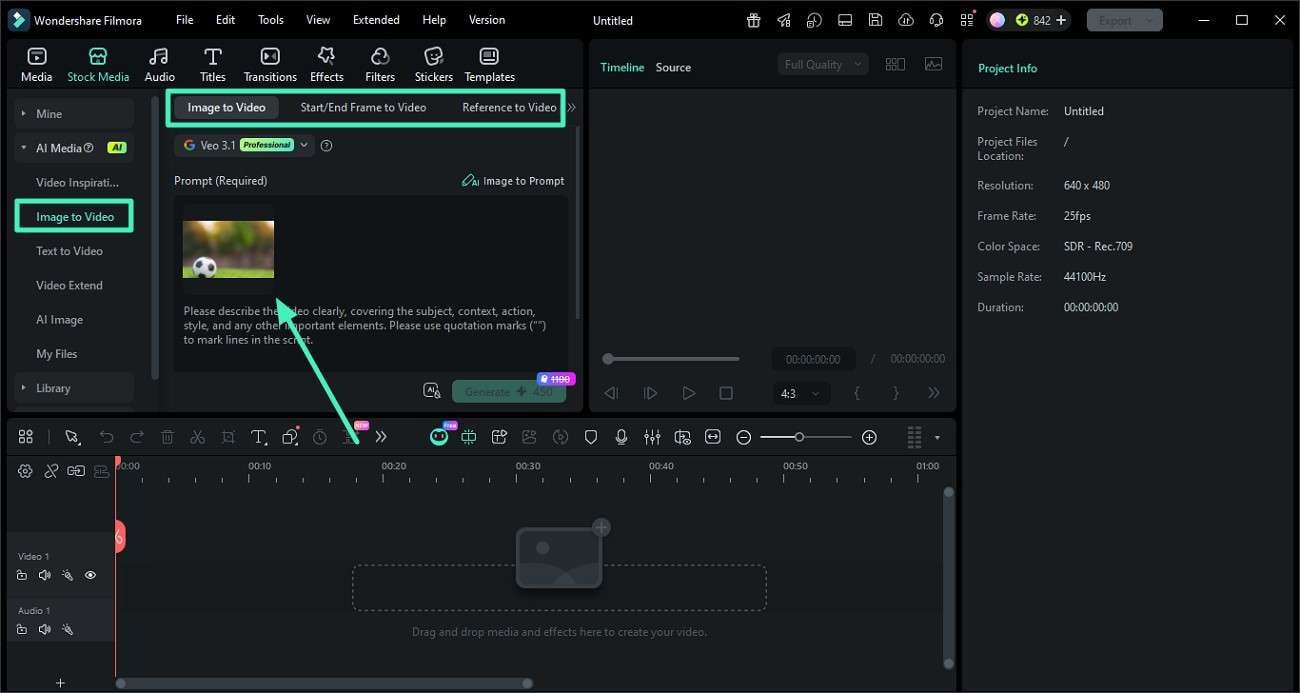
Step 1. Upload an Image Into Filmora Image-to-Prompt Tool
After creating a project on Filmora, head to its min interface and select the "Image To Video" feature from the left. Select the mode of generation like "Image to Video" or "Start/End Frame" or "Reference to Video." Now upload the image to the tool's interface using the designated option.
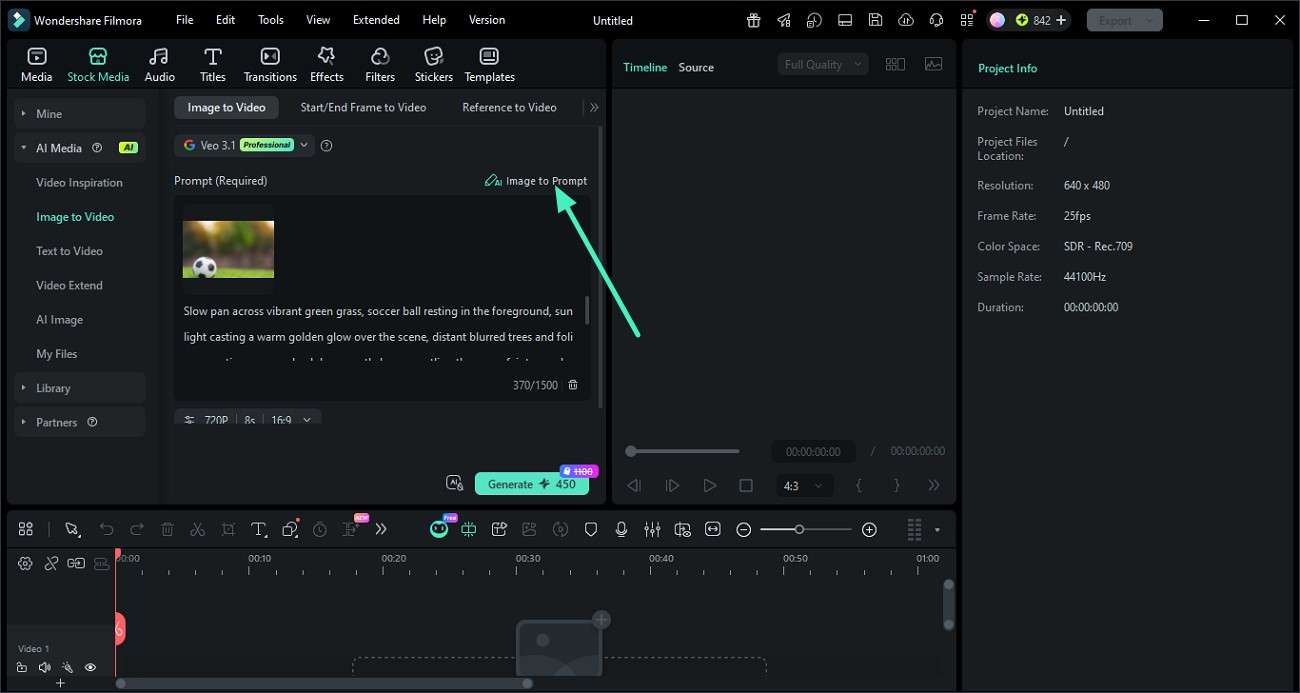
Step 2. Generate Detailed AI Prompts Automatically From the Image
Next, once the image is imported, locate and click the "Image to Prompt" button to generate the prompt.
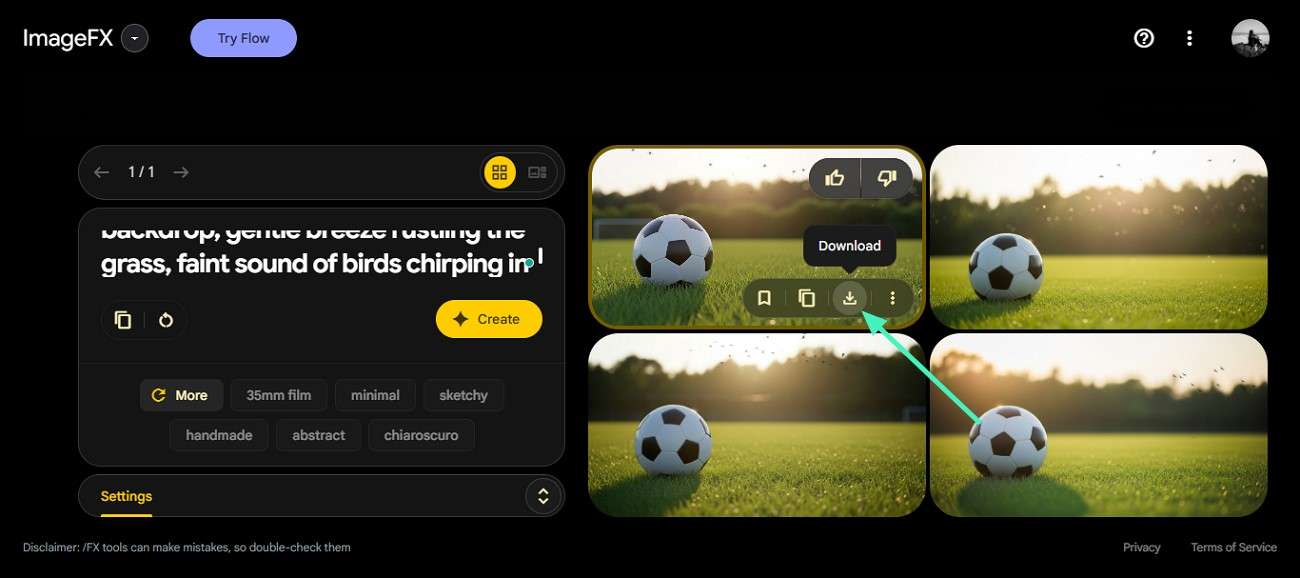
Step 3. Copy and Use the Generated Prompt in ImageFX AI
Once the prompt is generated, copy it and paste it within the ImageFX interface and press "Create" to generate results.
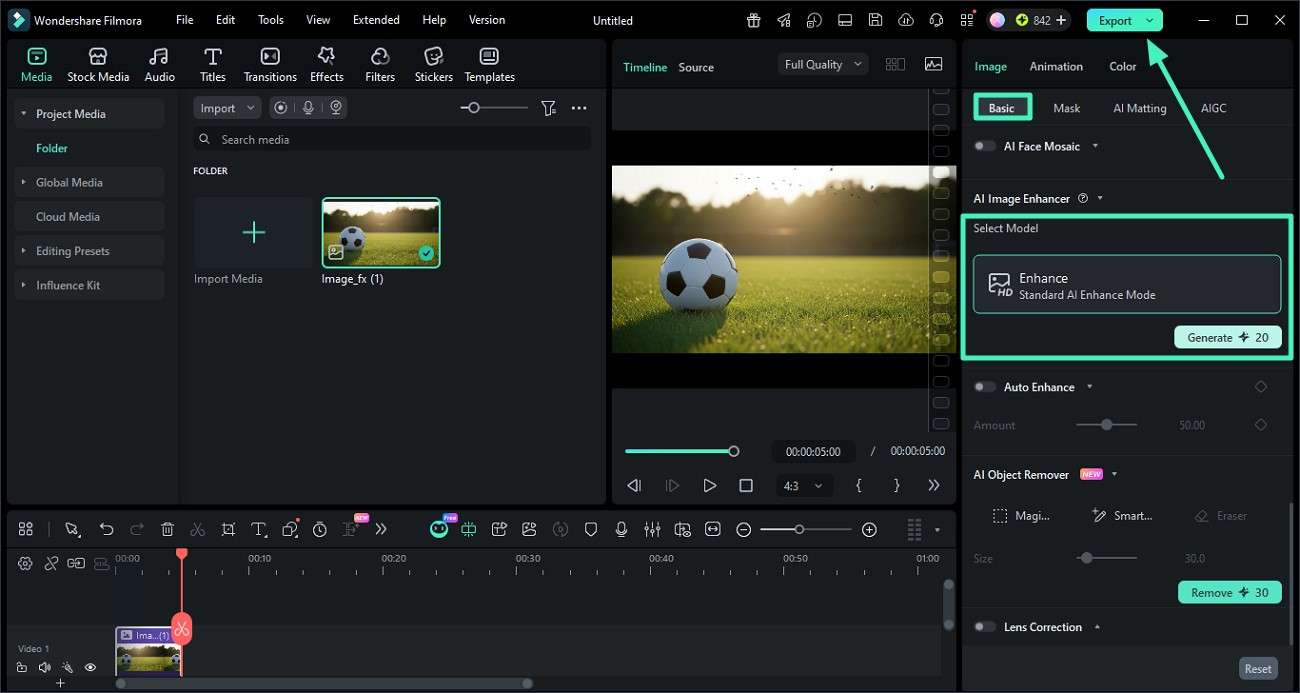
Step 4. Enhance Final Visuals Using Filmora Editing Tools
After the image is successfully generated, import it to Filmora's interface and press the "AI Enhance" option under the "Basic" section on the right to click on "Generate." Once the image is enhanced, press the "Export" button to save the results to your device.
 secure download
 Part 5. Filmora vs. ImageFX AI: Feature Comparison for Better Decision
After exploring ImageFX AI and Filmora individually, the real question is how they perform side by side in a practical AI workflow. Provided below is a side-by-side comparison of bot the tools to help you make the right decision:
| Features | Filmora | ImageFX AI |
| Core Functionality | Full video editing + AI creation suite | Primarily text-to-image generation |
| AI Capabilities | Multi-AI tools (text-to-video, image-to-video, audio AI and many more) | Focused on image generation and editing |
| Editing Flexibility | Full timeline editing, layers, effects, transitions | Limited editing controls |
| Content Types Supported | Video, image, audio, text-based content | Images only |
| Templates & Assets | Extensive built-in templates and creative assets | Basic style presets |
Which Should You Use?
If you only need quick and free visuals, the ImageFX AI image generator works well for basic image creation. However, for a complete creative workflow, Filmora is the better choice. It not only enhances AI-generated visuals but also lets you edit, animate, and produce professional content. Overall, Filmora is highly recommended for more powerful and flexible results.
Conclusion
To wrap it up, this article provided a detailed review of ImageFX AI Generator, highlighting its features, benefits, and limitations for modern creators. While it excels at generating quick and high-quality visuals, it lacks advanced editing capabilities. For a completer and more professional workflow, Filmora is highly recommended, as it allows you to refine, enhance, and transform AI-generated images into engaging, polished visual content effortlessly.
secure download Frequently Asked Questions
-
1. What is the ImageFX AI image generator used for?
ImageFX AI image generator is used to create high-quality images from text prompts. It helps users quickly generate visuals for content creation, marketing, and creative projects without design skills. -
2. Is ImageFX AI image generator completely free?
Yes, ImageFX AI image generator is free to use and does not require a subscription. However, users need a Google account to access and use the tool. -
3. Can I edit images generated by ImageFX?
ImageFX offers limited editing options for refining outputs. For advanced editing, animation, and professional enhancements, using Filmora is highly recommended to improve overall visual quality. -
4. How can I turn AI-generated images into videos?
To convert AI images into engaging videos, you can use Filmora. It provides powerful tools like image-to-video, effects, and templates, making it easy to create polished and dynamic content.
