

 100% Security Verified | No Subscription Required | No Malware


 ChatGPT
 Perplexity
 Gemini
 Claude
 Grok
Grok
A content creator sits in front of a paused video, inspired by its visuals but unsure how to turn that moment into a usable AI prompt. The lighting, mood, and composition are perfect, yet translating them into words feels overwhelming. This is where video-to-prompt techniques step in, bridging the gap between visual content and AI-generated results.
By converting scenes into structured text prompts, creators can recreate styles, generate images, or produce similar videos effortlessly. In this guide, you'll discover practical methods, tools, and tips to transform any video into precise, high-quality prompts for your creative projects.
In this article
Part 1. Best Video to Prompt Generators at a Glance
To help you decide quickly, here's a clear comparison table of the best video-to-prompt generators at a glance:
| Tool | Key Features and Attributes | Supported Input | AI Model Compatibility | Speed |
|---|---|---|---|---|
| Fineshare Video to Prompt | AI video analysis, structured prompts, beginner-friendly UI | Video upload, links | Works with major AI tools | Fast |
| VideoToPrompt.net | Scene, motion & style breakdown, batch processing, multi-model support | Upload + URL (MP4, MOV, AVI, WebM) | Sora, Kling, Runway, Seedance | Fast |
| VideoPrompt.online | AI video analysis, cinematic detail extraction, multilingual prompts | Upload + YouTube/Vimeo links | Veo, Kling, Wan, Seedance, Midjourney | Fast |
| Video2Prompt.org /.net | Reverse-engineering videos, model-specific prompt formatting | Upload + links | Sora, Runway, Kling, Seedance | Fast |
| PixMind Video to Prompt | Integrated AI suite, video + image prompt tools, multiple AI models | Upload video | Veo, Sora, Kling, Runway, more | Fast |
Part 2. Top Video to Prompt Generators Compared
Fineshare Video to Prompt
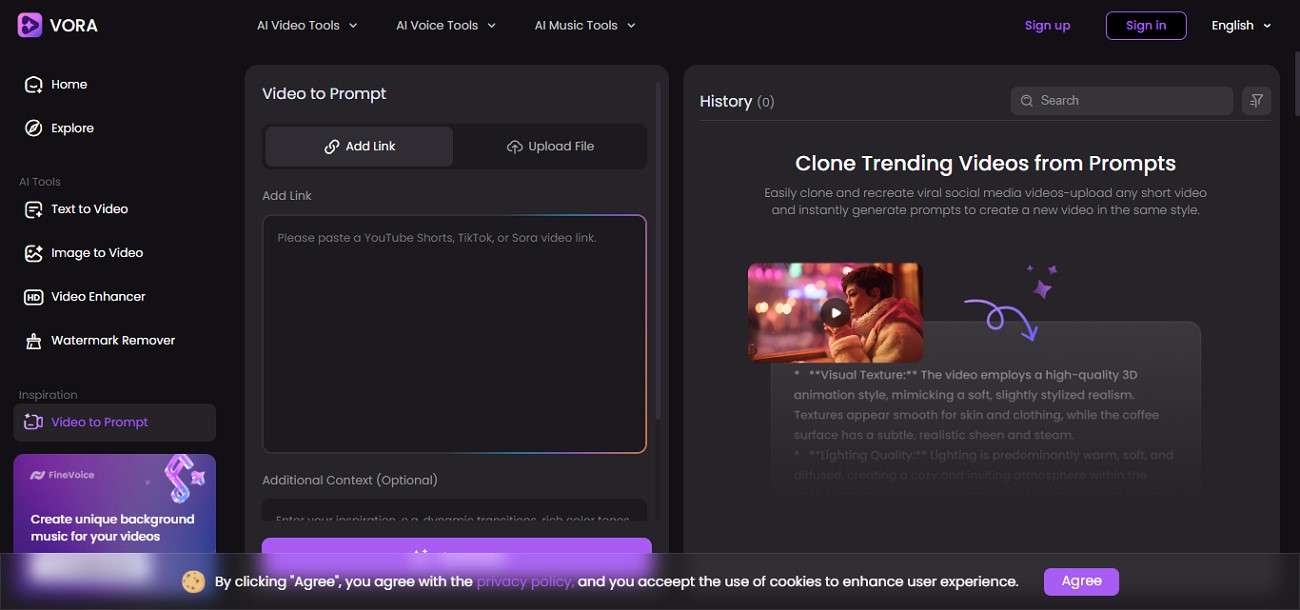
Fineshare Video to Prompt is an AI-powered tool that converts videos into detailed text prompts. It analyzes scenes, motion, lighting, and style to generate accurate descriptions. Users can upload or paste links from platforms like YouTube or TikTok. It is especially useful for quickly recreating similar AI-generated video content.
VideoToPrompt.net
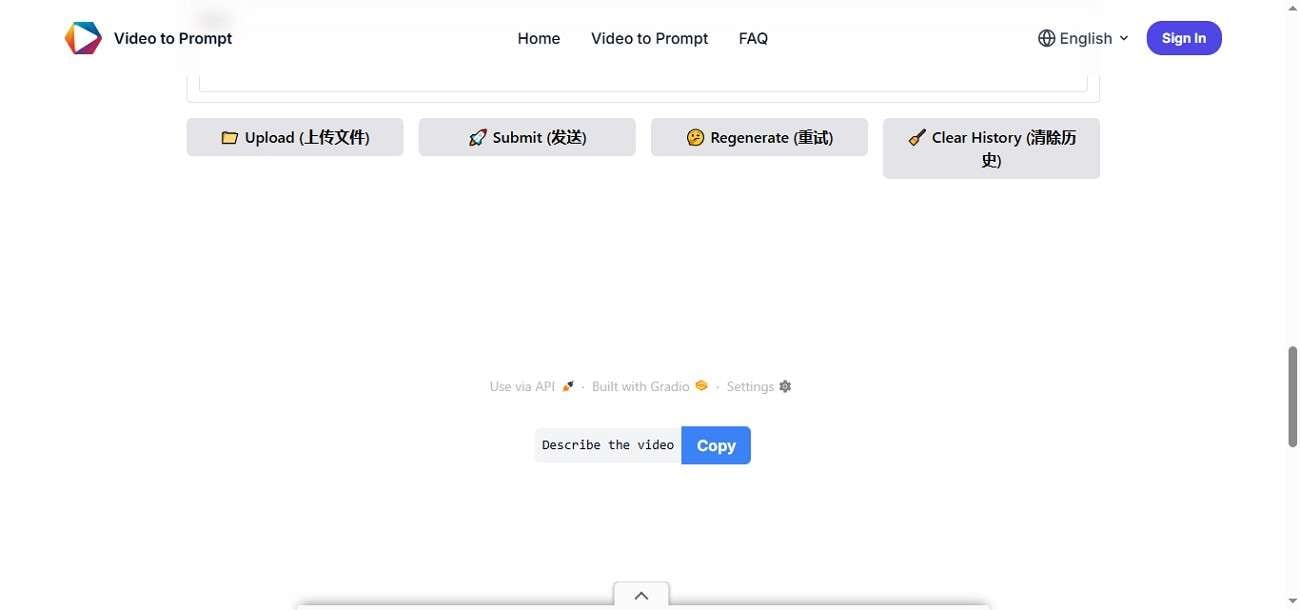
Designed for advanced creators, VideoToPrompt.net extracts structured shot-by-shot prompts from any video. It supports models like Sora, Runway, Kling, and Pika, offering both text and JSON outputs. The video to prompt converter identifies camera movements, transitions, and scene details, making it ideal for professional AI video workflows and prompt engineering tasks.
VideoPrompt.online
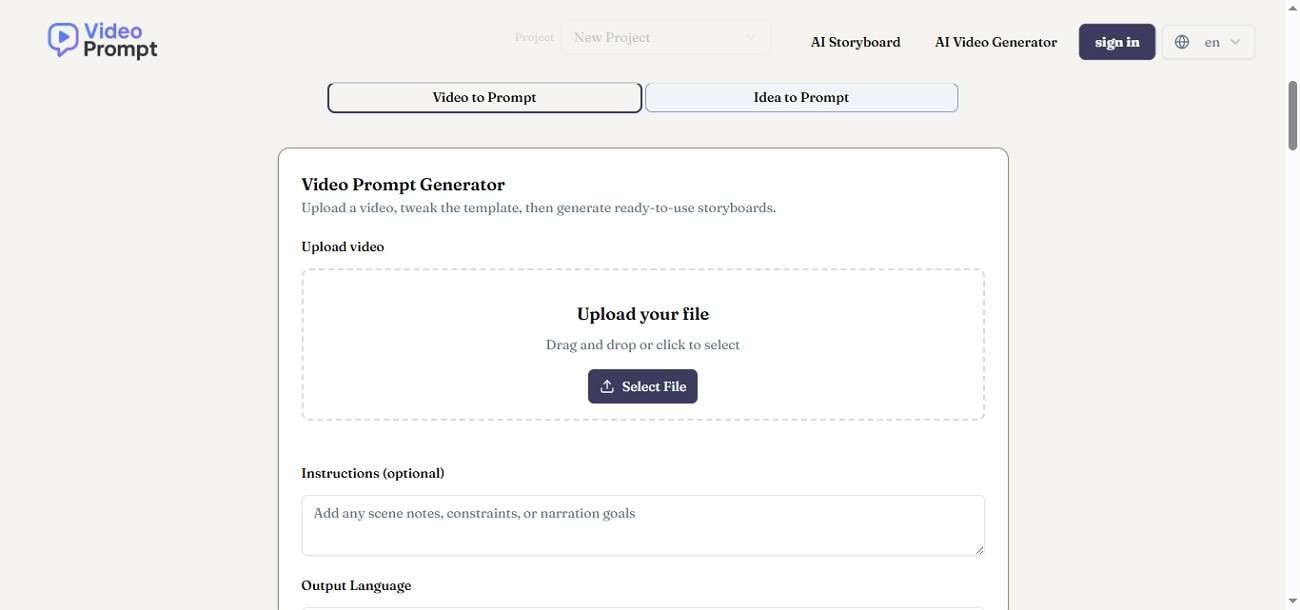
Powered by AI scene analysis, VideoPrompt.online transforms videos into detailed creative prompts. It captures lighting, mood, composition, and motion for accurate AI reproduction. The tool supports multiple AI video models and offers fast, free generation. It is widely used by creators who want cinematic-level prompt breakdowns in seconds.
Video2Prompt.org
Built for precision, Video2Prompt.org reverse-engineers videos into structured AI prompts. It supports major models like Sora, Runway, and Kling while extracting shot timing, camera angles, and visual style. The video prompt generator AI focuses on professional-grade prompt outputs, making it suitable for filmmakers, marketers, and AI content developers.
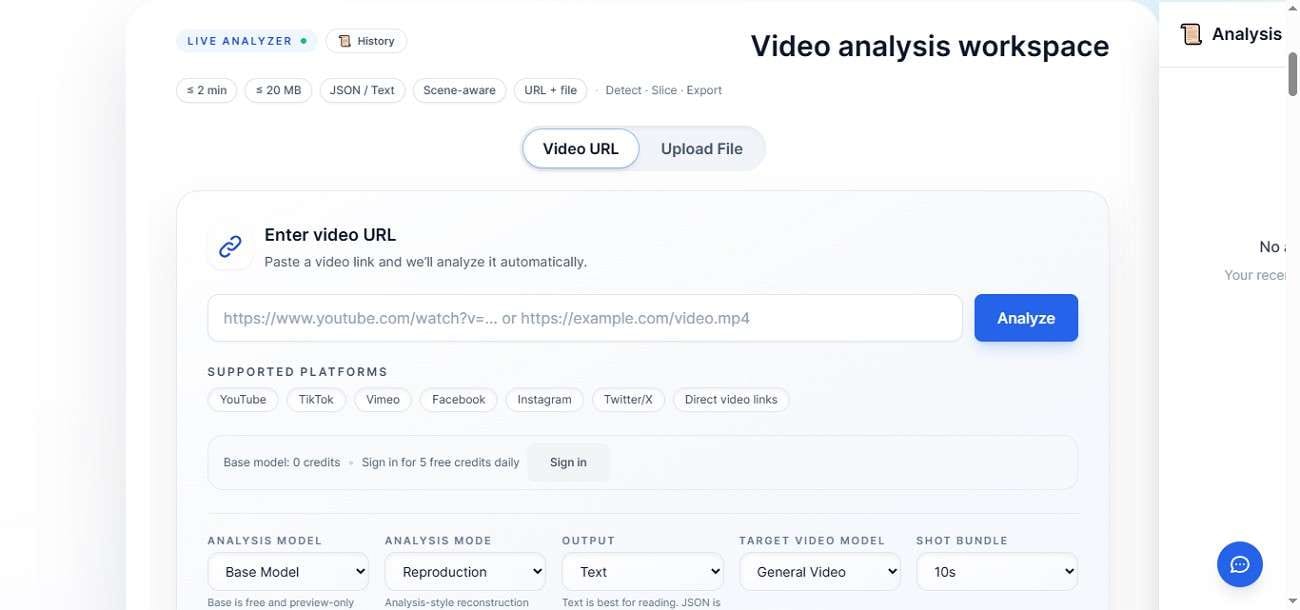
PixMind Video to Prompt
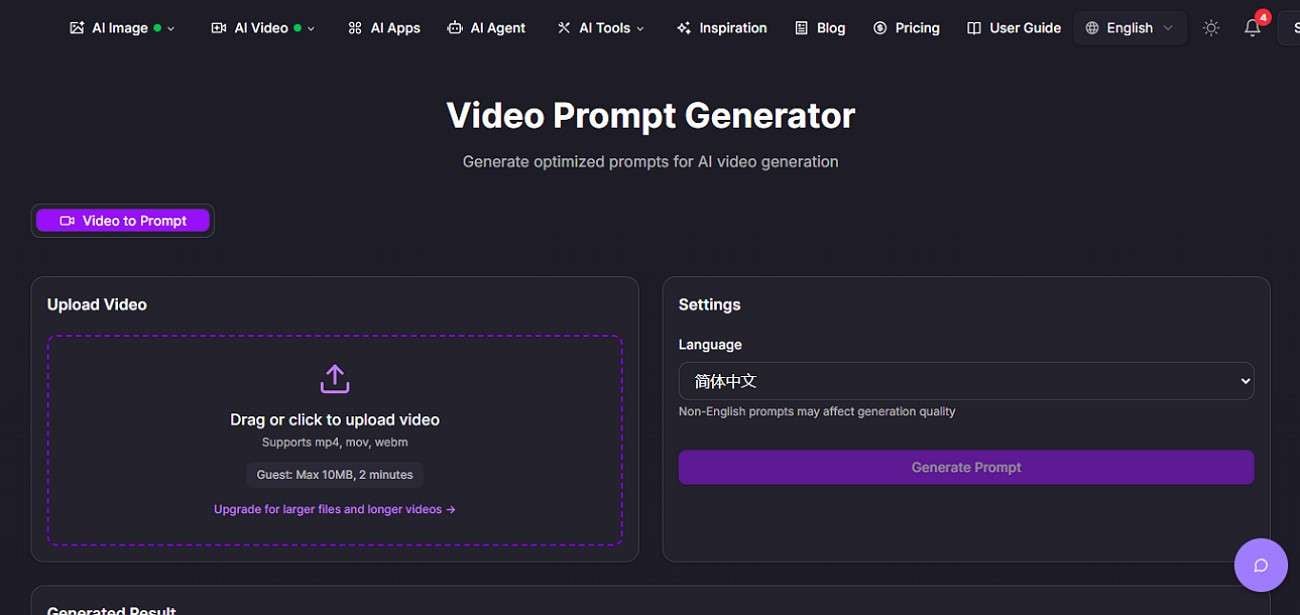
Offering a complete AI creative suite, PixMind Video to Prompt converts videos into usable prompts with deep scene understanding. It analyzes motion, style, and composition while integrating with tools like Veo and Sora. Along with prompt generation, it supports image and video creation features, making it an all-in-one AI platform.
Part 3. How to Choose the Best Video to Prompt Generator
The right choice depends on what you want to create, how much control you need, and how advanced your workflow is. Here are the key factors to consider when choosing the best AI video to prompt generator:
- Prompt Accuracy: Look for tools that can accurately capture scenes, motion, lighting, and mood from the video without losing important details.
- AI Model Support: Check whether the tool works with popular AI models like Sora, Runway, Kling, or Midjourney for better compatibility.
- Ease of Use: A clean and simple interface is important, especially if you are a beginner or need quick results without technical steps.
- Output Detail Level: Some tools give basic descriptions, while others provide shot-by-shot breakdowns with camera angles and cinematic details.
- Video Input Options: Ensure the tool supports multiple formats, such as uploads, YouTube links, or social media URLs.
Part 4. How to Pair Extracted Video Prompts with AI Video Generators
Once you have your extracted video prompt using the video prompt extractor, the next step is to bring it to life using an AI video tool. Filmora's AI video generator makes it easier to turn extracted prompts into fully polished videos without complex editing skills.
Instead of manually building scenes, you can simply use tools like Text to Video or Idea to Video to transform your prompt into dynamic visuals in minutes. This seamless workflow helps bridge the gap between creativity and production.
Why Filmora Fits the Next Step
- AI Scene Creation: Automatically builds scenes that match your prompt's mood, style, and narrative flow without manual editing.
- Smart Media Matching: Suggests relevant stock footage, images, and elements that align with your prompt for faster video creation.
- Auto Editing Assistance: Handles timing, sequencing, and transitions so your video feels smooth and professionally edited.
- Creative Flexibility: Lets you refine, rearrange, or enhance AI-generated output to match your exact vision.
- All-in-One Workflow: Combines prompt-based creation, editing, and exporting in a single platform, reducing the need for multiple tools.
 secure download

Step-by-Step Guide to Using Filmora with Extracted Video Prompts
With a clear understanding of how Filmora streamlines prompt-based video creation, the next step is to see how it performs in real use. To make things more practical, let's look at how these features come together in an actual workflow for AI video to prompt:
Filmora Text to Video
Filmora Text to Video is an AI-powered feature that converts your generated prompts into fully edited videos within minutes. It automatically generates scenes, transitions, and visuals, making video creation fast and effortless. Here is how you can use this functionality:
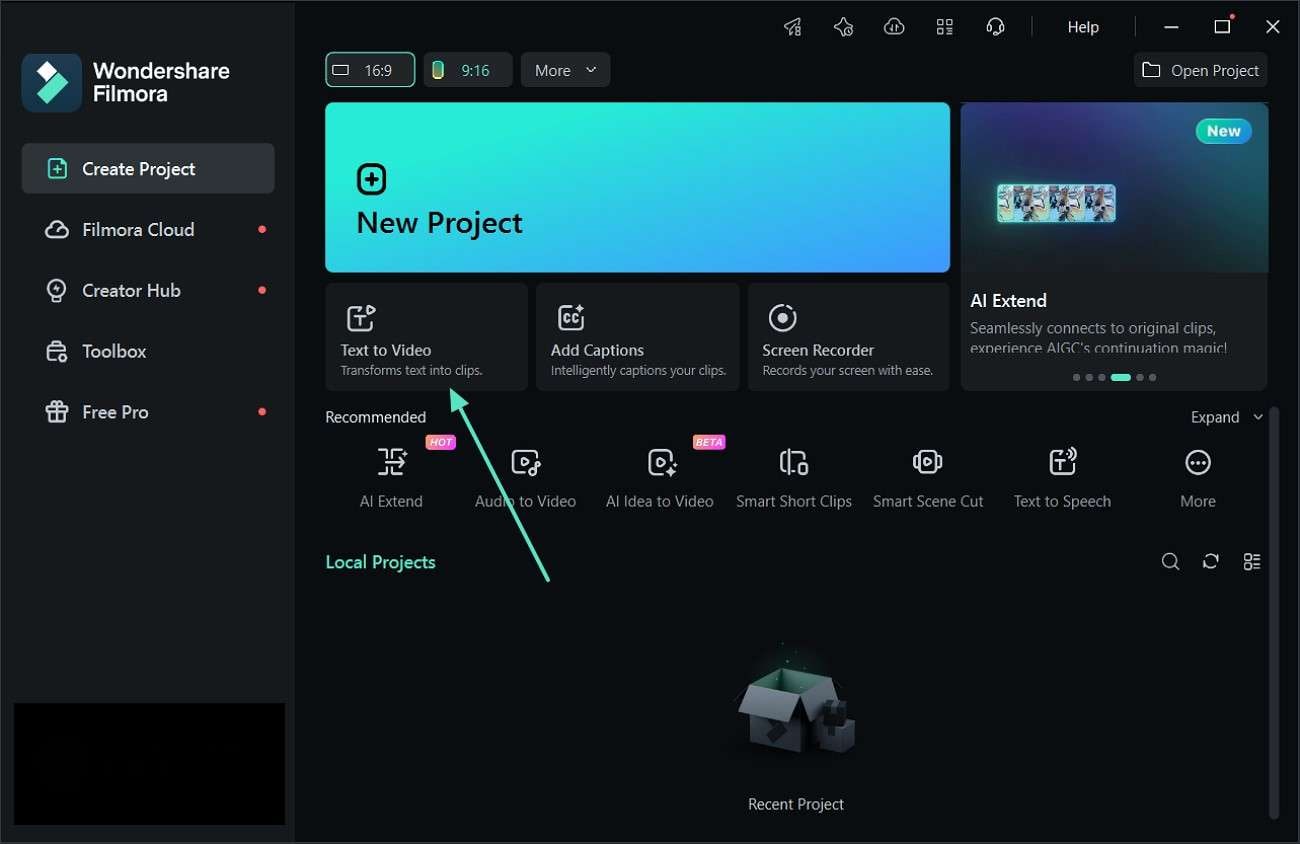
Step 1. Open the Text to Video Tool
Start by launching Filmora on your device. From the main dashboard, locate and select the "Text to Video" option to begin creating your AI-generated video.
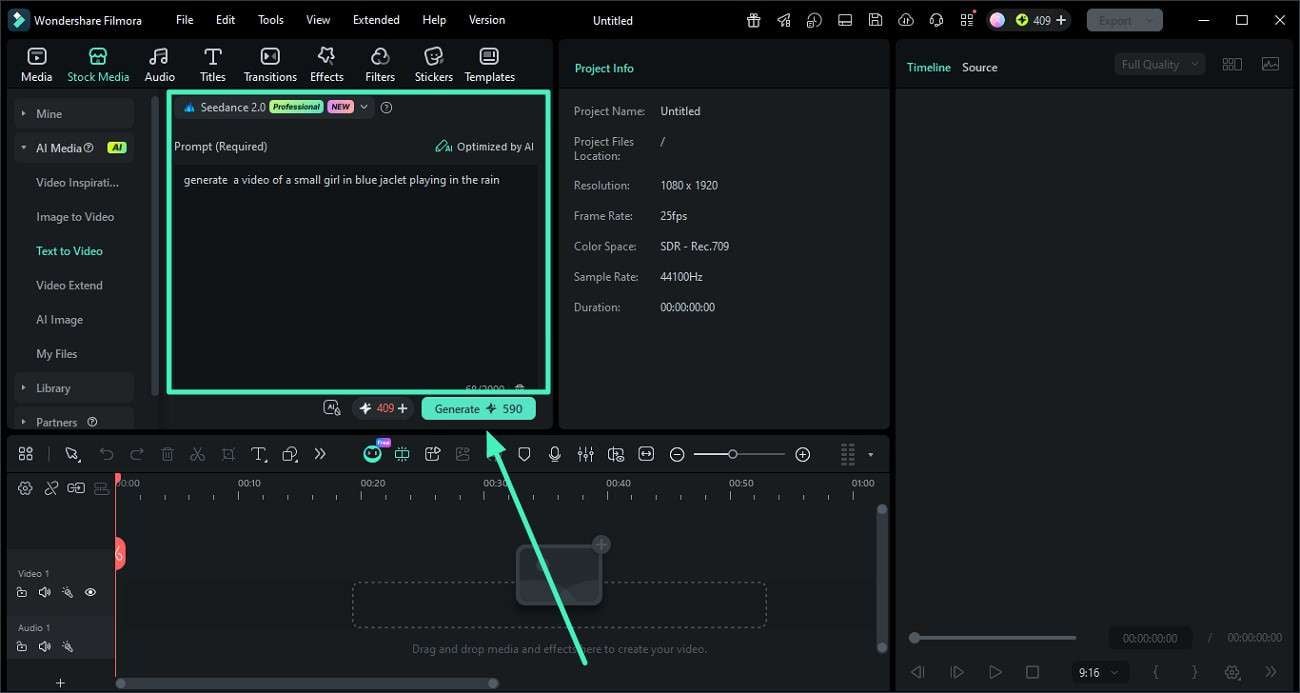
Step 2. Create Your Video with AI
Choose a generation mode such as Google Veo 3.1, OpenAI Sora 2, or the standard option from the dropdown menu. Enter your text prompt you generated from the video into the prompt generator. Adjust the available settings and click "Generate" to let the AI process your video.
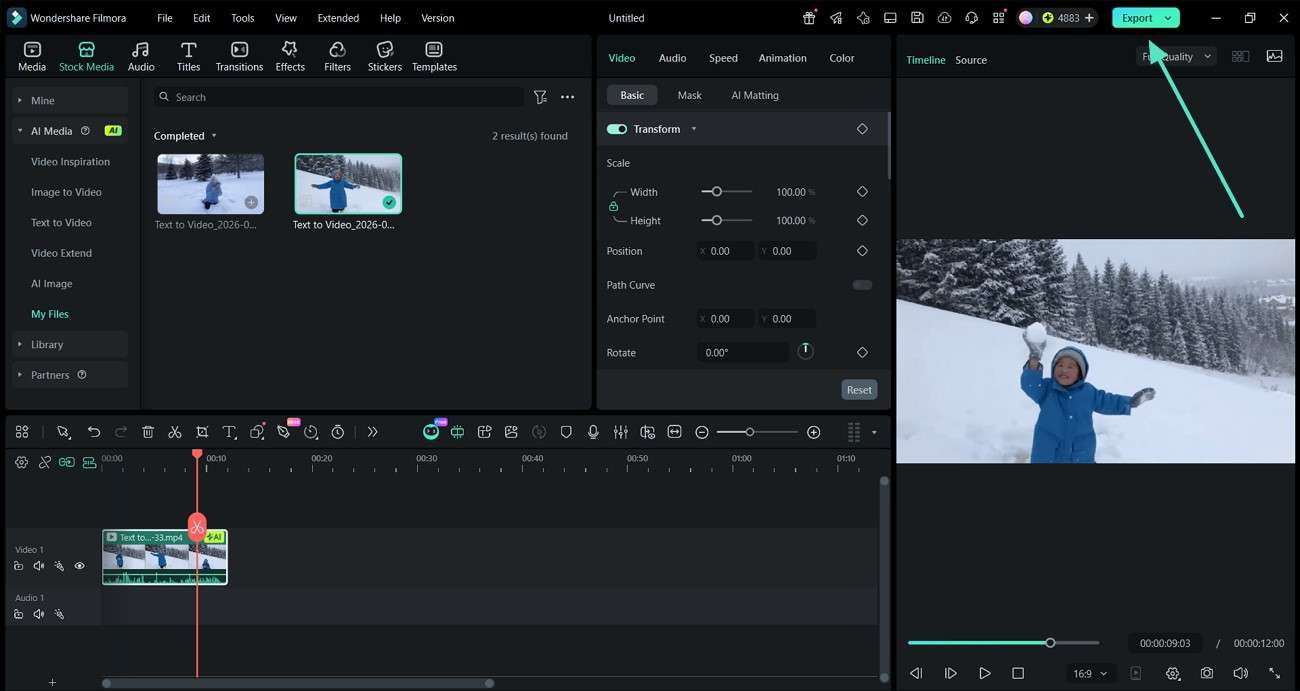
Step 3. Review, Edit, and Export
Preview the generated video and make any necessary edits to refine it. When everything looks perfect, click "Export" to download and save the final video to your device.
 secure download
 Filmora Idea to Video
After generating a prompt using an AI video to prompt generator, Filmora's Idea to Video feature helps you turn that prompt into a complete video instantly. It understands your concept and transforms it into structured scenes with visuals, transitions, and storytelling. Follow the steps mentioned below to learn how to use this feature:
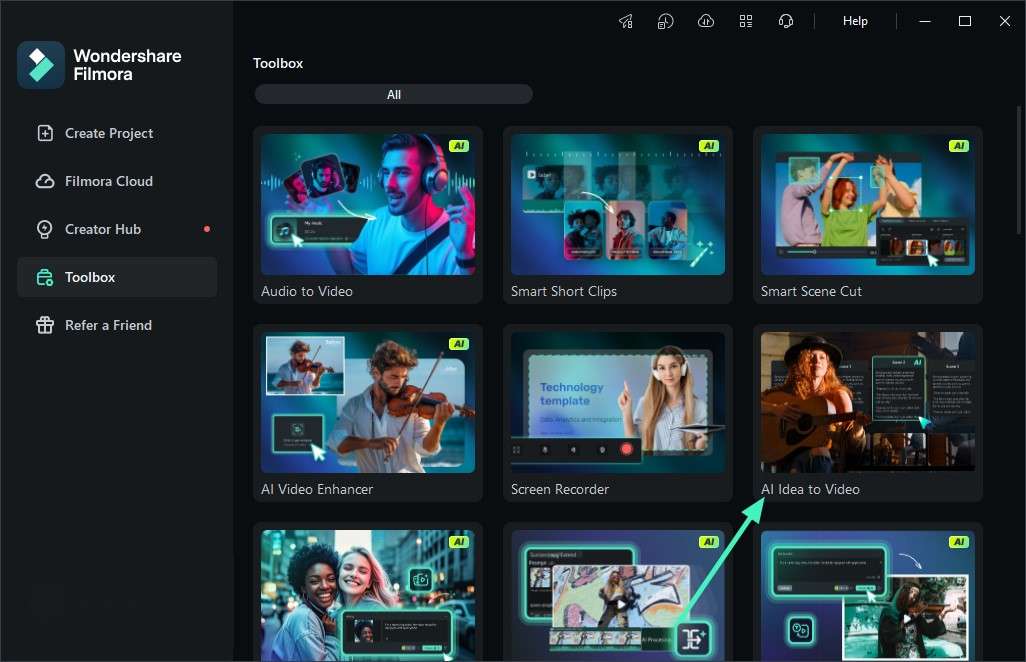
Step 1. Begin by Accessing the Feature
After launching Filmora, access the "Toolbox" from the left and choose the "AI Idea to Video" feature.
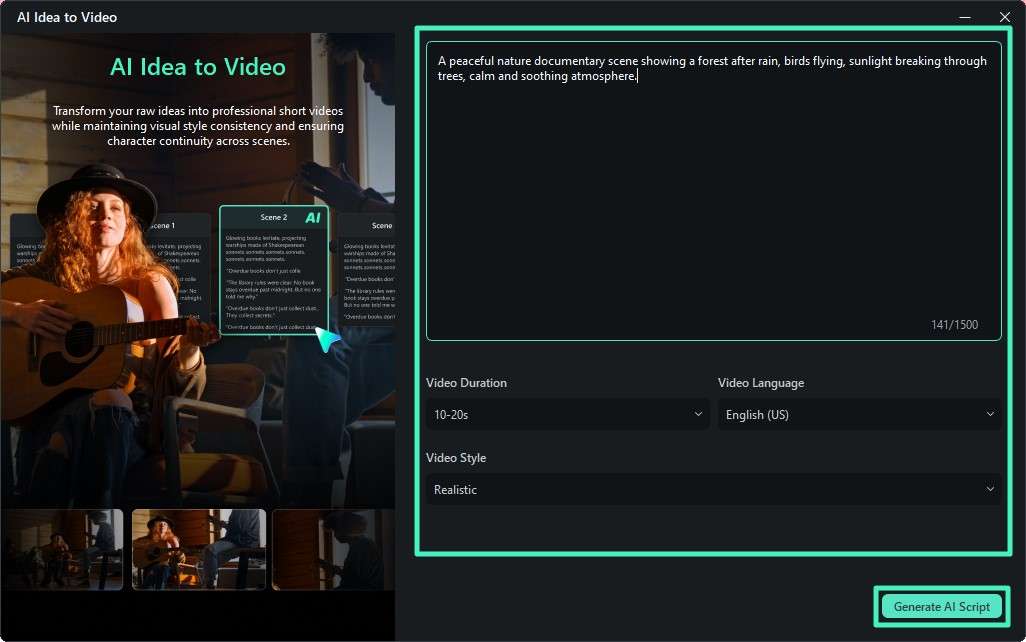
Step 2. Enter Prompt Generate Script
In the following interface, input the prompt you generated using online tools in the designated field. Now choose the duration, language, and style for your video. Press the "Generate AI Script" button to proceed.
Step 3. Preview Scene and Generate Video
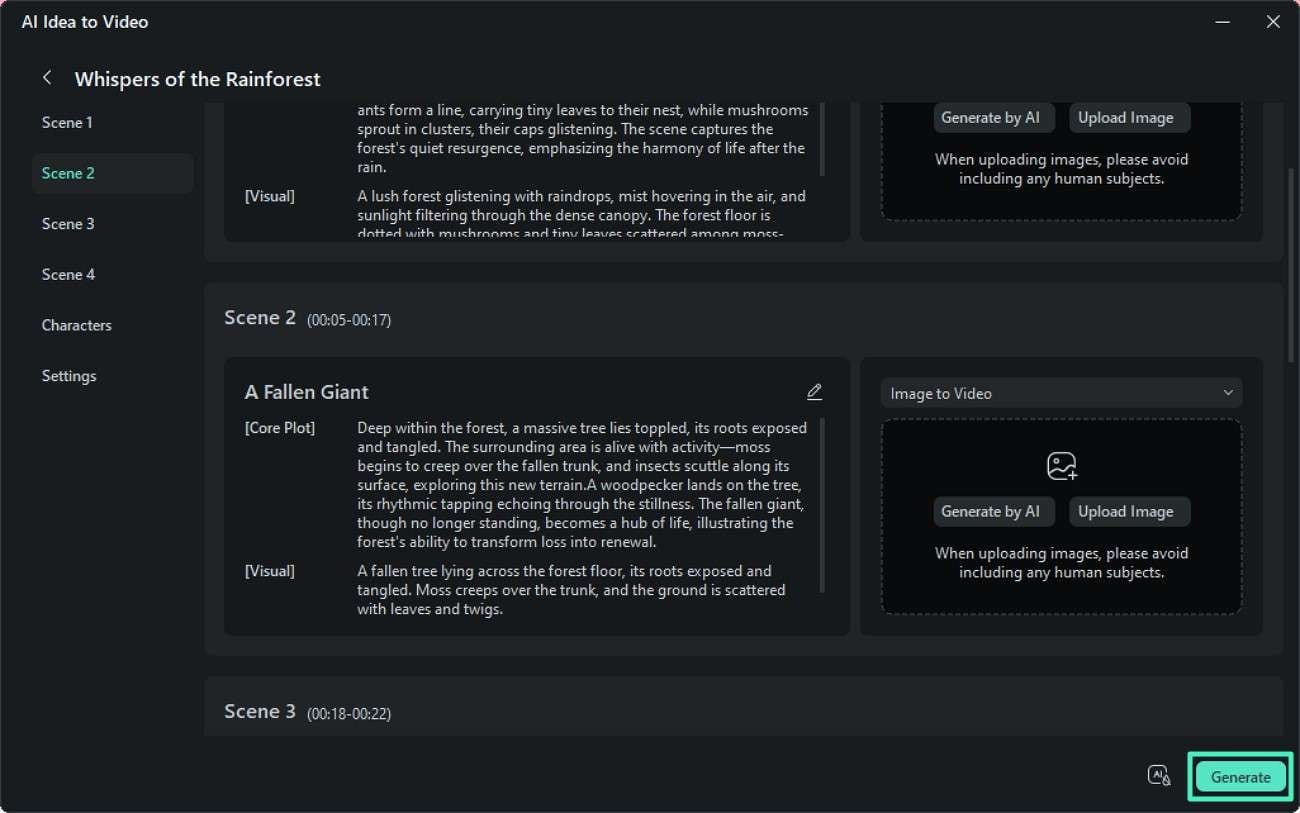
Once the scenes are generated by the tool, preview them within the interface. Make changes if required and hit the "Generate" button to execute the process.
Step 4. Edit and Save Video
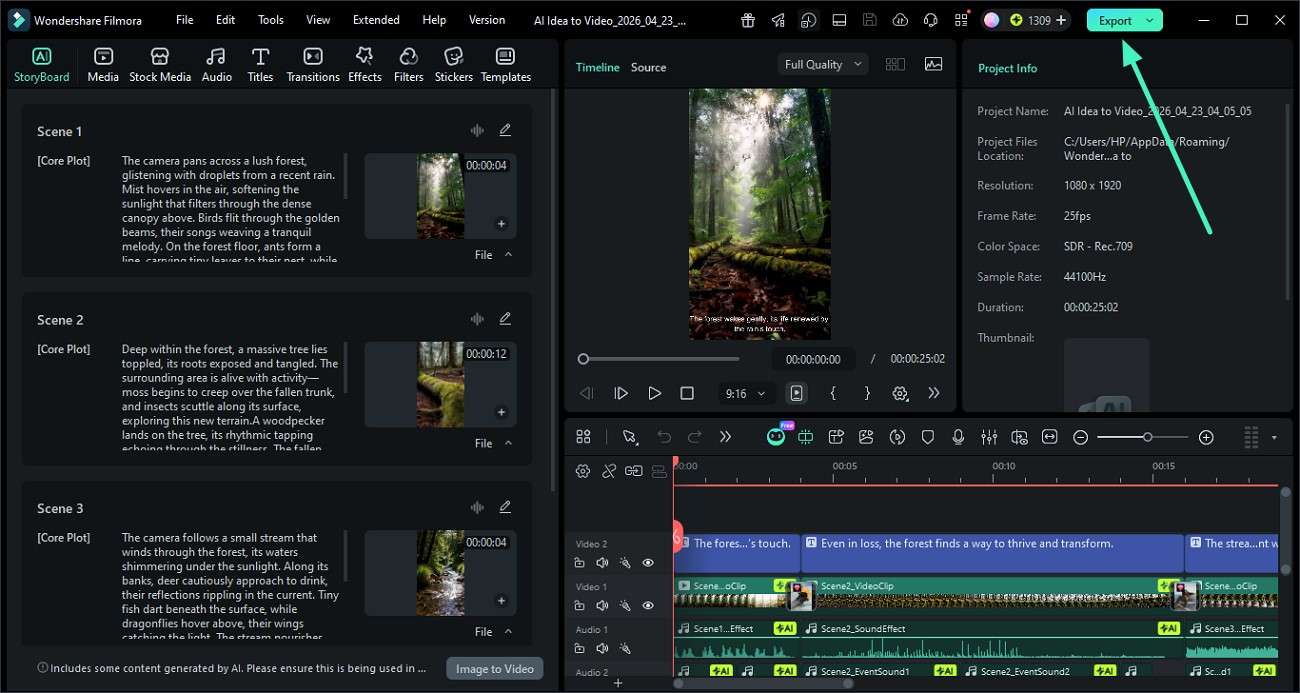
After the video is successfully generated, preview and edit it within the Filmora interface. When you are satisfied with the results, hit the "Export" button to save it to your device.
 secure download
 Part 5. What Makes a Video Prompt More Reusable Across Models?
To get consistent results across different AI video prompt generators, it's important to structure your prompts in a way that stays clear, flexible, and model-friendly. Here's a simple breakdown of what makes a video prompt more reusable:
- Shot Type: Defines the camera perspective, such as close-up, wide shot, aerial view, or tracking shot. This helps the model understand framing.
- Subject + Action: Clearly describes who or what is in the scene and what they are doing, such as "a cyclist riding through a busy city street."
- Scene + Environment: Sets the location and surroundings like "rainy urban street at night" or "sunlit mountain valley."
- Style + Lighting: Specifies the visual mood and aesthetics, such as cinematic, anime-style, soft lighting, neon glow, or natural daylight.
- Audio Elements: Adds sound context like background music, ambient noise, wind, or city sounds to enhance realism.
Reusable Video Prompt Formula:
[shot type] + [subject + action] + [scene + environment] + [style + lighting] + [audio elements]
Example: Wide shot of a young explorer walking through a misty forest, surrounded by tall ancient trees, cinematic style with soft morning light and subtle ambient forest sounds.
Conclusion
To conclude, this article discussed the top video-to-prompt generators. However, if you want a complete solution that goes beyond prompt extraction, Filmora stands out. Its AI Text to Video and Idea to Video features let you directly turn prompts into polished videos, making the entire process faster, simpler, and more creative.
secure download Frequently Asked Questions
-
1. What is a video-to-prompt generator?
A video-to-prompt generator is an AI tool that analyzes video content and converts it into structured text prompts. These prompts can then be used in AI tools to recreate scenes, styles, or generate new visual content. -
2. How accurate are video-to-prompt tools?
Accuracy depends on the tool, but most modern generators can effectively capture scenes, motion, lighting, and style. Advanced tools provide more detailed outputs with better prompt structure for AI models. -
3. Can I use Filmora for turning prompts into videos?
Yes, Filmora is a great option for this. Its Text to Video feature lets you convert prompts into complete videos, while Idea to Video helps turn concepts into structured visual stories easily. -
4. Which tool is best for beginners in video to prompt creation?
Beginners often prefer tools with simple interfaces and quick outputs. Filmora is highly recommended because it combines AI prompt handling with easy editing and video generation in one platform.
