

 100% Security Verified | No Subscription Required | No Malware


 ChatGPT
 Perplexity
 Gemini
 Claude
 Grok
Grok
Podcasts have become a global phenomenon, with over 580 million listeners and a booming $4 billion industry in 2025. Spotify alone hosts millions of shows, making it the top podcast platform to date.
But audio-only content has one big limit—you can't see, search, or repurpose what's said. So, Spotify introduced Spotify podcast transcripts, which have now become an important feature that helps improve accessibility for millions with hearing loss. Transcripts also let you:
- Search and reference at any moment easily
- Translate episodes into other languages with translators
- Repurpose content into blogs or posts
- Boost SEO and visibility for creators
However, Spotify doesn't always show transcripts automatically. As a workaround, this guide will also show you simple, free ways to get transcripts for Spotify podcasts—helping you unlock more value from every episode.
In this article

Method 1: How to Get Spotify Podcast Transcripts Using the Built-in Feature
Spotify has begun providing Spotify podcast transcripts for many podcast episodes, but this feature is not yet universally available.
Some shows already feature transcripts on the mobile and desktop apps, while creators can manage or upload transcripts via Spotify for Creators. Transcript availability varies depending on the episode, show settings, and launch region.
If the transcript is available on the podcast, you can access it by following the steps below.
How to Access a Spotify Transcript (Step-by-Step)
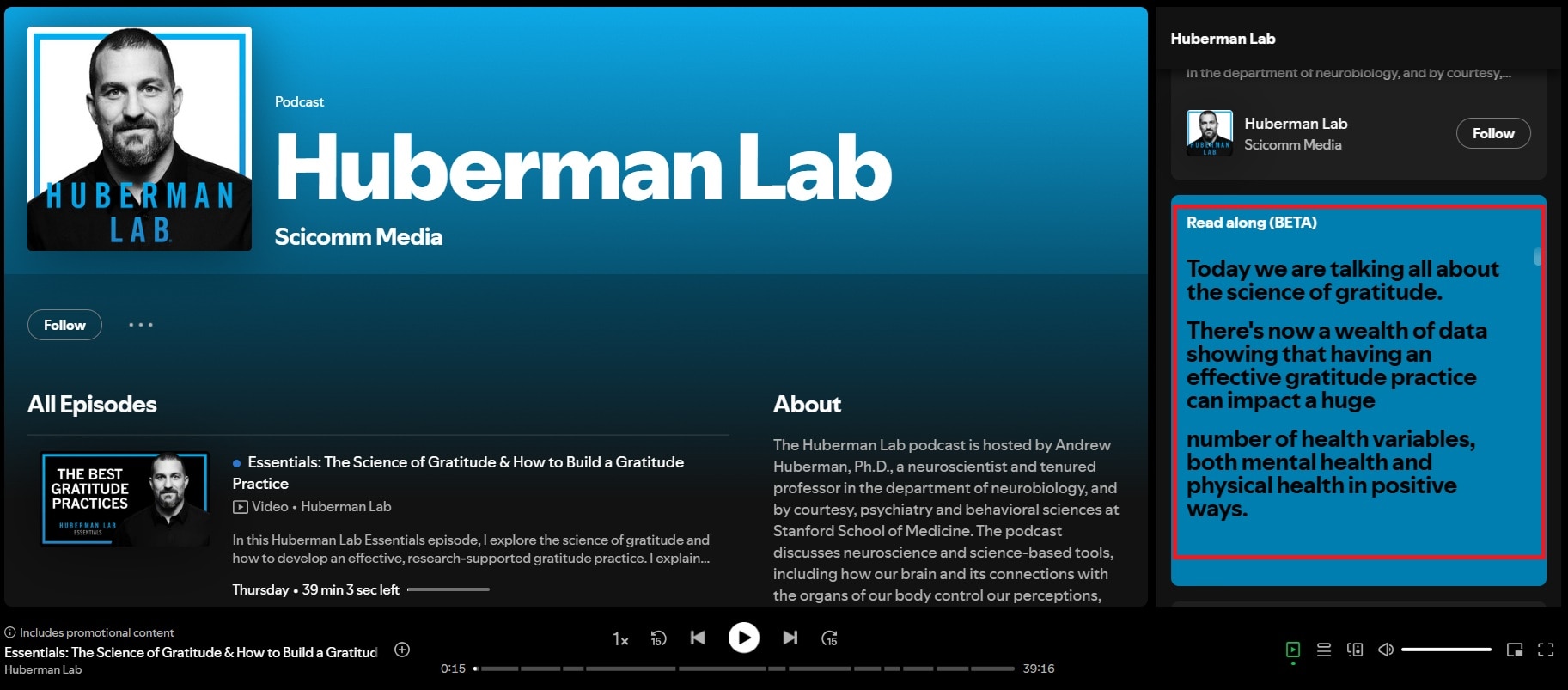
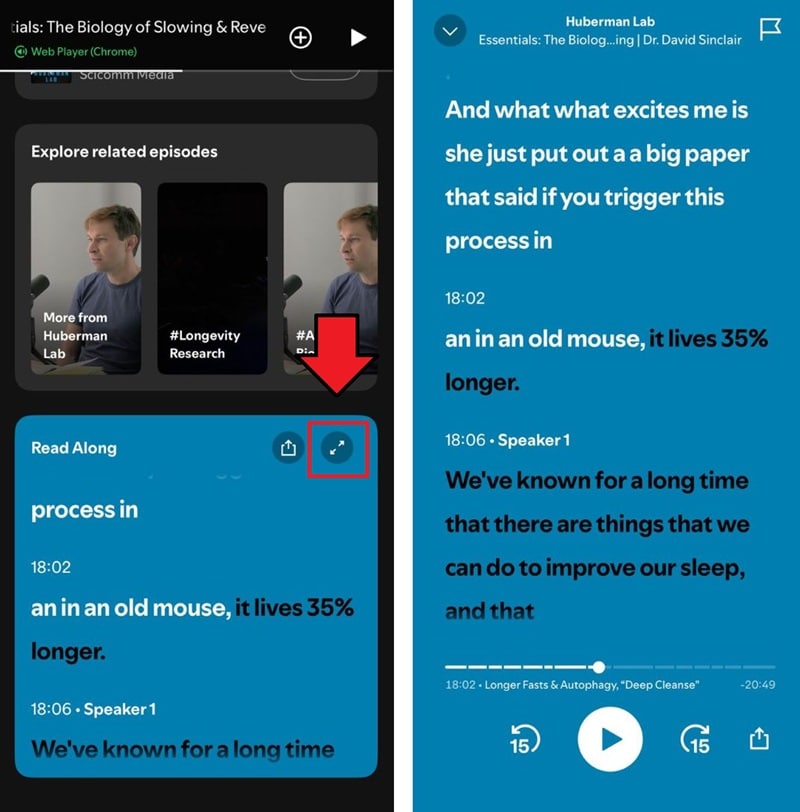
Open Spotify on your computer or mobile phone and play the episode you want.
- If you are opening it on the computer, navigate to the right panel and scroll until you see “Read Along.”
- If you're using your phone, scroll down the episode page until you see the Read Along section. Tap it to expand and start reading along.
What Creators Can Do:
Creators using Spotify for Creators can view, download, upload, or enable/disable transcripts for their episodes. Downloaded transcripts are available in text formats such as VTT so they can be edited and re-uploaded.
However, for listeners, you can't download or edit Spotify's built-in transcripts. You can only view them while streaming an episode, and their availability depends on whether the creator has uploaded or enabled them.
Limitations of This Method
- Spotify is still rolling this feature out, so some podcasts don't have transcripts yet.
- You can't download transcripts directly. The only option is to manually copy the text, which can be time-consuming and inconvenient.
- Auto-generated text isn't always perfect, so you might spot a few typos or missing words.
- Only podcast creators can upload or edit transcripts, while listeners can just read what's available.
💡 Therefore, if you want to download, edit, or create video subtitles, you will need to use alternative methods.
Method 2: Transcribe Spotify Podcasts Professionally with Wondershare Filmora
In cases where you want more control over your transcription process or require editable and downloadable text, using a professional desktop tool as an alternative method is the best option.
Unlike Spotify's transcription feature, which limits how you view or copy transcriptions, Wondershare Filmora can help you transcribe Spotify podcasts with high accuracy and full flexibility. Its Speech-to-Text, AI Caption, and AI Translation features work together to help you convert podcast audio into editable, multilingual transcriptions.
 secure download

Why Use Filmora's Speech-to-Text
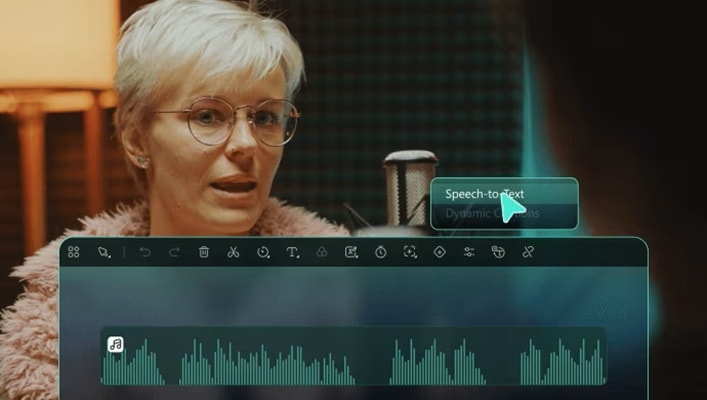
Filmora's Speech-to-Text (STT) tool offers fast and accurate transcription directly within their editing software for creators who need it. Filmora ensures a smooth and efficient workflow for you to transcribe podcast insights or prepare subtitles for videos.
Key Benefits:
- Save generated transcriptions in TXT or SRT format for flexible use.
- Edit subtitle text with real-time preview to perfectly adjust timing.
- Supports multiple languages to cater to a global audience.
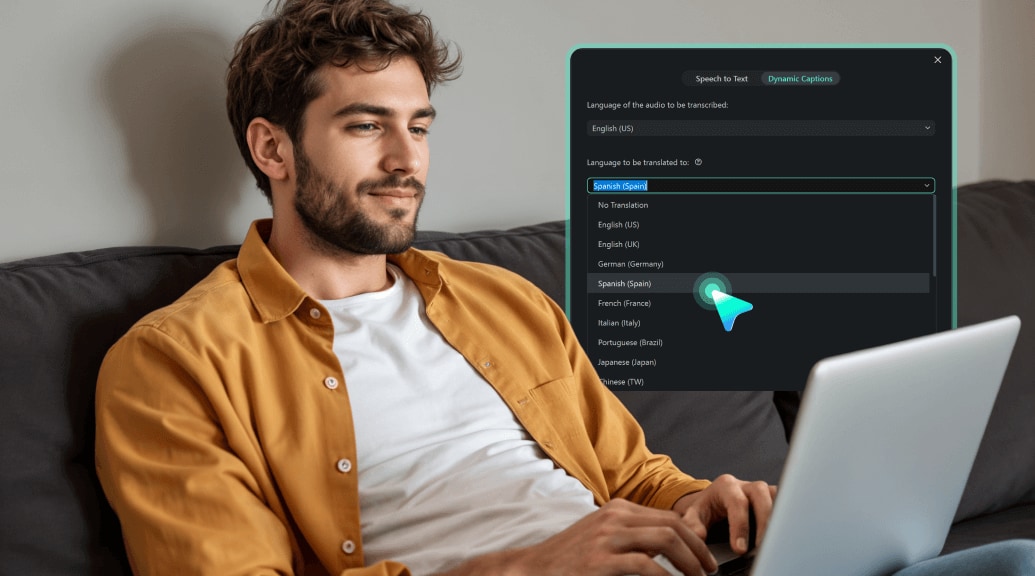
- Includes a built-in translation option if you want to convert transcripts into other languages.
How to Transcribe Spotify Podcasts with Filmora
Step 1Import or Record Your Podcast Audio
You can download the Spotify podcast using a Spotify podcast downloader, or simply record it directly inside Filmora using the recording screen tool.
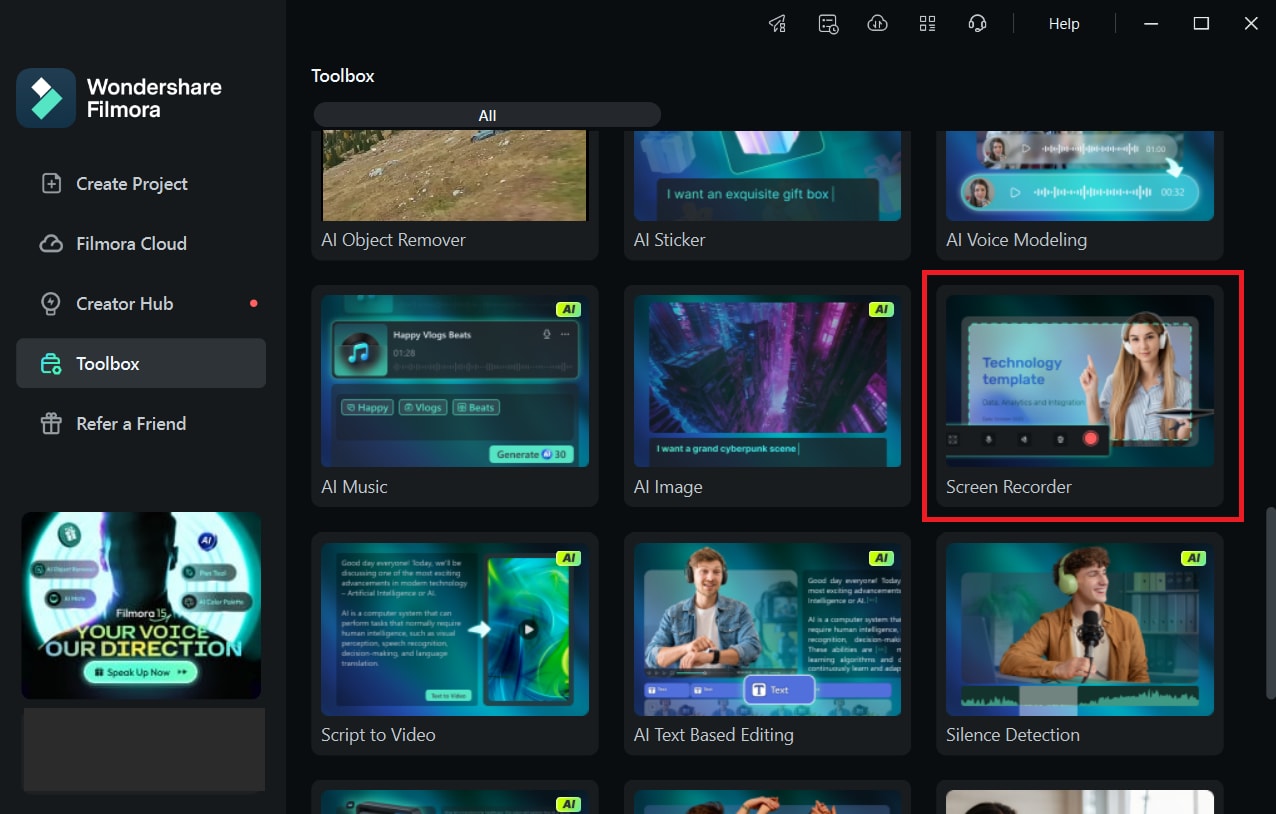
Step 2Add the Audio to the Timeline
Drag the downloaded or recorded file into Filmora's timeline for processing.
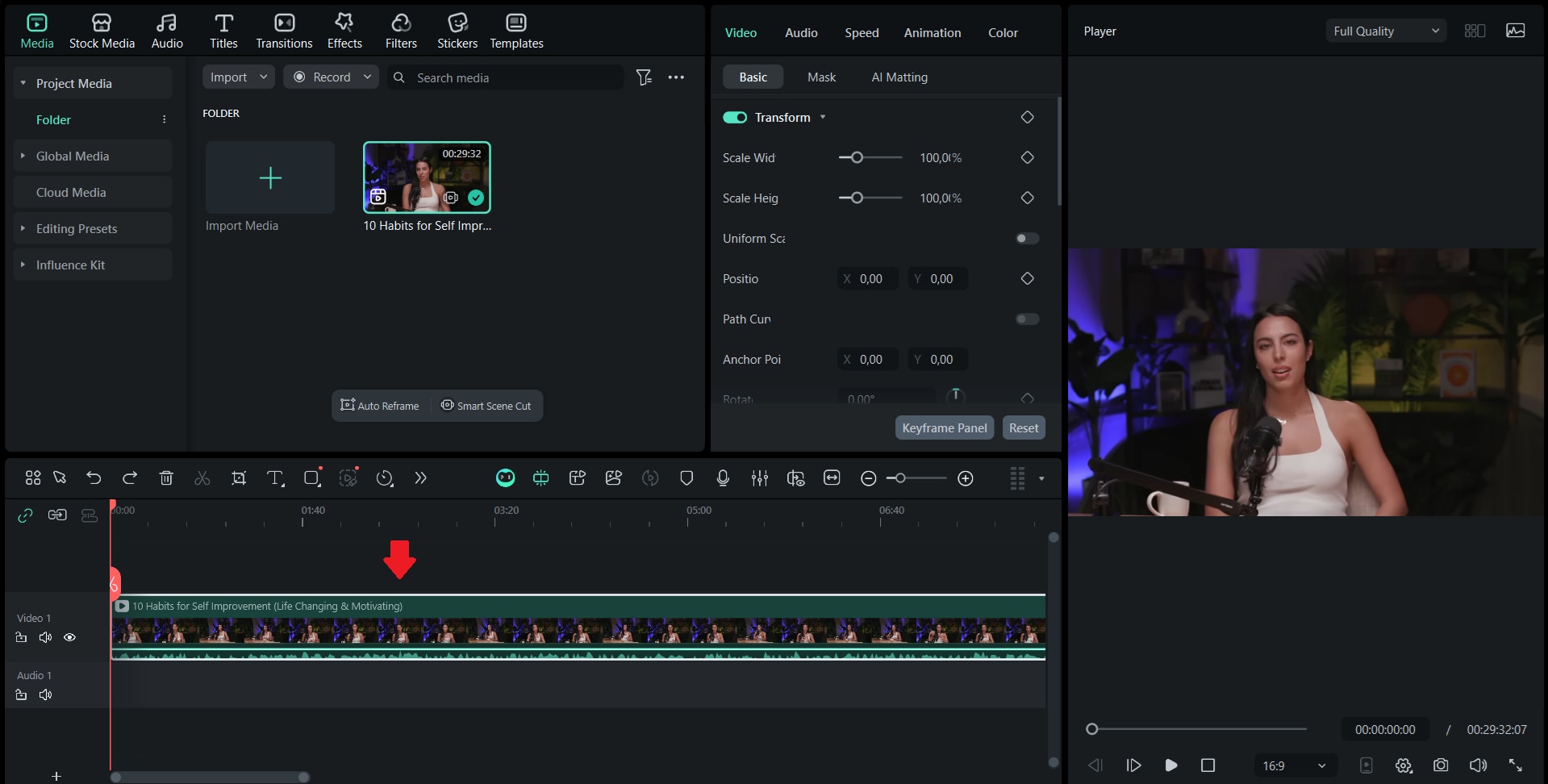
Step 3Apply Speech-to-Text
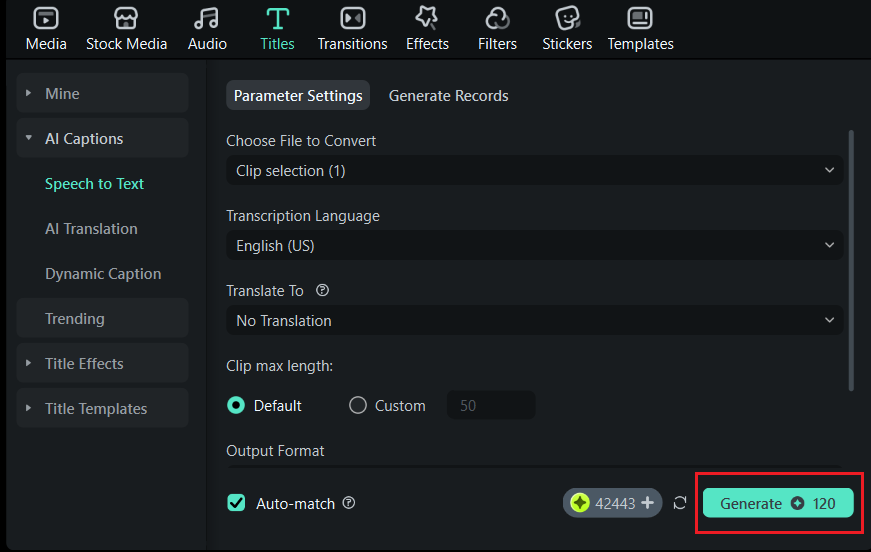
Right-click the audio track and select Speech-to-Text.
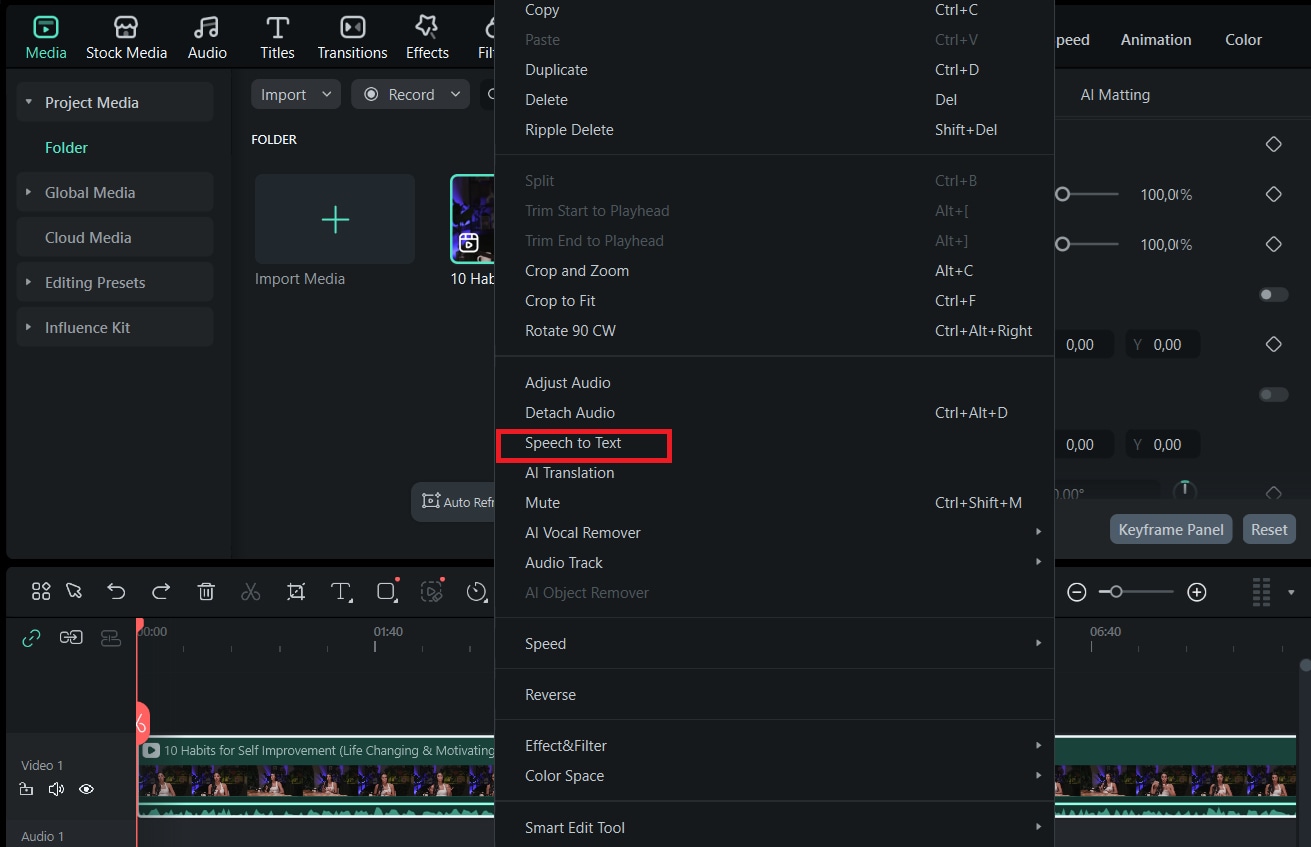
Adjust the Speech-to-Text parameter settings as needed, then click Generate. Filmora will automatically transcribe the Spotify podcast into text with high accuracy.
Step 4Edit and Proofread the Text
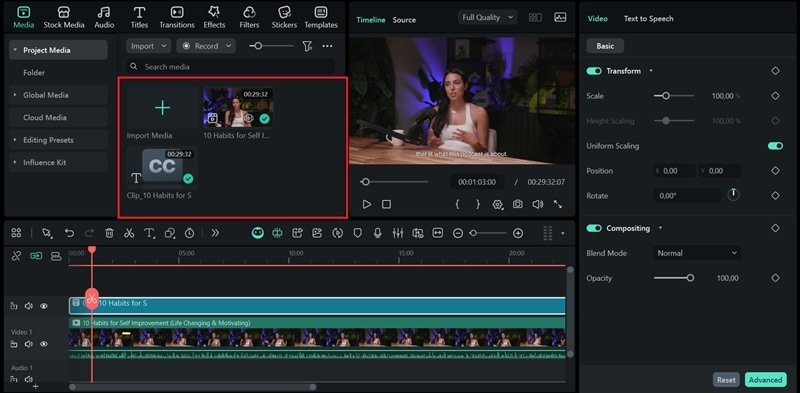
Once the transcription is complete, it will appear in the media panel and automatically be added to your timeline.
If you need to make any edits, just double-click the transcription track on the timeline to open the editing window.
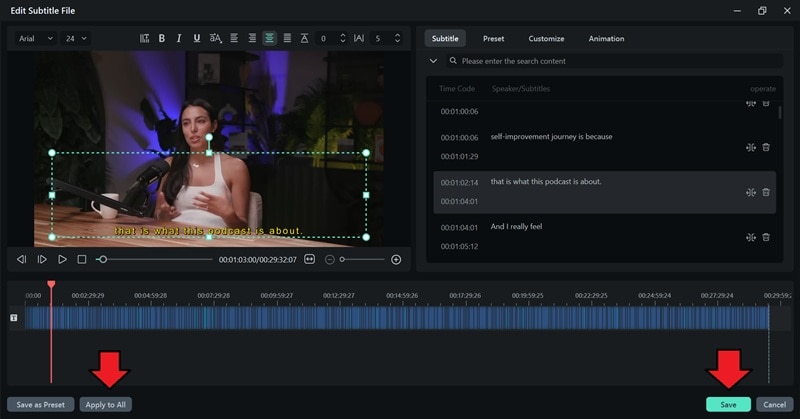
In the new window, you'll see several tabs:
- Subtitle: This tab lets you edit the transcribed text, as well as delete, merge, add, or split subtitle segments to match your video timing.
- Preset: Choose from various preset text styles to change how your podcast subtitles look throughout your video.
- Customize: Manually adjust the appearance of the text by fine-tuning elements like shadow, outline, blur, background, text effects, and more.
- Animation: Add motion to your subtitles to make them more dynamic. You can choose how they appear, fade out, or loop continuously throughout the video.
If you want to apply the same style or changes to all subtitles, select Apply to All. Once you're done adjusting, click Save to confirm and keep the updates.
Step 5Export or Save Your Transcript
You can choose to:
- Export your video with the subtitles embedded by clicking Export.
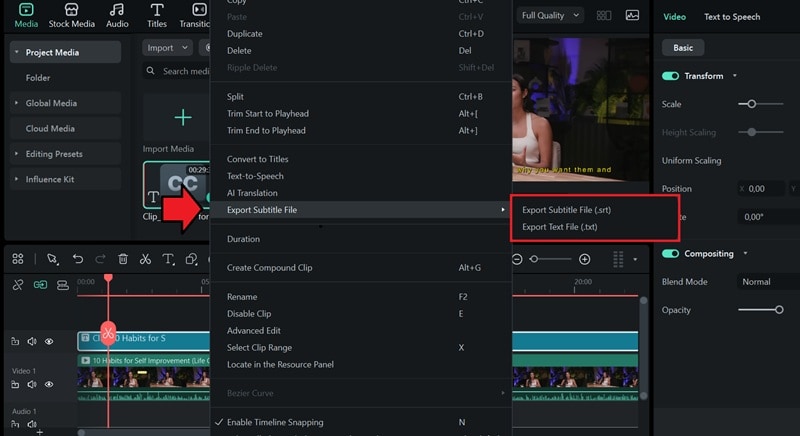
- Save only the transcript as a TXT or SRT file directly from Filmora.
To save the TXT or SRT file, right-click the transcription track, select Export Subtitle File, and choose your preferred format (SRT or TXT).
Bonus: Two Supplementary Tools + One Enhancement Tool
Supplementary Method 1 — AI Caption
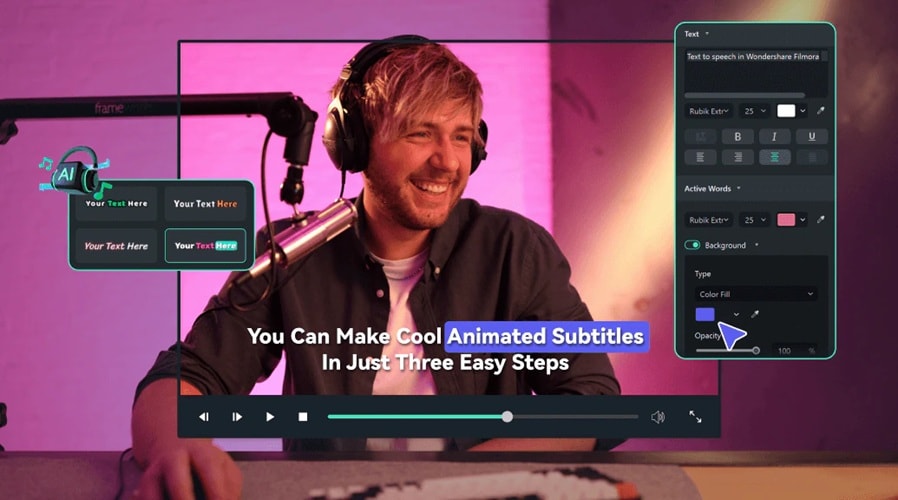
Aside from the speech-to-text feature, you can also automatically add timed subtitles to videos using AI Caption in Filmora. It works like a dynamic caption that syncs perfectly with the speaker's voice, while displaying text in real time as the audio plays.
Supplementary Method 2 — AI Translation
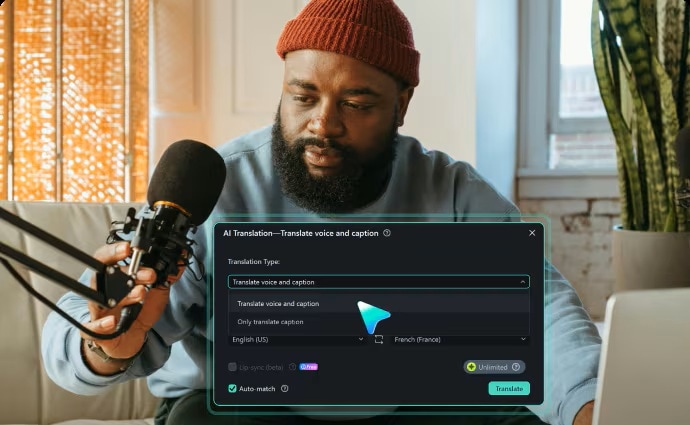
While you can choose to translate subtitles while transcribing with Filmora's STT, the AI Translation feature in Filmora also comes as a standalone tool. You can use it to translate subtitle text into multiple languages with one click.
Enhancement Tool — AI Video Enhancer & Voice Enhancer
In case your podcast or video has muffled audio or unstable visuals that can lower its quality, you can enhance it first to get clearer and more accurate transcripts. Tools like AI Voice Enhancer and Video Enhancer can clean up audio, stabilize video, and improve clarity before running the Speech-to-Text feature.
secure download Method 3: Transcribe Spotify Podcasts Online for Free (One-Click Solution)
On the other hand, for users who need a quick and convenient solution, AI online transcription tools can also be your solution. They can help you generate Spotify podcast transcripts fast, without any software installation.
Though you may want to note that they often offer limited customization. Editing options, style adjustments, and subtitle exports aren't as flexible as what you'd get with desktop tools like Filmora.
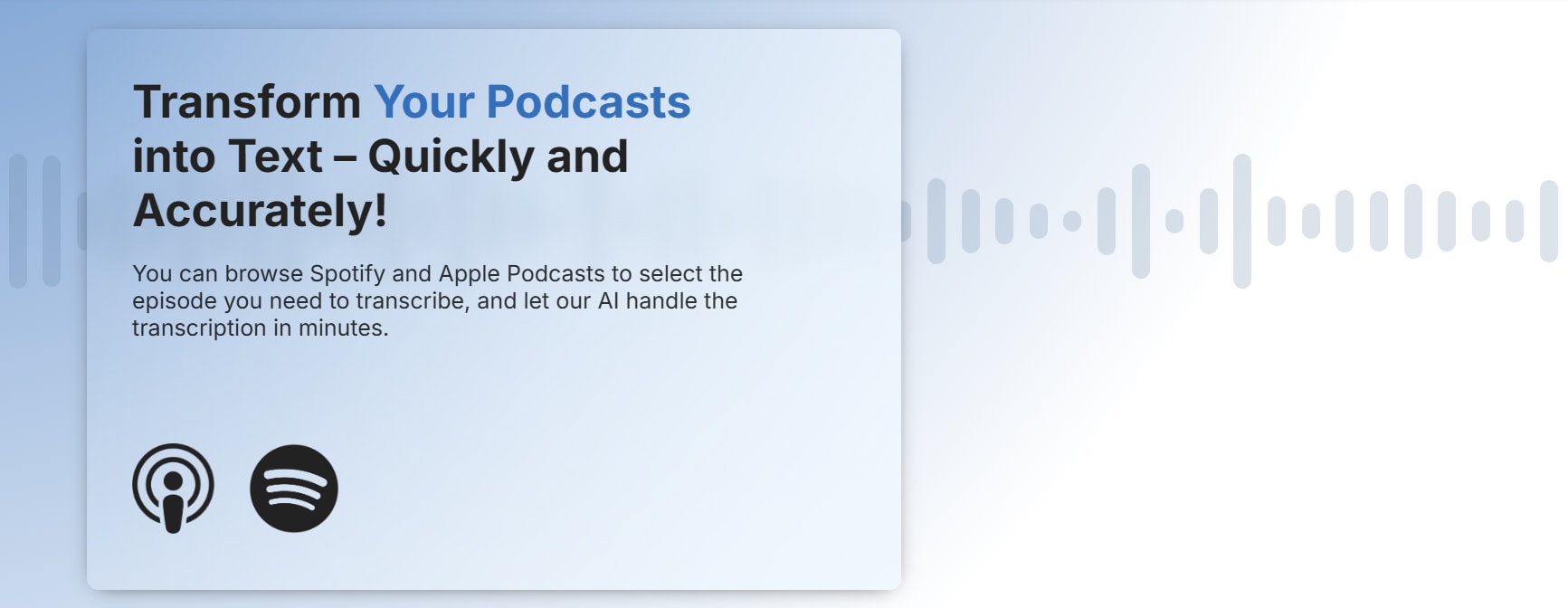
1. PodcastTranscript.ai
How It Works:
- Search the Spotify podcast name or copy-paste the link into the website.
- Enter your email address and submit.
- Receive the transcript via email in minutes.
Features:
- Uses advanced speech recognition to convert audio into text with high accuracy.
- Can process audio from various sources, including Spotify, Apple Podcasts, or uploaded files.
- Automatically creates short, clear summaries under each transcript, making episodes easier to review and share.
Accuracy:
High accuracy for clear speech, but may have difficulty handling overlapping voices or technical terms.
2. Kapwing
How It Works:
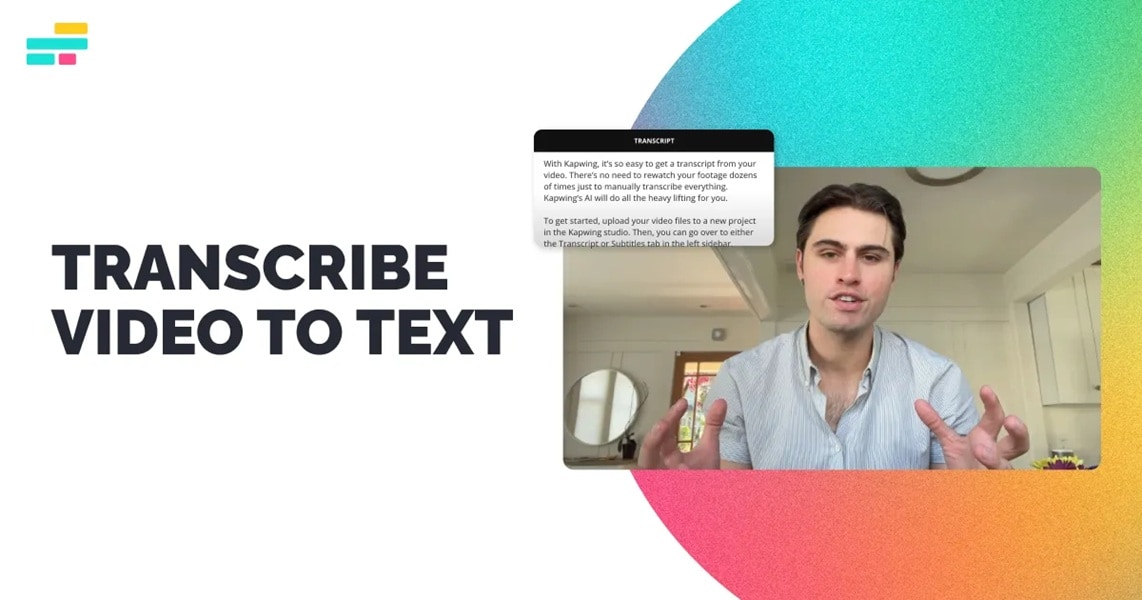
- Upload your podcast audio file or paste the episode URL.
- Kapwing automatically generates a transcript and timestamps for each line.
Features:
- Kapwing supports various audio sources, including uploads and URLs.
- Automatically detects and labels different speakers.
- It provides built-in translation into over 100 languages.
- Enables editing based on transcripts that trim or adjust audio/video.
Accuracy:
Generally, the sound quality is clear; manual correction may be required for names, technical terms, or fast dialogue.
Pros and Cons
Method 4: Transcribe Spotify Podcasts with Notta Chrome Extension
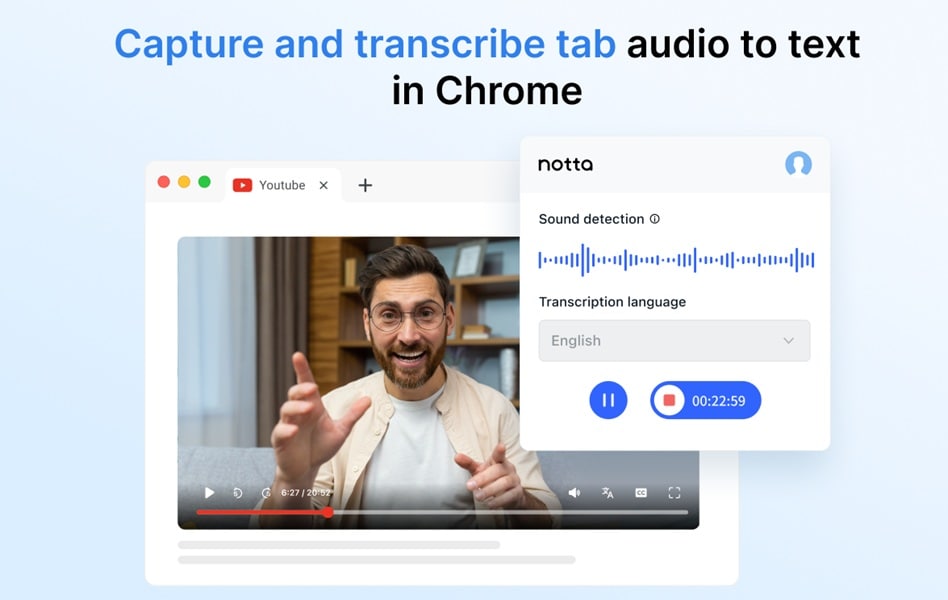
If you want to transcribe Spotify podcasts in real time while streaming directly from your browser, the Notta Chrome extension can be a convenient option. This extension records and converts audio directly into accurate text instantly, so it's a great choice if you want to take notes on important points or quotes right away without having to download the entire episode.
How It Works:
- Install the Notta Chrome Extension from the Chrome Web Store.
- Open the Spotify podcast episode you want to transcribe.
- Click the Notta icon on your browser toolbar and start recording.
- When you're done, view, edit, or export the transcript in text format.
Key Features:
- Real-time speech-to-text transcription for podcasts, meetings, or videos.
- Automatic language detection with support for multiple languages.
- Cloud-based storage so you can access your transcripts anytime.
Limitations:
- Requires a stable internet connection.
- Transcription accuracy may decrease in noisy environments.
- The free version has limited transcription minutes.
Choosing the Right Method for Your Spotify Podcast Transcripts
Since you already have different options for accessing or creating transcripts from a Spotify podcast, coming down with the right one depends on what you need them for and the level of control you want over the final result.
Quick Browsing or Instant Text Access → Online Tools
If you just want to read what's said in a podcast or grab a few quotes fast, try online transcribers like PodcastTranscript.ai or Kapwing. They're easy to use and don't need any setup. Just drop in the link and you'll get the text in seconds.
Real-Time Transcription While Listening → Browser Extension
If you like following along as you listen, you might like using a Chrome extension like Notta. Since it transcribes audio live, you can also take notes or catch anything you might've missed.
Professional Editing and High-Precision Subtitles → Filmora
Now, if you want something more advanced, like high-quality, editable transcripts or subtitles in different languages, go for Filmora. You can generate accurate transcripts, make quick edits right on the timeline, and export them as SRT or TXT files for use anywhere, among other powerful options.
How to Enhance Transcript Accuracy of the Spotify Podcast
Already had a tool in mind? When transcribing podcasts, transcription tools may make minor errors, especially if they have low audio quality or clarity. When this happened, you can try these effective tips to improve the accuracy and readability of your Spotify podcast transcripts.

Improve Audio Quality
Before transcribing, ensure your podcast audio is clear and free of background noise. You can use an editor like Filmora to clean up the audio using its built-in noise reduction or volume normalization tools.
Check and Edit Transcripts
AI transcription tools can save time, but still check the results. Always make sure names, technical terms, and timestamps are accurate. Editing tools in Filmora's Speech-to-Text or online platforms like Kapwing make this step easy.
Clearly Identify Speakers
If your podcast features multiple guests, separate their dialogue for easier reading. Labeling each speaker helps readers follow the conversation and improves accessibility.
Concise for Clarity
Long transcripts may become confusing. Summarizing sections or creating brief highlights helps turn raw transcripts into shareable blog content, event notes, or social media captions.
Legal and Ethical Considerations

Before transcribing a Spotify podcast, it is crucial to understand the legal and ethical responsibilities involved. Even though creating transcripts can improve accessibility and reach of content, it should always go within the boundaries of proper copyright and privacy.
1. Copyright Awareness
Ensure you have permission to transcribe and use the podcast content. If the episode does not belong to you, contact the creator first. Republishing or distributing transcripts without permission can lead to copyright issues.
2. Protecting Privacy
Podcasts may contain personal stories, opinions, or sensitive details. Be careful when sharing transcripts publicly, and avoid including personal or confidential information.
3. Proper Attribution
When using quotes or referring to parts of a podcast, always give credit to the original creator or show. This ensures transparency and gives proper recognition to their work.
Conclusion
Spotify podcast transcription is turning into a huge part of modern content creation. It really helps listeners access info from podcasts. We've covered several solutions for transcribing podcasts on Spotify in this article, from quick online solutions like PodcastTranscript and Kapwing, the Notta Chrome Extension as a real-time browser extension, or professional editors like Wondershare Filmora. You can choose whichever tool best suits your needs.
Filmora offers Speech-to-Text, AI Caption, and AI Translation tools. It can turn podcasts into accurate, editable, and multilingual transcripts effortlessly. Along with using smart transcription tools, you should also do a careful review and pay attention to copyright to ensure your Spotify podcast transcripts are strong and professional.
 secure download