

 100% Security Verified | No Subscription Required | No Malware


 ChatGPT
 Perplexity
 Gemini
 Claude
 Grok
Grok
This advanced color grading LUT video collection is designed for content creators who want cinematic depth, polished skin tones, and stylized mood without leaving Filmora.
Use these LUT-style filters as creative starting points, then fine-tune exposure, contrast, and color wheels to build a consistent, professional-grade visual identity across your videos.
In this article
Golden Hour Cinematic Streets
Sunset Amber Glow
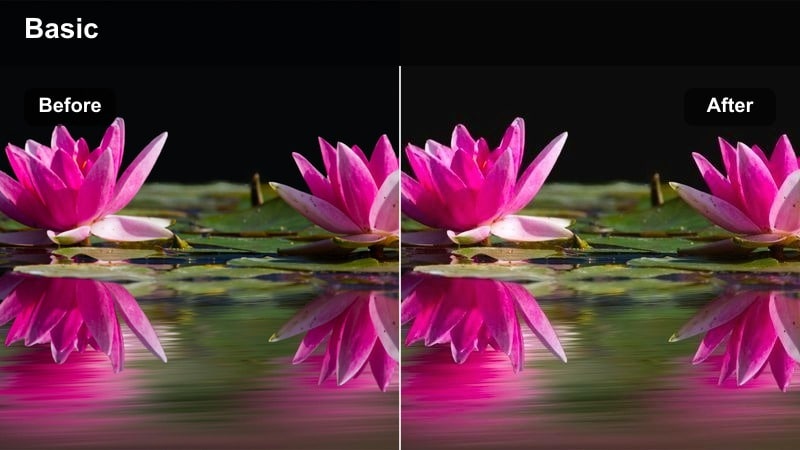
- Effect look: Warm amber highlights with soft contrast and a gentle roll-off in the shadows for a cinematic dusk feel.
- Best for: City vlogs, walk-and-talk content, and outdoor B-roll shot during late afternoon or early evening.
- Editing tip: Lower the filter intensity to around 60 percent and slightly reduce saturation on reds to keep skin tones from turning too orange.
Sunset Amber Glow brings a controlled golden-hour look to any urban clip, warming highlights and softening contrast to mimic the feel of shooting right before dusk. In Filmora, this LUT-style filter gives you a quick way to turn flat daylight or slightly overcast scenes into luminous, amber-toned streets without pushing blacks too deep.
Use this filter on walk-and-talk vlogs, travel B-roll, or establishing shots where you want warmth but still need legible detail in buildings and faces. After applying it in Filmora, open the HSL and color wheels for fine-tuning, keeping skin in the orange range slightly desaturated and lifted in luminance for a clean, cinematic finish.
Refine Each LUT-Style Filter with AI Color Tools
Once you apply one of these advanced color grading LUT-style filters, use Filmora's AI-powered color tools to refine white balance, exposure, and overall color balance in just a few clicks. AI analysis quickly identifies color casts and uneven lighting so you can keep subjects natural while preserving your stylized look.
This workflow lets you treat LUT-style filters as creative bases instead of final grades, finishing the look with automatic corrections and then small manual tweaks. It is especially useful when you are matching shots from different cameras or lighting conditions.
 secure download

Preview Filters on Real Creator Footage
Inside Filmora, you can preview each advanced filter on real city, studio, and night scenes before committing to a final look. Scrub your timeline and toggle effects on and off to see how the grade responds to motion, skin tones, and mixed lighting.
Use split-screen preview to compare multiple grades side by side, then pick the version that best matches your channel's mood or the specific story beat in your video. This helps you avoid over-grading and ensures a consistent visual flow from shot to shot.
secure download1000+ Video Filters and 3D LUTs
Filmora includes a large collection of video filters and 3D LUTs so you can push far beyond basic color correction. Mix these advanced cinematic grades with creative looks such as vintage film, stylized teal and orange, or modern social-ready tones to keep your content visually fresh.
Once you find a combination that fits your brand, save it as a custom preset so every new project starts with a consistent, professional-grade base. Over time, this becomes your personal color library across vlogs, short-form content, and cinematic edits.
secure downloadHazy Street Cinema
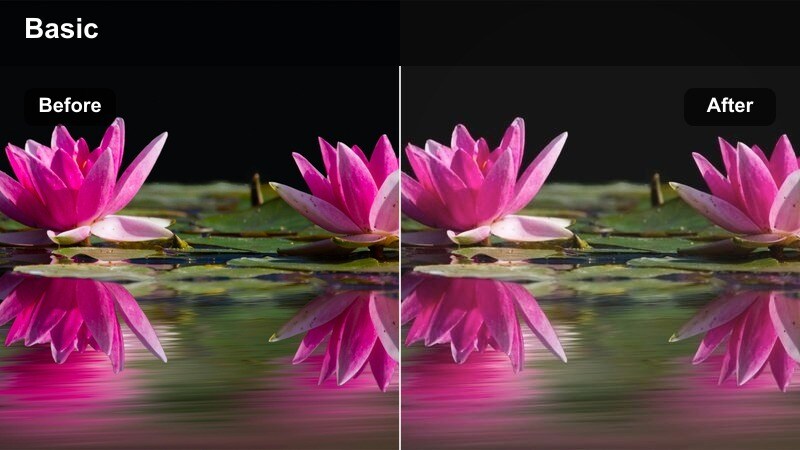
- Effect look: Low-contrast matte blacks with a gentle halation-style bloom in highlights for a dreamy urban feel.
- Best for: Stylized street B-roll, cinematic sequences, and fashion walk-throughs with soft light.
- Editing tip: Lift the blacks slider slightly and reduce clarity or sharpness for a more filmic, hazy vibe without losing subject detail.
Hazy Street Cinema gives your footage a soft, dreamy character by lifting blacks and blooming highlights around light sources. In Filmora, it is ideal when you want an urban space to feel romantic, nostalgic, or slightly surreal, especially when there are street lamps, neon, or storefronts in the background.
Apply it to fashion walk-throughs, slow-motion B-roll, or narrative shots that rely on atmosphere over hard detail. You can refine the look by slightly reducing clarity and sharpening while protecting your subject's face with masks, keeping key details intact within an otherwise soft, cinematic frame.
Golden City Contrast
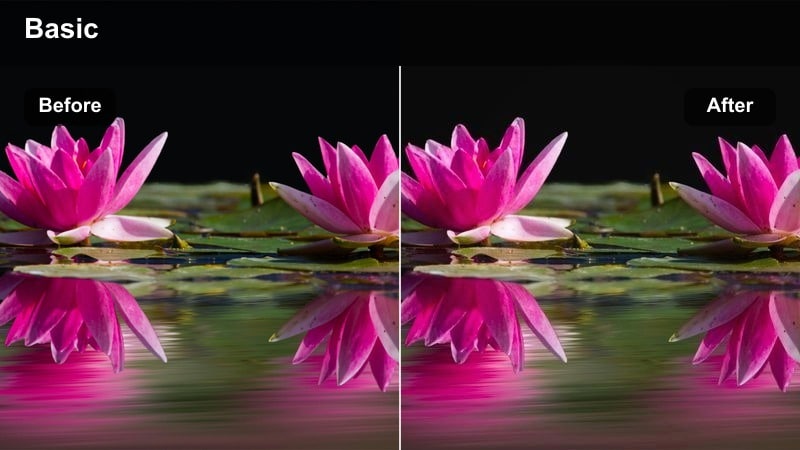
- Effect look: Punchy mid-contrast with rich golden highlights and neutral shadows for crisp city footage.
- Best for: Travel reels, city skyline shots, and establishing shots filmed in warm daylight.
- Editing tip: Push local contrast or clarity slightly while keeping global contrast moderate to maintain detail in buildings and clouds.
Golden City Contrast is tuned for skyline views and wide cityscapes, adding punchy midtones and saturated golden highlights while keeping shadows neutral. This helps buildings, clouds, and architectural lines read clearly on both mobile and desktop screens without over-crushing dark areas.
Use it in Filmora at the start of a travel reel or as transitions between locations, matching cooler clips by gently raising temperature and tint after applying the filter. You can also keyframe its intensity when moving from indoor to outdoor scenes so the golden look ramps in smoothly across your edit.
Night Neon and Cyber Mood
Neon Teal Magenta
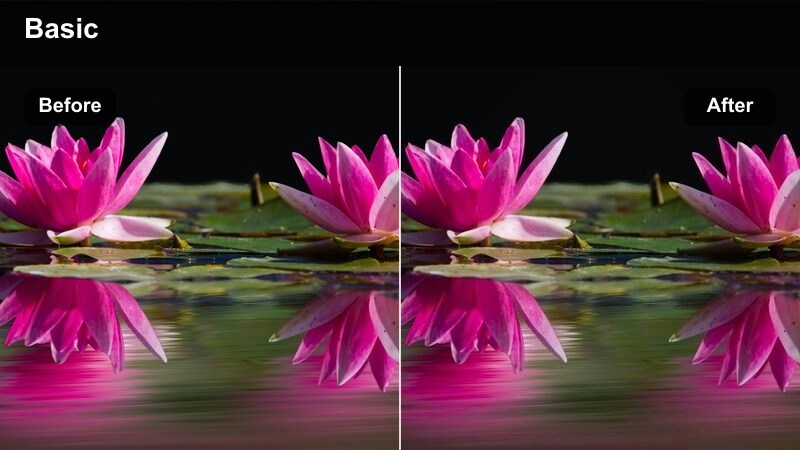
- Effect look: Bold teal shadows and rich magenta highlights for a classic cyberpunk neon grade.
- Best for: Night street photography videos, gaming-inspired B-roll, and cyber-style music videos.
- Editing tip: Use masks to keep faces closer to neutral while allowing deep teal and magenta tones to dominate the background.
Neon Teal Magenta transforms ordinary night streets into a stylized cyberpunk world by pushing shadows toward teal and highlights into saturated magenta. Reflections on wet pavement and metallic surfaces become dramatic color accents that feel lifted from sci-fi and gaming visuals.
Apply this filter in Filmora to gaming-inspired B-roll, music videos, or channel intros where you want maximum color impact. Then add simple masks or adjustment layers to protect skin tones and key details, giving your subject a more neutral look while the environment stays boldly stylized.
Rainy Street Noir
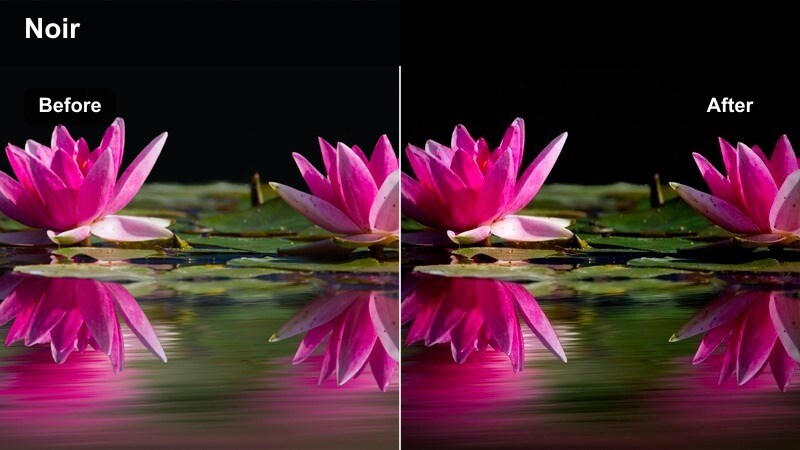
- Effect look: Cool-tinted shadows, lifted blacks, and focused highlights for a modern noir night look.
- Best for: Moody narrative scenes, rainy street B-roll, and dramatic talking-head shots by windows at night.
- Editing tip: Reduce saturation globally, then bring back targeted saturation in blues and cyans to emphasize reflections and signs.
Rainy Street Noir wraps your footage in cool tones with gentle, lifted blacks and carefully controlled highlights, evoking modern noir cinema. It works well whenever there are reflections, puddles, or glass in the frame, emphasizing blue and cyan cues while keeping overall saturation subdued.
In Filmora, use this filter on moody narrative sequences, introspective vlogs, or night interviews by windows. After applying it, lower overall saturation a bit more, then selectively boost blues and cyans to make rain-soaked surfaces and signage pop without distracting from your subject.
Electric Night Pop
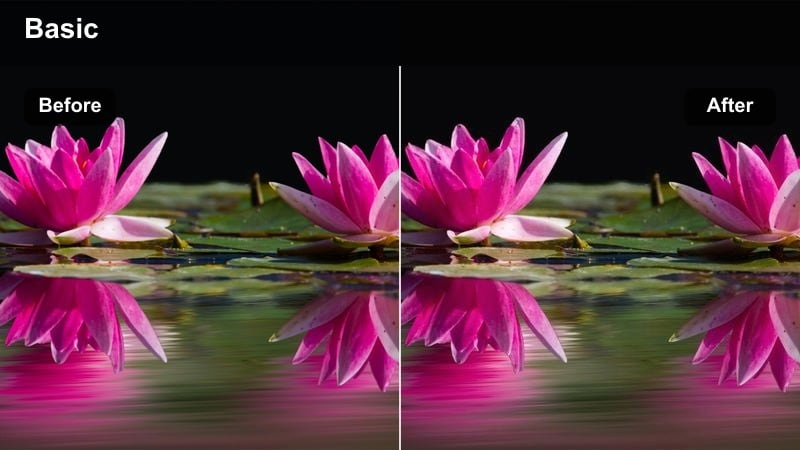
- Effect look: High saturation neon colors with strong micro-contrast and crisp edges for energetic nightlife content.
- Best for: Nightclub intros, nightlife vlogs, and festival recap videos filled with colorful lights.
- Editing tip: Use this filter on properly exposed footage and pull highlights down a bit to avoid clipping bright signs and LED panels.
Electric Night Pop is built for parties, festivals, and nightlife coverage, amplifying neon colors and micro-contrast to make scenes feel loud and electric. It sharpens edges and boosts saturation so signs, stage lights, and LED panels jump out of the frame.
In Filmora, apply this filter to well-exposed footage, then slightly reduce highlights and overall exposure to keep bright elements from clipping. Combine it with subtle camera shake effects or speed ramps to emphasize energy while maintaining a clean, controlled grade.
Studio Talk and Creator Desk Scenes
Clean Studio Neutral
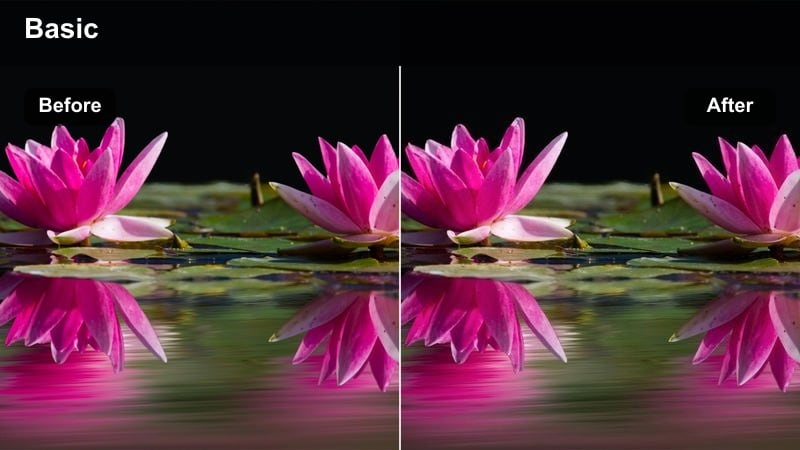
- Effect look: Balanced contrast, subtle saturation, and accurate skin tones tailored for controlled studio lighting.
- Best for: YouTube tutorials, desk setups, product reviews, and educational content with softbox lighting.
- Editing tip: Fine-tune white balance manually after applying the filter so your background LEDs stay on-brand without tinting skin.
Clean Studio Neutral is optimized for controlled lighting setups, keeping whites clean, blacks well defined, and skin tones accurate without oversaturating the frame. It delivers a polished, professional finish that works particularly well for tutorials, reviews, and any talking-head content meant to feel trustworthy and clear.
Apply it in Filmora to your main A-roll, then tweak white balance until your background lights match your brand colors while faces stay natural. Save your adjusted version as a preset so every new episode can start from the same consistent baseline with minimal grading time.
Soft Skin Highlight
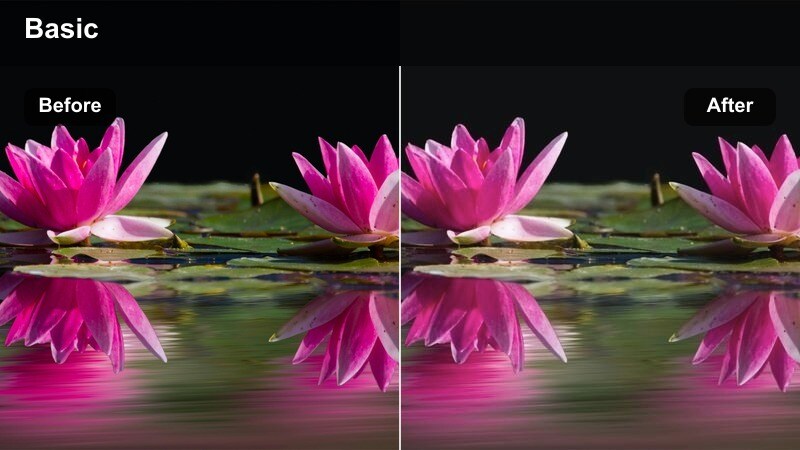
- Effect look: Gentle contrast with slightly lifted shadows and softened highlights for flattering faces on camera.
- Best for: Beauty content, coaching videos, and any on-camera presentation where skin should look smooth and soft.
- Editing tip: Use the filter lightly, then refine with face enhancement tools instead of over-softening the entire frame.
Soft Skin Highlight is tuned to flatter faces, easing harsh contrast and slightly lifting shadows to reduce the appearance of minor skin texture. Highlights are softened so forehead, nose, and cheek reflections are more controlled, giving presenters a gentle, approachable look.
Use this filter on beauty, coaching, or personal-brand content in Filmora, adjusting intensity so the grade feels subtle rather than airbrushed. Then rely on Filmora's face enhancement and selective sharpening tools to keep eyes crisp and expressions clear while maintaining a smooth, cinematic complexion.
Tech Desk Cool
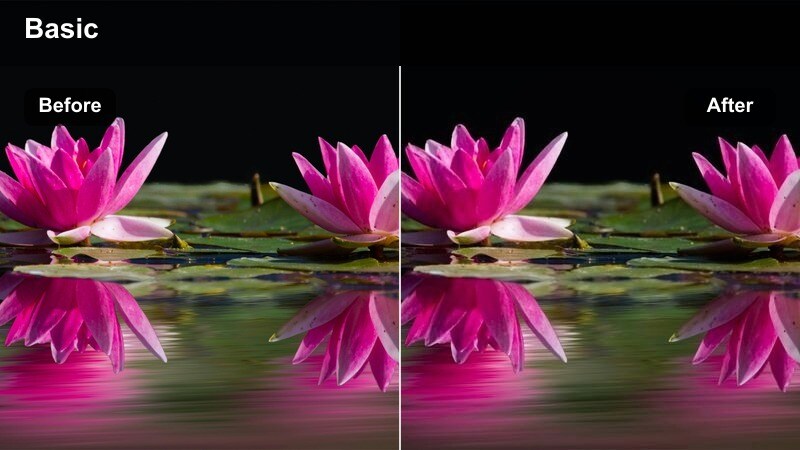
- Effect look: Cool-neutral grade with clean whites, deep blacks, and subtle cyan in shadows for a techy feel.
- Best for: Tech reviews, unboxings, and desk setups with RGB lighting and screens in the frame.
- Editing tip: Slightly desaturate background blues so screens remain readable while the overall scene feels modern and cool.
Tech Desk Cool leans into a modern, tech-forward aesthetic, cooling shadows with a hint of cyan while preserving clean whites and rich blacks. RGB lights and screens appear vibrant but controlled, conveying a crisp, futuristic mood perfect for tech channels.
In Filmora, apply this filter to your desk setup and product shots, then trim saturation in strong blues and cyans so UI elements and on-screen text stay readable. Use a mask or vignette around your face to keep skin tones from turning too cold while the environment stays sleek and cool.
Run-and-Gun Documentary and Street Stories
Urban Documentary Neutral
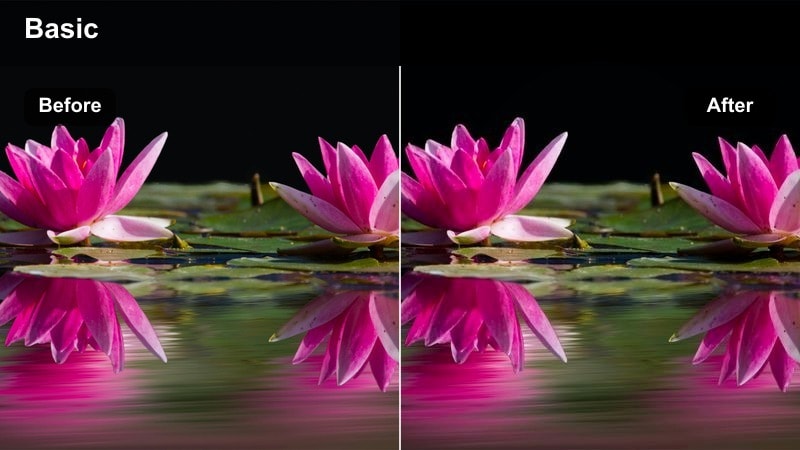
- Effect look: Balanced, slightly desaturated look with natural contrast that holds up across mixed lighting.
- Best for: Street interviews, handheld city docs, and event coverage with unpredictable light.
- Editing tip: Adjust midtone contrast rather than highlights to preserve detail in bright skies and shop windows.
Urban Documentary Neutral is designed to keep your footage honest and flexible, with a slightly desaturated palette and natural contrast that works across a wide range of lighting situations. It handles bright skies, shaded streets, and indoor storefronts without making the grade feel forced.
Use this filter in Filmora for handheld stories, interviews, and event coverage where authenticity matters more than heavy stylization. Apply it across all your cameras, then fine-tune exposure, white balance, and midtone contrast on each clip to create a seamless multi-angle documentary look.
Street Fade Matte
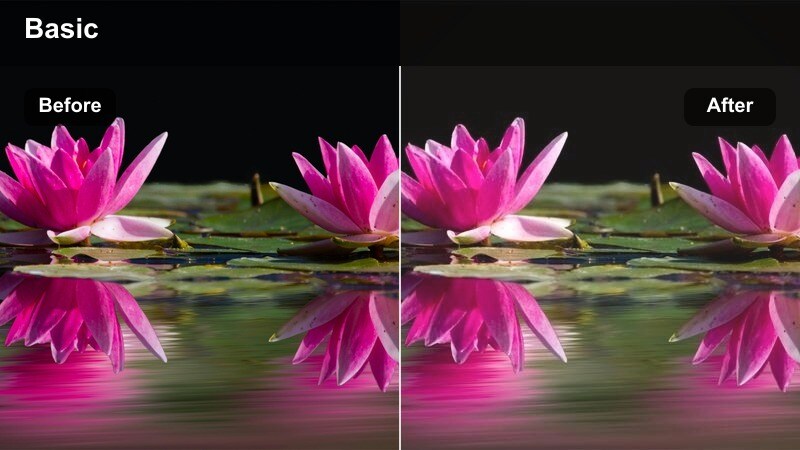
- Effect look: Faded blacks with gentle warm highlights and a subtle film-inspired grainy feel.
- Best for: Character-driven street stories, lifestyle B-roll, and handheld sequences with lots of motion.
- Editing tip: Combine the matte look with a touch of motion blur to make handheld footage feel deliberate and stylized.
Street Fade Matte introduces a soft film-inspired matte curve, lifting blacks and warming highlights for a nostalgic, story-driven feeling. Minor noise and small exposure issues tend to hide more naturally within this faded look, which is helpful for run-and-gun shooting.
In Filmora, apply it to lifestyle B-roll, walking sequences, and character moments where you want emotion to take priority over technical perfection. Add a little motion blur and avoid aggressive sharpening so the sequence feels intentionally vintage and cohesive from shot to shot.
Gritty Urban Punch
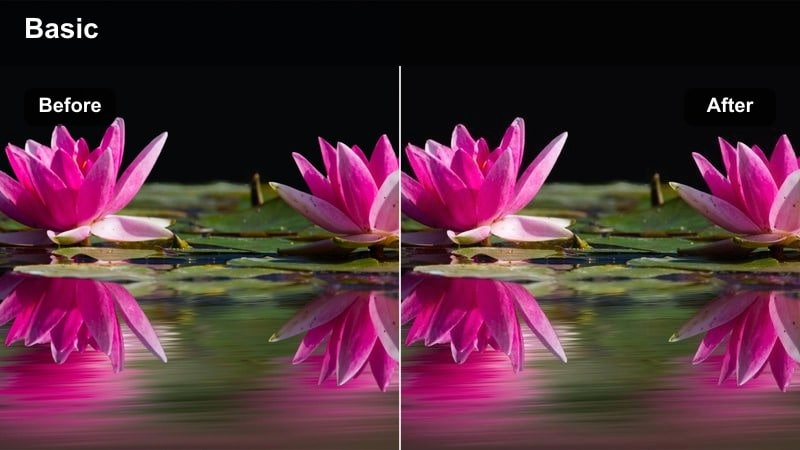
- Effect look: High contrast, boosted texture, and slightly muted colors for a raw, documentary edge.
- Best for: Edgy street pieces, skate videos, and short-form city montages with lots of detail.
- Editing tip: Push texture and sharpness only on wide city shots; reduce them for close-up faces to avoid an overly harsh look.
Gritty Urban Punch heightens texture and contrast to emphasize concrete, metal, and worn city surfaces, while muting color slightly for a tougher documentary vibe. It is excellent for skate parks, alleys, and industrial locations where you want viewers to feel every crack and detail.
In Filmora, use this filter on wide shots and action sequences, then dial back sharpness for close-ups to keep skin from looking overly rough. Combine it with subtle vignettes or selective blur so your subject remains the focal point within an otherwise harsh, high-detail environment.
Tips for Using Advanced Color Grading Lut Video Filters in Filmora
- Always correct your footage's exposure and white balance in Filmora before deciding whether a specific LUT-style filter suits the clip.
- If a grade feels too intense, reduce the filter's intensity slider first, then rebuild contrast and saturation manually to taste.
- Group similar scenes together on the timeline and batch-apply the same filter so your project maintains a cohesive visual rhythm.
- Use masks and adjustment layers to protect faces or key objects when applying aggressive color shifts such as teal-and-orange or neon looks.
- Check scopes like waveform and vectorscope in Filmora to keep skin tones natural while pushing stylized colors elsewhere in the frame.
- Preview your graded video on both a phone and a larger monitor, because strong contrast or saturation can look very different across screens.
- Save your favorite filter plus adjustment combinations as custom presets so future projects can reuse the same advanced color style.
- When mixing multiple cameras, apply a neutral filter first to normalize the footage, then layer your cinematic LUT-style look on top.
These advanced color grading LUT-style filters give content creators fast, cinematic foundations for everything from studio videos to gritty city documentaries. Each look is crafted to solve a specific visual challenge, whether that is flattering skin, emphasizing neon lights, or unifying mixed lighting on the street.
Experiment with filter intensity, tweak Filmora's color tools, and save your favorite combinations as reusable presets. Over time, this process builds a recognizable visual brand for your channel, making every upload feel consistent, intentional, and professionally graded.
secure download