

 100% Security Verified | No Subscription Required | No Malware

These aesthetic Instagram reel filters are designed to give your fashion, beauty, and lifestyle content a soft, curated finish that looks consistent across your grid and Reels tab.
Whether you are filming beauty reels, wardrobe edits, or cozy cafe lifestyle clips, use these Filmora-style filter ideas to quickly dial in pastel tones, dreamy glows, and mood-perfect color grading.
In this article
Soft Daylight Looks for Fashion Reels
Blush Soft Pastel
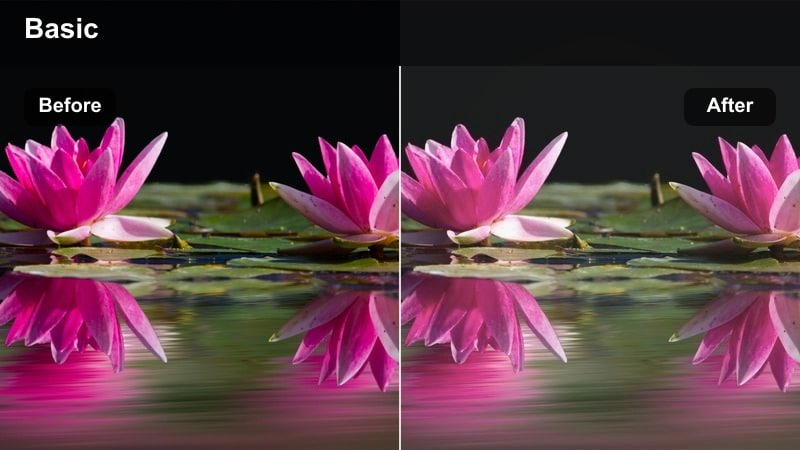
- Effect look: Gentle pastel wash with lifted shadows and a pinkish skin tint.
- Best for: Wardrobe edits in bright bedrooms or studios with natural light.
- Editing tip: Lower contrast slightly and add a touch of film grain to keep fabrics looking soft instead of crunchy.
In Filmora, you can recreate a Blush Soft Pastel look by combining a light pastel tint with subtle fade in the shadows so cotton, satin, and knit textures stay dreamy on camera. Lift the shadows and tame highlight contrast to keep white bedding, walls, and mirrors from looking too stark against your outfits.
Apply a gentle pink or peach tone curve to midtones so skin looks fresh but not overly filtered, and then introduce a low level of film grain from the Effects panel. This setup works especially well for mirror transitions, outfit changes, and slow spins, giving your fashion reels a cohesive pastel story from clip to clip.
Lock In a Consistent Aesthetic with AI Color Tools
Use Filmora style AI color matching to copy a favorite pastel or dreamy reel grade from one clip to an entire fashion series. This keeps your wardrobe edits, mirror checks, and walk-throughs visually consistent without manually matching every shot.
Import a reference frame from a reel that already performs well, then let the AI color palette tool match its tones across new content. Your soft daylight outfits, bedding, and wall colors will all stay aligned with your signature aesthetic look.
 secure download

Preview Filters Live While You Shoot
Filmora makes it easy to audition several aesthetic Instagram reel filters before you commit to one look. Capture short test clips in your bedroom studio or hallway mirror and toggle through presets to see which version flatters your fabrics, skin, and decor.
Once you find a favorite, you can keep shooting with that look in mind, knowing the filter will complement your styling choices and daylight setup instead of fighting them.
secure downloadTurn Filters into Reusable LUT Style Presets
After dialing in a dreamy reel color filter in Filmora, save the combination of color grading, curves, and effects as a LUT style preset. This lets you apply the same aesthetic to future fashion, beauty, or cafe clips in a single click.
Over time you can build a small library of signature pastel, dreamy, and magic hour looks, then reuse them across brand deals, lookbooks, and daily outfit diaries for a polished, on brand feed.
secure downloadLinen Air Matte
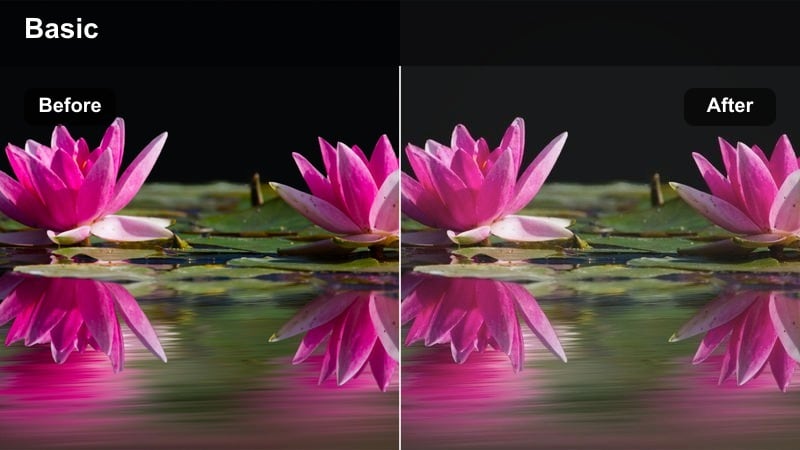
- Effect look: Matte, low-contrast finish with desaturated neutrals and clean whites.
- Best for: Minimal wardrobe flatlays and capsule closet try-on reels.
- Editing tip: Raise blacks a little to avoid harsh lines in linen or cotton textures and keep the frame feeling airy.
To create a Linen Air Matte feel in Filmora, start by lowering overall contrast and slightly lifting the black point so shadows turn soft rather than deep. Reduce saturation for beiges, whites, and blacks using color controls, which keeps capsule wardrobe reels focused on silhouettes and styling instead of bold color.
This filter style pairs perfectly with flatlays and neutral racks because it removes harsh edges and makes fabrics appear touchable and relaxed. Combine the matte look with simple, centered compositions and a slower edit pace to reinforce a calm, curated closet aesthetic on your Reels tab.
Buttercream Glow
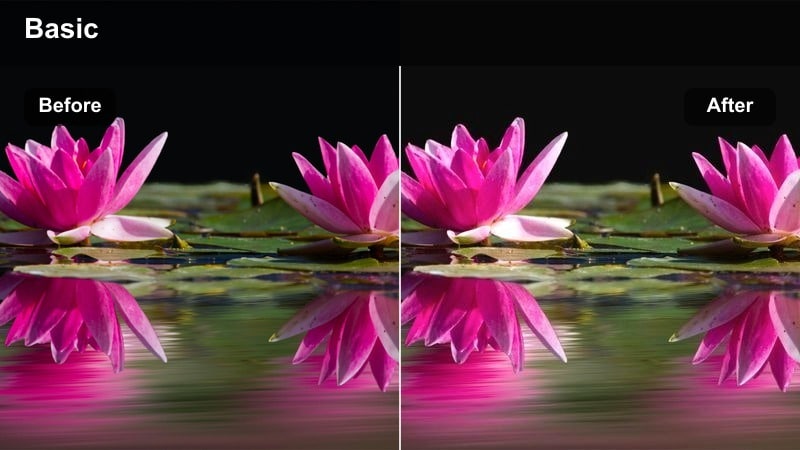
- Effect look: Warm, creamy highlights with soft golden midtones and reduced clarity.
- Best for: Sunlit outfit of the day mirror shots and hallway walks.
- Editing tip: Use a slight vignette and reduce sharpness so reflections and mirrors feel velvety instead of harsh.
In Filmora, you can build a Buttercream Glow by warming your white balance slightly and raising midtones until skin and walls take on a gentle golden cast. Then, reduce clarity or sharpness a touch so mirrors, picture frames, and background objects melt softly into the scene instead of competing with your outfit.
Layer in a subtle vignette and maybe a low level of glow from the Effects library to give bright hallways or doorways a velvety, editorial quality. This approach flatters OOTD reels shot in mixed indoor light and helps transition clips smoothly when you walk from room to room or from mirror close ups to full body shots.
Pastel Filters for Cafe Lifestyle Clips
Cafe Haze Pastel
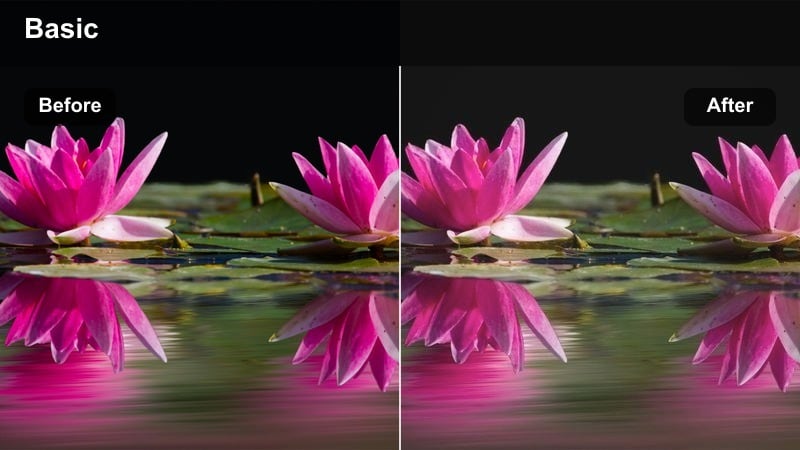
- Effect look: Soft focus pastel with slightly faded contrast and cool highlights.
- Best for: Cafe study sessions, laptop work clips, and quiet lifestyle check-ins.
- Editing tip: Dial down clarity and add a subtle vignette to draw focus to your hands and notebook instead of the background.
To design a Cafe Haze Pastel look in Filmora, start by softening contrast and nudging highlights a bit cooler so daylight from cafe windows feels airy rather than yellow. Use the blur or soften tools sparingly around the edges of the frame to create a gentle haze that keeps viewers attention on your hands, laptop, or coffee cup.
Then, slightly lower global saturation and introduce a pastel tone curve that brushes a hint of color across midtones without overpowering the actual decor. This combination looks especially cinematic when you cut between close ups of notebooks, coffee foam, and typing shots, all unified under the same hazy cafe palette.
Window Seat Soft
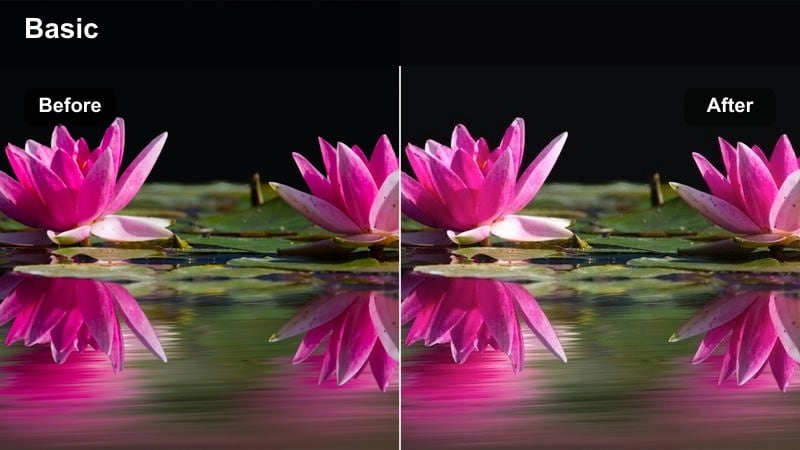
- Effect look: Bright backlit glow with lifted shadows and slightly cooler whites.
- Best for: Window seat clips, reading shots, and slow sips in front of city streets.
- Editing tip: Reduce exposure a touch and raise shadows to protect detail outside the window while keeping your face lit.
In Filmora, recreate Window Seat Soft by first pulling overall exposure down slightly so the windows behind you keep their city detail. Then lift the shadows and carefully adjust the white balance toward a cooler tone in the highlights, which balances the bright exterior with flattering light on your face.
Add a subtle glow or bloom effect to the brightest parts of the window to enhance the dreamy, backlit mood without clipping important details. This style works beautifully for slow motion page turns, gentle camera push ins toward the glass, and sip shots where you want both your profile and the street scene to feel calm and cinematic.
Pastel Street Chic
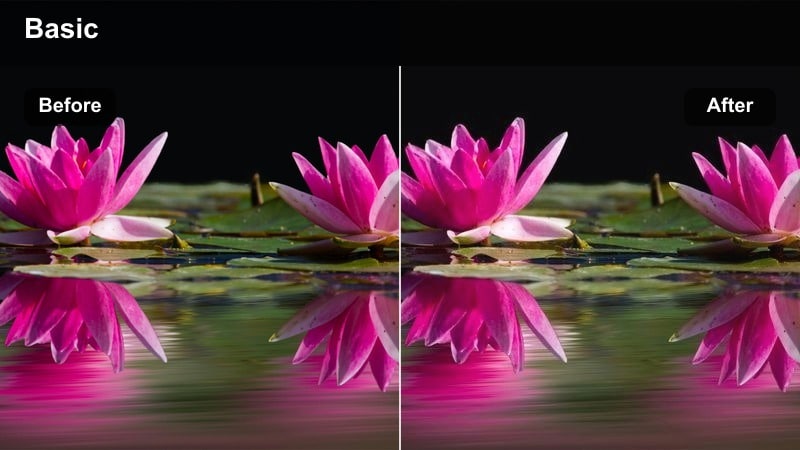
- Effect look: Muted city colors with pastel tinted midtones and subtle teal shadows.
- Best for: Walking shots outside cafes, storefront intros, and lifestyle b roll.
- Editing tip: Slightly increase saturation on your outfit colors so you stand out against the softened city background.
Use Filmora color tools to mute overall saturation in the environment while adding a pastel tint to midtones for a Pastel Street Chic finish. Introduce a gentle teal bias into the shadows so sidewalks, cars, and building lines move into a cinematic, slightly stylized palette.
Then selectively boost saturation or brightness on your outfit color range so you clearly separate from the background in every walking shot. This approach keeps storefront signs and street clutter calm while ensuring that transitions, spins, and bag close ups all keep the focus firmly on your styling.
Dreamy Glow Filters for Beauty Reels
Cloud Skin Softener
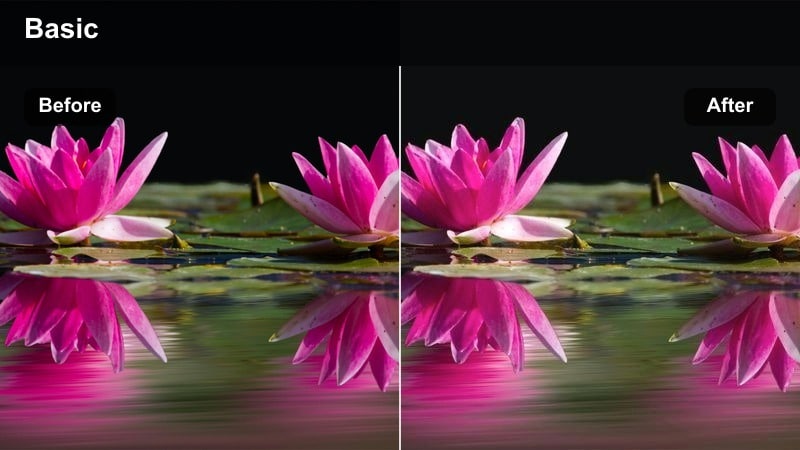
- Effect look: Low texture, low contrast look with hazy highlights and neutral warmth.
- Best for: Base routine tutorials, foundation tests, and skin focused reels.
- Editing tip: Use this filter lightly and keep sharpness just under default so features stay defined while skin looks diffused.
To craft a Cloud Skin Softener look in Filmora, start with soft key lighting and then lower contrast so shadows do not carve harsh lines around the nose or jaw. Add a light diffusion effect to highlights and back off overall sharpness just a little, which gives foundation and concealer demos a cloud like finish while preserving real texture.
Keep color grading neutral to slightly warm so different skin tones remain accurate and product shades look true. When editing, combine this soft filter with tight framing, slow motions, and on screen text so your audience can clearly see coverage, finish, and blend techniques without any distracting harshness.
Dream Highlight Veil
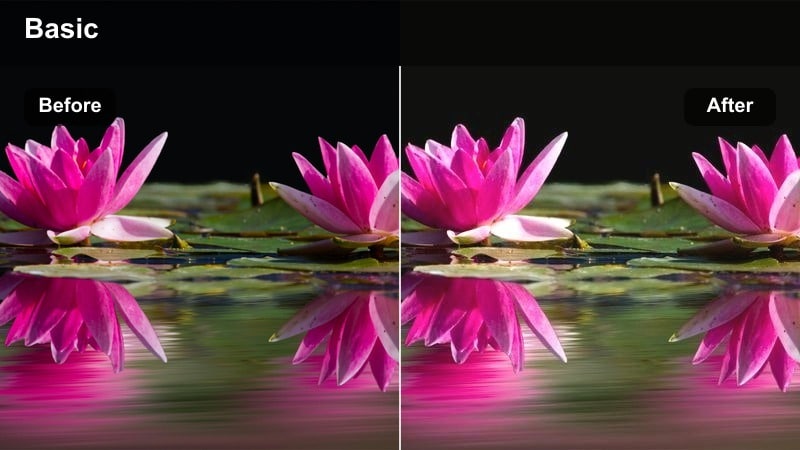
- Effect look: Bloomed highlights with subtle warm shimmer and slightly deepened shadows.
- Best for: Highlighter close ups, shimmer eye looks, and glossy lip shots.
- Editing tip: Lower whites slightly and add just enough bloom so highlight strokes glow without becoming distracting flares.
In Filmora, the Dream Highlight Veil look comes from carefully balancing lowered whites with an added bloom or glow effect on the brightest areas. This allows cheekbones, eyelids, and lip gloss to catch the light in a dreamy way without turning into pure white hotspots.
Gently deepen shadows to add dimension around the eyes and cheek contours, which helps shimmery textures pop in macro shots. Combine this filter with slow pans across the face, tight product swatches, and beat synced cuts so every flash of shine feels intentional and editorial.
Petal Tint Pastel
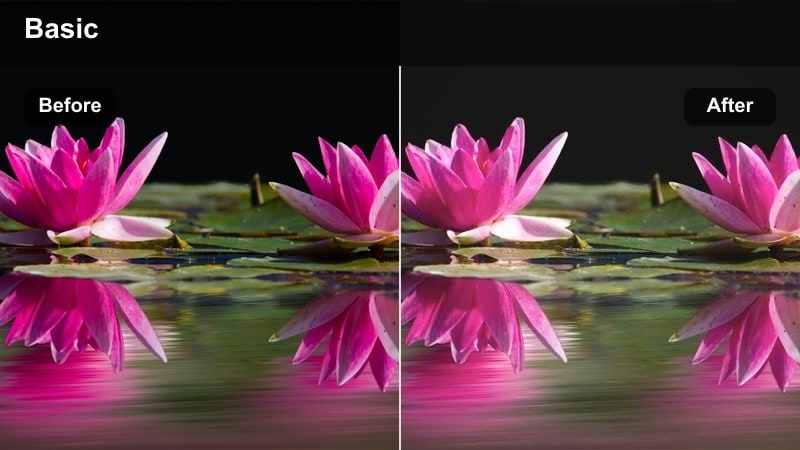
- Effect look: Soft pink and peach tint on midtones with gentle desaturation of background colors.
- Best for: Blush placement tutorials and lip and cheek combo reels.
- Editing tip: Boost local saturation on blush areas slightly to show payoff while keeping the overall frame low saturation.
To achieve Petal Tint Pastel in Filmora, push a subtle pink and peach bias into the midtone color wheels while dialing back saturation on background tones. This gives skin a romantic flush and lets blush and lip shades sit at the center of the frame without competing with walls, clothing, or decor.
Use masking or adjustment layers to locally increase saturation and brightness right where blush is applied so payoff remains clear on camera. This combination makes before and after shots, side by side comparisons, and close up blending moments feel soft, cohesive, and editorial without losing the nuance of your shades.
Evening and Magic Hour Aesthetic Filters
Dusk Film Fade
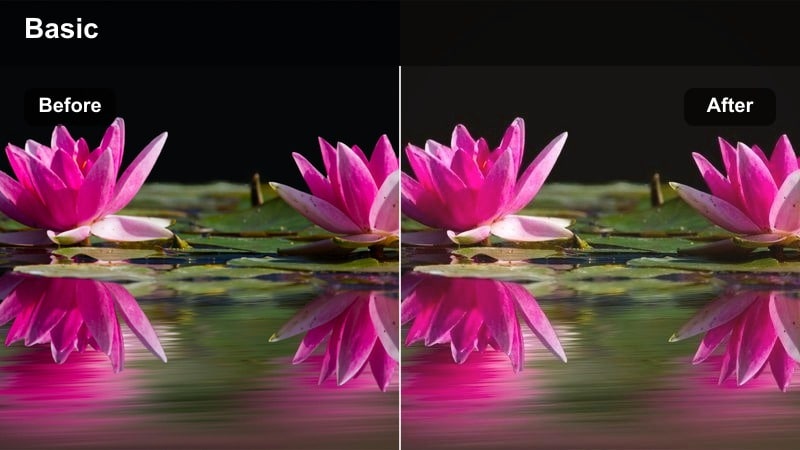
- Effect look: Faded contrast with cool shadows, slightly grainy texture, and warm midtones.
- Best for: Golden hour outfit walks, rooftop shots, and end of day check ins.
- Editing tip: Add moderate grain and a tiny bit of blur to the edges to enhance the analog, filmed on 35mm mood.
To design a Dusk Film Fade in Filmora, lower contrast, lift blacks, and shift shadows a bit cooler so twilight skies and city silhouettes feel cinematic. Warm the midtones slightly so skin and outfits still read softly golden even as the background slips into blue hour.
Layer on moderate film grain from the Effects panel and consider a small amount of edge blur or vignette to mimic vintage lenses. This look is ideal for rooftop walks, skyline pans, and reflective talking clips where you want the mood to feel nostalgic, like a memory rather than a straightforward vlog.
Neon Soft City
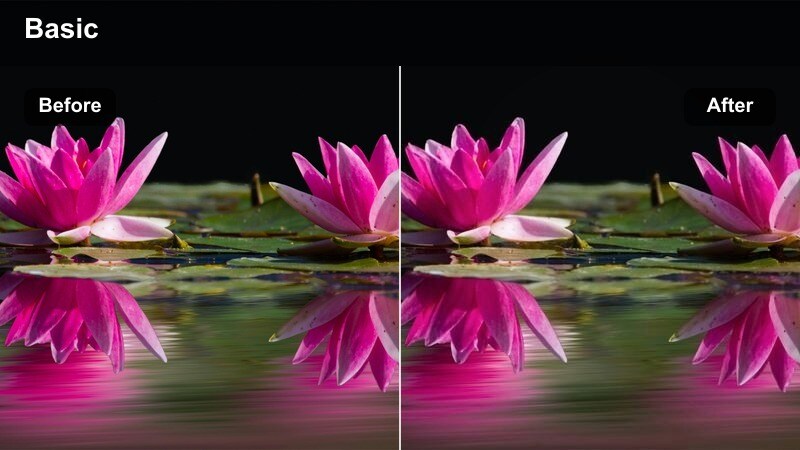
- Effect look: Soft neon highlights with muted backgrounds and slightly cooler blacks.
- Best for: Night street walks, storefront signs, and city lights lifestyle clips.
- Editing tip: Pull saturation down on distracting signs and selectively brighten your outfit for a clean focal point.
In Filmora, Neon Soft City starts with lowering overall saturation and contrast while preserving the intensity of select neon colors. Use color isolation tools to reduce brightness and saturation on unwanted signs, then boost exposure and saturation just on the hues in your outfit or main storefront.
Cool off the blacks and shadows so city alleys and roadways feel deep and moody, then add a soft glow effect to colorful lights for that cinematic bokeh quality. This keeps night walks and storefront intros dreamy, guiding viewers eyes to your movement and styling instead of the loudest sign in the frame.
Evening Bedroom Aura
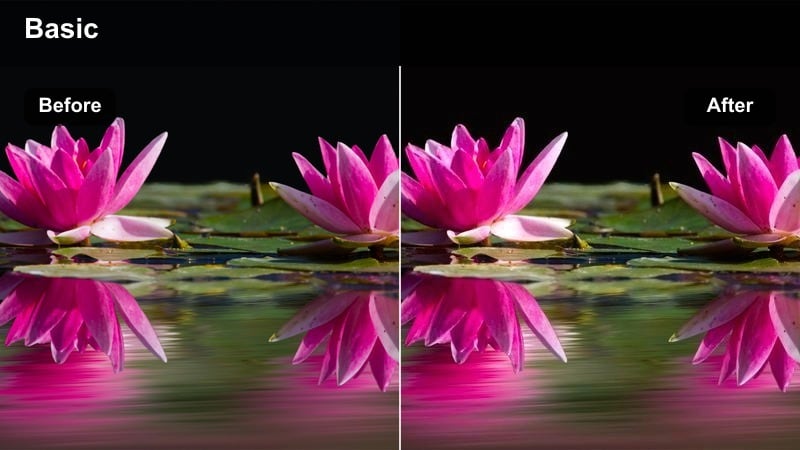
- Effect look: Warm lamp lit glow with softened edges, raised blacks, and gentle noise.
- Best for: Nighttime get unready with me, skincare, and closet reset reels.
- Editing tip: Balance white balance so walls look neutral, then let the filter add warmth to skin and lamps only.
To create an Evening Bedroom Aura in Filmora, start by correcting your white balance so walls read close to neutral and do not go orange. Then add warmth in the midtones and highlights so skin and lamp light become the coziest parts of the frame, supported by raised blacks that soften harsh shadows.
Introduce a bit of grain or noise to unify clips shot in low light and add subtle edge softness to focus attention on your face and hands. This setup is perfect for skincare close ups, drawer resets, and mirror journaling, making routine moments feel cinematic and intimate without overediting.
Tips for Using Aesthetic Instagram Reels Filters in Filmora
- Shoot with soft, indirect light whenever possible so pastel and dreamy filters enhance rather than fix harsh shadows.
- Plan your wardrobe and background colors to complement your chosen aesthetic Instagram reel filters instead of fighting them.
- Keep your exposure slightly lower than normal for glowy filters so highlights do not blow out when you add bloom.
- Batch film several reels in the same location and outfit so one filter preset can style an entire content series.
- Use gentle camera movements like slow pans and push ins to match the calm, curated mood of aesthetic filters.
- Save your favorite Filmora color and glow combinations as presets so you can apply them consistently in one click.
- Test each filter on a short sample clip before editing a full reel to confirm skin tones and product shades stay accurate.
- Combine filters with simple text overlays and clean cuts so the visual aesthetic supports, rather than distracts from, your message.
With the right aesthetic Instagram reel filters, your fashion, beauty, and cafe lifestyle clips can feel instantly more cohesive, dreamy, and on brand.
Save a few of these looks as reusable presets so every new reel you post carries the same soft, curated energy your audience loves.
secure downloadNext: Moody Instagram Reel Filters for Bold Atmospheric Edits
