

 100% Security Verified | No Subscription Required | No Malware


 ChatGPT
 Perplexity
 Gemini
 Claude
 Grok
Grok
Beach scenes can look flat or washed out on mobile, especially under harsh sun or hazy skies. With the right beach video filters for Reels, you can quickly push your clips into cinematic territory, balancing skin tones, sand, and ocean blues for scroll-stopping shots.
Below are 12 ready-to-use filter styles designed for Reels creators and beach videographers. Each one includes the effect look, the best scenarios to use it in, and a quick editing tip so you can polish coastal reels fast inside Filmora before you hit publish.
In this article
Soft Sunlit Beach Filters for Everyday Reels
Warm Soft Glow
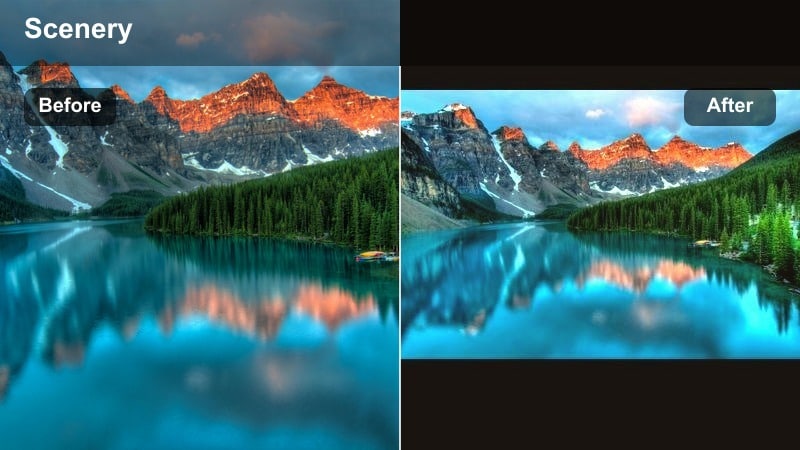
- Effect look: Golden, low-contrast warmth that smooths skin and gently lifts highlights for dreamy beach selfies.
- Best for: Instagram Reels beach content featuring close-ups, couples walking on the shore, and handheld vlog-style clips shot in late morning sun.
- Editing tip: Drop contrast slightly and boost vibrance instead of saturation to keep sand from turning orange while still enhancing tans and blue water.
A flattering soft warm filter like Warm Soft Glow is ideal when your beach footage looks a bit harsh or clinical straight from the phone. By lowering contrast and adding gentle golden warmth, it smooths transitions between skin, sand, and sky so your Reels feel romantic rather than overexposed.
Inside Filmora, apply Warm Soft Glow and fine-tune it with the vibrance control to enhance tan tones without pushing the sand into an unnatural orange. Add a hint of vignette to draw focus to faces, and save the look as a preset so every new selfie or couple clip on the beach instantly matches your cinematic, sunkissed style.
Pro tip: Balance warmth with clean whites
If your sand starts to look too yellow, reduce temperature a touch but keep the midtones warm so skin still feels sunkissed.
Combine this filter with a light vignette to subtly guide focus toward faces in tight portrait-style beach reels.
Match Beach Filters to Your Footage with AI Color Tools
Filmora s AI-driven color tools help you adapt each beach video filter for reels to different lighting conditions, from hard midday sun to hazy sunrise. Instead of guessing white balance and tint, you can let AI analyze your clip and move everything closer to a natural base before you stylize it.
Once the automatic balance is applied, you can nudge temperature, tint, and HSL channels so Warm Soft Glow and other coastal filters sit perfectly on your footage. This workflow keeps skin tones believable while still giving you room to push ocean blues and golden highlights for a signature look.
 secure download

Preview Beach Filters on Reels Footage in Real Time
Filmora lets you hover and preview filters directly on your vertical beach clips, so you can instantly compare how different looks treat sky, sand, and skin. This makes it easy to see whether a subtle warm filter or a bold cinematic grade fits your idea before you commit.
Stack a basic exposure fix or white balance adjustment under each preview, then toggle the before and after view. You will quickly see which reels beach filter delivers enough punch to stand out in the Instagram feed without crushing detail in bright water and clouds.
secure download1000+ Video Filters and 3D LUTs
Beyond these beach-specific looks, Filmora includes a large library of video filters and 3D LUTs you can combine for custom coastal aesthetics. Start from a cinematic LUT, then layer a softening filter or color accent to dial in your exact ocean vibe.
Once you create a look you love, save it as a preset so you can reapply the same coastal reel LUT style across future projects. This keeps your Instagram grid visually consistent, even when you shoot at different beaches, times of day, or weather conditions.
secure downloadAiry Coastal Pastel
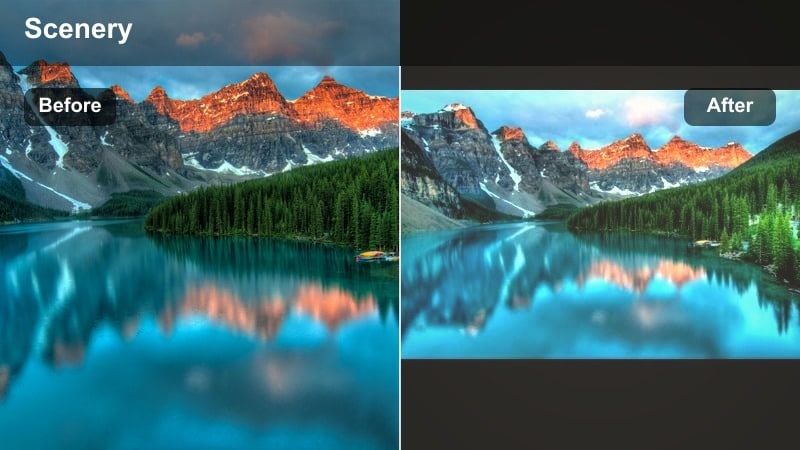
- Effect look: Desaturated blues with lifted shadows and pastel highlights for a soft lifestyle aesthetic.
- Best for: Beach outfit reels, coastal coffee runs, and aesthetic morning routines filmed near the ocean.
- Editing tip: Lower clarity or sharpness slightly to soften textures, and add a subtle fade in the curves tool for a film-inspired pastel finish.
Airy Coastal Pastel is perfect when you want your beach clips to feel like a calm lifestyle mood board instead of a high-contrast travel ad. By softening blues and lifting shadows, it turns bright scenes into gentle, dreamy visuals that work well with minimal, aesthetic audio tracks.
In Filmora, apply this filter, then slightly reduce clarity to smooth harsh details like footprints or rough waves. Use the curves panel to introduce a mild fade in the shadows, and adjust HSL so oranges stay a touch richer than blues, keeping skin tones natural while the background takes on a pastel, editorial vibe.
Pro tip: Keep skin tones natural in pastels
Use HSL controls to keep orange and red channels slightly more saturated than blues so skin does not look washed out.
Pair this look with slower, smoother transitions to match the relaxed, aesthetic energy in your coastal reels.
Clean Daylight Boost
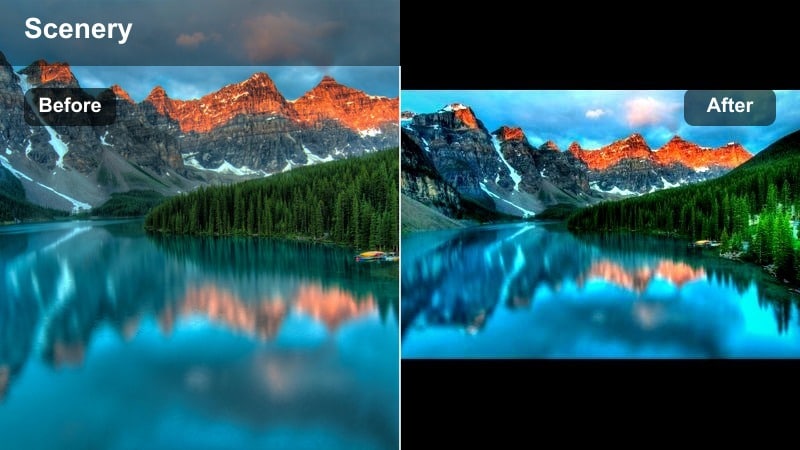
- Effect look: Crisp, high-clarity look with balanced whites and boosted midtones to make daylight footage pop.
- Best for: Action-heavy reels like surfing, beach volleyball, or POV walks where details and motion need to be clear.
- Editing tip: Increase contrast selectively in midtones and add a touch of local sharpening to moving subjects so they stand out from the background.
Clean Daylight Boost is built for energetic coastal content where every splash and step needs to read clearly on a phone screen. It emphasizes midtone contrast and clarity so details in water, boards, and faces remain sharp even after Instagram compression.
In Filmora, apply this filter to your action clips, then use selective sharpening on your subject to avoid noisy sand and sky. Protect highlights with the basic color sliders and export at the highest resolution available so your crisp look survives the platform s downscaling.
Pro tip: Avoid crunchy textures in sand
If sand starts looking noisy, pull back global sharpening and instead add micro-contrast only around edges of your main subject.
Export at the highest resolution your device and platform allow to keep this clean look when Instagram compresses your reel.
Warm Golden and Sunset Beach Filters
Sunset Cinema Gold
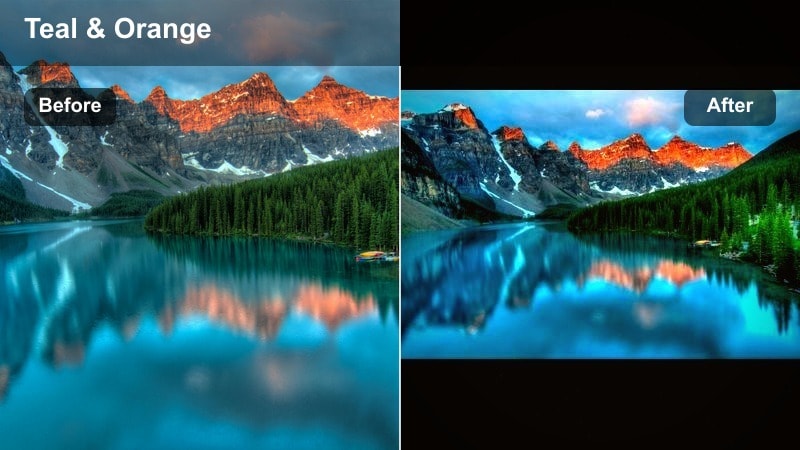
- Effect look: Rich golden hour tones with deepened shadows and gentle teal in the midtones for a cinematic color contrast.
- Best for: Cinematic beach reels filmed at sunset, silhouette shots, and slow-motion waves with light catching the surface.
- Editing tip: Use a slight S-curve to deepen blacks while protecting highlight roll-off so the sun and clouds stay soft, not clipped.
Sunset Cinema Gold is crafted for dramatic golden hour moments, using strong warm highlights contrasted with cooler water tones. The result is a teal-and-gold color pairing that feels instantly cinematic and perfect for slow-motion or emotional storytelling reels.
In Filmora, underexpose slightly in camera, then apply this filter and add a gentle S-curve to reinforce contrast without blowing out the sun. Use keyframes to keep exposure stable as the light shifts, and add a slow pan or zoom in the animation panel to enhance the movie-like feeling of your coastal sunset scenes.
Pro tip: Lean into silhouettes
Expose for the sky first, then apply this filter to enhance separation between warm skies and cooler water tones.
Add a slow zoom or pan in Filmora to amplify the cinematic feel without adding complicated transitions.
Amber Horizon Glow
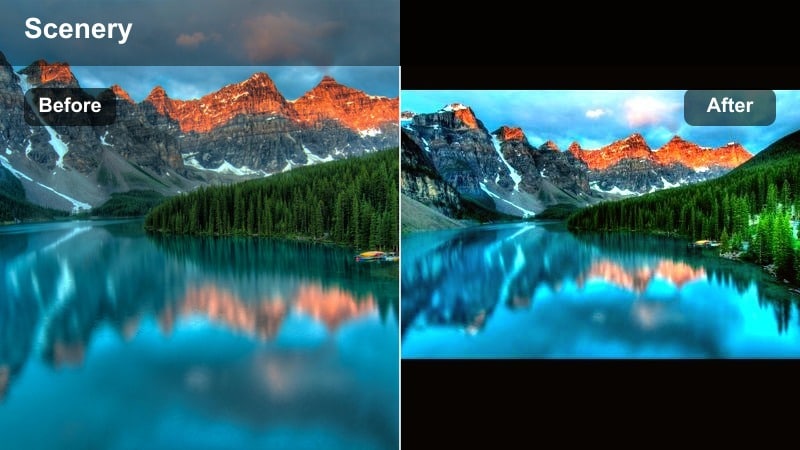 <
<- Effect look: Soft amber cast over highlights with preserved neutral whites, ideal for subtle golden coastal looks.
- Best for: Lifestyle vlogs, friends hanging out on the beach at sunset, and backlit portraits facing away from the sun.
- Editing tip: Reduce saturation in the yellow channel and keep orange slightly higher so skin remains flattering while the horizon glows warmly.
Amber Horizon Glow gives you a gentler take on sunset grading, keeping whites and skin tones controlled while adding a warm halo around the horizon. It is ideal when you want everyday beach hangs to look polished without screaming heavy color grading.
Within Filmora, apply this filter and then refine yellow and orange channels using HSL so faces remain true while the sky and reflections carry most of the warmth. If the scene feels overwhelming, reduce filter opacity to blend in some of the original footage, maintaining a realistic yet cinematic coastal feel.
Pro tip: Protect highlight detail
Pull the highlights slider down slightly before applying this filter so you retain cloud texture and sun rays.
If the clip still feels too intense, reduce the filter opacity in Filmora to blend the amber tone more naturally.
Rose Gold Sundown
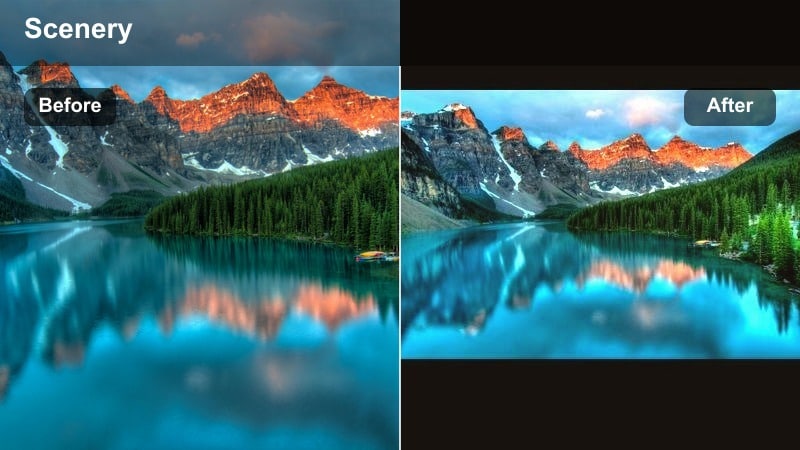
- Effect look: Soft pink and peach highlights with warm midtones and slightly muted blues for dreamy, romantic sunsets.
- Best for: Couple reels, proposal reveals, and slow-motion hair or fabric shots in front of the setting sun.
- Editing tip: Use keyframes on exposure to even out brightness across a clip if the sun dips behind clouds mid-shot before applying this filter.
Rose Gold Sundown leans into pink and peach hues to create a romantic, storybook look around sunset. Muted blues in the water keep attention on faces and sky, making it great for couple content, reveals, and emotional transitions.
In Filmora, smooth any exposure shifts with keyframed adjustments first, then add the Rose Gold Sundown filter so the tone stays uniform across the shot. Combine with gentle speed ramps and crossfades to sync movements and scene changes with music, turning simple shoreline clips into cinematic love-story reels.
Pro tip: Match music to the mood
Pair this dreamy look with slower, melodic audio and smooth crossfades to keep the emotional tone cohesive.
Trim clips to the beat and add subtle speed ramps around movements like spins or waves for extra cinematic impact.
Moody Cinematic Beach Filters and Coastal Reel LUT Styles
Teal Deep Coast
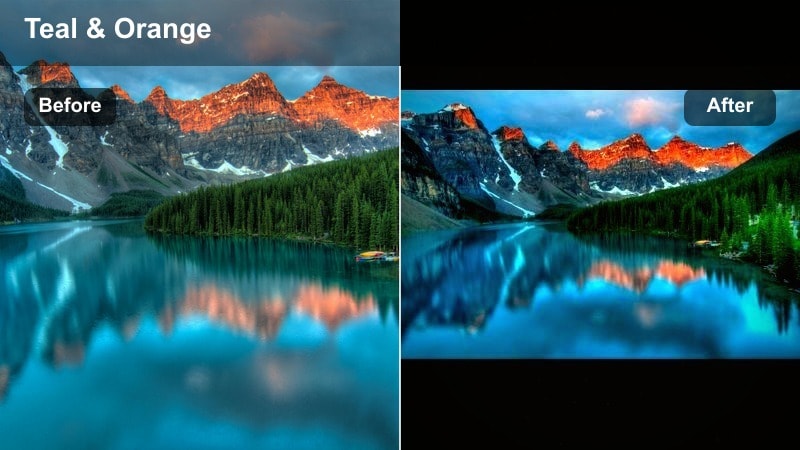
- Effect look: Strong teal blues, darkened shadows, and cool highlights for a dramatic, modern cinematic coastal reel LUT vibe.
- Best for: Stormy beach days, rocky shorelines, drone shots over deep water, and surf reels needing intensity.
- Editing tip: Lower saturation slightly overall and add a touch of film grain so the strong teal treatment feels intentional and not overly digital.
Teal Deep Coast is the go-to when you want your beach content to feel intense, edgy, or adventurous. The pushed teal tones and darker shadows turn gray seas and overcast weather into powerful, cinematic visuals that pair well with dramatic music.
In Filmora, apply this filter to deep-water or stormy clips, then gently reduce global saturation to avoid cartoonish color. Add a low-level film grain overlay to sell the cinematic mood and stabilize any handheld shots so the bold grade looks deliberate rather than messy.
Pro tip: Use for storytelling contrast
Cut between warm, bright clips and this cooler look to show a change in mood or time of day in longer reels.
Stabilize handheld footage inside Filmora before grading so the cinematic tone reads clean and intentional.
Matte Film Coastline
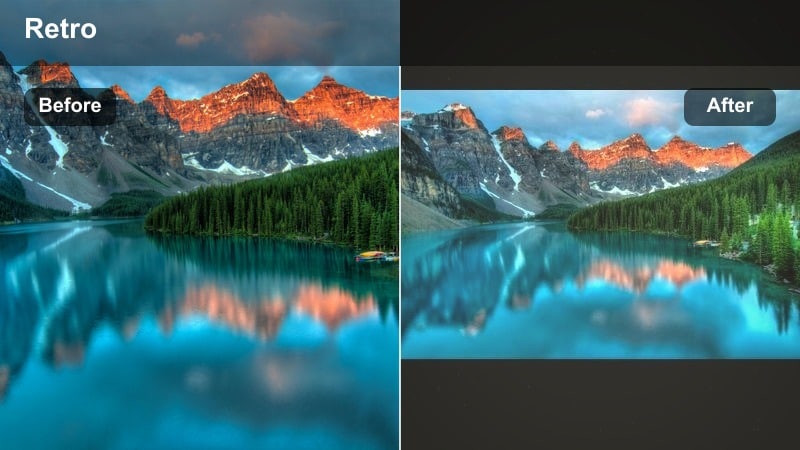
- Effect look: Lifted blacks, soft contrast, and slightly muted colors for an analog, filmic coastal aesthetic.
- Best for: Travel diaries, storytelling edits, and cinematic beach reels with voiceovers or captions.
- Editing tip: Use curves to gently raise the shadow point and keep midtone contrast so faces stay defined while blacks look matte.
Matte Film Coastline adds instant nostalgia by softening blacks and toning down saturation. It is ideal for reflective or narrative Reels where your voiceover or captions carry the story and the visuals support a gentle, analog-inspired mood.
In Filmora, raise the shadow point in the curves panel after applying this filter, but keep midtone contrast to prevent faces from going flat. Layer a subtle grain effect, and rely on simple cuts or J-cuts with audio rather than flashy transitions to maintain a calm, cinematic storytelling style.
Pro tip: Layer with subtle grain
Add a low-level film grain overlay to sell the analog mood without overwhelming detail in the water and sky.
Keep transitions simple and rely on match cuts or J-cuts with audio to maintain a cinematic, story-first feeling.
Shadowed Dune Drift
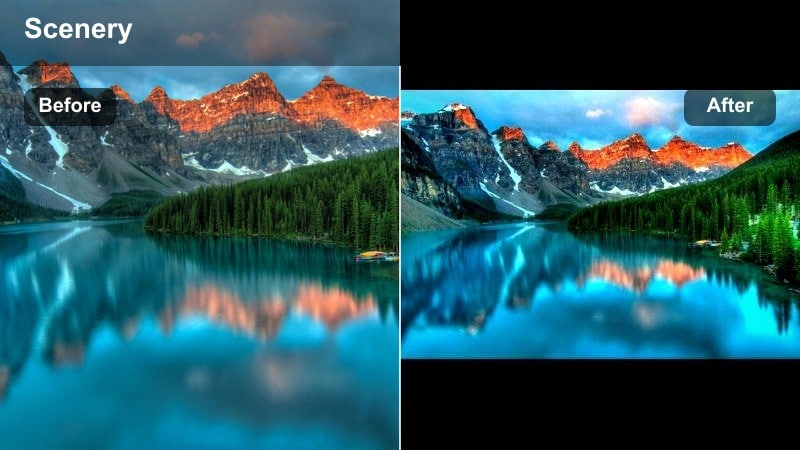
- Effect look: Cool, shadow-heavy grade with slightly desaturated highlights to emphasize texture in dunes and rocks.
- Best for: Early morning or overcast beach walks, drone shots over dunes, and moody solo travel reels.
- Editing tip: Use masks to keep faces a bit brighter than the background so the moody look does not hide your subject.
Shadowed Dune Drift highlights textures in sand and rock formations, making patterns and lines stand out in a moody, artful way. It pulls down shadows and cools highlights, which works beautifully for solitary walks, drone passes over dunes, or introspective travel edits.
In Filmora, apply this filter and then add masks or adjustment layers to gently brighten your subject compared to the environment. Increase contrast in textures like dunes or cliffs while keeping overall saturation modest so your reel feels cinematic and thoughtful rather than flat or gloomy.
Pro tip: Guide the viewer s eye
Combine this moody look with directional movement in your shot so the viewer naturally follows your subject through the landscape.
If midtones feel too dark on mobile, nudge exposure up slightly while keeping blacks deep for contrast.
Social-Ready Beach Filters Optimized for Reels
Crisp Reels Beach
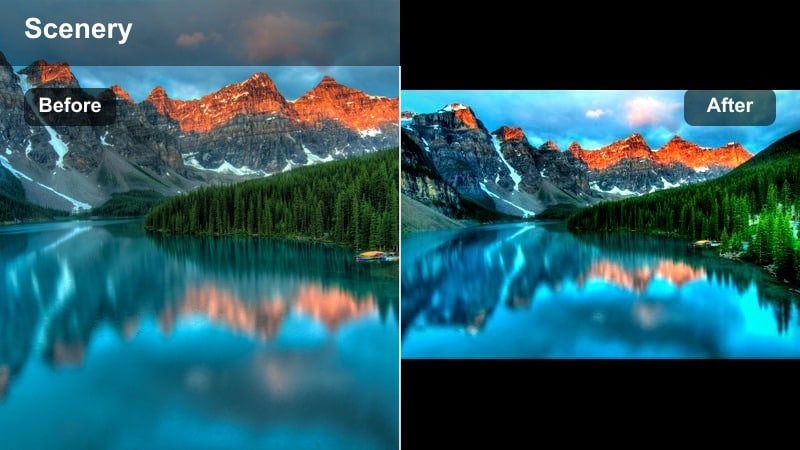
- Effect look: Punchy contrast, clean whites, and saturated but controlled blues tailored to vertical beach content.
- Best for: Quick Instagram Reels beach content, transitions, and trending audio edits where you need instant impact.
- Editing tip: Crop for vertical first, then apply this filter so important details stay in frame while you push color and contrast.
Crisp Reels Beach is designed specifically for small screens, balancing high contrast and saturation with clean whites so your beach scenes pop in the feed. It is great for short, snappy edits, quick transitions, and anything built around trending sounds.
In Filmora, switch your project to a 9:16 aspect ratio and crop first so subjects are centered for Reels. Then apply this filter, adjust exposure for faces, and add bold on-screen text with strong contrast to ensure your titles grab attention even over bright cyan skies and sand.
Pro tip: Design for small screens
Test your reel on your phone and reduce micro-contrast if grain and texture start to look noisy after Instagram compression.
Use bold, easy-to-read text overlays with high contrast so titles remain legible against the enhanced blues and whites.
Creator Vlog Beach
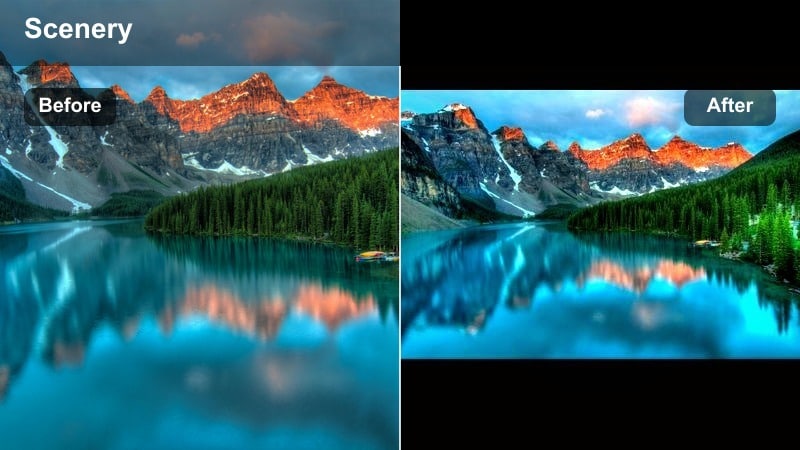
- Effect look: Balanced, influencer-style grade that brightens faces, smooths tones, and keeps backgrounds vibrant but not distracting.
- Best for: Talking-to-camera vlogs, GRWM on the beach, and day-in-the-life coastal reels.
- Editing tip: Use a subtle skin-smoothing tool only on faces and combine with this filter at reduced strength for a polished yet natural look.
Creator Vlog Beach focuses on flattering people first, giving you even skin tones and slightly softened contrast while preserving colorful backgrounds. It is ideal for creator-style Reels where you are talking directly to camera or walking and vlogging along the shore.
In Filmora, apply this filter, then use targeted skin smoothing only on your face to avoid softening the entire frame. Keep the filter at moderate intensity so the sand and sea stay vibrant but do not steal attention from you, and save this combo as a preset to maintain a consistent personal brand across all your coastal content.
Pro tip: Keep color consistent across clips
Save this setup as a custom preset in Filmora and apply it across all shots in your vlog reel for a professional, cohesive feel.
When lighting changes, tweak exposure and white balance per clip, but leave the filter settings the same to maintain a consistent brand look.
Vibrant Turquoise Pop
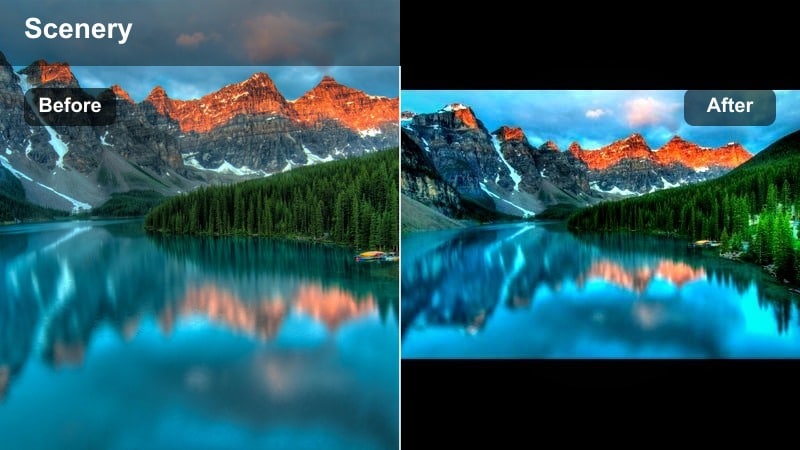
- Effect look: Intense turquoise water and bright cyan skies with slightly lifted exposure for a tropical postcard feel.
- Best for: Travel destination showcases, resort promos, and quick swipe transitions between multiple beaches.
- Editing tip: Use HSL to target blues and aquas if they become too neon, and keep greens slightly muted so palm trees do not clash with the water.
Vibrant Turquoise Pop is made for tropical wow-factor, pushing water and sky into bright postcard tones that grab attention in under a second. It works especially well for resort showcases, destination montages, and fast-paced edits that jump between different beaches.
In Filmora, apply this filter to clips with clear water and strong daylight, then refine the aqua and blue channels so they look vivid but not radioactive. Slightly mute greens in HSL to stop palm trees and foliage from competing with the ocean, and time your cuts to the beat of upbeat music to match the high-energy color punch.
Pro tip: Use sparingly for realism
If you are mixing this with more natural clips, lower the filter intensity so the transition between scenes does not feel jarring.
Combine with fast-paced cuts and trendy sounds to match the energetic color punch and keep viewers engaged.
Tips for Using Beach Video Reels Filter Filters in Filmora
- Shoot slightly underexposed at the beach to protect sky detail, then use filters in Filmora to bring back brightness and color without clipping highlights.
- Lock white balance in-camera when possible so every coastal clip reacts consistently to your chosen beach video filter or coastal reel LUT.
- Frame vertically while filming so you are not forced to crop out key details later when editing for Instagram Reels.
- Use masks and keyframes in Filmora to keep faces bright and clear while letting the background carry most of your bold color grading.
- Combine basic color correction with filters, correcting exposure and white balance first before dialing in your preferred cinematic beach look.
- Export a short test reel and watch it on your phone to fine-tune filter intensity and sharpness for real-world viewing conditions.
- Save your favorite beach filter combinations as custom presets in Filmora so you can apply a consistent coastal style across multiple reels.
- When mixing different beach locations or times of day, adjust exposure per clip but keep the same filter preset to maintain a cohesive visual brand.
With the right beach video filters for reels, you can turn simple shoreline shots into cinematic coastal stories that feel polished and on-brand. From soft everyday vlogs to dramatic sunset montages, each look helps your footage stand out in a crowded feed.
Experiment with a few of these looks in Filmora, save your favorites as presets, and then move on to sunset video filters to complete your full day-at-the-beach reel toolkit. Over time, your combination of filters, LUTs, and presets will evolve into a recognizable coastal style your audience instantly associates with you.
secure download