

 100% Security Verified | No Subscription Required | No Malware


 ChatGPT
 Perplexity
 Gemini
 Claude
 Grok
Grok
This beauty content creator LUT-inspired filter collection is crafted for influencers, vloggers, and short-form video creators who want polished, camera-ready skin tones in every shot.
From soft glow selfies to cinematic talking-head content, these Filmora-style filters help you quickly achieve consistent, flattering looks that match your personal beauty brand.
In this article
Studio Soft Glam Talking-Head Setups
Soft Glam Vanity
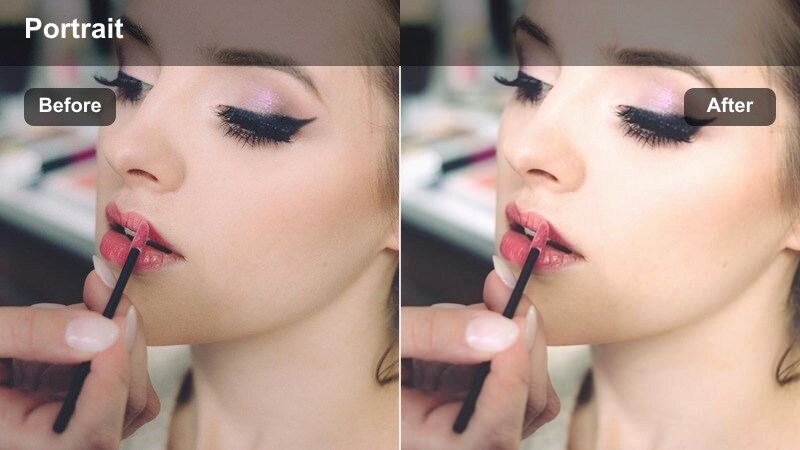
- Effect look: Subtle skin softening with warm, flattering midtones and gentle contrast for sit-down beauty tutorials.
- Best for: Makeup routine videos, GRWM content, and product reviews shot in front of a vanity or desk setup.
- Editing tip: Lower intensity slightly on already diffused lighting; increase shadows if your backdrop looks too flat.
In Filmora, the Soft Glam Vanity style works perfectly for classic talking-head setups where you want your base, blush, and eye look to appear smooth but still believable. Apply a Filmora beauty or skin-smoothing filter at low to medium strength, then warm up midtones in Color Correction to give cheeks and lips a flattering, studio-ready glow.
To keep your background from looking dull, add a slight contrast boost and gently lift the shadows so your hair and outfit do not disappear into the scene. If you shoot with strong key lights or softboxes, reduce the filter intensity slider so highlights on your forehead and cheekbones stay natural, then save these settings as a preset to reuse across your whole series.
Lock In Your Signature Beauty Aesthetic With Consistent Color
Using a dedicated beauty content creator LUT-style filter set in Filmora helps you build a recognizable visual identity where your skin tones, lips, and eye looks always feel on-brand. Once you find a look you love, keeping color consistent across long-form videos, shorts, and thumbnails becomes much faster.
Filmora s AI-powered color tools can scan your favorite clips and help you quickly build a repeatable palette, so your videos stand out in crowded YouTube, Instagram, and TikTok feeds. Match one or two hero filters to your brand colors and apply them as your default baseline for every upload.
 secure download

Preview Filters Live While You Shoot and Edit
Instead of guessing how your makeup will read on camera, you can test multiple Filmora-style beauty filters on a short sample clip before batch filming. As you compare options side by side, focus on how clearly your foundation shade, blush, and highlighter show up on different devices.
Once you lock in two or three go-to looks, apply them to your timeline and use Filmora s split-screen or comparison view to judge skin tone accuracy, product visibility, and how your background colors support your beauty aesthetic.
secure download1000+ Video Filters and 3D LUTs
Filmora includes a large library of video filters, cinematic looks, and 3D LUTs that you can blend with your favorite beauty settings. That means you can start with skin-focused adjustments, then layer stylized color grades for different series, seasons, or campaigns without rebuilding your look from scratch.
After you mix a beauty filter with a creative LUT you love, save the combo as a custom preset, so you can apply it to intros, product B-roll, talking-head shots, and shorts with a single click.
secure downloadAirbrushed Commentary
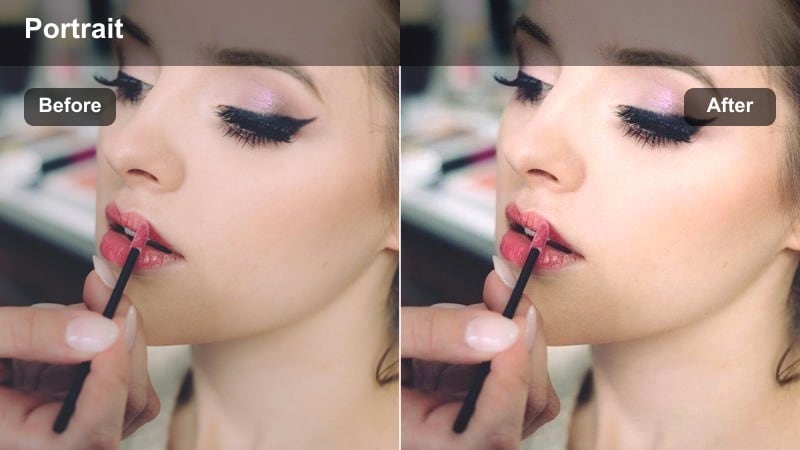
- Effect look: Airbrushed skin with slightly cooler highlights and a clean, editorial contrast curve.
- Best for: Long-form commentary, beauty hot-takes, and sit-down chats where you want a refined, professional finish.
- Editing tip: Use selective sharpening on eyes and brows to keep facial features crisp while the rest of the skin stays soft.
Airbrushed Commentary in Filmora is ideal when you are filming beauty opinions, reviews, or tea-style commentary and want your complexion to look flawless but not plastic. Start by applying a skin-smoothing or portrait-style filter, then cool the highlights slightly in the Color panel to give your lighting a clean editorial feel that suits minimal, neutral backgrounds.
To avoid losing dimension in 4K or close-up shots, lightly sharpen eyes, brows, and lashes using Filmora s detail controls or masking tools so the focus stays on your expression. You can also mask out parts of the nose and jawline from heavier smoothing, keeping subtle pores and texture visible so your face does not turn into a flat, over-processed surface.
Vanilla Highlight
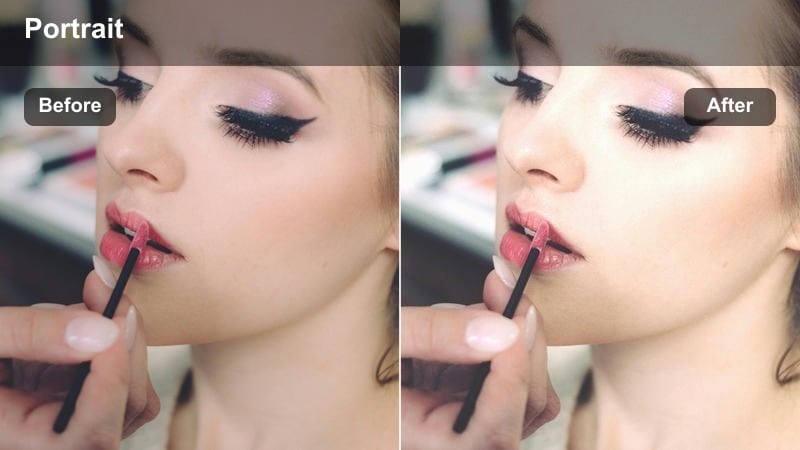
- Effect look: Soft vanilla-toned highlights with gentle bloom on high points of the face and a slight pastel cast.
- Best for: Highlighter demos, blush swatches, and minimal-makeup looks that focus on glow and radiance.
- Editing tip: Reduce exposure slightly after applying to avoid clipping on reflective cheekbones or shimmery eyeshadow.
Vanilla Highlight is a Filmora-friendly style that makes cheekbones, brow bones, and the bridge of the nose look luminous without harsh sparkle. Add a glow or bloom-style effect at a low setting, then slightly warm your highlights and midtones to achieve that vanilla-cream finish that pairs beautifully with soft pinks and nudes.
To keep shimmery or metallic products from blowing out on camera, lower overall exposure or tame the highlights slider after the effect is applied. If you want even more dreamy radiance, stack a subtle vignette and reduce contrast a bit so the brightest areas of your face feel diffused and pillowy rather than sharp and reflective.
Daylight Beauty Vlogs and GRWM Clips
Window Light Fresh
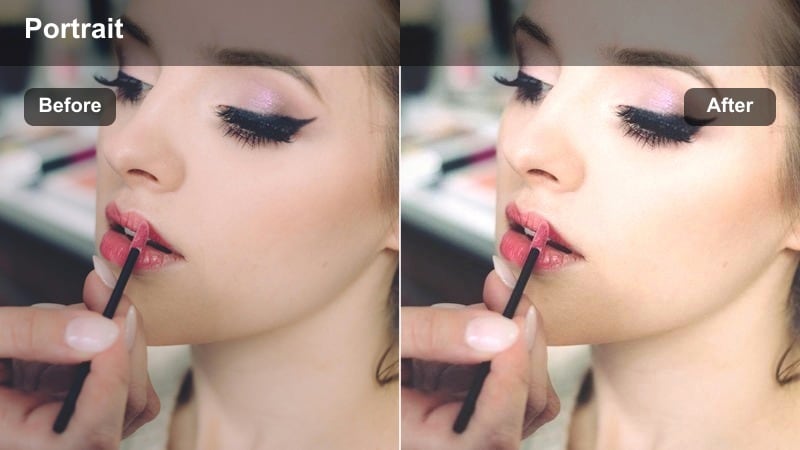
- Effect look: Bright, neutral tones with a slight warmth boost and gentle skin smoothing for natural daylight shots.
- Best for: Morning GRWM vlogs, skincare routines by the window, and handheld selfie videos in natural light.
- Editing tip: Pull down highlights if you film directly facing a sunny window to avoid losing detail in your forehead and chin.
Window Light Fresh is designed for creators who rely on natural daylight for their GRWM and skincare vlogs. In Filmora, start by slightly lifting exposure and adding a touch of warmth in the Color tab to keep your skin from looking washed out against bright windows, then apply a mild beauty filter to smooth texture without erasing it.
If you re filming with the sun directly in front of you, bring down highlights and whites so your forehead, nose, and chin retain detail instead of turning pure white. When your room has white or pale walls, consider lowering saturation or using the HSL panel to subtly desaturate background colors so your face and makeup remain the main focus of the frame.
Brunch Check-In Glow
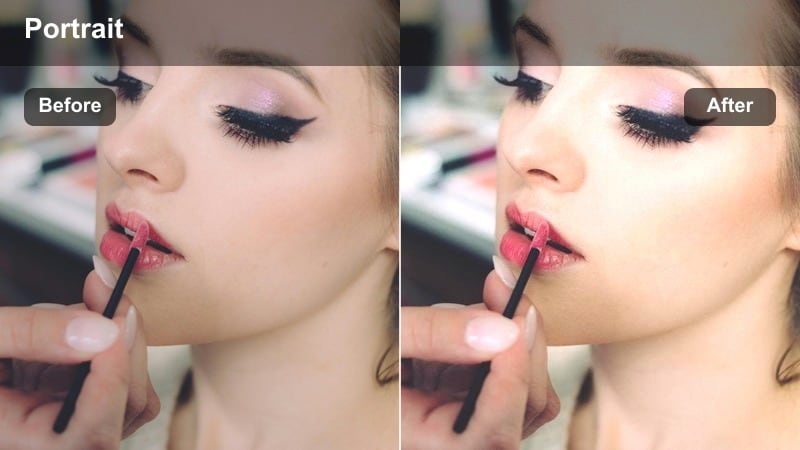
- Effect look: Soft warm glow with lifted shadows and subtle color boost for casual lifestyle snippets.
- Best for: On-the-go vlog check-ins, quick outfit plus makeup clips, and casual day-in-the-life content outdoors or by street-side windows.
- Editing tip: Use gentle stabilization before applying the filter so the glow stays consistent frame to frame in handheld shots.
Brunch Check-In Glow keeps your makeup flattering when you re walking through cafés, streets, or malls with changing daylight. Apply stabilization in Filmora first to smooth handheld movement, then use a warm-toned filter or LUT that lifts shadows and adds a gentle glow so your face stays bright, even when you pass through shade.
To maintain a lifestyle vibe, slightly boost saturation and vibrance so your outfit, coffee cups, and city background feel lively without overpowering your skin tone. If outdoor highlights like sky or glass become too bright, selectively reduce exposure or highlights in those regions using Filmora s masking tools, preserving glow on your cheeks while keeping details in the environment.
No Makeup Real Skin
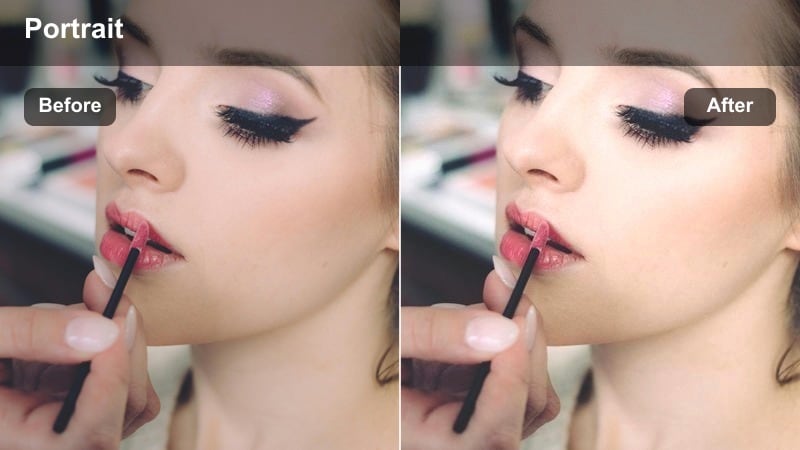
- Effect look: Ultra-subtle smoothing with true-to-life color and slightly lifted midtones that preserve real skin texture.
- Best for: Bare-skin skincare diaries, honest chat videos about skin, and minimal-makeup GRWM clips.
- Editing tip: Reduce sharpness just a touch after applying so pores and fine lines look flattering but still visible and honest.
No Makeup Real Skin is tailored for honest, skin-first content where your audience expects to see real texture and results. In Filmora, begin with neutral white balance and only a slight midtone lift to brighten the face, then dial in the gentlest level of skin smoothing, avoiding strong blur or aggressive beauty plugins.
To keep everything feeling authentic, lower overall sharpness very slightly so pores and fine lines remain visible but not harsh, especially in close-ups. If you need extra correction, target only temporary blemishes or redness with localized adjustments instead of smoothing the entire frame, and save your final settings as a preset for recurring skincare series.
Night Glam, Neon Signs, and City Lights
Night Out Spotlight
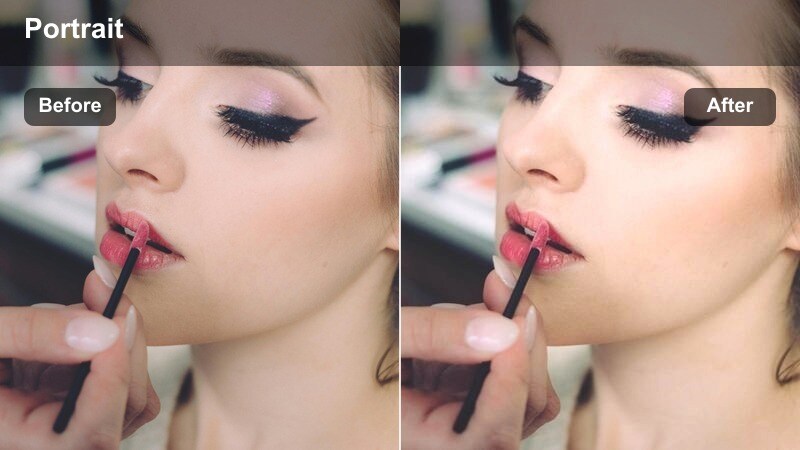
- Effect look: Punchy contrast, deeper shadows, and warm highlights that keep your glam makeup visible in dim scenes.
- Best for: Get-ready-with-me night-out looks, club makeup reveals, and evening event vlogs in low light.
- Editing tip: Lift shadows slightly if your hair or outfit blends into dark backgrounds like city streets or car interiors.
Night Out Spotlight is made for low-light party or city footage where your glam makeup risks disappearing into the darkness. In Filmora, start by applying light noise reduction on high ISO clips, then add a warm-leaning filter or LUT that boosts contrast while carefully lifting midtones so your contour, highlight, and lip color remain visible.
To avoid your hair and outfit melting into dark backgrounds, nudge the shadow slider up just enough to reveal silhouette details while maintaining a moody feel. After that, fine-tune midtone contrast rather than global contrast to preserve flattering skin tones, and add a slight vignette to keep the viewer s attention centered on your face in busy street scenes.
Neon Gloss
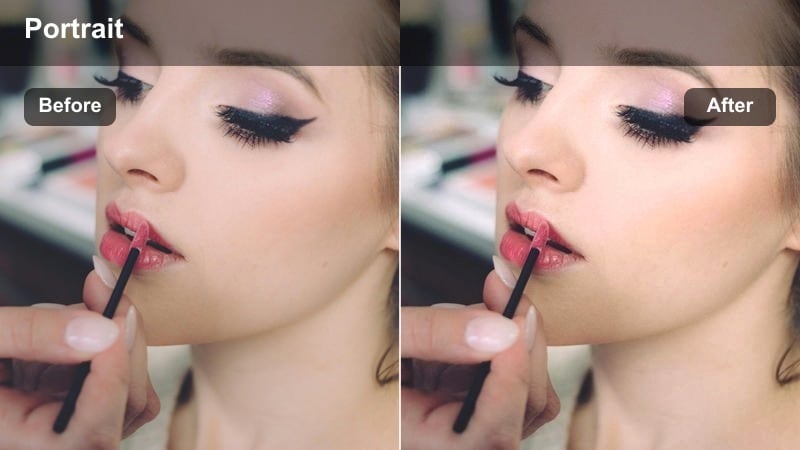
- Effect look: Cool-tinted shadows with preserved neon saturation and glossy, reflective skin highlights.
- Best for: Night city walks, neon sign shots, and glossy lip or eye looks filmed under colorful artificial lighting.
- Editing tip: Lower saturation in the blue channel slightly if neon signs overpower subtle details in your eye makeup.
Neon Gloss embraces the cool, colorful atmosphere of city lights while keeping your glam front and center. In Filmora, apply a stylized LUT or color preset that cools shadows and protects neon saturation, then increase clarity a touch so reflections on glossy lips and lids look sharp and intentional.
If your skin starts to look too blue or green, use the HSL or Color Correction tools to warm only the orange and red channels while gently desaturating blues and cyans. This keeps the edgy neon palette alive in the background while restoring a healthy complexion, letting your graphic liner and shimmer shadows remain detailed rather than overpowered by glowing signs.
Ride Share Glam
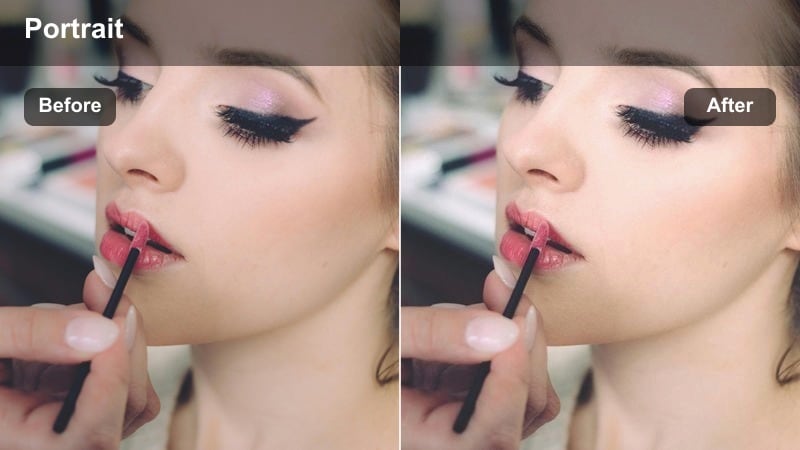
- Effect look: Gentle highlight lift with noise-friendly softening that keeps face visible in cars and ride-shares.
- Best for: In-car check-ins, on-the-way-to-the-event clips, and quick glam transitions filmed under tricky car lighting.
- Editing tip: Apply a slight vignette after the filter so the audience s attention stays on your face, not bright streetlights outside.
Ride Share Glam is a practical option for quick car updates filmed under harsh overhead lights and passing streetlamps. Inside Filmora, stabilize your handheld footage first, then apply a softening filter that is gentle on noise and bump up exposure and highlights slightly so your face stands out from the dark interior.
To control distractions, add a subtle vignette and reduce highlights in the brightest parts of the windows so passing headlights and streetlights do not steal attention. If the ride is especially bumpy, keep smoothing effects conservative and rely more on exposure and midtone adjustments to keep your glam clear and watchable for your viewers.
Short-Form Trend Clips and Product Close-Ups
Transition Snap Glam
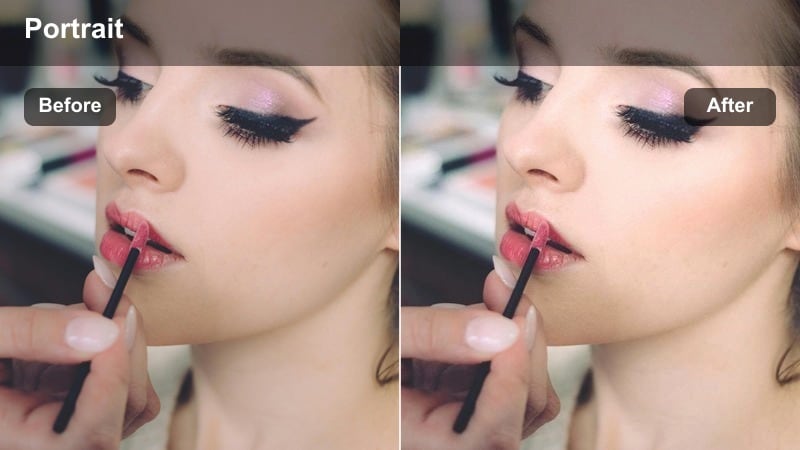
- Effect look: High-clarity, punchy contrast with brightened eyes and lips that pops in fast-paced transitions.
- Best for: TikTok and Reels transitions, before-and-after glam reveals, and snappy trend-based edits.
- Editing tip: Add a tiny bit of motion blur to jump cuts after the filter so hard transitions look intentional and stylish.
Transition Snap Glam is built to make before-and-after transformations hit hard in under a second. In Filmora, use a high-clarity filter or increase sharpness and local contrast around the eyes and lips, then boost saturation slightly so your full glam look explodes off the screen during each jump cut or snap transition.
To keep transitions feeling smooth and intentional, add a touch of motion blur or Filmora s speed-ramp effects around the cuts, which also helps disguise minor timing mismatches. Apply the same color and beauty preset to every clip in a sequence, correcting white balance first so skin tone, lipstick color, and liner intensity remain consistent across all transition beats.
Product Close-Up Polish
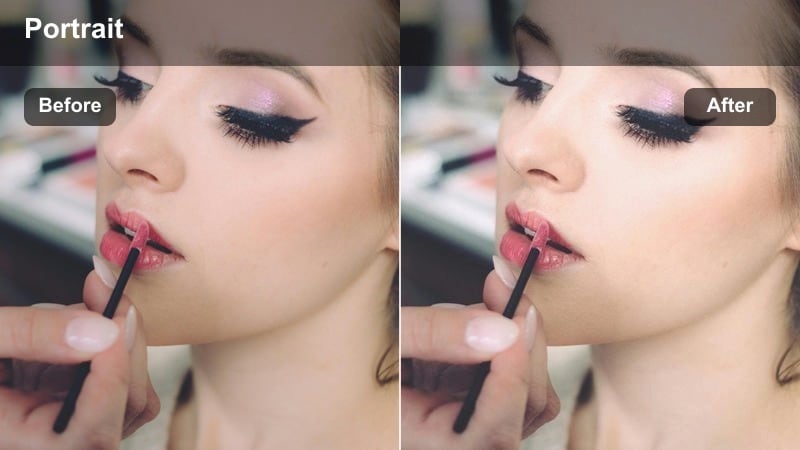
- Effect look: Soft macro-friendly smoothing with rich color on packaging, labels, and swatches.
- Best for: Lipstick and foundation swatches, mascara wand demos, and close-up product B-roll in beauty videos.
- Editing tip: Use manual focus and light sharpening after the filter so text on packaging stays tack sharp against smoother skin.
Product Close-Up Polish is perfect for macro B-roll of palettes, wands, and swatches where you want smooth hands and arms but crisp product details. In Filmora, apply a mild skin-smoothing effect to reduce fine lines on fingers and the back of the hand, then increase saturation and contrast slightly so packaging colors and label designs stand out.
After the base filter, add targeted sharpening or clarity on the product area using masks so text remains crystal clear while your skin stays soft. Light your labels carefully to reduce glare, then lower highlights locally if needed, ensuring the filter enriches the ink and metallic foils instead of emphasizing unwanted reflections.
Story Time Soft Focus
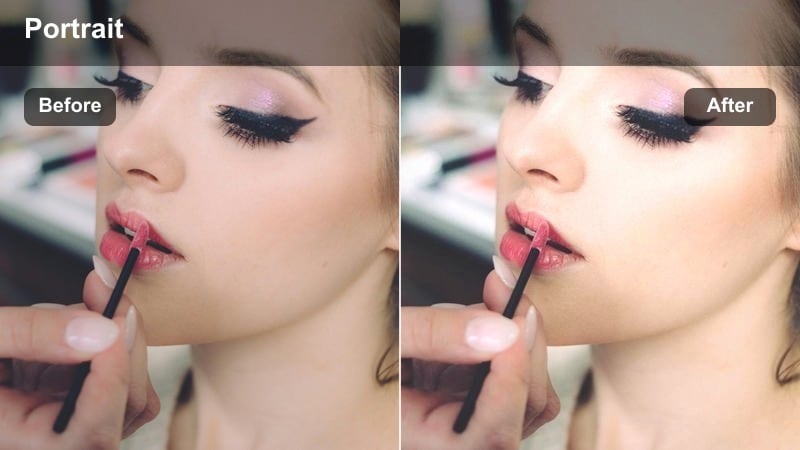
- Effect look: Low-contrast, soft-focus feel with creamy shadows and gently warmed skin tones.
- Best for: Storytime beauty videos, chatty voiceovers over B-roll, and calm aesthetic TikTok or Reels content.
- Editing tip: Reduce saturation slightly and add subtitles after the filter so the overall look remains cozy, legible, and easy on the eyes.
Story Time Soft Focus is made for chill, narrative-driven content where the vibe matters as much as the makeup. In Filmora, lower contrast and clarity a bit, slightly warm your white balance, and apply a softening filter so your skin and surroundings blend into a cozy, almost cinematic haze that encourages binge-watching.
Keep saturation moderate so colors do not feel harsh on viewers eyes, especially when they watch in low light at night. Add clean, high-contrast subtitles on top of the softened footage, then use gentle crossfades between clips to maintain a slow, relaxing pace that matches your audio and the soft-focus visual style.
Tips for Using Beauty Content Creator Lut Filters in Filmora
- Shoot in the flattest profile or lowest contrast setting your camera allows so beauty filters and LUT-style presets in Filmora have more dynamic range to work with.
- Keep your base white balance consistent across clips to avoid fighting mixed color casts when you apply beauty content creator LUT-style filters in the Color panel.
- Use a large, soft light source like a ring light, window, or softbox so Filmora filters enhance your skin rather than emphasizing harsh shadows and texture.
- Always sharpen eyes, brows, and lashes slightly after applying heavier skin smoothing so your face still reads crisp on mobile screens and vertical short-form feeds.
- Test your favorite beauty preset on both front and back phone cameras, since selfie lenses often render skin tones differently than rear lenses.
- Save frequently used filter combinations as custom presets or LUT-style looks in Filmora so your workflow stays fast and your branding remains consistent.
- Check how your filtered footage looks on multiple devices and brightness levels to make sure skin tones and product shades stay accurate for your audience.
With a small toolkit of beauty content creator LUT-style filters that match your lighting and personality, you can turn everyday footage into polished, on-brand videos in minutes.
Save your favorite looks as presets in Filmora, then focus less on technical tweaks and more on telling compelling beauty stories your audience wants to binge.
secure download