100% Security Verified | No Subscription Required | No Malware

These bright vivid color video filter presets are designed for content creators who want their footage to explode with saturation, punchy contrast, and eye-catching detail straight inside Filmora.
Use these presets to turn flat clips into bold, scroll-stopping visuals, whether you are shooting travel vlogs, city reels, or dynamic lifestyle content that needs strong, vivid color.
In this article
Sunlit Urban Scenes with Bold Colors
Neon Street Pop
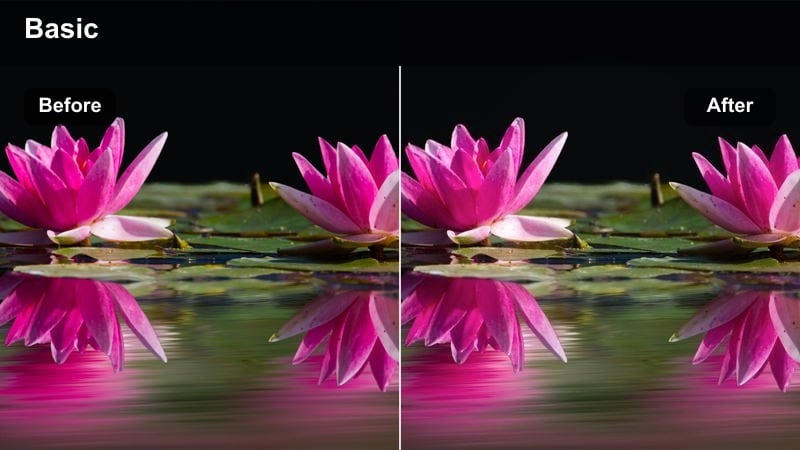
- Effect look: Intense saturation with crisp contrast that makes neon signs and billboards glow against darker city streets.
- Best for: Night city walks, cyberpunk-style B-roll, handheld urban exploration with lots of artificial lights.
- Editing tip: Lower highlights slightly to prevent sign text from blowing out while keeping saturation high on neon colors.
Neon Street Pop is ideal when you want night streets to feel electric straight out of Filmora. The filter pushes saturation and local contrast so neon signs, LED billboards, and traffic lights separate cleanly from the background, creating that stylized cyberpunk look without complicated color grading.
Apply this preset to city B-roll, storefront details, or rainy sidewalks, then fine-tune highlights in the Color panel so text on signs remains legible. Use masks around faces or enable skin protection features to keep people looking natural while the environment explodes with color, and add a slight vignette so glowing elements guide the viewer toward the center of the frame.
Lock In Your Vivid Look with AI-Powered Color Tools
Filmora's AI color tools make it simple to keep a bright vivid color video filter consistent across a whole sequence, even if clips were shot on different streets, cameras, or nights. Start by matching exposure and white balance automatically, then let vivid filters like Neon Street Pop do the heavy lifting for saturation and contrast.
Use AI color matching on one hero shot from your night walk and apply the result to your remaining clips. Once your base look is unified, stack your favorite bright vivid filter on top so every transition feels smooth, colorful, and intentional.
 secure download

See Bright Vivid Filters in Action on Real Footage
Previewing vivid filters directly on your own clips inside Filmora helps you quickly see which style fits your city walks, studio shots, or travel footage. Load a few short clips into the timeline, open the Effects panel, and compare presets like Neon Street Pop, Graffiti Burst, and Daylight City Pop side by side.
Watch how sign details, LED edges, and sky gradients respond as you switch filters and adjust intensity. This workflow lets you refine a look that feels bold and colorful while still preserving clarity and natural skin tones for your talking segments.
secure download1000+ Video Filters and 3D LUTs
Beyond bright vivid color video filter presets, Filmora includes a large library of creative filters and 3D LUTs so you can push your footage toward any style you want. Use vivid filters to boost saturation and impact, then layer a LUT to sculpt contrast and overall color tone.
For precise fine-tuning, combine these looks with HSL controls to selectively shape individual color ranges without affecting the entire image. This gives you the flexibility to make brand colors, skies, or neon signs stand out while keeping everything else balanced.
secure downloadGraffiti Burst
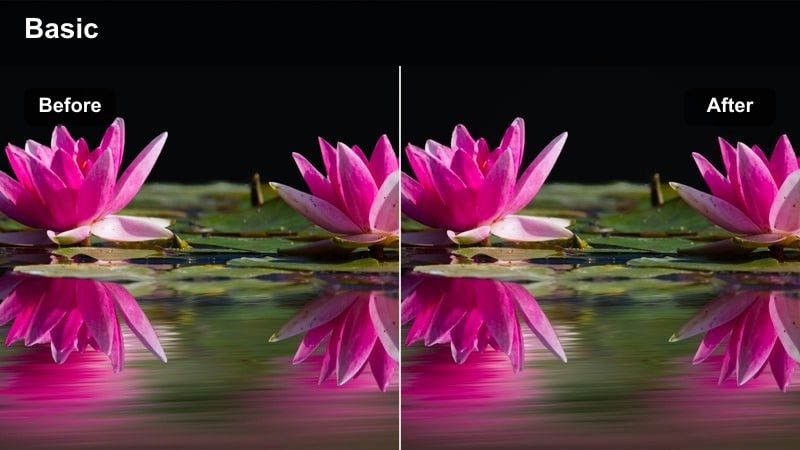
- Effect look: Punchy saturation and extra clarity that makes painted walls and street art explode with color.
- Best for: Street art montages, skate edits, and dynamic B-roll around colorful alleys and murals.
- Editing tip: Increase sharpness slightly for texture on walls, but avoid going too far or noise in shadows will become distracting.
Graffiti Burst is tuned to make mural colors look dense and inky while keeping edges crisp so every line and spray pattern stands out. It is great for quick location cutaways, transition shots, and skate sequences where walls become a moving backdrop of color.
Drop this filter on your street art clips, then nudge sharpness and clarity in Filmora to highlight textures in brick and paint without amplifying grain. Combine with slow tracking moves or gimbal shots for smooth motion, and add subtle speed ramps between different murals to match the energetic, color-rich feel.
Daylight City Pop
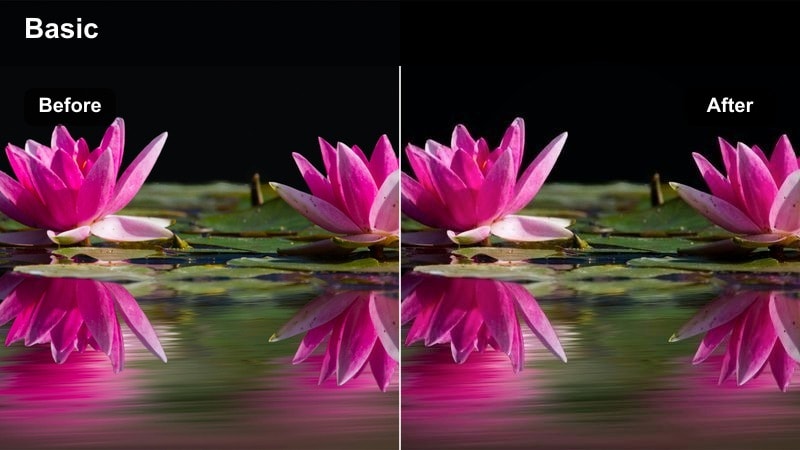
- Effect look: Bright contrast and vivid primary colors that make daytime city life look polished and energetic.
- Best for: City vlogs, travel reels, walking tours, and lifestyle content shot in busy streets under daylight.
- Editing tip: Dial down saturation in yellow and orange selectively if taxis and signage become too overpowering in the frame.
Daylight City Pop takes flat midday footage and turns it into a lively, high-impact cityscape with deeper blues and punchier reds. It is especially effective for handheld vlog shots, crosswalk moments, and quick B-roll of traffic or storefronts between talking segments.
Apply this preset across your daylight clips, then use HSL controls in Filmora to refine specific hues like yellow taxis or orange storefronts so they do not dominate. Save your tuned version as a custom preset, and use Color Match to keep exposure and white balance unified from shot to shot for a cohesive bright city look.
Travel and Beach Vibes with Vivid Tones
Tropical Punch
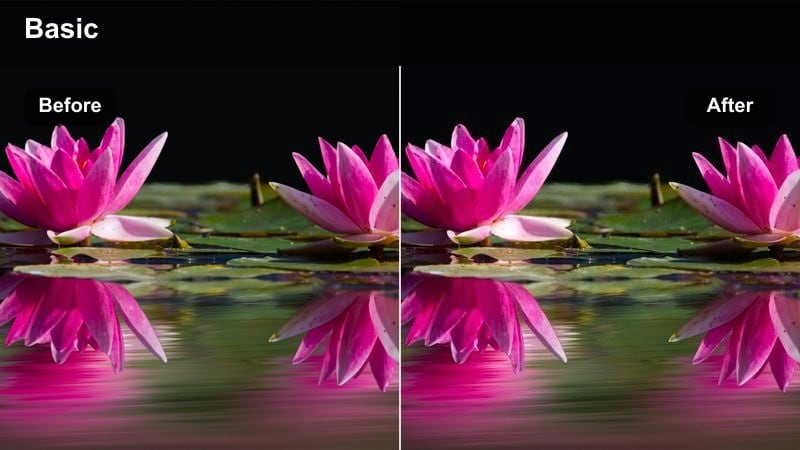
- Effect look: Deep blue water, lush greens, and bright warm highlights for a postcard-style vacation feel.
- Best for: Beach trips, island travel vlogs, drone shots over coastlines, and resort B-roll.
- Editing tip: Boost vibrance more than saturation to protect skin tones while still making sea and foliage colors stand out.
Tropical Punch is built to give your travel clips that postcard-ready punch, emphasizing turquoise water, vivid foliage, and warm sand. It works beautifully on drone passes over the coast, slow-motion waves, or poolside resort shots where you want instant vacation mood.
After applying the filter in Filmora, prioritize vibrance adjustments so blues and greens intensify without pushing skin tones too far. Fine-tune blues in the HSL panel if the ocean shifts toward artificial cyan, and add a bit of midtone clarity so ripples, leaves, and shoreline textures stay crisp against the saturated palette.
Sunset Pop Travel
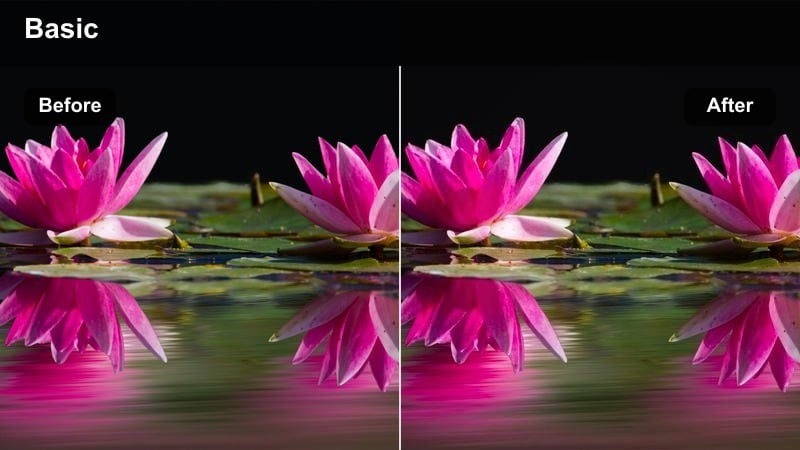
- Effect look: Amplified oranges, pinks, and purples with strong contrast for show-stopping sunset and golden-hour scenes.
- Best for: Sunset beach walks, city overlook viewpoints, and drone pulls away from the horizon during golden hour.
- Editing tip: Raise shadows gently so details in silhouettes stay visible while the sky remains dramatically colorful.
Sunset Pop Travel intensifies warm and magenta hues in the sky so your golden-hour shots feel dramatic and cinematic. It is perfect for closing shots in travel vlogs, horizon reveals, or any moment where you want the sky itself to be the main character.
In Filmora, apply this filter and then lightly lift shadows to recover detail in foreground silhouettes without flattening the sky. Export at a higher bitrate to reduce banding in strong gradients, and consider adding a subtle grain overlay to help blend the vivid sky colors for a smoother, filmic result.
Cityscape Sunrise Vivid
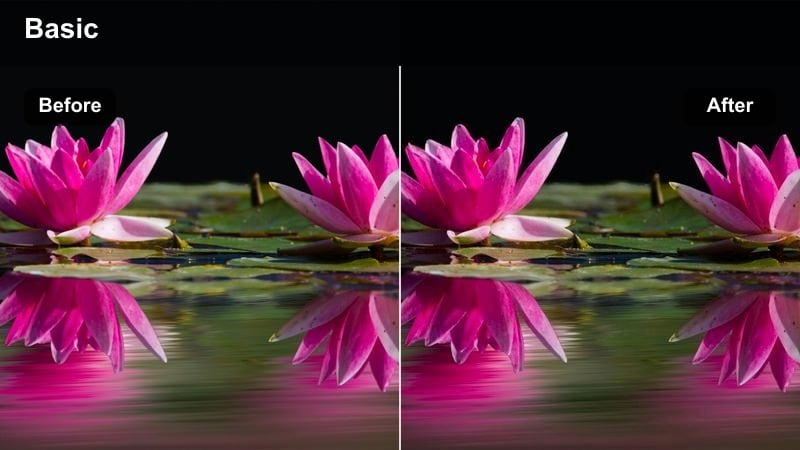
- Effect look: Clean, bright highlights and saturated sky tones that emphasize early-morning light over the skyline.
- Best for: Timelapses of waking cities, rooftop views, and drone shots revealing skyscrapers at dawn.
- Editing tip: Use keyframes on exposure as the sun rises so buildings stay properly exposed while colors stay intense.
Cityscape Sunrise Vivid is tailored for dawn and early-morning city shots, where you want the soft light and colorful sky to feel fresh and bright. It enhances oranges and blues while keeping building lines clean, making it ideal for timelapses or establishing shots at the start of a video.
When editing in Filmora, apply this filter to your timelapse or drone clip and then keyframe exposure or brightness as the sun rises to avoid blown highlights. Pair the clip with minimal lower-third titles or location text matched to the sky colors, and use split-screen presets to intercut skyline views with ground-level details for an engaging travel intro.
Creator Desk and Studio Setups in Vivid Color
RGB Setup Boost
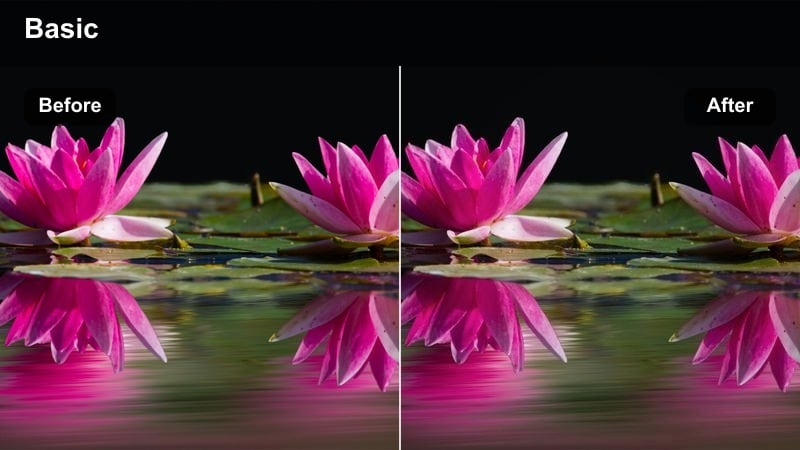
- Effect look: Highly saturated RGB lighting with boosted contrast to make LED strips and screens pop against darker rooms.
- Best for: Gaming setups, streaming intros, tech desk tours, and RGB-heavy home studios.
- Editing tip: Keep blacks slightly lifted so colored LEDs glow smoothly instead of clipping into harsh pure black shadows.
RGB Setup Boost enhances the colored light coming from your PC, LED strips, and monitors so your gaming or streaming studio feels rich and immersive. It deepens midtones while pushing saturation, giving hardware and background lighting a polished, thumbnail-ready look.
Apply this filter to A-roll and B-roll shots of your desk, then slightly raise black levels in Filmora so color transitions from LEDs stay smooth. Use color pickers to match overlay elements like subscribe buttons or lower thirds with your most prominent light color, and add a gentle vignette so the brightest RGB areas stay in the center of attention.
Creator Brand Pop
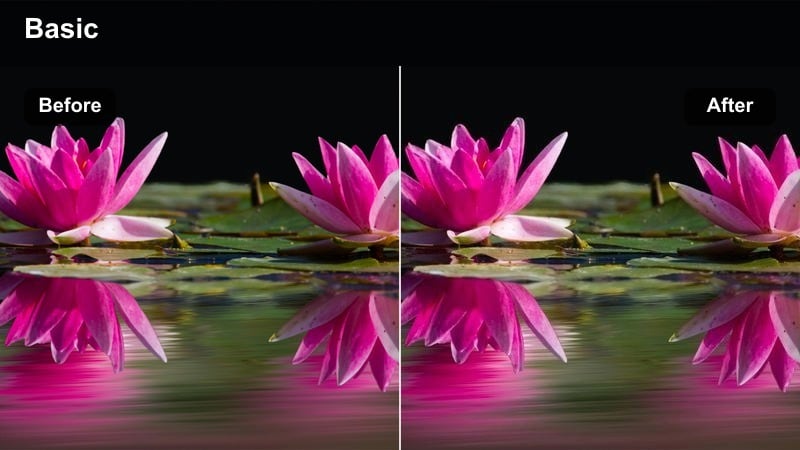
- Effect look: Clean, bright exposure and vivid brand colors that keep skin tones natural while making studio props stand out.
- Best for: Talking head videos, tutorial channels, branded studio sets, and colorful background decor.
- Editing tip: Use HSL controls to push your brand color slightly more saturated than others so it becomes a visual signature.
Creator Brand Pop is focused on making your studio set look professionally lit and colorful without sacrificing natural skin tones. It brightens the scene, adds a gentle pop to decor and props, and keeps your face looking clean for tutorials, reviews, or talking-head content.
After applying the preset in Filmora, use HSL to selectively increase saturation for your brand hue, whether it is teal, purple, or orange, so it subtly dominates the frame. If faces become too intense, reduce saturation in the orange range, and consider adding a slight background blur or depth-of-field effect so vivid shelves and lights support, rather than distract from, your on-camera performance.
Screen Glow Vivid
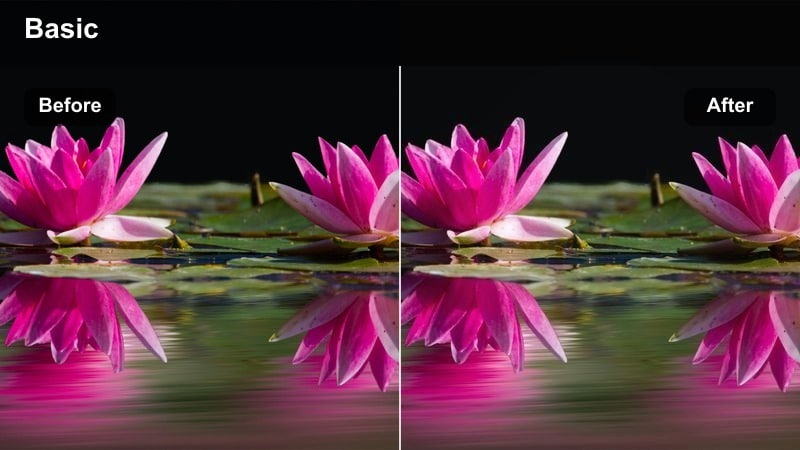
- Effect look: Bright, saturated colors on monitors and phones with slightly softened contrast on faces for a cozy glow.
- Best for: Reaction videos, editing timelapses, coding clips, and tech reviews shot near bright screens.
- Editing tip: Lower clarity on highlights if screens look harsh, and compensate with a bit more saturation so UI colors still pop.
Screen Glow Vivid brings out the color and brightness of computer monitors, tablets, and phones while keeping facial features soft and flattering. It is especially useful when your main light source is a screen, such as in reaction videos, editing breakdowns, or coding sessions.
In Filmora, apply the filter and then fine-tune highlight clarity to prevent UI elements and text from becoming too sharp or flickery. If moire or screen patterns appear, reduce overall sharpness slightly and add gentle motion blur to fast movements so the vivid screen colors feel smooth and cinematic rather than harsh.
Nightlife and Events with Intensified Color
Club Light Vivid
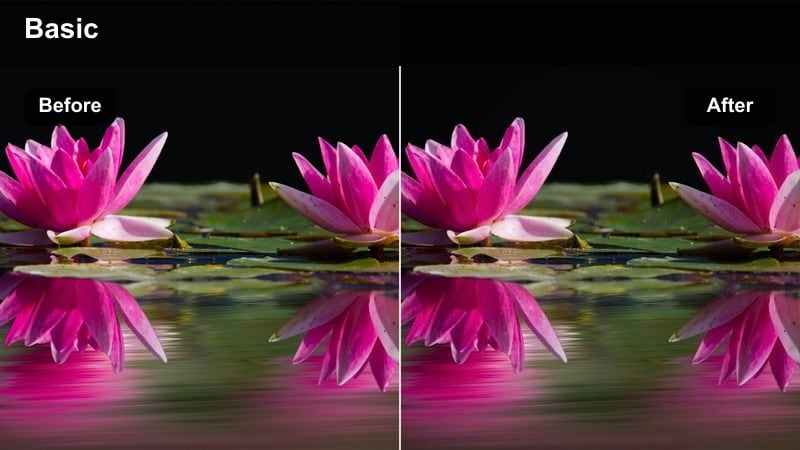
- Effect look: High-saturation stage and club lighting with deep blacks and punchy midtones for dramatic nightlife footage.
- Best for: Concerts, club scenes, DJ sets, and handheld shots of crowded nightlife.
- Editing tip: Use noise reduction before sharpening so low-light noise does not become exaggerated by the vivid contrast.
Club Light Vivid is tuned for dark venues filled with colored spotlights, lasers, and strobes. It deepens blacks and enhances saturation so stage lighting looks dramatic and powerful, helping crowded club and concert scenes feel energetic even if they were shot on a compact camera or phone.
Run noise reduction on your low-light clips in Filmora before applying extra clarity or sharpening to avoid emphasizing grain. Once the filter is on, pull back highlights slightly to retain detail in beams and spotlights, and add a small glow or bloom effect over the brightest areas to create a smooth, atmospheric nightclub look.
Festival Color Rush
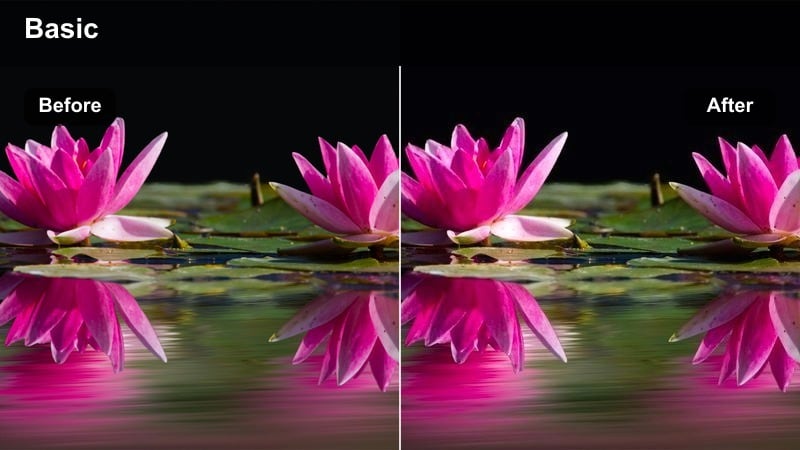
- Effect look: Explosive saturation across stage lights, outfits, and banners with energetic contrast and slightly warm tones.
- Best for: Music festivals, outdoor events, parades, and high-energy crowd shots.
- Editing tip: Stabilize handheld clips before applying extra clarity so movement feels intentional and not jittery with sharp lines.
Festival Color Rush is designed to turn outdoor events into a sea of bright flags, outfits, and stage visuals. It pushes warmth and saturation to highlight festival branding and costumes, making your wide crowd shots and close-up details equally vibrant and exciting.
In Filmora, stabilize handheld clips first so sharper edges from the filter do not accentuate jitters. Then use beat-based editing, cutting between wide crowd views and tight detail shots as colors shift or lights flare, letting the vivid palette reinforce the energy and rhythm of the music in your final edit.
City Night Drive
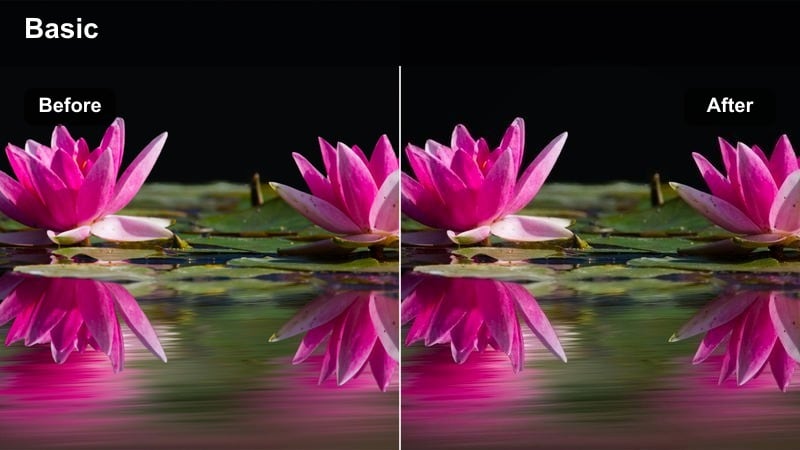
- Effect look: Saturated streetlights and car trails with glossy reflections and slightly cool shadows for cinematic night drives.
- Best for: Car POV drives through the city, ride-along B-roll, and reflective window shots at night.
- Editing tip: Add a bit of motion blur or radial blur on light streaks to exaggerate the sense of speed with vivid colors.
City Night Drive brings out colored streetlights, brake lights, and storefronts while cooling shadows for a sleek, cinematic feel. It works well for POV driving shots, reflections in windows, or transitional B-roll that moves your story from one location to another at night.
Apply the preset in Filmora and consider increasing motion blur or using radial blur on light trails to heighten the feeling of speed. Frame compositions to include reflective surfaces like wet roads, glass, or car paint, and let the filter amplify those reflections so they become flowing ribbons of vivid color within a letterboxed, movie-style frame.
Tips for Using Bright Vivid Color Video Filter Filters in Filmora
- Always adjust saturation and vibrance per scene after applying a vivid filter so skin tones remain natural while backgrounds stay bold.
- Use masks or adjustment layers to limit extreme color boosts to specific areas like signs, lights, or skies instead of the whole frame.
- Export a short test segment and view it on a phone and desktop to make sure the bright colors still look clean on different screens.
- Keep an eye on noise in dark areas when pushing vivid contrast in low-light city or club scenes and apply noise reduction first if needed.
- Create a reusable Filmora preset that combines your favorite vivid filter with light sharpening and subtle vignette for fast, consistent results.
- When stacking a bright vivid color video filter with a LUT, reduce LUT intensity so highlights and shadows do not crush and details stay visible.
- Use Filmora's color scopes to monitor saturation levels and avoid pushing individual color channels beyond the point of clipping.
- Balance vivid backgrounds with slightly softer faces by lowering contrast on your subject while keeping the filter strong on the environment.
Bright vivid color video filters in Filmora help content creators turn flat footage into bold, high-impact visuals that stand out on any platform.
Test a few of these presets on your next city walk, studio shoot, or travel vlog, then save your favorite tweaks as custom looks to build a consistent, colorful visual identity over time.
secure download