

 100% Security Verified | No Subscription Required | No Malware


 ChatGPT
 Perplexity
 Gemini
 Claude
 Grok
Grok
This collection of soft beige tone cinematic LUT-style filters is designed for content creators who want neutral, film-inspired color grading without harsh contrast or oversaturation.
Use these filters to wrap your footage in gentle beige warmth, unify mixed lighting, and give your edits a cohesive cinematic feel across vlogs, lifestyle content, product videos, and storytelling projects.
In this article
Golden Hour Portraits and Close-Ups
Silk Beige Glow
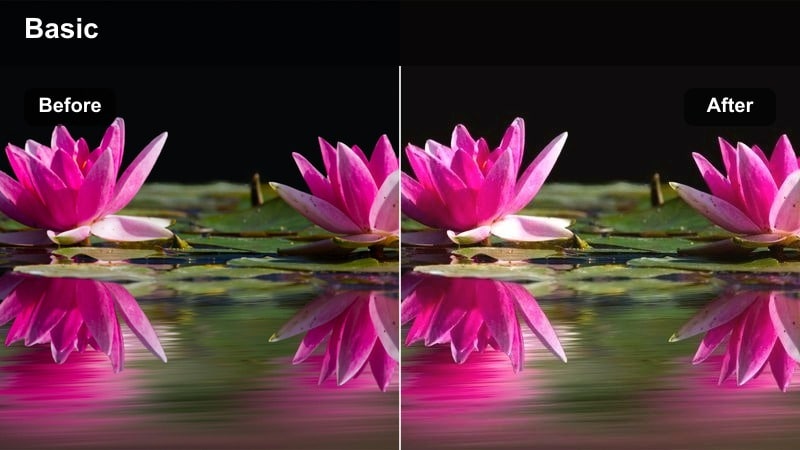
- Effect look: Soft, low-contrast glow with creamy beige highlights and gentle roll-off in the midtones.
- Best for: Golden hour portrait shots, lifestyle B-roll, and soft-spoken talking-head content.
- Editing tip: Slightly lower overall contrast and raise blacks to keep skin tones velvety and cinematic.
Silk Beige Glow wraps faces in a velvety beige wash that smooths transitions between light and shadow, ideal for creators who want flattering portraits without plastic-looking skin. In Filmora, this style works beautifully on clips shot during golden hour, gently compressing highlights so sunsets and window light look creamy instead of blown out.
Apply Silk Beige Glow on your primary portrait track, then fine-tune exposure and contrast in the Color panel to keep details in hair and eyes while maintaining the soft mood. For talking-head content, slightly raise the blacks slider and reduce sharpness a touch so your subject appears cinematic and editorial-ready rather than overly crisp.
AI-Powered Soft Beige Color Matching
Filmora's AI color matching helps you quickly align different clips to a single soft beige reference, even if they were shot in mixed lighting or on different cameras. Choose your favorite Silk Beige Glow or other beige-graded clip as the baseline, and let AI match contrast and tone for the rest of your timeline.
Once your footage is harmonized, layer your preferred soft beige filters over the matched clips and adjust intensity per shot. This workflow keeps your color grading consistent while still giving you control over warmth, softness, and depth in each scene.
 secure download

Preview Soft Beige Filters in Real Time
With Filmora, you can hover over beige-inspired filters to see instant previews on your footage, making it easy to compare soft tones like Silk Beige Glow, Muted Honey Frame, and Linen Soft Portrait. This real-time feedback helps you quickly identify which look best suits your portraits, home vlogs, or city B-roll.
Use split-screen comparison to test multiple beige filters side by side, then refine exposure, saturation, and sharpness so the final grade looks cohesive and natural. This way you spend less time guessing and more time dialing in the exact warmth and softness you want.
secure downloadBlend Filters with Cinematic LUTs
Filmora lets you stack its built-in filters with 3D LUTs so you can craft a refined beige cinematic style that still respects true-to-life color. Start with a neutral or film-style LUT to define contrast and overall color bias, then place a soft beige filter on top at reduced intensity to add warmth and subtle matte softness.
This layered approach is especially useful for skin tones and branded content, where you want a recognizable beige aesthetic without pushing colors too far. Adjust LUT and filter strengths in small steps until your footage feels both cinematic and believable.
secure downloadMuted Honey Frame
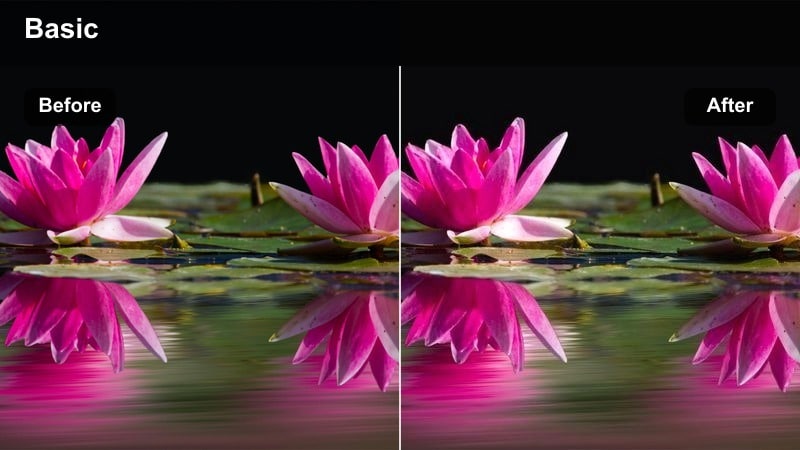
- Effect look: Muted warmth with honey-beige tones and gently desaturated colors around the subject.
- Best for: Seated interviews, bookish desk setups, and calm lifestyle shots in apartments or studios.
- Editing tip: Lower saturation in the greens and blues to let the beige warmth and skin tones stand out.
Muted Honey Frame adds a subtle amber-beige tint that feels calm and intimate, making it ideal for indoor interviews, study sessions, and cozy desk content. By slightly desaturating surrounding colors, the filter helps your subject stand out without resorting to heavy contrast or sharpness.
In Filmora, apply Muted Honey Frame and then use the HSL controls to gently pull back greens from plants or blues from screens so they do not pull attention from the face. Combine with a light vignette and a minor exposure drop on the background using masks to subtly guide the viewer toward your main subject.
Linen Soft Portrait
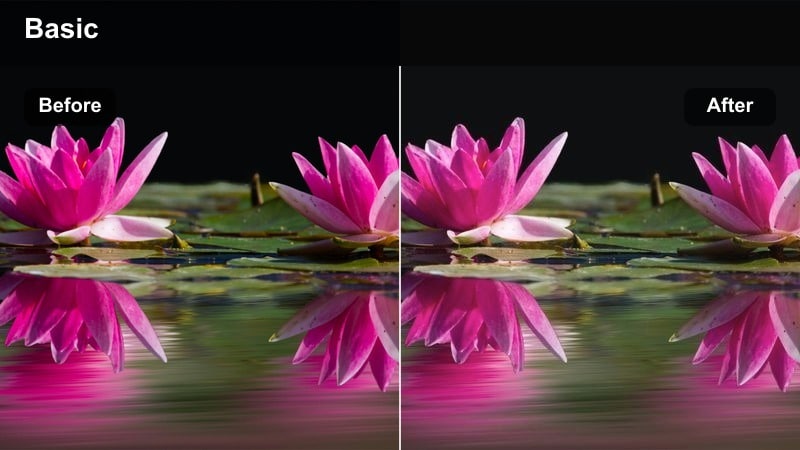
- Effect look: Neutral beige film look with gentle fade in shadows and smooth skin-friendly highlights.
- Best for: Reels and shorts featuring slow movements, hair shots, and minimal studio lighting.
- Editing tip: Add a slight blur or halation on bright light sources to mimic vintage lens softness.
Linen Soft Portrait emphasizes a neutral beige palette that works across many skin tones, giving your footage a soft, linen-like finish without skewing too warm. The gentle shadow fade can help tame contrasty window light and keep details in darker areas while preserving a cinematic mood.
In Filmora, add Linen Soft Portrait to close-ups and then use the Sharpen and Blur tools sparingly to mimic vintage lens softness around highlights. For vertical Reels or Shorts, pair the filter with slightly slowed footage and a touch of motion blur so hair flips, hand movements, and fabric textures feel smooth and dreamlike.
Minimal Home and Workspace Aesthetic
Apartment Beige Film
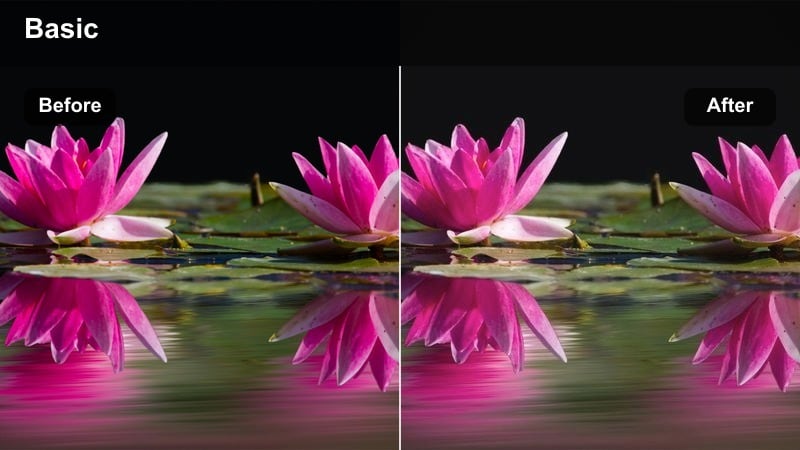
- Effect look: Softly faded film look with beige midtones and reduced color noise in indoor scenes.
- Best for: Day-in-the-life vlogs, home tours, and desk makeover videos in small apartments.
- Editing tip: Lift the shadows slightly and reduce grain to keep tight spaces looking airy, not cramped.
Apartment Beige Film is tailored for compact indoor spaces, adding a subtle film fade and beige midtones that make rooms feel bright yet cozy. It softens the harshness of mixed indoor bulbs and window spill, so your home vlogs and desk tours look more curated and less cluttered.
In Filmora, apply Apartment Beige Film to your entire home vlog sequence, then gently raise the shadows slider so corners do not fall into heavy black. Use the Noise Reduction and Grain controls to keep the image clean, which helps small rooms appear open and inviting when combined with this soft beige tone.
Studio Sand Neutral
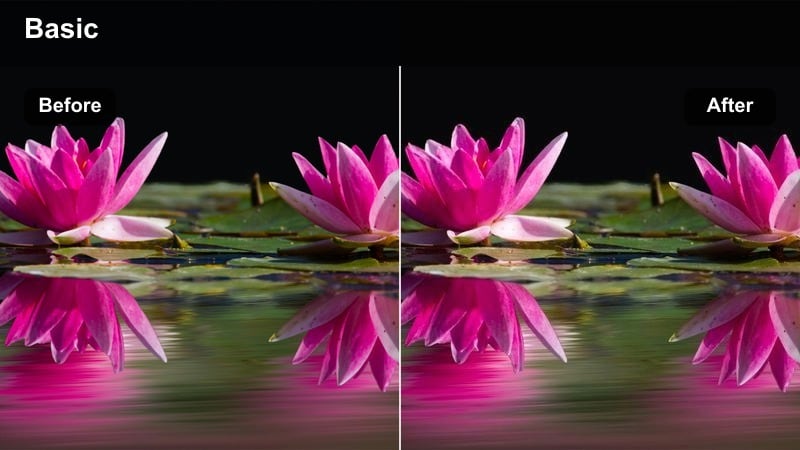
- Effect look: Balanced, low-saturation sand-beige look with clean whites and neutral blacks.
- Best for: Product demos, stationary shots, and overhead desk videos in creative studios.
- Editing tip: Use subtle sharpening only on the subject and keep the background soft and slightly desaturated.
Studio Sand Neutral delivers a polished, editorial sand-beige tone that is perfect for product-centric shots and flat-lay compositions. It keeps whites clean and blacks neutral, so packaging, paper, and tech gear look accurate while still sitting inside a cohesive beige aesthetic.
In Filmora, drag Studio Sand Neutral onto your product clips and then use the Mask and Sharpen tools to add crispness only to the featured item, leaving the background softly desaturated. This selective focus technique helps thumbnails and promo shots feel modern and premium without becoming overly contrasty or saturated.
Cozy Loft Beige
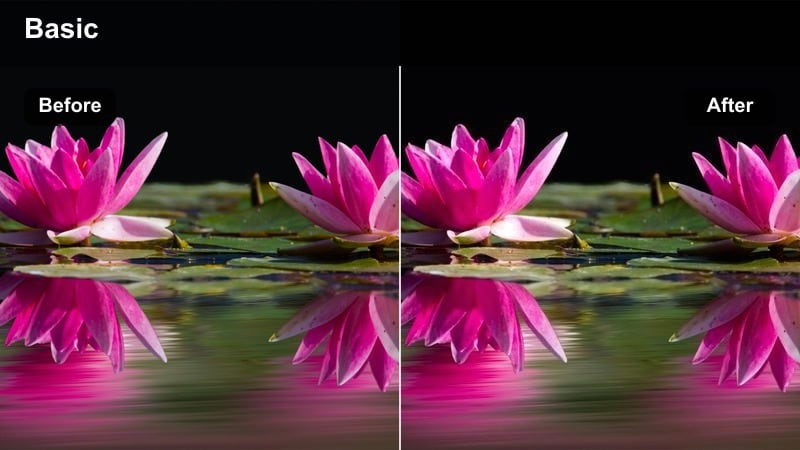
- Effect look: Warm loft-style beige with slightly lifted blacks and a gentle matte finish.
- Best for: Loft apartment vlogs, morning routines, and casual chatty videos on a couch.
- Editing tip: Lower saturation in reds and add a touch of contrast back to keep faces defined yet mellow.
Cozy Loft Beige leans into a warm, matte aesthetic that turns everyday living rooms and loft spaces into soft cinematic sets. The lifted blacks and gentle matte finish are especially flattering on morning routines, evening wind-downs, and casual couch chats where you want everything to feel relaxed.
In Filmora, apply Cozy Loft Beige, then fine-tune reds and oranges in the HSL panel so skin does not appear too flushed. If your scene feels slightly flat after the matte effect, nudge contrast or the midtone curve upward just enough to bring definition back to faces while preserving the laid-back beige mood.
Urban Lifestyle and City B-Roll
City Sand Travel
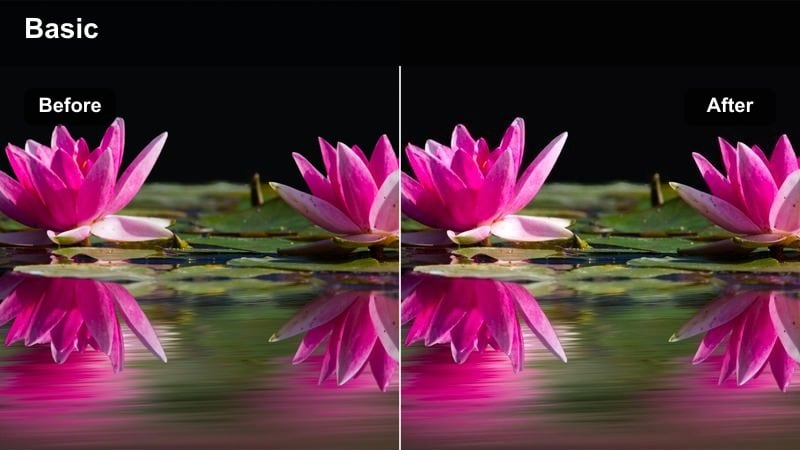
- Effect look: Soft beige travel look that tames harsh city colors and adds muted warmth to buildings and streets.
- Best for: Urban travel vlogs, walking POV shots, and handheld city B-roll sequences.
- Editing tip: Slow down your footage slightly and add subtle motion blur to enhance the smooth, cinematic flow.
City Sand Travel softens the visual noise of busy streets by muting intense colors and layering a gentle sand-beige cast over buildings, cars, and signs. It is ideal for creators who want their travel vlogs to feel cohesive and relaxed rather than chaotic and overly saturated.
In Filmora, pair City Sand Travel with a slight slow-motion effect and the Motion Blur filter so footsteps, traffic, and crowd movement feel more cinematic. You can also use keyframed exposure adjustments as you pan or walk to keep the overall beige tone consistent when moving from shadows to bright sun.
Subway Beige Cinematic
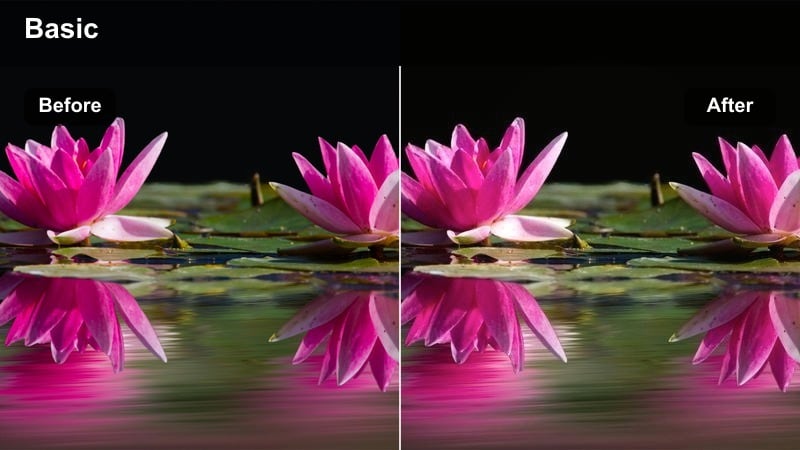
- Effect look: Creamy beige cast that softens fluorescent lighting and adds a filmic fade to underground scenes.
- Best for: Subway rides, escalator shots, and transitions between city locations.
- Editing tip: Reduce green and cyan tints from overhead lights to keep the beige mood clean and intentional.
Subway Beige Cinematic is built to transform harsh underground lighting into a smoother, more filmic environment with a creamy beige overlay. The filter calms fluorescent greens and cyans so station platforms, escalators, and train interiors feel like part of a stylized city story.
After applying the look in Filmora, use the Color and HSL tools to pull down green and cyan saturation, especially on walls and overhead fixtures. Keep contrast moderate and avoid aggressive sharpening to prevent low-light noise from becoming too visible against the soft beige fade.
Rooftop Beige Haze
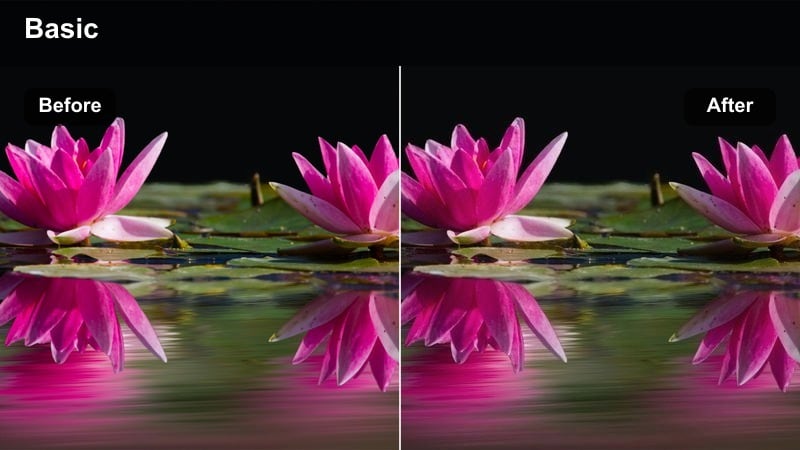
- Effect look: Hazy beige atmosphere with softened highlights and gentle halation around skyline lights.
- Best for: Rooftop scenes, skyline reveals, and drone shots over urban environments.
- Editing tip: Add a subtle gradient to darken the sky and keep foreground subjects clearly separated.
Rooftop Beige Haze adds a dreamy veil over skylines and rooftop scenes, softening highlights and introducing a light halation effect around city lights. This beige-leaning atmosphere is perfect for intros, outros, and reflective moments where the skyline becomes part of the story.
In Filmora, combine Rooftop Beige Haze with gradient masks that gently darken the upper part of the frame so your subject stands out against the sky. For drone or wide shots, use the Color panel to slightly boost midtones while keeping highlights controlled, ensuring buildings retain structure within the soft haze.
Storytelling Vlogs and Narrative Scenes
Chapter One Beige
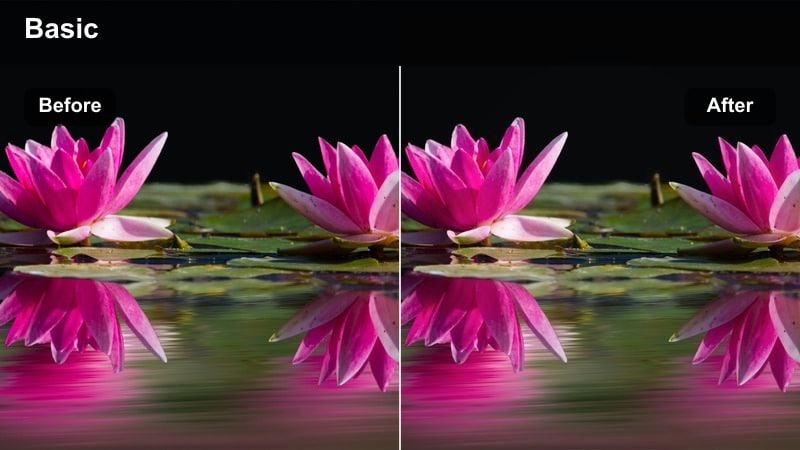
- Effect look: Story-driven beige tone with restrained saturation, lifted shadows, and a bookish film look.
- Best for: Narrated vlogs, reflective monologues, and voiceover B-roll sequences.
- Editing tip: Use slower cuts and crossfades; the calm beige palette works best with gentle pacing.
Chapter One Beige is designed for narrative-driven content, adding a quiet, bookish beige tone that supports reflective storytelling. Lifted shadows and controlled saturation make scenes feel intimate and thoughtful, ideal for voiceovers, sit-down reflections, and slow B-roll overlays.
In Filmora, apply Chapter One Beige across your A-roll and B-roll, then choose slower transitions like crossfades and dissolves to match the calm palette. Keep saturation tweaks minimal and lean on subtle exposure adjustments so viewers focus on your story while the beige aesthetic works in the background.
Memory Fade Beige
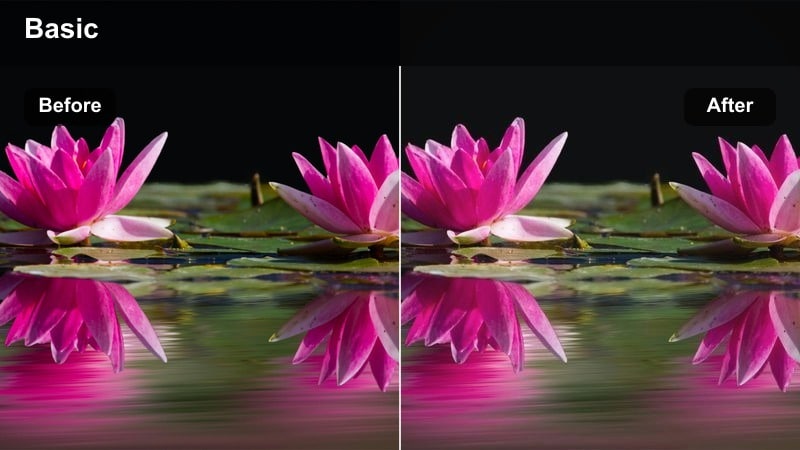
- Effect look: Softly faded beige memory look with mild grain and slightly washed highlights.
- Best for: Flashback sequences, montage edits, and nostalgic lifestyle moments.
- Editing tip: Reduce contrast and add a bit of blur to edges for a dreamlike, remembered feel.
Memory Fade Beige makes everyday footage feel like a soft recollection, using washed highlights, a subtle beige cast, and a hint of grain to mimic hazy memories. It is perfect for flashbacks, relationship montages, or nostalgic city moments woven into your main narrative.
In Filmora, apply Memory Fade Beige to selected clips, then dial back contrast and add a slight edge blur using the Effects panel to create a dreamy vignette around the frame. Use similar music and gentle audio transitions so the visual beige fade and the soundtrack work together to signal that viewers are watching a remembered moment.
Neutral Script Beige
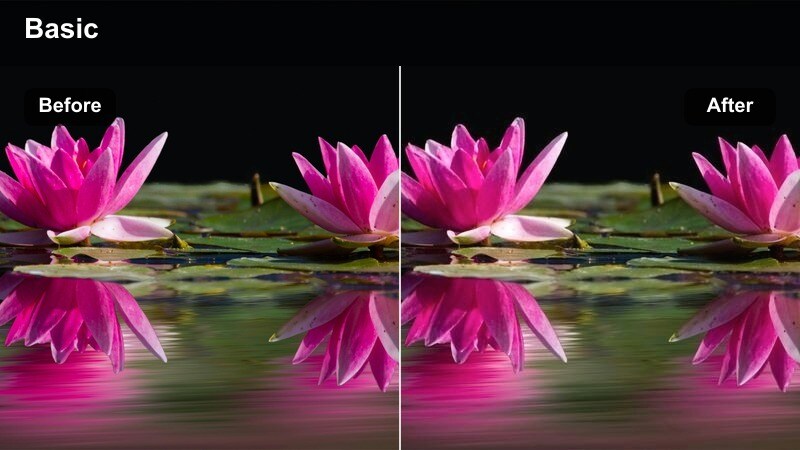
- Effect look: Neutral narrative beige with balanced contrast and subtle cinematic cool-down in the shadows.
- Best for: Short narrative films, scripted skits, and dialogue scenes in apartments or offices.
- Editing tip: Set consistent white balance across all shots before applying the filter to avoid shifts in continuity.
Neutral Script Beige focuses on continuity and clarity, giving scripted scenes a subtle beige treatment with balanced contrast and slightly cooled shadows. This combination keeps skin tones natural while lending dialogue sequences a cinematic, cohesive finish that works across multiple camera angles.
In Filmora, match white balance across your entire scene first using the Color Match or manual white balance tools, then apply Neutral Script Beige so each angle retains the same tonal feel. Use scopes to verify that exposure and color stay consistent from shot to shot, avoiding jarring shifts that might distract viewers from the story.
Tips for Using Soft Beige Tone Cinematic Lut Filters in Filmora
- Shoot slightly flatter in-camera so the soft beige filters have more room to shape contrast and tone.
- Keep wardrobe and props in neutral or earth tones to complement the beige cinematic palette.
- Dial back saturation in primary colors like red and blue so the beige mood feels cohesive and intentional.
- Use consistent white balance across your entire shoot to prevent unwanted color shifts under the beige filters.
- Stack filters and basic color tools gently rather than pushing a single effect too far, especially on skin tones.
- Always check your graded footage on both phone and desktop screens to confirm the beige look feels balanced.
- Lower clarity or micro-contrast for close-up shots to maintain a soft, filmic texture.
- Use subtle vignettes and graduated filters to guide attention without making the grade look heavy-handed.
Soft beige tone cinematic filters are a powerful way for content creators to add warmth, cohesion, and film-inspired polish to everyday footage without overwhelming natural colors.
Experiment with different beige filters in Filmora, adjust intensity per clip, and then move on to neutral color tone video LUT options to keep evolving your signature look.
secure download