

 100% Security Verified | No Subscription Required | No Malware

This collection of cinematic color fade LUT-style filters is designed for content creators who want gentle, filmic color roll-off without complex grading workflows.
Use these presets to soften contrast, mute saturation, and introduce a subtle faded look that instantly makes footage feel more cinematic and story-driven.
In this article
Moody Dusk City Fades
Soft Neon Fade
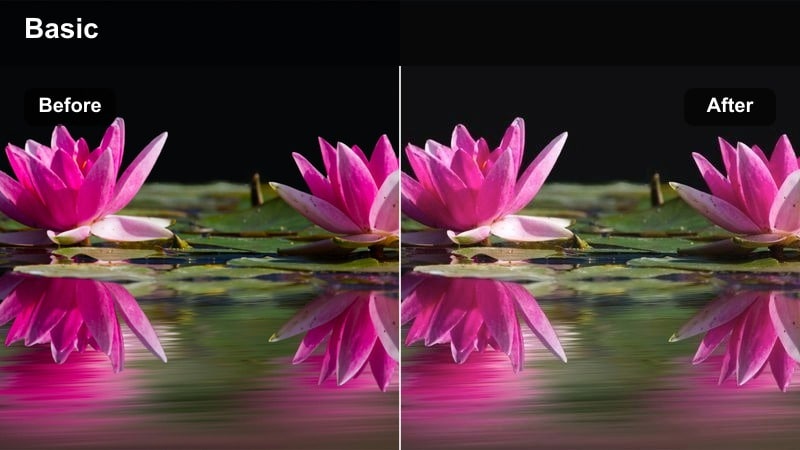
- Effect look: Gentle contrast reduction with muted neon colors and a soft halated glow on highlights.
- Best for: Night city B-roll, cinematic vlogs, and travel montages with bright store signs and billboards.
- Editing tip: Lower saturation on individual neon hues slightly to avoid clipping and maintain the faded mood.
Soft Neon Fade is ideal when you want neon signs and billboards to feel cinematic without overpowering your story. In Filmora, apply this filter from the Effects panel to instantly reduce harsh contrast and bloom your highlights, so light sources feel more like film than raw digital LEDs.
For best results, combine the filter with subtle midtone adjustments using color wheels to keep faces readable in crowded city frames. You can also keyframe the filter intensity as you move between interiors and exteriors, gently easing the fade in or out to maintain a smooth visual flow throughout your timeline.
Match Your Cinematic Fade Across Every Clip
Use Filmoras AI-powered color tools to automatically match your cinematic color fade LUT-style filters from one shot to another so sequences feel consistent from the first frame to the last.
Instead of manually tweaking every clip, let AI analyze contrast, saturation, and temperature, then apply a unified fade that keeps your chosen look intact across different cameras and lighting setups.
 secure download

Preview Faded Looks in Real Time
Filmoras filter preview lets you skim through cinematic fade options directly in the viewer, so you can see how each style reacts to your footage before you commit to one.
Quick side-by-side comparisons make it easy to decide whether a warm nostalgic fade, a cool urban wash, or a neutral softened grade best supports the pacing and emotion of your sequence.
secure downloadCombine Fades with LUTs for Deeper Control
Stack Filmora filters with LUTs to build layered cinematic looks, using LUTs for your base color direction and faded filters for final mood and softness.
By adjusting opacity per layer, you can fine-tune how strong the cinematic color fade appears and keep skin tones balanced while still enjoying a distinct filmic style.
secure downloadTwilight Street Fade
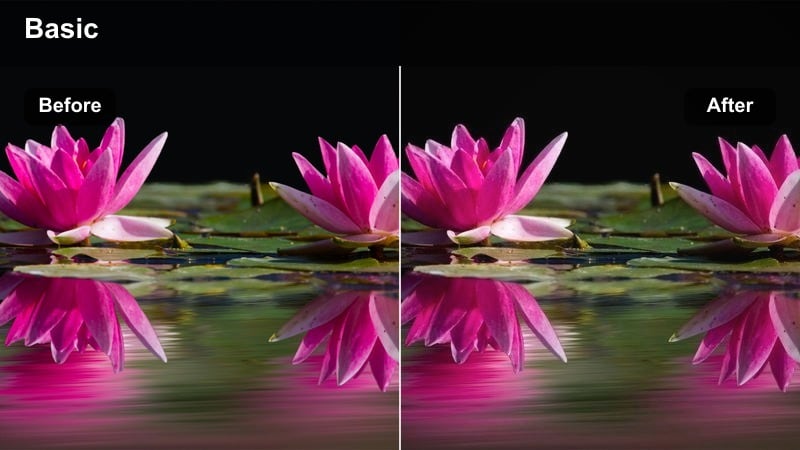
- Effect look: Cool-leaning fade with lifted shadows and reduced contrast for a dreamy twilight feel.
- Best for: Blue hour establishing shots, city walking scenes, and narrative short films set at dusk.
- Editing tip: Gently desaturate blues and cyans to keep skies and reflections soft rather than electric.
Twilight Street Fade is designed to enhance blue hour footage, keeping the cool mood of dusk while softening any harsh transitions between light and dark. In Filmora, add this filter to skyline shots, bridges, or walking sequences to create a contemplative, almost floating atmosphere.
Pair the fade with mild warm adjustments on skin tones using HSL so faces do not feel too cold against the blue environment. You can also keyframe the filter strength as natural light fades in your clip, gradually deepening the cinematic coolness as the scene moves closer to night.
Vintage Alley Fade
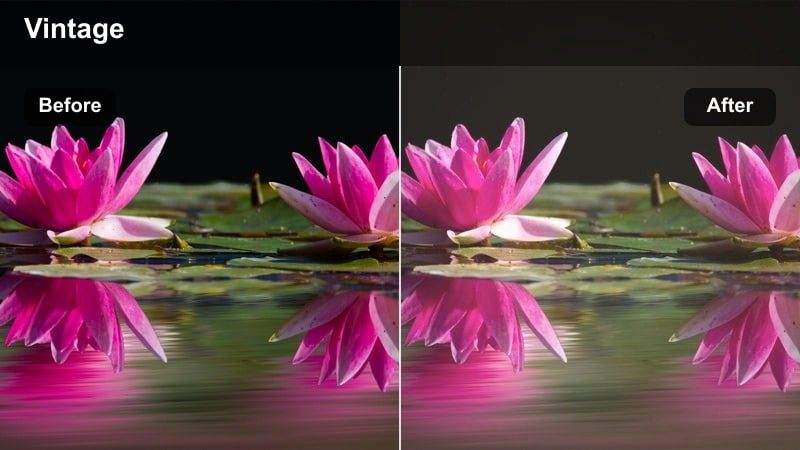
- Effect look: Warm, low-contrast fade with subtle grain-like softness and muted highlights.
- Best for: Urban storytelling, character walks through alleyways, and handheld narrative sequences.
- Editing tip: Drop clarity slightly to enhance the nostalgic softness while preserving subject edges.
Vintage Alley Fade gives modern streets a timeless, film-inspired look by lowering contrast and warming up brick, asphalt, and practical lights. Apply it in Filmora to handheld character shots or POV walks to make everyday alleys feel like stills from an indie film.
Refine the look by adding a light vignette and very subtle film grain from Filmoras Effects, which helps hide digital sharpness and noise. If your clip starts to look too flat, reintroduce a bit of midtone contrast so your subject stands out while the environment remains gently faded.
Soft Daytime Urban Fades
Pastel City Fade
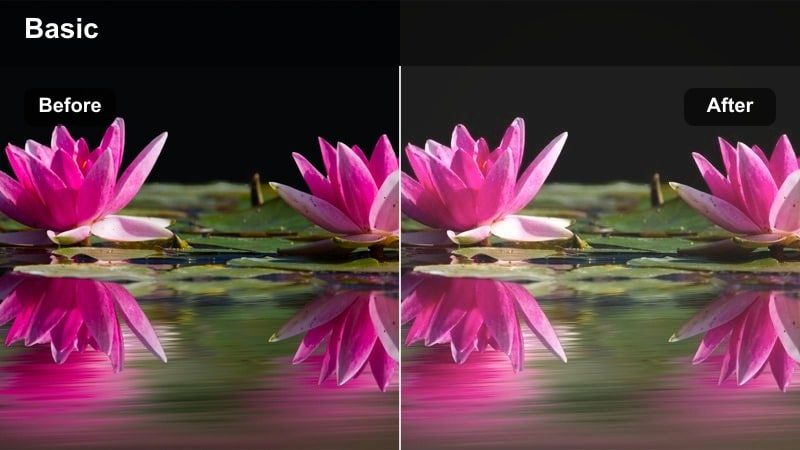
- Effect look: Bright, airy fade with pastel-like colors and lowered overall saturation.
- Best for: Lifestyle vlogs, fashion walks, and social content shot in modern city centers.
- Editing tip: Boost exposure slightly to keep whites clean while the fade softens bold colors.
Pastel City Fade turns strong primary colors into soft, shareable tones that work especially well for fashion and lifestyle content. In Filmora, this filter lightens heavy urban palettes, perfect for creators who want a bright feed without overexposed highlights.
After applying the filter, restore a touch of saturation in skin tones so your on-camera talent remains lively. You can also combine the look with smoother transitions and slower motion to emphasize a relaxed, dreamy city mood that feels ready for social platforms.
Muted Boulevard Fade
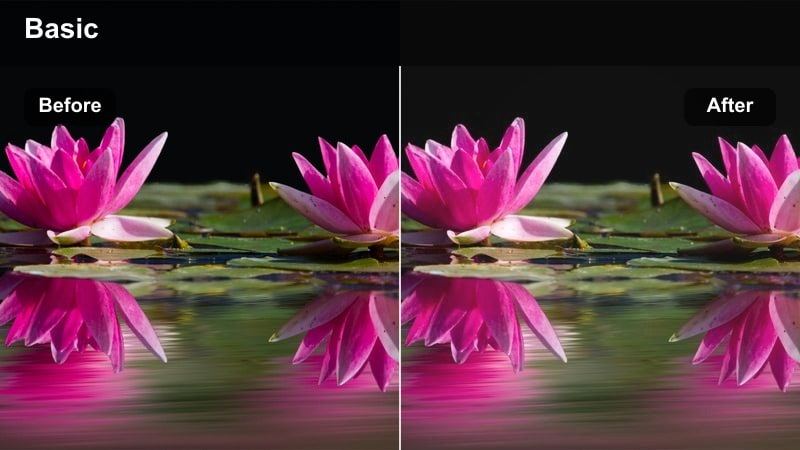
- Effect look: Desaturated, neutral fade with gentle roll-off in highlights and modest shadow lift.
- Best for: Corporate B-roll, city documentaries, and slow panning shots of busy avenues.
- Editing tip: Use local contrast or texture on your main subject so it does not disappear into the muted background.
Muted Boulevard Fade is tailored for creators who need cinematic polish but cannot go too stylized, such as brand films and documentaries. In Filmora, it pulls back color intensity and tames busy street signage, allowing viewers to focus on motion and composition instead of visual noise.
Enhance your subject by adding targeted sharpening or contrast with masks while keeping the rest of the frame softly faded. This works especially well in office exteriors, traffic B-roll, or drone shots, where a neutral, modern aesthetic supports a professional message.
Sun-washed Plaza Fade
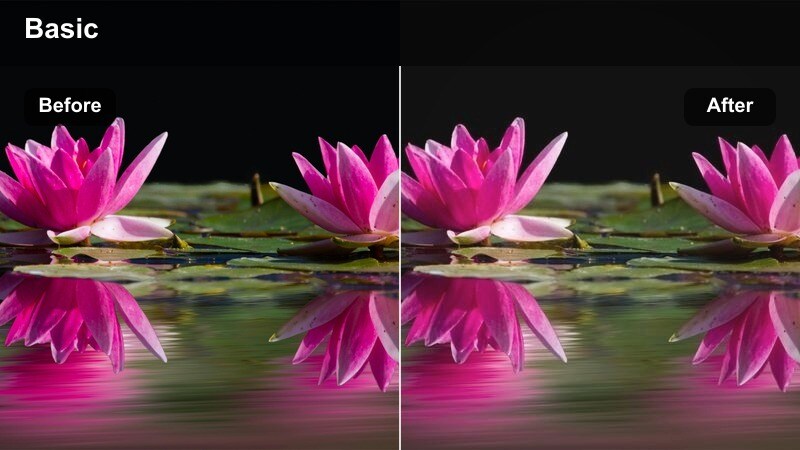
- Effect look: Warm, sun-kissed fade with softened highlights and slightly hazy midtones.
- Best for: Daytime plaza scenes, outdoor cafes, and lifestyle content showing city leisure moments.
- Editing tip: Reduce highlight contrast to prevent blown-out skies and keep the sun-washed effect under control.
Sun-washed Plaza Fade helps you turn harsh midday light into a relaxed, cinematic glow by softening highlights and adding gentle warmth. In Filmora, drop this filter on bright outdoor shots to make plazas, markets, and terraces feel inviting instead of overexposed.
Fine-tune the effect by adjusting highlight and white levels so building details and cloud texture remain visible. Pair the filter with subtle dehaze or clarity boosts if your footage starts to look too foggy, maintaining a sweet spot between dreamy and detailed.
Cinematic Interior Fades
Loft Window Fade
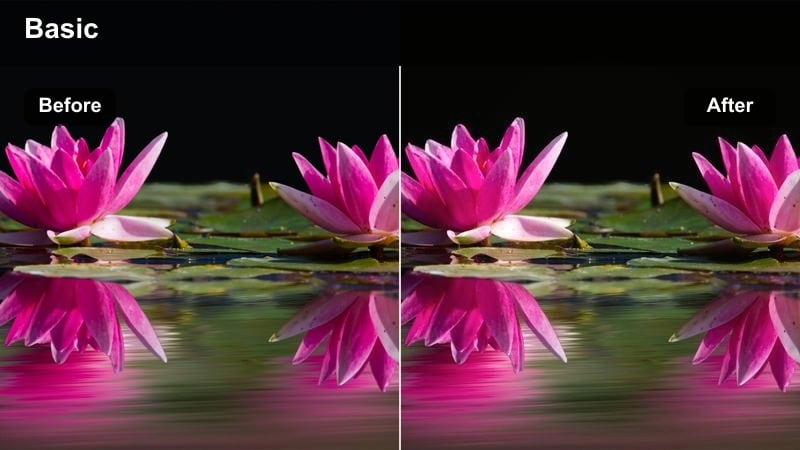
- Effect look: Soft indoor fade with gentle backlight bloom and slightly cool shadows.
- Best for: Studio interviews, creative workspace B-roll, and loft apartment scenes.
- Editing tip: Drop highlights a bit so bright windows stay textured while the overall frame remains softly faded.
Loft Window Fade is built for window-lit interiors where natural light meets city architecture. Applying it in Filmora slightly cools the shadows and blooms the backlight, giving interviews and workspace shots a refined, editorial feel without heavy grading.
To keep your subject from being silhouetted against bright windows, combine the filter with exposure masks that lower only the window area. Then, add a touch of warmth to midtones so skin and wooden surfaces feel inviting while the walls and shadows stay clean and modern.
Coffeehouse Fade
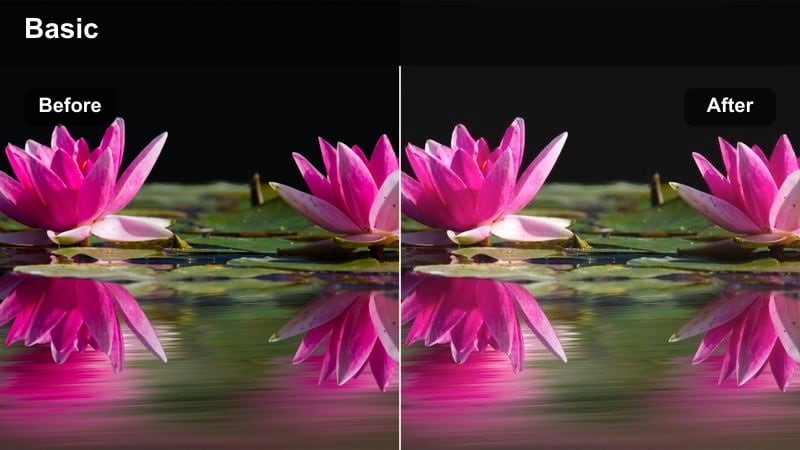
- Effect look: Warm, cozy fade with lower contrast and soft roll-off in shadows.
- Best for: Cafe conversations, indoor lifestyle vlogs, and low-light storytelling scenes.
- Editing tip: Lift shadows slightly to keep details in darker corners visible without crushing the faded feel.
Coffeehouse Fade instantly gives indoor scenes a comfortable, intimate mood by wrapping them in warm tones and gentle contrast. In Filmora, this is a go-to filter for cafe vlogs, date-night B-roll, and character moments where conversation and atmosphere are more important than sharpness.
After adding the filter, raise shadow detail and slightly boost exposure on faces so expressions stay readable in dim corners. If low-light noise becomes visible, run light denoising before you add sharpening, keeping the final image soft, cinematic, and flattering.
Office Drift Fade
- Effect look: Neutral, corporate-friendly fade that softens harsh fluorescents and reduces saturation.
- Best for: Office walkthroughs, desk setups, and corporate training videos shot in city buildings.
- Editing tip: Use white balance to neutralize strong green or magenta casts before applying the fade.
Office Drift Fade is made for corporate content where clean, soft visuals are essential but strong stylization is not. Applying it in Filmora mutes overly bright colors, calms fluorescent lighting, and adds a polished softness suited to presentations, tutorials, and company culture videos.
Start by correcting white balance and tint, then drop the filter on top for a professional but easygoing finish. If faces appear too flat afterward, reintroduce a bit of midtone contrast or subtle sharpening on people only, leaving the office environment gently faded in the background.
Cinematic Night Ride Fades
Taxi Ride Fade
- Effect look: Soft, low-saturation night fade with lifted blacks and gentle highlight glow on car lights.
- Best for: Car interior shots, ride-along vlogs, and narrative scenes driving through the city.
- Editing tip: Reduce saturation in reds slightly to avoid overpowering brake lights against the faded background.
Taxi Ride Fade transforms chaotic night streets into a calm backdrop for conversations and introspective moments inside the car. In Filmora, it softens contrast and tames bright traffic lights so your passengers and driver become the main focus of the frame.
To keep interiors from disappearing into darkness, raise shadow levels inside the car and add a faint vignette at the windows. This guides the viewers eye toward your subject while still showcasing the blurred, cinematic city beyond the windshield.
Expressway Fade
- Effect look: Cool, cinematic highway fade with muted saturation and gentle contrast roll-off.
- Best for: Time-lapse drives, drone passes over highways, and B-roll of overpasses and traffic.
- Editing tip: Add a slight motion blur or directional blur to light trails to enhance the cinematic feeling.
Expressway Fade is tuned for wide shots of roads and overpasses, where streams of light need to look sleek rather than harsh. In Filmora, this filter cools down the overall palette and smooths contrast, making your aerials and timelapses feel like part of a high-end title sequence.
Combine the fade with motion blur effects or speed ramping to accentuate the rhythm of traffic and light trails. Keep contrast on the lower side to control shadow noise in high-ISO footage, while letting the cooler tones shape a moody, modern nightscape.
Late Tram Fade
- Effect look: Soft urban transit fade with warm interiors and cooler, muted city exteriors.
- Best for: Subway or tram rides, commuter stories, and handheld documentary footage at night.
- Editing tip: Slightly increase saturation in yellows and oranges to keep interior lights inviting while the city outside stays faded.
Late Tram Fade is crafted to emphasize the contrast between cozy transit interiors and the cooler city outside the windows. In Filmora, it gives your night commute footage a story-driven feel where passengers and carriage lighting become the emotional center of the frame.
Use masks to keep people and seats a touch warmer while letting the exterior remain cool and softly muted. If glass reflections become distracting, gently lower highlights in those areas so the audience stays focused on your characters and their journey.
Tips for Using Cinematic Color Fade Lut Filters in Filmora
- Shoot slightly flatter in-camera so the cinematic color fade filters have more room to shape contrast and mood.
- Use keyframes on filter intensity to gradually increase or decrease the fade during emotional beats or scene transitions.
- Pair faded looks with subtle film grain or vignette for a more authentic cinematic atmosphere.
- Always check skin tones on a calibrated monitor after applying strong fades to keep people looking natural.
- Organize your favorite cinematic color fade filters into custom presets so you can quickly reuse them across series or episodes.
- Combine fades with LUTs in separate layers and adjust opacity to maintain control over how stylized your grade becomes.
- Test different fades on the same clip using Filmoras live preview to quickly see which one supports your story best.
Cinematic color fade LUT-style filters let content creators dial in a filmic, story-first look without complex grading, softening harsh colors and guiding the viewers focus.
Experiment with different fade intensities, stack them with LUTs, and fine-tune per scene to build a consistent, cinematic visual language across your entire project.
secure download