

 100% Security Verified | No Subscription Required | No Malware


 ChatGPT
 Perplexity
 Gemini
 Claude
 Grok
Grok
This cinematic contrast video LUT-inspired filter collection is built for content creators who want deeper shadows, punchier highlights, and a film-ready mood in just a few clicks.
Use these filters to add instant cinematic contrast to interviews, B-roll, travel sequences, and short films, without getting lost in complex color grading controls.
In this article
Dusk City Streets and Neon Nights
Neo Noir Street
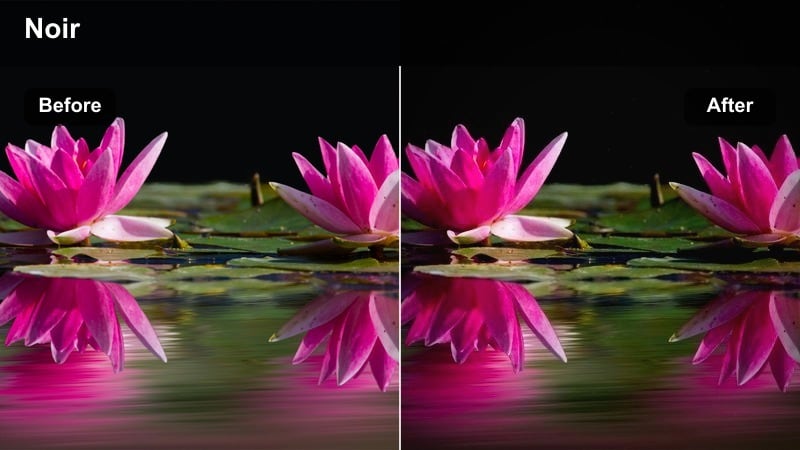
- Effect look: Bold contrast with deep blacks and cool cyan shadows that give night streets a sleek neo-noir finish.
- Best for: Urban B-roll, rainy sidewalks, and handheld night sequences lit by mixed city lights.
- Editing tip: Lower saturation slightly and add a subtle vignette to keep attention on bright neon signs and faces.
Neo Noir Street is built to push your night footage toward a polished, cinematic thriller aesthetic in seconds. The filter deepens blacks, cools down shadows, and lets neon signs and practical light sources become the strongest visual anchors in the frame without complicated node-based grading.
In Filmora, drop this filter onto city B-roll, nightlife vlogs, or street interviews shot under mixed lighting to unify color and add drama. Combine it with a small reduction in global saturation and Filmora vignettes to pull the viewer into the center of the frame while still keeping street textures sharp and legible.
Neon Rush
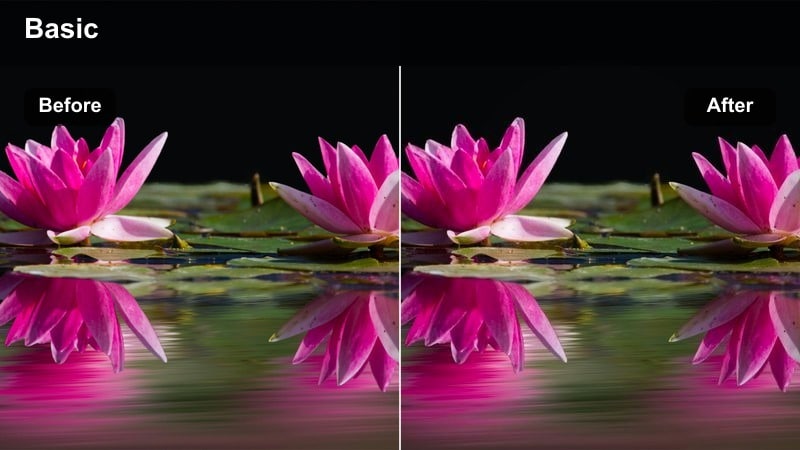
- Effect look: Punchy, high-contrast look that intensifies neon colors while keeping backgrounds darker and moodier.
- Best for: City time-lapses, nightlife vlogs, and car window shots through glowing urban streets.
- Editing tip: Increase saturation of magentas and blues selectively to make neon lights pop without oversaturating skin tones.
Neon Rush is tailored to make your night city footage feel energetic and stylized, amplifying neon signage and LED accents with strong contrast and concentrated color. The filter darkens less important background elements so bright signage and reflections on glass or rain stand out clearly.
Inside Filmora, pair Neon Rush with time remapping, whip pans, and motion blur for dynamic urban sequences. Use HSL or color tools to boost magenta and blue ranges while protecting skin tones, giving your travel reels or nightlife segments a vivid, music-video-style intensity without manual color grading from scratch.
Let AI Suggest Cinematic Contrast Palettes
Filmora AI Color tools can automatically scan your clips and recommend balanced color and contrast palettes that match the mood of each scene. This gives you a smart starting point before you dive into more detailed style choices.
Apply an AI suggestion, then layer a cinematic contrast filter like Neo Noir Street or Neon Rush on top to refine the look. This workflow keeps your highlights controlled, your blacks rich, and your overall style consistent from clip to clip.
 secure download

Preview Filters on Your Footage in Real Time
Filmora filter previews let you hover over each cinematic contrast style and instantly see how it transforms your clip before committing. This makes it simple to compare subtle differences in mood and intensity across multiple filters.
Use this live preview to quickly test noir looks, neon styles, and warm sunset grades on the same clip, then lock in the version that best matches your story beat or music choice.
secure download1000+ Video Filters and 3D LUTs
Beyond these cinematic contrast filters, Filmora includes a large library of creative filters and 3D LUTs you can stack for even richer film looks. Mix and match stylized color grades, vintage tones, and genre-inspired LUTs to build a distinctive visual identity.
Use a LUT to define the overall color character, then fine-tune contrast and brightness with your favorite filter so the final image feels intentional and polished for any platform.
secure downloadSubway Shadow
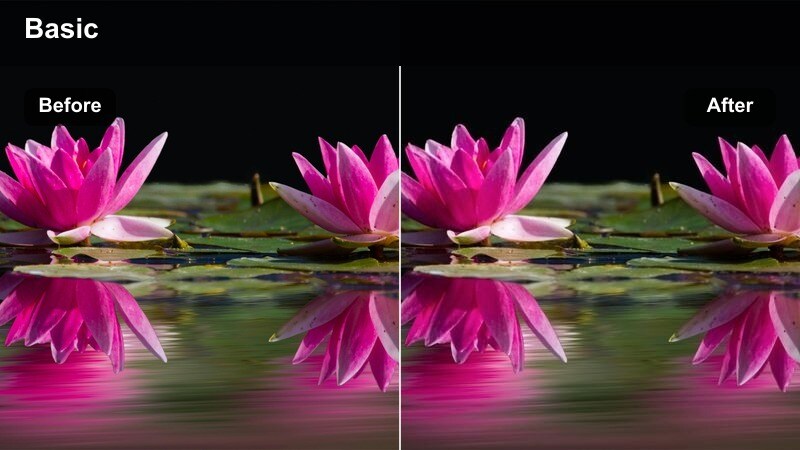
- Effect look: Grimy, low-key contrast with muted colors and lifted highlights that feel like a tense underground sequence.
- Best for: Subway platforms, underground walkways, and dimly lit parking garages.
- Editing tip: Reduce midtone contrast slightly if faces disappear in the shadows, and add a bit of film grain for extra grit.
Subway Shadow adds a gritty, suspenseful tone by darkening midtones, muting saturation, and letting overhead fluorescents or practical fixtures stand out. It is ideal for transforming everyday transit spaces into locations that feel like part of a crime drama or psychological thriller.
In Filmora, apply this filter to handheld clips in stations, tunnels, or garages to create a cohesive underground sequence. Enhance the mood by adding Filmora film grain and subtle camera shake, and adjust contrast or shadows if you need to recover detail on faces while keeping the overall frame tense and atmospheric.
Golden Hour Streetscapes and Urban Sunsets
Sunset Silhouette
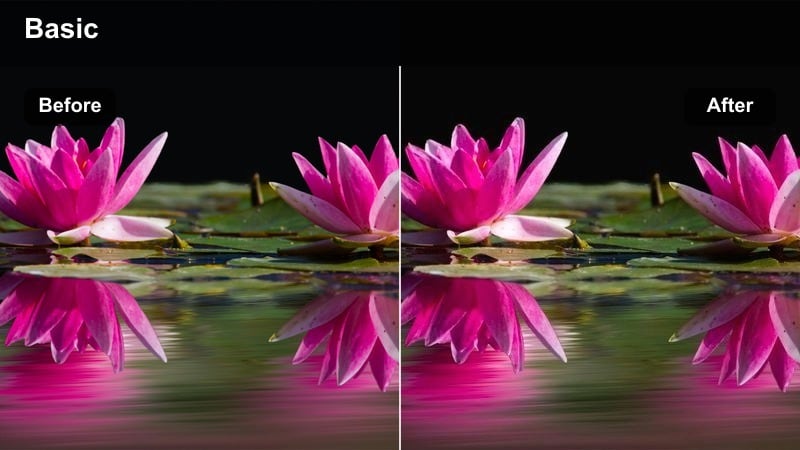
- Effect look: Rich contrast that deepens foreground silhouettes while preserving warm, glowing skies.
- Best for: Street portraits at sunset, skyline shots, and rooftop sequences.
- Editing tip: Expose for the sky when shooting so the filter can create clean, crisp silhouettes without clipping highlights.
Sunset Silhouette is designed to maximize the drama of backlit scenes by holding detail and color in the sky while pushing foreground elements toward bold, graphic shapes. It strengthens the divide between bright horizons and dark city structures or characters.
When editing in Filmora, apply this filter to rooftop shots, skyline views, or any scene where your subject is framed against the setting sun. Fine-tune exposure and highlight controls if needed to avoid clipping clouds or sun glow, and use slow pushes or pans to let the silhouettes and colors carry the emotional weight of the scene.
Amber Avenue
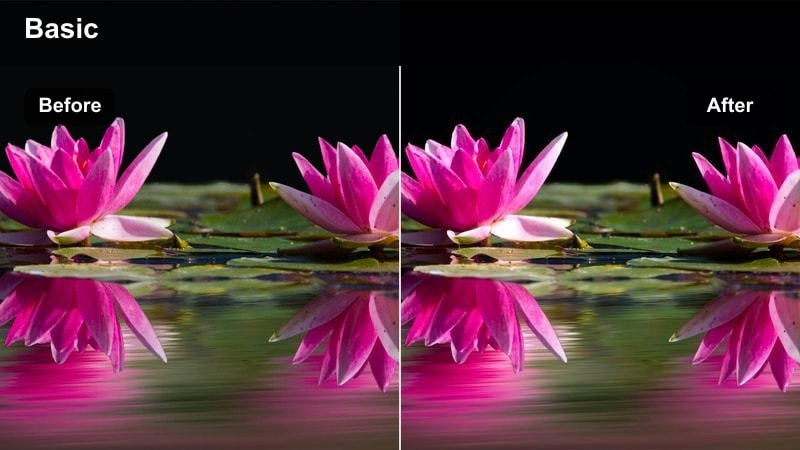
- Effect look: Warm, amber-tinted contrast that thickens shadows while keeping skin tones soft and cinematic.
- Best for: Walking-and-talking city scenes, travel vlogs, and romantic golden hour montages.
- Editing tip: Lift shadows slightly if faces fall too dark under hats or hair, and add a light blur to background for dreamy depth.
Amber Avenue wraps your footage in a cozy, golden-hour atmosphere with warm highlights and slightly darkened shadows that still feel gentle on skin. It is ideal when you want your urban streets to look nostalgic, romantic, or travel-film inspired without heavy manual grading.
Inside Filmora, use this filter on walk-and-talk shots, travel segments, or lifestyle content captured near sunset. You can pair it with a touch of background blur or depth-of-field style effects to separate subjects from the city behind them, and nudge shadow levels if hats, hair, or hoods make faces too dark under the boosted contrast.
Last Light Crosswalk
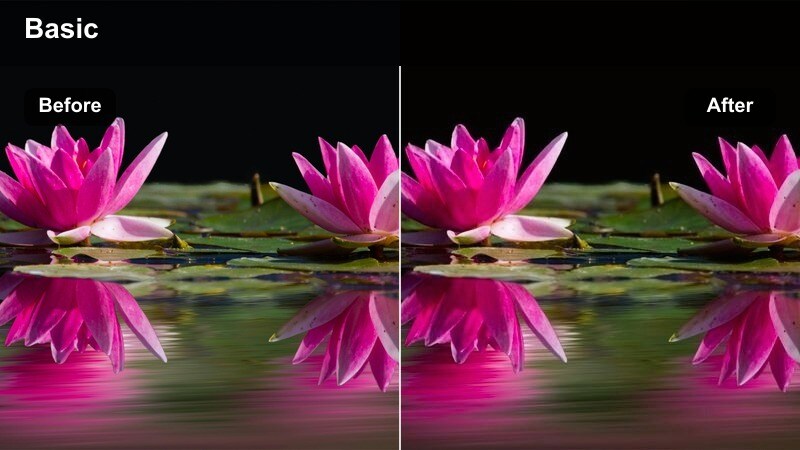
- Effect look: Crunchy midtone contrast with cooler shadows and warm highlights that feel like the final minutes before night.
- Best for: Busy crosswalks, commuting shots, and city establishing shots at blue hour.
- Editing tip: Stabilize handheld footage and add a subtle vignette so pedestrians and crossing lines stay visually anchored.
Last Light Crosswalk emphasizes the tension between lingering warm light and encroaching cool shadows that define blue hour. Midtones become more textured and pronounced, which brings detail to crowds, pavement, and signage while keeping the sky and lights expressive.
In Filmora, drop this filter onto transitional establishing shots, commute sequences, or city B-roll captured just after sunset. Stabilize handheld clips for a more cinematic feel, then combine the filter with gentle vignettes and clarity adjustments so crosswalk stripes, reflections, and pedestrian motion guide the viewer through the frame.
Interior Dialogue and Intimate Drama
Windowlight Drama
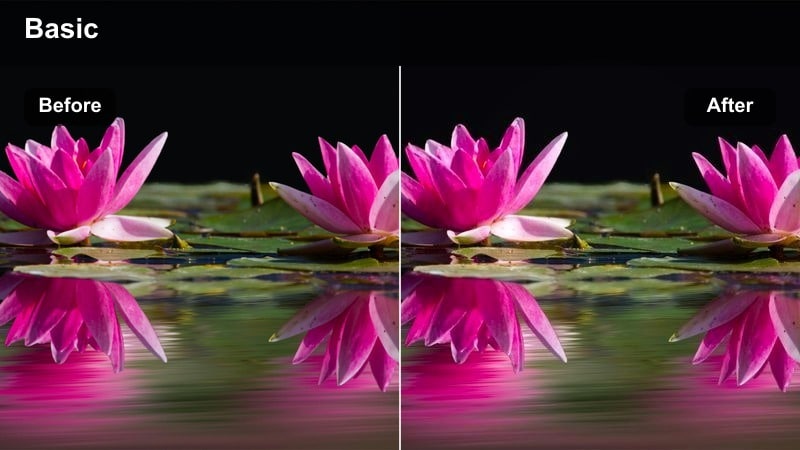
- Effect look: Soft yet defined contrast with bright window highlights and gently darkened interiors for a theatrical feel.
- Best for: Interviews near windows, emotional dialogue, and quiet office or apartment scenes.
- Editing tip: Reduce highlights a bit if windows clip, and let one side of the face fall into deeper shadow for a cinematic Rembrandt effect.
Windowlight Drama is tuned to sculpt faces using natural window light, enhancing separation between your subject and background while preserving a gentle roll-off in the shadows. It brightens and refines window areas without blowing them out, creating a stage-like pocket of light in otherwise dim spaces.
When working in Filmora, use this filter on interviews, confessionals, and narrative dialogue that take place near windows or balcony doors. Adjust highlight and shadow sliders if necessary to maintain detail in bright panes, and frame your subject at an angle to the light to maximize depth and emotional nuance in their expressions.
Conference Tense
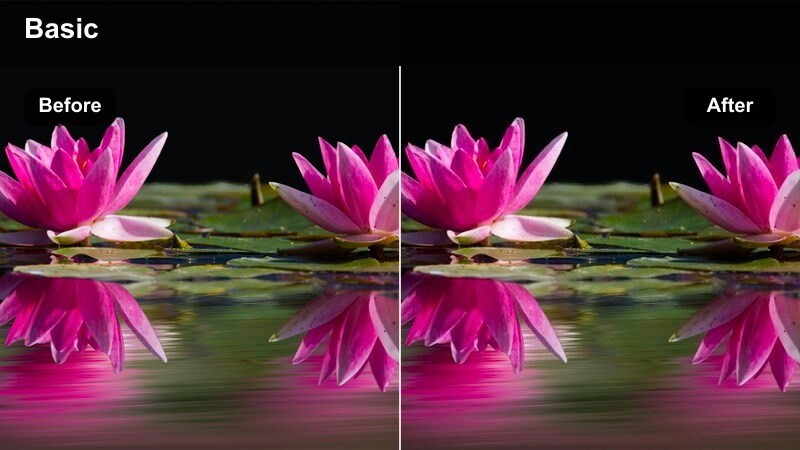
- Effect look: Neutral color palette with assertive contrast that sharpens details and emphasizes tension in office settings.
- Best for: Boardroom scenes, documentary interviews, and startup office storytelling.
- Editing tip: Dial down saturation for a more serious tone and use tighter framing so the contrast accentuates expressions.
Conference Tense gives office and corporate locations a sharper, more cinematic edge by lifting clarity and contrast while keeping colors relatively neutral. It avoids overly stylized hues, instead highlighting reflections, glass, and facial expressions to underline the seriousness of the moment.
Inside Filmora, apply this filter to boardroom meetings, startup pitches, and documentary sit-downs shot in workspaces. You can reduce saturation slightly to reinforce a sober or high-stakes mood, and pair the look with slower cuts and reaction shots so the heightened contrast makes subtle gestures and eye movements feel more significant.
Noir Apartment
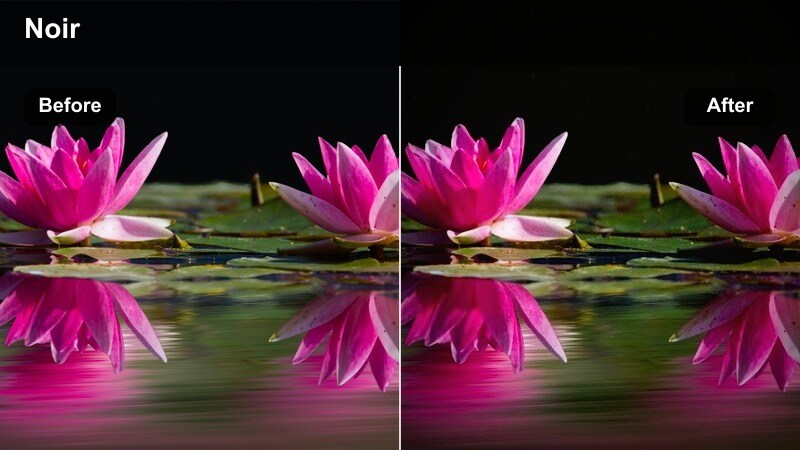
- Effect look: High-contrast, low-key interior look with strong shadows and desaturated colors for a vintage noir tone.
- Best for: Mystery shorts, investigative monologues, and interior thriller scenes.
- Editing tip: Push blacks slightly darker and add film grain plus a small amount of blur to emulate classic film stock.
Noir Apartment channels classic noir cinematography with deep, inky shadows, reduced saturation, and strong pools of light around lamps or windows. It immediately turns a simple interior into a moody set for mystery, interrogation, or introspective narration.
In Filmora, use this filter on night interiors or controlled-light setups to craft suspenseful sequences without complex lighting rigs. Add film grain, a touch of blur, and maybe a subtle vignette to complete the old-film illusion, and let parts of the frame fall almost completely dark so the audience focuses on eyes, hands, and essential props.
Action Montages and Energetic B-Roll
Steel Chase
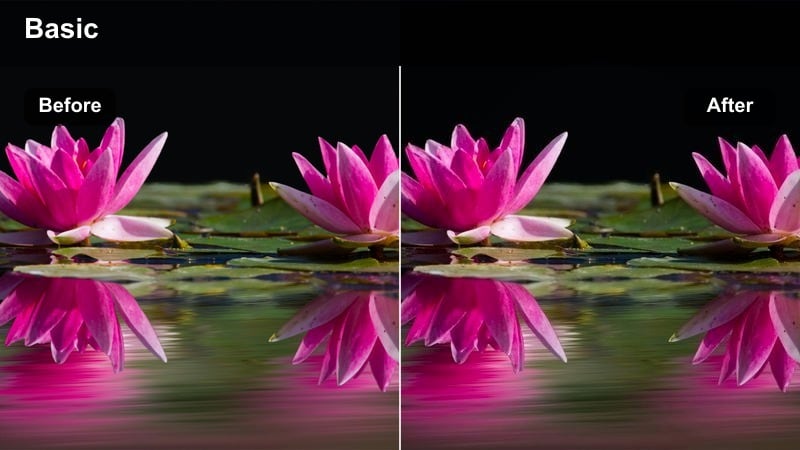
- Effect look: Cool, metallic contrast that hardens edges and deepens shadows for high-energy chase or workout sequences.
- Best for: Urban parkour, chase scenes, gym training, and kinetic travel B-roll.
- Editing tip: Combine with quick cuts and speed ramps; if motion blur is heavy, lower clarity slightly to avoid harsh artifacts.
Steel Chase adds a hard, metallic edge to your footage by cooling the overall tone, deepening shadows, and emphasizing straight lines in architecture. It helps parkour runs, workouts, and chase scenes feel more intense and modern, like sequences from an action trailer.
In Filmora, pair this filter with fast cuts, speed ramps, and dynamic camera movement for maximum impact. You can fine-tune clarity and sharpening depending on how much motion blur your footage has, ensuring moving subjects stay crisp enough to read while still communicating speed and physical strain.
Grit Overpass
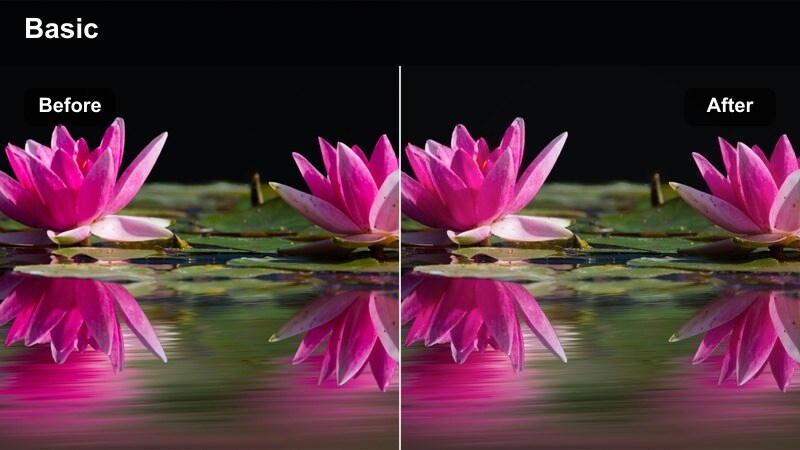
- Effect look: Textured, gritty contrast that emphasizes concrete, metal, and asphalt while holding skies under control.
- Best for: Skate edits, bike B-roll, and moody travel sequences under highway bridges or overpasses.
- Editing tip: Raise sharpening carefully to highlight textures, and keep saturation moderate so the scene stays grounded and realistic.
Grit Overpass is tuned to bring out the roughness of concrete, rails, and asphalt so urban environments feel tactile and lived-in. It manages highlights in the sky and bright signage while fostering strong contrast in structures, making it ideal for street sports and industrial-style visuals.
Use this filter in Filmora for skate and bike edits, or for transitional B-roll under bridges, flyovers, and train tracks. Enhance detail with subtle sharpening and maybe a bit of film grain, but resist over-saturating colors so the final image stays grounded, raw, and documentary-like rather than overly stylized.
Metro Hypercut
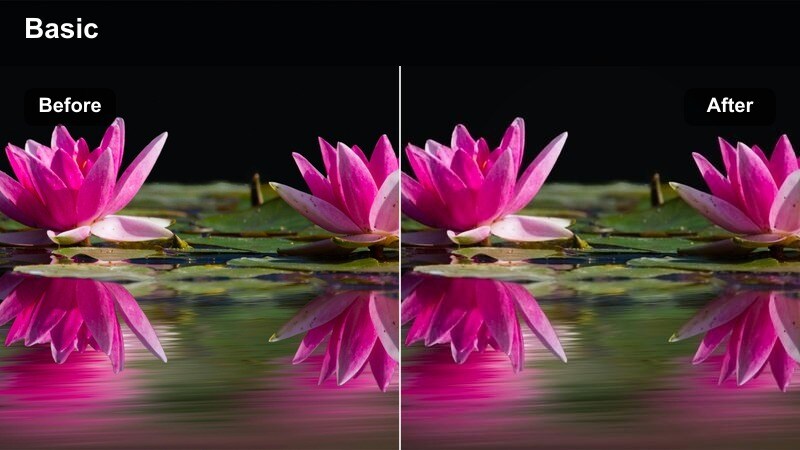
- Effect look: High-energy contrast with slightly crushed blacks and bright midtones optimized for fast-cut montage sequences.
- Best for: Travel reels, social media montages, and upbeat lifestyle edits in fast-moving city locations.
- Editing tip: Use this filter on clips with clear, bold shapes and strong lighting, and sync cuts tightly to music beats.
Metro Hypercut is built for quick reels and montage edits where every frame needs to read clearly at a glance. It slightly crushes blacks, brightens midtones, and boosts contrast so signage, architecture, and people pop, even in fast-paced sequences.
In Filmora, apply this filter across entire B-roll sequences meant for social platforms, then cut tightly to the rhythm of your soundtrack. Choose clips with strong graphic shapes, reflections, and patterns, and alternate between wide shots and close-ups so the contrast and composition keep every moment visually distinct even at high speed.
Tips for Using Cinematic Contrast Video Lut Filters in Filmora
- Shoot with slightly flatter in-camera profiles so these cinematic contrast filters have more dynamic range to shape.
- Avoid clipping highlights during capture; strong contrast looks best when bright areas still hold detail.
- Match one or two filters to specific story beats so your contrast changes signal emotional shifts to viewers.
- Keep an eye on skin tones and adjust warmth or saturation so faces stay natural even in heavy contrast looks.
- Use vignettes and subtle gradients with these filters to guide viewer attention toward the most important subject in frame.
- Combine filters with Filmora AI tools and LUTs to quickly test multiple cinematic looks while keeping a cohesive style.
- Save your favorite filter and adjustment combinations as custom presets so you can reuse your signature contrast look.
By pairing the right cinematic contrast filter with each scene, you can turn everyday footage into sequences that feel intentional, polished, and big-screen ready.
Test a few of these looks inside Filmora, then build a go-to set of presets so your cinematic style stays consistent from project to project.
secure downloadNext: Film Grain Cinematic Lut
