

 100% Security Verified | No Subscription Required | No Malware


 ChatGPT
 Perplexity
 Gemini
 Claude
 Grok
Grok
Transform ordinary clips into movie-ready shots with cinematic film look video LUT-style filters that refine color, contrast, and mood in a single click.
Designed for content creators, these cinematic filters help your videos feel like polished films, whether you are crafting travel vlogs, short films, or social content.
In this article
Moody Dusk Streets and Urban Drama
Neo Noir City
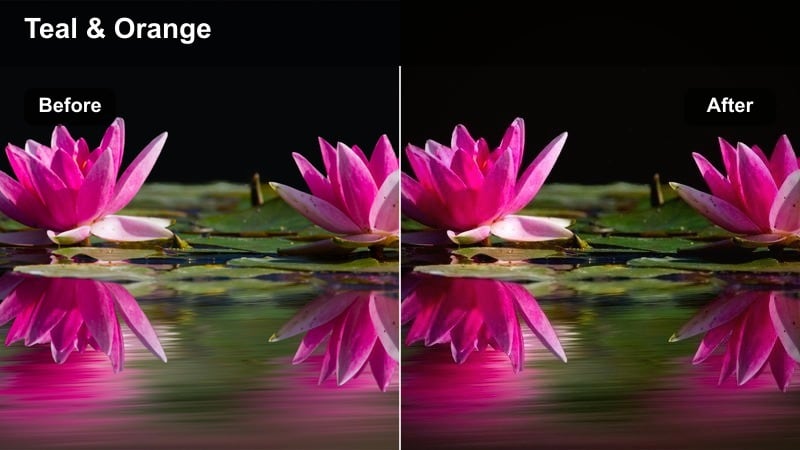
- Effect look: High-contrast, cool-tinted shadows with subtle teal highlights for a neo-noir city vibe
- Best for: Night street scenes, rain-soaked pavements, moody short films and thriller-style vlogs
- Editing tip: Lower overall exposure slightly and add a gentle vignette to deepen the noir atmosphere without crushing shadow detail.
Neo Noir City gives your nighttime city footage a stylized, cinematic finish with deep, cool shadows and crisp contrast that echo modern thriller and detective films. In Filmora, you can apply this cinematic film look video LUT-style filter in one click to instantly push neutral night shots toward a teal-and-blue palette, while preserving enough highlight detail in signs, windows, and street lamps to keep the scene readable.
After applying the look, fine-tune exposure with Filmoras basic color controls to avoid over-darkening faces and key details. Use the vignette tool to add a soft falloff around the frame and pair it with subtle Filmora grain or light leak overlays if you want more texture, keeping intensity low so the noir contrast remains the main focus of your grade.
Match Cinematic Palettes with AI-Powered Color Tools
Filmoras AI-driven color tools can quickly read your footage and suggest palettes that complement Neo Noir City and other cinematic styles. This helps you dial in a consistent mood across B-roll, close-ups, and establishing shots without having to manually match every clip.
Combine AI palette suggestions with your chosen cinematic film look video LUT filters to maintain a unified color identity across entire sequences, from dark alleys to brighter storefront cutaways.
 secure download

See Cinematic Filters in Action on Real Footage
Before committing to a grade, you can preview how each cinematic filter behaves on different lighting scenarios right inside Filmora. Testing these LUT-style looks on day, dusk, and night samples gives you a clear idea of how they will treat skies, skin tones, and shadows.
By comparing before-and-after previews, you can quickly choose whether a style like Neo Noir City or a warmer alternative better supports your project, then apply it as the starting point for your final grade.
secure downloadBuild a Consistent Film Look Library
Once you have tuned a cinematic film look video LUT-style filter to your taste, Filmora lets you save that combination of adjustments as a reusable preset. Over time, you can assemble a personal library of looks for streets, interiors, and action that keeps your channel or brand visually consistent.
Organizing these presets into folders makes it easy to apply your favorite film-style treatments to new footage in seconds, then tweak exposure or saturation slightly to match each scene.
secure downloadAmber Street Glow
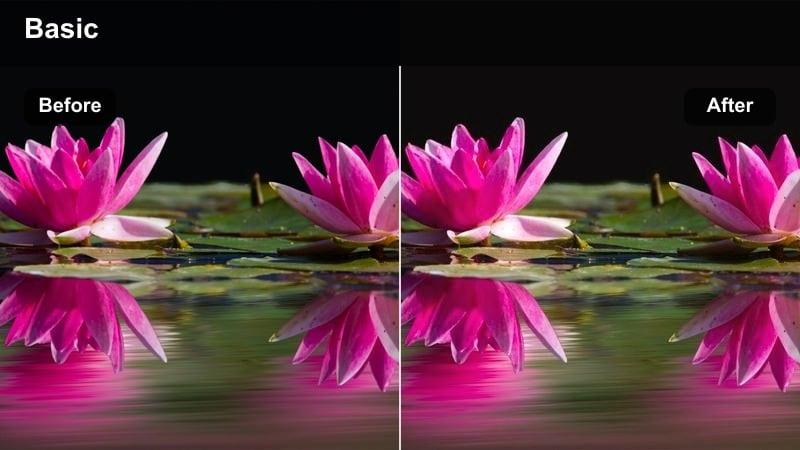
- Effect look: Warm amber midtones with soft halation around streetlights for a cinematic late-evening feel
- Best for: Golden hour walks, handheld street b-roll, lifestyle clips under warm lamps and shop windows
- Editing tip: Increase midtone contrast and slightly soften clarity to keep skin and streetlights glowing without appearing overly sharp.
Amber Street Glow wraps your urban scenes in rich, lamp-like warmth that mimics golden hour and sodium-vapor streetlights. When you drop this filter onto your timeline in Filmora, midtones shift toward amber and highlights bloom gently, giving sidewalks, storefronts, and faces a soft cinematic halo that feels instantly more filmic than a neutral grade.
Use Filmoras clarity and sharpness controls to keep edges gentle so the warm glow never becomes harsh. If your camera white balance was set very warm, first nudge temperature slightly cooler in the Color panel; this preserves natural skin tones once the filter adds its own warmth and prevents faces from turning too orange as you refine the look.
Gritty Subway Film
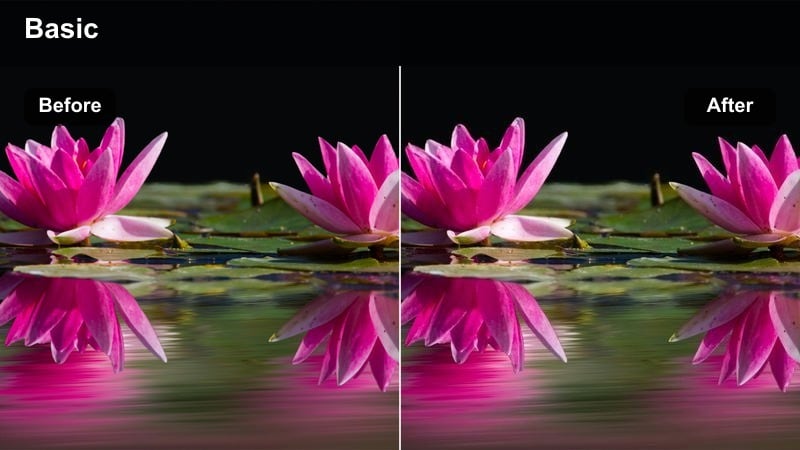
- Effect look: Desaturated, greenish fluorescent cast with lifted shadows for a raw, indie subway aesthetic
- Best for: Underground stations, handheld documentary sequences, tense dialogue scenes and character intros
- Editing tip: Reduce saturation in greens after applying the filter if walls or tiles become too dominant, keeping faces readable and natural.
Gritty Subway Film recreates the harsh fluorescent color you see in underground stations and industrial corridors, with lifted blacks and reduced saturation that feel straight out of an indie film. In Filmora, its a fast way to push clean digital subway footage toward a more stylized, character-driven look where color supports tension and isolation.
After applying the filter, open Filmoras HSL or color tuning tools to tame strong greens if tiles or signage pull too much attention. Because lifted shadows can reveal sensor noise, you can also add a touch of Filmora noise reduction first, then layer in a subtle grain effect so the final texture looks deliberately filmic instead of digitally noisy.
Golden Hour Cityscapes and Rooftop Views
Sunset City Reel
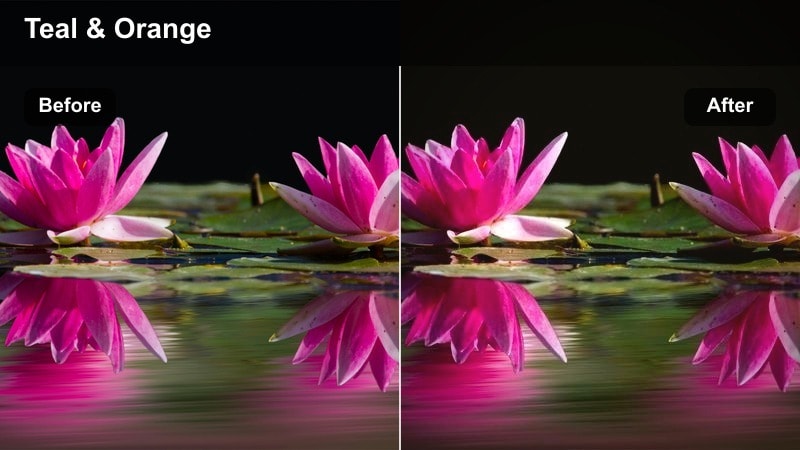
- Effect look: Rich sunset warmth with soft contrast, gentle fading in shadows, and subtle orange-teal separation
- Best for: Rooftop b-roll, skyline time-lapses, cinematic travel reels and urban drone flyovers
- Editing tip: Slightly reduce saturation in oranges after applying the filter to keep the sky cinematic rather than overly vivid.
Sunset City Reel is designed to make your skyline and rooftop shots look like polished travel montages, with lush sunset colors and film-style rolloff in the shadows. Applying it in Filmora instantly enhances cloud detail and golden reflections on buildings, while introducing a subtle orange-teal split that keeps skies and structures visually distinct.
To refine the result, drag down orange saturation in the HSL panel if the sky or reflections start to look too intense. Pair this filter with Filmoras speed ramping and smooth transitions for drone paths or time-lapses, creating a cohesive cinematic sequence where color, motion, and pacing all reinforce that golden hour travel film feeling.
Rooftop Romance
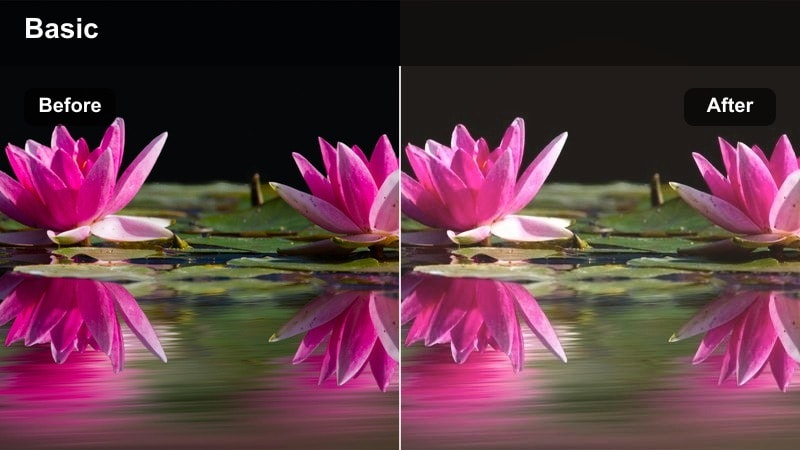
- Effect look: Soft pastel highlights, creamy skin tones and subtle fade for an intimate cinematic romance feel
- Best for: Couple shots, lifestyle vlogs, music videos and emotional dialogue at sunset on rooftops or balconies
- Editing tip: Lower contrast slightly and add a very soft blur or diffusion to highlights to enhance the dreamy character.
Rooftop Romance gives your sunset and evening balcony scenes a delicate, emotional tone with pastel skies and flattering, creamy skin tones. In Filmora, the filter gently fades blacks and mutes harsh contrast, which helps close-ups of faces, hands, and small gestures feel more intimate and cinematic.
After applying the look, reduce global contrast a touch and experiment with Filmoras blur or glow effects on highlights to subtly bloom streetlights and sky reflections. If skin tones drift too pink or red, bring up the Color panel and nudge saturation down in reds, preserving natural complexions while still keeping the overall frame warm and inviting.
City Gold Anamorphic
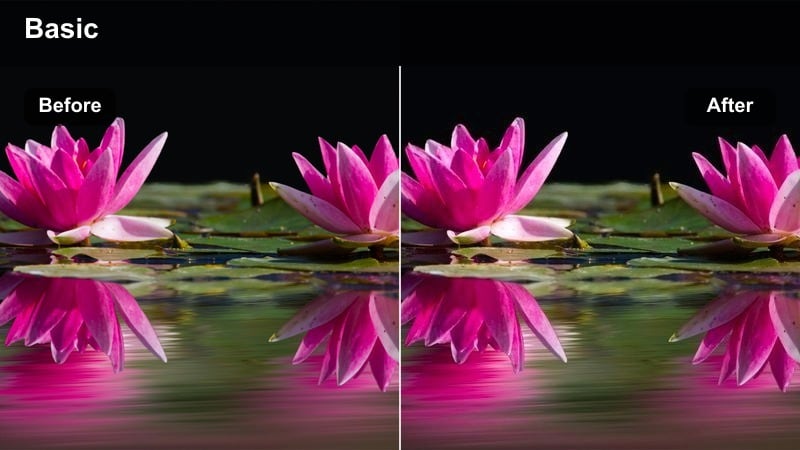
- Effect look: Cinematic gold highlights with cool shadows and boosted micro-contrast for an anamorphic-style finish
- Best for: Lens flares, car commercials, product shots with skyline backdrops, and high-energy city sequences
- Editing tip: Add subtle horizontal blur or light streak overlays to complement the gold tones and mimic anamorphic flare.
City Gold Anamorphic emulates the bold, high-end look of anamorphic cinema with rich golden highlights, cool offset shadows, and crisp micro-contrast. In Filmora, it is ideal for making car passes, city product shots, or energetic B-roll feel closer to a commercial or music video, even when they were shot on compact cameras or phones.
Be mindful of sharpening: if your footage is already sharp in-camera, lower clarity in Filmoras color tools to avoid overly harsh edges. To sell the anamorphic illusion, you can also layer in horizontal light streak overlays or slight directional blur on bright sources, syncing the effect with movement so headlights, signs, and reflections streak naturally across the frame.
Intimate Indoor Dialogue and Character Scenes
Soft Room Cinema
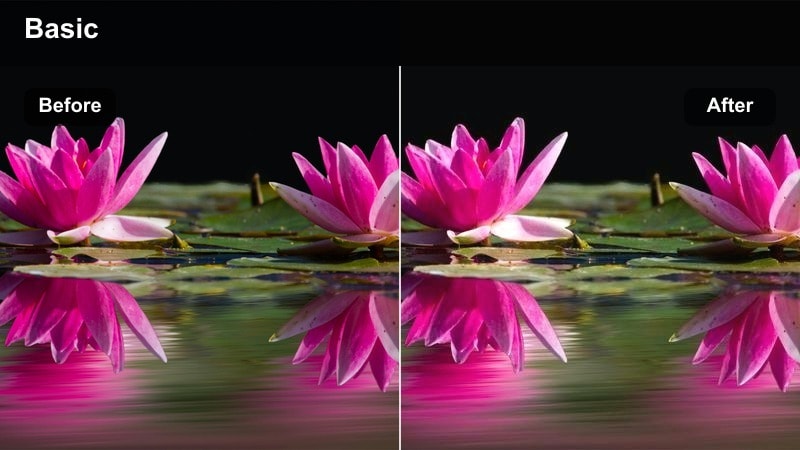
- Effect look: Muted contrast, soft shadows and natural skin tones that echo classic drama film interiors
- Best for: Living room conversations, studio sets, podcasts, interviews and character-driven vlogs
- Editing tip: Bring down highlights slightly and keep saturation moderate so the focus stays on performance, not color.
Soft Room Cinema is built to keep attention on performance, delivering gentle contrast, soft shadows, and realistic skin tones for dialogue-heavy scenes. When used in Filmora, it subtly evens out color differences between lamps, windows, and practical lights so your living room or studio setting feels cohesive without looking over-stylized.
Apply the filter, then slightly lower highlights using Filmoras color controls to prevent bright lamps or windows from pulling focus away from your subject. If you have multiple camera angles, copy and paste the same color settings across clips to maintain continuity, and use a light vignette to keep the audience anchored on faces rather than background decor.
Coffee Shop Conversation
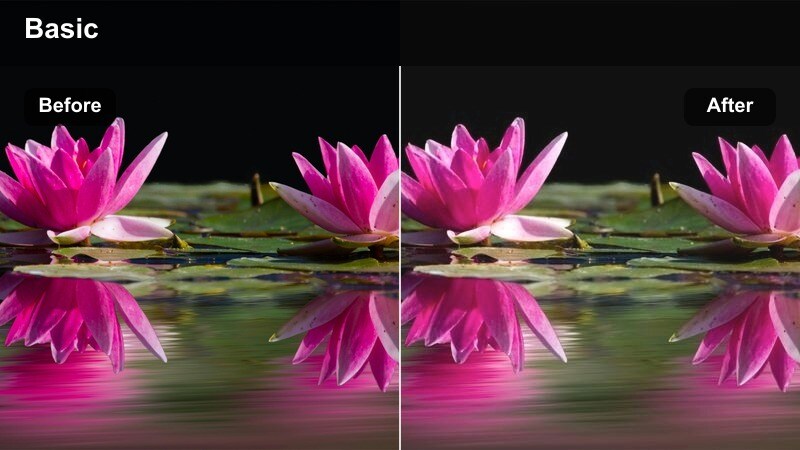
- Effect look: Warm, cozy midtones with slight film fade and gentle vignette styling for intimate cafe scenes
- Best for: Cafe interviews, lifestyle sit-downs, documentary scenes and creative brainstorming sessions
- Editing tip: Reduce saturation in yellows if tabletops or walls become too intense, preserving a balanced, cinematic warmth.
Coffee Shop Conversation turns everyday cafes and co-working spaces into cinematic backdrops with warm, inviting tones and a touch of film-style fade. In Filmora, it is perfect for interviews, podcasts, and creative chats because it emphasizes the cozy atmosphere while keeping people looking natural and approachable.
When you apply this look, check how yellows and browns render on tabletops and walls; if they dominate the frame, lower yellow saturation in the HSL controls to bring the focus back to your subjects. Position your subjects near window light during shooting, then use this filter to gently blend cooler daylight with warm interior bulbs for a balanced, story-ready interior grade.
Studio Interview Pro
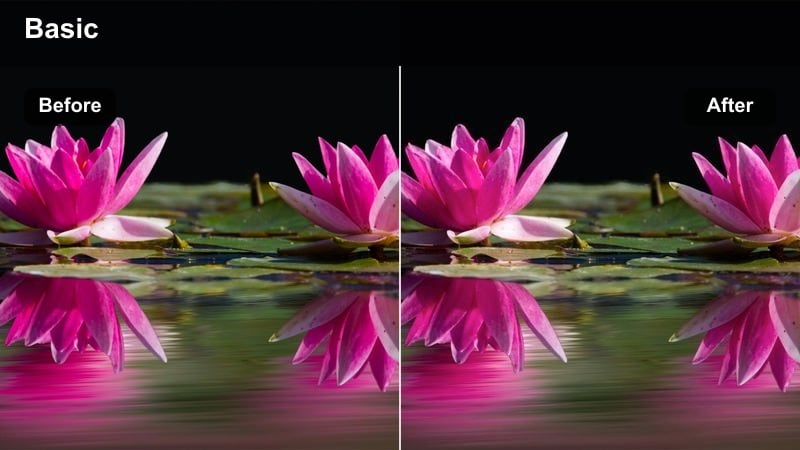
- Effect look: Clean, neutral cinematic contrast with slightly softened highlights and precise skin tone rendering
- Best for: Talking heads, educational content, corporate interviews and branded storytelling pieces
- Editing tip: Keep exposure centered and add a subtle vignette after grading to gently guide attention toward the speaker.
Studio Interview Pro is a professional-leaning cinematic film look that keeps colors honest while adding refined contrast and gentle highlight softness. It is ideal in Filmora when you want your talking heads, webinars, or brand stories to feel elevated and film-inspired without drifting into heavy stylization or color casts that could distract from your message.
For best results, shoot in a flat or log profile if your camera supports it, then apply this look to rebuild contrast gracefully. Once the filter is in place, add a light vignette and fine-tune midtones to ensure that faces remain clear and readable, and adjust local contrast around on-screen text or logos so they stay crisp without making overall skin texture look harsh.
Night Chase, Action Cuts and High-Tension Scenes
Midnight Chase
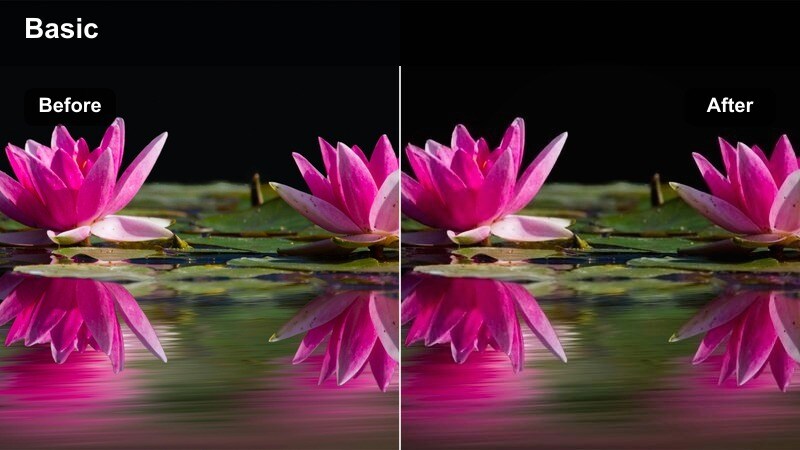
- Effect look: Deep blues, cool shadows and crisp contrast that emphasize speed and tension in night scenes
- Best for: Running sequences, car chases, energetic city b-roll and suspenseful alleyway shots
- Editing tip: Stabilize any shaky clips before applying the filter, then boost contrast slightly to keep motion sharp and readable.
Midnight Chase pushes your night action sequences into a bold, cool-toned space with strong contrast that highlights motion, reflections, and silhouettes. When you add it in Filmora, neutral or slightly warm night footage quickly takes on a high-energy, suspenseful aesthetic that works well for chase scenes, parkour edits, and dynamic city montages.
Before grading, run Filmoras stabilization on any shaky clips to keep the crisp contrast from exaggerating motion blur in a distracting way. After applying the look, adjust contrast and blacks to ensure details in fast-moving highlights like headlights and signs stay defined, and use speed ramps and sound design to reinforce the feeling of urgency created by the cold, punchy color grade.
Warehouse Heist
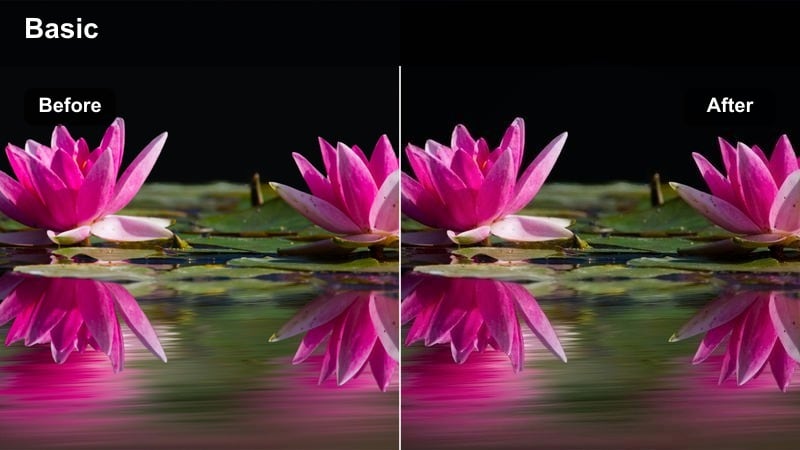
- Effect look: Muted colors, cool metallic tones and lifted blacks for a gritty industrial thriller aesthetic
- Best for: Abandoned buildings, parking garages, industrial corridors and stealth-style action scenes
- Editing tip: Add a slight grain overlay to complement the lifted blacks and create a cohesive heist-movie texture.
Warehouse Heist transforms basic industrial locations into moody thriller sets with cool metallic hues and gently lifted blacks that suggest hidden details in the shadows. By applying this filter in Filmora, you can quickly desaturate bright colors, unify mixed lighting, and create an atmosphere that feels perfect for secret meetings, stealth sequences, or break-in storylines.
Once the look is active, layer a subtle grain effect to tie the lifted blacks and desaturated palette together, giving your footage a cohesive, cinema-inspired texture. You can also deepen blacks slightly with Filmoras color tools if your scene feels too washed out, keeping the emphasis on side lighting and flashlight beams that carve out shapes in walls, pipes, and metal beams.
Emergency Lights Cinema
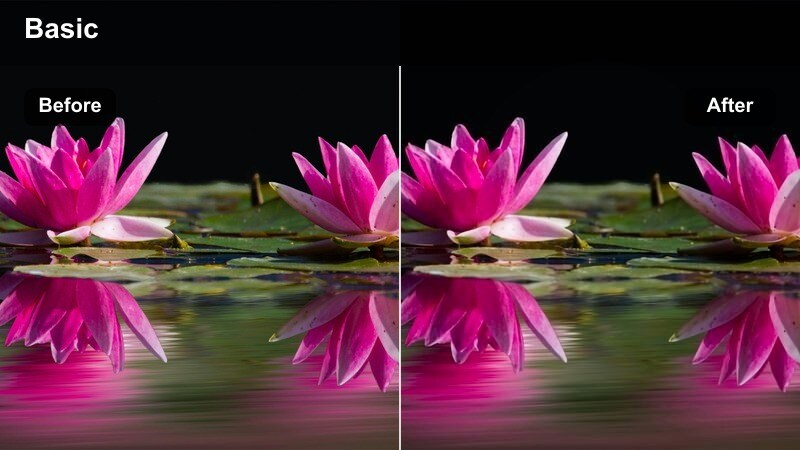
- Effect look: Amplified red and blue emergency light flicker with dramatic contrast and cinematic saturation
- Best for: Police cars, ambulances, nightclub entrances, concert scenes and crisis moments
- Editing tip: Slow your shutter slightly or use motion blur effects to smear emergency lights for a more stylized cinematic trail.
Emergency Lights Cinema is tuned to make flashing red and blue lights feel like powerful storytelling elements instead of random color bursts. In Filmora, this filter intensifies the saturation and contrast of emergency reflections on wet pavement, car panels, and building facades, perfect for music videos, crime sequences, or dramatic street B-roll.
After you apply the look, use Filmoras motion blur or directional blur effects to stretch the light streaks slightly, matching the rhythm of your edit or soundtrack. Keep an eye on skin tones in close-ups; if faces start to look overwhelmingly red, selectively reduce red saturation or adjust midtones so your talent stays readable while the background lights remain vivid and intense.
Tips for Using Cinematic Film Look Video Lut Filters in Filmora
- Shoot in a flat or log profile when possible so cinematic filters have more dynamic range to work with and retain detail in highlights and shadows.
- Keep white balance consistent across each scene to prevent color jumps when you apply the same cinematic film look video LUT-style filter to multiple clips.
- Add a subtle vignette after grading in Filmora to gently draw the viewers eye toward your subject without making the effect obvious.
- Use overlays like film grain, light leaks, and flares sparingly so they enhance your color work instead of hiding it under heavy textures.
- Test each filter on a short sequence first, including wide shots and close-ups, before committing the grade to your entire project.
- Combine cinematic filters with Filmoras basic color tools to fine-tune exposure, contrast, and saturation rather than relying on the LUT alone.
- Match different scene types by building a small library of presets in Filmora, one for streets, one for interiors, and one for action or night shots.
Cinematic film look video LUT-style filters make it easy for content creators to turn raw clips into cohesive, story-driven visuals with rich color and mood. With Filmora, you can apply these looks in a single click, then adjust exposure, contrast, and saturation to match your lighting and camera setup.
Experiment with different scene-based filters for streets, rooftops, interiors, and high-tension moments, then refine the details so every frame feels intentional and polished. As you build a library of go-to cinematic styles, your videos will adopt a recognizable visual identity that feels closer to a finished film than a simple edit.
secure download