

 100% Security Verified | No Subscription Required | No Malware

These cinematic Instagram reel filters are built for filmmakers, travel creators, and premium brand storytellers who want every frame to feel like a scene from a film, not just another social post.
Use this collection to quickly apply filmic Instagram effects, refine dramatic reels color grading, and shape the emotional tone of your travel reels, brand campaigns, and narrative edits with consistent, premium looks.
In this article
Golden Hour Journeys and Travel Escapes
Sunset Road Cinema
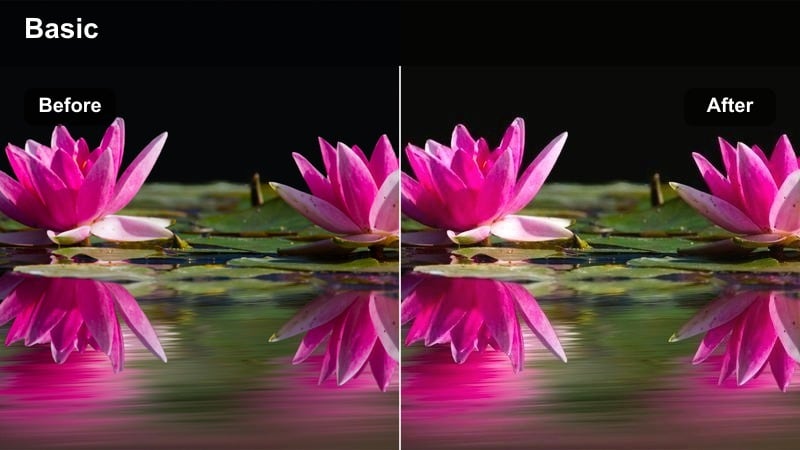
- Effect look: Warm amber highlights with soft contrast and a subtle filmic bloom in the brightest areas.
- Best for: Road trip travel reels, sunset beach walks, and handheld vlogs shot during golden hour.
- Editing tip: Lower the contrast slightly and add a slow push-in keyframe to lean into the nostalgic, cinematic feel.
Sunset Road Cinema wraps your footage in warm amber tones and smooth contrast, making golden hour scenes feel like they were pulled from a road movie. The gentle bloom on highlights helps practical light sources like sun flares, headlights, and reflections glow softly without clipping.
In Filmora, apply this filter to your main travel clips, then fine-tune intensity so skin tones stay flattering while the sky and landscape stay rich. Add a slow push-in using the Pan and Zoom or keyframed scale controls on your hero shots, and complement the look with Filmoras gentle lens flare overlays for a cohesive sunset journey aesthetic.
Filmoas AI-driven color tools make it easy to keep that cinematic warmth consistent across an entire road trip or travel series. When you shoot on different phones or cameras, or move quickly between locations, tones can shift and break the mood.
With AI Color Match in Filmora, you can grade one hero sunset shot using Sunset Road Cinema, then automatically align the rest of your clips to that same color palette so your whole reel feels like one continuous story.
 secure download

Instant before and after previews in Filmora help you test whether Sunset Road Cinema or another cinematic Instagram reel filter actually fits your footage. Instead of guessing, you can see your raw clip and graded version side by side in real time.
Audition different filters on the same travel shot, then scrub through your reel while toggling the compare view to confirm the look holds up on movement, skin tones, and sky detail.
secure downloadFilmora includes 1000 plus video filters and 3D LUTs you can stack with these cinematic Instagram reel filters for more advanced grading. Start with a base cinematic preset, then use LUTs to refine contrast curves, adjust specific color channels, or subtly shift skin tones.
Combine creative filters with HSL and LUT controls to craft a repeatable signature look for your travel, brand, or storytelling series without needing complex, professional color workflows.
secure downloadDesert Travel Epic
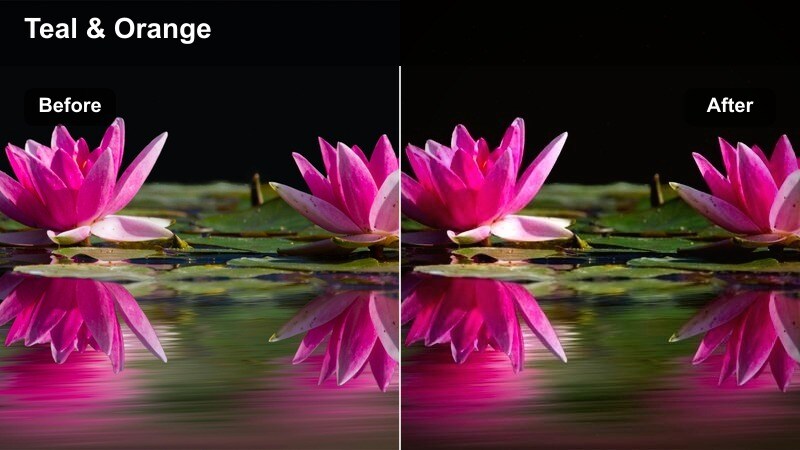
- Effect look: Muted highlights, rich golden sands, and teal shadows for a high-budget travel film aesthetic.
- Best for: Drone passes over deserts, wide landscape shots, and adventure reels in dry, sunlit locations.
- Editing tip: Slightly reduce saturation on skin tones while boosting local contrast in the midtones to keep subjects crisp against the scenery.
Desert Travel Epic builds a bold teal and gold palette that instantly makes wide landscapes feel like cinema. Sunlit dunes, rocky outcrops, and long horizon lines gain extra depth as highlights are gently tamed and shadows glow teal without looking artificial.
In Filmora, combine this filter with your drone and tripod shots to keep color cohesive across sweeping vistas and closer tracking shots. Use Filmoras color correction tools to selectively desaturate skin while preserving golden sand hues, and add subtle midtone contrast to keep your main subject readable even when they are small in frame.
Harbor Dusk Mood
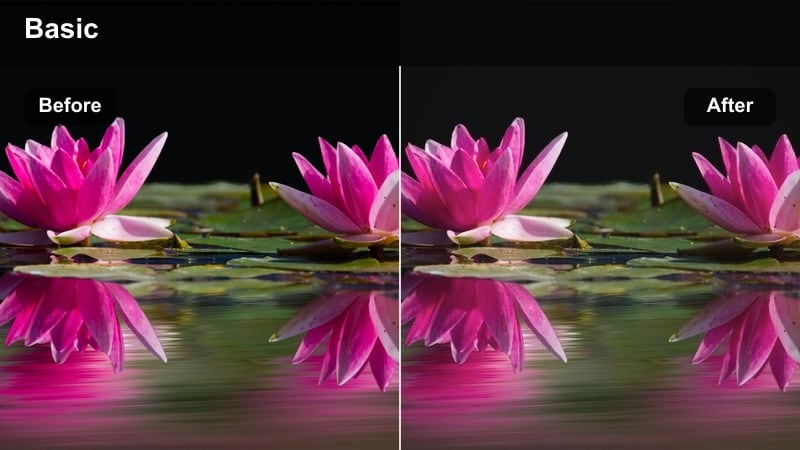
- Effect look: Soft blues, pastel magentas, and gentle halation in bright signs and reflections for dreamy twilight scenes.
- Best for: Seaside city harbors, twilight skyline shots, and slow-motion travel b-roll near water.
- Editing tip: Add a slight vignette and reduce sharpness to emphasize mood over detail in reflective surfaces.
Harbor Dusk Mood is designed for blue hour and twilight, when city lights begin to glow and the sky turns pastel. It leans into soft blues and magentas, letting reflections on water, windows, and wet streets spread gently for a dreamy, cinematic calm.
Apply this filter in Filmora to all your harbor and skyline shots, then slightly soften image sharpness and add a vignette so the viewers eye settles on the brightest reflections or your subject. Pair the look with slow motion, longer dissolves, and minimal transitions to let each atmospheric frame breathe inside your Instagram reel.
Moody City Streets and Urban Brand Stories
Neon Brand Noir
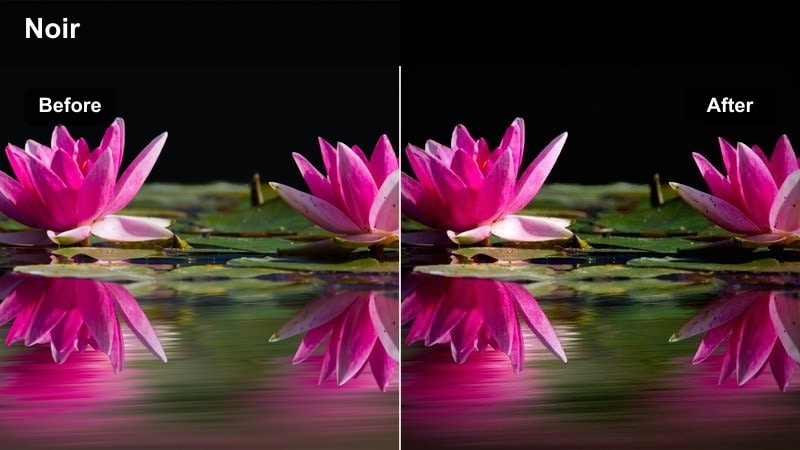
- Effect look: High-contrast neon highlights, deep blacks, and cool shadows for a modern city noir palette.
- Best for: Premium streetwear brand campaigns, nightlife reels, and city product shots under neon signs.
- Editing tip: Crush the blacks slightly and stabilize handheld footage to keep the bold neon lines clean and intentional.
Neon Brand Noir turns urban nights into a punchy, cinematic stage for your products and models. Deep blacks and cool shadows make neon signs, LED strips, and reflections explode with color, while contrast keeps silhouettes sharp and graphic.
In Filmora, combine this filter with subtle stabilization on handheld takes to make vertical lines and neon shapes feel intentional and premium. Use masking and keyframing if needed to add extra exposure to faces, and lean on clean cuts and bold typography so your brand story matches the confident energy of the color grade.
Cinema Street Contrast
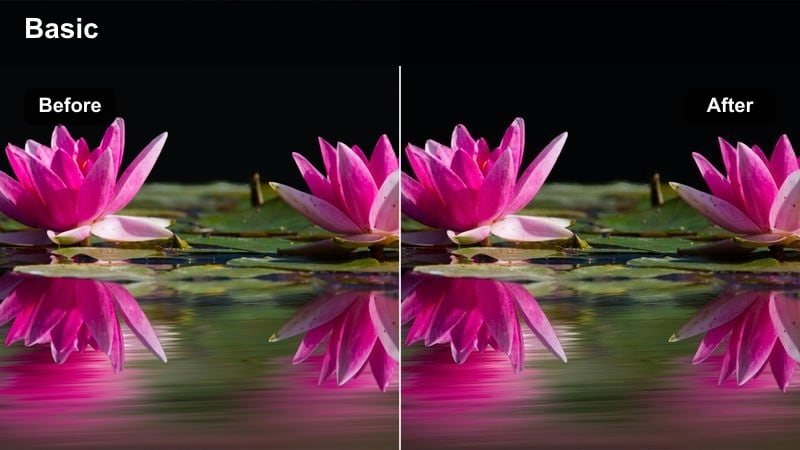
- Effect look: Bold midtone contrast, slightly desaturated colors, and clean highlights for a polished urban film look.
- Best for: Brand lifestyle reels in city streets, cafe scenes, and street portraits with a professional finish.
- Editing tip: Use subtle speed ramps on walking shots and keep camera movement intentional to match the refined, editorial tone.
Cinema Street Contrast delivers a clean, editorial style that works perfectly for lifestyle and fashion reels in the city. Saturation is slightly pulled back, midtones are reinforced, and highlights stay controlled so everything feels polished and professional.
Apply this filter across your full brand sequence in Filmora so your establishing shots, medium frames, and close-ups all share the same refined color identity. Add gentle speed ramps to walking and tracking shots using the speed curve editor, and cut in rhythm with music hits to give your Instagram reel a high-end commercial flow.
Alley Light Focus
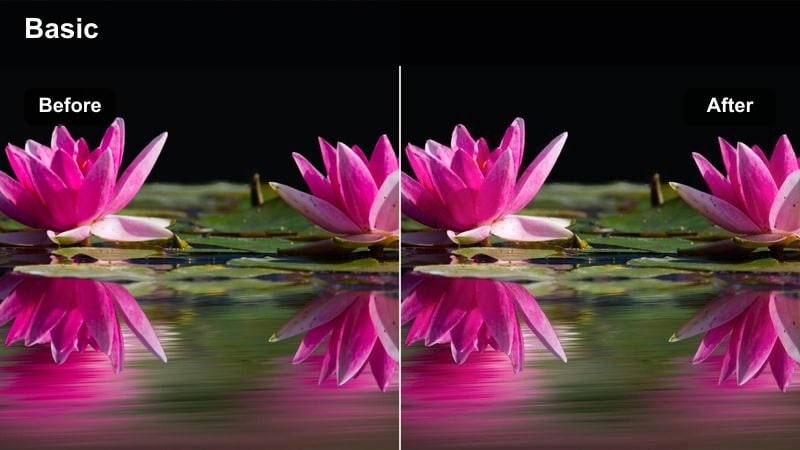
- Effect look: Soft lifted shadows with gentle green and cyan tints, isolating subjects in moody alley and side-street environments.
- Best for: Moody brand teasers, quiet city character moments, and mysterious narrative intros.
- Editing tip: Use tighter framing and shallow depth-of-field clips with this filter to keep the viewer locked on your subject.
Alley Light Focus creates a softly lifted shadow look that is ideal for intimate or mysterious city scenes. The gentle green and cyan bias in the darker areas helps separate skin tones and practical warm lights, so your subject stands out from the background even in low light.
In Filmora, use this filter on close-ups and mid shots that feature narrow streets, doorways, or alleys, then trim aggressively to keep your best, most expressive moments. Combine with tight framing, minimal transitions, and sparse sound design so the color grading and performance draw viewers directly into your character or brand teaser.
Emotional Story Edits and Intimate Portraits
Soft Film Memoir
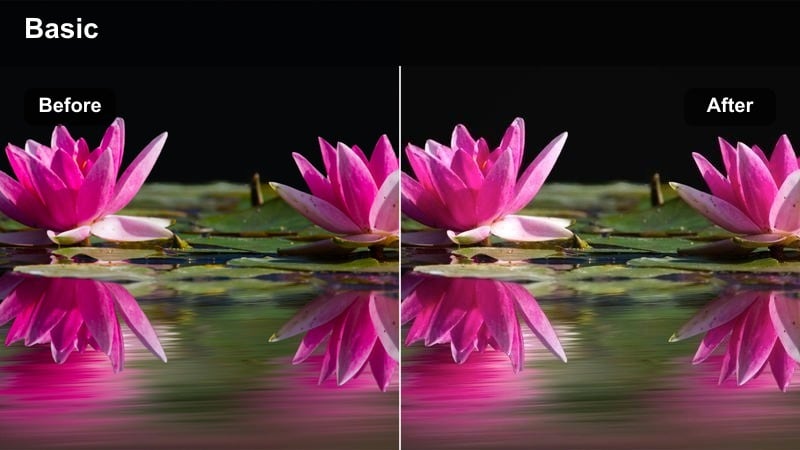
- Effect look: Low contrast, creamy highlights, and a gentle warm shift in skin tones for a tender, filmic diary feel.
- Best for: Emotional story edits, personal narratives, and close-up reels focused on faces and hands.
- Editing tip: Slow your footage to 0.75x or 0.5x speed and cut on movement rather than the beat to emphasize emotion over rhythm.
Soft Film Memoir adds a delicate, diary-like softness to portraits and detail shots. Contrast is lowered, highlights bloom gently, and skin tones take on a warm, forgiving glow that flatters faces and small emotional gestures.
Use this filter in Filmora on close-ups of eyes, hands, and subtle motions like breathing or touch, then slow the clips down slightly so each micro expression has time to register. Cut between different angles using movement-driven edits rather than strict beat-based cuts, and keep transitions minimal so the emotional weight rests on the grading and performance.
Tearline Drama Grade
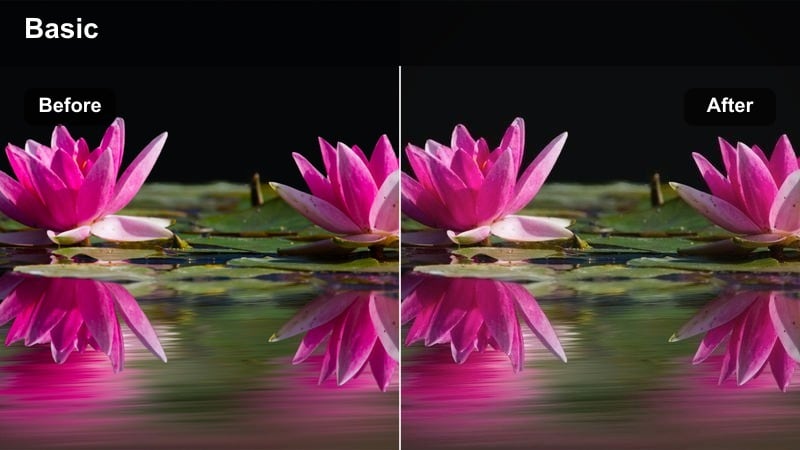
- Effect look: Cool shadows, slightly faded blacks, and pinpoint highlight control for tense, dramatic storytelling.
- Best for: Heavy dialogue moments, dramatic monologues, and emotional turning-point scenes in reels.
- Editing tip: Trim your dialogue tightly and use J-cuts and L-cuts so reactions land under the previous line of audio.
Tearline Drama Grade is tuned for intensity, cooling down shadows and lightly fading blacks so emotional scenes feel grounded and serious. Highlights are carefully controlled, helping faces and key details stay legible even in low-key lighting.
In Filmora, pair this filter with precise dialogue editing and reaction-focused cutting. Use J-cuts and L-cuts on your audio tracks to let responses start off-screen, then reveal the characters expression under the previous line. Hold shots a touch longer after critical lines land, letting the subtle fade and cool palette amplify silence and tension inside your Instagram reel.
Memory Grain Portrait
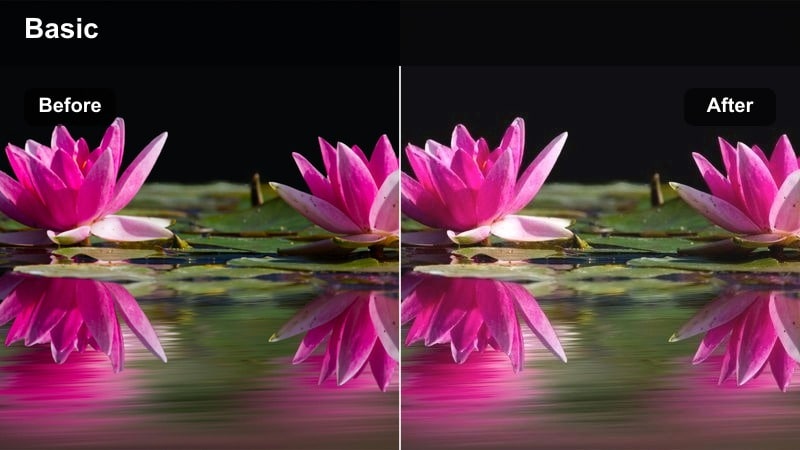
- Effect look: Fine film grain with a slight fade and gentle highlight roll-off for nostalgic, memory-like frames.
- Best for: Flashback sequences, childhood recollections, and romantic or family story reels.
- Editing tip: Mix quick flashes of overexposed light or whip pans between clips to simulate hazy, imperfect memory transitions.
Memory Grain Portrait emulates the feeling of leafing through old film photos or tapes. A fine grain layer, slight fade, and smooth highlight roll-off combine to make present-day digital footage feel like a softened memory.
Within Filmora, apply this filter to flashback segments or recollection scenes, then intercut them with cleaner, more neutral grading for present-day shots. Use quick dips to pure white, slight overexposure flashes, or whip pan transitions to blur the edges between memories, and keep clips shorter so the nostalgic effect feels like fragments rather than fully grounded scenes.
Epic Openings, Reveals, and Premium Brand Moments
Title Card Cinema
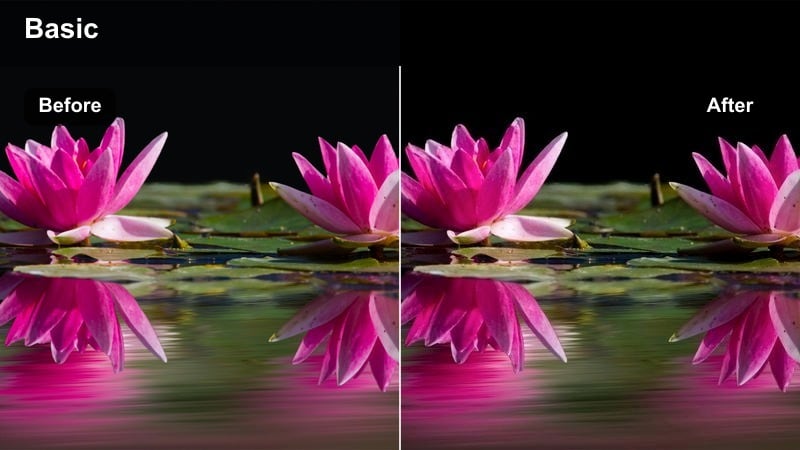
- Effect look: Clean, slightly desaturated tones with strong center focus and subtle vignette for title and logo reveals.
- Best for: Brand intros, series title cards, and cinematic hooks at the start of travel or campaign reels.
- Editing tip: Fade in from black with this filter already applied, then reveal your logo or text using simple, elegant motion graphics.
Title Card Cinema frames your logo, series name, or campaign title like true film opening credits. Slightly desaturated tones and a discreet vignette push attention toward the center, making text and brand marks stand out over a soft, cinematic background.
In Filmora, place this filter on your intro shot and combine it with calm camera motion or a gentle blur behind your title. Use Filmoras built-in titles and motion graphics to animate logos or text in a clean, minimal style, and fade in from black while your hook sound or music cue starts to instantly establish a premium tone for your reel.
Epic Travel Reveal
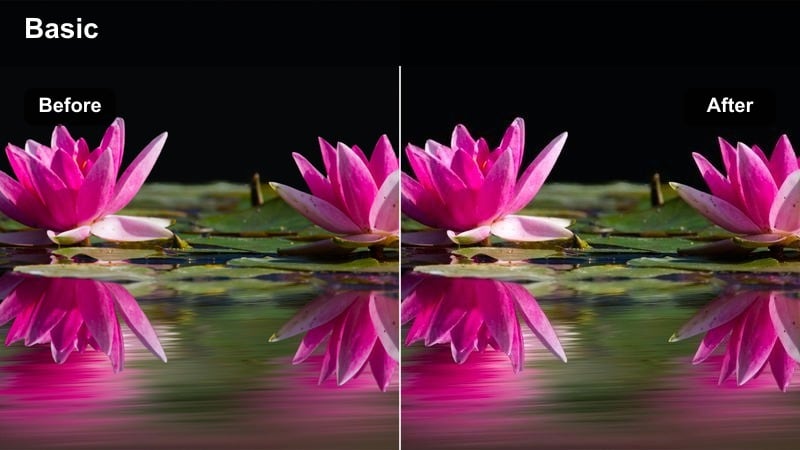
- Effect look: Deep cinematic saturation with controlled contrast and slight widescreen feel for dramatic reveal shots.
- Best for: Drone pull-backs, mountain reveals, city skyline reveals, and hero product unveil shots.
- Editing tip: Time your big reveal to a beat drop or musical swell while subtly keyframing exposure and saturation to rise as the scene opens up.
Epic Travel Reveal is built for those first-look moments where your camera pulls back or swings open to show a grand scene. It boosts saturation and contrast just enough to feel blockbuster-level while keeping details in skies, clouds, and shadows under control.
Apply this filter in Filmora to the reveal portion of your drone, slider, or gimbal shots, then time the widest frame to land exactly on a music beat drop or rise. Use keyframes to gradually increase exposure and saturation as the frame opens up, and consider adding a subtle cinematic aspect-ratio bar overlay to enhance the epic, filmic impression on Instagram.
Premium Brand Glow
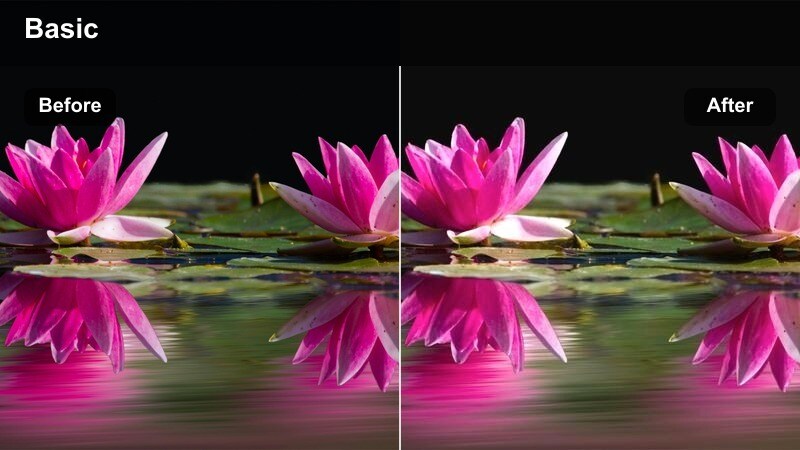
- Effect look: Soft diffusion on highlights, polished skin tones, and subtle warm lift for luxurious brand visuals.
- Best for: Premium product showcases, lifestyle brand stories, and luxury travel or hospitality reels.
- Editing tip: Use slow, controlled camera moves and center-weighted compositions so the glow effect reads as intentional, not hazy.
Premium Brand Glow adds a refined, softly diffused sheen to your footage, making interiors, decor, and faces feel expensive and aspirational. Highlight diffusion smooths bright sources like chandeliers and lamps, while a gentle warmth flatters skin and product surfaces.
In Filmora, combine this filter with slow, stable camera moves captured on a gimbal or slider, then adjust filter intensity until highlights glow without losing fine detail. Keep compositions clean and center-weighted, and layer in light background music plus subtle sound design so the overall reel experience matches the luxurious visual grading.
Tips for Using Cinematic Instagram Reels Filters in Filmora
- Decide the emotional arc of your reel first, then choose one or two cinematic Instagram reel filters that support that journey instead of switching looks every few seconds.
- Shoot with a slightly flatter profile or reduced in-camera contrast so Filmoras cinematic filters have more room to shape color and dynamic range without clipping important detail.
- Keep skin tones natural by lowering filter intensity to about 60 to 80 percent on brand campaigns, testimonials, and portrait-driven reels.
- Use Filmoras AI Color Match to keep color consistent when mixing footage from different cameras, phones, or locations in one cinematic Instagram reel.
- Build branded series by using the same core filter across your hook, mid-section, and outro so viewers instantly recognize your signature look.
- Combine filters with gentle speed ramps, precise cuts, and intentional transitions so motion, music, and grading all support the same cinematic mood.
- Stack a base cinematic filter with a light 3D LUT in Filmora to fine-tune contrast, sky tones, or brand colors without overprocessing the image.
- Balance sound carefully; pair dramatic grades with clear dialogue or textured ambience so the audio experience matches the visual intensity.
These cinematic Instagram reel filters give you a fast, repeatable way to turn raw clips into cohesive visual stories that feel like scenes from a film.
Test a few on your next travel reel, brand campaign, or emotional edit in Filmora, then refine intensity and layering until the look matches the story you want to tell frame by frame.
secure downloadNext: Aesthetic Instagram Reel Filters for Soft Curated Content
