

 100% Security Verified | No Subscription Required | No Malware


 ChatGPT
 Perplexity
 Gemini
 Claude
 Grok
Grok
This Cinematic Mood Lighting LUT collection in Filmora gives content creators a fast way to shape atmosphere with dramatic, filmic color in just a few clicks.
Use these filters to add stylized contrast, rich tones, and controlled highlights that feel like a professional color grade without leaving your Filmora timeline.
In this article
Dusk Street Scenes and Neo-Noir Nights
Moody Neon Alley
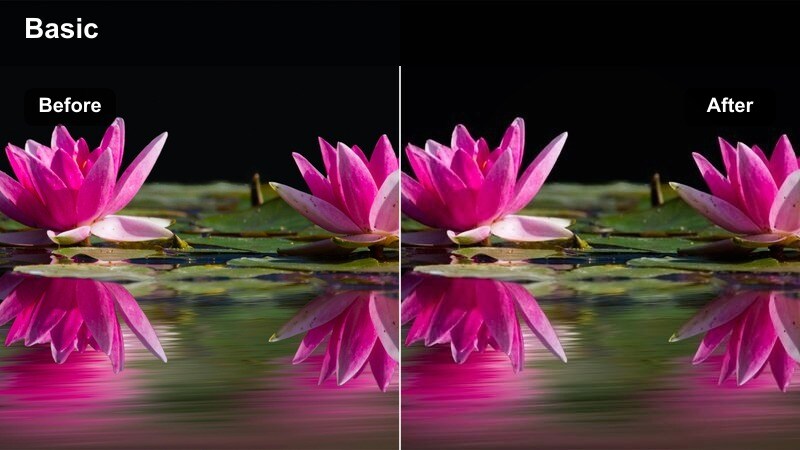
- Effect look: Deep contrast with cyan shadows and magenta neon glows for a stylized night alley vibe.
- Best for: Urban b-roll, street fashion reels, and music videos shot under city lights.
- Editing tip: Lower exposure slightly and boost local contrast to keep neon signs crisp without crushing dark details.
Moody Neon Alley gives your night city footage a bold, graphic finish that feels pulled from a neo-noir feature. The cyan shadow tint and magenta highlights wrap around edges of signs, puddles, and building facades, instantly elevating handheld street clips, fashion walk-throughs, and music video performance shots inside Filmora.
Apply this filter on a top layer in the Effects panel, then fine-tune exposure, contrast, and saturation to match each location. Use masking and keyframing in Filmora to keep faces slightly cleaner in color while backgrounds stay heavily stylized, and combine with a soft vignette or film grain effect for a cohesive, cinematic alleyway sequence.
Use AI Tools to Match Your Cinematic Mood Lighting
Filmora's AI-powered color tools help you quickly match the Cinematic Mood Lighting LUT-style filters across different cameras and locations. You can balance shots from phones, mirrorless cameras, and action cams so your neon city sequences feel like one continuous, polished grade.
Analyze a hero shot, then let Filmora suggest adjustments so every clip in your sequence shares the same cinematic mood, lighting density, and contrast profile, even when lighting conditions change. This keeps your Neo-noir and night-city stories visually consistent from first frame to last.
 secure download

Preview Cinematic Lighting Filters in Real Time
Filmora lets you hover over each cinematic mood lighting filter to see instant previews in the Viewer before you commit. As you test options like Moody Neon Alley or Noir Sidewalk Glow, you can quickly judge how they respond to skin tones, highlights, and deep shadows in your shot.
Combine previewing with split-screen comparison to quickly decide which preset best supports your story and shooting conditions. This makes it easy to lock in the right cinematic mood for each scene without endless trial and error.
secure download1000+ Video Filters and 3D LUTs
Filmora includes a large library of filters and 3D LUTs that you can stack with these Cinematic Mood Lighting presets. Start with a mood lighting filter as your base, then layer creative LUTs, glow, grain, and HSL adjustments to design a unique, film-inspired aesthetic.
By controlling intensity on each layer, you can keep grades light and social-ready or push into bold, stylized territory for music videos and narrative shorts. Save your favorite combinations as Filmora presets to reuse on future projects with one click.
secure downloadNoir Sidewalk Glow
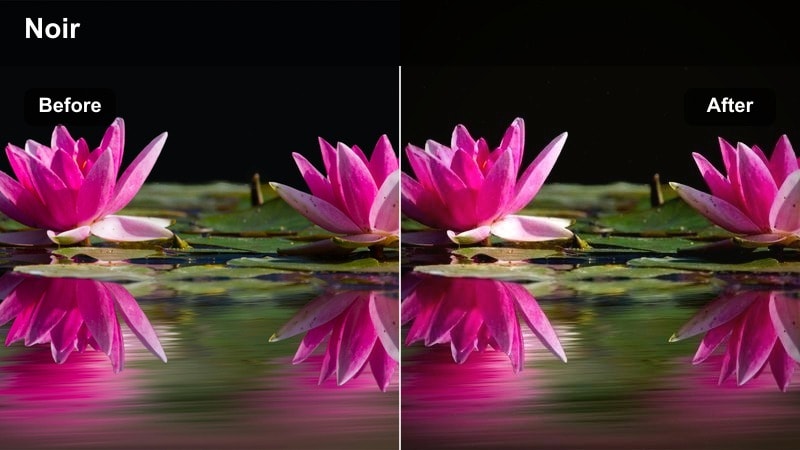
- Effect look: Muted colors with lifted blacks and warm streetlamp highlights for a soft noir feel.
- Best for: Night vlogs, moody narrative shorts, and reflective walking shots on sidewalks.
- Editing tip: Push midtone contrast while keeping blacks slightly raised to preserve that cinematic haze in darker areas.
Noir Sidewalk Glow gives your night walks and city reflections a soft, hazy noir treatment without losing detail. Colors are intentionally muted, blacks are lifted, and warm streetlamp highlights feel like they are gently blooming across wet pavement or glass panels.
In Filmora, apply this filter to your A-roll and B-roll night footage, then refine exposure and midtone contrast to keep faces clean while backgrounds stay atmospheric. For sequences with rain or puddles, you can layer subtle lens flares or light leaks above this filter to exaggerate glows and create a cohesive, cinematic night-walk montage.
Subway Chiaroscuro
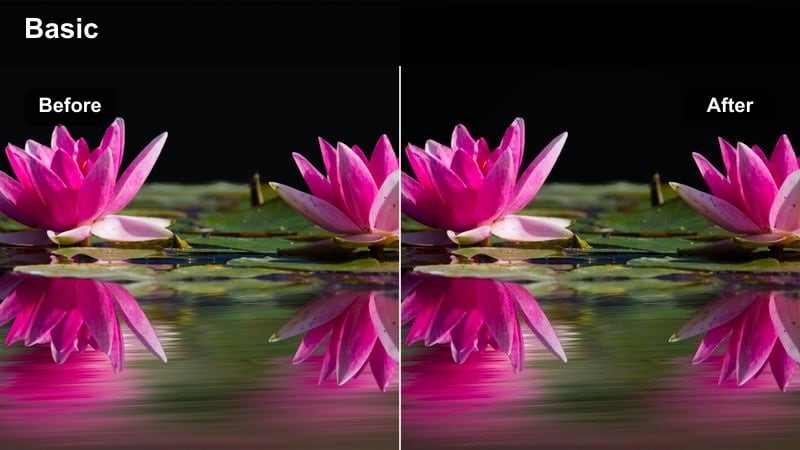
- Effect look: Hard directional contrast, cool shadows, and focused highlights that mimic practical subway lighting.
- Best for: Subway sequences, underground parking scenes, and tense dialogue in confined urban spaces.
- Editing tip: Use masks to keep faces slightly brighter than the environment so the dramatic contrast does not hide expressions.
Subway Chiaroscuro is designed for scenes where strong overhead or side lighting carves deep shadows across walls, floors, and faces. It cools down shadow areas and tightens contrast to mimic the stark, practical fixtures found in subway tunnels and underground garages.
Apply this filter in Filmora on dramatic dialogue or thriller-style cutaways and then use the masking tools to protect important facial details from going too dark. If the image feels overly intense, back off filter intensity to around 70 percent and add selective brightness to eyes and skin so viewers can still read emotion in every close-up.
Golden Hour Romance and Warm Drama
Sunset Cinema Wash
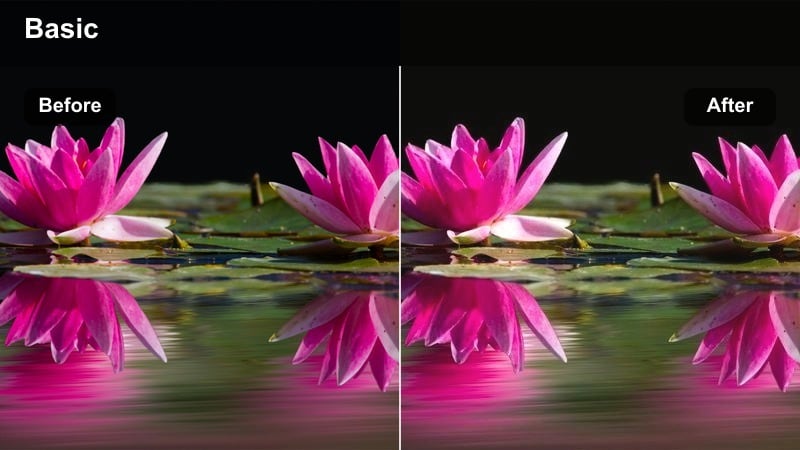
- Effect look: Soft golden highlights, gentle contrast, and a warm wash over midtones for a dreamy sunset effect.
- Best for: Golden hour couples shoots, emotive travel vlogs, and cinematic landscape cutaways.
- Editing tip: Lower global saturation slightly so the warmth feels filmic instead of overly orange.
Sunset Cinema Wash enhances late-afternoon and golden hour footage with a delicate layer of warmth that feels like film stock rather than a heavy filter. It softens highlights, smooths contrast, and wraps midtones in a gentle golden cast that flatters skin tones and city skylines alike.
In Filmora, drop this filter on rooftop scenes, beach walks, or mountain vistas captured near sunset and then subtlety pull down saturation so the look remains cinematic. You can use keyframed intensity if your shoot moved from earlier daylight into true golden hour, keeping your entire sequence consistently warm and romantic from shot to shot.
Amber City Balcony
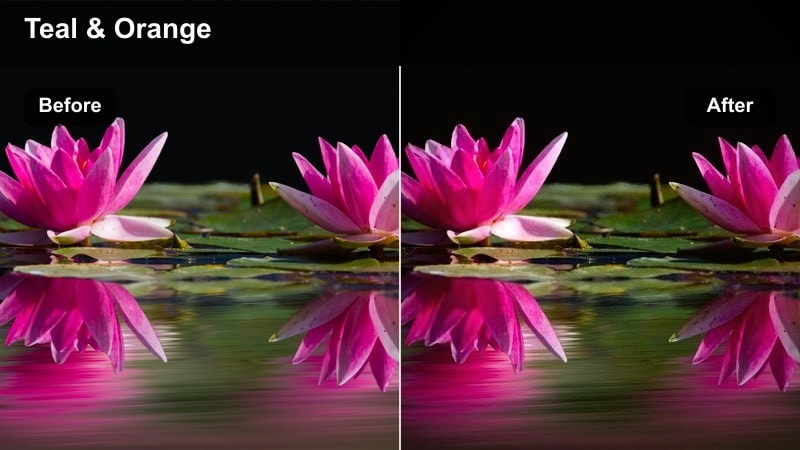
- Effect look: Rich amber highlights with slightly teal shadows to create a classic cinematic color contrast.
- Best for: Balcony conversations, lifestyle reels, and city-view establishing shots near sunset.
- Editing tip: Increase clarity around the subject and reduce it in the background to give a subtle depth-of-field impression.
Amber City Balcony leans into the iconic teal-and-amber palette, pushing highlights toward rich amber while shadows drift into a complementary teal. This creates instant cinematic separation between warm skin and cool city backgrounds, perfect for intimate balcony conversations or lifestyle intros looking out across a skyline.
Use this preset in Filmora on dusk balcony footage and then sharpen or add clarity around your subject while softening the background slightly with blur or reduced clarity. By copying the same filter settings across multiple angles, you can keep your city-view scenes visually unified and ready for reels, vlogs, or brand campaigns.
Hazy Backlight Poetry
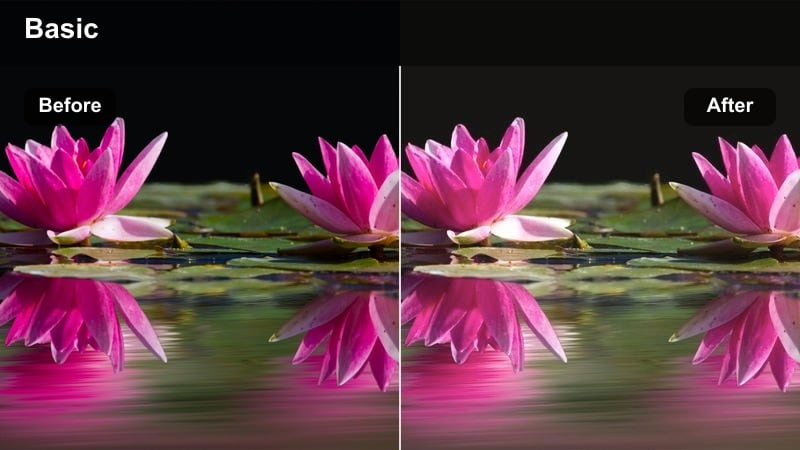
- Effect look: Bloomed highlights, softened contrast, and pastel warm tones around bright backlights.
- Best for: Backlit portraits, narrative montages, and poetic slow-motion city park scenes.
- Editing tip: Add a subtle blur or glow effect on the brightest areas to accentuate the blooming backlight feel.
Hazy Backlight Poetry is made for shots where the sun or a bright source is behind your subject, creating natural flares and light leaks. The filter blooms highlights, relaxes contrast, and infuses the frame with pastel warmth, perfect for romantic montages and dreamy B-roll in parks, gardens, or city streets.
In Filmora, combine this filter with gentle glow or Gaussian blur on the brightest regions to emphasize the halo effect while keeping faces readable. If your footage starts to look too low contrast, introduce a mild S-curve in the Color panel and slightly deepen blacks so the poetic haze does not drift into a flat, washed-out look.
Studio Drama and Controlled Interior Sets
Spotlight Interrogation
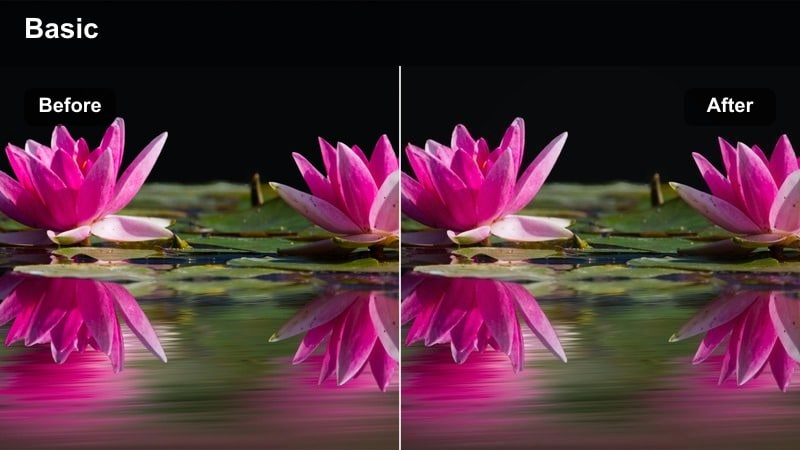
- Effect look: Focused pools of light with deep, neutral shadows and crisp edges around faces.
- Best for: Interrogation-style interviews, dramatic monologues, and short film studio setups.
- Editing tip: Combine with a vignette and selectively raise exposure on eyes to keep attention locked on the subject.
Spotlight Interrogation heightens tension by sculpting a tight pool of light around your subject while letting the background fall into deep, neutral shadow. The look evokes interrogation rooms, intense confessionals, and performance-driven monologues where every facial detail matters.
Apply this filter in Filmora on locked-off interviews or dramatic setups, then add a vignette and targeted brightness mask over the face to draw viewers further into the performance. Avoid heavy color shifts with this preset; instead, lean on contrast and controlled exposure to deliver a crisp, focused studio look.
Soft Panel Dialogue
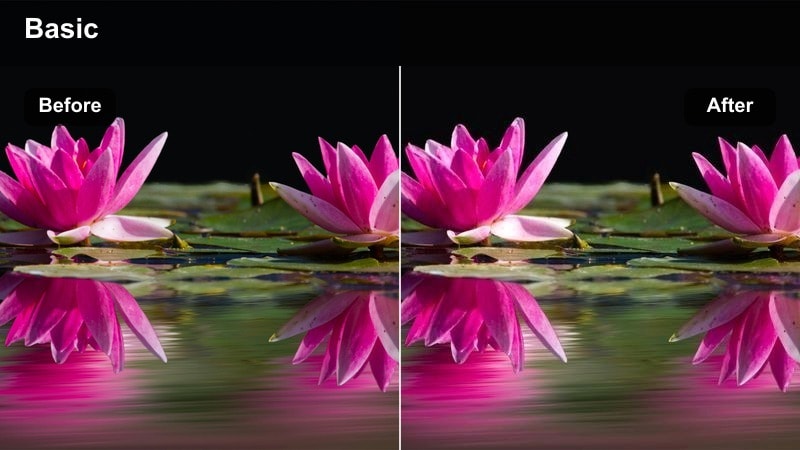
- Effect look: Balanced, low-contrast lighting with slightly warm highlights for natural studio conversations.
- Best for: Podcast videos, interview shows, educational content, and talking-head explainers.
- Editing tip: Reduce sharpness a touch and add micro contrast to faces to keep them flattering yet detailed.
Soft Panel Dialogue is tuned for clean, professional-looking studio setups where your subjects need to look natural and approachable. It keeps contrast low, nudges highlights a bit warmer, and maintains even exposure across the frame, ideal for podcasts, talk shows, tutorials, and recurring YouTube series.
In Filmora, save this filter as part of a preset chain that also includes your preferred sharpening, noise reduction, and subtle vignette. Reusing that chain across episodes keeps your show consistent, while small white balance tweaks and scope monitoring ensure skin tones stay accurate even as sets or outfits change.
Theatre Side Rim
- Effect look: Strong side light with cool rim highlights and subtle falloff into shadow on the far side of the face.
- Best for: Theatrical monologues, creative product reveals, and cinematic announcements on stage or in studio.
- Editing tip: Feather a mask on the bright side of the subject to keep highlights from clipping and retain a gentle gradation.
Theatre Side Rim emphasizes a strong, cool side light that outlines your subject against a darker background, creating a dramatic stage-inspired profile. It is perfect for artistic monologues, stylized announcements, or product reveals where shape and silhouette matter as much as detail.
Within Filmora, use this filter on both tight and medium shots, then adjust exposure and highlight roll-off so the bright side of the face or product does not clip. For wider angles, you can slightly reduce filter intensity and raise shadow detail so the environment still feels believable while the side rim remains the visual focus.
Night City Skylines and Atmospheric Wide Shots
City Glow Panorama
- Effect look: Rich, saturated city lights with gentle highlight bloom and cool, deep skies.
- Best for: Drone cityscapes, skyline time-lapses, and opening title shots of urban environments at night.
- Editing tip: Slow down highlight roll-off so billboards and windows glow without turning into pure white blocks.
City Glow Panorama intensifies the sparkle of skyline windows, illuminated towers, and signage while preserving a cool, cinematic night sky. The filter adds a tasteful bloom to the brightest areas so your drone moves, timelapses, and establishing shots feel like polished title sequences.
Use this look in Filmora on aerials, high vantage point shots, or rotating skyline clips, and pair it with smooth motion transitions or push-in keyframes. By carefully adjusting highlight roll-off and overall saturation, you can strike the balance between bold city spectacle and legible overlays for titles or lower thirds.
Rain-Slicked Avenue
- Effect look: High contrast with reflections on wet streets, emphasizing blues and deep yellows from traffic lights.
- Best for: Car-mounted shots, rainy night b-roll, and atmospheric driving sequences through the city.
- Editing tip: Add a slight motion blur or speed ramping to accentuate light streaks on wet pavement.
Rain-Slicked Avenue transforms rainy streets into reflective canvases, boosting the contrast between blue shadows and deep yellow or red traffic lights. It excels on low-angle or car-mounted footage where headlights and signals streak across wet asphalt, creating a dynamic, cinematic driving mood.
In Filmora, combine this preset with gentle motion blur, speed ramping, or stabilization to control the energy of the scene. If the color palette becomes too chaotic, selectively desaturate specific hues with HSL controls so the important light sources stand out while the overall mood stays dark and dramatic.
Lo-fi Rooftop Night
- Effect look: Softened contrast with muted colors and a slight film grain feel for laid-back rooftop moments.
- Best for: Rooftop hangouts, lo-fi music videos, and casual conversation scenes looking over the city.
- Editing tip: Lower clarity on the background to keep the skyline soft while maintaining detail on your subjects.
Lo-fi Rooftop Night dials back contrast and saturation to create a gentle, nostalgic night aesthetic that feels perfect for chill sessions and music-driven edits. The look hints at film grain and softens the skyline just enough to keep attention on your subjects while the city glows quietly behind them.
After applying this filter in Filmora, reduce clarity or add blur masks to the far-background buildings while maintaining sharper focus on faces and hands. Layer in subtle film grain and keep camera movement smooth and unhurried to reinforce the relaxed, lo-fi vibe in music videos, vlogs, or after-hours hangout compilations.
Tips for Using Cinematic Mood Lighting Lut Filters in Filmora
- Shoot slightly flatter in-camera so these cinematic mood lighting filters have more dynamic range to work with.
- Always adjust exposure and white balance before applying a filter to avoid overcorrecting after the look is baked in.
- Lower filter intensity to around 60 to 80 percent if you want a more natural, less obviously graded result.
- Use vignettes and masking with these filters to keep faces bright and readable while backgrounds stay moody.
- Create a preset chain that combines your favorite cinematic filter, subtle grain, and sharpening for faster consistent grading.
- Match the filter's warmth or coolness to the story tone: warmer for romance and nostalgia, cooler for tension and mystery.
Cinematic Mood Lighting LUT-style filters in Filmora give content creators a fast and flexible way to add dramatic, film-level atmosphere to any project.
Test a few presets on your key scenes, tweak intensity and basic color, and then save your favorite combinations as go-to looks for future videos.
secure download