

 100% Security Verified | No Subscription Required | No Malware


 ChatGPT
 Perplexity
 Gemini
 Claude
 Grok
Grok
This cinematic realism video filter collection is built for content creators who want a filmic look without losing the grounded, believable feel of real life. Each preset is designed to preserve natural skin tones, authentic lighting, and subtle contrast so your footage looks like a movie, not an over-edited clip.
Use these filters as a starting point for your grade, then fine-tune exposure, white balance, and color in Filmora to match your story and location. Whether you are filming street scenes, intimate interiors, or handheld documentary footage, these cinematic realism presets help you stay immersive and true-to-life.
In this article
Golden Hour Street Realism
Urban Golden Soft
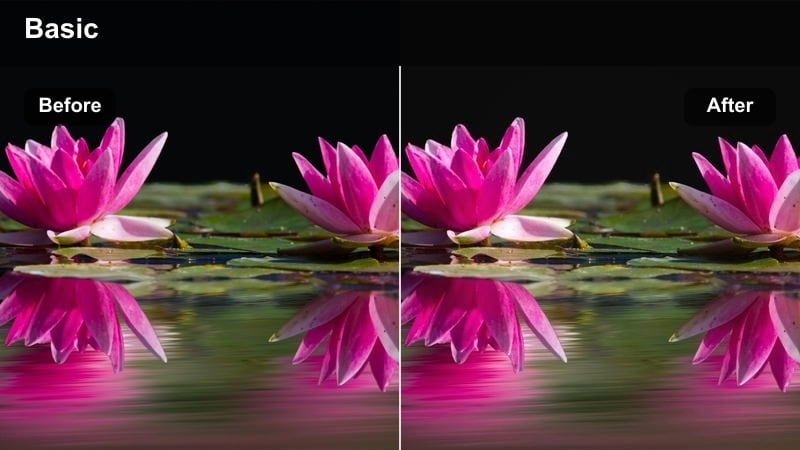
- Effect look: Soft golden cast with gentle contrast that holds detail in highlights and shadows for a lived-in city feel.
- Best for: Street scenes shot at golden hour, walking vlogs, city B-roll where you want a warm yet believable tone.
- Editing tip: Slightly lower saturation on yellows and oranges to keep skin tones natural while keeping the warm ambiance.
Urban Golden Soft is designed to enhance late-afternoon street footage with a convincing cinematic glow while protecting the realism of your scene. In Filmora, this preset wraps your subject in warm light, softens harsh edges, and preserves detail in buildings, street textures, and skies so the grade feels atmospheric without looking fake.
Use this look on walking vlogs, travel montages, and narrative city sequences that are shot during golden hour or under warm streetlight spill. After applying the preset, fine-tune white balance in Filmora to match your actual sun temperature, then use the color wheels to keep faces natural while allowing sidewalks, walls, and reflections to carry most of the warmth.
Use AI Tools to Lock In Realistic Color
After you apply a cinematic realism video filter, Filmora's AI color tools can automatically balance exposure and white balance so your base look stays natural. This helps you keep highlights, midtones, and shadows in a believable range before you start creative fine-tuning.
Use these AI adjustments sparingly as a final polish, then manually refine skin tones, highlight roll-off, and shadow density to match the mood of your scene. The AI gives you a clean, realistic foundation so your cinematic realism filter can do the storytelling.
 secure download

Preview Realism Filters on Your Footage
Filmora lets you preview cinematic realism video filters directly on your own clips in real time, so you can see how each preset handles skin tones, streetlights, and subtle textures. This makes it easy to compare similar looks before committing to a full grade.
Load a representative shot from your timeline, then hover or click through different realism filters to judge which one keeps the most believable color and lighting. Once you pick a preset, apply it across your sequence and make small tweaks for each shot where needed.
secure downloadCombine Realism Filters with Film Look LUTs
For a stronger film aesthetic, you can stack a subtle cinematic realism video filter with one of Filmora's film look 3D LUTs. The filter maintains grounded color and realistic contrast, while the LUT adds the final touch of cinematic character.
Apply your chosen realism filter first, then experiment with low-intensity LUTs to avoid over-stylizing your footage. Keeping LUT strength modest lets you hold onto accurate skin tones, believable lighting, and the natural atmosphere captured on set.
secure downloadTwilight City Neutral
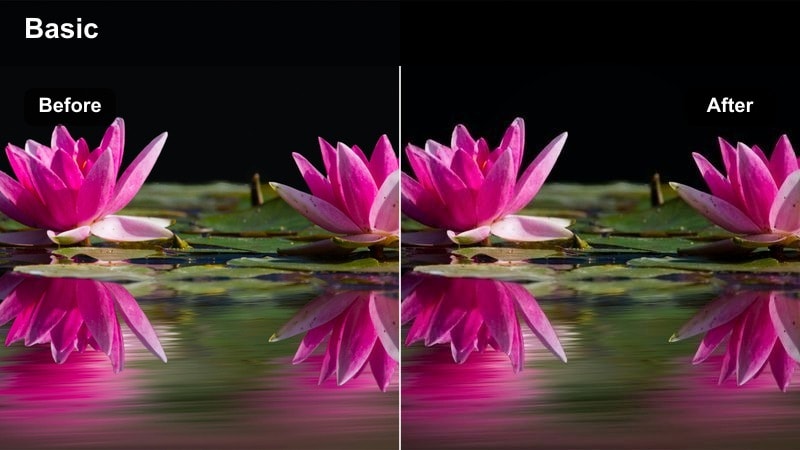
- Effect look: Neutral, cool-leaning grade that subtly lifts shadows for a grounded, early-evening street look.
- Best for: Blue hour cityscapes, storefront exteriors, quiet street sequences that should feel calm but cinematic.
- Editing tip: Increase midtone contrast slightly to avoid a washed-out look while keeping the overall palette natural.
Twilight City Neutral is tailored for blue hour and early evening when sky tones cool off but city lights are just beginning to glow. In Filmora, this preset introduces a gentle cool shift, keeps skin tones believable, and slightly opens up shadows so sidewalks, storefronts, and passing cars remain clearly visible.
Use it on establishing shots, slow walk-and-talks, or contemplative scenes where you want a quiet, cinematic atmosphere. After applying the filter, use Filmora's curves to protect highlight detail in neon and car lights, then fine-tune tint if your lamps drift too green or magenta so the overall street environment feels true to life.
Rainy Crosswalk True
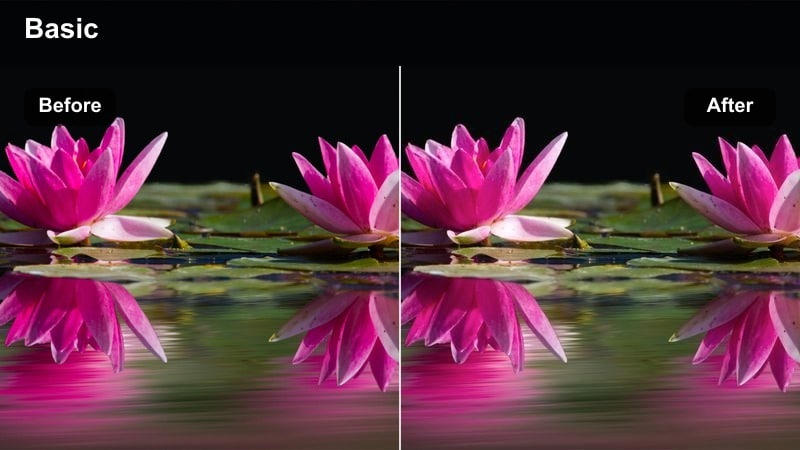
- Effect look: Muted saturation with crisp micro-contrast that highlights reflections and wet surfaces while staying grounded.
- Best for: Rainy city streets, crosswalk sequences, urban drama shots with umbrellas and reflections.
- Editing tip: Gently darken blacks to deepen the wet asphalt without crushing detail in coats and umbrellas.
Rainy Crosswalk True is built for overcast and wet conditions where reflections and texture carry much of the mood. The preset slightly mutes color to avoid cartoonish saturation while adding fine contrast that brings out puddles, raindrops, and the sheen of wet asphalt in Filmora.
Apply it to crosswalk shots, moody urban montages, or narrative scenes that depend on rain-soaked streets for atmosphere. After the filter is in place, tweak black levels and clarity to taste, then use Filmora's noise reduction if higher ISOs introduce grain in darker coats, umbrellas, or shadowy corners of the frame.
Intimate Interior Dialogues
Living Room Natural
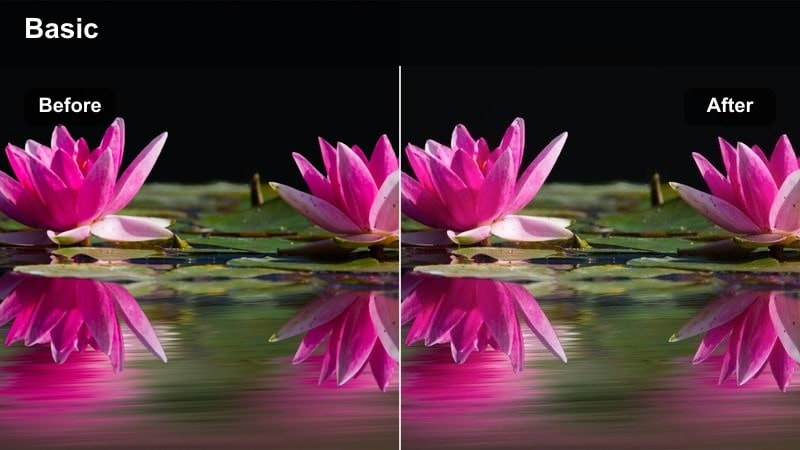
- Effect look: Soft, low-contrast grade that keeps indoor skin tones gentle and believable under window light.
- Best for: Dialogue scenes on couches, lifestyle vlogs, quiet family moments in living rooms and studios.
- Editing tip: Nudge exposure up slightly to get a clean, airy feel while making sure highlights near windows do not clip.
Living Room Natural is tuned for bright interiors lit by windows or soft practical lamps, giving you a relaxed, present-day cinematic feel. In Filmora, the filter lowers contrast just enough to smooth transitions between faces and backgrounds while preserving accurate skin tones and the natural color of furniture and decor.
Use it on talking-head segments, lifestyle content, and narrative dialogue scenes where comfort and authenticity are key. After applying the preset, raise exposure slightly if needed and watch your window highlights in Filmora's scopes, then use the HSL panel for subtle corrections to reds and greens if faces pick up unwanted color casts from walls or furniture.
Kitchen Evening Real
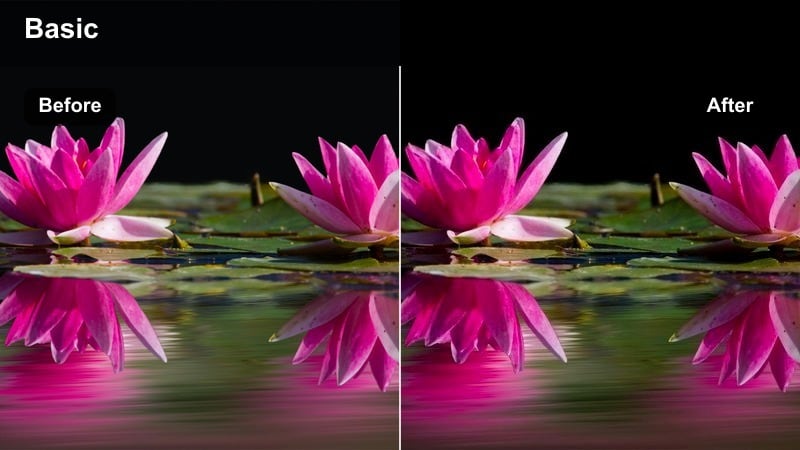
- Effect look: Warm, tungsten-friendly balance that keeps practical lamps and overhead lights looking natural, not orange.
- Best for: Evening kitchen scenes, late-night cooking vlogs, intimate conversations at the table.
- Editing tip: Gently desaturate oranges and add a slight teal to shadows for a subtle cinematic contrast without stylizing too far.
Kitchen Evening Real focuses on the cozy warmth of home interiors lit by tungsten bulbs, while avoiding the heavy orange cast that can make footage look dated. The preset balances whites and midtones so countertops, cabinets, and skin tones feel inviting but still realistic inside Filmora.
Apply it to cooking content, late-night conversations, or slice-of-life sequences in dining rooms or kitchens. Once applied, fine-tune white balance to sit between any window daylight and warm bulbs, then use Filmora's shadow tones to introduce a very mild teal for cinematic contrast, keeping saturation low enough to preserve a grounded, documentary-like mood.
Office Day Subtle
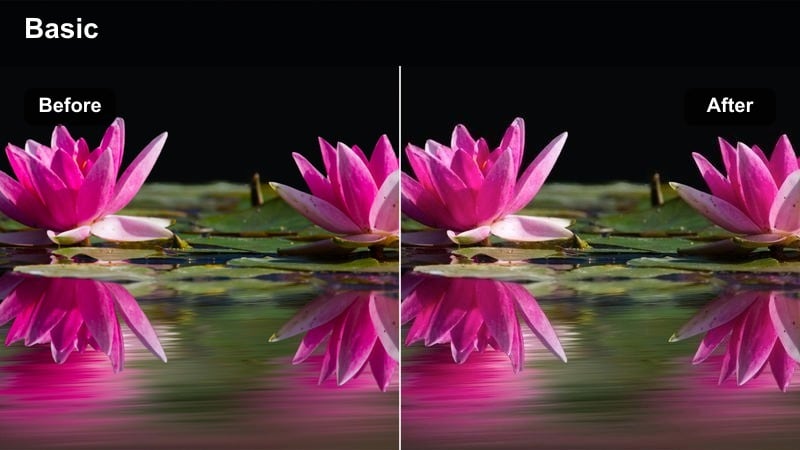
- Effect look: Clean, slightly cool tone with gentle contrast optimized for overhead office lighting and laptop screens.
- Best for: Workplace scenes, desk setups, productivity and tech videos shot under mixed office lighting.
- Editing tip: Lower highlights to control blown-out screens and use a vignette to focus attention on the subject at the desk.
Office Day Subtle keeps corporate and home office environments looking crisp, modern, and true to life. The preset leans slightly cool to complement daylight-balanced bulbs and monitor light while preserving realistic skin tones and neutral wall colors in Filmora.
Use it for productivity tutorials, tech reviews, and workplace narrative scenes where clarity and professionalism matter. After applying the filter, pull down highlights to keep monitors readable, then add a mild vignette or mask in Filmora to guide attention toward your subject and away from distracting bright areas like windows or whiteboards.
Grounded Outdoor Narratives
Park Day Balanced
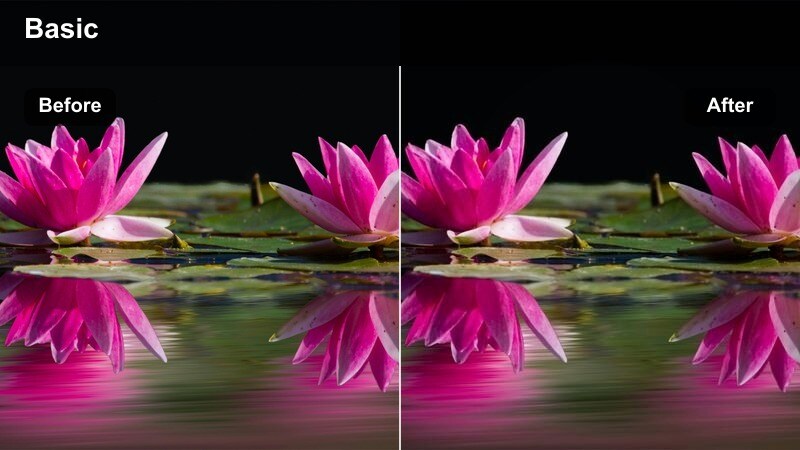
- Effect look: True-to-life color with mild contrast and slightly softened highlights to handle midday sun in open spaces.
- Best for: Walk-and-talk scenes in parks, lifestyle b-roll, family or couple shots in open daylight.
- Editing tip: Dial back green saturation a touch to avoid overly vivid grass and trees while keeping skin tones clean.
Park Day Balanced is ideal for outdoor daylight when the sun is high and foliage can easily become oversaturated. In Filmora, this preset softens harsh highlights slightly and keeps colors close to reality, so grass, trees, and sky look rich but not exaggerated.
Use it for vlogs, family videos, and narrative scenes that move through open park spaces or trails. After you apply the filter, reduce green saturation just a bit, then lift shadows carefully so faces under tree shade stay readable while maintaining the feel of strong natural sunlight in the environment.
Suburban Street Plain
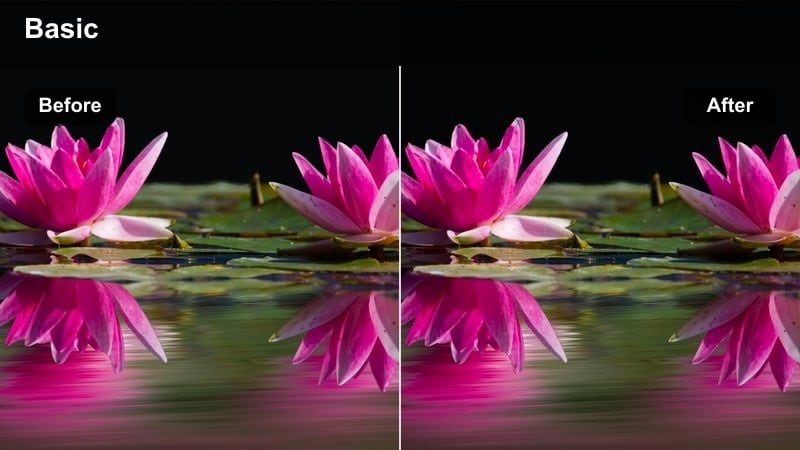
- Effect look: Neutral contrast and color that make houses, sidewalks, and street scenes feel grounded and documentary-like.
- Best for: Establishing shots in neighborhoods, slice-of-life vlogs, simple walk-through scenes on residential streets.
- Editing tip: Keep saturation modest and let composition and performance carry the emotion for a true cinematic realism vibe.
Suburban Street Plain is built to disappear into your storytelling, offering a neutral, documentary-friendly grade for residential neighborhoods. In Filmora, it keeps house colors, cars, and greenery realistic so viewers feel like they are looking through a real lens, not at a heavily stylized world.
Apply it to establishing shots, character walks, or everyday vlog sequences where the environment should feel familiar and unforced. Once the filter is in place, focus on matching exposure and color across different times of day, and use the HSL panel sparingly to tame any single hue that distracts from your main subject or narrative.
Alley Handheld Grit
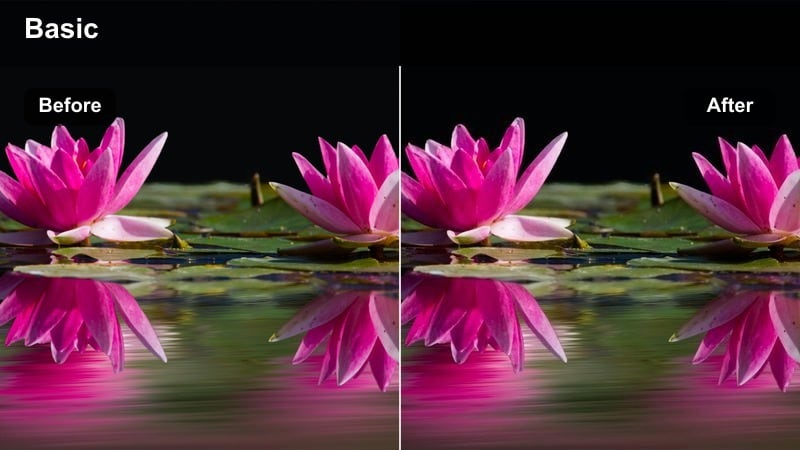
- Effect look: Slightly desaturated with deeper shadows and a touch of grain-style texture for tense street-level realism.
- Best for: Handheld alley sequences, character following shots, urban micro-documentaries and short films.
- Editing tip: Reduce digital sharpening to avoid highlighting noise, then add a tiny bit of film grain for cohesive texture.
Alley Handheld Grit lends a subtle, grounded intensity to narrow streets and back alleys, leaning on deeper shadows and restrained color. Inside Filmora, this preset reduces saturation and strengthens contrast just enough to bring tension, while preserving believable mids and highlights on walls, pavement, and signage.
Use it for following shots, chase scenes, or observational urban footage where you want viewers to feel close to your subject. After applying the filter, lower digital sharpening and, if desired, layer in a small amount of Filmora's grain effect to unify the image, then use vignettes or masks to keep your subject slightly brighter than the background without breaking the realism.
Night and Low-Light Realism
City Night Ambient
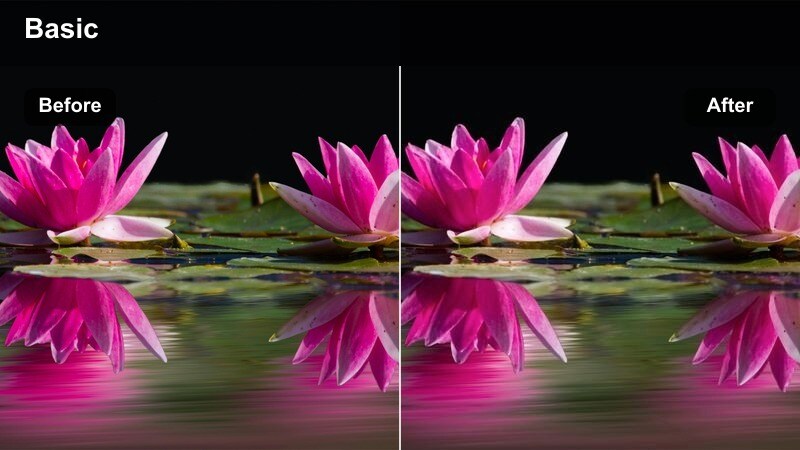
- Effect look: Soft, lifted shadows with preserved neon and streetlight color that keeps night scenes readable and realistic.
- Best for: Urban night walks, nightlife b-roll, late-night storytelling in downtown areas.
- Editing tip: Lift shadows only enough to see your subject, then use noise reduction to manage grain in darker regions.
City Night Ambient is tuned for urban nightscapes packed with neon signs, car lights, and mixed street lighting. In Filmora, it gently raises shadows to keep your subject and environment visible while maintaining the rich color of signage and practical lights, so the scene stays dark but readable.
Apply it to night walks, city montages, or narrative scenes shot under ambient street lighting. After the preset is applied, adjust shadow levels cautiously to avoid making the scene look like faux daylight, then deploy Filmora's noise reduction controls to clean up grain in darker areas without smearing detail in lit regions.
Bar Interior True
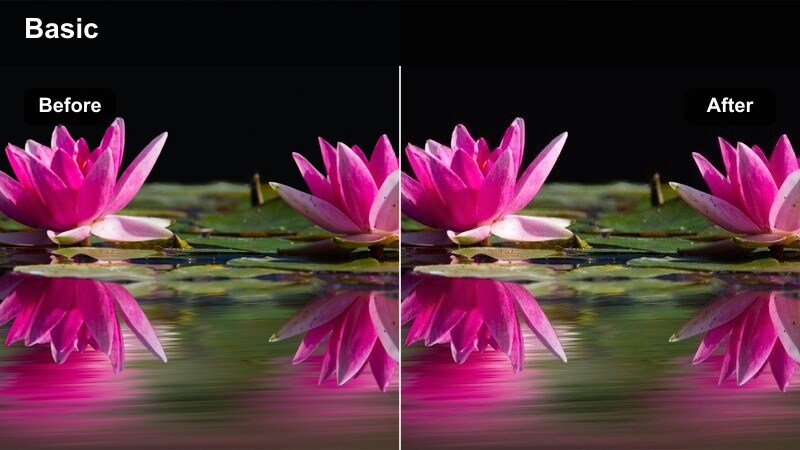
- Effect look: Low-key contrast with warm highlights that respects dim bar lighting and practical lamps.
- Best for: Conversation scenes at bar tables, music performances in small venues, nightlife vlogs with close-ups.
- Editing tip: Keep exposure conservative and use selective brightening on faces so the room stays dark yet readable.
Bar Interior True preserves the intimate, low-light mood of bars and small venues while ensuring faces and key details remain clear. In Filmora, this filter leans into warm, practical light sources and controlled contrast so glassware, wood, and skin tones feel rich but not oversaturated.
Use it for dialogue across tables, acoustic performances, or close-up nightlife vlogs where atmosphere is crucial. After applying the preset, keep global exposure slightly low and use masks or the adjustment brush in Filmora to lift only faces and focal objects, preserving the enveloping darkness in the rest of the frame.
Parking Lot Soft Noir
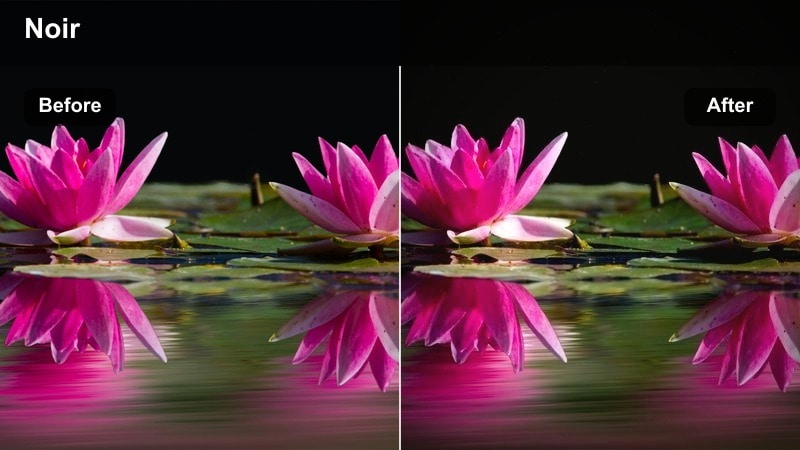
- Effect look: Cool, slightly desaturated palette with stronger contrast that emphasizes pools of light in otherwise dark spaces.
- Best for: Nighttime parking lot scenes, tense confrontations, character introspection moments under streetlights.
- Editing tip: Adjust the color of streetlights with white balance and HSL so they feel consistent from shot to shot.
Parking Lot Soft Noir delivers a restrained, modern noir look for open night exteriors lit by a few strong sources. In Filmora, it cools overall color, tightens contrast around bright pools of light, and slightly reduces saturation so your subject feels isolated in a convincingly dark environment.
Use it for confrontations, emotional monologues, or solitary character moments under streetlights or signage. After the filter is added, keep shadows deep to hide noise, tweak white balance to unify the hue of different lamps, and brighten only the subject and immediate ground area with masks so the eye naturally falls where the story happens.
Tips for Using Cinematic Realism Video Filter Filters in Filmora
- Always correct exposure and white balance in Filmora before judging how a cinematic realism video filter truly affects your footage.
- Match each preset to your primary light source, choosing warmer filters for tungsten interiors and cooler options for daylight or night exteriors.
- Avoid pushing saturation too high; cinematic realism relies on controlled, restrained color that supports the story instead of competing with it.
- Use Filmora masks and vignettes to guide the viewer's attention, rather than relying on extreme global contrast changes across the entire frame.
- When grading multi-camera shoots, sync color and exposure between angles first so realism filters behave consistently across all shots.
- Check skin tones in both highlights and shadows after applying a filter, adjusting HSL or color wheels only as much as needed to keep them natural.
- Monitor highlight clipping on windows, skies, and practical lights, using curves and highlight controls to keep details realistic and readable.
- Apply noise reduction before adding sharpening or grain in low-light scenes so your cinematic realism grade stays clean and filmic.
Cinematic realism video filters in Filmora give content creators a fast way to achieve a filmic look that still feels grounded in real life, with authentic skin tones and believable lighting.
Start with the preset closest to your scene, refine exposure and color subtly, then stack a gentle film look color correction LUT if you need just a touch more cinematic character.
secure download