

 100% Security Verified | No Subscription Required | No Malware


 ChatGPT
 Perplexity
 Gemini
 Claude
 Grok
Grok
Cinematic visual tone LUT-style filters give your footage a cohesive film look in a single click, shaping contrast, color balance, and mood to support the story you want to tell.
The following Filmora-ready filters are curated for content creators who want fast, repeatable cinematic tones without getting lost in complex color grading workflows.
In this article
Golden Hour Storytelling Scenes
Sunset Glow Story
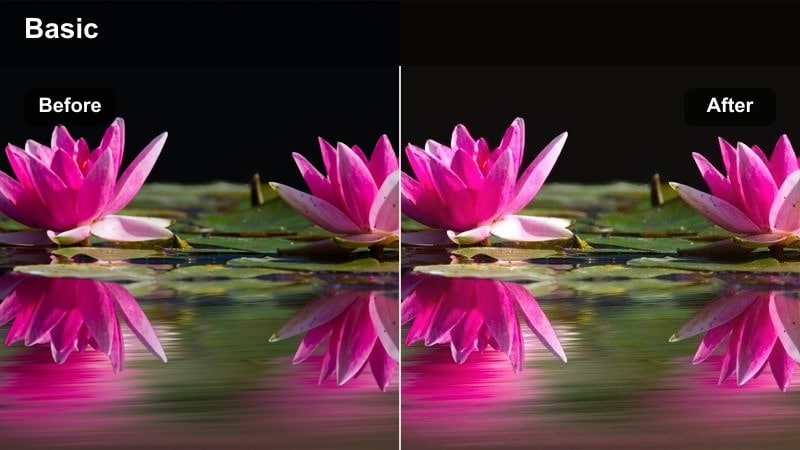
- Effect look: Soft amber highlights with gentle contrast and a warm cinematic roll-off in the midtones.
- Best for: Romantic walks, reflective vlogs, character-driven B-roll at sunset or late afternoon.
- Editing tip: Lower overall exposure slightly and add a subtle vignette to keep attention on your subject's face.
In Filmora, Sunset Glow Story is ideal when you want your golden hour clips to feel consistently warm and emotional without manually pushing curves and color wheels. Apply the filter to your sunset or late-afternoon footage, then nudge exposure down a touch to preserve highlight detail while the LUT-style look wraps the scene in a soft amber glow.
This filter works especially well for story-driven vlogs and B-roll sequences where the sun is low and directional. To keep shots cohesive across a sequence, copy and paste the filter settings between clips, then fine-tune intensity and vignette per shot so the focus stays on your character and not on fluctuating color.
Build a Cinematic Base with AI-Powered Color Suggestions
Use Filmora's AI color tools to quickly analyze your footage and surface palettes that match cinematic moods such as warm drama, nostalgic romance, or cool thriller. This gives you a strong starting point before you lock in a single visual tone across your edit.
After Filmora suggests a direction, apply a cinematic visual tone LUT-style filter like Sunset Glow Story on top to refine contrast, saturation, and overall mood so it fits the emotional arc of your scene.
 secure download

Preview Filters on Real Cinematic Scenarios
Filmora makes it easy to audition multiple cinematic visual tone filters on the same clip so you can see how each one changes your story. Drop a short test shot into the timeline, duplicate it on multiple tracks, and apply different filters such as warm golden hour looks and cooler city tones side by side.
By comparing them in the preview window, you can choose the tone that best complements your characters, environment, and narrative pace before committing to that look across your full project.
secure downloadCombine Filters with LUTs for Layered Looks
If you already rely on creative LUTs for brand consistency, Filmora lets you stack them with cinematic visual tone filters for more nuanced looks. Apply your preferred LUT first, then layer a Filmora filter at reduced intensity so you can refine contrast, color, and mood while keeping skin tones believable.
This layered approach helps you create a unique color identity for your channel or series, balancing stylization with clarity so details remain visible on both mobile and larger screens.
secure downloadDusk Cinema Tone
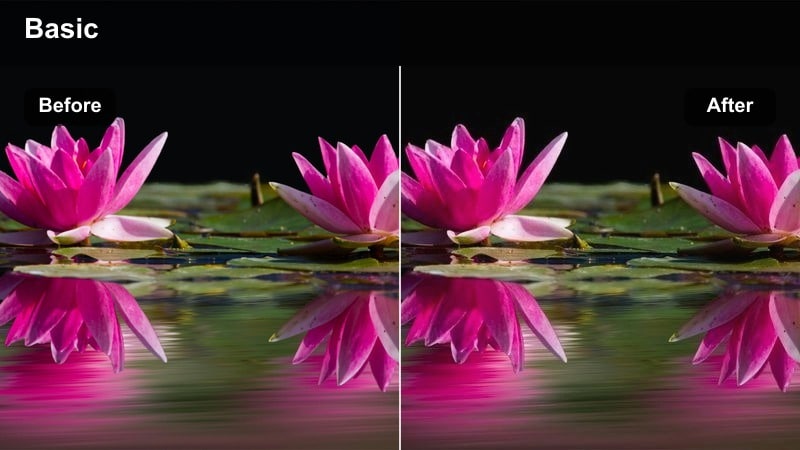
- Effect look: Muted blues and purples in the shadows with preserved skin tones and gentle highlight bloom.
- Best for: Moody character portraits, city transitions, contemplative narrative beats at blue hour.
- Editing tip: Reduce clarity or sharpness slightly to blend digital noise and push a soft, filmic evening mood.
Dusk Cinema Tone in Filmora is crafted for blue hour, when the sky cools and city lights begin to glow but full night has not arrived. Apply the filter to introduce muted blues and purples into your shadows while gently lifting highlights, creating a cinematic bridge between daytime warmth and night-time cool.
Because the filter protects skin tones, it is great for close-up portraits or reflective dialogue shots set against a transitioning skyline. Combine it with a touch of reduced sharpness and mild noise reduction in Filmora to blend digital grain and push a softer, more film-like mood throughout your sequence.
Amber City Chronicle
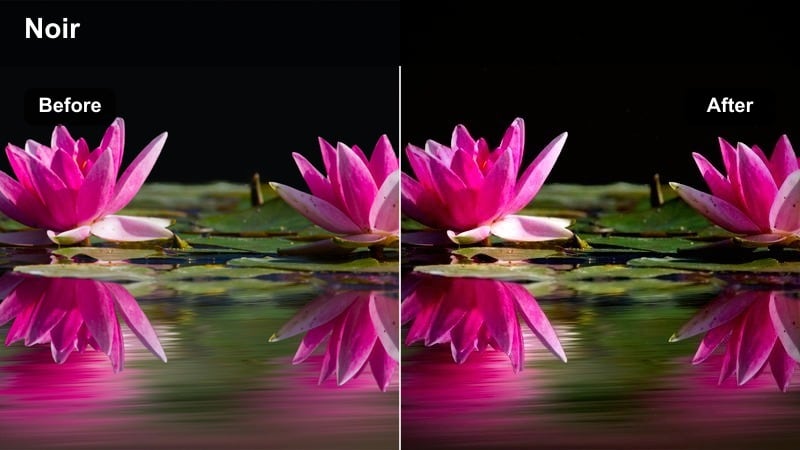
- Effect look: High-contrast amber highlights with gently lifted shadows for a modern neo-noir city glow.
- Best for: Street vlogs, travel montages, handheld city storytelling during late golden hour.
- Editing tip: Combine with a slower shutter look or light motion blur to enhance the sense of rushing city energy.
Amber City Chronicle brings a punchy, high-contrast glow to late-afternoon and golden hour city footage in Filmora. When applied to street vlogs or walking B-roll, it intensifies the warmth of directional sunlight while keeping shadows slightly lifted so details in architecture and crowds remain visible.
This filter is perfect for energetic sequences where you want the city to feel alive and stylized, especially when paired with motion blur or speed ramping effects. Use Filmora to reduce contrast a bit for mobile-focused platforms and keep stronger contrast for desktop or TV viewing, ensuring your visuals feel cinematic without losing clarity on smaller screens.
Night City and Neon Stories
Neon Dialogue
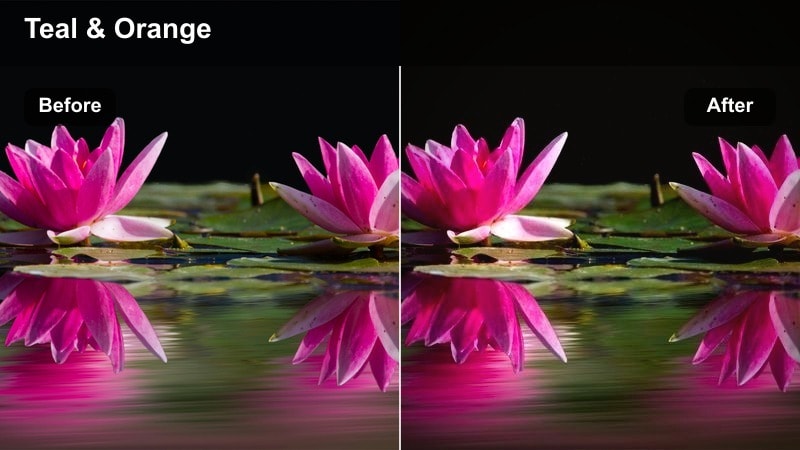
- Effect look: Deep contrast with saturated magenta and teal highlights pulled from neon signs and reflections.
- Best for: Night street interviews, stylized cyberpunk walks, reflective city monologues.
- Editing tip: Frame your subject near neon lights and lower midtone saturation a touch to prevent overpowering color noise.
Neon Dialogue in Filmora transforms ordinary night scenes into stylized, neon-drenched story moments by amplifying magenta and teal tones from city signage and reflections. Apply it to interviews or monologues filmed near shop windows, billboards, or wet streets to create a graphic, cyberpunk-inspired palette with strong contrast.
Because the color intensity can be bold, use Filmora to subtly lower midtone saturation or adjust HSL sliders for specific hues if your subject's skin starts competing with bright signage. Shooting near reflective surfaces like glass and wet pavement will give the filter more sources to catch, resulting in richer, more cinematic night visuals.
Noir Crosswalk
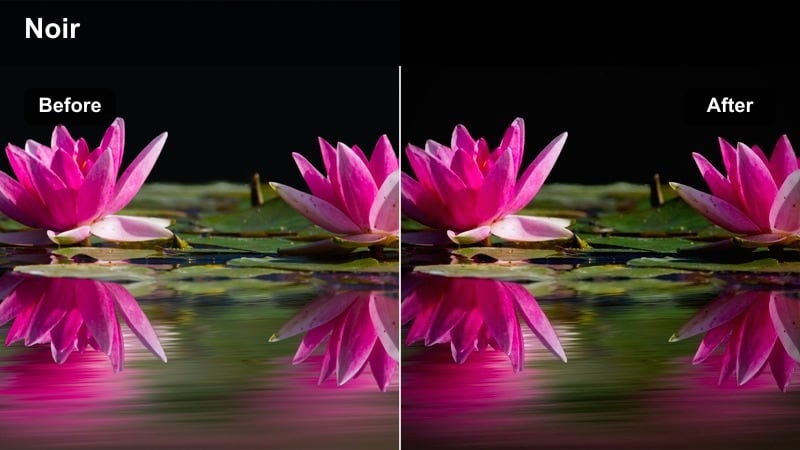
- Effect look: Desaturated overall palette with inky blacks, focused highlight roll-off, and subtle film grain feel.
- Best for: Detective-style vignettes, narrative B-roll of crosswalks, noir-inspired street sequences.
- Editing tip: Slow your footage slightly and add gentle sound design to turn everyday crossings into dramatic story beats.
Noir Crosswalk is designed to strip back color and lean into shadows, ideal for story fragments that feel tense, reflective, or mysterious. Apply it to night streets, intersections, and alleyways to desaturate the scene, deepen blacks, and create a subtle film-grain impression directly in Filmora.
This filter shines when combined with slower motion and thoughtful sound design, such as footsteps, passing cars, or distant sirens. To avoid crushed shadows on cameras with limited dynamic range, gently lift black levels or shadow exposure in Filmora while retaining strong contrast so silhouettes stay three-dimensional and cinematic.
Midnight Commuter
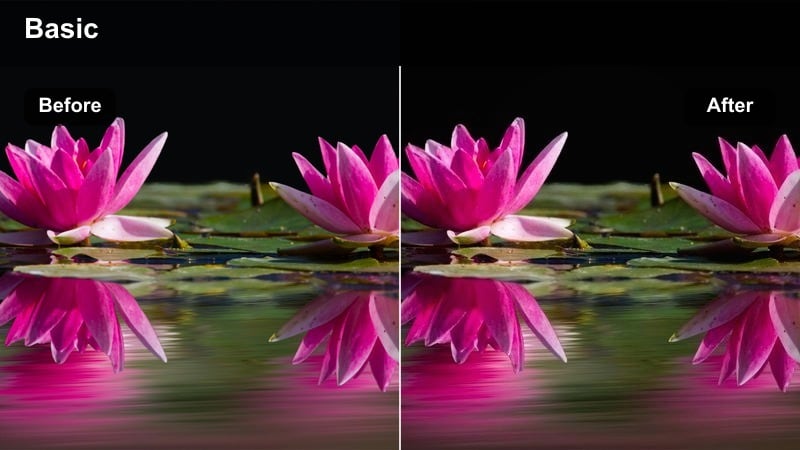
- Effect look: Cool, subdued tones with cyan-leaning highlights from street lamps and softened skin tones.
- Best for: Late-night subway rides, reflective travel vlogs, story arcs about isolation in the city.
- Editing tip: Use slower push-in shots or locked-off frames to let the filter emphasize mood over motion.
Midnight Commuter in Filmora cools your frame and softens details, giving late-night trains, buses, and empty streets a reflective, atmospheric tone. It subtly pushes highlights toward cyan while keeping skin tones gentle, which works especially well for quiet sequences where characters are alone with their thoughts.
To maximize the emotional impact, combine the filter with locked-off tripod shots or slow push-ins rather than frantic camera movements. If your source footage is noisy, lightly denoise before applying the filter and raise exposure beforehand rather than brightening afterward, helping to keep nighttime grain under control while preserving the cinematic mood.
Indoor Character-Driven Moments
Window Light Cinema
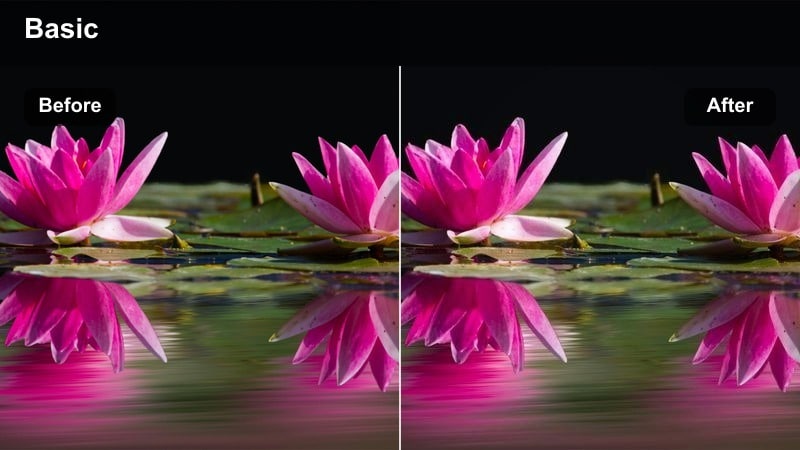
- Effect look: Soft, low-contrast tones with slight warm highlights and gently cooled shadows for depth.
- Best for: Desk setups, creative work scenes, intimate dialogues near windows or soft lamps.
- Editing tip: Position your subject sideways to the window and let the filter gently separate subject from background.
Window Light Cinema is a go-to Filmora filter for natural, soft-lit interiors that still feel cinematic. When applied to footage shot near a window or diffused light source, it introduces warm highlights on the subject while cooling background shadows slightly, adding depth without heavy contrast.
Use this look for creator desk setups, study scenes, or quiet conversations where you want viewers to feel close to the subject. For best results, shoot with a neutral white balance, then apply the filter and adjust overall exposure and subtle vignettes in Filmora to keep attention anchored on the face and hands.
Editorial Tableau
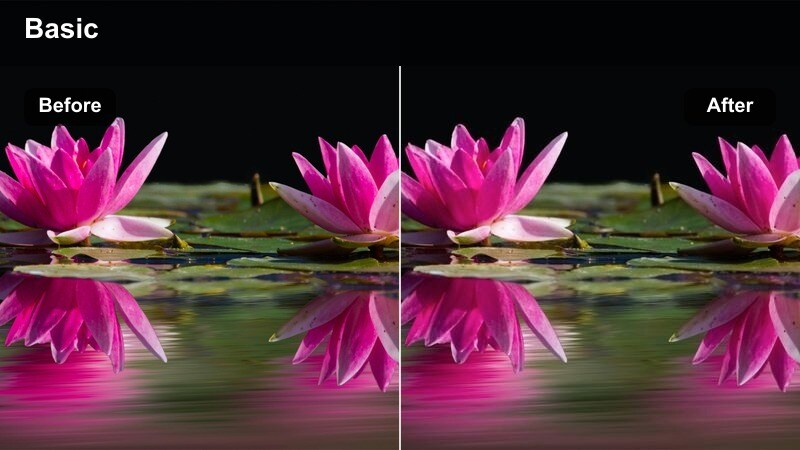
- Effect look: Subtle contrast curve with slightly lifted blacks, clean neutrals, and understated color saturation.
- Best for: Talking-head content, product demos at a desk, professional creator setups.
- Editing tip: Pair with stable tripod shots and minimal camera movement to emulate polished editorial interviews.
Editorial Tableau in Filmora gives your indoor footage a premium, magazine-style polish without drawing too much attention to the grade. Blacks are gently lifted, colors are restrained, and neutrals look clean, which is ideal for educational videos, client work, and brand content that demands a professional finish.
Apply this filter across all your A-roll talking-head shots to maintain consistency, then fine-tune skin tones using subtle temperature and tint adjustments if needed. Keeping your camera locked on a tripod and backgrounds tidy will help the filter shine, making your content feel like a carefully produced editorial feature rather than a casual home recording.
Lamp-Side Monologue
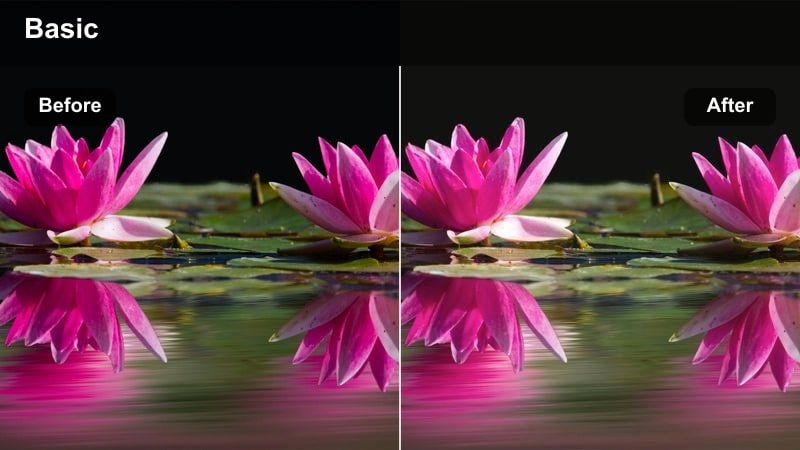
- Effect look: Warm tungsten glow on one side of the face with gently faded shadows and cinematic color contrast.
- Best for: Late-night voiceovers, confessional monologues, narrative updates filmed beside a lamp.
- Editing tip: Turn off most overhead lights and let a single practical lamp shape the mood enhanced by the filter.
Lamp-Side Monologue is tailored for intimate, late-night storytelling moments framed around a single practical light. When you shoot beside a lamp and apply this filter in Filmora, you get a rich tungsten glow on the lit side of the face and softly rolled-off shadows, echoing the look of dramatic film scenes.
This filter is especially effective for emotional updates, confessional vlogs, or narrative voiceovers recorded on camera. To avoid overly orange footage, reduce saturation in warm hues or fine-tune white balance just in the shadows, letting the filter maintain a cozy yet controlled cinematic warmth.
Daytime Travel and City Montages
Urban Journey Log
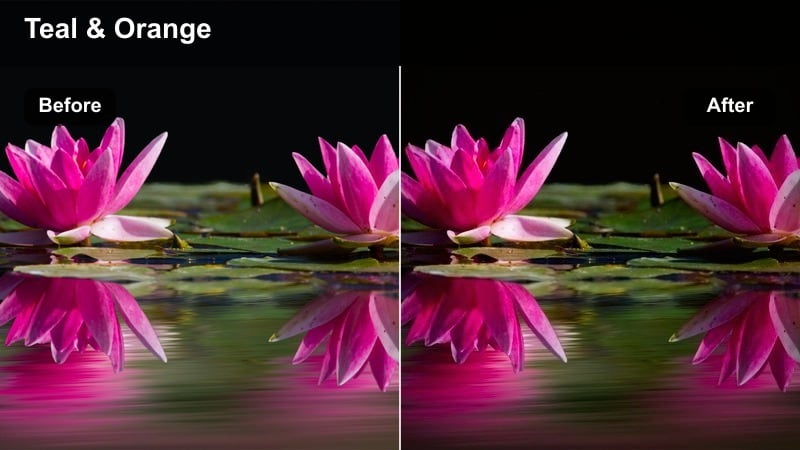
- Effect look: Balanced contrast with slightly cool shadows, clean whites, and subtle teal highlights in the sky.
- Best for: Day-in-the-life vlogs, run-and-gun city B-roll, handheld walk-and-talk clips.
- Editing tip: Use it as a base tone across your full vlog to keep city clips matching even under changing light.
Urban Journey Log is built as a versatile baseline look for daytime travel content and urban vlogs. In Filmora, it gently cools shadows, keeps whites crisp, and adds a hint of teal in the sky, helping varied shots from parks, streets, and cafes feel like part of a cohesive visual story.
Apply this filter across your full vlog project, then adjust exposure clip by clip to unify brightness levels as lighting changes throughout the day. Once you lock in this base tone as a custom preset, you can reuse it as your signature show look, making each new episode immediately recognizable to your audience.
Travel Pastel Frame
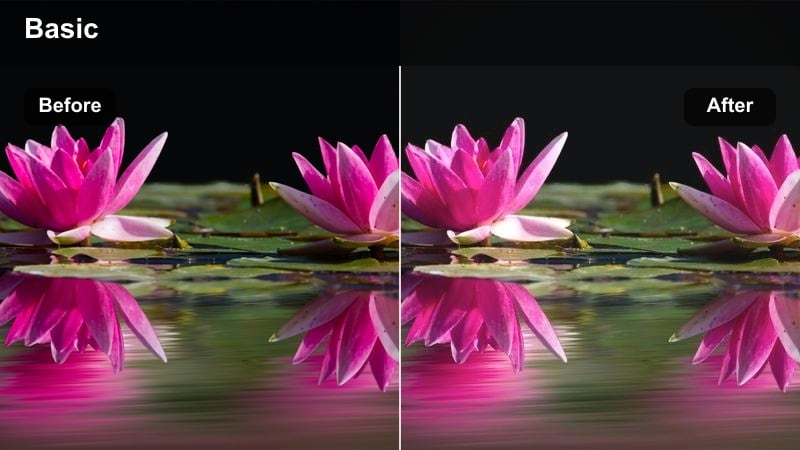
- Effect look: Soft, low-saturation colors with gently lifted highlights and pastel skies for a dreamy aesthetic.
- Best for: B-roll of avenues, cafes, landmarks, and slow, observational travel footage.
- Editing tip: Reduce clip speed and add gentle music to let the pastel tone carry a relaxed, poetic pace.
Travel Pastel Frame in Filmora mutes strong colors and lifts highlights to create an airy, dreamlike travel aesthetic. Applied to daytime city avenues, seaside promenades, or quiet tourist spots, it turns harsh midday light into soft pastels that feel relaxed and cinematic.
This filter works best when your edit pace matches the look: slow down clips, hold on wider shots, and pair the visuals with gentle music or ambient sound. Keep your original exposure slightly under to avoid blown-out skies, then fine-tune highlights in Filmora so the pastel effect feels intentional rather than washed out.
Documentary Sidewalk
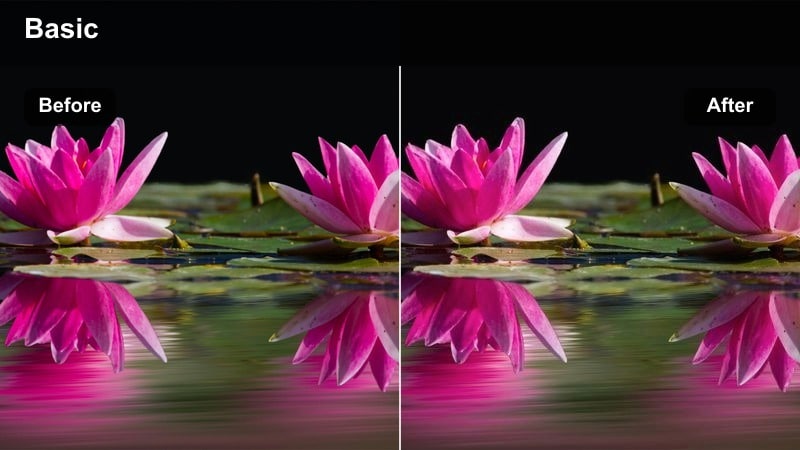
- Effect look: Neutral colors with a slight contrast boost and subtle film-like softness in fine details.
- Best for: Street interviews, observational documentary walks, on-the-go creator diaries.
- Editing tip: Use longer, uncut shots to let viewers live in the space while the filter adds quiet cinematic polish.
Documentary Sidewalk gives your footage a grounded, realistic tone with just enough cinematic polish to feel crafted. In Filmora, it keeps colors close to real life while adding a slight contrast bump and gentle softness, making it ideal for documentary-style walks, creator diaries, and authentic street interviews.
Because the look is subtle, you can use it across whole projects without distracting from the story itself. Avoid heavy additional color shifts; instead, rely on this filter as your base and use longer, less-cut shots so viewers can experience the environment as it is, with the grade simply enhancing clarity and mood.
Tips for Using Cinematic Visual Tone Lut Filters in Filmora
- Record with a flat or neutral picture profile whenever possible so Filmora's cinematic filters have more dynamic range to shape.
- Keep exposure consistent across shots in the same scene to avoid jarring brightness jumps once a visual tone LUT-style filter is applied.
- Use one primary cinematic tone per sequence so your finished video feels like a single film instead of a patchwork of unrelated styles.
- Always double-check skin tones after adding a filter and tweak midtones or HSL settings if faces drift too warm, too cool, or overly saturated.
- Test your graded footage on both mobile and desktop screens to ensure contrast and color remain readable in different viewing conditions.
- Save customized filter settings as Filmora presets so you can quickly reapply your signature cinematic look across multiple projects.
- Blend filter intensity with Filmora's opacity or strength controls to fine-tune how bold or subtle your cinematic tone appears.
Cinematic visual tone LUT-style filters give content creators a fast path to filmic color without the complexity of manual grading. With Filmora, you can apply them in a click, then refine exposure, saturation, and contrast to fit the exact story you are telling.
Choose a filter that supports your scene's mood, keep your lighting simple and intentional, and adjust intensity until your footage feels cohesive from shot to shot. Over time, you can build a library of presets that define your personal visual style while still working quickly and efficiently inside Filmora.
secure download