

 100% Security Verified | No Subscription Required | No Malware


 ChatGPT
 Perplexity
 Gemini
 Claude
 Grok
Grok
These City Alley Night Cinematic Filter presets are designed for content creators who shoot in urban streets, back alleys, and neon-lit corners after dark.
Use them to quickly shape your night footage into stylized looks, from gritty crime-drama vibes to glossy neon cyberpunk, all inside Filmora.
In this article
Moody Alleys and Street Intro Shots
Gritty Noir Alley
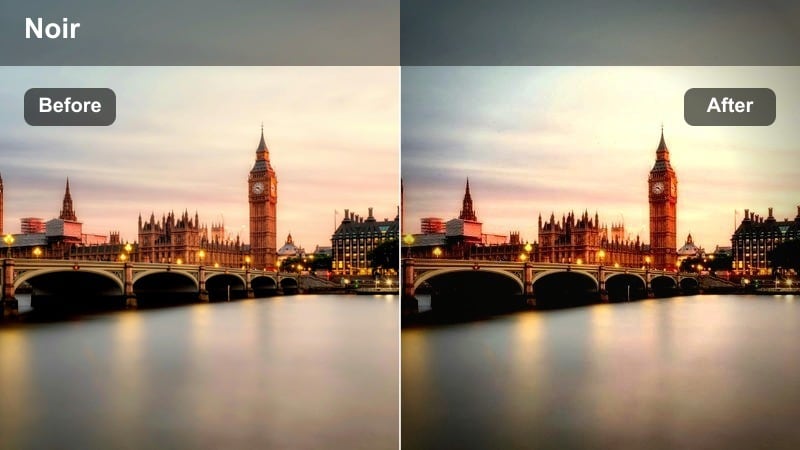
- Effect look: Low-key, desaturated contrast with deep shadows and subtle film grain for a noir-inspired alley mood.
- Best for: Dark city alleys, crime vlogs, narrative shorts, and tense dialogue scenes lit by a few street lamps.
- Editing tip: Lower overall exposure slightly and add a vignette to push viewers toward your subject while keeping corners in darkness.
Gritty Noir Alley gives your footage the dark, moody polish of classic crime cinema, with crushed shadows and muted color that emphasize silhouettes and hard light. When you apply this city alley night cinematic filter in Filmora, it quickly transforms plain urban backstreets into atmospheric locations perfect for suspense, mystery, or gritty character introductions.
Use it on locked-off shots, slow push-ins, or two-person conversations under a single street lamp to add tension without extra lighting gear. Inside Filmora you can fine-tune the preset by pairing it with a vignette, film grain, and slightly narrower aspect ratios, building a cohesive noir alley sequence across multiple clips.
Dial in Your City Alley Night Look with AI-Powered Color Tools
Filmora's AI color tools can help you refine each City Alley Night Cinematic Filter to better match your camera profile, ambient lighting, and the exact mood you want on screen. Instead of manually adjusting every clip, you can let AI balance exposure, contrast, and color consistency across your entire alley sequence.
Start with your favorite preset from this collection, then add AI color matching or smart enhancement to make shots from different lenses or nights of shooting feel like they belong in the same cinematic world.
 secure download

See City Alley Night Filters in Action on Real Footage
One of the easiest ways to choose your look is to test several presets on the same alley clip and compare how each one changes the mood. Filmora lets you preview noir, neon, and cyberpunk styles side by side so you can see which filter supports your story, whether you are telling a grounded street documentary or a stylized music video.
Use split-screen before and after views to check how much detail you are gaining in shadows, how skin tones react to neon colors, and how well the filter maintains clarity in fast-moving shots.
secure download1000+ Video Filters and 3D LUTs for Urban Night Grading
Beyond these dedicated City Alley Night Cinematic Filter presets, Filmora includes a large library of filters and 3D LUTs you can stack for even more tailored grading. You can start with a dark alley base look, then add genre-specific LUTs, HSL tweaks, and curves to dial in everything from subtle realism to extreme cyberpunk color splits.
This layering approach makes it easy to keep a consistent style across long projects, since you can save custom combinations as reusable presets and apply them to new night alley footage with a single click.
secure downloadMisty Lamp Glow
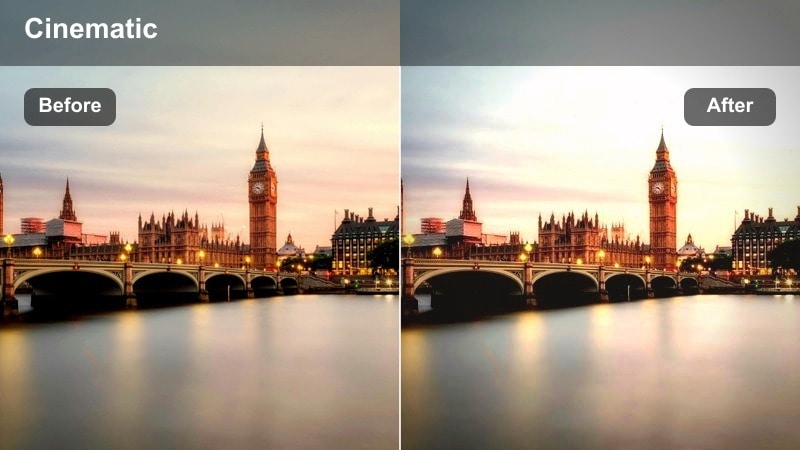
- Effect look: Soft halation around street lights with gentle fade in shadows and slightly lifted blacks.
- Best for: Romantic or introspective walks through narrow streets, emotional B-roll, and establishing shots with light fog.
- Editing tip: Add a light blur or glow effect on the brightest spots to enhance the dreamy atmosphere without losing subject clarity.
Misty Lamp Glow wraps point light sources in a soft halo, making night alleys feel warmer and more intimate. In Filmora, this city alley filter turns ordinary lamp posts and window lights into atmospheric backdrops for couples, reflective monologues, and gentle transitions between scenes.
Apply it to slow walking shots, gimbal moves, or static frames where mist, drizzle, or wet pavement can catch the light. You can enhance the dreamy effect further by slightly lowering contrast and combining it with Filmora glow and blur effects on highlights to keep your subject sharp while the environment blooms softly around them.
Cold Security Cam Alley
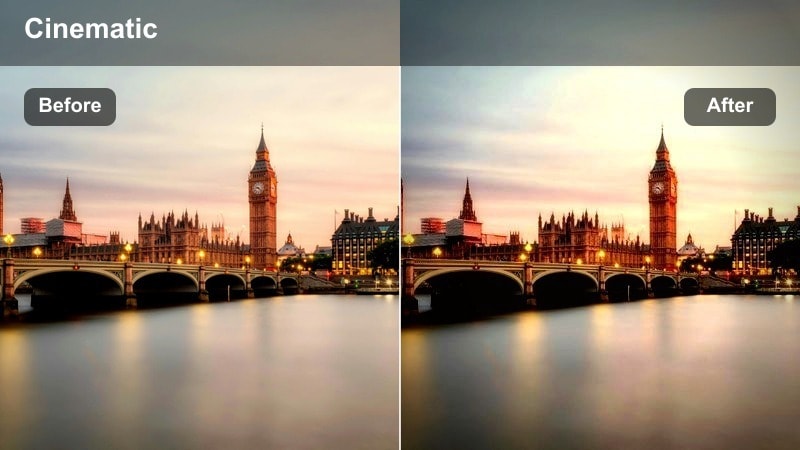
- Effect look: Cool-toned, slightly desaturated image with elevated midtones and subtle digital harshness.
- Best for: Suspenseful alley sequences, security-style cutaways, and gritty documentary-style street footage.
- Editing tip: Stabilize your clip, add a slight sharpen, and consider overlaying a soft vignette or frame to sell the surveillance feel.
Cold Security Cam Alley shifts your palette toward steely blues and flattened contrast, mimicking the feel of surveillance or institutional cameras. It works especially well on high-angle shots, long-lens views, or scenes where characters are being watched from a distance in a dark city alley.
In Filmora, combine this filter with timestamp text, grid overlays, or subtle noise to complete the security camera illusion. Use it as a cutaway look in thrillers, crime breakdowns, or investigative vlogs to contrast with your main cinematic grading and add narrative variety.
Neon Signs and Colorful Backstreet Alleys
Neon Rain Splash
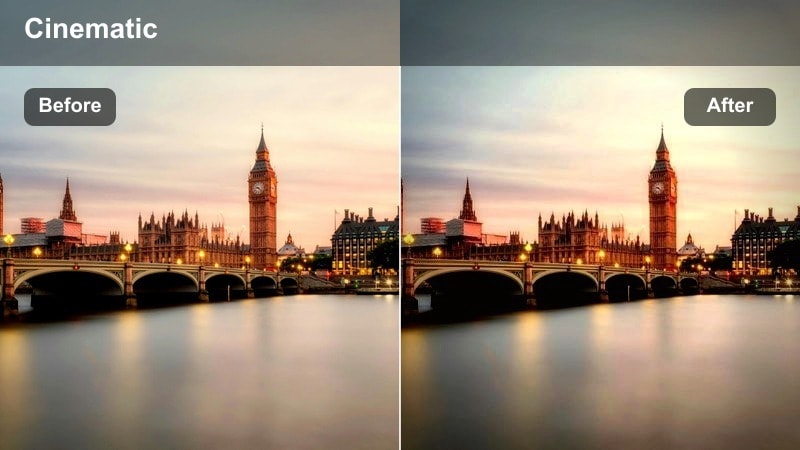
- Effect look: Punchy neon saturation with strong blues and magentas reflected in wet pavement and shiny surfaces.
- Best for: Cyberpunk-style city alleys, nightlife montages, and rainy night B-roll with glowing signage.
- Editing tip: Lower the highlights slightly and boost saturation in blues and magentas to keep skin tones believable while neon colors pop.
Neon Rain Splash is built for nights when the city is soaked and every puddle becomes a color reflector. This filter pushes blues and magentas to create a high-energy neon alley look that feels straight out of a cyberpunk film or music video while preserving depth in the shadows.
Apply it in Filmora to tracking shots of wet streets, slow-motion footsteps in puddles, or handheld nightlife montages. Adjust saturation and highlight levels to keep faces natural, then combine with speed ramps or lens flare effects so the neon reflections become a key visual motif throughout your edit.
Electric Magenta Strip
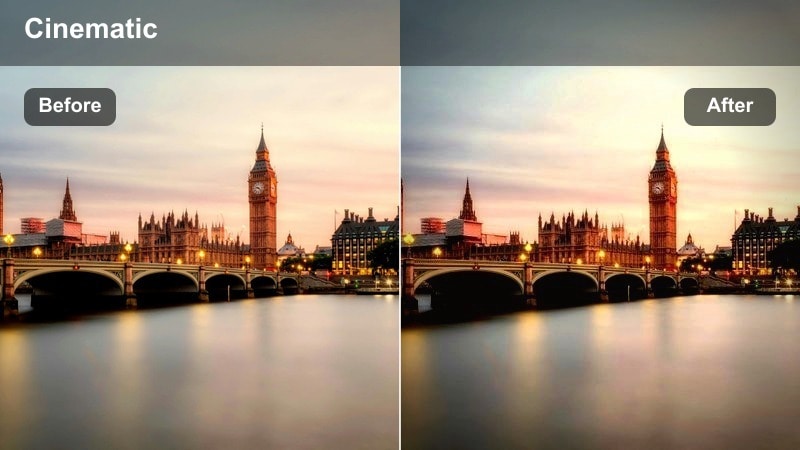
- Effect look: High-contrast image where magentas and purples dominate, with cool shadows and crisp highlights.
- Best for: Fashion walks, music videos, and influencer content along graffiti-filled alleys and club districts.
- Editing tip: Use slow motion and deliberate camera moves to let the intense color palette become a strong part of your visual identity.
Electric Magenta Strip makes neon signs and colorful murals explode with saturated purples and pinks, giving your alley scenes an instant brandable style. The heavy magenta bias and clean contrast are ideal for fashion content, performance shots, and bold thumbnails that stand out in feeds.
In Filmora, use this preset on carefully composed runway walks, dance sequences, or hero shots where your subject moves through concentrated pools of neon light. Balance everything by slightly reducing magenta saturation in HSL if skin tones go too far, and pair the aesthetic with smooth camera motion and rhythmic cutting that matches your soundtrack.
Retro VHS Neon Alley
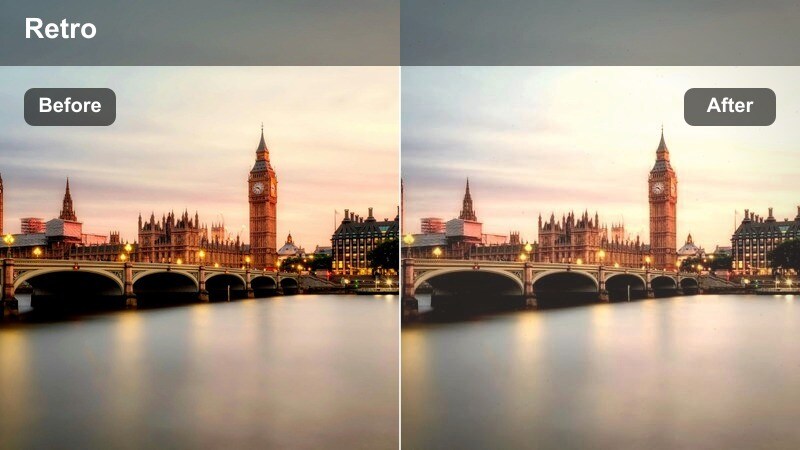
- Effect look: Soft contrast, slightly faded colors with neon hues, and a retro VHS-inspired tint.
- Best for: Throwback edits, nostalgic city walks, and retro-styled vlogs with neon sign backgrounds.
- Editing tip: Layer simple Filmora effects like scan lines or a mild blur to deepen the analog nostalgia alongside this filter.
Retro VHS Neon Alley blends modern neon color with softened contrast and a nostalgic tint that recalls analog camcorder footage. It is perfect when you want your city night visuals to feel like recovered memories or stylized flashbacks, especially in vlogs and story-driven edits with a retro twist.
Inside Filmora, stack this filter with subtle scan line overlays, chromatic aberration, or slight jitter effects to lean fully into the VHS aesthetic. Use longer takes, gentle zooms, and slower cutting to let viewers soak in the washed neon look while your voice-over or music carries the emotional weight.
Dramatic Character Moments in Narrow Alleys
Shadowed Lonely Walk
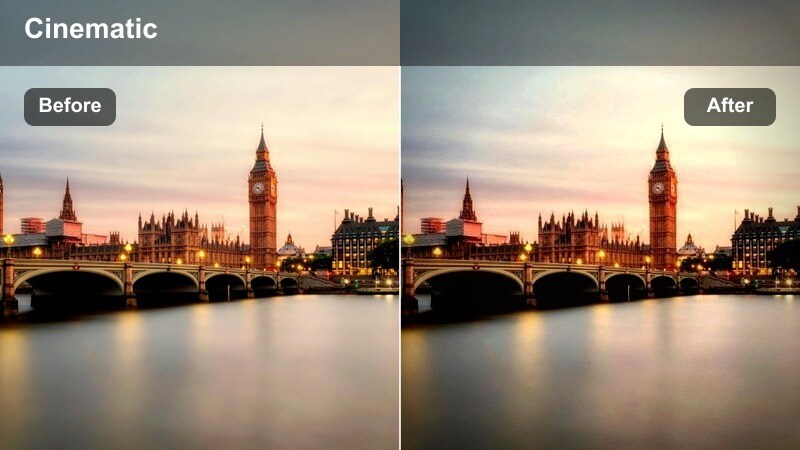
- Effect look: Crushed shadows with focused midtones, muted colors, and a cool cinematic tint.
- Best for: Character walk-and-talks, introspective monologues, and emotional turning points in story-driven videos.
- Editing tip: Frame your subject in the brightest part of the alley and let the filter push the background into darkness for added drama.
Shadowed Lonely Walk turns narrow alleys into stages for emotion, emphasizing your subject while the environment falls off into cool, moody darkness. It pulls saturation down just enough to feel serious without losing important facial detail in the midtones.
Use this preset in Filmora for slow, lingering shots of characters walking away from or toward the camera, or for profile walk-and-talks lit by scattered street lamps. Combine it with gentle camera movement and subtle sound design, and tweak exposure so your character sits in a pocket of light while the rest of the alley feels isolating and empty.
Warm Sodium Memory
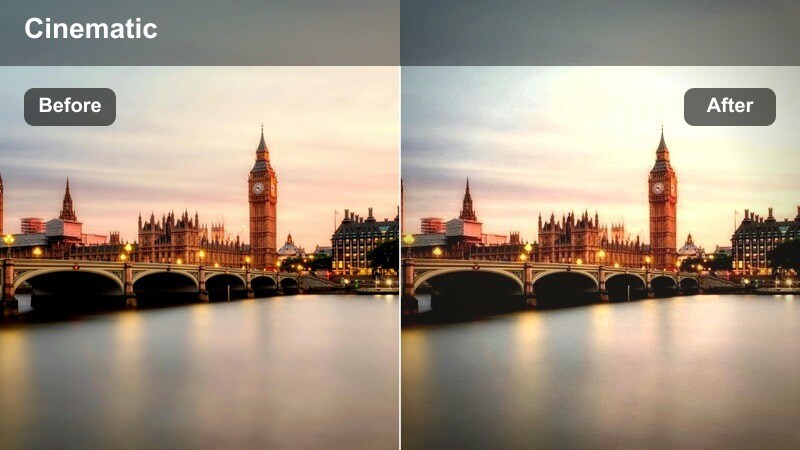
- Effect look: Warm amber highlights mimicking sodium street lamps with slightly faded blacks and a gentle nostalgic tone.
- Best for: Flashbacks, voice-over reflections, and storytime scenes under old street lights in older city districts.
- Editing tip: Reduce contrast a touch and add slower crossfades between shots to make the alley feel like a memory rather than present time.
Warm Sodium Memory leans into amber tones and softened contrast, imitating classic sodium vapor street lighting from older neighborhoods. The result is a cozy yet slightly distant feel that is ideal for flashbacks, reminiscences, or heartfelt stories delivered under a single warm lamp.
In Filmora, apply this filter to B-roll of brick walls, vintage signage, and slow pans across empty alleys to support voice-overs or narrative exposition. Use gentle transitions like crossfades and lower overall contrast slightly so the sequence plays as a memory layer over your main, cooler city alley night cinematic filter looks.
High Tension Chase Alley
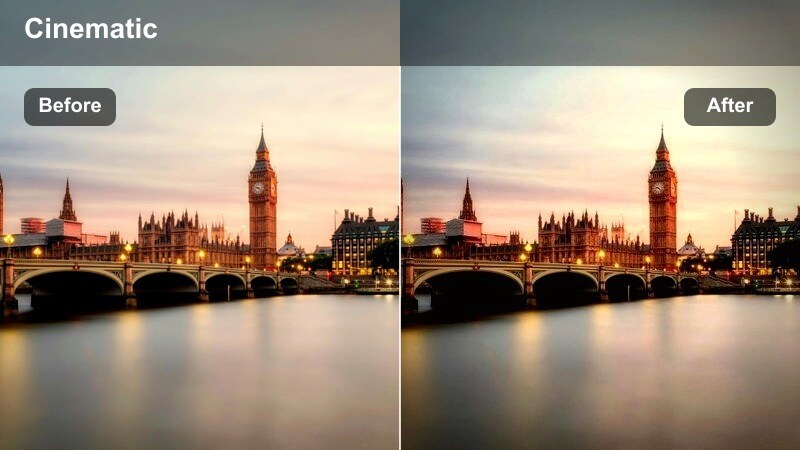
- Effect look: High contrast with crisp edges, slightly cooler mids, and vivid pockets of color to heighten urgency.
- Best for: Chase sequences, parkour scenes, and action-heavy moments that move quickly through tight city alleys.
- Editing tip: Combine the filter with fast cuts and handheld motion; keep shutter speed higher to maintain sharpness in frantic movement.
High Tension Chase Alley is tuned for speed and impact, sharpening edges and deepening contrast so motion reads clearly even in low light. Cool mids and selective color pops make headlights, signs, and reflective surfaces punch through the darkness, heightening the urgency of any pursuit or escape.
Apply this preset in Filmora to handheld chase footage, parkour runs, or dynamic tracking shots that weave through tight urban spaces. Cut quickly on movement, add motion blur or whoosh sound effects as needed, and keep the grade consistent across your sequence so viewers always feel the same charged, high-stakes alley atmosphere.
Wide City Alley Establishing and Overhead Shots
Overhead Grid City Alley
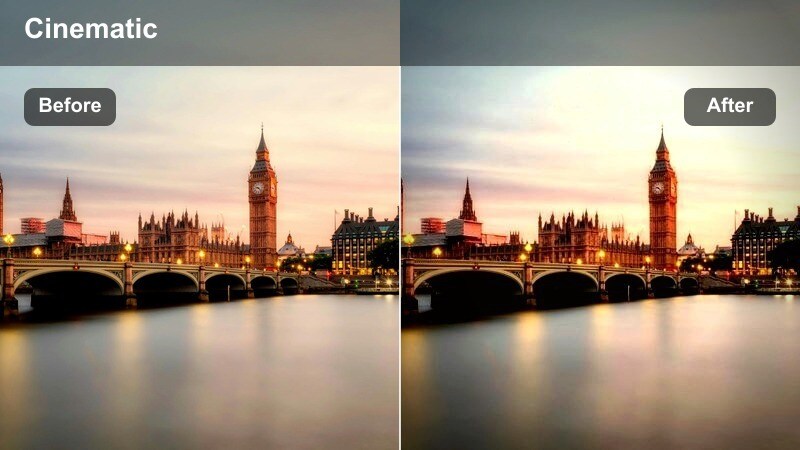
- Effect look: Balanced cinematic contrast with neutral tones, slightly cool shadows, and clear details for overhead views.
- Best for: Drone or rooftop shots looking down over alley networks, wide establishing frames, and mapping sequences.
- Editing tip: Keep sharpening moderate so small details like parked cars and trash bins stay defined without looking crunchy.
Overhead Grid City Alley is optimized for wide frames and top-down views, preserving detail across the image while adding just enough cinematic contrast to feel polished. Slightly cool shadows and neutral highlights make it easy to cut between these establishing shots and your more stylized close-up alley scenes.
In Filmora, use this preset on drone footage, rooftop angles, or crane shots that reveal the layout of streets and alleys before you dive into character-level action. Moderate sharpening and steady camera motion will help maintain clarity in tiny details like cars, windows, and pathways, making your city feel like a living maze.
Blue Hour Alley Transition
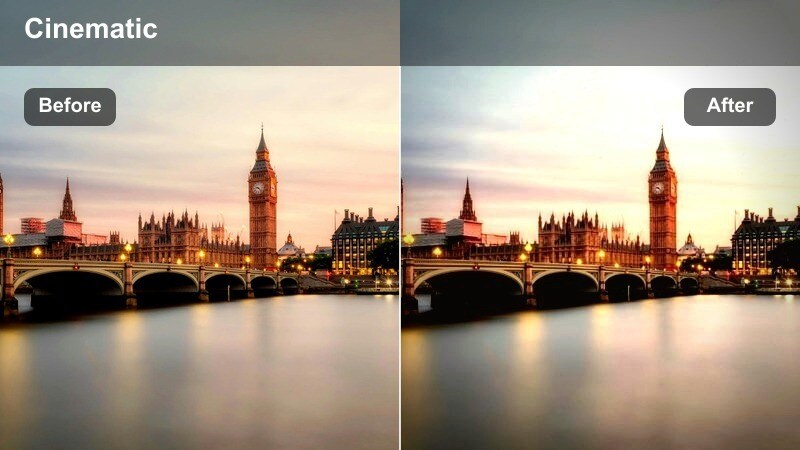
- Effect look: Soft blue hour colors with gentle highlight roll-off, clean shadows, and natural saturation.
- Best for: Evening transitions from day to night, time-lapses, and calm establishing shots before intense scenes.
- Editing tip: Speed ramp your clip from slow to fast as lights in windows and alleys turn on, then settle to normal speed for narrative moments.
Blue Hour Alley Transition captures the brief, cinematic window when the sky glows deep blue and city lights slowly come alive. The filter keeps colors natural while smoothing highlights and shadows so you can bridge daytime scenes into darker alley sequences without jarring shifts in tone.
Apply it in Filmora to time-lapses, static tripod shots, or gentle camera moves recorded 20 to 30 minutes after sunset. Use speed ramps and crossfades to compress the change from evening to night, then cut cleanly into your more dramatic city alley night cinematic filter looks once the scene is fully dark.
Urban Cyber Wide Alley
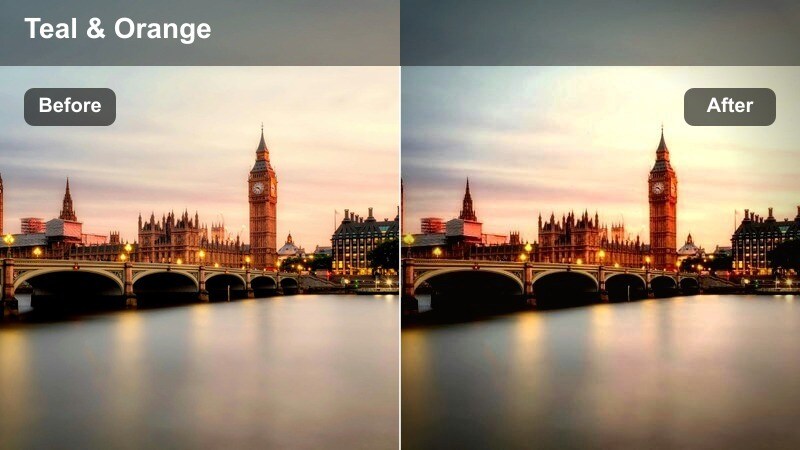
- Effect look: Stylized teal and magenta split-tone with medium contrast that preserves detail across the frame.
- Best for: Wide cyberpunk-style city streets, drone passes, and sweeping reveals of futuristic-looking alley districts.
- Editing tip: Use slow, gliding camera movement and keep horizon lines level so the stylized color can shine without distraction.
Urban Cyber Wide Alley brings a strong teal-and-magenta split-tone to your cityscape, giving whole districts a futuristic, graphic novel feel. The medium contrast preserves detail in buildings and streets, so even wide drone or rooftop shots still look rich and readable.
In Filmora, use this preset on establishing passes over neon-heavy areas, sweeping gimbal reveals, or skyline shots that introduce your cyberpunk alley world. Match it with more intense close-up filters like Neon Rain Splash for continuity, and keep compositions clean so the bold color treatment guides the viewer naturally through the frame.
Tips for Using City Alley Night Cinematic Filter Filters in Filmora
- Shoot with visible light sources such as street lamps, neon signs, car headlights, or lit windows so each city alley filter has highlights and reflections to shape.
- Use the lowest ISO you can while still exposing correctly, then rely on Filmora filters and gentle color correction to add mood instead of heavy brightness boosts.
- Record a few seconds of clean alley ambience at each location so you can reinforce your graded visuals with matching sound beds in the final edit.
- Film the same alley at multiple times of night, from blue hour to deep night, and test different presets in Filmora to see how each reacts to changing light levels.
- Favor slow, intentional camera moves and longer takes that give viewers time to notice puddles, brick textures, signage, and reflections enhanced by these filters.
- Mix and match filters across a project, using subtler looks for establishing shots and stronger neon or noir styles for key story beats or music drops.
- Save your favorite combinations of filters, LUTs, and color tweaks as custom presets in Filmora so recurring alley locations keep a consistent visual identity.
City Alley Night Cinematic Filter presets give content creators a fast way to turn ordinary urban alleys into stylized story spaces, whether you need gritty realism, dreamy nostalgia, or bold neon energy.
Test a few looks on your favorite night clips, then save your own variations as custom Filmora presets so your channel or series maintains a consistent alley night aesthetic across every video.
secure download