

 100% Security Verified | No Subscription Required | No Malware


 ChatGPT
 Perplexity
 Gemini
 Claude
 Grok
Grok
These Filmora city lights bokeh night LUT-inspired filters are designed for content creators who shoot under neon signs, glowing street lamps, and busy downtown skylines at night.
Each preset enhances bokeh, saturates city lights, and balances dark shadows so your urban nighttime footage looks cinematic, clean, and ready for social media or short films.
In this article
Glowing Avenues and Streetlight Trails
Neon Boulevard Glow
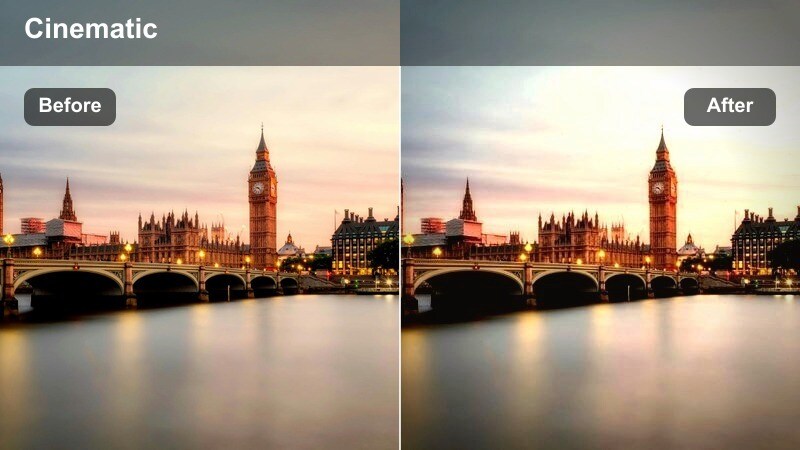
- Effect look: Softened contrast with boosted neon colors and creamy bokeh around streetlights
- Best for: Handheld walks down busy city streets lined with neon signs and car light trails
- Editing tip: Lower the overall contrast slightly and add a subtle vignette to deepen the night atmosphere without crushing shadow detail.
Neon Boulevard Glow is built to turn crowded downtown sidewalks into cinematic neon corridors, pushing saturation in sign colors while keeping shadows smooth and inviting. Use it on clips where storefronts, billboards, and traffic lights dominate the frame so the creamy bokeh and soft contrast transform everyday city chaos into stylized, scroll-stopping visuals.
Inside Filmora, apply this filter to your walking shots, then fine-tune exposure and contrast so faces remain visible while neon highlights stay rich and detailed. Combine it with Filmora stabilization for handheld footage and tweak the vignette and color settings per clip to keep skin tones natural even as the neon environment feels bold and stylized.
Match Any Citys Night Colors with AI
Filmoras AI color tools help you quickly adapt these city lights bokeh night LUT-style looks to match your own skyline, street signs, or underground stations. You can shift hues, protect skin tones, and align your edit to a reference clip so an entire sequence shares the same neon mood.
Use AI color matching after you apply a night filter to lock in a cohesive palette between alley shots, rooftops, and subway scenes. This keeps your project feeling cinematic and unified even if you filmed on different nights or locations.
 secure download

See City Night Filters in Action
Filmoras real-time playback lets you preview exactly how each night filter reshapes your footage, from dark side streets to bright billboards. Toggle filters on and off to compare before-and-after views and decide which look best emphasizes your bokeh, light trails, and overall atmosphere.
Apply a preset to a short test clip first, then adjust exposure and contrast until the details in shadows and highlights feel balanced. Once satisfied, copy the same settings to the rest of your sequence for a consistent city night style.
secure downloadCombine Filters with LUTs for a Signature Style
Filmora includes 1000 plus video filters and 3D LUTs, making it easy to design a signature night look you can reuse across vlogs, shorts, and narrative projects. Start with a city lights bokeh night filter to sculpt contrast and glow, then stack a LUT on top to unify colors and mood.
Once you find a combo that fits your brand, save it as a custom preset so every future city shoot can match the same cinematic style with a single click. This keeps your channel visuals consistent while saving you grading time on every edit.
secure downloadAmber Street Haze
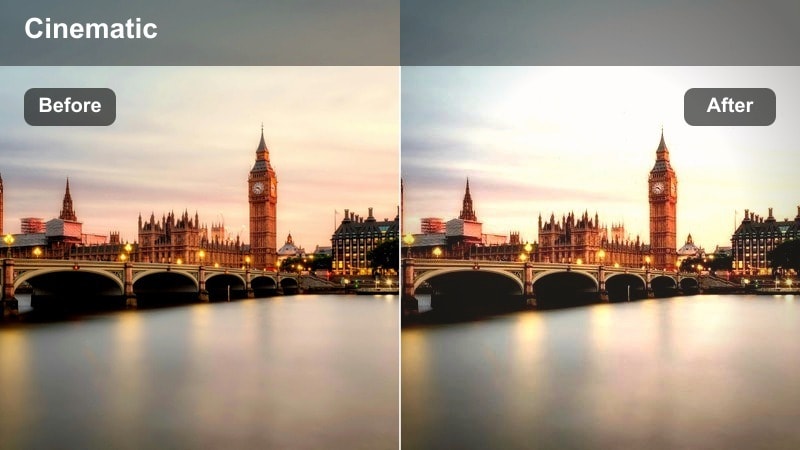
- Effect look: Warm amber glow around sodium streetlights with soft halation and gentle fade in shadows
- Best for: Moody city walks, rainy sidewalks, and late-night commuting scenes under classic street lamps
- Editing tip: Add a small lift to the blacks and increase warmth in the midtones to enhance the nostalgic amber cast.
Amber Street Haze leans into the nostalgic feel of old-school streetlights, wrapping scenes in a warm glow that looks especially rich on wet pavement and reflective surfaces. It slightly fades the shadows so your night shots feel softer and more cinematic, without sacrificing the atmosphere of a rainy or foggy evening.
In Filmora, pair this filter with clips that feature puddles, windows, or car roofs to multiply reflections and amplify the amber glow. Use curves or color wheels to nudge midtones warmer and lift the darkest areas, creating a dreamy, film-inspired look that works beautifully for night walks, transitions, and emotional story beats.
Traffic Trail Bokeh
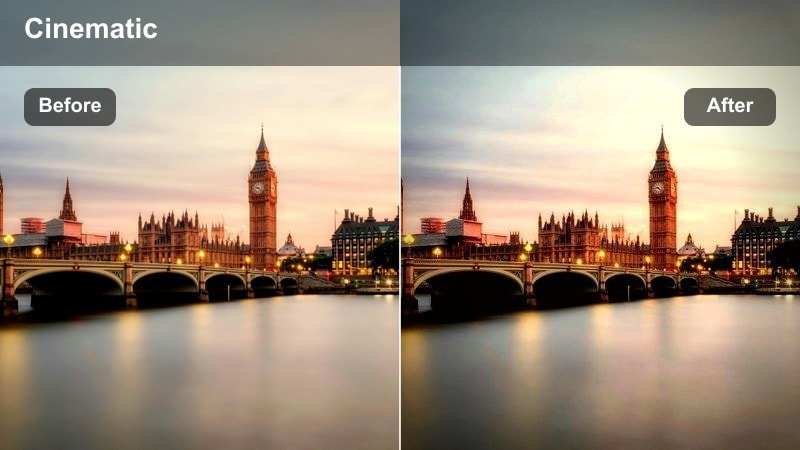
- Effect look: Punchy contrast with saturated red and white car lights stretched into streaks and rounded bokeh
- Best for: Time-lapse highways, overpass shots, and rooftop views of busy intersections at night
- Editing tip: Reduce midtone noise with Filmoras denoise tool and then add a slight sharpen to the highlight edges for crisp trails.
Traffic Trail Bokeh is tuned to emphasize the energy of nighttime traffic, deepening blacks while letting red brake lights and white headlights streak vividly across the frame. It enhances both streaks and rounded bokeh, making long-exposure or time-lapse clips from bridges and rooftops feel dynamic and polished.
Inside Filmora, apply this filter to clips shot on tripods or stable surfaces for the cleanest trails, then run a light denoise pass before sharpening to preserve detail in the streaks. Experiment with speed ramps and gentle zooms to transition from real-time motion to abstract light patterns, using the filter to tie together multiple traffic angles in one cohesive sequence.
Downtown Neon and Nightlife Alleys
Neon Alley Dream
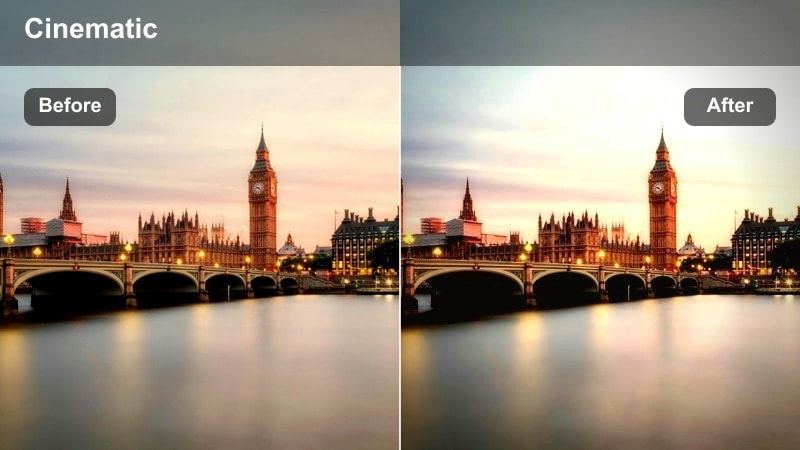
- Effect look: Cool-toned neon blues and magentas with strong separation between subject and blurred background lights
- Best for: Portraits in narrow alleys, vlog intros under neon bars, and cyberpunk-style B-roll
- Editing tip: Use Filmoras vignette and a slight blur on the background layer to accentuate the subject against the neon bokeh.
Neon Alley Dream pushes blue and magenta tones to create a cyberpunk-inspired glow, ideal for tight alleys and nightlife backstreets filled with signage. The look increases separation between foreground subjects and blurred backgrounds so faces and silhouettes stand out sharply against pools of neon bokeh.
In Filmora, pair this filter with shallow depth-of-field shots where the background is already out of focus, then add a vignette to quietly frame your subject. You can also duplicate your clip, blur the lower layer slightly, and keep the subject sharper on top, using the filter to merge both layers into a cohesive, futuristic alley atmosphere.
City Bar Glow
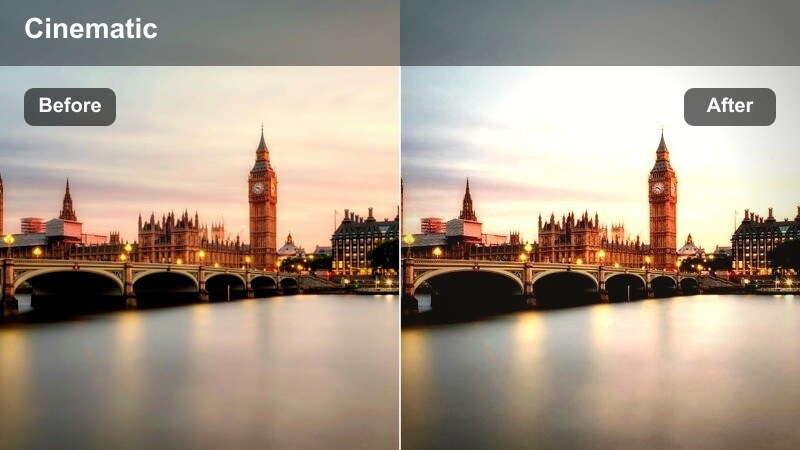
- Effect look: Rich, saturated bar signs with smooth skin tones and subdued shadows inside nightlife venues
- Best for: Club entrances, rooftop bar scenes, and nightlife vlogs with mixed indoor and street lighting
- Editing tip: Dial down highlight saturation slightly if bar LEDs clip, and add a tiny brightness lift to faces for clarity.
City Bar Glow is optimized for nightlife interiors and rooftop venues where colored LEDs, signage, and city skylines compete for attention. It keeps bar signs vibrant while gently managing contrast and color on skin tones, helping your hosts and guests look flattering under tricky mixed lighting.
Within Filmora, apply this filter across all your bar and club shots, then fine-tune facial brightness with keyframed exposure so people remain readable against dark backgrounds. Use color wheels to cool or warm highlights as needed, and soften blacks slightly so cutting between indoor and outdoor scenes feels smooth and cinematic.
Signage Bokeh Fade
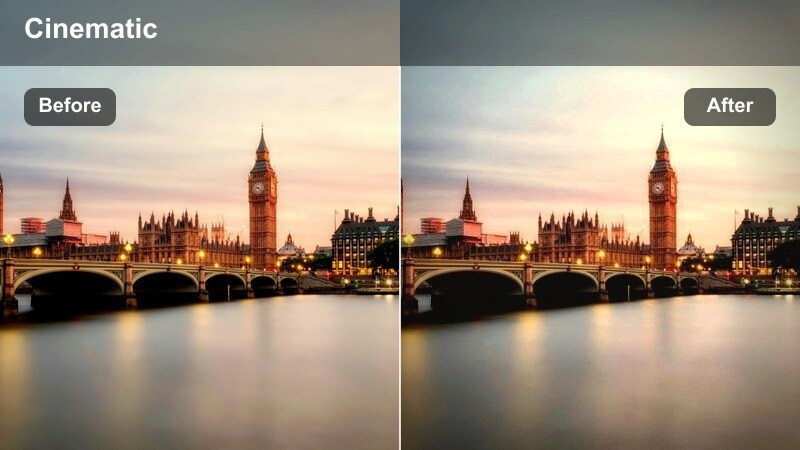
- Effect look: Soft faded contrast with floating bokeh from shop signs and billboards along city blocks
- Best for: Slow motion walking shots past colorful storefronts and billboards in busy downtown areas
- Editing tip: Use a slower shutter or simulated motion blur for more dreamy sign streaks, then slightly reduce clarity to keep edges gentle.
Signage Bokeh Fade is great for sequences where rows of billboards, store logos, and digital screens dominate the composition. It lowers contrast slightly and smooths edges so lights drift into gentle bokeh, giving slow-motion passes and tracking shots a dreamy, floating quality.
In Filmora, combine this filter with motion blur effects or slow pans to accentuate the sense of drifting through light fields. Reduce clarity a touch to soften hard edges, and use pan-and-zoom tools to subtly move through the frame, guiding your viewers eye along clusters of color and signage while maintaining a relaxed, cinematic pace.
Rooftop Skylines and High-Rise Views
Skyline Bokeh Cinema
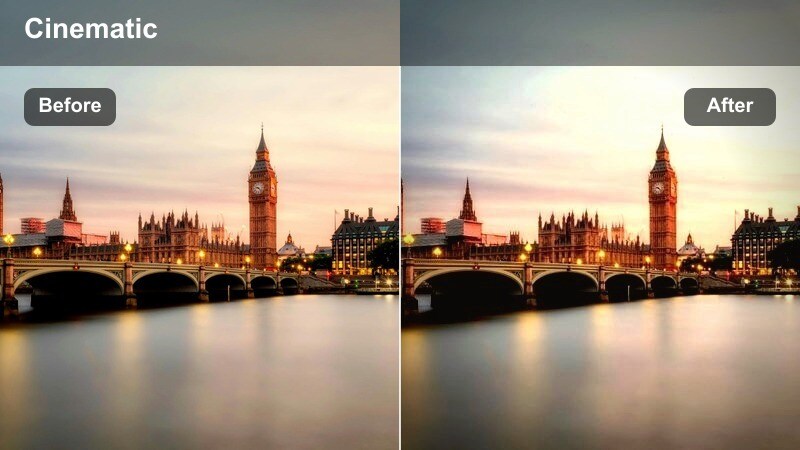
- Effect look: Film-style contrast with slightly teal shadows and golden highlights across distant city skylines
- Best for: Rooftop skyline shots, establishing city views, and cinematic opening scenes at night
- Editing tip: Add a smooth, slow zoom in Filmora to your static skyline shot to reinforce the cinematic mood with this filter.
Skyline Bokeh Cinema uses a subtle teal-and-gold balance to give distant buildings and window lights a movie-style polish. Its ideal for wide establishing shots that introduce a city at night, adding depth and contrast while keeping highlight roll-off smooth and pleasing.
In Filmora, drop this filter on your rooftop or balcony clips, then add a slow, keyframed zoom or pan to bring life to static tripod shots. Match white balance between skyline angles and the rest of your project so transitions feel seamless, and use this look as a recurring visual motif at the start or end of major sections in your edit.
Penthouse Window Bokeh
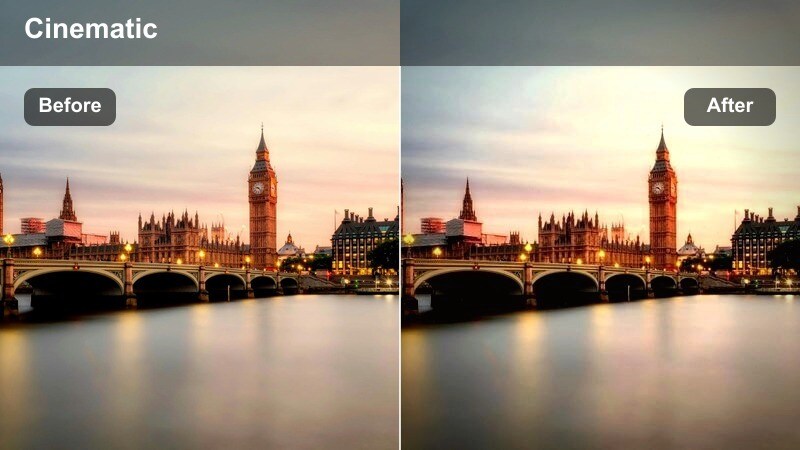
- Effect look: Soft low-contrast interior foreground with sharp, sparkling bokeh from buildings outside windows
- Best for: Indoor silhouettes, desk setups near city windows, and lifestyle content in high-rise apartments
- Editing tip: Lower highlights slightly to keep the exterior lights from clipping, then raise exposure on the interior subject.
Penthouse Window Bokeh balances a darker, soft interior against a bright, sparkling skyline framed by large windows. It preserves the detail and color of distant lights while gently lifting interior shadows so silhouettes, desks, and lifestyle setups feel moody but readable.
In Filmora, use this filter on scenes where your subject works, relaxes, or talks in front of a window, then selectively brighten the foreground with masks or keyframed exposure. Slightly pull down highlights to avoid clipping outside lights, and use this look for introspective or aspirational moments in your urban story.
Tower View Noir
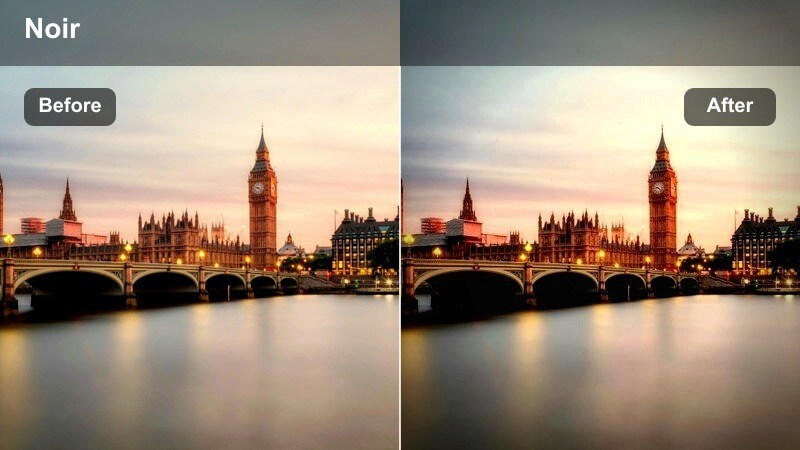
- Effect look: High-contrast monochrome-inspired color grade with deep blacks and bright window lights
- Best for: Noir-style rooftop sequences, crime-drama B-roll, and introspective city-overlook shots
- Editing tip: Turn down saturation slightly and add a split-tone with cool shadows for an even more noir aesthetic.
Tower View Noir sculpts your skyline into bold shapes, deepening blacks and isolating bright windows for a graphic, noir-influenced look. It is ideal for storytelling moments where characters overlook the city, or when you want B-roll that feels tense, reflective, or dramatic.
Apply this filter in Filmora to high-angle shots or rooftop vistas, then slightly desaturate and add cool tones into the shadows for a more classic noir mood. Use slow pans and careful framing to let pockets of light and darkness guide the viewers eye, and consider matching this style across intros, outros, and key narrative beats for a cohesive dramatic arc.
Subway Platforms and Street Corners
Subway Neon Bokeh
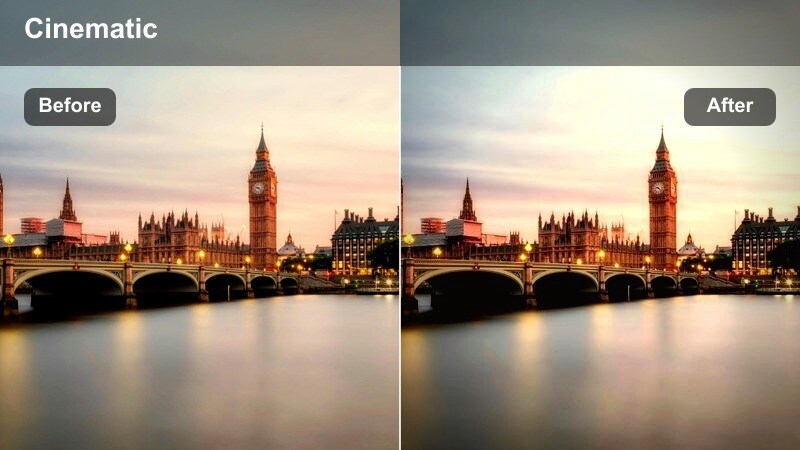
- Effect look: Muted shadows with punchy, colored station lights and train headlights turned into soft bokeh
- Best for: Platform waiting shots, train arrivals, and handheld travel vlogs underground at night
- Editing tip: Reduce green tint from fluorescent lights, then increase saturation on reds and yellows to highlight signs and indicators.
Subway Neon Bokeh is tuned to tame harsh, fluorescent-heavy platforms while preserving colorful signage and train headlights as smooth bokeh. It pulls back muddy shadows and evens out color casts, turning everyday transit footage into cinematic beats for travel vlogs or narrative scenes.
In Filmora, use this filter on clips from different stations to keep your underground footage visually consistent, then adjust tint to cancel out green or yellow spikes from overhead fixtures. Highlight reds and yellows so stop lights, arrows, and display boards stand out, and stabilize handheld shots for cleaner, more immersive arrivals and departures.
Corner Lamp Glow
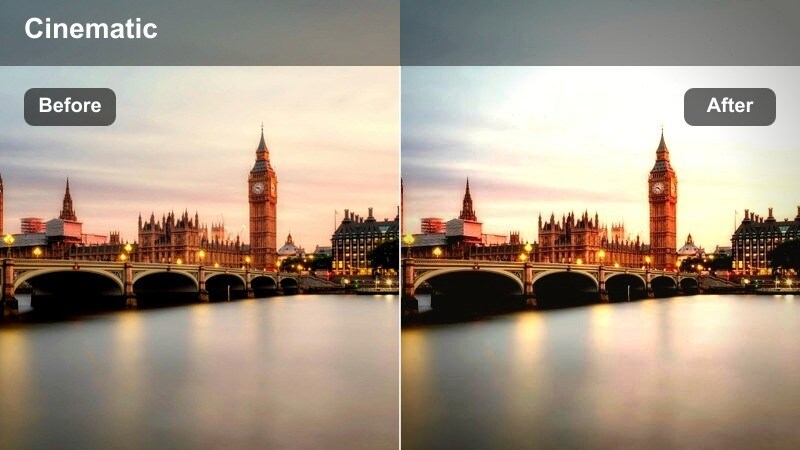
- Effect look: Gentle warmth on corner lamps with smoother noise in the shadows and subtle soft-focus bokeh
- Best for: Street interviews, quiet corners, and storytelling shots near lampposts or crosswalks
- Editing tip: Add a small amount of Filmoras noise reduction before applying extra contrast so dark areas stay clean.
Corner Lamp Glow is crafted for quieter city moments on less crowded corners, where a single lamp or storefront light shapes the entire frame. It introduces a soft warmth around those light sources while reducing visible noise in surrounding shadows, making low-light interviews and reflective pauses feel more intentional.
Within Filmora, apply light noise reduction before you boost contrast, then add this filter to keep lamps glowing and backgrounds clean. A subtle vignette can draw focus toward your subject, and matching this look across several dialogue or narration shots will help anchor your story in a specific, intimate corner of the city.
Crosswalk City Bokeh
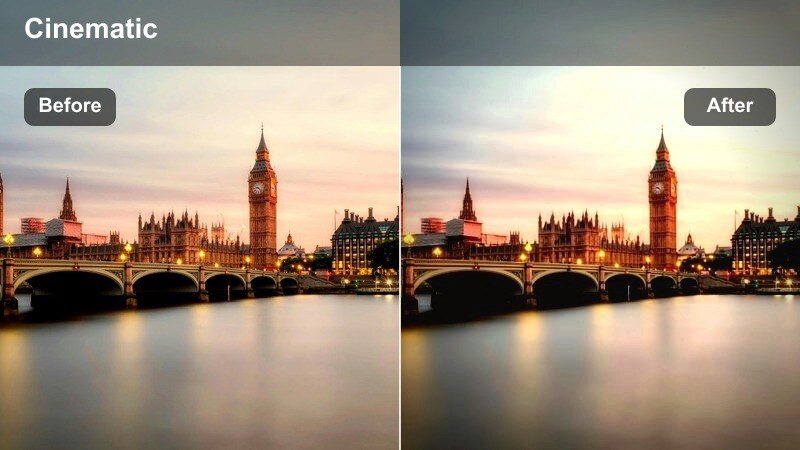
- Effect look: Balanced exposure with bright traffic signals, crosswalk LEDs, and blurred car lights creating colorful bokeh
- Best for: Dynamic crosswalk shots, POV walking clips, and quick social edits of street traffic at night
- Editing tip: Stabilize handheld footage in Filmora, then add this filter and a light motion blur for smoother urban movement.
Crosswalk City Bokeh amplifies the controlled chaos of busy intersections, keeping exposure balanced so signals, LED strips, and headlights pop without overwhelming the scene. It turns moving cars and pedestrians into colorful bokeh flows that are perfect for fast-paced montages and POV walking content.
Use this filter in Filmora on clips captured while walking or tracking across streets, and pair it with stabilization to smooth out steps. Add gentle motion blur and speed ramps to accentuate turns, light changes, and crowd movement, using the consistent color styling to link multiple crossings into one energetic sequence.
Tips for Using City Lights Bokeh Night Lut Filters in Filmora
- Shoot with the widest aperture your lens allows to maximize natural bokeh from city lights.
- Lock your white balance on location so color shifts between clips are easier to correct in Filmora.
- Expose slightly darker than usual to protect highlight detail in neon signs and windows.
- Use slow pans and tracking shots at night so the bokeh movement feels smooth and cinematic.
- Apply light noise reduction before sharpening to keep night shadows clean and natural.
- Match the same filter family across clips from the same location to avoid jarring color changes.
- Add subtle sound design of traffic, chatter, and trains to reinforce the urban night mood.
- Export a short graded test sequence and review it on your phone to ensure the look holds up on small screens.
City lights bokeh night LUT-style filters in Filmora give content creators a fast way to turn everyday streets, rooftops, and subway platforms into rich cinematic environments.
By choosing the right preset for each location, then fine-tuning exposure, contrast, and color, you can build a cohesive urban nightlife aesthetic that keeps your audience immersed from the first frame to the last.
secure download