

 100% Security Verified | No Subscription Required | No Malware


 ChatGPT
 Perplexity
 Gemini
 Claude
 Grok
Grok
This guide introduces a curated pack of city night street vlog filters designed for content creators who film under neon signs, traffic lights, and glowing storefronts. Each look is tuned for low-light streets, giving you fast, cinematic results without complex color grading.
Use these Filmora filters to keep skin tones clean, deepen city contrast, and make reflections on wet asphalt and windows pop. Whether you record handheld walking vlogs or static city B-roll, you will find a preset that matches your scene and style.
In this article
Glowing Crosswalks and Busy Intersections
Neon Crosswalk Glow
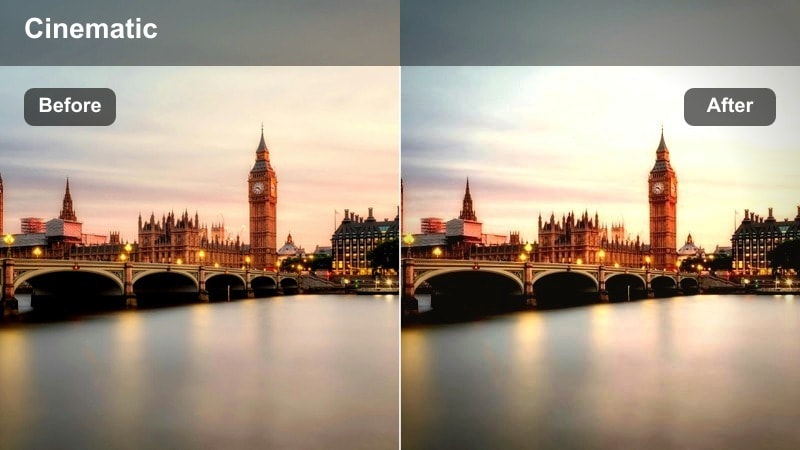
- Effect look: High-contrast, punchy neon with soft roll-off in shadows for glowing traffic lights and signs.
- Best for: Handheld city street vlogs at intersections with lots of LED billboards, crosswalk signs, and car headlights.
- Editing tip: Lower the intensity slightly if your highlights clip and pair with subtle stabilization for smoother walk-and-talk shots.
Neon Crosswalk Glow is designed to make your night intersections feel like a stylized movie scene, boosting neon signs, traffic lights, and LED billboards without crushing shadow detail. The high contrast gives your footage impact, while the softer shadow roll-off keeps important details in darker areas still visible, so your city night street vlog filter work looks polished instead of harsh.
In Filmora, apply this filter after basic exposure adjustments, then fine-tune intensity so skin tones stay natural around strong blue and magenta lights. Combine it with stabilization on handheld clips and a slightly warm white balance so your face remains flattering while the city lights pop behind you. Mask your subject if needed to protect skin while letting the background glow aggressively.
Match Every City Night Scene With AI-Powered Color Control
Filmora AI Color Palette analyzes your night clips to balance exposure and color before you stack any city night street vlog filter on top. This keeps neon signs vivid, storefronts rich, and asphalt believable while preventing strange color shifts on faces.
Run AI analysis on your intersections, alleys, and rooftop shots first, then apply your favorite preset from this guide for consistent results across an entire episode.
 secure download

Preview City Night Filters in Real Time
Filmora lets you scroll through different city night street vlog filters in the preview window while your clip loops, so you can instantly compare how each look treats neon, asphalt, and skin tones. This makes it easy to match the mood of busy crossings, quiet side streets, or rooftop bridges.
Once you find a look that fits your channel, save it as a custom preset so you can apply the same filter stack to every episode in a walking series with one click.
secure downloadCombine Filters With LUTs for Signature Night Grades
After choosing a base city night street vlog filter in Filmora, you can gently stack a LUT on top to push your footage cooler or warmer while still keeping details in neon signs and windows. Controlling the strength of both layers lets you design a consistent, cinematic look for every night walk video.
Start by dialing in the filter as your primary look, then lower the LUT intensity so it only nudges the overall color direction rather than overpowering your grade.
secure downloadAsphalt Reflection Boost
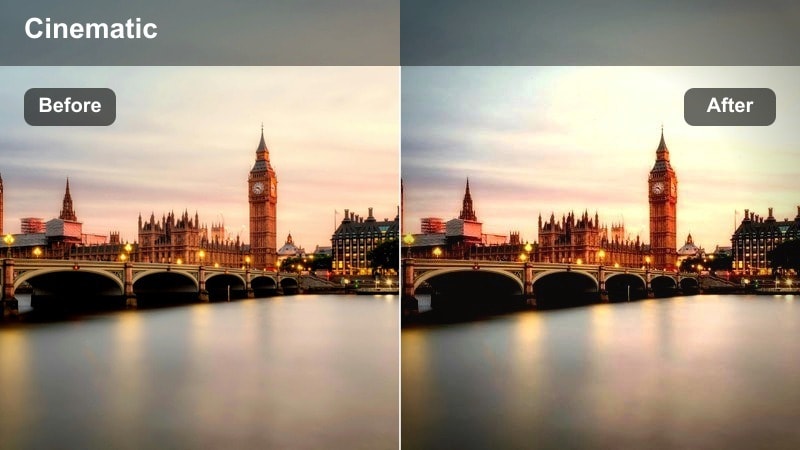
- Effect look: Deep contrast with boosted saturation in midtones to highlight reflections on wet city streets.
- Best for: Rainy night walks, puddles at crosswalks, and B-roll of cars passing over reflective asphalt.
- Editing tip: Slow your shutter a bit when recording to catch more light, then add this filter to emphasize the colorful reflections on the ground.
Asphalt Reflection Boost is tailored for nights when rain or street cleaning leaves the ground glossy, turning every puddle into a color mirror. The filter deepens blacks while amplifying saturation in midtones so traffic lights, billboards, and brake lights bounce vividly off the asphalt without turning your footage cartoonish.
In Filmora, pair this city night street vlog filter with low-angle compositions and gentle vignettes to pull attention along the wet pavement. Reduce overall brightness slightly if highlights from cars or signs feel overpowering, and use keyframes on filter intensity if you move between dry and wet sections of the same street within one continuous walking shot.
Intersection Cinema Fade
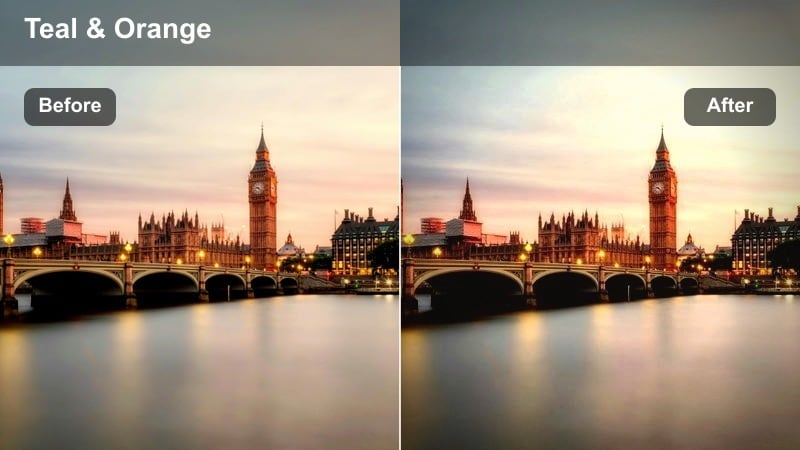
- Effect look: Soft cinematic fade with gentle matte blacks and subtle teal in the shadows.
- Best for: Story-driven street vlogs at main junctions, pedestrian crossings, and corner monologues.
- Editing tip: Avoid overexposing store windows; keep exposure slightly low and let this filter lift the shadows for a film-like finish.
Intersection Cinema Fade introduces a gentle matte finish that makes your intersection scenes feel more narrative and less like raw documentary. Teal-tinted shadows add a subtle cinematic flavor, while softened blacks prevent traffic and background details from becoming too stark or distracting.
Apply this filter in Filmora when your vlog leans into storytelling or reflective monologues at busy corners. Slightly underexpose your original clip, then let the filter raise shadow levels for a controlled filmic fade. Match this visual tone with calmer background music and smoother cuts, using Filmora transitions and audio ducking so dialogue stays clear over the hum of the city.
Sidewalk Neon Strips and Shopfronts
Storefront Neon Pop
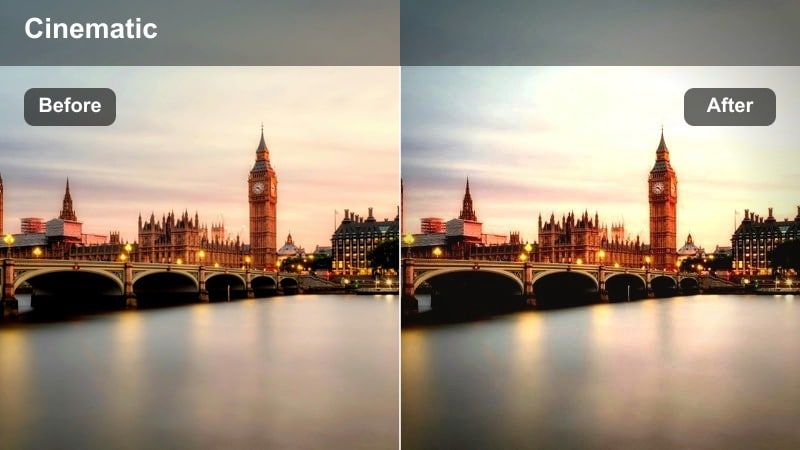
- Effect look: Vibrant, high-saturation glow that makes neon shop signs and window lights stand out.
- Best for: Sidewalk vlogs walking past cafes, bars, and convenience stores lined with colorful signage.
- Editing tip: Increase saturation only slightly if your camera profile is flat, and use this filter to handle most of the color punch.
Storefront Neon Pop is built for sidewalks lined with glowing logos, menu boards, and lightbox ads. It pushes saturation and glow just enough so signage becomes a visual anchor, ideal for creators who want their city night street vlog filter to emphasize nightlife energy and busy commercial strips.
In Filmora, drop this filter on clips where you walk parallel to a row of stores, and tweak intensity so text on signs stays legible. If highlights start to bloom too strongly, reduce filter strength and adjust highlight curves first. Use Filmora masks to slightly soften the effect on your face while letting shopfront colors stay bold and eye-catching in the background.
Window Glow Soft
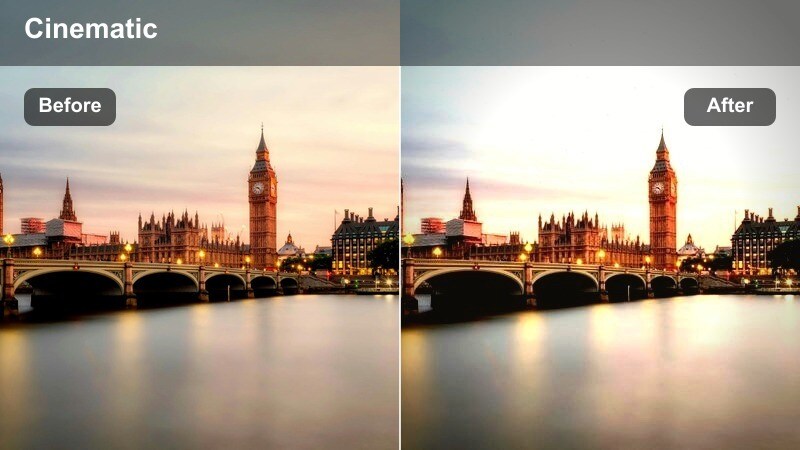
- Effect look: Soft, dreamy glow around window lights with slightly reduced contrast for a gentle atmosphere.
- Best for: Slow-paced walk-and-talk shots beside cafe windows and boutique displays at night.
- Editing tip: Use a slower walking pace and longer shots to let the glow effect breathe instead of cutting too quickly.
Window Glow Soft adds a hazy, dreamy halo to bright windows and display lights, perfect for cozy, intimate segments of your city vlog. Contrast is pulled back slightly so faces look smoother and ambient light from cafes and boutiques wraps gently around your subject.
Use this filter in Filmora when you want to highlight warm interiors and emotional storytelling, like late-night reflections outside a coffee shop. Keep your pace slow, lock exposure on your face, and let ambient window light act as your key. If the scene starts to feel too flat, slightly raise midtone contrast with Filmora color tools while keeping the filter in control of the overall softness.
Alley Sign Punch
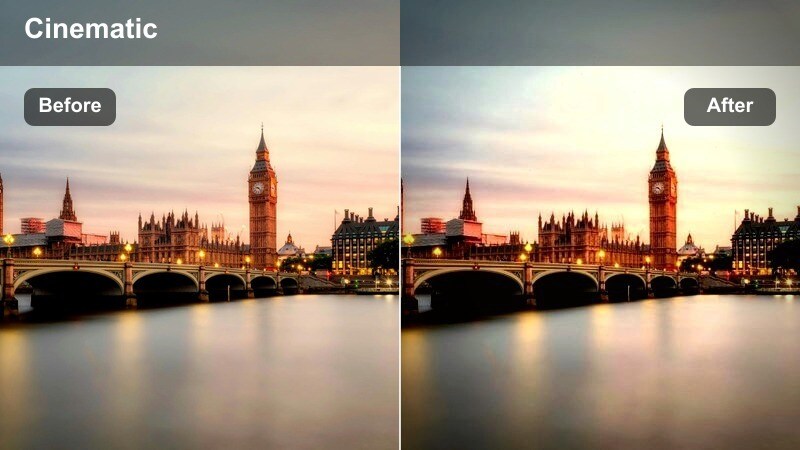
- Effect look: Crunchy details with strong midtone contrast and targeted saturation around colored signs.
- Best for: Narrow alleys lined with bar signs, small restaurants, and hanging lantern-style street lights.
- Editing tip: Add a light sharpening pass before this filter if your footage is soft, but avoid overdoing it to keep noise under control.
Alley Sign Punch is designed for tight, gritty side streets where signage and textures matter as much as your subject. It boosts midtone contrast to reveal brick, pavement, and grime while selectively emphasizing colored signs and lanterns, giving your city night street vlog filter a raw, urban edge.
In Filmora, apply a subtle sharpening or detail enhancement first, then add this filter to intensify the environment without making noise too visible. Use slow push-in shots down the alley and let the filter draw attention to stacked signboards and hanging lights. If skin begins to look too harsh, slightly soften clarity on your subject using masks or Filmora skin smoothing effects.
Subway Entrances and Transit Platforms
Metro Platform Mood
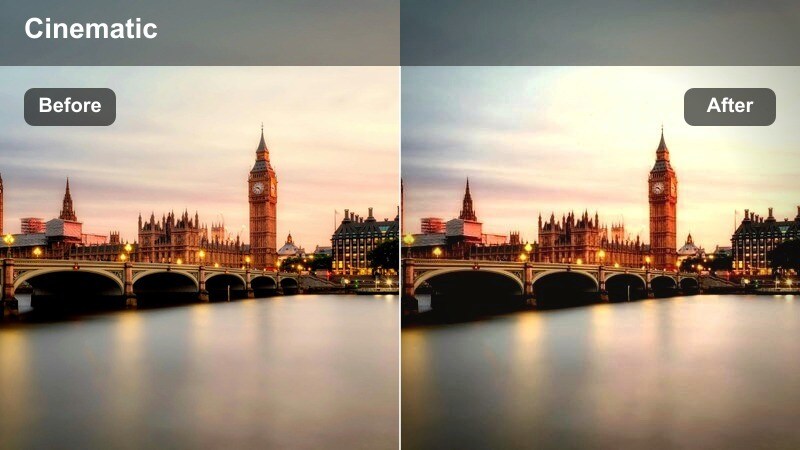
- Effect look: Cool, cinematic tones with lifted blacks and gentle grain-like texture for underground scenes.
- Best for: Subway platforms, train station walk-throughs, and escalator shots heading into underground tunnels.
- Editing tip: Film at a slightly lower frame rate if allowed for more light, then stabilize in Filmora and apply the filter for a smooth, moody feel.
Metro Platform Mood cools down color temperature and lifts black levels to give underground stations a modern, cinematic feel. The subtle grain-like texture adds character without destroying image quality, making routine commutes feel like stylized sequences in your night city vlog.
In Filmora, stabilize handheld shots of trains arriving or commuters passing, then drop this filter on to unify colors across clips from different stations. Adjust exposure so white fluorescent lights do not clip, and if the cool tone becomes too strong on skin, add a selective warm color correction on your face while preserving the moody blue cast of the platform.
Ticket Gate Focus
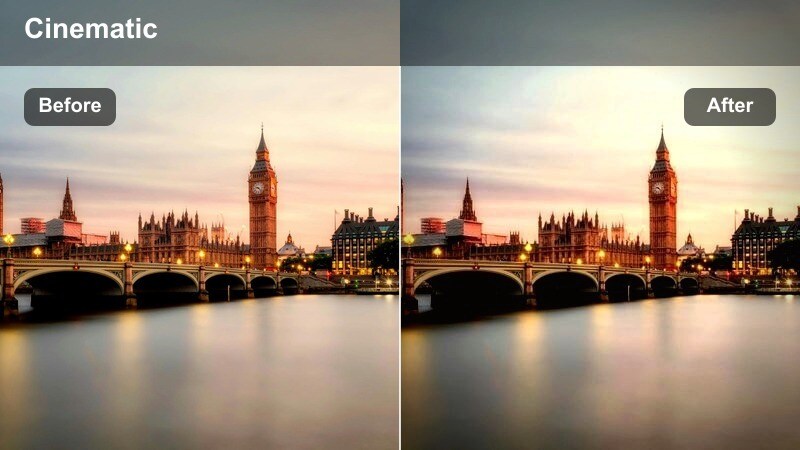
- Effect look: Cleaner midtones and slightly desaturated background with more emphasis on the subject near ticket gates.
- Best for: Walking through station entrances, tapping cards at turnstiles, and quick cuts of transit routines.
- Editing tip: Use shallow depth of field so the filter can separate you from the busy station background more effectively.
Ticket Gate Focus is all about clarity at busy entrances, keeping your face and midtones crisp while gently dialing down saturation in the background. This creates natural separation between you and the visual clutter of signs, ads, and moving commuters around ticket gates.
In Filmora, use this city night street vlog filter on punchy, fast-paced cuts showing your transit routine. Combine it with shallow depth-of-field footage and maybe a slight vignette to keep attention centered on you tapping a card or walking through turnstiles. If station branding colors are important for your story, bump background saturation back up a bit using HSL controls while still letting the filter prioritize your subject.
Escalator Light Trails
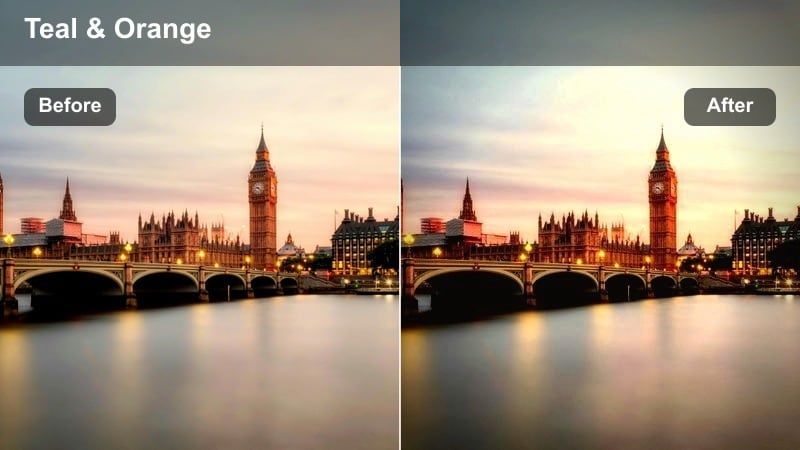
- Effect look: Stylized highlights with slight bloom and a faint teal-orange split for moving escalator shots.
- Best for: Escalators in malls, metro stations, and overpasses when city lights are visible behind you.
- Editing tip: Record longer takes while riding the escalator and use speed ramping in Filmora combined with this filter for dynamic transitions.
Escalator Light Trails enhances moving shots by adding gentle highlight bloom and a teal-orange split tone, giving escalator rides a polished, transition-friendly look. Lights from malls or city streets behind glass become stylized streaks that emphasize motion and depth.
In Filmora, film extended escalator rides and apply this filter before adding speed ramps or reverse clips for creative transitions between locations. Adjust the filter intensity to keep your skin from turning too orange while still letting background lights glow. Combine with motion blur or Filmora speed effects to turn simple vertical movement into cinematic scene changes in your night vlogs.
Overlook Bridges and City Viewpoints
Overpass Bokeh City
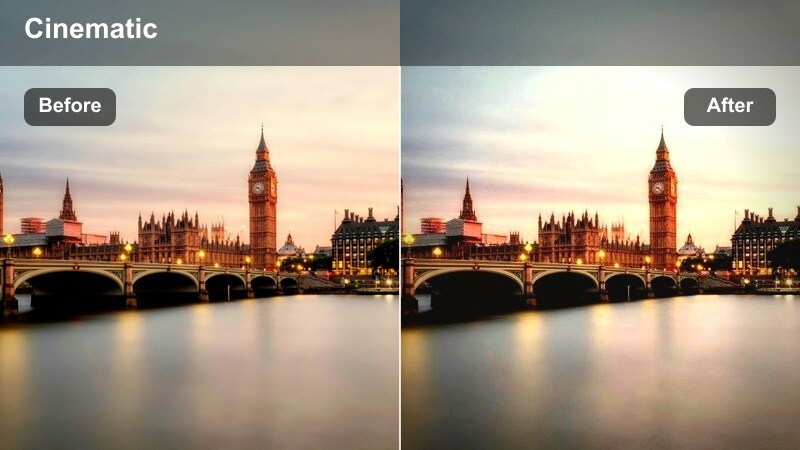
- Effect look: Soft bokeh-friendly grade that enhances background blur and deepens city light colors.
- Best for: Shooting over highway overpasses or pedestrian bridges with long lines of car lights in the distance.
- Editing tip: Use manual focus to keep your face sharp while the car lights behind you fall into colorful bokeh enhanced by the filter.
Overpass Bokeh City is tailored for shots where distant headlights and taillights become blurred orbs behind you. The grade deepens color in those lights and subtly smooths overall contrast so the bokeh looks rich and creamy, pushing a strong cinematic vibe for overpass monologues or intros.
When editing in Filmora, use this city night street vlog filter on clips recorded with a wider aperture and manual focus locked on your face. If the background feels too bright, reduce exposure slightly, then let the filter restore depth and saturation to the light trails. Add gentle background blur or Filmora AI Portrait tools if needed to further separate you from the traffic below.
Skyline Night Film
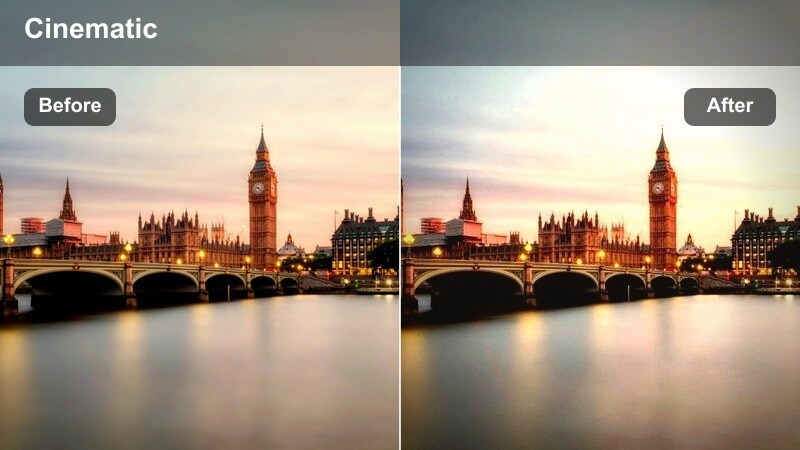
- Effect look: Film-inspired contrast with gentle grain simulation and slightly warm highlights on skyscraper windows.
- Best for: City viewpoint decks, rooftop overlooks, and high pedestrian bridges with visible skylines.
- Editing tip: Lock your exposure to the skyline, then apply the filter so building windows stay detailed while your face remains natural.
Skyline Night Film gives wide city views a classic film-like finish with controlled contrast, subtle grain, and warm highlights on building windows. It is ideal for establishing shots and talking segments at rooftop bars, decks, or high bridges where the skyline is your co-star.
In Filmora, expose for the skyline first so bright office windows do not clip, then apply this filter to balance your face against the background. If you need extra light on yourself, lift shadows slightly or add a mild local exposure adjustment while keeping the overall filmic contrast intact. Use the same filter on both your wide and medium shots to keep your night city sequences cohesive.
Bridge Rail Noir
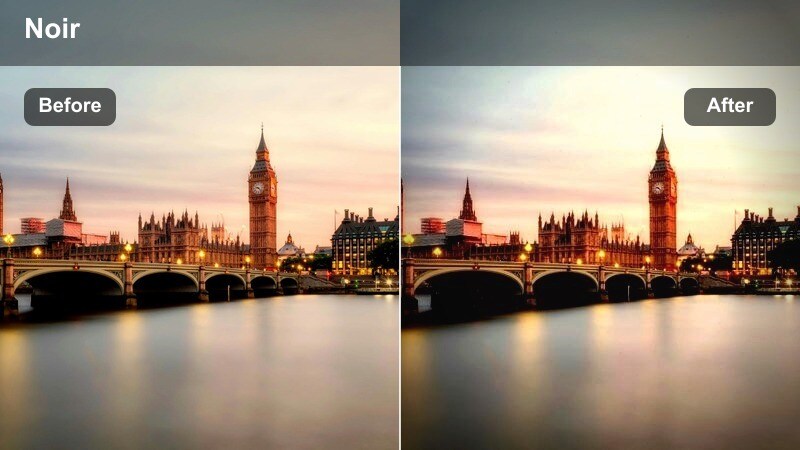
- Effect look: High contrast with deep blacks and muted colors for a moody, noir-style bridge atmosphere.
- Best for: Late-night bridge walks, quiet overpasses, and introspective monologues with sparse lighting.
- Editing tip: Embrace negative space in your framing and let the filter push most of the frame into darkness apart from a few light sources.
Bridge Rail Noir leans into strong contrast and drained color to create a classic noir-inspired atmosphere on bridges and overpasses. Deep blacks and minimal saturation shift focus to shapes and silhouettes, making it perfect for introspective, late-night monologues where mood matters more than detail.
In Filmora, apply this city night street vlog filter to clips with limited light sources like single lamps or distant buildings. Avoid lifting shadows too much; instead, let large areas of the frame fall into darkness while your face catches just enough light. Longer, slower cuts will pair best with this look, so resist over-editing and let the stark contrast support your storytelling.
Tips for Using City Night Street Vlog Filter Filters in Filmora
- Keep your shutter speed close to double your frame rate and slightly underexpose to protect neon highlights before applying filters.
- Shoot in a flat or neutral color profile when possible so Filmoras city night street vlog filters have more room to shape the final look.
- Mix wide establishing shots of streets and intersections with close-up walk-and-talk clips graded with the same filter for continuity.
- Use available city light sources like windows, bus stops, and shop signs as your main key lights instead of relying only on phone flash.
- Stabilize your handheld footage in Filmora before adding intense contrast filters to avoid drawing attention to camera shake.
- Test multiple filters on the same clip using Filmoras preview panel to quickly decide which mood best fits each location in your vlog.
- Save your favorite filter and LUT combinations as custom presets so future night walk episodes match your established visual style.
- Adjust filter intensity and color temperature per clip to keep skin tones consistent when moving between different city lighting conditions.
City night street vlog filters help you turn everyday sidewalks, intersections, and bridges into cinematic backdrops with just a few clicks in Filmora.
Test a few presets on the same clip, then build a small set of go-to looks so every night walk series on your channel feels consistent and on-brand.
secure download