

 100% Security Verified | No Subscription Required | No Malware


 ChatGPT
 Perplexity
 Gemini
 Claude
 Grok
Grok
Cool portrait video filters give your shots that refined, blue-toned polish that feels cinematic and stylish without looking over-edited. For fashion creators and urban vloggers, these looks can instantly separate your content from warm, everyday phone footage.
Whether you are filming indoor portraits under mixed lighting or city night clips with neon signs and street lamps, a clean cool tone portrait filter can balance skin tones, deepen shadows, and add a crisp blue face effect that still looks natural on camera.
In this article
Subtle Cool Portrait Filters for Natural Skin
Soft Cool Glow
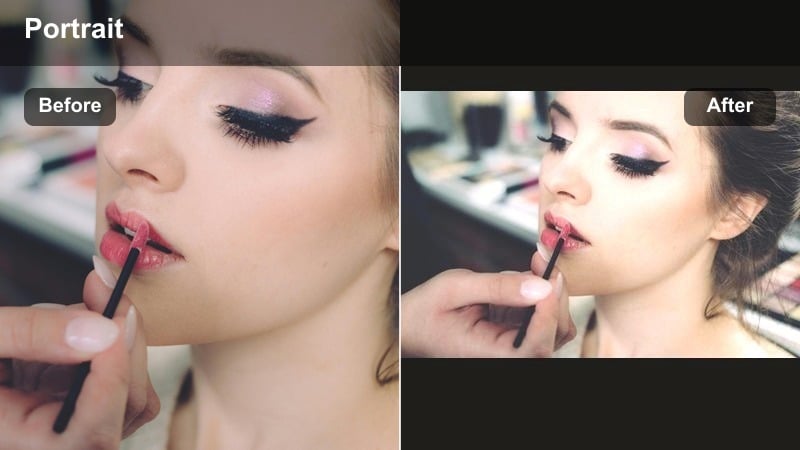
- Effect look: Soft blue-tinted highlights with gentle contrast that keep portraits airy and flattering.
- Best for: Indoor portraits with window light or softbox setups where you want a clean, editorial feel.
- Editing tip: Lower the filter intensity to around 40-60 percent to avoid washing out midtones and to preserve natural skin texture.
Soft Cool Glow is a delicate cool tone portrait filter that adds a faint blue sheen and subtle clarity without making faces look cold. It slightly lifts highlights and cools them down so your subject feels polished and modern while skin remains believable and soft.
In Filmora, apply Soft Cool Glow to your clip, then reduce the filter strength until skin texture and blush still show clearly. Combine it with Filmora skin smoothing at very low values, and use the color wheels to keep highlights cool while nudging midtones a touch warmer so the blue face effect stays subtle and flattering.
Pro tip - Balance cool highlights with warm skin
If the blue face effect looks too intense, slightly increase warmth in the midtones while keeping highlights cooler. This keeps the overall frame icy while skin stays inviting.
Use Filmora s color wheels to split-tone: cool down highlights and shadows, then gently warm midtones to retain realistic complexions.
Dial in Cool Portrait Moods with AI Color Tools
Use Filmora s AI-driven color tools to quickly test different cool palettes on your portrait footage before you commit. You can preview how subtle, icy, or dramatic your blue tones should be based on your outfit, background, and lighting.
Once you find a palette that fits your brand, save it as a favorite and apply it across indoor portraits and city night clips. This keeps your cool portrait video filters consistent from reel to vlog, giving your channel a recognizable visual identity.
 secure download

Preview Cool Tone Portrait Filters in Real Time
Filmora lets you stack and compare multiple cool portrait video filters on the same clip, so you can instantly see which one best suits your skin tone and scene. This is especially useful when you are switching between indoor setups and night streets in a single vlog.
Toggle filters on and off while you scrub through motion shots, hair flips, and head turns. You will quickly notice which effects keep faces flattering and which are better reserved for more stylized, editorial moments.
secure downloadSave Your Signature Cool Look with LUTs and Presets
After you fine-tune your favorite cool tone portrait filter, save it as a custom preset or export a LUT. This lets you apply the same blue-tinted, clean contrast video style to future projects with a single click.
Using consistent LUTs across your indoor portraits and city night clips gives your followers a clear sense of your visual brand. It also speeds up editing, so you can focus on styling, posing, and storytelling rather than rebuilding your look from scratch.
secure downloadStudio Ice Clean
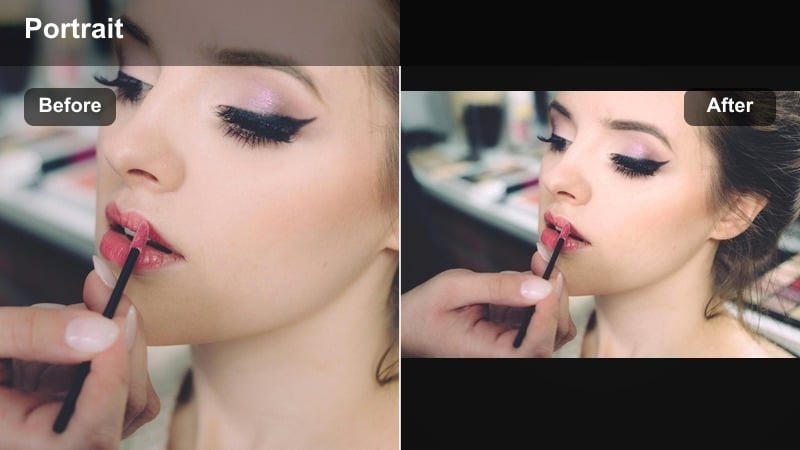
- Effect look: Crisp, low-noise cool tone with tightened blacks and a sleek, studio-style finish.
- Best for: Fashion lookbooks, beauty close-ups, and talking-head clips on a neutral background.
- Editing tip: Pair with light skin smoothing and a tiny clarity boost to keep makeup details sharp while the background stays smooth.
Studio Ice Clean delivers a clean contrast video look with blue-tinted neutrality that keeps your portraits sharp but not harsh. Blacks are slightly tightened, grain feels reduced, and skin sits against a professional-looking backdrop that suits fashion and beauty content.
Inside Filmora, apply Studio Ice Clean to a clip shot against gray or pale blue backdrops for maximum cohesion. Add a subtle clarity increase on the face and slight skin smoothing, and avoid pushing saturation too high so your cool studio finish stays modern and refined.
Pro tip - Match your backdrop to the filter
Use gray or pale blue backdrops so the Studio Ice Clean filter reinforces your color palette instead of fighting it.
Avoid saturated red or orange walls behind the subject, as the cool filter may create muddy tones or halos around the edges.
Frosted Skin Balance
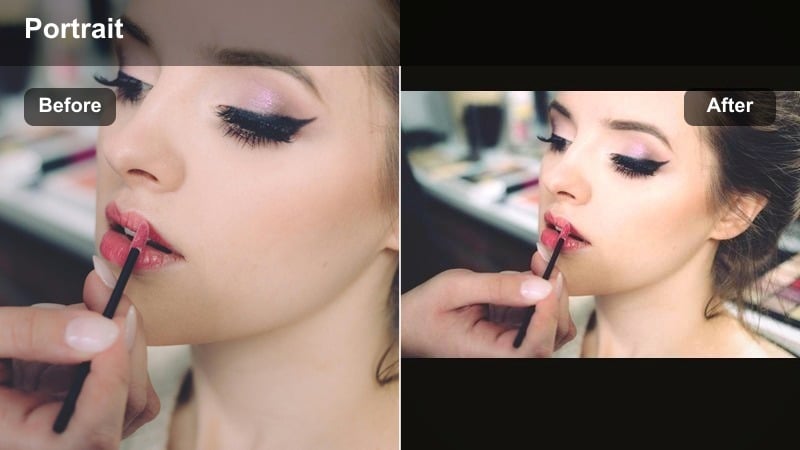
- Effect look: Balanced cool overall cast with softened reds for calmer, smoother-looking skin.
- Best for: Indoor portraits under warm bulbs where faces look too orange or oversaturated.
- Editing tip: Use the filter first, then refine with HSL controls to reduce orange saturation just in the skin range, not across the whole frame.
Frosted Skin Balance is a corrective cool portrait filter that neutralizes yellow indoor light and gently calms redness. It shifts warm color casts toward a neutral cool tone so faces stop looking orange while keeping the overall scene natural.
In Filmora, apply Frosted Skin Balance on clips shot under tungsten or mixed lighting, then open HSL controls to selectively reduce orange and red saturation only where skin appears. This approach preserves the ambience of your room while ensuring the subject s complexion looks smooth and consistent across your vlog.
Pro tip - Use reference shots to match color
Take a quick still of your subject by a window, then adjust the Frosted Skin Balance filter until indoor footage resembles that natural light reference.
This keeps your color grading consistent across different rooms and lighting setups in a single vlog episode.
Blue Face Effects for Bold Portrait Styling
Neon Blue Face
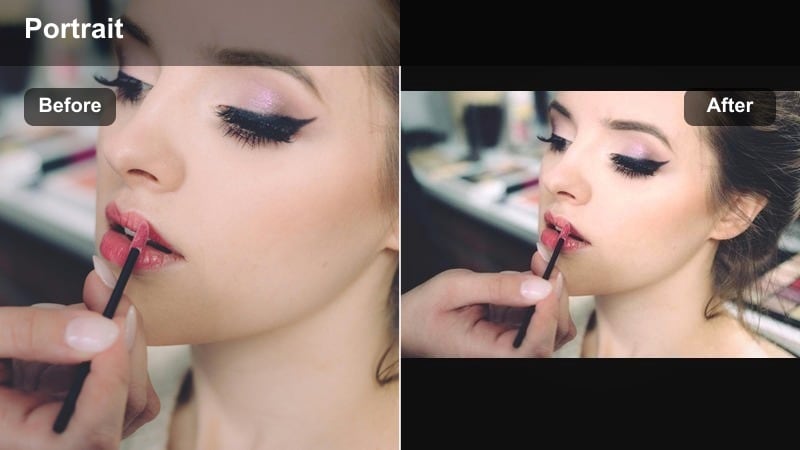
- Effect look: Intense cyan-blue cast on skin with lifted highlights and strong contrast in the background.
- Best for: Urban fashion shots, edgy makeup looks, and city night clips under neon or LED lights.
- Editing tip: Apply a mask to keep the strongest blue effect on the face and hair while letting the background stay more neutral.
Neon Blue Face is a high-impact blue face effect that turns simple portraits into bold, editorial visuals. It drenches skin in cyan, brightens highlights, and adds punchy contrast so your subject pops against city lights or dark alleys.
In Filmora, combine Neon Blue Face with masking so the heaviest tint stays on the face, hair, and key wardrobe pieces while the background retains some neutrality. Fine-tune saturation in non-blue channels so competing hues do not distract from the central neon look.
Pro tip - Sync color with wardrobe and lights
Combine the Neon Blue Face filter with blue accessories, liner, or nails so the effect looks intentional and fashion-forward.
If your scene has multicolor lights, reduce saturation in non-blue channels to keep blue as the clear hero tone.
Cyber Cyan Edges
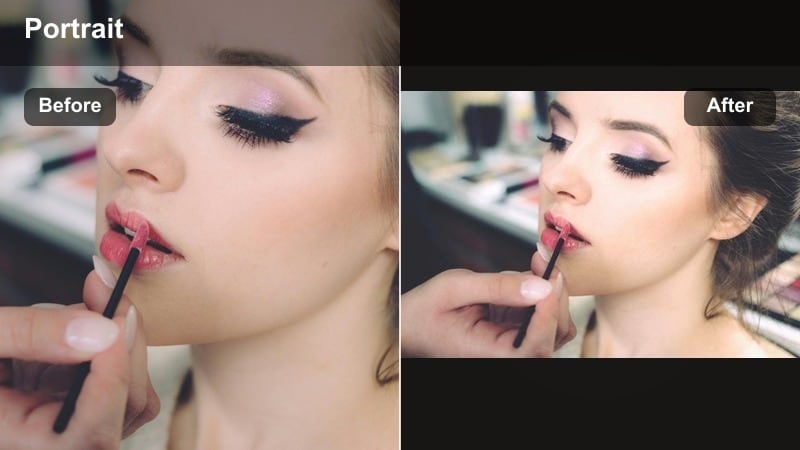
- Effect look: Cool cyan edges and subtle glow around contours, giving a futuristic, cyber look.
- Best for: City night clips on rooftops, parking garages, or high-contrast alleyways with strong light sources.
- Editing tip: Push contrast slightly higher than usual, then add a gentle vignette to draw focus to the subject s face.
Cyber Cyan Edges adds a stylized cyan outline to faces and silhouettes, making your portraits feel futuristic and slightly sci-fi. Highlights around cheekbones, jawlines, and jacket edges glow with cool color that separates the subject from busy urban backgrounds.
In Filmora, use Cyber Cyan Edges on night scenes with deep shadows and a few bright lights so the edge glow has something to trace. Increase contrast and apply a subtle vignette to keep viewers attention locked on the illuminated contours of your model s face and body.
Pro tip - Lean into negative space
Shoot against darker backgrounds so the cyan edges pop harder and the subject separates clearly from the city lights.
Avoid overfilling the frame with bright signs and cars, which can compete with the cyan outline around your model.
Frozen Glam Shot
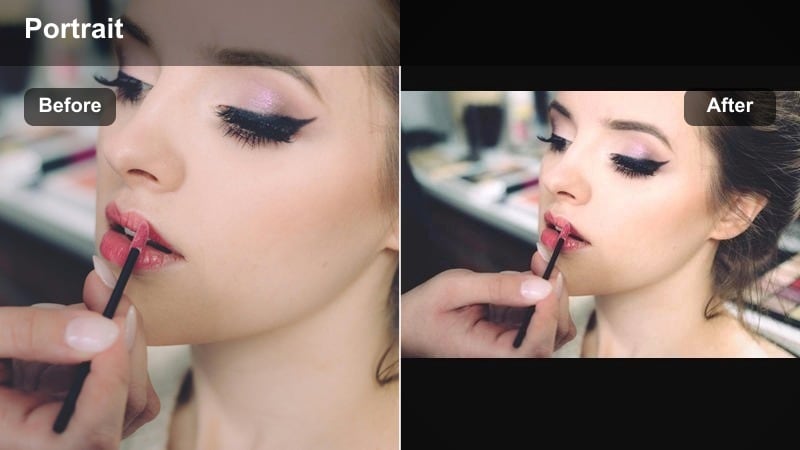
- Effect look: High-gloss cool tone with shimmering highlights on cheekbones and lips for a frosted glamour look.
- Best for: Beauty reels, highlighter close-ups, and slow-motion hair flips under spotlights.
- Editing tip: Slow the clip down slightly and add micro-contrast to enhance sparkle on metallic or glossy details.
Frozen Glam Shot turns beauty shots into icy, high-fashion portraits by emphasizing shimmer and gloss with cool-toned highlights. Jewelry, sequins, and glossy lips catch the light and sparkle with a frosted sheen that feels luxurious on camera.
Inside Filmora, apply Frozen Glam Shot to beauty b-roll, then slow down clips slightly and boost micro-contrast so fine reflective details stand out. Keep backgrounds darker and less saturated so the viewer focuses on the cool glow along cheekbones, lips, and accessories.
Pro tip - Shape light for maximum shine
Aim a small light source from above or the side so the Frozen Glam Shot filter has strong highlights to catch and enhance.
Keep backgrounds darker and less reflective so the viewer s eye stays on the frosted glow of the face and jewelry.
Cool Contrast Filters for Urban Night Vlogs
Street Ice Contrast
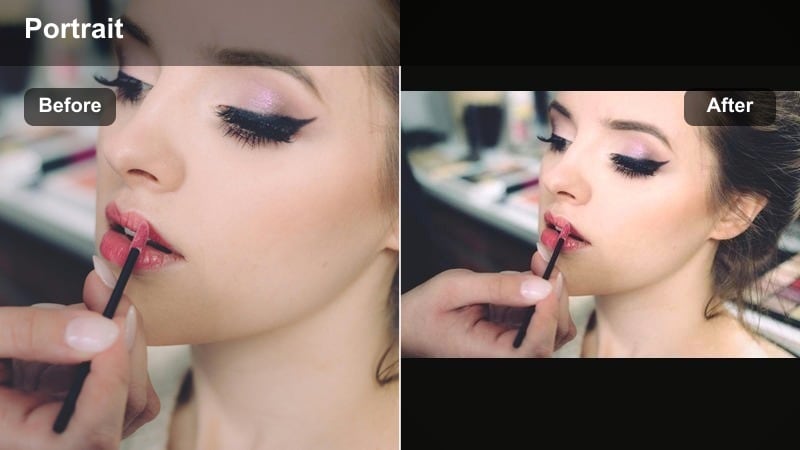
- Effect look: Deepened blacks, cool midtones, and slightly desaturated colors for a sleek, cinematic night look.
- Best for: City night clips with street lamps, traffic lights, and moving crowds.
- Editing tip: Dial exposure up a touch after applying the filter to keep faces visible while the background stays moody.
Street Ice Contrast gives your urban night vlogs a cinematic polish by cooling midtones, reinforcing deep blacks, and gently dialing back saturation. Highlights on signs and headlights stand out while skin still reads clearly against the darker city environment.
Use this filter in Filmora on handheld or gimbal footage of streets, crosswalks, and storefronts. After applying it, nudge exposure or brightness slightly higher so faces remain readable, then use Filmora stabilization so your cool, high-contrast style feels intentional and professional.
Pro tip - Shoot with movement in mind
Capture passing cars, reflections, and crowd motion so the Street Ice Contrast filter has dynamic light to play with.
Stabilize footage in Filmora so the clean contrast reads as intentional style, not accidental shakiness.
Metro Cool Noir
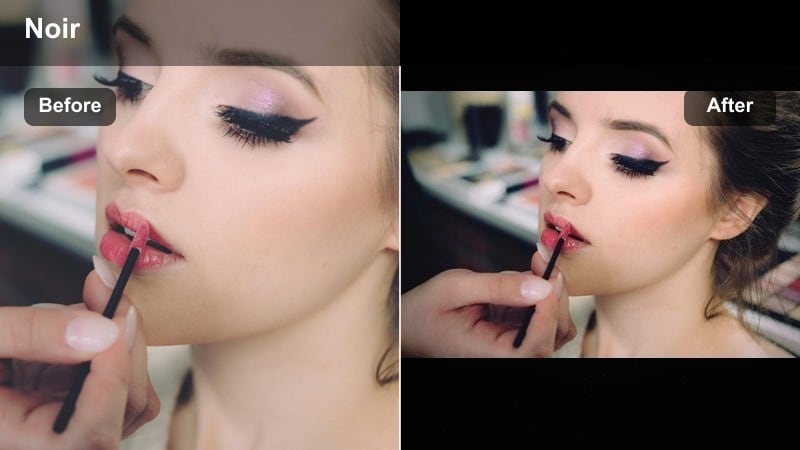
- Effect look: Muted, cool-toned palette with high contrast between faces and dark backgrounds for a modern noir mood.
- Best for: Subway platforms, elevators, underground parking lots, and narrow alleyways.
- Editing tip: Use selective brightness to lift just the subject s face and leave the environment darker and more mysterious.
Metro Cool Noir channels a modern noir film look by cooling the entire palette, muting saturation, and emphasizing contrast between faces and deep shadows. Everyday transit spaces transform into dramatic backdrops where your subject feels like the lead in a moody story.
In Filmora, apply Metro Cool Noir to footage from subways, tunnels, and parking garages, then use masks or selective brightness to lift only the subject s face. This separation keeps the environment mysterious while ensuring the cooled, highlighted face remains the focal point.
Pro tip - Compose for graphic shapes
Frame your subject within doors, windows, or tunnel arches so the Metro Cool Noir filter emphasizes strong graphic lines.
Use leading lines like railings or escalators to guide the viewer s eye directly to the cooled, highlighted face.
Chrome City Sheen
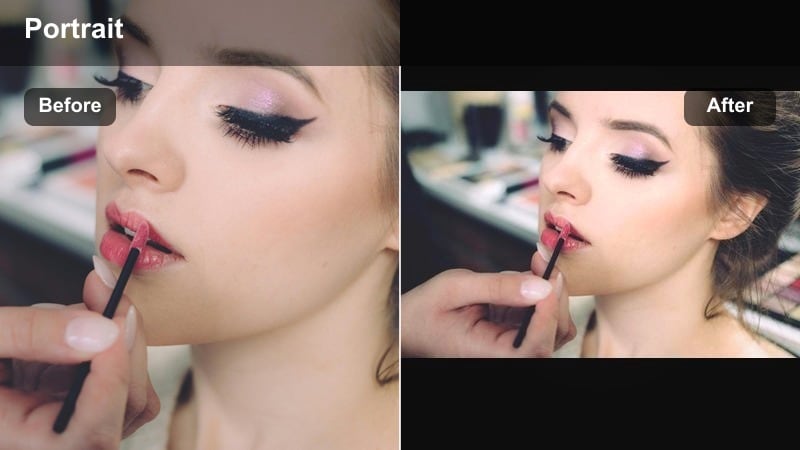
- Effect look: Polished metallic cool tone with reflective highlights on wet streets, glass, and metal surfaces.
- Best for: Rainy night vlogs, reflective storefronts, and car-window portraits.
- Editing tip: Lower saturation slightly after applying the filter so chrome reflections and blue hues feel expensive, not cartoonish.
Chrome City Sheen enhances wet streets, glass, and metal with a polished, metallic cool tone that feels premium. Reflections from neon, billboards, and car lights stretch across the frame with a glossy blue tint that suits moody city storytelling.
Apply this filter in Filmora to rainy night walks, window reflections, and car interior portraits. Then gently trim overall saturation so the metallic blues and silvers look cinematic rather than overly vivid, keeping your urban aesthetic sleek and high-end.
Pro tip - Use reflections as foreground
Film your subject through windows, mirrors, or car doors to let the Chrome City Sheen filter amplify layered reflections.
Keep the camera close to glass or puddles so reflections fill the frame and create depth around your model.
Cool Indoor Portrait Filters for Aesthetic Feeds
Minimal Cool Flat
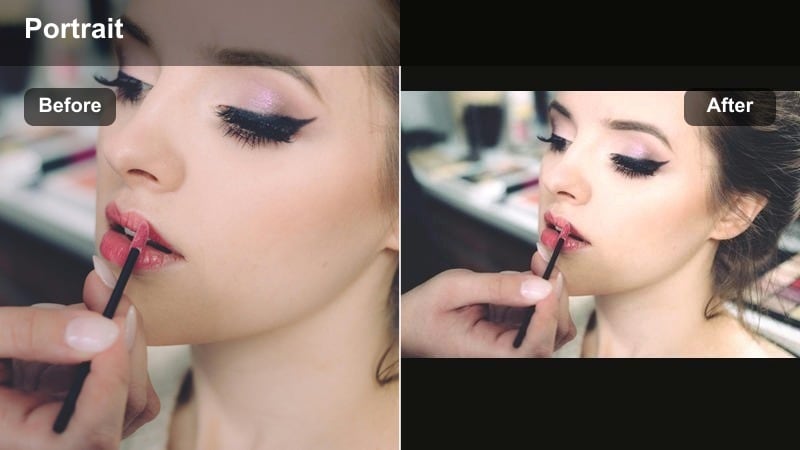
- Effect look: Low-contrast, softly cool image with gentle fade in shadows for a minimal aesthetic.
- Best for: Desk vlogs, styling try-ons, and lifestyle b-roll in white or neutral rooms.
- Editing tip: Add a small grain layer and keep camera motion slow for a subtle, magazine-style look.
Minimal Cool Flat softens contrast, cools tones slightly, and lifts shadows to create an understated, curated look. It is perfect for lifestyle and fashion creators who want clean, airy frames that feel modern and calm rather than high-drama.
In Filmora, apply Minimal Cool Flat to clips shot in neutral rooms, then add a very light grain effect and use smooth, slow camera moves. This combination gives your feed a cohesive, editorial feel that pairs well with minimalist decor and wardrobe styling.
Pro tip - Design a consistent room palette
Choose bedding, curtains, and props in whites, grays, and dusty blues so the Minimal Cool Flat filter ties everything together.
Avoid clashing neon or overly warm decor, which will stand out awkwardly once the scene is cooled down.
Editorial Cool Contrast
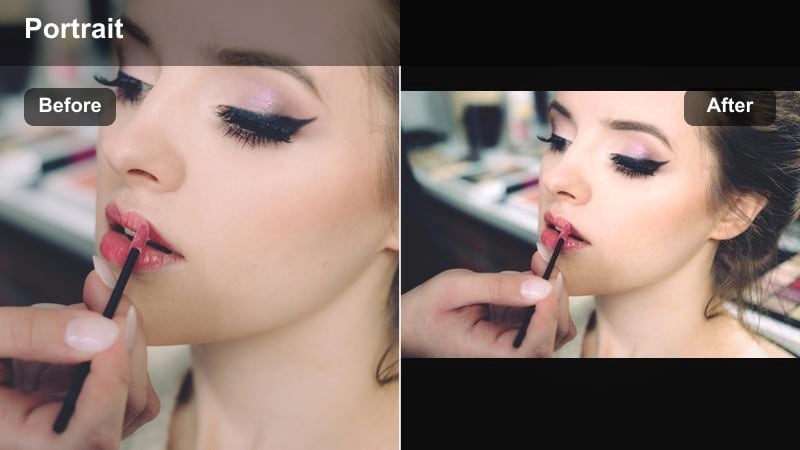
- Effect look: Punchy contrast with refined cool tones and crisp midtones for editorial-style portraits.
- Best for: Lookbook walkthroughs, outfit-of-the-day reels, and posing tutorials in studio-like rooms.
- Editing tip: Shoot slightly flatter in-camera and let the filter handle contrast, then fine-tune blacks to keep fabric detail intact.
Editorial Cool Contrast boosts contrast, sharpens midtones, and cools the scene for a magazine-style portrait look. Outfits, seams, and textures appear more defined, making this filter ideal for creators who prioritize fashion details.
Use Editorial Cool Contrast in Filmora on well-lit indoor shoots, then adjust black levels to preserve detail in dark fabrics. Pair it with gentle sharpening and restrained saturation so your shots look editorial, not oversharpened or crunchy.
Pro tip - Plan outfits for cool grading
Opt for blacks, whites, silvers, and blues so the Editorial Cool Contrast filter enhances your wardrobe instead of shifting it off-brand.
If you wear warm colors, keep them in smaller accents so they do not dominate once the overall tone is cooled.
Pastel Cool Room
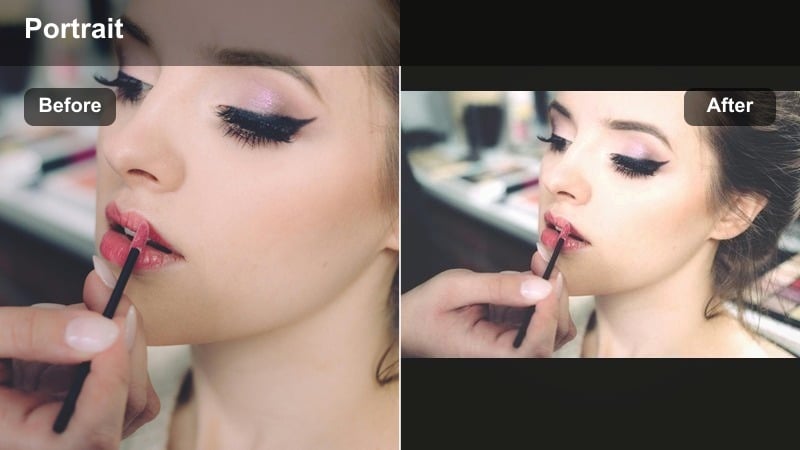
- Effect look: Soft cool wash with slightly lifted blacks and pastel-leaning colors for a dreamy, airy vibe.
- Best for: Bedroom vlogs, morning routines, and behind-the-scenes clips in softly decorated spaces.
- Editing tip: Reduce sharpness a bit and use slow, smooth camera moves to match the dreamy pastel feel.
Pastel Cool Room wraps your footage in a gentle cool wash that pushes colors toward soft pastels and lifts blacks slightly. The result is a dreamy, airy aesthetic that fits morning routines, GRWMs, and relaxed behind-the-scenes content.
In Filmora, apply this filter to bedroom and studio clips, then reduce sharpness slightly and rely on smooth pans or sliders for motion. Avoid harsh overhead lighting; instead, combine the filter with diffused window light so your cool pastel palette stays soft and flattering on skin.
Pro tip - Use sheer fabrics and diffusion
Place sheer curtains or light-diffusing panels between windows and your subject so the Pastel Cool Room filter has soft light to work with.
Avoid harsh overhead bulbs; instead, rely on window light and small lamps for a gentle, pastel-like glow.
Tips for Using Portrait Cool Tone Filters in Filmora
- Shoot portraits slightly warmer in-camera so the cool filter has room to neutralize tones without making skin look gray.
- Keep at least one neutral element in frame, like a white wall or T-shirt, to help you judge whether the cool tone is going too far.
- Adjust filter intensity separately for close-ups and wide shots; faces need softer grading than city-wide scenes.
- Use masks to localize strong blue face effects and keep hands or necks from looking unintentionally tinted.
- Combine cool filters with gentle diffusion or blur on the background to keep attention on expressions and styling.
- Batch-apply your chosen cool portrait filter, then fine-tune exposure and skin tones shot by shot for consistency.
- Always check your edit on both phone and desktop screens; extreme cool tones can look very different across devices.
Cool portrait video filters give fashion creators and urban vloggers a fast, reliable way to shape mood, polish skin tones, and turn everyday locations into cinematic sets.
Experiment with subtle and bold cool tone portrait filters, save your favorite looks as presets, and use them consistently so your indoor portraits and city night clips feel part of the same, cohesive visual story.
secure download