

 100% Security Verified | No Subscription Required | No Malware


 ChatGPT
 Perplexity
 Gemini
 Claude
 Grok
Grok
This dark moody cinematic LUT-style filter collection is designed for content creators who want deep shadows, rich contrast, and a dramatic, filmic atmosphere in just a few clicks.
Use these filters to add a subdued, story-driven mood to narrative shorts, cinematic B-roll, and atmospheric vlogs while keeping skin tones and key details under control.
In this article
Noir Street Scenes and Night Alleys
Midnight Alley Contrast
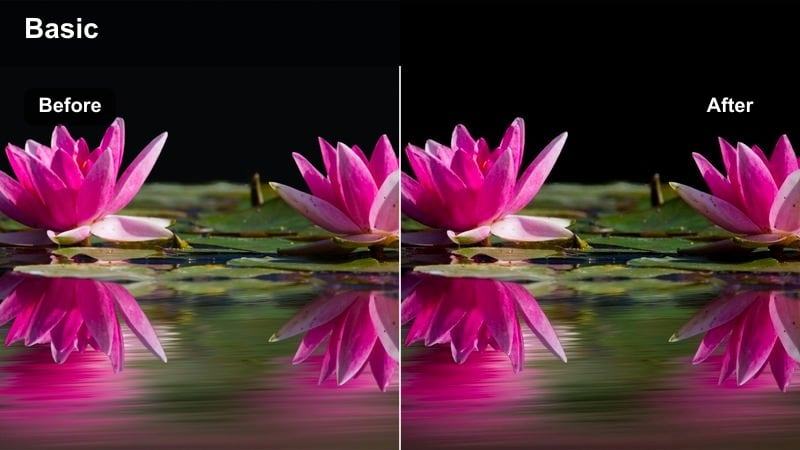
- Effect look: Crushed blacks with sharp highlights for tense, high-contrast night scenes.
- Best for: Urban night walks, crime-inspired shorts, and city noir sequences.
- Editing tip: Lower overall exposure slightly, then lift shadows just enough to recover detail in faces.
Midnight Alley Contrast gives your footage a bold, dark moody cinematic LUT-style finish with deep crushed blacks and razor-sharp highlights. It is ideal when you want streets, alleys, and side roads to feel dangerous and dramatic, with light pools from lamps and shop windows carving out your subject from the darkness.
In Filmora, apply this filter to night sequences that already have clear light sources, then fine-tune exposure and shadow level in the Color panel. Use keyframed adjustments to keep faces readable during movement, and combine with subtle vignettes or Filmora film grain for a cohesive, noir-grade look across your timeline.
Match Dark Moody Tones with AI Color Tools
Use Filmora s AI color tools to quickly align every clip with the intense contrast and deep shadows of your favorite dark moody cinematic LUT-style filters. Once you have one shot looking perfect, you can propagate that look across the rest of your sequence in a few clicks.
Analyze a hero shot, let AI set a balanced base for exposure and white balance, then refine contrast and saturation to lock in a consistent, dramatic palette from scene to scene.
Once the color grade is finalized, Filmora can export the compatible color adjustments from the selected clip as a standard .cube LUT for reuse across other clips or in DaVinci Resolve, Adobe Premiere Pro, and Final Cut Pro.
 secure download

Preview Dark Moody Filters in Real Time
Filmora lets you browse dark moody cinematic filters directly inside the Effects panel and preview them on your clip in real time. You can instantly see how crushed blacks, lifted shadows, or neon tones affect your footage before you decide to commit.
Switch filters on and off or compare a couple of favorites in duplicate tracks to choose the grade that best matches your lighting and story without wasting time on heavy manual adjustments.
secure download1000+ Video Filters and 3D LUTs
Beyond this dark moody cinematic LUT-style pack, Filmora includes a large library of filters and 3D LUTs you can stack and customize. Mix stylized looks with subtle correction presets to build a unique, layered grade that fits everything from narrative shorts to vlogs.
Use HSL and advanced color controls together with LUTs when you need precise adjustment of individual color ranges, so your shadows stay rich while key colors such as skin tones remain natural.
secure downloadNeon Shadow Glow
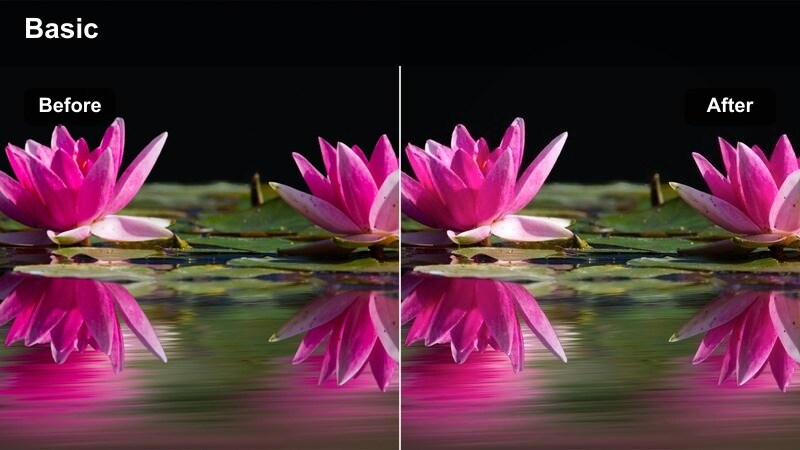
- Effect look: Softened shadows with neon color accents and cool, cinematic contrast.
- Best for: Cyberpunk-style streets, rainy city B-roll, and moody travel reels.
- Editing tip: Slightly boost saturation of blues and magentas after applying to emphasize neon reflections.
Neon Shadow Glow wraps your night footage in a cool, cyberpunk-inspired palette with gentle shadows and luminous highlight blooms. It is especially effective on rainy streets, glass facades, and reflective ground where neon signage and traffic lights can stretch into colorful streaks.
Inside Filmora, drop this filter on clips with existing colored lights, then enhance blues, magentas, and cyans using HSL or the color wheels. Pair it with a subtle vignette and careful noise reduction so your dark areas stay smooth while the bright neon pops, maintaining a clean, modern cinematic LUT style.
Subway Noir Fade
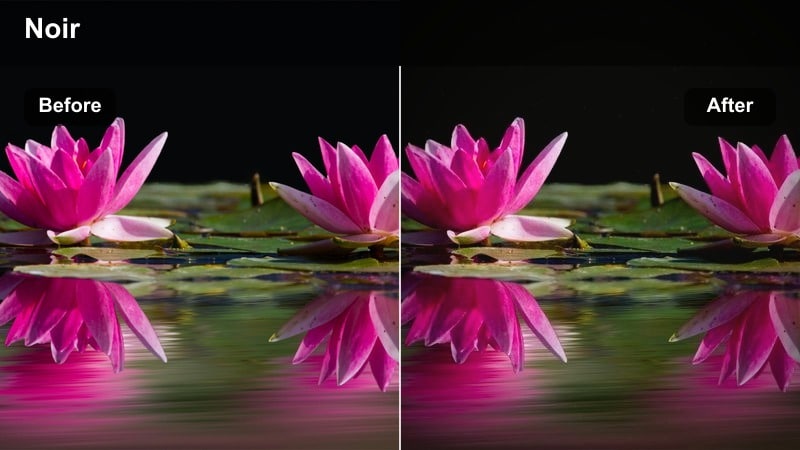
- Effect look: Muted colors, heavy shadows, and a slight fade in highlights for a gritty underground feel.
- Best for: Subway sequences, handheld street B-roll, and tense character intros.
- Editing tip: Reduce sharpness slightly to avoid harsh noise in dark subway tunnels or low-light areas.
Subway Noir Fade leans into gritty, low-light realism with desaturated tones, weighty shadows, and a soft highlight roll-off that mimics old underground film stocks. It is perfect for lonely commuters, tense arrivals, or transitional B-roll that needs to feel raw yet cinematic.
In Filmora, combine this filter with a touch of film grain and slightly reduced sharpness to hide sensor noise common in subway and tunnel shots. Stabilize only lightly so some organic motion remains, and use keyframed exposure tweaks to keep your subject visible as they move through pools of harsh overhead light.
Shadowy Interiors and Drama Rooms
Window Silhouette Drift
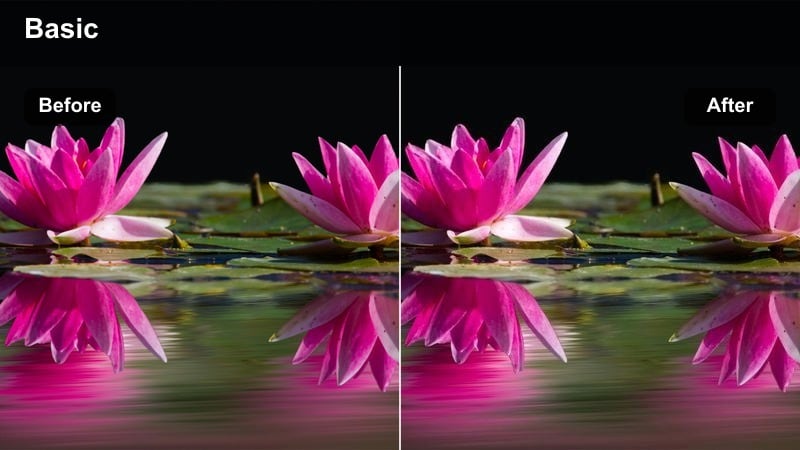
- Effect look: Strong backlight with deep interior shadows and soft, cinematic bloom on windows.
- Best for: Character studies by windows, introspective vlogs, and dialogue near natural light.
- Editing tip: Expose for the subject's face while shooting, then let the filter push bright windows into soft bloom.
Window Silhouette Drift accentuates contrast between bright exteriors and dark interiors, producing delicate window bloom and introspective silhouettes. This filter is ideal when you want your subject to feel lost in thought, framed by a luminous window and wrapped in shadowy room tones.
Use it in Filmora on clips where your subject is side-lit or backlit by a window, then adjust exposure and highlight roll-off so the outside stays bright without destroying detail. Add a slight warm or cool temperature shift to match your narrative mood, and apply a vignette to keep viewer focus on the face and window framing.
Room of Secrets
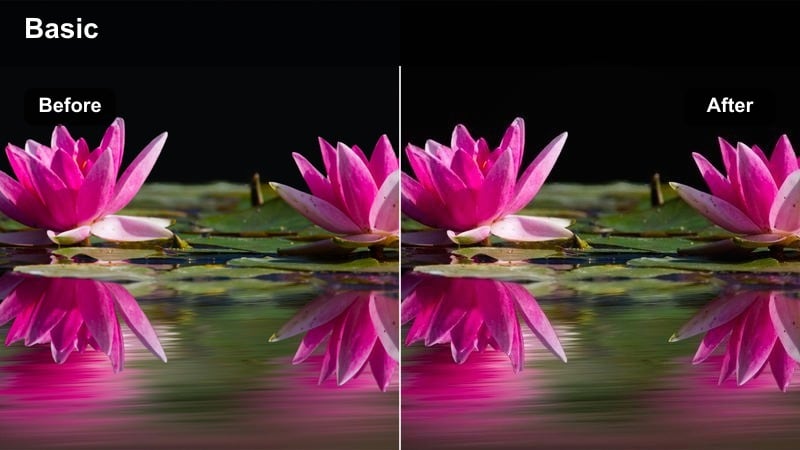
- Effect look: Low-key lighting with lifted blacks and a subtle greenish tint for suspense.
- Best for: Thriller-style dialogue, interrogation scenes, and quiet tense moments.
- Editing tip: Dial back the green cast slightly if skin starts to look sickly or unnatural.
Room of Secrets shapes your interior scenes into tense, low-key compositions with a hint of cool-green tint, giving everything an uneasy thriller edge. Overhead lamps and single practical lights become crucial storytelling tools as the filter emphasizes hard shadows and midtone contrast.
In Filmora, apply this filter to dialogue or interrogation setups, then subtly adjust the green channel and skin-tone sliders to keep faces believable. Reduce shadow noise with the denoise controls, and consider adding a narrow spotlight effect or mask to further isolate characters within the darkness.
Dusty Study Cinema
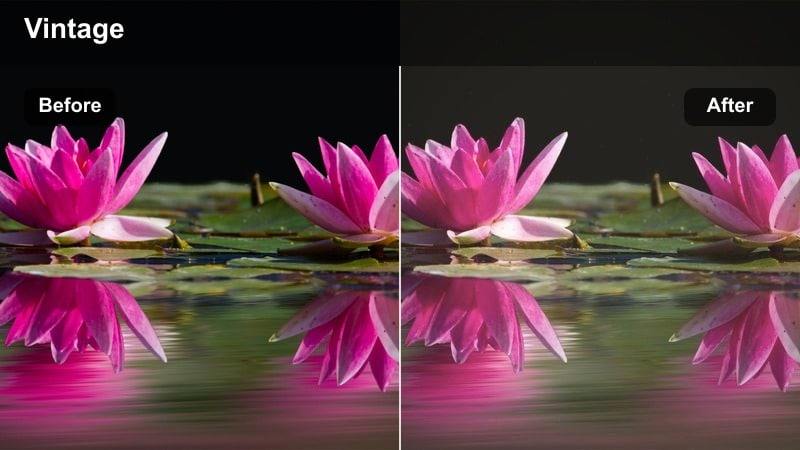
- Effect look: Warm highlights, cool shadows, and soft contrast for vintage, introspective interiors.
- Best for: Desk setups, creative workspaces, and narrative monologues in dim rooms.
- Editing tip: Add a light vignette and reduce clarity slightly to emphasize the nostalgic, dreamy character.
Dusty Study Cinema gives dim rooms a nostalgic dual-tone grade, with warm pools of light against cooler, desaturated shadows. It is great for writers at desks, late-night editing sessions, or any scene where you want the space to feel thoughtful and slightly vintage without losing detail.
In Filmora, pair this filter with desk lamps, monitors, and practical lights, then add a gentle vignette and reduce clarity or texture to soften the frame. Use color controls to keep warm highlights just below clipping, and gently lift the blacks so your shadows feel filmic rather than crushed or digital.
Dusk Exteriors and Twilight Walks
Twilight Steps
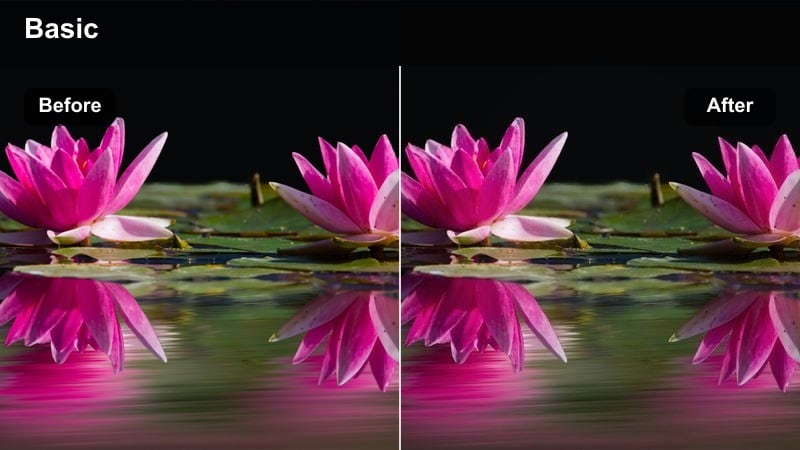
- Effect look: Cool, soft tones with gentle contrast and slightly lifted blacks for late-evening walks.
- Best for: Golden-to-blue hour streets, rooftop scenes, and reflective walking shots.
- Editing tip: Reduce saturation of greens to avoid distraction and keep focus on the subject's silhouette.
Twilight Steps enhances the quiet calm of late evening with cool, muted tones, lifted blacks, and balanced contrast. It accentuates sky color and building silhouettes while keeping your subject soft and contemplative, making it perfect for reflective walks and transitional scenes.
Use it in Filmora right after sunset footage, then fine-tune saturation to gently mute greens and busy colors. Combine with smooth stabilization and slow motion where possible so each step feels weighty and cinematic, and adjust the tone curve slightly if you want deeper shadows without losing the dreamy atmosphere.
Industrial Dusk Fade
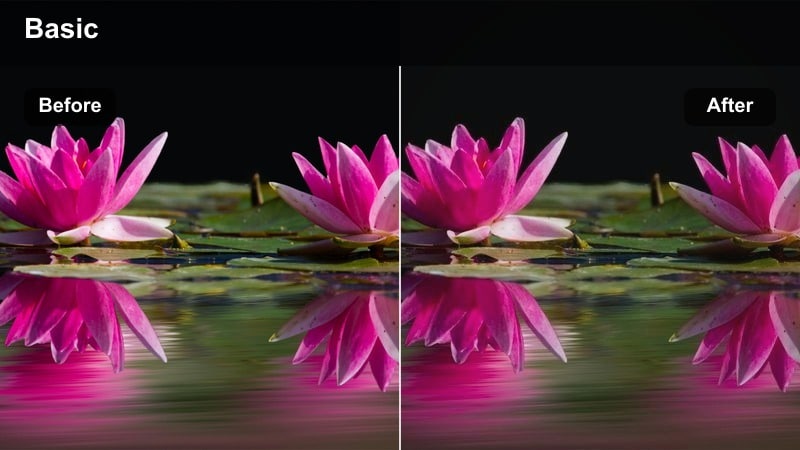
- Effect look: Desaturated colors with strong shadows and a subtle steel-blue cast.
- Best for: Warehouse districts, overpasses, and industrial skyline silhouettes at dusk.
- Editing tip: Lower saturation of yellows and oranges, then selectively boost reds if you need a hint of warmth on faces.
Industrial Dusk Fade transforms industrial landscapes into cold, graphic backdrops with desaturated hues and a steel-blue atmosphere. Concrete structures, bridges, and warehouses gain a heavy, cinematic presence as shadows deepen and warm colors pull back.
Inside Filmora, stack this filter on dusk or overcast clips, then gently suppress yellows and oranges while preserving a touch of red in skin tones. Emphasize leading lines and geometry with careful framing, and use the contrast and shadow sliders to balance grit with enough detail to keep silhouettes and faces clear.
Lonely Road Horizon
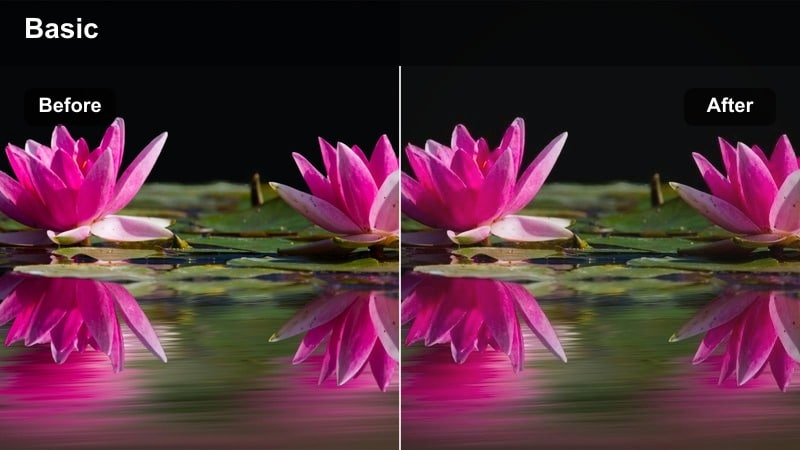
- Effect look: High contrast on the horizon line with muted midtones and subtle film-like fade.
- Best for: Empty streets, long road shots, and contemplative travel sequences.
- Editing tip: Add a slight tilt or slow zoom to reinforce the sense of distance and isolation.
Lonely Road Horizon highlights the vanishing point in your frame, boosting contrast toward the horizon while softening midtones with a film-like fade. This creates a strong sense of distance and solitude, ideal for solitary walks, road trips, and emotional travel moments.
In Filmora, apply this filter to wide shots with plenty of sky and road, then add a slow zoom or tilt using keyframed scale and position for extra cinematic movement. Adjust the fade and contrast controls to taste, and keep cuts longer so the audience can soak in the stretching landscape and emotional tone.
Cinematic Shadow Portraits and Close-ups
Low-Key Portrait Deep
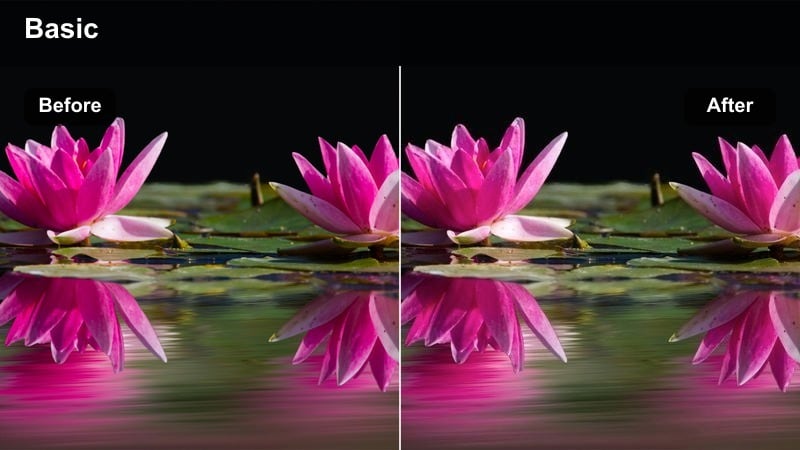
- Effect look: Strong chiaroscuro lighting with rich skin tones and deep, inky shadows.
- Best for: Studio portraits, character posters, and close-up emotional beats.
- Editing tip: Mask the eyes slightly brighter if they disappear into shadow so the audience stays connected to the subject.
Low-Key Portrait Deep emphasizes dramatic chiaroscuro, enriching skin tones while plunging backgrounds and non-essential areas into inky shadow. This creates striking character portraits, emotional close-ups, and stylized thumbnails or poster frames.
In Filmora, apply this filter to controlled studio setups, then use masking tools to gently lift exposure around the eyes and key facial features. Keep backgrounds minimal and dark, and combine with subtle sharpening and film grain to give your portraits a premium, cinematic LUT-grade finish.
Cinematic Shadow Rim
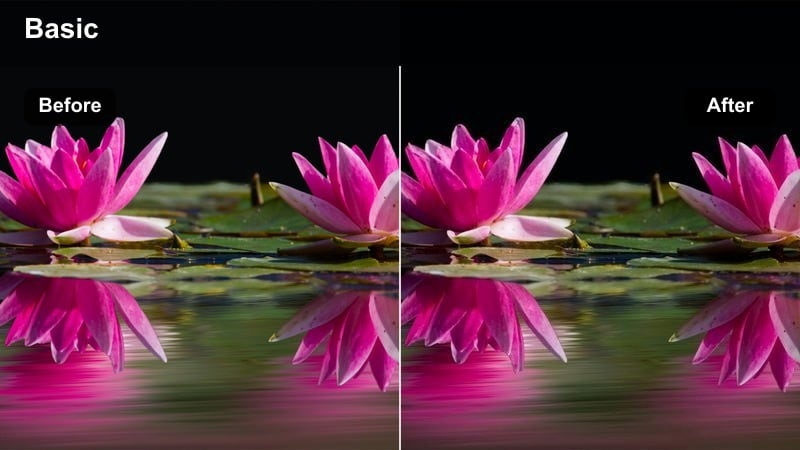
- Effect look: Dark frame with a pronounced rim light around the subject and cool, moody midtones.
- Best for: Hero reveals, music video portraits, and stylized branding shots.
- Editing tip: Add a soft radial blur or slight glow around the brightest edge to exaggerate the rim effect.
Cinematic Shadow Rim focuses on a bright edge light that carves the subject out from a nearly black background, perfect for hero shots and stylized portraits. Cool midtones and firm shadows create a bold, modern aesthetic suited to music videos and branding visuals.
In Filmora, use this filter on clips where your key light is behind or to the side of the subject, then enhance the rim using glow or radial blur effects. Keep lens flares to a minimum and darken the background if needed with masks, so the luminous edge and profile silhouette stay the central focus.
Inner Monologue Close
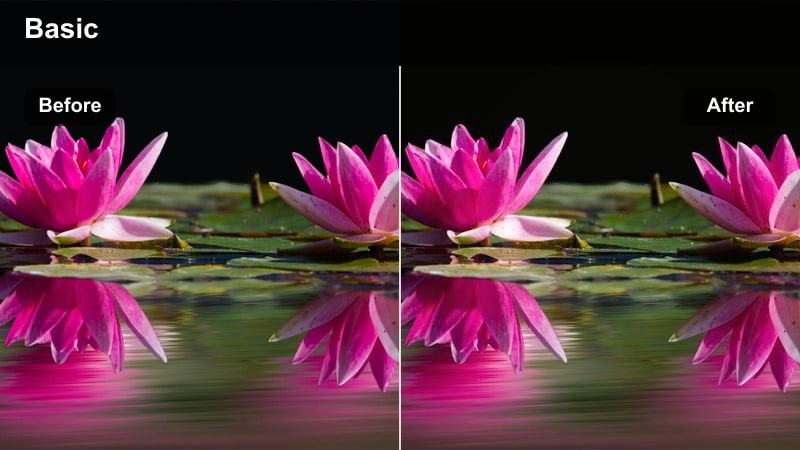
- Effect look: Soft contrast, subdued colors, and gentle fade in both shadows and highlights.
- Best for: Intimate talking-head scenes, narrative voiceovers, and reflective monologues.
- Editing tip: Slow your cutting pace and hold on reactions longer so the subtle, moody grade has time to land emotionally.
Inner Monologue Close adds a soft, introspective veil over your close-ups, with low contrast, gentle fades, and muted colors. It works especially well for voiceovers, confessional pieces, and emotional reaction shots where every micro-expression matters.
Within Filmora, apply this filter to softly lit close-ups, then lower background saturation and remove visual clutter using crop or blur tools. Let shots play out a little longer in the edit, and avoid aggressive transitions so the understated, moody grade can support the emotional pacing of your story.
Tips for Using Dark Moody Cinematic Lut Filters in Filmora
- Shoot slightly underexposed when planning a dark moody cinematic grade so highlights stay controllable and details are not blown out.
- Keep your lighting simple and directional; one strong light source often works better than multiple soft sources for this style.
- Use vignettes, film grain, and modest sharpening to enhance the cinematic feel after your main filter is in place.
- Avoid pushing saturation too high; let contrast and shadow shape the mood while colors stay restrained and cohesive.
- Grade one reference shot first, then match the rest of the sequence to maintain a consistent dark cinematic tone.
- Combine Filmora filters with dark moody cinematic LUTs on adjustment layers to experiment quickly without damaging your original clips.
- Regularly check your scopes in Filmora to ensure blacks are rich but not clipped and skin tones remain natural under the stylized grade.
Dark moody cinematic LUT-style filters give content creators a fast way to turn simple footage into atmospheric, story-driven visuals filled with depth and emotion.
Experiment with different filters, lighting setups, and subtle adjustments in Filmora until you find a dark cinematic style that matches your own storytelling voice.
secure download