

 100% Security Verified | No Subscription Required | No Malware


 ChatGPT
 Perplexity
 Gemini
 Claude
 Grok
Grok
The Dramatic Cinematic Lighting Filter pack in Filmora is designed for content creators who want intense contrast, sculpted shadows, and focused highlights that feel like scenes pulled straight from a movie screen.
These presets help you quickly build tension, emphasize emotion, and guide the viewer's eye with controlled lighting, whether you are shooting YouTube shorts, narrative projects, music videos, or branded social content.
In this article
Moody Night Street and Neon Drama
Neon Noir Intensity
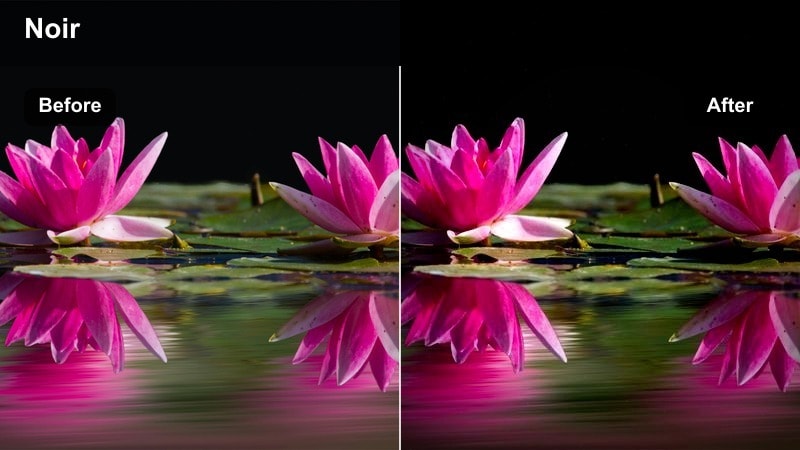
- Effect look: High-contrast, color-tinted shadows with glowing neon highlights and deep, inky blacks.
- Best for: Night city walks, neon signs, rainy streets, and cyberpunk-inspired B-roll.
- Editing tip: Lower exposure slightly, then raise contrast and clarity to keep faces readable while preserving the neon glow around them.
Neon Noir Intensity is built to turn ordinary night city footage into a stylized, graphic frame full of punchy contrast and saturated neon. In Filmora, the filter deepens blacks, enriches colored light sources, and lets neon signs carve silhouettes out of the darkness, ideal for cyberpunk montages, moody urban sequences, and high-energy intros.
Apply this preset to clips with clear neon or LED light sources and then fine-tune exposure and contrast in Filmora to keep your subject visible against the intense glow. Combine it with subtle camera moves or handheld shots for a gritty atmosphere, and use keyframes on filter intensity to ramp the drama up or down across your timeline.
Dial in dramatic light with Filmora's AI-powered controls
Combine the Dramatic Cinematic Lighting Filter presets with Filmora's AI tools to quickly refine contrast, exposure, and color balance for consistent results across your entire edit. Smart adjustments help you build a cohesive look even when scenes were shot in different locations or under mixed lighting.
AI-driven color correction can recover detail in clipped highlights or muddy shadows so your dramatic grading stays cinematic rather than harsh. Once your base look is in place, you can duplicate settings across clips with a few clicks, speeding up delivery for shorts, vlogs, and narrative videos.
 secure download

See dramatic lighting filters in action on real scenes
To understand how each dramatic preset reshapes your footage, drop a mix of night streets, dialog scenes, and outdoor shots onto the Filmora timeline and toggle filters on and off. Watching the before and after results in motion makes it easier to judge how much contrast, glow, or shadow depth suits your story.
Use the intensity sliders and basic color tools to fine-tune each look for your camera, then copy those settings to similar clips to keep your edit unified. This workflow helps you quickly test multiple moods on the same footage so you can pick the version that best fits your platform and audience.
secure downloadBlend filters with LUTs for an indie film finish
Once you are happy with your dramatic lighting and contrast in Filmora, you can stack LUTs on top to introduce specific color palettes, film emulations, or stylized tones. Treat the filters as your lighting pass and the LUTs as the finishing color layer.
This separation keeps your workflow flexible; you can swap LUTs late in the edit without rebuilding your lighting from scratch. Light shaping presets plus film-style LUTs give you an indie feature feel, even when you are shooting on a compact camera or smartphone.
secure downloadAlleyway Shadow Punch
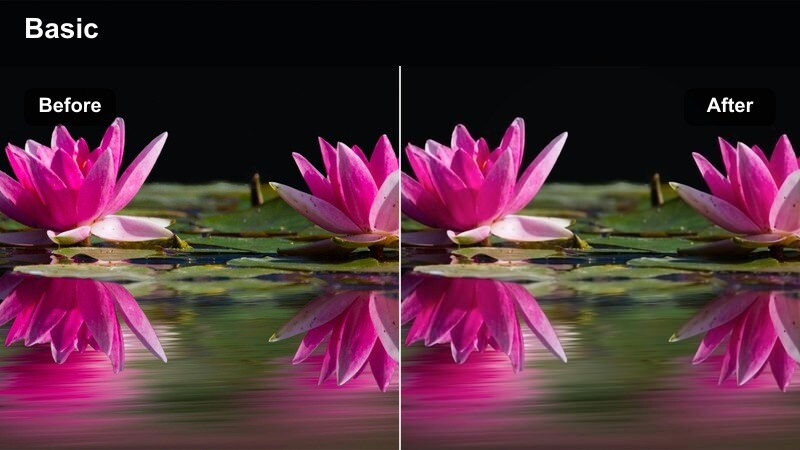
- Effect look: Crushed shadows, gritty textures, and a cold color cast that emphasizes isolation.
- Best for: Thriller teasers, crime vlogs, and narrative scenes in narrow streets or alleys.
- Editing tip: Reduce saturation slightly and push highlights warmer to contrast the cool, moody midtones and make skin tones pop.
Alleyway Shadow Punch is designed to turn cramped, everyday spaces into tense cinematic environments. In Filmora, it deepens shadow regions, adds crisp texture to walls and pavement, and introduces a cooler tone that reinforces suspense, making it ideal for crime setups, urban monologues, or documentary cutaways.
For best results, shoot with strong directional light such as a doorway, street lamp, or single practical in frame, then apply the filter and adjust saturation and color temperature. The preset works especially well when you leave large pools of darkness in your composition, letting the filter carve out a bold separation between the subject and their surroundings.
Rain-Slick City Glow
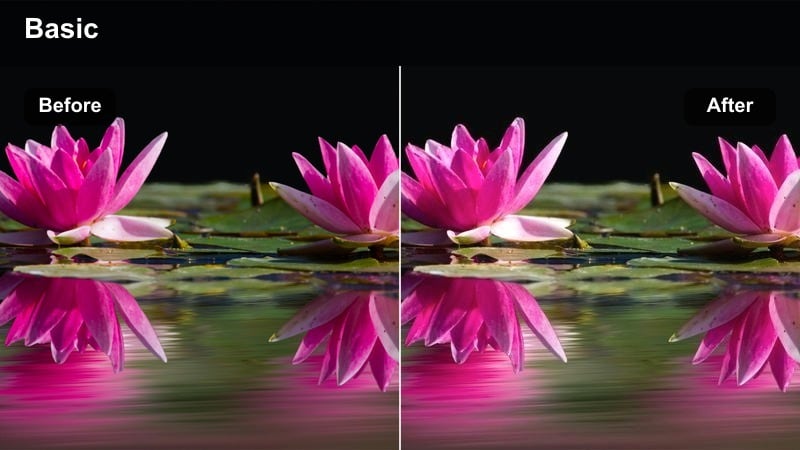
- Effect look: Soft halos around light sources with deep contrast and reflective highlights on wet surfaces.
- Best for: Rainy-night montages, emotional street scenes, and B-roll of city traffic in bad weather.
- Editing tip: Use slower shutter speeds and minimal sharpening, then apply this filter to keep the glow cinematic instead of noisy.
Rain-Slick City Glow enhances every droplet, puddle, and reflection, amplifying the natural drama of wet streets at night. In Filmora, the filter adds blooming highlights around headlights and streetlamps while deepening midtones, giving your footage a polished, movie-trailer sheen.
Apply it to clips with visible reflections on the ground, car roofs, or building windows, then fine-tune contrast and sharpness so the glow feels smooth rather than grainy. Paired with slow motion or gentle camera moves, this preset turns simple bad-weather B-roll into emotionally charged visuals for vlogs, music videos, or narrative transitions.
Intense Interior Dialogues and Close-Ups
Single-Source Interrogation
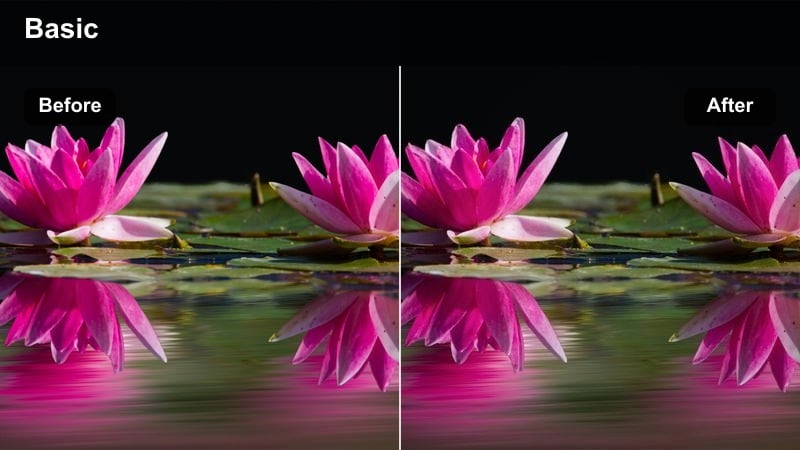
- Effect look: Hard directional light with rapid falloff, emphasizing one side of the face and dimming the background.
- Best for: Interrogation-style interviews, tense dialogue, and confession scenes shot indoors.
- Editing tip: Darken the background with a vignette, then slightly lift midtones on the face so the filter mirrors classic interrogation setups.
Single-Source Interrogation recreates the stark, high-contrast look of classic crime dramas and interrogation rooms. In Filmora, it accentuates one-sided lighting, drops the background into darkness, and makes facial features stand out sharply, ideal for high-stakes interviews, confrontations, or confessional pieces.
Use a single lamp or window as your key light and position the subject so half their face falls into shadow, then apply the preset. Refining exposure, midtones, and vignette inside Filmora lets you control how harsh or nuanced the drama feels, from documentary realism to stylized noir.
Soft Window Confession
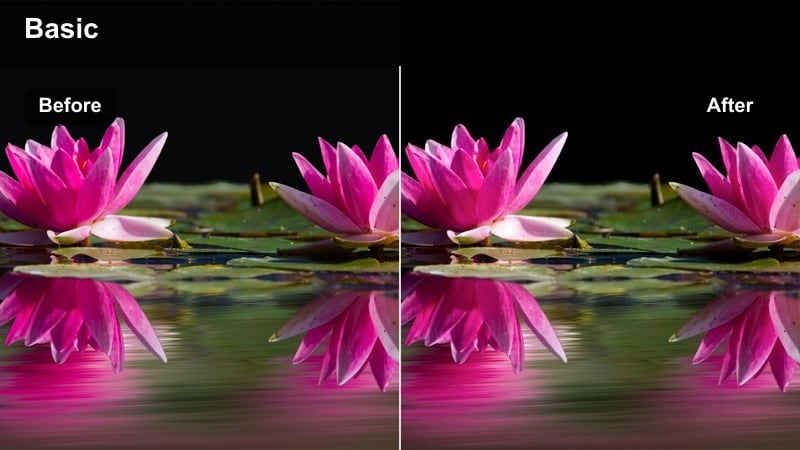
- Effect look: Soft, directional window light with controlled contrast and a gentle cinematic roll-off in the highlights.
- Best for: Vlogs, emotional monologues, talking-head intros, and character confessionals near a window.
- Editing tip: Lower overall saturation and slightly warm the highlights to keep the scene intimate and story-driven.
Soft Window Confession is tailored for intimate, emotionally focused shots where subtle expressions matter more than spectacle. In Filmora, the preset balances soft shadows with gentle highlights to give your talking heads, vlogs, or character pieces a natural but cinematic polish.
Set your subject near a window or diffused light source, apply the filter, and adjust warmth and saturation until the scene feels cozy and inviting. The lowered contrast and softened edges help draw attention to your subject's eyes and micro-expressions, making even simple setups feel like crafted film scenes.
Backlit Silhouette Reveal
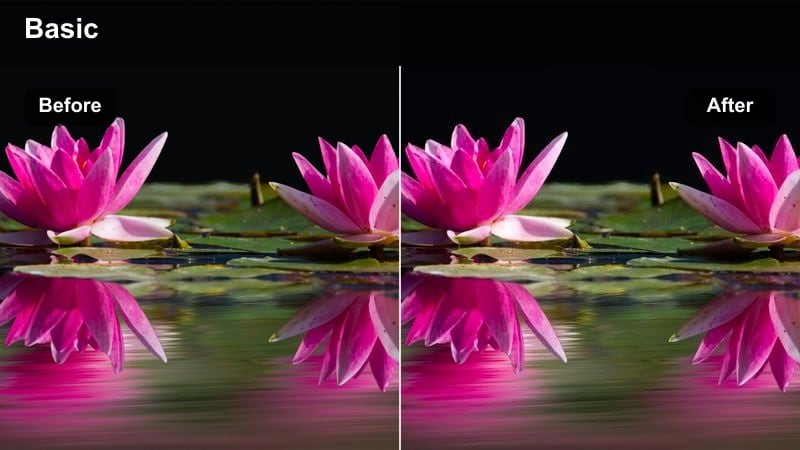
- Effect look: Bright backlight wrapping around the subject with deeper foreground shadows and a strong outline glow.
- Best for: Character reveals, dramatic entrances, doorway shots, and emotional turning points.
- Editing tip: Drop shadows slightly and raise highlight detail so the subject's edge light pops without losing form completely.
Backlit Silhouette Reveal focuses on striking outlines and bold separation between subject and background. In Filmora, the filter emphasizes rim light, deepens foreground shadows, and enhances glow around edges, turning simple doorways, hallways, or windows into powerful reveal moments.
Position your light source behind the subject and expose for the brightest area before applying the preset. Then fine-tune highlights and blacks within Filmora to decide how mysterious or readable the silhouette should be, perfect for entrances, emotional shifts, or stylized transitions between scenes.
Epic Outdoor Drama and Golden Hour Moments
Golden Hour Hero Focus
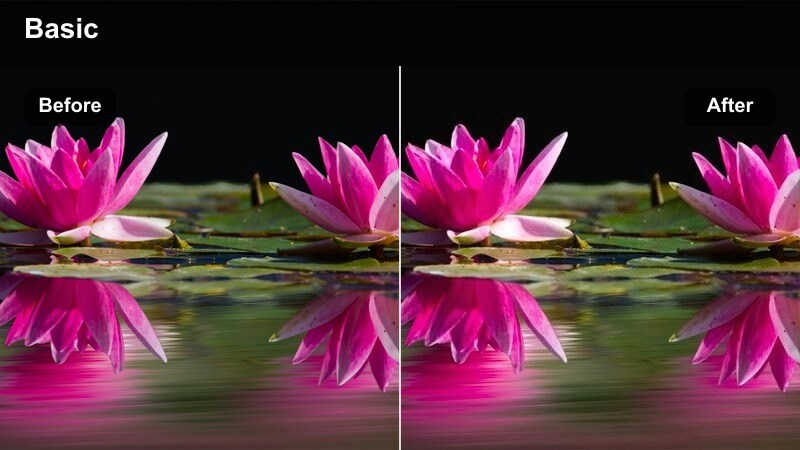
- Effect look: Warm, glowing highlights, rich midtones, and gently lifted shadows that preserve detail in backlit scenes.
- Best for: Hero shots at sunset, cinematic walk-and-talk sequences, and travel vlogs during golden hour.
- Editing tip: Slightly underexpose at capture, then use this filter to bring back warmth and contrast without blowing out the sun.
Golden Hour Hero Focus is designed to maximize the natural beauty of sunrise and sunset light. In Filmora, it enriches warm tones, adds subtle glow to backlit subjects, and keeps shadow detail intact so your travel, lifestyle, or narrative shots feel expansive and filmic.
Apply the preset to footage captured just before or after sunset, then adjust exposure and warmth to match your desired level of drama. With minor tweaks to saturation and contrast, you can quickly turn casual outdoor clips into hero moments suitable for thumbnails, trailers, or social media hooks.
Storm Front Contrast
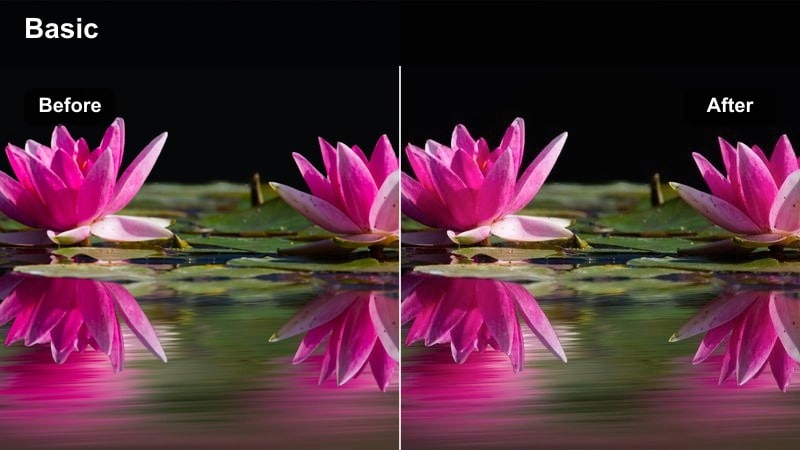
- Effect look: Darkened skies, heightened local contrast, and desaturated tones with selective emphasis on key highlights.
- Best for: Approaching storm sequences, emotional outdoor montages, and dramatic time-lapses.
- Editing tip: Lower saturation in blues and greens, then add a slight vignette to make clouds and faces stand out against the environment.
Storm Front Contrast is all about amplifying the tension that comes with shifting weather and heavy skies. In Filmora, it deepens cloud formations, reduces overall saturation, and adds punch to key highlight areas, making open landscapes and cityscapes feel more ominous and cinematic.
Use it on clips featuring dramatic clouds, wind-blown elements, or changing light, then refine color channels and vignette strength to keep attention on your subject. The preset works especially well when paired with time-lapse sequences or slow, deliberate camera moves that let the charged atmosphere fully register on screen.
Urban Rooftop Dusk Drama
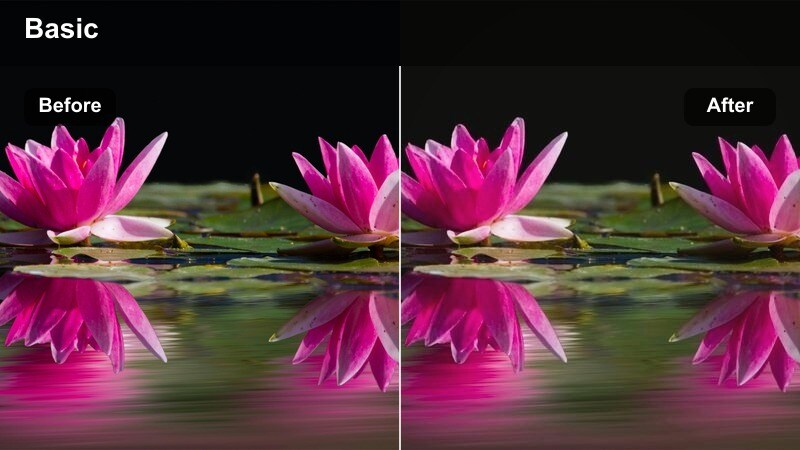
- Effect look: Cool shadows with subtle warm highlights from city lights and a gentle fade in distant buildings.
- Best for: Rooftop conversations, cityscape B-roll, and reflective character beats at blue hour.
- Editing tip: Balance white balance slightly cooler, then let the filter reintroduce warmth only in highlights for a cinematic color split.
Urban Rooftop Dusk Drama emphasizes the quiet, reflective side of city life as day slips into night. In Filmora, the preset cools down overall tones while allowing windows, signs, and practical lights to glow warmly, creating a sophisticated split-tone look across your skyline and subjects.
Apply it to blue hour footage where the sky still holds some color and city lights are turning on, then adjust white balance and highlight intensity to taste. This cinematic balance of cool and warm works well for dialogue scenes, contemplative B-roll, or establishing shots that bridge daytime and night sequences in your edit.
Stylized Storytelling for Indie and Social Content
Split-Tone Psychological Tension
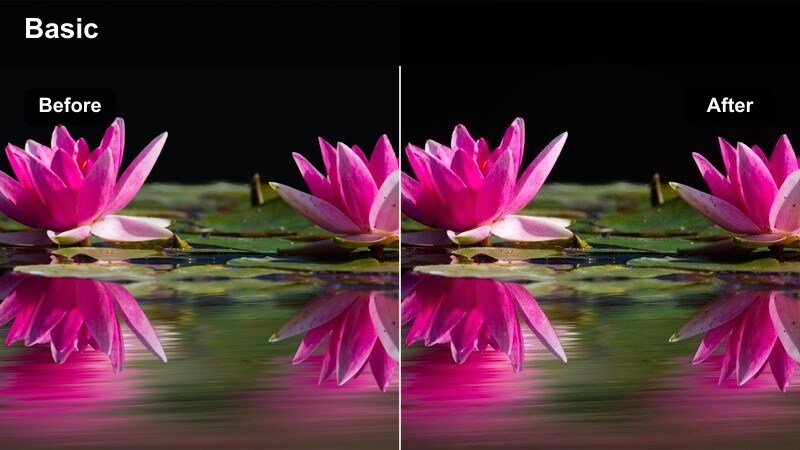
- Effect look: Cool shadows and warm highlights with strong contrast and selective desaturation to suggest unease.
- Best for: Psychological thrillers, dramatic reaction shots, and narrative shorts on social platforms.
- Editing tip: Frame tight on faces, reduce overall saturation, then use this filter to push color contrast between light and shadow areas.
Split-Tone Psychological Tension is crafted to show emotional conflict directly in the lighting and color of your frame. In Filmora, it enhances separation between warm and cool areas while slightly muting overall saturation, creating a sophisticated, uneasy mood for character-driven content.
Use the preset on close-ups where light hits only part of the face or background, then fine-tune color temperature and contrast to emphasize inner turmoil or moral ambiguity. It is particularly effective in reels, shorts, and narrative edits where you need to signal shifting emotions quickly without extra exposition.
Vlog Theater Spotlight
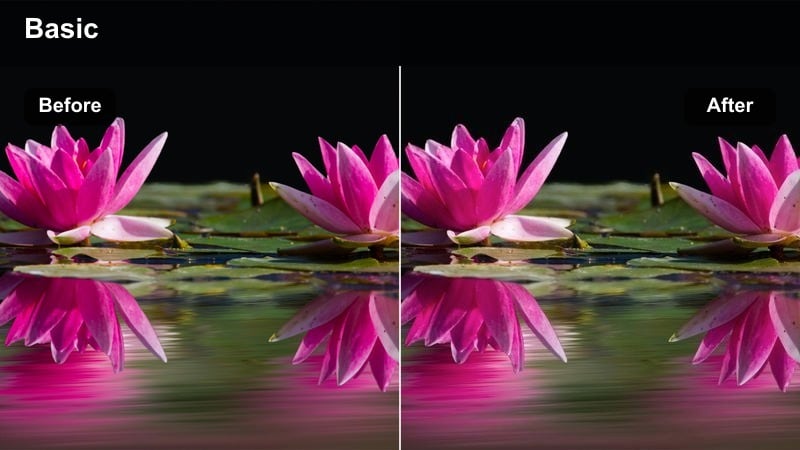
- Effect look: Subtle spotlight effect on the subject with darkened edges and a stage-like contrast pop.
- Best for: YouTube storytelling, commentary videos, reaction shots, and reels with direct-to-camera delivery.
- Editing tip: Center your subject, then lightly increase the vignette and sharpness to mimic a theatrical spotlight in a home setup.
Vlog Theater Spotlight helps transform everyday desk or room setups into focused, stage-like spaces. In Filmora, it brightens and sharpens the subject while gently darkening the frame edges, giving commentary, tutorials, and reactions a more intentional, cinematic presentation.
Apply the preset to talking-head clips where your key light is already strongest on your face, then adjust vignette and clarity to control how dramatic the isolation feels. The look pairs well with animated titles and cutaway B-roll, making your content feel more premium without complicating your lighting gear or shooting process.
Flashback Memory Fade
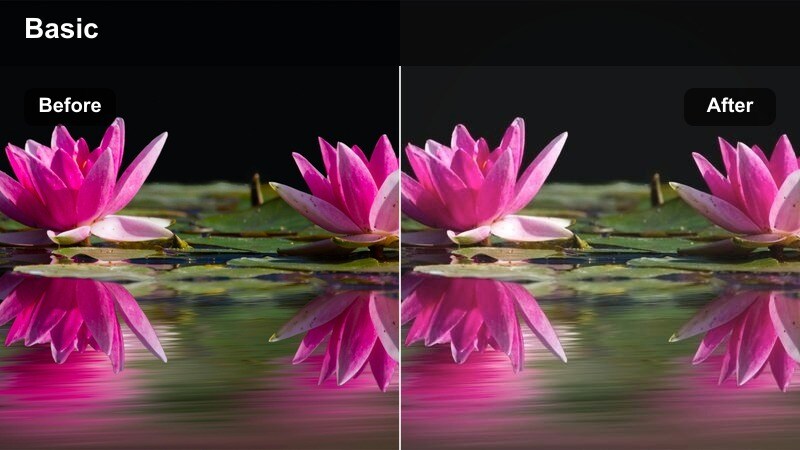
- Effect look: Soft contrast, lifted blacks, and gentle haze around highlights to suggest memory or dream sequences.
- Best for: Flashbacks, dream scenes, recap montages, and reflective social edits.
- Editing tip: Reduce clarity slightly and add slow motion or subtle speed ramps to match the hazy, softened lighting mood.
Flashback Memory Fade is perfect for separating past events, dreams, and internal reflections from the sharper look of your main story. In Filmora, it lifts blacks, softens contrast, and blooms highlights just enough to feel nostalgic without losing important detail.
Apply it to clips featuring backlight or soft ambient illumination, then pair with gentle slow motion, overlays, or crossfades for a cohesive memory sequence. The preset makes it easy to signal time jumps, emotional callbacks, or recap moments in vlogs, series recaps, and narrative short films.
Tips for Using Dramatic Cinematic Lighting Filter Filters in Filmora
- Shoot slightly underexposed when planning to use dramatic lighting filters so highlights stay controllable and cinematic.
- Avoid mixing too many light colors in one frame; limit yourself to two dominant tones so the filter's color shaping stays clear.
- Use practical lights like lamps, windows, and streetlights inside the frame to give the filter strong highlights to sculpt.
- Add subtle camera movement or foreground elements to keep high-contrast scenes visually dynamic after grading.
- Adjust filter intensity per clip instead of leaving it at 100 percent to avoid overprocessed or artificial-looking results.
- Combine dramatic lighting presets with Filmora LUTs only after you are happy with contrast and exposure to keep your workflow flexible.
- Use vignettes and masks in Filmora to guide the viewer's eye toward the brightest, most important part of the scene.
- Save your favorite filter settings as custom presets so you can quickly apply a consistent cinematic look across whole projects.
Dramatic cinematic lighting filters in Filmora help content creators move beyond flat, ordinary footage and into visually rich scenes where contrast, shadow, and highlight all serve the story.
Build your own signature style by combining these presets with careful shot planning, practical lighting, and selective LUTs so every upload feels like a frame from a finished film, not just another video clip.
secure download