

 100% Security Verified | No Subscription Required | No Malware

This collection of epic film color grading LUT-style filters is designed for content creators who want their footage to feel like a big-screen movie, straight out of Filmora.
From golden-hour hero shots to moody night chases, these cinematic filters help you quickly dial in a consistent look, keep your story visually cohesive, and save time in the edit.
In this article
Golden Dusk Hero Moments
Sunset Epic Amber Glow
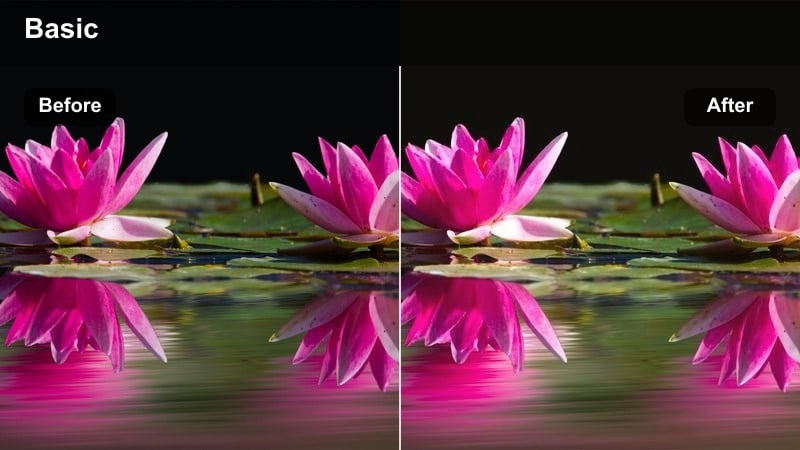
- Effect look: Warm, amber-toned grade that mimics sunset light with soft halation around bright areas.
- Best for: Outdoor hero reveals, cinematic travel B-roll, and dramatic vlogs shot during late afternoon or early evening.
- Editing tip: Lower contrast slightly and reduce saturation in the reds to avoid oversaturated skin tones when shooting in already warm light.
Sunset Epic Amber Glow wraps your footage in a rich, golden atmosphere that instantly feels like it was shot during a perfect cinematic sunset. The subtle halation around highlights gives bright areas a filmic bloom, softening harsh edges while keeping your subject clearly defined in the frame.
In Filmora, apply this filter on an adjustment layer above your dusk clips, then fine-tune intensity so the warm grade enhances, rather than overwhelms, natural light. Correct white balance first to keep skin tones pleasing, then use color wheels or curves to slightly tame reds and protect highlights in brighter skies.
Speed Up Your Epic Look With AI Color Tools
Filmora's AI-powered color tools help you quickly match the mood of Sunset Epic Amber Glow across multiple cameras and locations, so your hero moments feel unified. Instead of grading each clip from scratch, you can balance exposure and color with a few clicks, then let this epic filter provide the final cinematic touch.
Use AI Color Match to align your base tones between handheld B-roll, drone shots, and close-up dialogue, then layer the filter to lock in a consistent sunset-driven look from scene to scene.
 secure download

Preview Epic Filters in Real Time
Filmora lets you hover over epic film filters like Sunset Epic Amber Glow to preview the result instantly in the Viewer, so you can compare different cinematic moods without committing. This makes it easy to audition several options for the same scene and pick the one that best supports your story beat.
Try testing a few dusk looks back-to-back on your most important hero shot, then lock in the filter that keeps detail in the sky while giving your subject that unmistakable movie glow.
secure downloadBlend Filters With LUT-Style Grading
To push your cinematic style even further, you can combine Filmora's LUT-style grading options with epic filters in the same timeline. Start with a filmic LUT to establish contrast and color separation, then add a filter like Sunset Epic Amber Glow at reduced intensity to finesse warmth and atmosphere.
Using an adjustment layer for both the LUT and filter keeps your grade flexible: you can tweak strength, color balance, and exposure for an entire sequence without touching each clip individually.
secure downloadGolden Ridge Cinematic
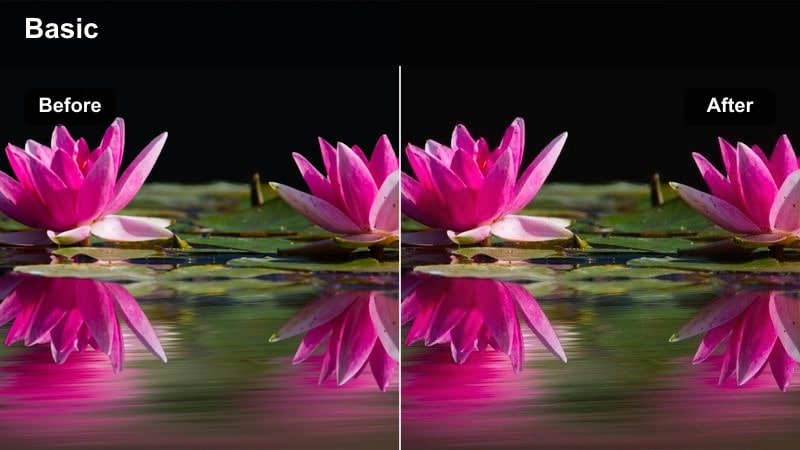
- Effect look: Soft, golden highlight roll-off with gently lifted shadows for a polished cinematic feel.
- Best for: Character introductions, walking sequences on rooftops, and reflective storytelling moments shot at dusk.
- Editing tip: Add a subtle vignette and use slow push-in camera moves to maximize the emotional impact of this glowing filmic look.
Golden Ridge Cinematic creates a luminous dusk aesthetic with smooth highlight roll-off that flatters both cityscapes and faces. Lifted shadows keep detail in darker areas, making it ideal for silhouettes and rooftop walks where you want to preserve mood without losing information.
Inside Filmora, apply this filter to your establishing and character intro shots, then pair it with gentle camera motion such as keyframed scale-ins for a premium film feel. If practical lights or windows appear too bright, slightly lower exposure first, then fine-tune highlights and add a vignette to guide the viewer's attention toward your subject.
Ember Horizon Hero
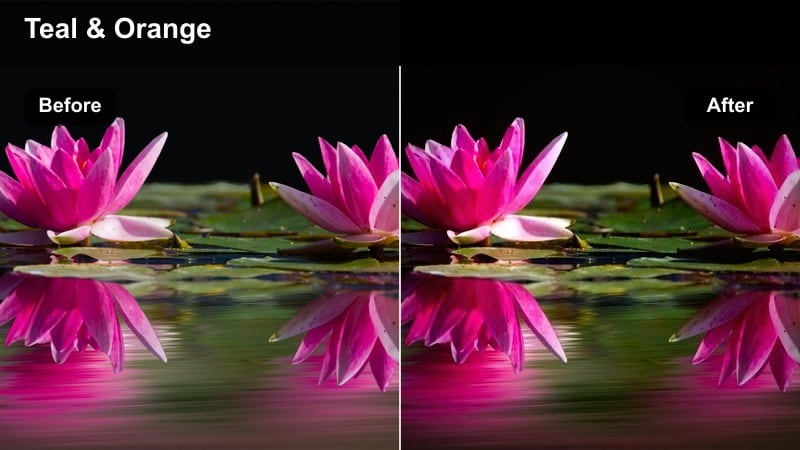
- Effect look: High-contrast amber and teal treatment with bold, punchy highlights ideal for heroic silhouettes.
- Best for: Slow-motion reveals, city rooftop stand-offs, and motivational sequences set against a glowing skyline.
- Editing tip: Use smoother footage or light stabilization, as the high contrast will emphasize any camera shake or jitter.
Ember Horizon Hero pushes your footage into bold blockbuster territory, combining strong amber highlights with deep teal shadows for dramatic separation. This look is perfect when you want characters to stand out as strong silhouettes against intense, glowing backgrounds.
When grading in Filmora, apply this filter to carefully framed skyline shots and slow-motion sequences, then use stabilization on handheld clips to keep the high contrast from exaggerating shake. If shadows become too crushed, gently raise blacks and consider adding a light film grain overlay to maintain texture and complement the gritty, heroic tone.
Urban Night Chase Vibes
Neon Pursuit Teal
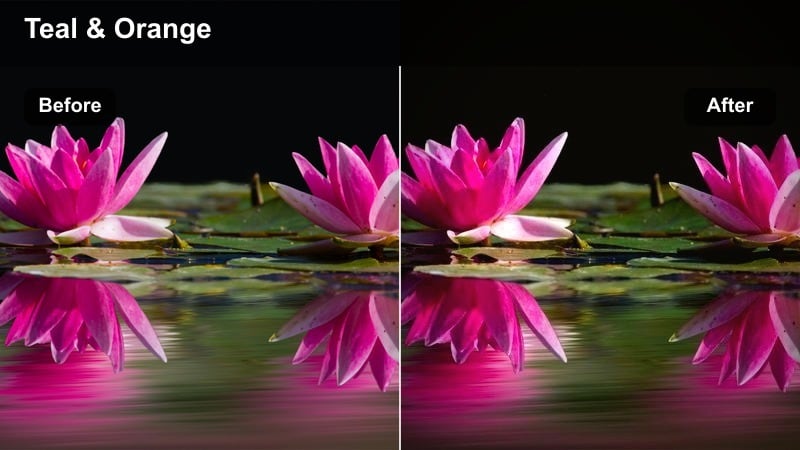
- Effect look: Cool teal and cyan emphasis with deep, cinematic shadows and glowing neon highlights.
- Best for: Night chases through downtown streets, cyberpunk-style B-roll, and action-heavy city sequences.
- Editing tip: Turn down saturation on greens if streetlights look too radioactive, and raise midtones slightly to keep faces visible.
Neon Pursuit Teal turns ordinary urban nights into stylized, neon-soaked environments straight out of a cyberpunk thriller. Cool teal tones dominate the frame, while deeper shadows create contrast that makes illuminated signs, car lights, and shop fronts pop.
In Filmora, apply this filter to chase sequences, tracking shots, or gimbal moves along wet streets, then adjust midtones to ensure faces remain readable in low light. If green traffic or sodium lights become distracting, use HSL or color tuning to tame those channels so the teal atmosphere feels cinematic rather than overwhelming.
Midnight Steel Noir
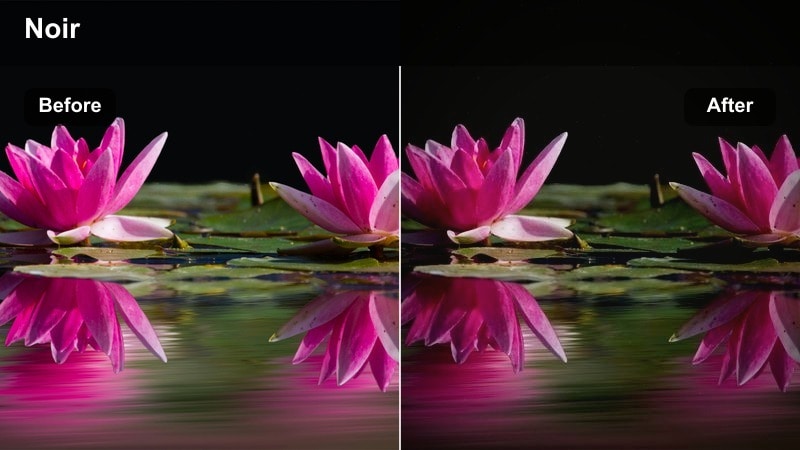
- Effect look: Desaturated, steel-blue shadows with crisp contrast and a subtle noir-inspired atmosphere.
- Best for: Detective-style scenes, tense alley encounters, and moody dialogue in parked cars at night.
- Editing tip: Pull back overall saturation and reduce warm tones to keep the noir feel consistent across multiple scenes.
Midnight Steel Noir brings a cool, desaturated noir style to your nighttime narratives, emphasizing steel-blue shadows and strong contrast. This look is ideal for crime stories, interrogations, or any scene where you want to heighten tension with shadow and light.
When working in Filmora, apply this filter to interiors lit by a single source or exteriors with strong pools of light, then reduce overall saturation for a classic noir palette. Allow some areas to fall into deep shadow while making sure key facial features remain visible, and use careful cutting between lit and dark environments to accentuate suspense.
Rain-Slicked Chrome
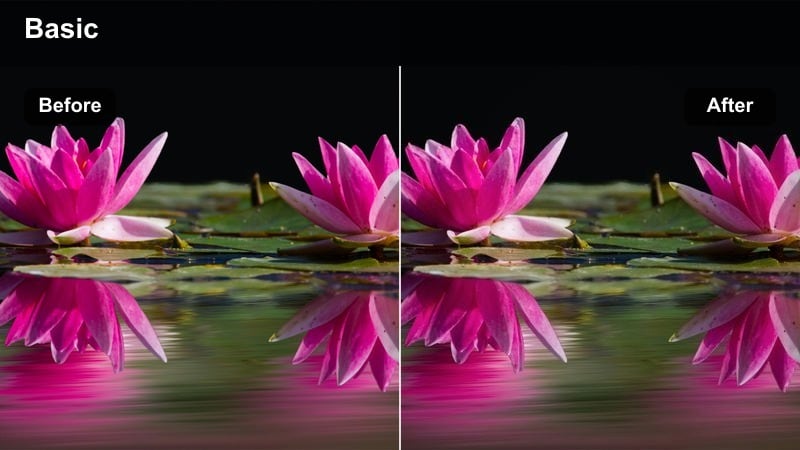
- Effect look: High-contrast, reflective look that emphasizes wet streets, chrome surfaces, and colored reflections.
- Best for: Night car shots, motorcycle passes, and walk-and-talks on rain-soaked sidewalks under city lights.
- Editing tip: Boost clarity slightly and increase highlight saturation so reflections on the ground feel alive and cinematic.
Rain-Slicked Chrome is tailored for glossy, high-energy city nights where wet pavement and shiny surfaces become characters of their own. The filter amplifies reflections and specular highlights, giving roads, cars, and glass a polished, movie-grade sheen.
In Filmora, use this filter on sequences shot after rain or with lightly sprayed ground to accentuate the streaks of color from neon lights and traffic. Boost clarity and highlight saturation carefully, then pair the look with smooth tracking or car-mounted shots so the reflections glide through the frame and reinforce the sense of speed and motion.
Intimate Interior Dialogue
Soft Reel Dramatic
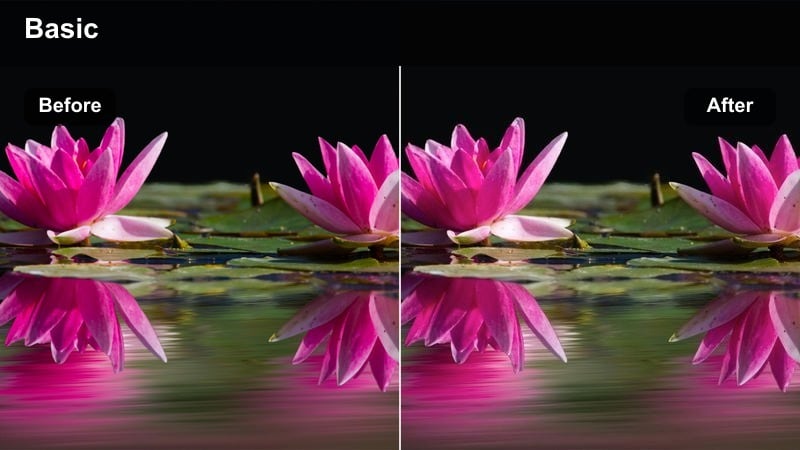
- Effect look: Muted colors with gentle contrast and soft highlights that draw attention to faces and emotions.
- Best for: Close-up conversations in apartments, offices, and studios where subtle emotion matters most.
- Editing tip: Use shallow depth of field and keep camera movement minimal so the grading and expressions do the storytelling.
Soft Reel Dramatic is designed to let emotions take center stage by gently muting colors and softening highlights, creating a calm, filmic interior mood. It removes harsh saturation and contrast that might distract from your subject's expressions, while still maintaining enough depth to feel cinematic.
Inside Filmora, apply this filter to dialogue-heavy sequences, interview setups, or close-ups captured in soft indoor lighting. Combine it with minimal camera movement, subtle vignettes, and careful skin tone adjustments so viewers focus on the eyes, micro-expressions, and performance rather than the background.
Window Sill Storyteller
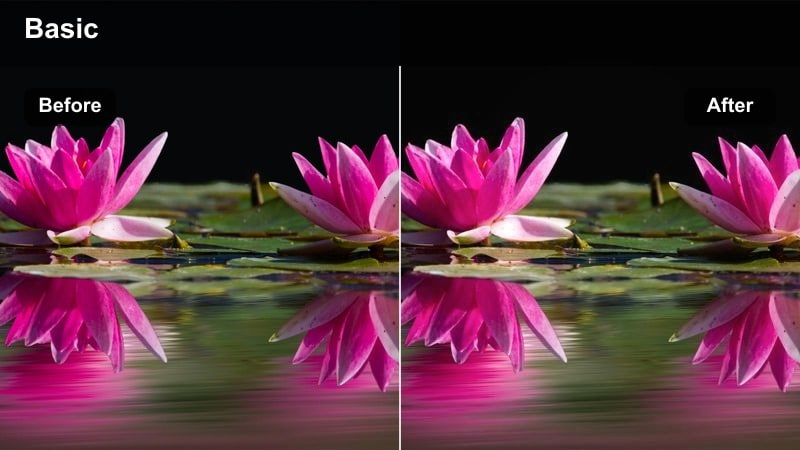
- Effect look: Soft, side-lit emphasis with subtle film fade and delicate contrast in midtones.
- Best for: Monologues by a window, reflective sit-down interviews, and quiet storytelling moments indoors.
- Editing tip: Expose for the face before grading and reduce highlight intensity afterwards to keep the window from blowing out.
Window Sill Storyteller enhances natural window light, adding a gentle fade and controlled contrast that feel tailor-made for reflective moments. The grade softly shapes midtones so skin appears flattering and the transition from light to shadow across the face looks intentional and cinematic.
In Filmora, start by exposing correctly for your subject's face, then apply this filter to preserve a balanced view of both subject and background. Reduce highlight intensity if the window appears too bright, and darken the background slightly if needed so the audience's attention remains anchored on the storyteller's performance.
Studio Amber Conversation
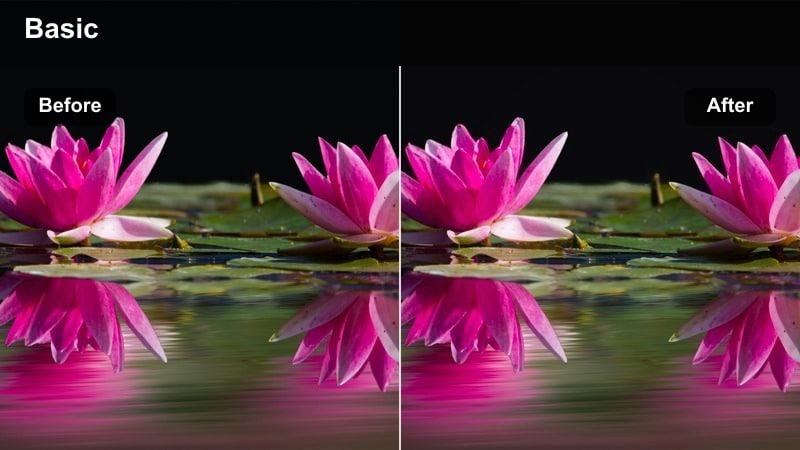
- Effect look: Warm, amber-leaning midtones with clean contrast and a modern studio film appearance.
- Best for: Podcast-style video sessions, talking-head explainers, and cinematic behind-the-scenes footage.
- Editing tip: Match lighting temperature to warm white bulbs and use this filter to unify different camera angles.
Studio Amber Conversation gives talking-head and podcast-style content a polished, studio-grade film look with warm, inviting midtones. The controlled contrast helps subjects stand out crisply from the background while practical lights and set pieces feel cohesive within the same amber-leaning palette.
Apply this filter across all camera angles in Filmora using an adjustment layer, then fine-tune exposure and white balance clip by clip to ensure consistent skin tones. If your background features multiple colors or LED accents, slightly reduce saturation so viewers stay focused on your speaker's face and message rather than the decor.
Epic Establishing Shots
Cityscape Epic Scope
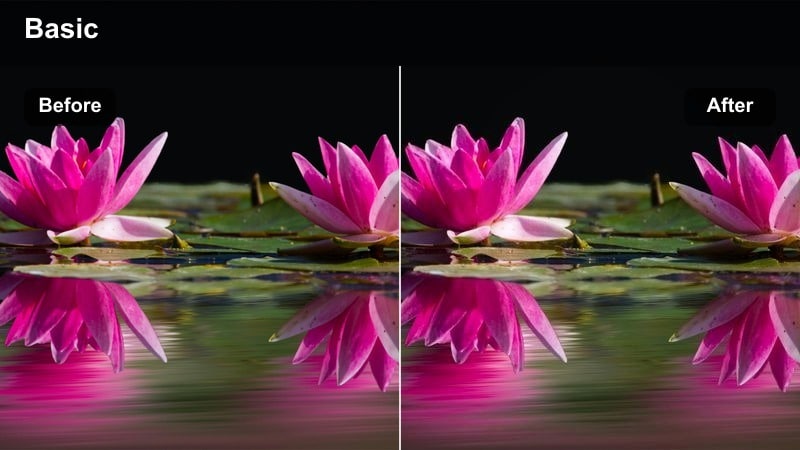
- Effect look: High dynamic range feel with crisp detail, cool shadows, and slightly warm highlights for sweeping vistas.
- Best for: Drone shots, wide city skyline views, and opening sequences that introduce a new location.
- Editing tip: Increase sharpness carefully and add a slow zoom or tilt to amplify the sense of cinematic scale.
Cityscape Epic Scope is crafted to make wide shots feel grand and theatrical, balancing cool shadows with gently warm highlights for a cinematic HDR-style impression. Skyscrapers, bridges, and skylines gain extra clarity and depth, making these shots ideal openers or transitions between story locations.
In Filmora, use this filter on drone footage or tripod-mounted city vistas, then adjust sharpness moderately to avoid edge halos while enhancing architectural detail. Add a slow digital zoom or tilt using keyframes to introduce subtle motion that underscores the scale of the environment and sets the tone for the scene that follows.
Overpass Journey Intro
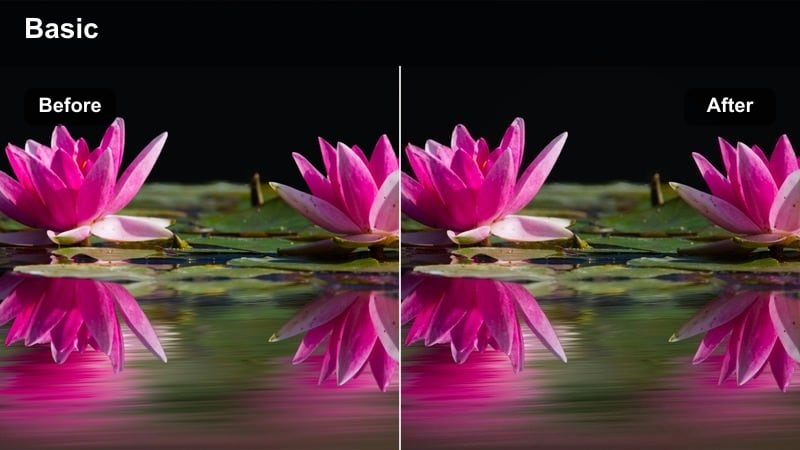
- Effect look: Balanced cinematic contrast with a slight cool shift in the shadows and natural, modern colors.
- Best for: Car-mounted shots crossing bridges, overpasses, and highways that begin or end a sequence.
- Editing tip: Stabilize footage and add motion blur if needed so the grade supports a smooth, travel-style introduction.
Overpass Journey Intro delivers a clean, contemporary road-movie feel, with cool shadows and neutral colors that suit automotive and travel storytelling. It keeps skies, buildings, and vehicles natural while giving just enough contrast to feel like a purposeful cinematic choice.
Apply this filter in Filmora to any bridge or highway shots that mark the start or end of a chapter, then use stabilization and optional motion blur to smooth the ride. Pair these graded clips with simple titles or chapter cards, and consider intercutting close-ups of hands on the wheel or passing details to enrich your travel narrative.
Plaza Cinematic Panorama
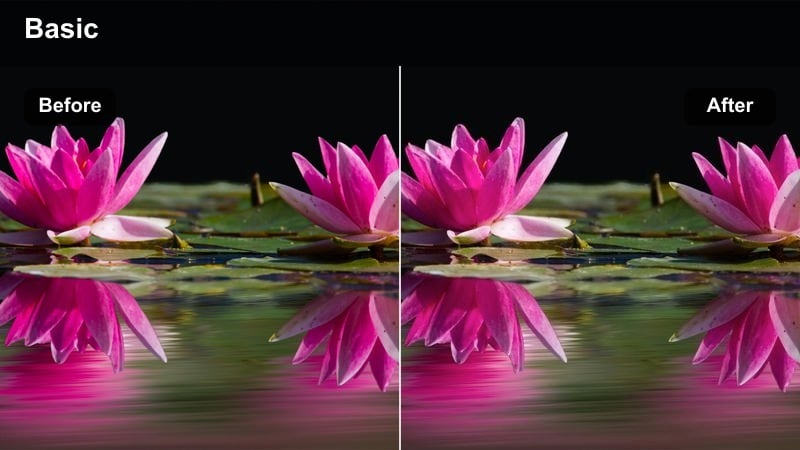
- Effect look: Slightly desaturated midtones with gentle contrast and a subtle filmic curve suited to open urban spaces.
- Best for: Slow pans across city plazas, public squares, and open courtyards that set up a new scene.
- Editing tip: Reduce saturation of bold signage colors so they do not distract from your characters entering the frame.
Plaza Cinematic Panorama is tuned for wide public spaces, softening saturation and contrast just enough to prepare the stage for your characters. The result is a calm, observational mood where the environment feels present but not overpowering, ideal for establishing context before the main action unfolds.
In Filmora, apply this filter to slow pans, tilts, or locked-off wide shots of plazas and courtyards, then gently reduce the saturation of bright signs or billboards. If the image feels flat, add a subtle vignette or increase local contrast slightly so the center of the frame naturally draws the viewer's eye while still preserving the understated, filmic tone.
Tips for Using Epic Film Color Grading Lut Filters in Filmora
- Correct exposure and white balance before applying any epic film filter so the LUT-style grading does not push colors into extreme or unnatural ranges.
- Apply filters on adjustment layers in Filmora to control the look of multiple clips at once and keep your timeline flexible for later changes.
- Reduce filter intensity to around 60 to 80 percent for dialogue or interview scenes where you want a cinematic finish without overwhelming skin tones.
- Use simple, directional lighting so highlights and shadows are clearly defined, giving these epic filters strong contrast to enhance.
- Combine Filmora's AI color tools with LUT-style filters to quickly match different cameras and locations before you fine-tune your final grade.
- Export a short test sequence featuring key scenes, then review it on a phone, laptop, and TV to judge how your cinematic look translates across devices.
- Save your favorite filter and adjustment layer combinations as custom presets in Filmora so you can reuse your signature epic look on future projects.
Epic film color grading LUT-style filters in Filmora give content creators a fast way to transform raw footage into cinematic, story-driven visuals. Whether you are shaping golden-hour hero shots, neon night chases, or quiet interior conversations, each look is tuned to help you reinforce a specific mood.
Experiment with different filters for each type of scene, then refine intensity and contrast until your entire project feels like a cohesive movie experience. As you build confidence with adjustment layers, AI color tools, and LUT-style stacks, you can develop a repeatable workflow that delivers an epic film look on every video.
secure download