

 100% Security Verified | No Subscription Required | No Malware


 ChatGPT
 Perplexity
 Gemini
 Claude
 Grok
Grok
This curated set of fashion editorial video LUT-style filters in Filmora helps content creators give their fashion clips a polished magazine-grade finish without complex color grading. Each look is designed to highlight fabrics, silhouettes, and skin tones so your visuals feel ready for campaigns, reels, and portfolio work.
Explore 12 scene-based filters tailored for studio editorials, street fashion, and runway moments, complete with creative editing tips so you can quickly match the mood of your brand or client.
In this article
Polished Studio Editorial Glamour
Soft Magazine Glow
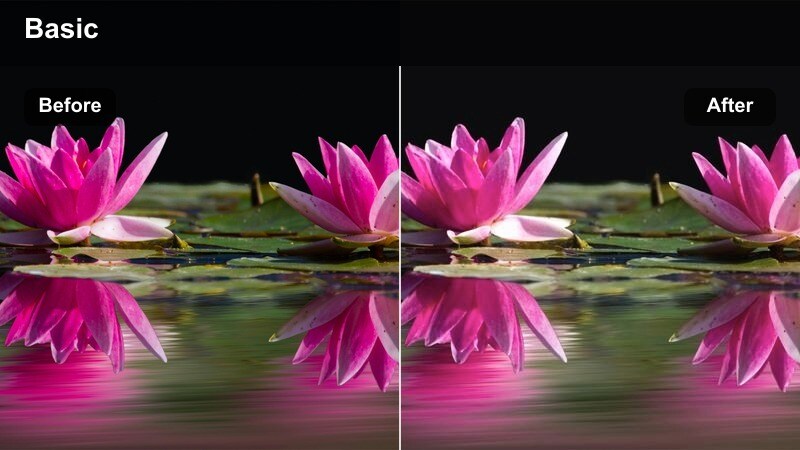
- Effect look: Gentle contrast with creamy highlights and softened skin details for a high-end editorial feel.
- Best for: Studio fashion portraits, beauty close-ups, and lookbook videos with controlled lighting.
- Editing tip: Lower the filter intensity to 60-70 percent and add a slight vignette to keep attention on the model's face.
Soft Magazine Glow is ideal when you want your fashion clips to emulate printed beauty spreads and campaign covers. In Filmora, this look smooths transitions between light and shadow, subtly softens skin textures, and adds a creamy polish that flatters makeup, hair, and clean studio backdrops without making the image look overly retouched.
Use it on hero shots, slow pans over outfits, or product-focused beauty shots where skin and fabric need to feel luxurious. Keep your lighting soft and even in camera, then apply the filter on your main clips and fine-tune intensity on close-ups to retain eyelash, hair, and fabric definition while maintaining that luminous, editorial glow.
Lock In a Consistent Fashion Palette with AI
Filmora's AI-powered color tools help you keep your fashion editorial video LUT-style looks consistent from clip to clip, even when you shoot in different parts of a city or studio. You can analyze a reference frame from a favorite campaign or lookbook and quickly push other clips toward the same palette.
Once the base palette is matched, layer these fashion filters to refine skin tones, fabrics, and brand colors so your entire edit feels cohesive across social cuts, reels, and longer campaign videos.
 secure download

Preview Fashion Filters in Real Time
In Filmora, you can browse fashion-focused filters in the Effects panel and hover to see instant previews on your street, runway, or studio footage. This makes it easy to compare multiple looks without committing to a full grade on each clip.
Apply a few contenders to short test segments, then toggle their visibility to judge which filter best matches your wardrobe styling, lighting setup, and brand aesthetic before you grade the full sequence.
secure downloadCombine Filters with LUTs for Signature Looks
Filmora lets you stack creative filters with custom or built-in LUTs so you can craft a distinctive fashion editorial style for your channel or brand. Use a LUT to set overall direction, such as cooler runway whites or warmer backstage tones, then add one of these fashion filters to refine skin tones and texture.
By saving your favorite filter and LUT combinations as presets, you can quickly reapply the same polished look to future runway recaps, street-style edits, and branded campaigns while keeping your color identity consistent.
secure downloadNeutral Editorial Contrast
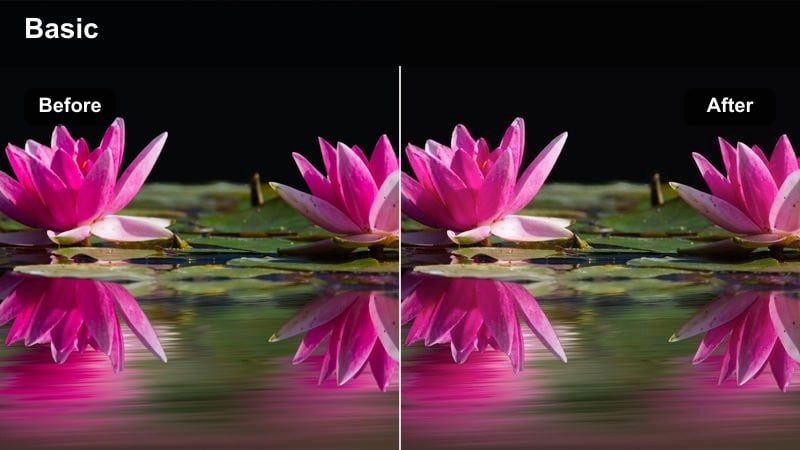
- Effect look: Clean, balanced contrast with neutral color cast that keeps skin tones natural and garments true to life.
- Best for: Multi-brand editorials, catalog videos, and fashion product walkthroughs.
- Editing tip: Use this as a baseline filter, then fine-tune saturation on specific brand colors to keep logos and signature hues consistent.
Neutral Editorial Contrast is designed for situations where accuracy and clarity matter more than heavy stylization. In Filmora, it smooths out small exposure inconsistencies, adds crisp but controlled contrast, and keeps colors true so texture, stitching, and fabric quality are clearly visible in your edit.
Apply it to catalog-style lookbooks, ecommerce videos, and multi-brand try-on hauls where each garment must appear as close to real life as possible. Once this filter is in place, use Filmora's color tools to selectively enhance brand-defining hues like signature reds, blues, or neons so your collection feels both polished and faithful to the clothing.
High Fashion Monochrome
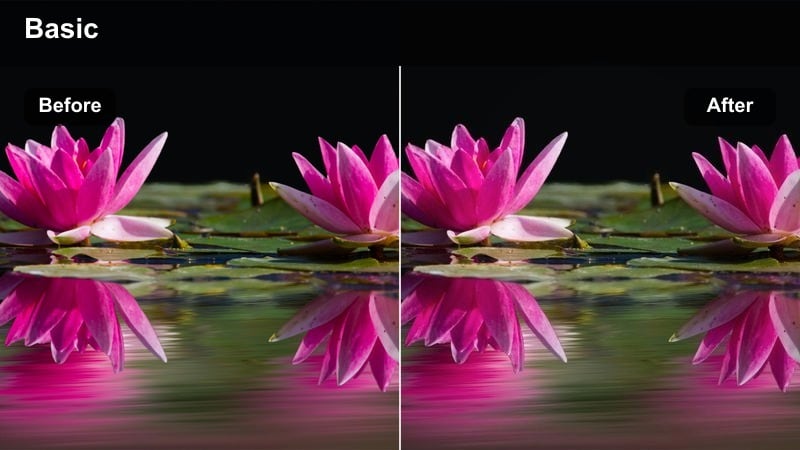
- Effect look: Deep black-and-white treatment with strong contrast and refined midtones for an upscale editorial vibe.
- Best for: Timeless fashion campaigns, jewelry close-ups, and dramatic studio poses.
- Editing tip: Increase contrast slowly to avoid losing details in dark fabrics, and use a soft vignette to frame the model.
High Fashion Monochrome strips away color to focus attention on silhouette, texture, and light. In Filmora, this filter converts your footage into a rich black-and-white look with detailed midtones, making it ideal for highlighting tailoring, drape, and accessories in dramatic studio setups or gallery-style campaign clips.
Use it to unify mixed wardrobe palettes, convert colorful backgrounds into graphic shapes, and create contrasty transitions between close-ups and full-body shots. Pair the filter with subtle vignettes and slow camera moves in Filmora to achieve a premium, archival feel that works well for luxury brands, editorial reels, and social teasers.
Street Style in Daylight
Urban Street Neutral
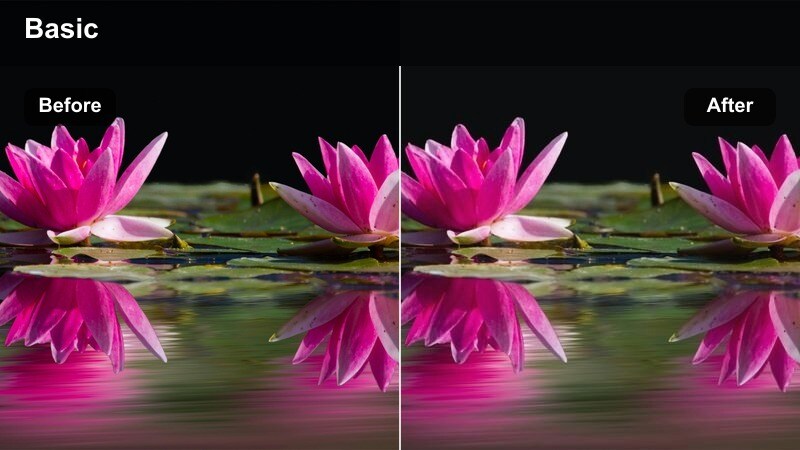
- Effect look: Balanced daylight tones with softened shadows to keep street details visible without overpowering the outfit.
- Best for: Street fashion walk-throughs, outfit-of-the-day clips, and influencer vlogs in city streets.
- Editing tip: Lightly desaturate background blues and greens so the clothing colors become the strongest visual element.
Urban Street Neutral is built for natural-light city shoots where you want both the architecture and the outfit to read clearly. In Filmora, this filter smooths contrast in harsh daylight, gently lifts shadows, and keeps colors balanced so your model is not lost against busy sidewalks, buildings, or traffic.
Apply it to walking shots, quick transitions between street corners, and talking-head clips recorded on the go. After the filter is on, use Filmora's color controls to tame sky and foliage saturation so the garments, shoes, and accessories stand out as the main story while still preserving a realistic street atmosphere.
Pastel Street Dream
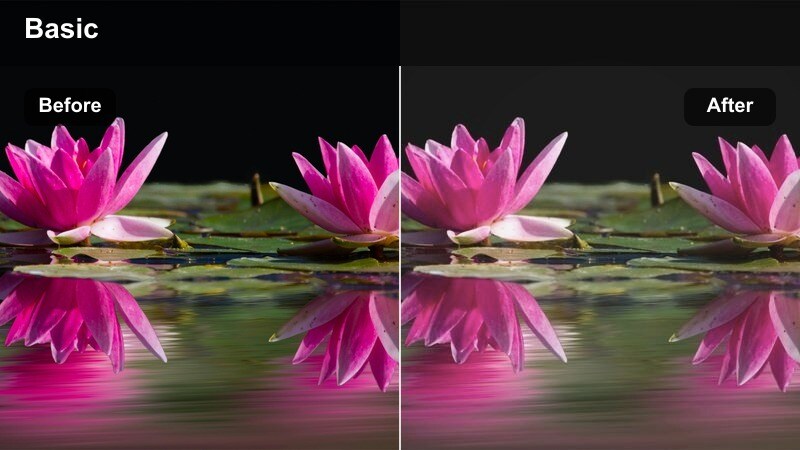
- Effect look: Soft pastel color shift with lifted blacks and gentle highlight roll-off for a dreamy city editorial feel.
- Best for: Spring collections, soft streetwear looks, and lifestyle fashion reels in bright neighborhoods.
- Editing tip: Lower overall saturation slightly, then selectively boost brand colors like pinks or lilacs to keep the palette on-theme.
Pastel Street Dream transforms everyday city streets into a soft, airy backdrop that flatters light-toned outfits and skin. In Filmora, it lifts the blacks slightly, smooths highlights, and nudges colors toward a cohesive pastel palette that feels perfect for spring drops, romantic streetwear, and lifestyle content.
Use it on clips shot in open shade, bright alleys, or white-walled neighborhoods for the most even results. After applying the filter, refine your look by selectively enhancing brand-specific tones such as blush, mint, or lavender in Filmora so your outfits, props, and text overlays all share the same dreamy mood.
Gritty Sidewalk Editorial
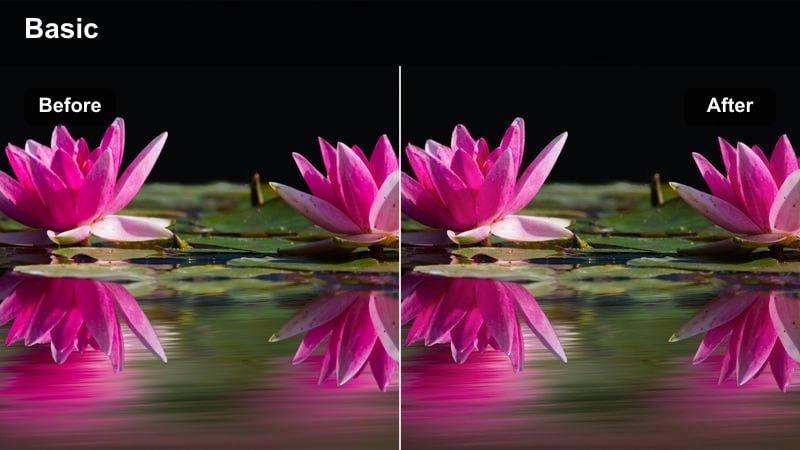
- Effect look: Slightly crushed blacks, cooler shadows, and boosted midtone contrast for a raw street-magazine aesthetic.
- Best for: Denim campaigns, sneaker features, and edgy streetwear videos in urban alleys and sidewalks.
- Editing tip: Use handheld or tracking shots and layer light film grain to push the editorial documentary feel.
Gritty Sidewalk Editorial gives your streetwear content a tougher, more documentary flavor without sacrificing clarity. Filmora uses this filter to cool the shadows, deepen contrast in the mids, and add weight to concrete, brick, and asphalt textures, making sneakers, denim, and graphic tees feel bolder on screen.
It is ideal for handheld footage, alleyway photoshoots, or fast-paced lookbook cuts featuring quick details of shoes and accessories. After dropping it onto the timeline, consider adding a subtle film grain overlay and slightly faster cuts in Filmora to reinforce the edgy, magazine-style pacing your audience expects from modern street fashion content.
Runway and Backstage Moments
Runway Spotlight Clean
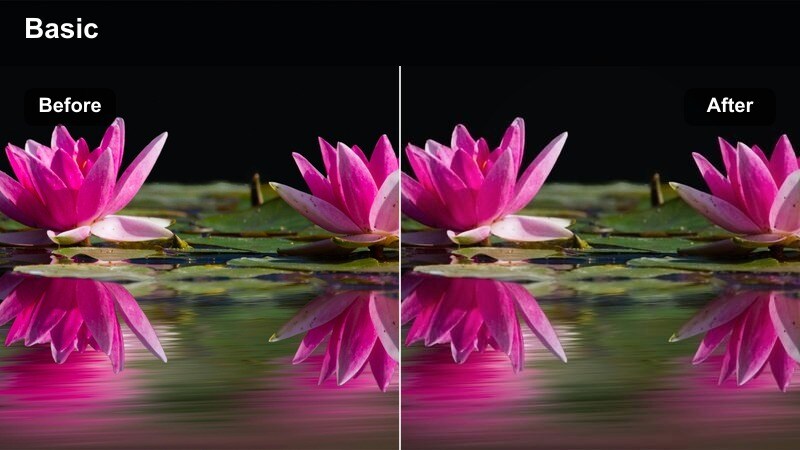
- Effect look: Bright, crisp highlights with controlled contrast designed for runway spotlights and reflective fabrics.
- Best for: Fashion shows, runway recaps, and presentation walk-throughs under strong stage lighting.
- Editing tip: Use exposure curves to protect white garments from clipping, then apply the filter for consistent color across different walks.
Runway Spotlight Clean is tuned for show lighting where multiple spotlights, LED walls, and reflective fabrics can easily blow out in-camera. In Filmora, this filter calms harsh highlights, clarifies details in sequins and satins, and evens color between shots captured from different angles and distances.
Use it on full runway passes, front-row shots, and cutaway details like shoes and bags to keep your recap looking professional and consistent. Adjust exposure curves first to rescue any blown whites, then apply the filter across all runway clips and fine-tune saturation so designer palettes, set design, and skin tones feel unified in the final edit.
Backstage Warm Film
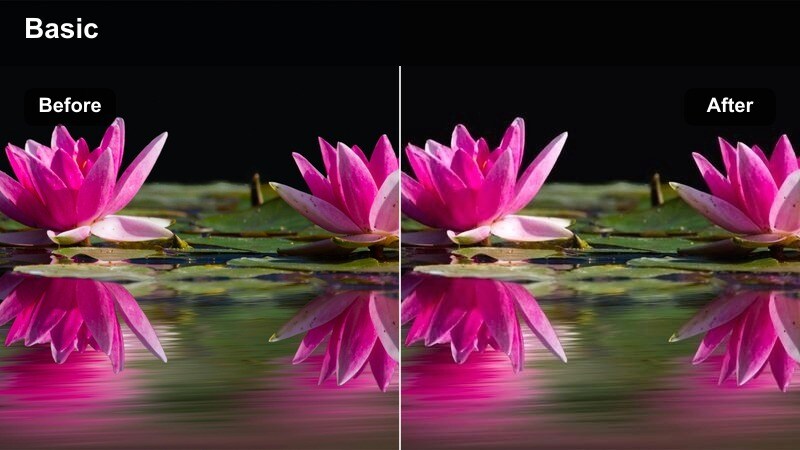
- Effect look: Warm, slightly grainy film-style treatment with gentle contrast for intimate behind-the-scenes coverage.
- Best for: Backstage preparations, makeup moments, and candid designer interactions before the show.
- Editing tip: Combine with slower frame rates or mild slow motion to emphasize gestures and details in tight spaces.
Backstage Warm Film adds a cozy, documentary touch to behind-the-scenes clips where emotion and atmosphere matter as much as the clothes. In Filmora, it adds subtle grain, warms up mixed fluorescent and tungsten lighting, and smooths contrast so skin tones and fabrics feel soft and cinematic in crowded prep areas.
Apply it to quick glimpses of makeup, fittings, and final adjustments, then intercut these sequences with cleaner runway shots for a full show narrative. Slow your footage slightly and pair the filter with gentle music and natural sound in Filmora to highlight small details such as fabric movement, hand gestures, and candid expressions.
Flash Editorial Freeze
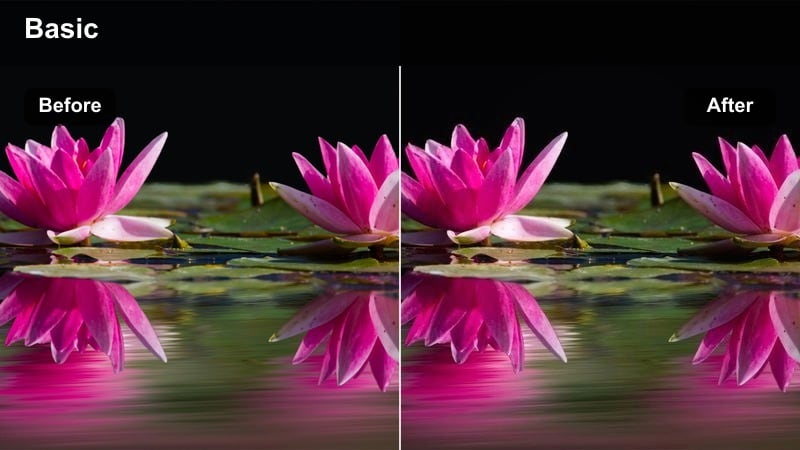
- Effect look: Punchy highlights with cool whites and fast flash-style contrast for paparazzi-inspired fashion edits.
- Best for: Front-row arrivals, step-and-repeat walls, and street-style flashes outside show venues.
- Editing tip: Shorten clips and sync quick cuts to beats so the flashy look feels intentional, not like exposure mistakes.
Flash Editorial Freeze recreates the high-energy look of flash-heavy event photography in motion. In Filmora, this filter brightens whites, leans them slightly cool, and reinforces contrast to make flashes, reflective fabrics, and glossy backdrops feel deliberate and editorial rather than chaotic.
Use it on arrival montages, step-and-repeat poses, and red-carpet style walk-ups where multiple flashes fire from different directions. Keep clips short, cut to the rhythm of your soundtrack, and mix in subtle stabilization or motion blur transitions in Filmora so the intense lighting feels like part of an intentional, polished visual style.
Night Street Fashion and City Lights
Neon City Editorial
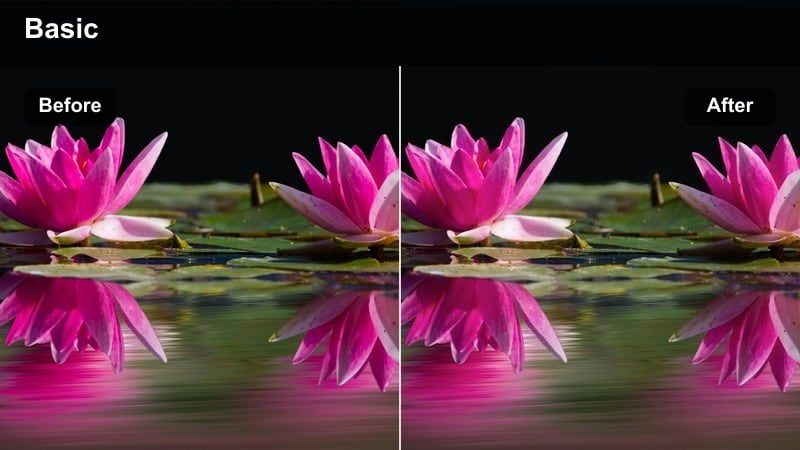
- Effect look: Deep shadows with saturated neon highlights, emphasizing signs and reflections while preserving skin tone clarity.
- Best for: Night street fashion walks, statement outerwear, and reflective accessories in neon-lit districts.
- Editing tip: Shoot near illuminated storefronts or billboards and slightly overexpose in-camera, then let the filter dial in the color pop.
Neon City Editorial is built for after-dark fashion content surrounded by glowing signage, screens, and car lights. In Filmora, this filter deepens the shadows, boosts saturation in neon hues, and protects skin tones so your models stand out against rich, electric city backdrops without looking overly processed.
Use it for walk-throughs under colorful lights, reflective jacket or accessory features, and night-out lookbooks. Slightly overexpose your footage in-camera to capture more information in the shadows, then apply the filter and fine-tune intensity in Filmora until you find the balance between vibrant color pop and moody atmosphere that best fits your brand.
Moody Alley Couture
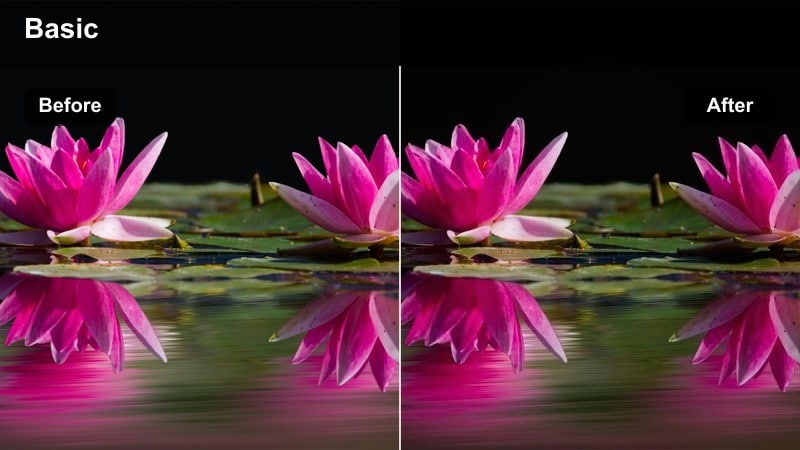
- Effect look: Low-key, cinematic contrast with cool shadows and slight desaturation for a mysterious late-night fashion tone.
- Best for: High-fashion editorials in narrow streets, alleyways, and moody city corners after dark.
- Editing tip: Frame the model against practical light sources like street lamps and doorways, then use this filter to sculpt contrast around them.
Moody Alley Couture is tailored for minimalist, cinematic night scenes where negative space and architecture frame your styling. In Filmora, the filter cools the shadows, gently desaturates the overall palette, and enhances contrast around key light sources so your model appears sculpted within the darkness.
It works especially well for eveningwear, tailored pieces, or monochrome outfits staged in alleys and quiet side streets. Position your subject near street lamps, windows, or doorways, then apply the filter and adjust exposure and vignettes in Filmora to deepen surrounding shadows and focus the viewer's eye on the garment and pose.
Golden City Glam
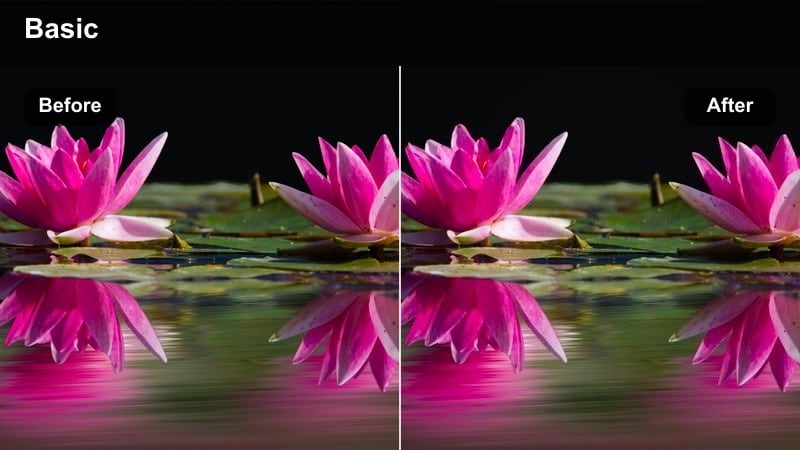
- Effect look: Warm golden highlights with smooth contrast, giving city night scenes a luxurious, upscale sheen.
- Best for: Evening gowns, cocktail looks, and luxury brand shoots in downtown nightlife districts.
- Editing tip: Shoot near warm practical lights like hotel facades or street lamps, then apply the filter and reduce saturation if skin turns too orange.
Golden City Glam wraps your night fashion footage in a warm, premium glow that flatters metallics, sequins, and rich fabrics. In Filmora, it enhances warm highlights from street lamps and building lights, smooths contrast, and adds a subtle gloss that feels at home in luxury campaigns and evening outfit reels.
Use it on slow-motion city strolls, rooftop bar scenes, and hotel entrance shots where warm lights already shape the environment. After applying the filter, fine-tune saturation and white balance in Filmora to keep skin tones natural while allowing jewelry, embellishments, and polished fabrics to catch and reflect the golden light.
Tips for Using Fashion Editorial Video Lut Filters in Filmora
- Shoot with a slightly flatter in-camera profile so these fashion editorial filters and LUT-style looks have more dynamic range to work with during grading in Filmora.
- Plan wardrobe colors around your target filter mood, using pastels for soft city aesthetics or black, neons, and metallics for bold night and streetwear edits.
- Keep white balance consistent across locations and cameras to avoid drastic color shifts when you apply the same fashion editorial video LUT or filter to multiple clips.
- Use keyframes on filter intensity in Filmora to gently ramp looks in and out between scenes, especially when transitioning from street to studio or day to night.
- Always test how each filter renders skin tones on different models, adjusting warmth, tint, and contrast before locking in a look for an entire campaign.
- Combine one base LUT with one fashion filter at a time to avoid over-stylizing your footage, then save successful combinations as reusable Filmora presets.
- Review your edit on both mobile and desktop screens to confirm that contrast, saturation, and skin tones remain flattering for social feeds and portfolio sites.
These 12 fashion editorial video LUT-style filters give content creators fast, reliable ways to turn everyday fashion footage into polished magazine-style visuals. Whether you are capturing lookbooks in the studio or street-style walks downtown, each look is tuned to keep fabrics, silhouettes, and skin tones camera-ready.
Test several filters on your next shoot, refine intensity and color in Filmora, and save your favorite combinations as custom presets. By reusing those presets across runway recaps, street fashion reels, and branded campaigns, you can keep a consistent signature style that viewers instantly associate with your work.
secure download