

 100% Security Verified | No Subscription Required | No Malware


 ChatGPT
 Perplexity
 Gemini
 Claude
 Grok
Grok
These Fashion Lifestyle Portrait LUT-style filters are designed for content creators who want clean, editorial portraits that feel ready for magazines, lookbooks, and high-end social feeds.
Whether you shoot fashion street style, cozy lifestyle moments at home, or polished beauty portraits, these filters help you keep skin tones flattering while adding a signature look that is easy to repeat across your content.
In this article
Golden Hour Street Style Portraits
Sunlit Street Glow
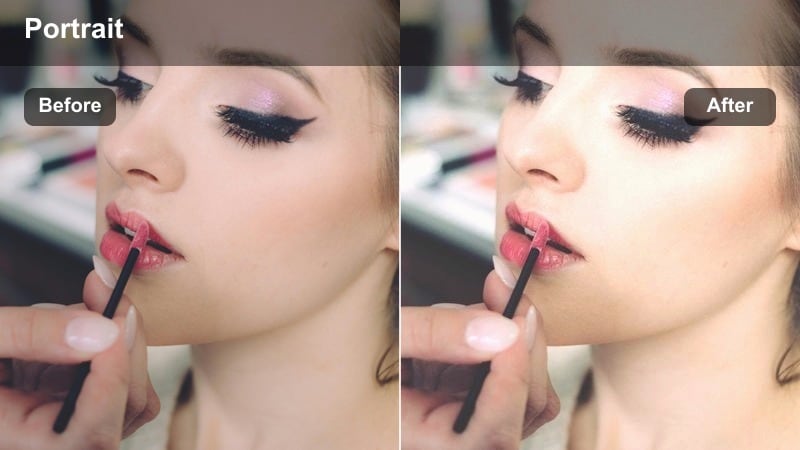
- Effect look: Soft golden contrast with warm highlights and gentle fade in the blacks for dreamy street portraits.
- Best for: Fashion lifestyle portraits shot in late afternoon or golden hour on city sidewalks or rooftops.
- Editing tip: Lower saturation slightly on overly bright clothing to keep attention on the face and warm light.
In Filmora, Sunlit Street Glow helps you fake a warm, cinematic golden hour even when you shot in flat daylight. The LUT-style filter lifts highlights with a soft, golden tint, gently fades the blacks, and adds just enough contrast to keep outfits and city details looking sharp without crushing shadow information.
Apply this filter to fashion walk-bys, lean-against-the-building portraits, or quick street snaps to unify your color across an entire sequence. Fine-tune with Filmoras color controls by cooling overall temperature a touch if the scene turns too orange, then add a subtle vignette around your subject to pull even more focus to the face and hair highlights.
Match Fashion Palettes with AI-Powered Color Tools
Use Filmora s AI color tools to quickly mirror the look of your favorite fashion campaigns, from warm lifestyle branding to cool editorial street sets. You can scan a reference image from a brand you love and let Filmora suggest a similar palette for your own footage.
Once the AI color palette is matched, layer one of these fashion lifestyle portrait filters on top to keep skin tones flattering while still echoing that high-end, campaign-level mood across your entire edit.
 secure download

Preview Filters on Real Fashion Portraits
Filmora lets you quickly preview these portrait filters on multiple clips so you can see how they react to different outfits, skin tones, and lighting conditions. Load a short sequence of looks from the same shoot and apply different filters to compare editorials, from airy rooftop shots to rich copper city scenes.
Use the before and after view to fine-tune intensity, then batch apply your chosen filter across all clips in the timeline for a consistent, on-brand aesthetic that feels curated and professional.
secure downloadBlend Filters with Existing LUTs for Custom Looks
Filmora includes 1000 plus video filters and 3D LUTs that you can combine with these fashion lifestyle portrait presets to create truly unique styles. Start with a subtle LUT that gives your footage a cinematic base, then layer a fashion portrait filter on top to refine skin tones and overall contrast.
Use opacity controls to dial in how much of each layer you keep, and rely on Filmoras color wheels and HSL adjustments to protect natural skin while still leaning into bold stylistic color for clothing and backgrounds.
secure downloadCopper City Editorial
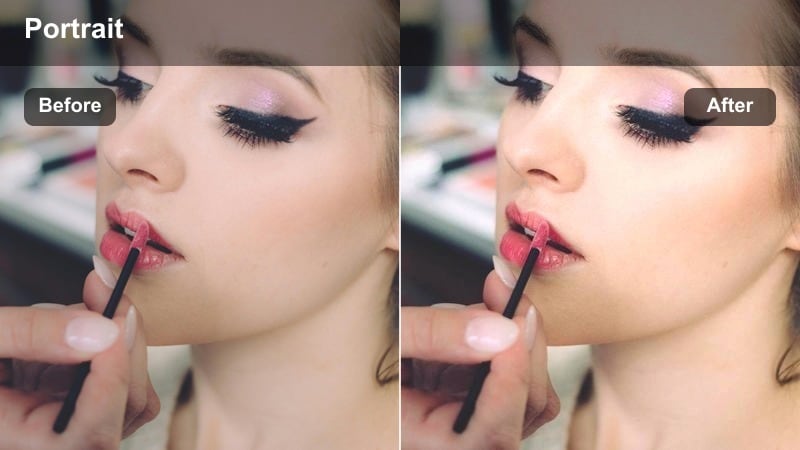
- Effect look: Rich copper warmth with boosted midtone contrast and a lightly cinematic curve.
- Best for: Urban fashion portraits in alleys, side streets, and industrial backdrops at sunset.
- Editing tip: Increase clarity around 5-10 percent to bring out fabric texture without making skin look harsh.
Copper City Editorial is ideal for turning ordinary city corners into moody, editorial fashion spreads. In Filmora, this filter boosts midtone contrast and adds a copper tint to highlights, enhancing brick, leather, and metal textures while still preserving dimension in the face.
After applying, adjust the orange saturation and hue sliders if skin starts to skew too red while keeping the copper ambiance in the background. Targeted sharpening on the eyes, jewelry, and accessories can push the image closer to a magazine cover aesthetic without introducing noise across the entire frame.
Soft Rooftop Haze
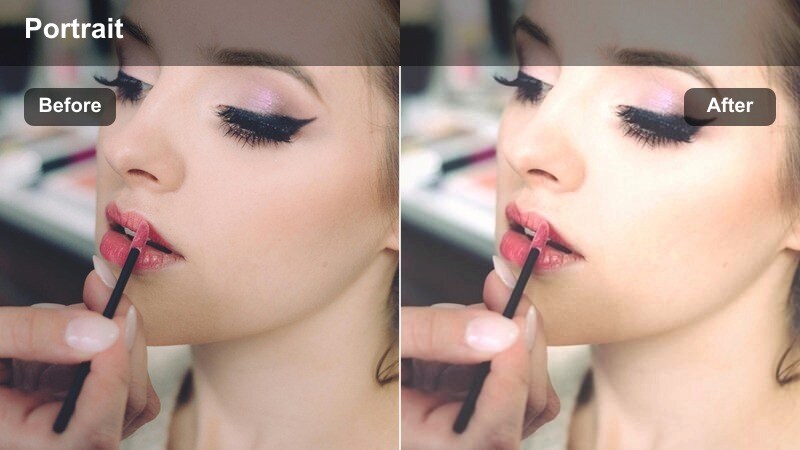
- Effect look: Matte highlights, softened contrast, and a faint blush warmth in the midtones for airy portraits.
- Best for: Lifestyle and fashion portraits on rooftops, balconies, or terraces with open sky.
- Editing tip: Raise exposure slightly and keep shadows lifted to maintain the hazy, editorial feel.
Soft Rooftop Haze brings a dreamy, editorial softness to open-sky locations where light can feel harsh or flat. The filter mutes contrast, lifts blacks, and introduces a gentle blush warmth, which is flattering on skin and works especially well with light, neutral outfits.
In Filmora, use this look for seated poses along railings or wide shots that show the skyline, then refine with the curves panel to keep whites soft instead of glaring. If the sky is too detailed or distracting, add a bit of extra fade in the highlight curve and crop slightly from the top to center attention on your model.
Cozy Indoor Lifestyle Portraits
Studio Soft Cream
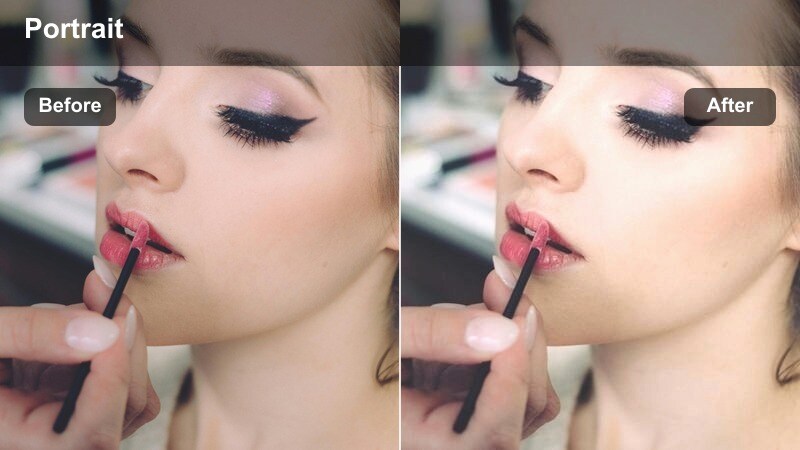
- Effect look: Creamy highlights with reduced saturation and gentle contrast for soft studio portraits.
- Best for: Lifestyle and fashion portraits in studios, apartments, or minimal indoor sets.
- Editing tip: Use the filter first, then fine-tune exposure to keep whites clean without clipping detail in clothing.
Studio Soft Cream is built for bright, minimal sets where you want a polished, art-direction feel. The filter slightly desaturates strong colors, lifts highlights into a creamy white, and softens contrast so that skin looks smooth and flattering without feeling overly retouched.
Apply it in Filmora to content shot against white walls or neutral backdrops, then nudge exposure until whites sit just below clipping. If the walls begin to skew yellow, cool the temperature and reduce saturation in the yellow channel, keeping your neutrals clean while the subject remains warm and inviting.
Window Light Gloss
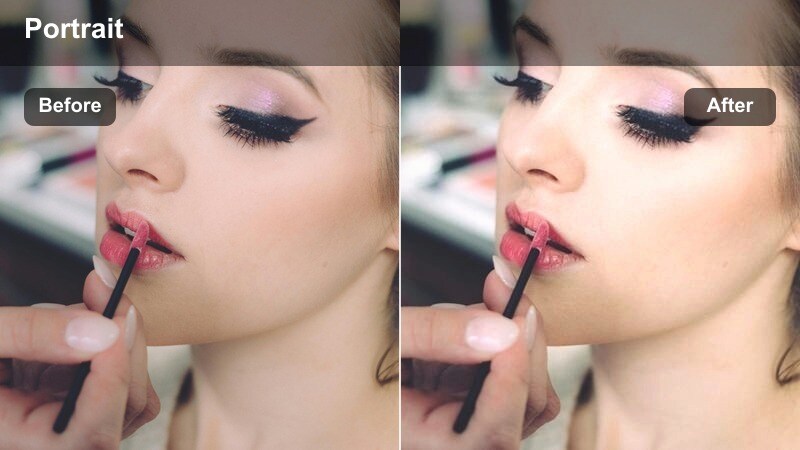
- Effect look: Natural contrast with bright, glossy highlights and gentle cool shadows for window-lit scenes.
- Best for: Seated portraits by large windows, cafes, and home lifestyle shoots with soft daylight.
- Editing tip: Lift the blacks only a touch to keep the look polished instead of overly faded.
Window Light Gloss emphasizes the natural, flattering qualities of soft window light by adding bright, glossy highlights and clean, slightly cool shadows. This keeps portraits feeling editorial and crisp, perfect for lifestyle content that showcases outfits, coffee-table details, or city views.
In Filmora, use this filter on sequences where your subject moves or turns toward a window and you want consistent, luminous skin from shot to shot. Adjust the luminance curve for more shape in midtones instead of relying on global contrast, and if the window itself becomes too bright, mask the effect off the most blown-out areas to retain detail.
Candlelit Neutral Chic
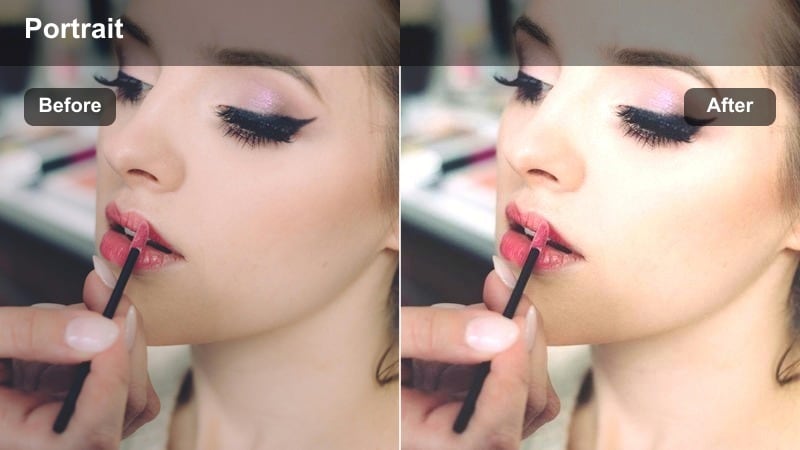
- Effect look: Warm, low-contrast glow with preserved neutral skin tones for intimate low-light portraits.
- Best for: Evening lifestyle portraits in living rooms, lounges, or cozy indoor sets with warm lamps.
- Editing tip: Reduce saturation of reds slightly to keep skin from looking too flushed in very warm light.
Candlelit Neutral Chic is made for evening and low-light scenes lit by lamps, candles, or ambient practicals. The filter wraps the frame in a warm glow while subtly protecting skin from turning too red or orange, giving your footage a premium lounge or editorials-at-home mood.
Apply it in Filmora to living room sequences, night routines, or cozy lounge content, then refine warmth and tint so the environment feels rich but skin remains balanced. A touch of magenta in the midtones and a slight reduction in red saturation keep faces natural, and adding a hint of film grain can enhance the cinematic, intimate aesthetic.
Dynamic Street Style Portraits
Runway Crosswalk Pop
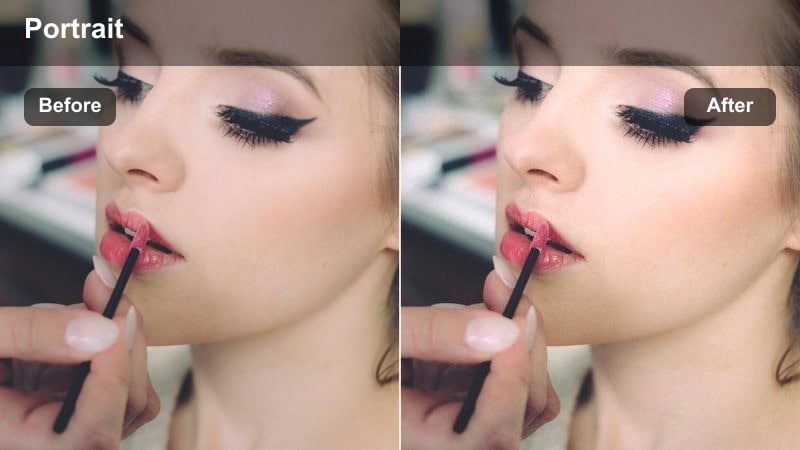
- Effect look: Punchy contrast with crisp edges and subtle color pop on clothing while keeping skin controlled.
- Best for: Walking portraits at crosswalks, busy avenues, and fashion week street style moments.
- Editing tip: Use a small amount of vibrance rather than saturation to avoid unnatural skin tones.
Runway Crosswalk Pop transforms everyday crosswalks into energetic, runway-inspired scenes with bold contrast and vivid outfit colors. The filter pushes clarity and edge sharpness just enough to define fabrics and city details, but it keeps skin tones restrained so the face does not get oversaturated.
In Filmora, apply this look to walking shots and candid street style clips where cars, signage, and crowds fill the frame. If the background becomes too busy, selectively reduce saturation on problem colors like reds or yellows, then add a slight vignette or blur to the edges so the viewer stays locked on the outfit and movement.
Metro Minimal Tone
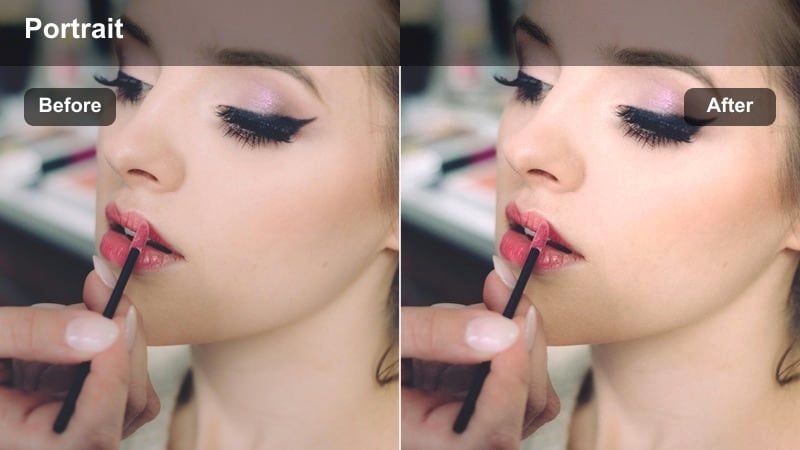
- Effect look: Desaturated city tones with clean, neutral skin and subtle teal shadows.
- Best for: Portraits near subway entrances, underpasses, and modern city architecture.
- Editing tip: Keep exposure slightly on the bright side so the muted palette feels intentional, not dull.
Metro Minimal Tone is perfect for modern, pared-back fashion stories that use concrete, metal, and glass as graphic backdrops. The filter desaturates city colors, adds subtle teal into the shadows, and holds skin tones in a natural, neutral place, which keeps the subject feeling alive within a minimal palette.
Use it in Filmora for portraits framed by stairways, subway entrances, or clean architecture, and keep exposure a touch brighter than usual so the muted tones still feel fresh. Straighten lines, add a gentle vignette, and let leading lines from railings or walls guide attention directly to your subject.
Neon Sidewalk Fashion
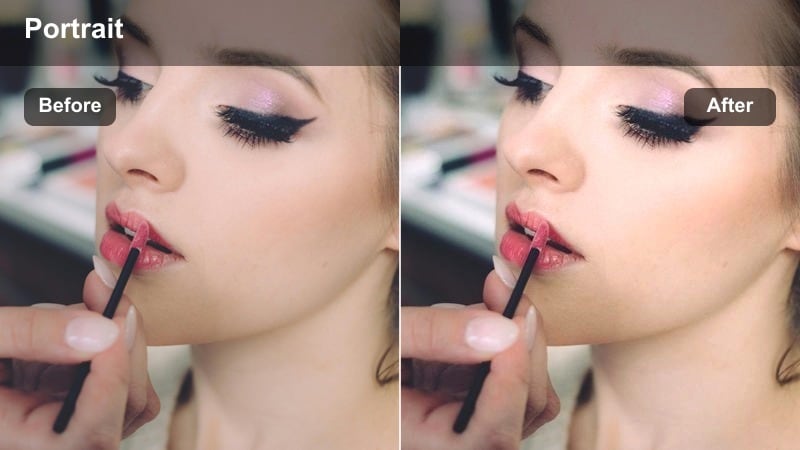
- Effect look: Deep contrast with controlled neon saturation and slightly cool skin to balance bright signs.
- Best for: Nighttime fashion portraits near neon shop signs, billboards, and glowing storefronts.
- Editing tip: Drop highlights slightly to keep neon details from clipping and maintain texture in bright signage.
Neon Sidewalk Fashion is tailored for late-night shoots surrounded by glowing signs and colorful reflections. The filter deepens contrast and tames overly bright neon hues while nudging skin slightly cooler, helping your subject stand out against a saturated, high-energy background.
In Filmora, apply this look to static poses or slow walks through busy nightlife streets. If neon casts strange colors on the face, refine the hue and saturation of specific channels like magenta and blue, then use a radial mask and gentle exposure boost around the face to make your subject pop against the chaotic city lights.
Editorial Beauty Closeups and Details
Glossy Skin Editorial
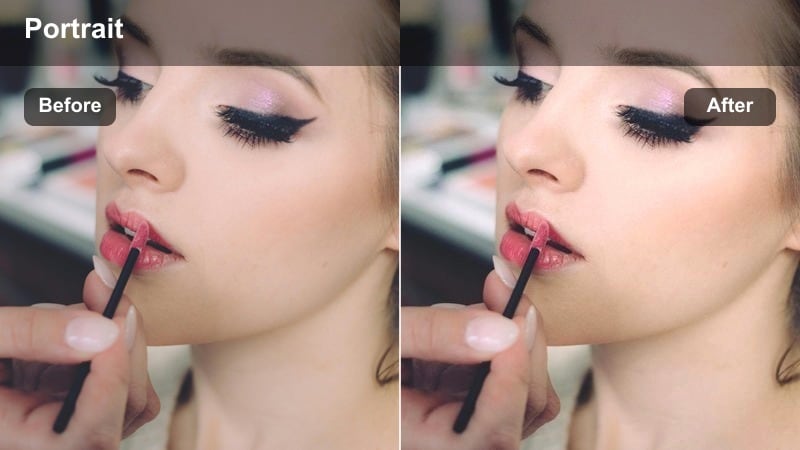
- Effect look: Clean, high-contrast highlights with subtle softening on skin and neutral color balance.
- Best for: Beauty closeups, makeup-focused portraits, and hair detail shots.
- Editing tip: Reduce texture slightly while preserving clarity around the eyes and lips.
Glossy Skin Editorial spotlights shine and structure in beauty closeups, delivering crisp highlights on cheekbones, lips, and hair while keeping the overall color balance neutral. The filter adds refined contrast and a touch of skin softening so makeup reads sharp without revealing unwanted skin texture.
Apply it in Filmora to tight shots of faces, hair, or beauty details, then adjust clarity and sharpness locally around the eyes, brows, and lips to draw focus. Keep global texture slightly down for a polished result, and use Filmoras masking tools if you want to soften only select areas of the skin while preserving key detail elsewhere.
Matte Magazine Portrait
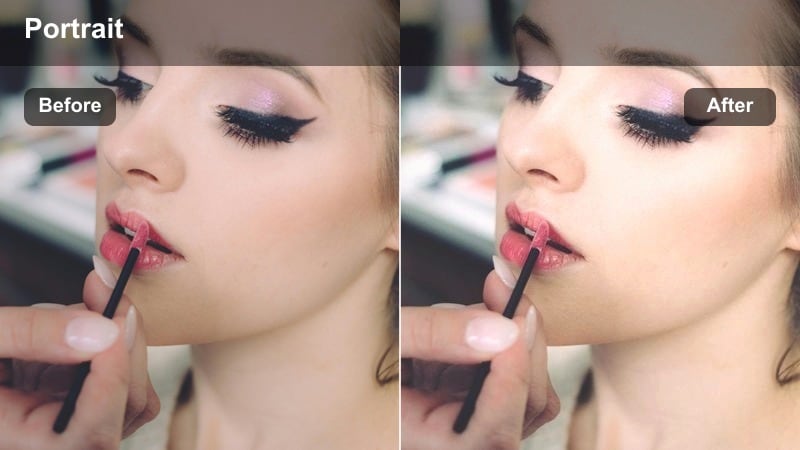
- Effect look: Subtle matte finish with soft contrast and slightly cooled shadows for printed-magazine vibes.
- Best for: Cover-style portraits, lookbook headshots, and clean editorial campaigns.
- Editing tip: Keep exposure balanced and avoid heavy vignettes to maintain the clean, printed feel.
Matte Magazine Portrait gives your images the understated elegance of a fashion cover or lookbook spread. The filter softens contrast, cools shadows very slightly, and adds a delicate matte finish that looks sophisticated on both closeups and mid-length portraits.
Use it in Filmora as a base look for full campaigns or multi-outfit shoots, then make only minor tweaks to exposure and white balance per clip to maintain consistency. Avoid heavy vignettes or extreme contrast adjustments so the layout feels like it belongs on a page or brand homepage grid.
Detail Accessory Focus
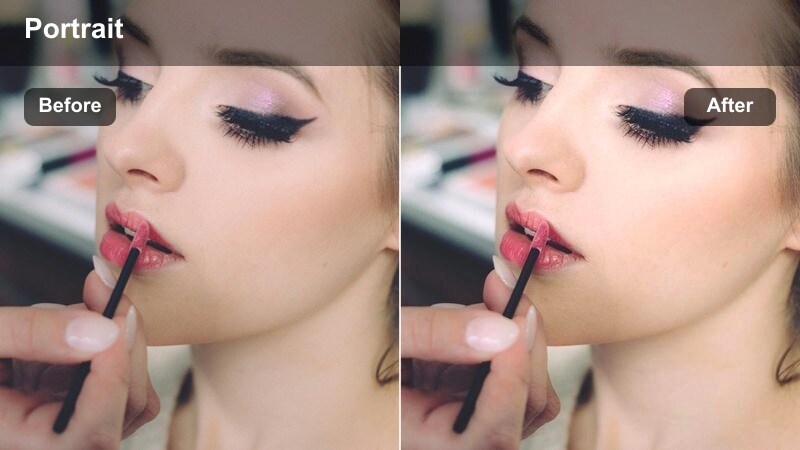
- Effect look: High micro-contrast and controlled saturation to emphasize jewelry, watches, and fabric texture.
- Best for: Closeup shots of accessories, hands, and fabric details within fashion stories.
- Editing tip: Sharpen lightly and use a shallow depth-of-field shot to avoid making backgrounds too busy.
Detail Accessory Focus is designed to make fashion details like jewelry, watches, bags, and fabric textures stand out. The filter pushes micro-contrast and edge definition while keeping saturation under control, so metals gleam and textiles feel tactile without looking oversharpened.
In Filmora, pair this filter with closeup footage of hands, accessories, and fabrics that you cut between wider portraits to build a storytelling sequence. Keep backgrounds soft with shallow depth-of-field in-camera, then use subtle sharpening and selective contrast boosts on the accessories to anchor your narrative around the styling choices.
Tips for Using Fashion Lifestyle Portrait Lut Filters in Filmora
- Shoot slightly flatter in-camera so these fashion lifestyle portrait filters have more room to shape contrast and color.
- Keep skin tones as your priority and adjust saturation in individual color channels instead of applying global saturation changes.
- Use Filmoras color wheels, curves, and HSL controls after applying a filter to fine-tune warmth and tint for each lighting scenario.
- Save your favorite filter plus exposure and white balance tweaks as a custom preset for faster, consistent edits across shoots.
- Always check your portraits on both mobile and desktop screens to ensure your chosen filter looks balanced on every platform.
- Mix different filters within the same project for wides, closeups, and details, but keep one or two core looks to maintain consistency.
- Use Filmoras masking tools to apply filters more strongly to backgrounds or outfits while protecting natural-looking skin tones.
- Leverage batch editing where possible so a whole series of fashion portraits shares the same polished, editorial finish.
Fashion lifestyle portrait filters help you lock in a recognizable visual style while keeping skin tones natural and flattering.
Start with the filter that matches your scene, adjust exposure and color gently, and build a consistent look that strengthens your brand across every portrait you share.
secure download