

 100% Security Verified | No Subscription Required | No Malware


 ChatGPT
 Perplexity
 Gemini
 Claude
 Grok
Grok
These fashion photoshoot video LUT-style filters are designed for content creators who want editorial, runway-ready color in just a few clicks.
Use them to turn behind-the-scenes clips, lookbooks, and street-style reels into cohesive fashion stories with consistent mood and polished tones.
In this article
Studio Glamour and Editorial Portraits
Velvet Portrait Glow
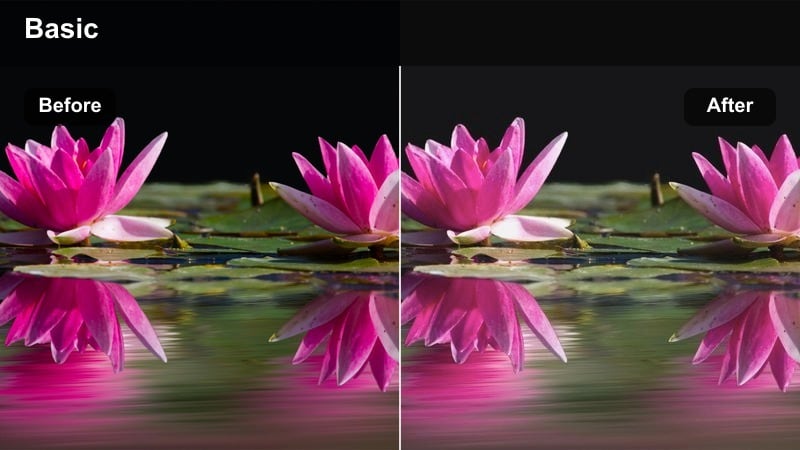
- Effect look: Soft, low-contrast filter with creamy skin tones and a gentle glow on highlights for beauty-focused fashion close-ups.
- Best for: Studio beauty shoots, campaign portraits, and slow-motion glam shots of models.
- Editing tip: Lower contrast slightly and add a subtle vignette to keep focus on the model's face and accessories.
Velvet Portrait Glow is ideal when you want skin to look velvety and luxurious right out of the camera, without heavy retouching. In Filmora, apply this filter to your portrait clips, then fine-tune exposure so the glow wraps smoothly around cheekbones and jawlines instead of clipping in bright areas.
Combine the filter with Filmoras vignette and face-focused tools to gently darken the frame edges while protecting key facial details. After grading, use skin tone adjustments to nudge warmth up or down so makeup shades and jewelry reflect their true colors while keeping that soft editorial finish.
Match Your Fashion Aesthetic with AI Color Tools
Use Filmoras AI color tools alongside these fashion photoshoot video LUT-style filters to quickly match your edit to a specific campaign palette or brand identity. Let AI scan your clips, balance overall tones, and remove distracting color casts before you layer on your favorite fashion filter.
Once the base colors are harmonized, you can push highlights, shadows, and saturation with confidence, knowing every outfit and backdrop stays on-brand. Save your favorite AI-plus-filter combinations as presets to reuse across lookbooks, hauls, and campaign teasers.
 secure download

Preview Filters Live on Your Fashion Footage
Instead of guessing how a filter will treat sequins, sheer fabrics, or bold prints, preview every look directly on your own footage inside Filmora. Scroll through the filter panel, hover to compare before-and-after frames, and quickly spot which options flatter skin tones and clothing textures.
When you find a fashion filter that fits your shoot, save it as a preset so you can apply the same color treatment across lookbooks, Reels, Shorts, and campaign cuts with a single click.
secure download1000+ Video Filters and 3D LUTs
Filmora includes a large library of cinematic filters and 3D LUTs you can stack with these fashion looks for even more control. Start with a base fashion photoshoot video LUT-style filter, then layer subtle film, vintage, or studio presets to tailor the final mood to your campaign.
Use curves, HSL, and vignettes after your filters to lock in contrast and color, then save the whole stack as a custom LUT-style preset so every new fashion video keeps the same polished editorial vibe.
secure downloadRunway Spotlight Matte
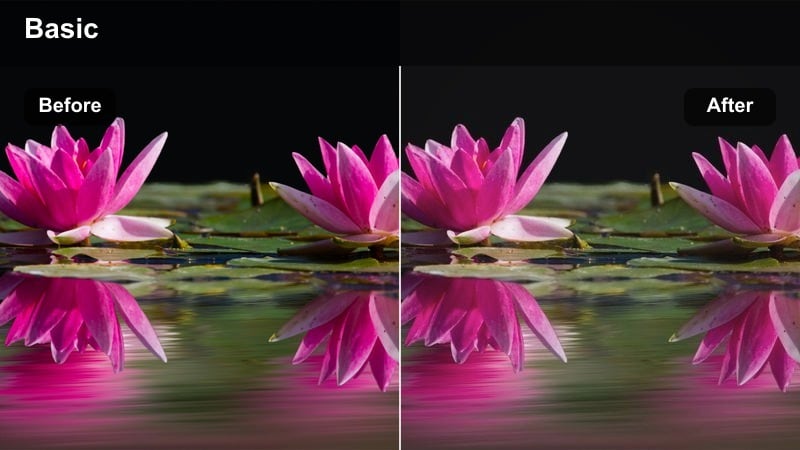
- Effect look: Matte contrast with pronounced spotlight-style midtones that mimic high-end runway photography.
- Best for: Editorial studio sets with hard light, runway walk videos, and dramatic fashion poses.
- Editing tip: Boost clarity and sharpness slightly to emphasize garment texture and structured silhouettes.
Runway Spotlight Matte creates that signature fashion-week look by pulling down contrast just enough to avoid harsh clipping while keeping midtones punchy. In Filmora, use it on clips with strong key lights or spotlights to spotlight cheekbones, collars, and tailored seams.
After applying the filter, increase clarity and a touch of sharpening to bring out stitching, pleats, and fabric textures without making skin look gritty. Add a narrow vignette and crop to vertical for runway-style Reels or Shorts that feel instantly editorial.
Chic Monochrome Editorial
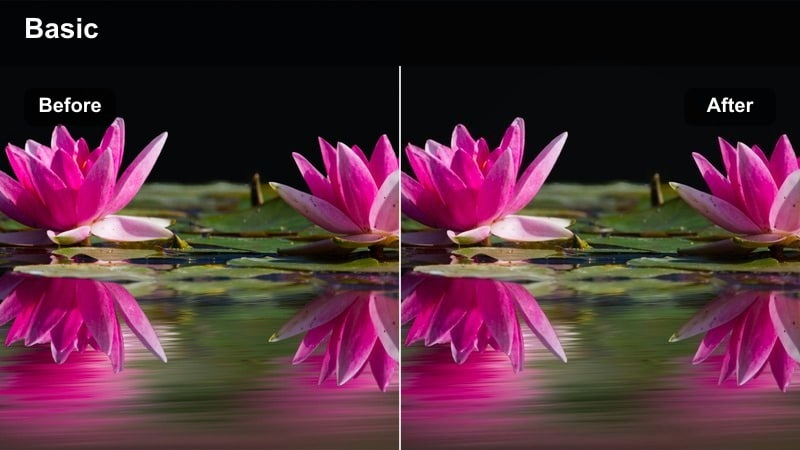
- Effect look: High-end black-and-white fashion filter with crisp contrast and deep blacks.
- Best for: Timeless lookbook intros, dramatic studio poses, and accessory close-ups.
- Editing tip: Fine-tune black levels to avoid crushing detail in dark fabrics like tuxedos or leather.
Chic Monochrome Editorial removes color distractions and places full emphasis on shape, texture, and light. Apply it in Filmora for campaign openings, logo reveals, or minimal accessory shots where you want a strong graphic feel.
Use the curves and exposure tools to keep blacks rich while preserving folds in coats and handbags. Local exposure adjustments on key garments help stitching, hardware, and brand details stay visible, and gentle camera moves like push-ins or sliders keep monochrome frames dynamic.
Daylight Street Style and Lookbooks
City Street Pastel
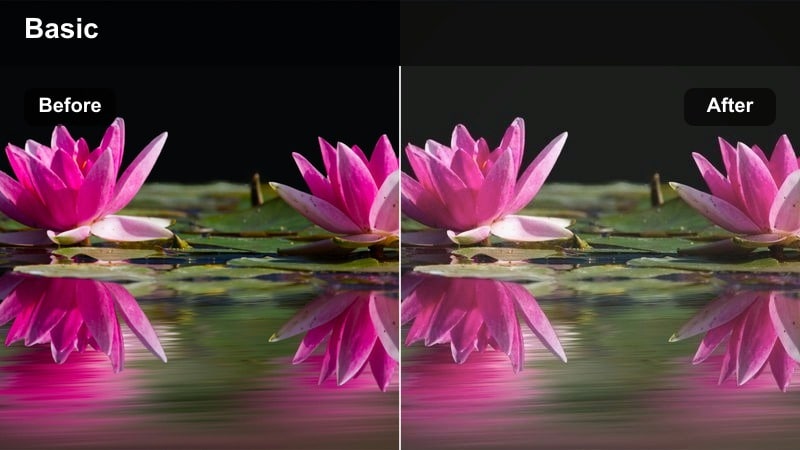
- Effect look: Soft pastel toning that mutes harsh colors and adds a light, airy feel to city fashion content.
- Best for: Daytime street-style walks, outfit-of-the-day clips, and soft lifestyle fashion vlogs.
- Editing tip: Reduce saturation on background blues and greens so outfits and accessories stand out.
City Street Pastel is perfect for making busy urban streets feel dreamy and on-brand for soft, feminine or minimalist aesthetics. In Filmora, apply this filter to brighten your footage slightly while dialing down aggressive reds, blues, and greens from traffic, signs, and storefronts.
Use HSL adjustments to selectively desaturate sky and foliage tones so your outfits and accessories pop without oversaturation. Pair the grade with slow-motion walks, hair flips, or fabric twirls, and consider adding blur overlays to the background to further guide attention to your look.
Urban Neutral Balance
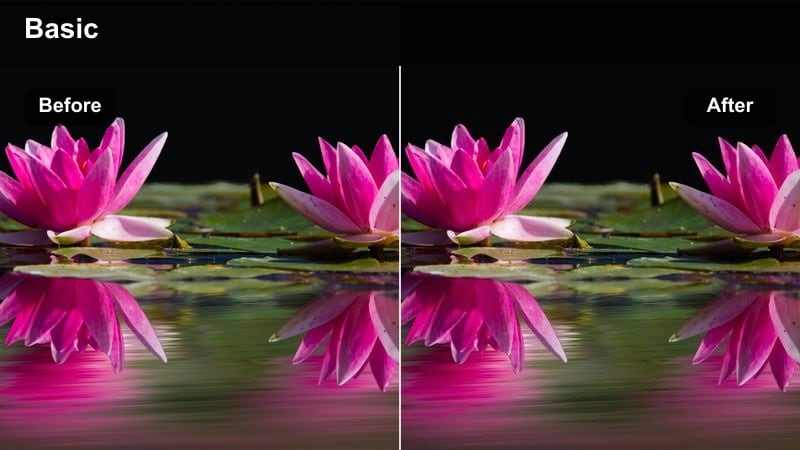
- Effect look: Clean, neutral color balance that removes color casts from mixed daylight and storefront lighting.
- Best for: Sidewalk outfit reveals, shopping district B-roll, and mixed-light street fashion shoots.
- Editing tip: Adjust white balance slightly warmer for skin, then lower saturation in signs and billboards.
Urban Neutral Balance is designed to fix tricky mixed lighting so your outfits look accurate across every angle. When editing in Filmora, drop this filter on first to neutralize yellow streetlights or cool window reflections before you experiment with more stylized grades.
Once the color cast is corrected, warm up skin tones a touch and gently reduce saturation in distracting elements like neon signage or bright advertisements. This keeps the viewer focused on your clothing details while still preserving the live-city feel of the background.
Lookbook Film Softgrain
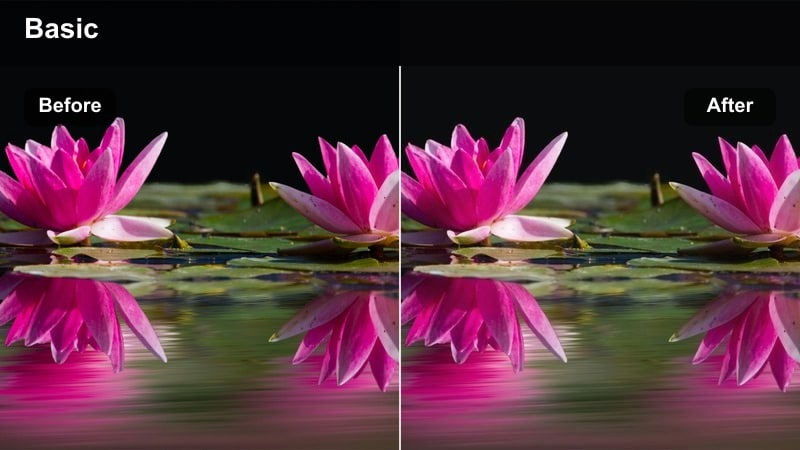
- Effect look: Film-inspired tone curve with gentle highlight roll-off and a fine, soft grain feel.
- Best for: Walking lookbooks, spinning outfit transitions, and handheld behind-the-scenes clips.
- Editing tip: Keep grain intensity light for social media so compression does not overemphasize noise.
Lookbook Film Softgrain gives your footage a subtle analog character that flatters motion and handheld shots. In Filmora, it works especially well on outdoor or window-lit lookbooks where you want soft highlight roll-off and a slightly nostalgic vibe without heavy vintage effects.
Match exposure across clips first, then apply the filter and keep the grain level modest so platform compression does not turn it into digital noise. Once the base look is in place, copy and paste the filter settings to all clips from the same outfit for a cohesive, filmic series.
Golden Hour Rooftops and Sunset Silhouettes
Sunset Satin Warmth
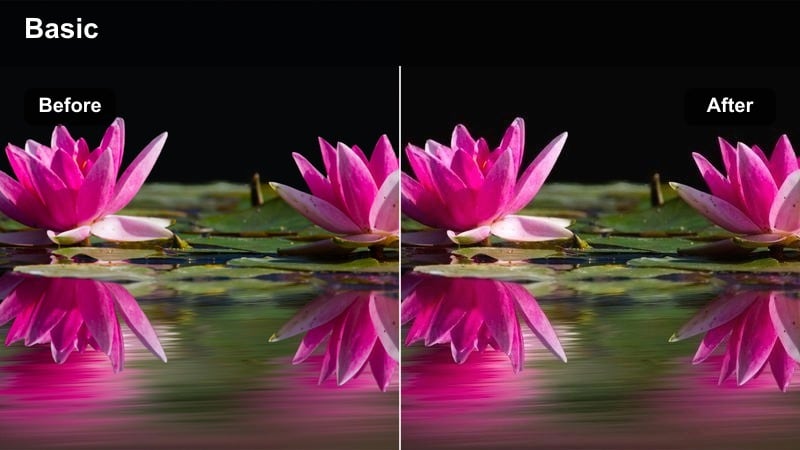
- Effect look: Rich golden tones with slightly lifted shadows that preserve detail in backlit fashion shots.
- Best for: Rooftop sunset shoots, flowing dresses in backlight, and lens-flare-heavy moments.
- Editing tip: Lower highlights to recover the sky and raise midtones to keep outfits from going too dark.
Sunset Satin Warmth enhances the natural glow of golden hour, adding depth and richness without sacrificing detail in backlit silhouettes. In Filmora, apply this filter to rooftop or beach scenes where the sun sits behind your model, then reduce highlights to regain sky texture and flare.
Lift shadows and midtones slightly so dresses, suits, and accessories remain visible against the bright horizon. If whites start drifting too warm, use HSL tools to keep logos, sneakers, and graphic prints clean while the rest of the frame bathes in cinematic warmth.
Amber Rooftop Contrast
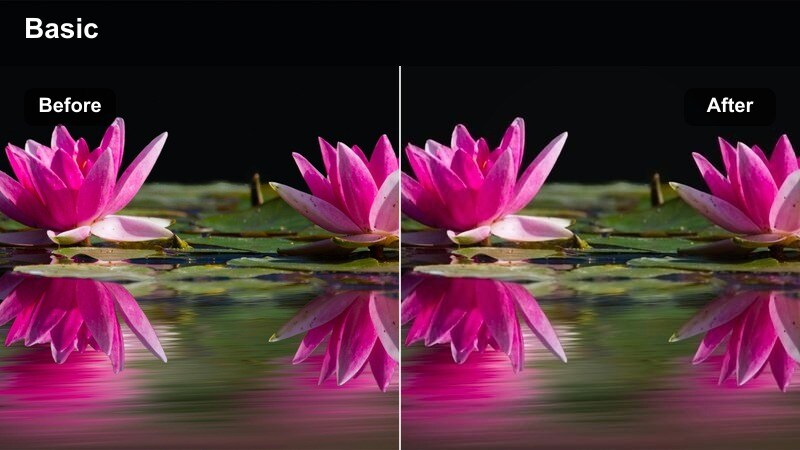
- Effect look: Punchy contrast with warm highlights and cooler shadows for dramatic rooftop silhouettes.
- Best for: High-fashion rooftop poses, editorial jumps, and strong architectural lines.
- Editing tip: Add a subtle fade to the blacks if the contrast feels too harsh on social feeds.
Amber Rooftop Contrast creates a bold split between warm sunlight and cooler city shadows, ideal for statement coats, sharp tailoring, and strong poses. In Filmora, it works best on clean compositions that use railings, ledges, and skyline geometry as frames around your model.
If the contrast looks too intense on mobile, introduce a slight fade to the blacks to soften edges while preserving the overall punch. This filter is especially effective for campaign hero shots, jumps, and slow pans that highlight powerful silhouettes against the sky.
Dusk Cinematic Teal
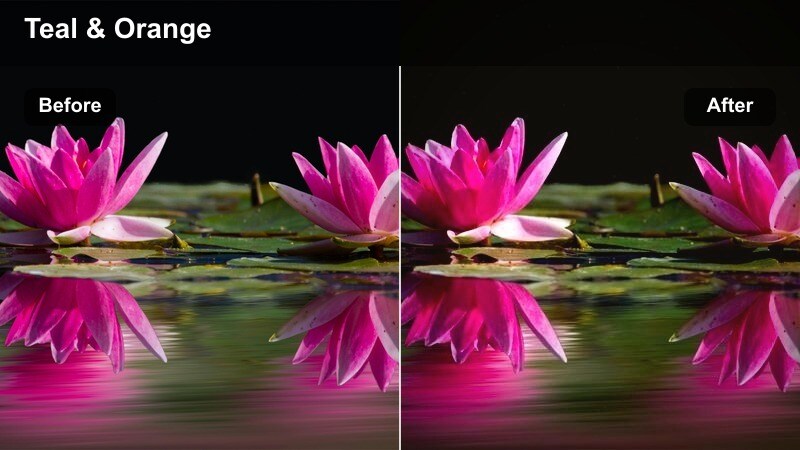
- Effect look: Cinematic teal in the shadows with preserved warm skin tones for evening fashion scenes.
- Best for: Blue-hour transitions, rooftop parties, and dusk city lookbooks.
- Editing tip: Reduce teal intensity slightly if outfits are already blue to avoid oversaturation.
Dusk Cinematic Teal adds a modern movie-style grade to your evening fashion content by tinting shadows teal while keeping faces and skin tones warm. In Filmora, apply it to blue-hour clips where city lights start to appear, turning neutral shadows into stylized, moody backdrops.
If your wardrobe already includes strong blues or cyans, dial back the teal adjustment to prevent oversaturation. Use this look on establishing shots, rooftop party B-roll, and transition sequences to create a consistent, cinematic mood across your campaign edits.
Night Neon Fashion and Club Scenes
Neon Runway Pop
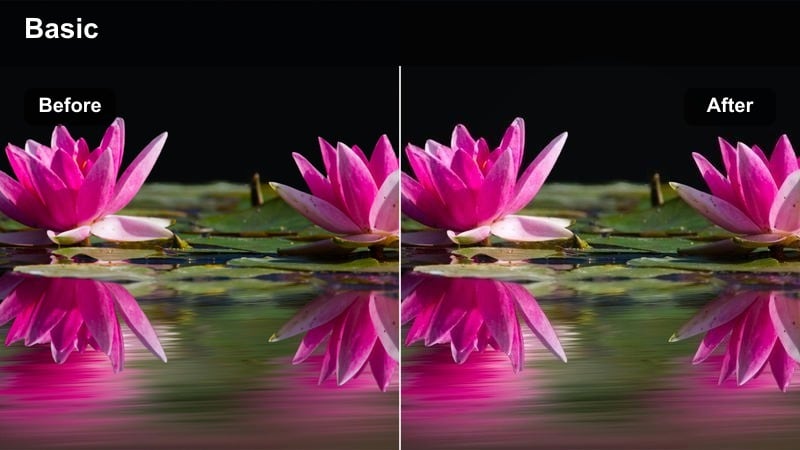
- Effect look: Vibrant neon enhancement that makes signs, LEDs, and reflective fabrics glow.
- Best for: Night city walks, neon-lit storefronts, and futuristic streetwear videos.
- Editing tip: Lower saturation in skin tones while boosting it in blues, magentas, and cyans for a polished club look.
Neon Runway Pop amplifies the energy of night city scenes by making LEDs, signs, and reflective fabrics explode with color. In Filmora, apply this filter to streetwear and nightlife clips shot near neon signage, then refine saturation so the background glows without overpowering your model.
Use selective color tools to protect skin tones and makeup from turning electric magenta. Shooting in a flatter camera profile helps preserve detail, allowing this filter to push neon blues, magentas, and cyans hard while keeping faces and key wardrobe elements crisp and controlled.
Midnight Glam Soft
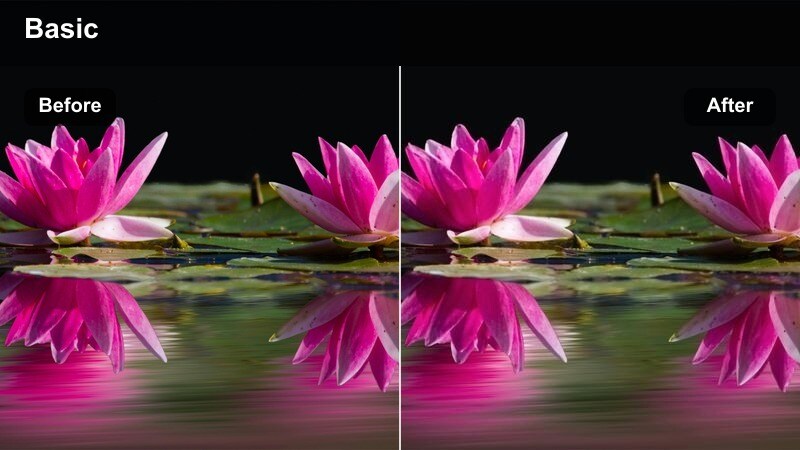
- Effect look: Low-contrast night filter that softens harsh shadows and noise while keeping detail in sequins and metallics.
- Best for: Club entrances, indoor fashion parties, and handheld BTS at events.
- Editing tip: Add a touch of sharpening after the filter to restore crispness lost to low-light softness.
Midnight Glam Soft is tailored for low-light glamour, softening harsh contrast and noise while letting sequins, rhinestones, and metallic fabrics shimmer. In Filmora, apply it to event entrances, party walk-throughs, and handheld BTS clips where lighting is uneven or dim.
Run noise reduction first if your ISO was high, then apply the filter and finish with a subtle dose of sharpening to bring back clarity. Avoid fast whip pans so the soft look reads as intentional and polished, keeping the focus on outfits, jewelry, and glam details.
Editorial Noir Night
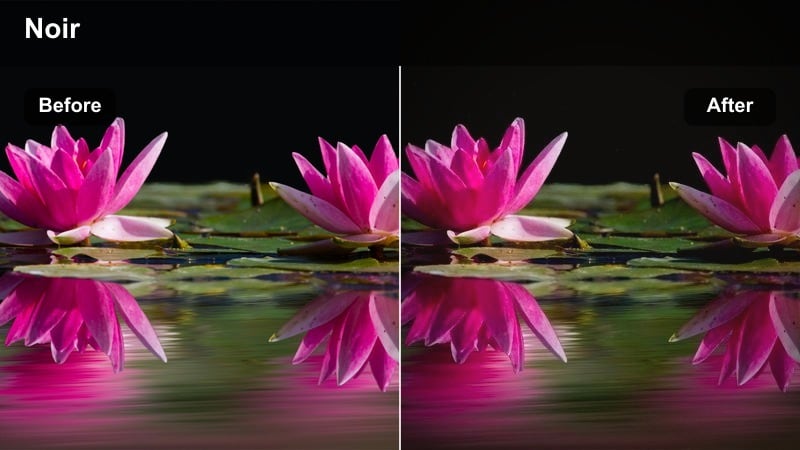
- Effect look: Dark, moody filter with deep blacks, cool highlights, and a subtle cinematic fade.
- Best for: High-fashion night editorials, stairwell shots, and moody alleyway looks.
- Editing tip: Raise shadows slightly if you lose detail in black outfits or textured coats.
Editorial Noir Night leans into dramatic shadows and cool highlights, ideal for late-night editorials with trench coats, leather, and sharp tailoring. In Filmora, use it when you want a cinematic, almost thriller-style mood for stairs, alleys, and side-street locations.
Adjust shadow levels so you keep texture in black fabrics and coats while still embracing deep contrast. Leave negative space in the frame for titles or campaign slogans, and cut in close-ups of shoes, bags, and accessories to break up darker wides and show off styling details.
Tips for Using Fashion Photoshoot Video Lut Filters in Filmora
- Shoot slightly flatter in-camera so fashion filters and LUT-style looks have more latitude to shape contrast and color.
- Lock white balance on set to avoid color shifts between angles when applying the same filter across a sequence.
- Create one hero grade on a well-exposed shot, then copy and paste the filter settings to the rest of the timeline.
- Use masks to keep faces and key accessories natural while pushing stylized color into backgrounds.
- Export a short test clip and watch it on mobile to confirm that textures, patterns, and makeup still look crisp after grading.
- Stack Filmora filters with subtle curves and HSL tweaks to build your own reusable fashion photoshoot video LUT-style presets.
- Save separate presets for studio, street, and night scenes so you can switch looks quickly while editing a full campaign.
- Always check highlights and blacks with scopes to avoid clipping important detail in bright logos or dark fabrics.
With the right fashion photoshoot video LUT-style filters, you can turn raw behind-the-scenes clips and simple outfit recordings into cohesive, editorial-worthy stories. Experiment with these looks in Filmora, save the combinations that fit your brand, and build a reusable toolkit that keeps every new drop, lookbook, and campaign visually consistent.
Use these filters and workflow tips to streamline your fashion edits so you can focus more on styling, directing, and storytelling on set. As you refine your signature color, remember to revisit older footage with your updated presets to refresh your portfolio and social feeds in a single session.
secure download