

 100% Security Verified | No Subscription Required | No Malware


 ChatGPT
 Perplexity
 Gemini
 Claude
 Grok
Grok
Fashion and beauty viewers expect clean, flattering, and on-trend visuals, so the filters you use on your YouTube fashion videos can make or break how your outfits and makeup look on screen.
Below are 12 fashion-focused YouTube filters organized by scene and vibe so you can quickly match the right look to your fashion hauls, lookbook videos, and style tutorials while keeping skin tones and fabrics true to life.
In this article
Soft Studio Glow for Fashion Hauls
Soft Haul Glam
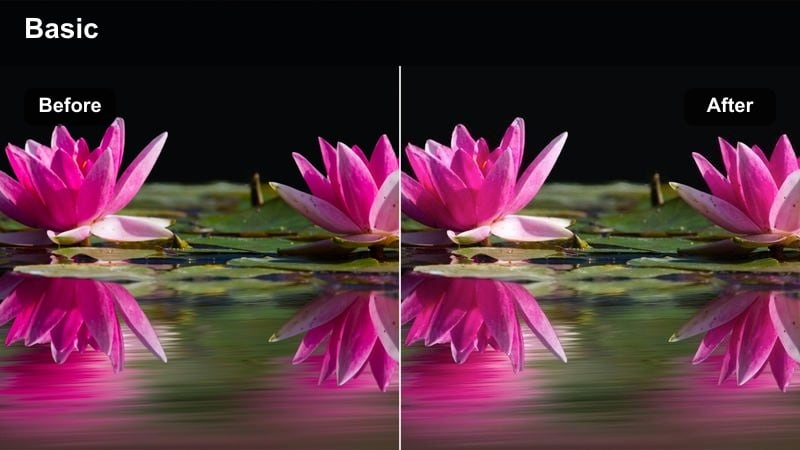
- Effect look: Gentle brightening with soft contrast that smooths skin and makes fabrics look plush and high-end.
- Best for: Seated YouTube fashion hauls filmed in a bedroom or studio with neutral backdrops.
- Editing tip: Lower contrast slightly if your outfit has lots of white or beige to avoid losing texture in highlights.
In Filmora, Soft Haul Glam is perfect when you want that bright, softly glam look that flatters both your face and your indoor haul setup. Start with a well-lit clip, then apply a softening filter or LUT and gently raise exposure and vibrance so sweaters, knits, and coats look plush without blowing out the background.
To keep luxury fabrics looking expensive, open the Color panel in Filmora and nudge contrast and highlights down a touch while lifting shadows. Combine this with a slight skin-smoothing effect and a bit of vignette, and your bedroom hauls will feel like polished studio content that still looks natural on YouTube.
Keep Fashion Colors True While Still On-Trend
Fashion viewers care deeply about accurate colors, so choose filters that flatter your aesthetic without misrepresenting fabrics or skin tones. In Filmora, you can combine presets with manual color tools to keep whites, blacks, and bold hues consistent across your channel.
Aim for a recognizable color identity across your hauls, lookbooks, and style tutorials so your YouTube grid feels cohesive from video to video.
Test a few favorite filters on the same outfit clip and compare skin tone, white clothing, and black fabrics before committing to a signature look.
 secure download

Build a Filter Stack for Different Fashion Scenes
Instead of using one filter for every clip, create a small toolkit in Filmora for indoor hauls, outdoor lookbooks, and aesthetic b-roll so each scene feels intentional. Save your favorite color and light settings as custom presets you can apply in one click.
Label those presets by use case, like haul, lookbook, and tutorial, so you can quickly match the filter to your filming scenario and keep your edit fast and consistent.
Create a mini test project with clips from your next haul, lookbook, and tutorial, then save your favorite three-filter stack as a reusable template.
secure downloadTurn Your Favorite Fashion Filter Into a Reusable Look
Once you dial in a fashion grade you love in Filmora, turn it into a preset or 3D LUT so every new haul or lookbook starts from the same stylish base. This keeps your channel aesthetic recognizable while saving you time on every upload.
From that base look, you only need to tweak exposure and saturation per clip, which is much faster than rebuilding your color from scratch every edit.
Export your final grade from one well-edited fashion video and reuse it as a base LUT on future hauls and style tutorials to speed up editing.
secure downloadMinimal Rack Clean
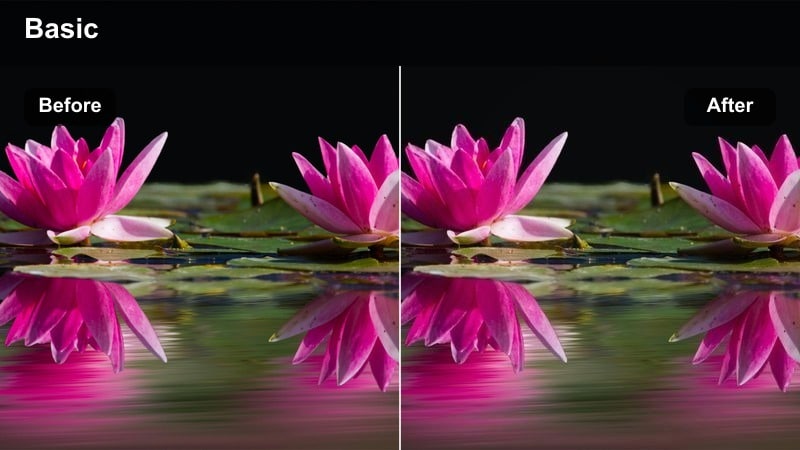
- Effect look: Clean, neutral tones that keep clothing colors accurate with a subtle polish on skin.
- Best for: Standing haul try-ons and talking segments filmed beside a clothing rack.
- Editing tip: Use this filter when mixing bold prints and neutrals so every item stays true-to-color for viewers.
Minimal Rack Clean is your go-to Filmora look when you want your clothes to be perfectly color-accurate, especially for try-ons filmed next to a clothing rack. Apply a neutral color preset, then use the White Balance and Temperature sliders to correct any yellow or blue cast from indoor lights.
In the HSL controls, you can fine-tune individual hues if a specific print or fabric looks off on camera. Keep contrast and saturation moderate so patterns, stitching, and textures read clearly in motion, helping viewers trust your recommendations and shop confidently from your links.
Cozy Bedroom Warm
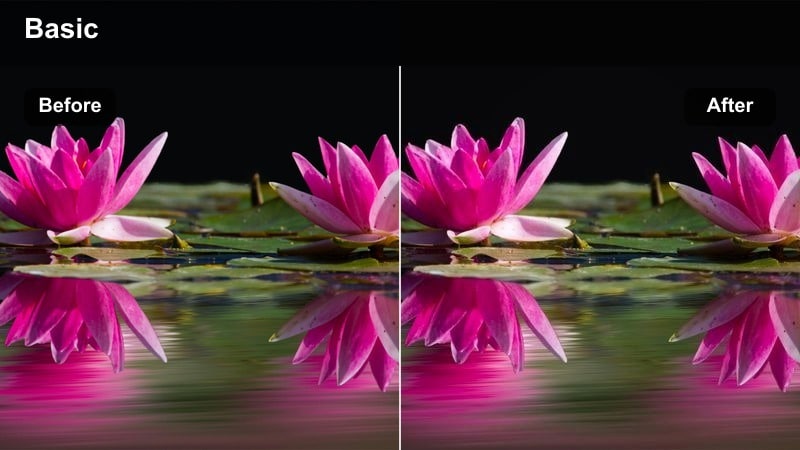
- Effect look: Warm, cozy tones with softened shadows that give your room and outfits a Pinterest-style vibe.
- Best for: Fashion hauls filmed on the bed or couch with fairy lights, candles, or warm lamps.
- Editing tip: Dial back saturation on oranges so your skin looks sunkissed but not overly tanned or orange.
Cozy Bedroom Warm works beautifully in Filmora for lifestyle-style hauls filmed on your bed or couch. Start with a warm-toned filter or LUT, then slightly raise Temperature and Tint toward magenta to enhance fairy lights and lamp glows without turning skin orange.
Use the HSL panel to tame orange and yellow saturation while leaving reds and pinks a bit richer for lipstick, blush, and warm outfits. Add a subtle blur or glow effect to the background only, and keep your face and clothes sharp so the scene feels dreamy but your fashion details remain crisp and watchable.
Cinematic Street and Outdoor Lookbooks
Street Style Crisp
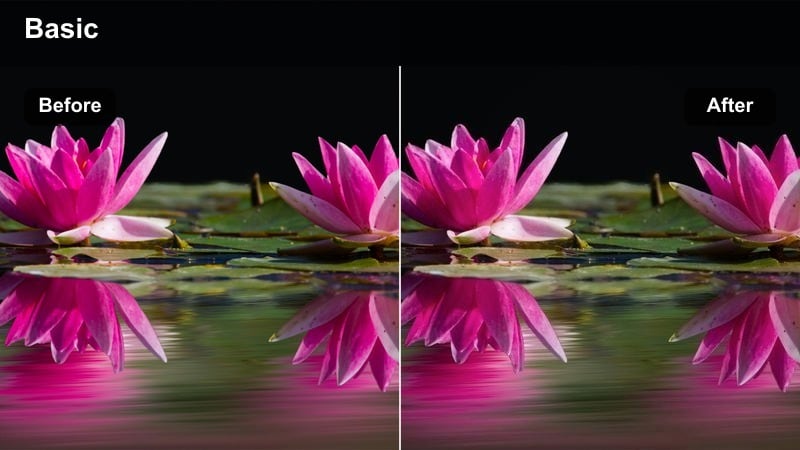
- Effect look: High-clarity filter that makes denim, leather, and streetwear details pop with cool, clean tones.
- Best for: Urban outfit lookbooks filmed on city sidewalks, crosswalks, or parking garages.
- Editing tip: Increase sharpness slightly on wide shots to accentuate architecture and textures without overdoing close-ups.
For city lookbooks, Street Style Crisp in Filmora gives you that editorial, high-clarity vibe where denim grain, leather texture, and sneaker details all stand out. Apply a cooler-toned preset, then slightly raise Clarity and Sharpness on wide shots so building lines and street textures support your outfit.
Use keyframing or adjustment layers so the same crisp grade spans multiple clips from your walk sequence. If close-ups start to look too sharp, duplicate the clip and lower sharpness just for those shots, keeping faces flattering while your overall look stays punchy and modern.
Sunset City Gold
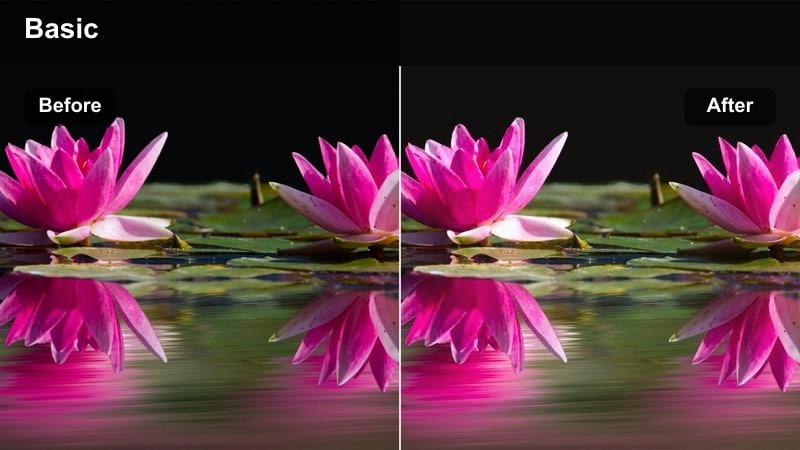
- Effect look: Golden-hour filter that enhances warm sunlight, soft flares, and glowing skin while keeping shadows gentle.
- Best for: End-of-day city or rooftop lookbooks shot during golden hour.
- Editing tip: Decrease highlights a touch if you shoot directly into the sun so your face does not blow out in backlit shots.
Sunset City Gold is ideal in Filmora when you shoot lookbooks around golden hour on rooftops or city streets. Start with a warm cinematic preset and increase Temperature, then gently lift Shadows and Blacks to keep backlit outfits and faces from disappearing into silhouettes.
Use the Highlights and Whites sliders to pull back bright areas where the sun hits your skin or reflective fabrics. Adding a subtle lens flare overlay or light leaks on top of this grade can emphasize the golden glow while Filmora Color Match helps keep the warm tone consistent across all rooftop angles.
Park Day Soft Film
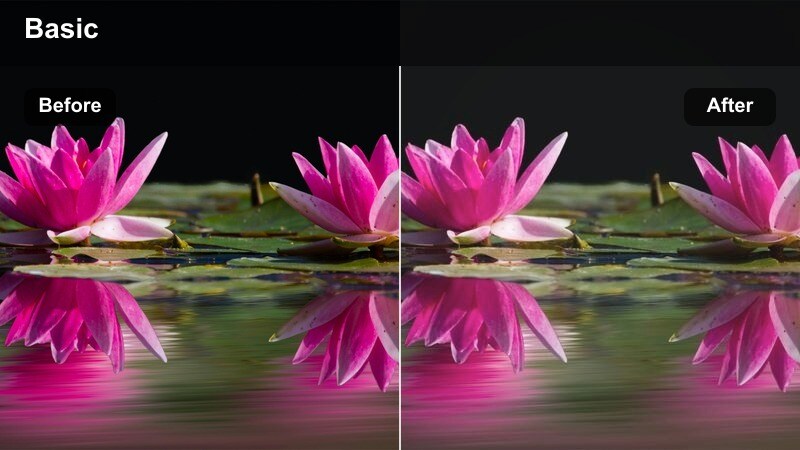
- Effect look: Faded, film-inspired tones with gentle greens and soft highlights for casual daytime outfits.
- Best for: Outdoor lookbooks in parks, courtyards, and casual street corners with natural daylight.
- Editing tip: Lower grain slightly if you film in 4K so the film look adds character without sacrificing clarity of fabrics.
Park Day Soft Film gives outdoor outfits a relaxed, vintage touch that suits casual jeans, tees, and light dresses. In Filmora, apply a film-style LUT, then lower Contrast and slightly fade the Blacks to create that soft, washed look that still preserves outfit details.
Use the HSL panel to gently desaturate greens so grass and trees do not overpower your clothing on screen. If you add grain, keep the intensity low for 4K footage, and rely more on subtle vignette and faded highlights so fabrics and seams remain easy to see while still feeling nostalgic.
Polished Lighting for Style and Beauty Tutorials
Vanity Glam Neutral
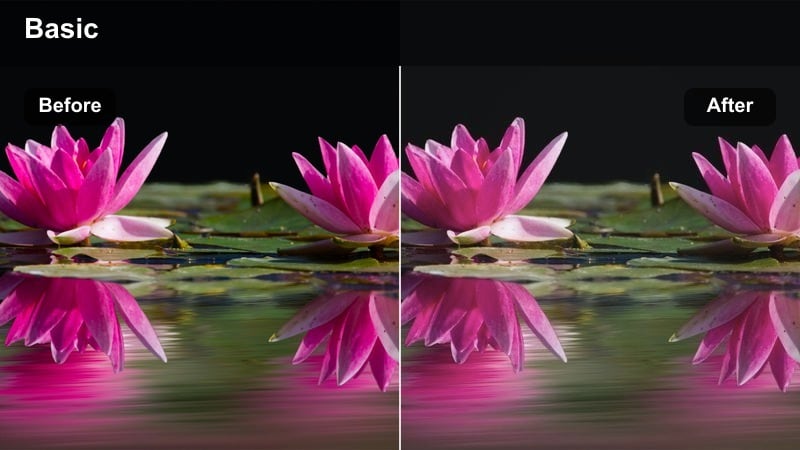
- Effect look: Balanced, slightly soft filter that flatters makeup while keeping product shades true for beauty and fashion hybrids.
- Best for: Get-ready-with-me fashion tutorials filmed in front of a vanity or LED mirror.
- Editing tip: Avoid heavy skin-smoothing at the same time; this filter already softens harsh shadows around the face.
Vanity Glam Neutral is tailored for GRWM videos where viewers need to see both your makeup shades and your outfit clearly. In Filmora, combine a softening filter with neutral white balance, then carefully adjust Exposure so your mirror lights and LED strips do not blow out your skin or sequined fabrics.
Use mild skin-smoothing only if needed and rely more on softening Shadows and reducing Contrast to flatter your face. With Filmora Color tools, keep saturation controlled so foundation, blush, and lipstick shades stay honest, which is crucial when you link products and outfit details in the description.
Studio White Balance Pro
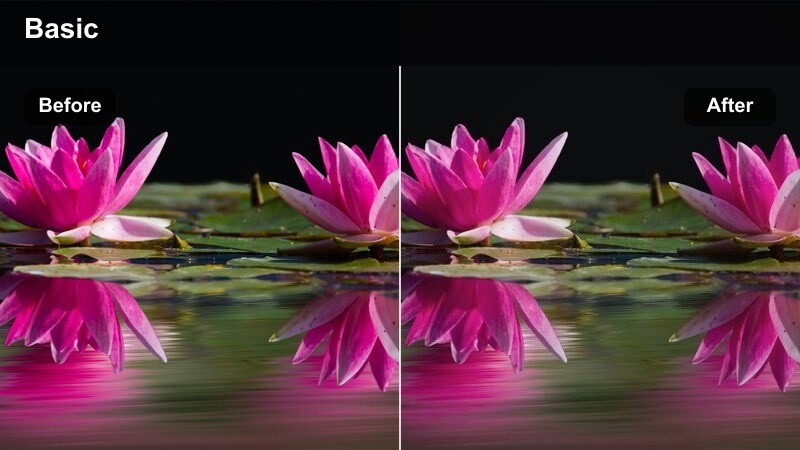
- Effect look: Clinical, bright studio vibe that evens color temperature and prioritizes clarity over stylization.
- Best for: Wardrobe breakdowns, styling tutorials, and capsule closet videos with multiple outfit changes.
- Editing tip: Use this filter when you want viewers to trust exact colors, especially for product-focused videos and sponsored content.
Studio White Balance Pro is your Filmora solution for educational fashion content, where accuracy matters more than heavy stylization. Start by using the White Balance eyedropper on a neutral part of your frame, then save that correction as a preset to apply across your entire capsule-closet or styling session.
Increase Exposure slightly to achieve a bright, studio-like feel, but keep Contrast and Saturation moderate so fabrics remain true to life. This look is especially useful when you feature sponsored pieces or talk about subtle color differences like off-white versus cream, since viewers can rely on what they see on screen.
Desk Editorial Matte
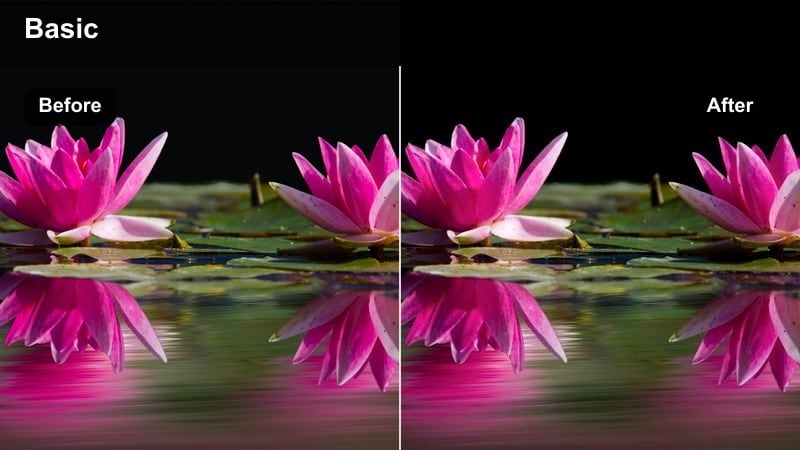
- Effect look: Subtle matte finish with lowered highlights that gives an editorial, magazine-like effect.
- Best for: Talking-head fashion advice videos and styling tips filmed at a desk or simple chair setup.
- Editing tip: Boost micro-contrast slightly around your eyes and mouth so your expressions stay defined with the matte look.
Desk Editorial Matte in Filmora gives commentary videos a chic, magazine-style atmosphere that suits branding, trend breakdowns, or fashion hot takes. Lower Highlights and Whites, then slightly raise Blacks to reduce shine on your face and clothes while maintaining enough separation between you and the background.
To avoid looking flat, add a gentle Amount of local contrast or sharpen around facial features using masks or adjustment layers. This keeps your expressions and blazer or shirt details defined, while the overall matte grade makes your set feel curated and professional rather than casual vlog style.
Trendy Aesthetic Cuts and B-Roll for Fashion Channels
Retro Y2K Tint
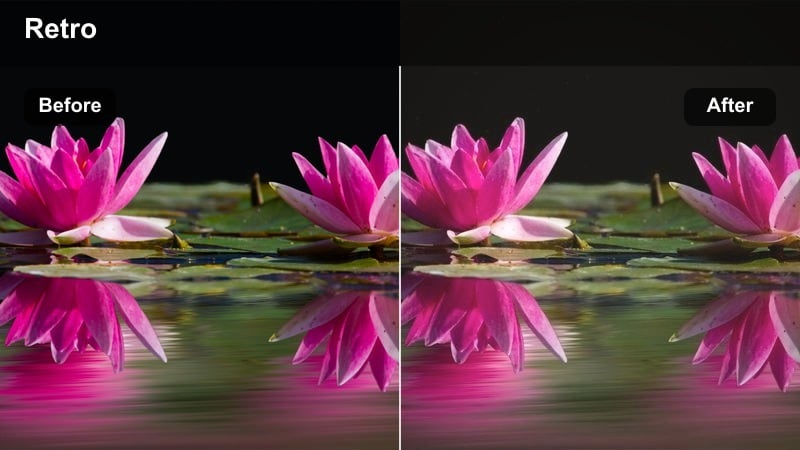
- Effect look: Playful, slightly cool-magenta tint with softened contrast for Y2K, indie-sleaze, and nostalgic outfits.
- Best for: Quick outfit transitions, mirror selfies, and fashion montages cut to trending audio.
- Editing tip: Use this filter only on your B-roll or cutaway clips so your main talking shots stay color accurate.
Retro Y2K Tint is ideal in Filmora for short, punchy clips like mirror checks, quick outfit changes, or transition edits synced to trending sounds. Apply a cool-magenta tint through the Color panel or use a dedicated aesthetic LUT, then soften Contrast and add a bit of Blur or Glow for a throwback camcorder feel.
Keep this effect on B-roll layers or cutaways only and leave your main A-roll more neutral, so viewers can still see accurate colors when you explain pieces. With Filmora, you can place tinted clips on a separate track or apply the effect via adjustment layers to a montage section without affecting the rest of your video.
Monochrome Mood Pop
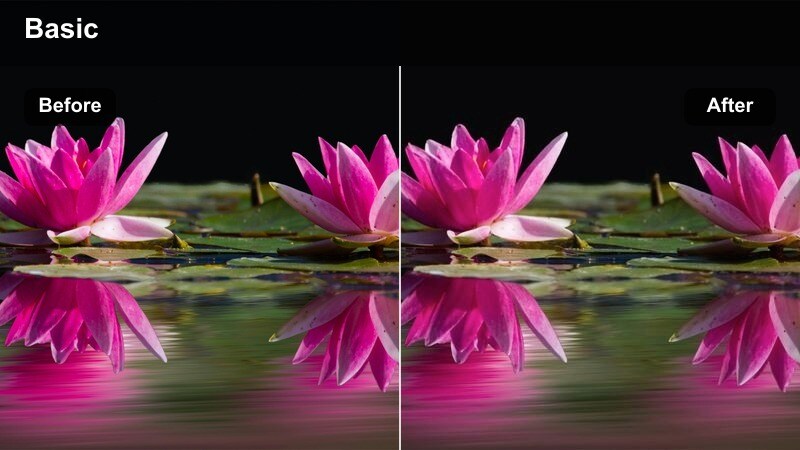
- Effect look: Selective pop filter that slightly mutes background while keeping outfit colors rich and saturated.
- Best for: Fashion transitions, shoe close-ups, and accessory b-roll that needs to stand out on the YouTube home feed.
- Editing tip: Use this look when your outfit is one strong color, like all-red or all-black, to make the silhouette iconic.
Monochrome Mood Pop in Filmora is perfect for hero shots of bold outfits, sneakers, or bags that you want to dominate the frame. Use the HSL controls to subtly desaturate or darken background hues while increasing saturation and brightness for your main outfit color.
You can refine this further with masks: draw a simple mask around your body or product and boost saturation only within that region. This creates thumbnails and short clips where the clothing hue jumps out on the YouTube home feed, while sidewalks, walls, and crowds stay visually quiet.
Slow-Mo Dream Soft
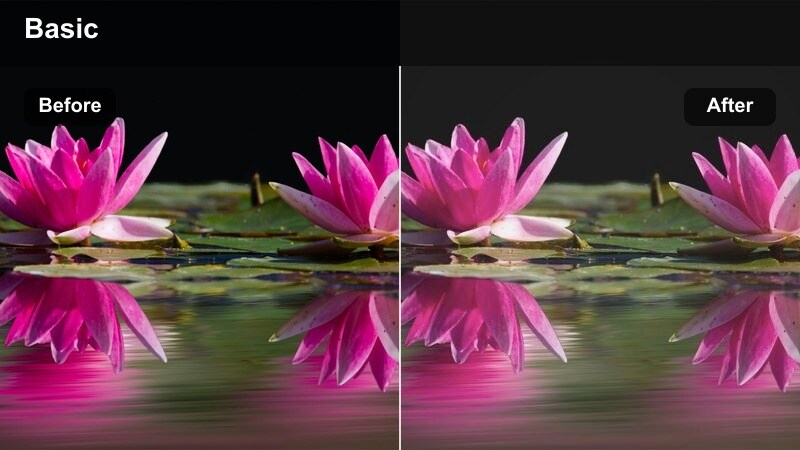
- Effect look: Hazy, dreamlike filter with lifted blacks that works perfectly for slow-motion hair flips and twirling outfits.
- Best for: Slow-motion spins, close-ups of flowing skirts, and hair or jewelry b-roll in fashion edits.
- Editing tip: Add this filter only to slow-motion clips and keep it lighter on normal-speed footage to maintain clarity.
Slow-Mo Dream Soft is made for romantic outfit reveals, skirt twirls, and hair flips captured in high frame rates. In Filmora, slow your footage down first, then apply a soft-focus or glow effect and gently lift Blacks and Shadows so the scene feels airy and cinematic.
Reduce overall Sharpness slightly and consider adding a mild blur vignette so attention falls on the moving fabric or jewelry. Keep this grade reserved for slow-mo B-roll sections layered between more neutral talking shots, which helps your video feel dynamic without losing clarity where you speak directly to the camera.
Tips for Using Fashion Video Youtube Filters in Filmora
- Film slightly flatter and darker in-camera so your fashion filters have room to brighten and add contrast without clipping whites or crushing blacks.
- Keep at least one neutral, color-accurate filter preset for sponsored fashion hauls where brands expect true product colors.
- Match your thumbnail edit to the main filter you use in the video so viewers get a consistent visual experience.
- Avoid switching filters too often within a single video; limit major filter changes to scene changes like indoor to outdoor.
- Test every new filter on both light and dark outfits, checking how details like stitching and print textures hold up.
- Save different filter intensities as variations, such as strong, medium, and subtle, for flexible use across clips.
- When filming lookbooks, lock exposure so that the filter does not respond differently to each outfit or movement.
- For fashion and beauty crossovers, prioritize skin-tone-friendly filters first, then tweak colors for clothes.
The right fashion video filters for YouTube should flatter your outfits, protect skin tones, and stay flexible enough for hauls, lookbooks, and tutorials without forcing you to reinvent your edit every time.
Start with two or three signature filters from this list that match your typical filming setups, then refine them into presets so your fashion channel gains a recognizable, binge-worthy visual identity.
secure downloadNext: Fashion Video Filters for TikTok: Trending Style Effects
