100% Security Verified | No Subscription Required | No Malware

These Filmora filters are designed to emulate a film look color correction LUT, giving your footage cinematic color, contrast, and mood with just a few clicks.
Whether you are shooting vlogs, short films, or social content, these curated looks help you match tones, balance highlights and shadows, and build a consistent filmic style across your entire edit.
In this article
Golden Hour Streets and Urban Sunsets
Sunset Amber Film
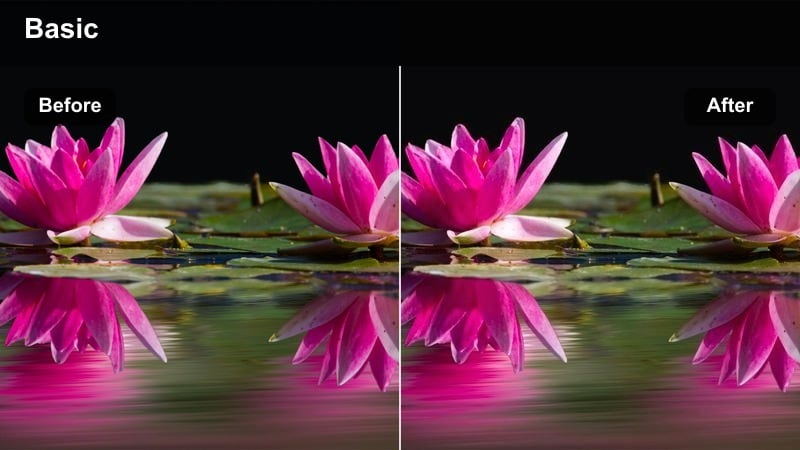
- Effect look: Warm amber midtones with soft halation and gentle highlight roll-off.
- Best for: Golden hour city walks, travel vlogs, and narrative street scenes.
- Editing tip: Reduce saturation in yellows slightly to avoid skin turning too orange while keeping the warm cinematic glow.
Sunset Amber Film wraps your footage in a classic golden-hour film look, emulating how real film stock blooms and rolls off highlights around the sun. Warm amber midtones and subtle halation around bright edges help you turn simple street shots into romantic, story-driven moments with an instant cinematic finish.
In Filmora, this filter works especially well on backlit subjects and travel vlogs where the sun is low in the sky. Apply it early in your grade, fine-tune exposure and white balance, then follow the editing tip by gently dialing back yellow saturation to keep skin tones flattering while preserving that signature sunset glow.
Match Film Looks with AI-Powered Color Tools
Filmora's AI color tools help you quickly align your footage with the film look color correction LUT style you are aiming for, even when shots come from different cameras or lighting setups. Instead of manually pushing curves and color wheels, you can let AI analyze your image and suggest balanced corrections.
Use AI color matching on a reference frame from your favorite movie, then layer these film-inspired filters on top to refine contrast, saturation, and tonal separation. This workflow gives you a fast path from raw footage to a cohesive, cinematic look across your entire timeline.
 secure download

Preview Film Look Filters in Real Time
With Filmora, you can scroll through filter thumbnails and instantly preview each film look color correction style directly on your selected clip. This real-time feedback makes it easy to compare subtle changes in contrast, warmth, and saturation before you commit to a direction.
Load a high-contrast or color-rich shot on your timeline, then quickly audition multiple cinematic filters back-to-back. Once you find a base look that supports your story, you can fine-tune intensity and layer extra adjustments like curves, HSL, or vignettes.
secure downloadCombine Filters with LUTs for Deeper Grades
Filmora lets you stack its built-in filters with creative 3D LUTs so you can separate base correction from stylized grading. Start with a film-look filter that controls exposure, contrast, and general color balance, then add a LUT layer on top to push your footage toward a specific cinematic palette.
This layered approach keeps your workflow flexible: you can adjust or swap LUTs without breaking the underlying correction, and you can reuse your favorite filter plus LUT combinations as custom presets across multiple projects.
secure downloadTeal Skyline Contrast
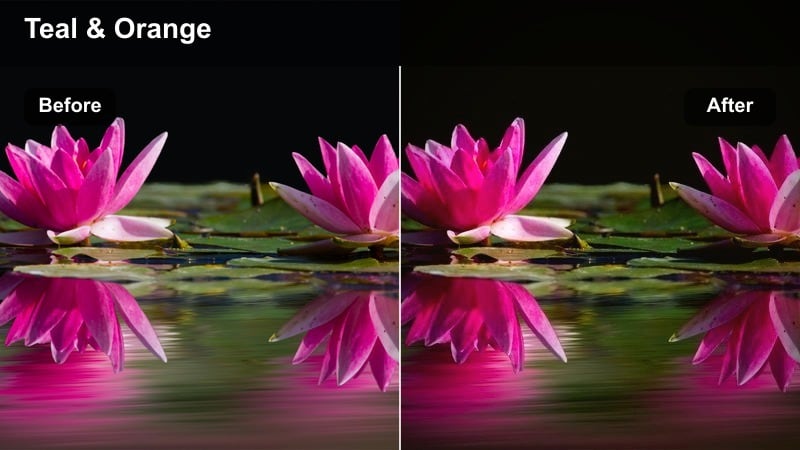
- Effect look: Punchy teal and orange cinema look with deepened shadows and cool city blues.
- Best for: Night drives, rooftop sequences, and action-oriented urban b-roll.
- Editing tip: Lower the intensity slightly on low-light footage to avoid color noise in the shadows.
Teal Skyline Contrast leans into the classic teal-and-orange blockbuster palette, adding rich cool shadows and warm highlights that make city lights and sunsets pop. The deeper contrast carves out your skyline and architecture, giving even simple establishing shots a high-budget, cinematic finish.
Apply this filter in Filmora when you want energy and drama in rooftop sessions, action b-roll, or car sequences framed against the city. If your footage is shot in low light, reduce filter intensity and gently raise shadows to avoid amplifying noise while still holding on to that bold urban style.
Soft Street Pastel
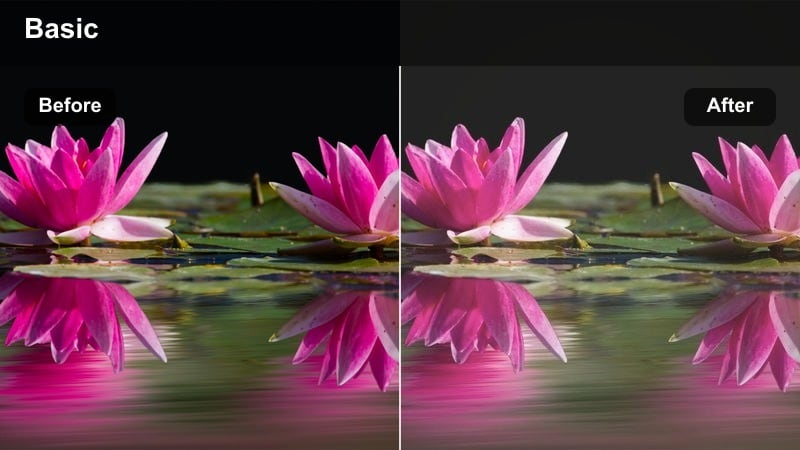
- Effect look: Muted pastel palette with low contrast and gentle film-like fade.
- Best for: Lifestyle street clips, fashion b-roll, and quiet city storytelling.
- Editing tip: Slightly increase clarity on your subject to keep them crisp against the softened background.
Soft Street Pastel dials back saturation and contrast to create a dreamy, almost editorial city aesthetic. Blacks lift slightly, edges soften, and harder tones melt into a pastel wash that is ideal for lifestyle, lookbook, and aesthetic-focused content.
In Filmora, pair this filter with smooth camera moves and shallow depth-of-field shots to enhance the gentle, cinematic mood. Use local adjustments or the clarity slider to sharpen your subject just a bit so they stay defined and eye-catching amid the intentionally faded urban backdrop.
Indoor Dialogue and Dramatic Interiors
Neutral Dialogue Balance
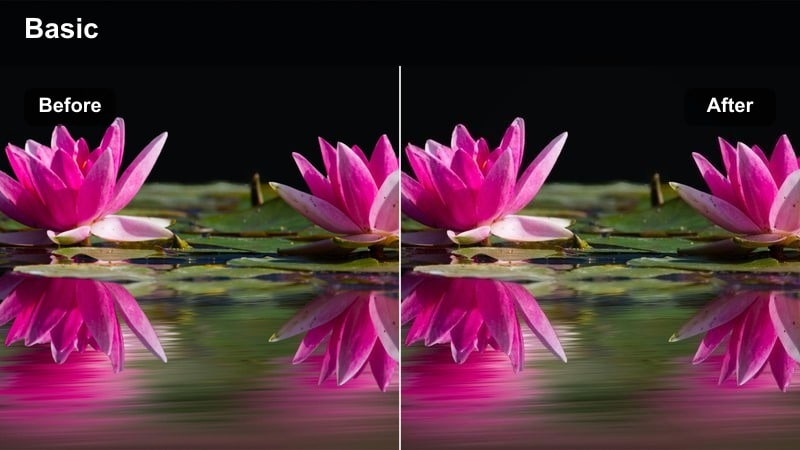
- Effect look: Balanced film-style neutral with natural skin tones and softened contrast.
- Best for: Talking-head scenes, interviews, and character-driven dialogue indoors.
- Editing tip: Use white balance eyedropper on a neutral object before applying this filter for the most accurate skin reproduction.
Neutral Dialogue Balance is built to keep skin tones natural while still giving your footage a polished, film-like character. Contrast is softened just enough to smooth harsh lighting, and colors are kept realistic so your subject looks trustworthy and true to life.
Use this filter in Filmora whenever your primary focus is people speaking to camera, from YouTube explainers to narrative dialogue. Correct white balance first, then apply the filter and make small adjustments to midtone warmth and exposure so faces stay consistent across all your interior shots.
Moody Room Shadow
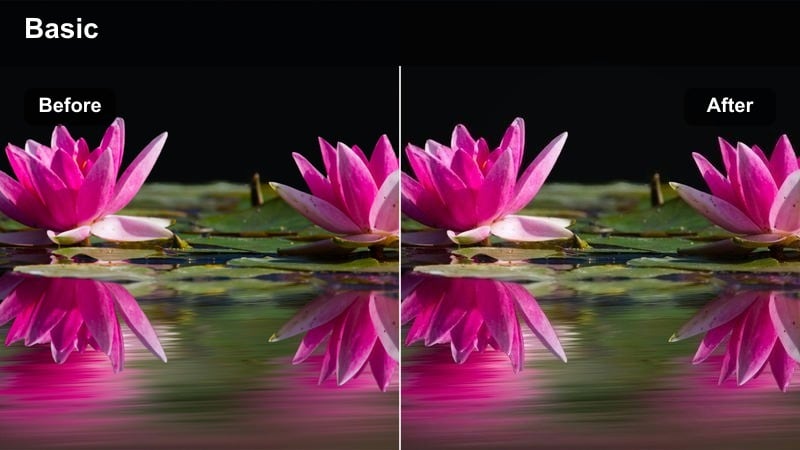
- Effect look: Low-key, shadow-rich grade with cool shadows and warm practical lights.
- Best for: Dramatic dialogues, thriller sequences, and emotional close-ups indoors.
- Editing tip: Lower blacks only slightly to keep some detail in the deepest shadows and avoid muddy footage.
Moody Room Shadow emphasizes contrast between light and dark areas, sculpting faces with strong shadows while keeping warm lamps and window light as focal points. The cool shadows and warm highlights create an immediate sense of tension and atmosphere, perfect for dramatic storytelling.
In Filmora, apply this filter to scenes with directional lighting, such as a character near a window or a single lamp in a dim room. Adjust black levels gently and use masks to lift exposure on your subject's face so expressions remain readable, while the rest of the frame falls off into a rich, cinematic darkness.
Soft Daylight Interior
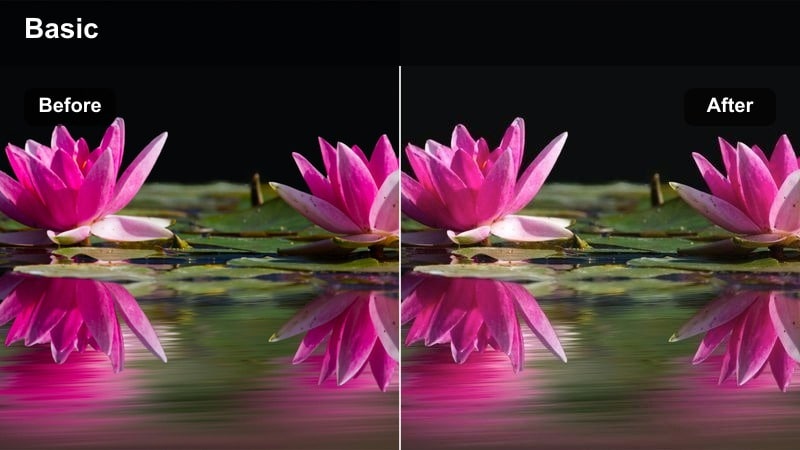
- Effect look: Bright, airy film look with soft highlights and slightly cooled whites.
- Best for: Home vlogs, workspace tours, and lighthearted indoor scenes.
- Editing tip: Reduce sharpness a bit to complement the soft tone and avoid harsh digital edges on furniture and walls.
Soft Daylight Interior brightens your frame and cools whites slightly to evoke a fresh, modern interior look. Highlights roll off smoothly so windows stay pleasant rather than blown out, and colors remain crisp without becoming overly saturated.
Use this filter in Filmora for lifestyle content, desk setups, and clean studio spaces where you want viewers to feel comfortable and inspired. Combine it with mild sharpness reduction and a touch of exposure control on bright walls to keep the image premium, soft, and cinematic without losing important detail.
Night City and Neon-Soaked Scenes
Neon Noir Glow
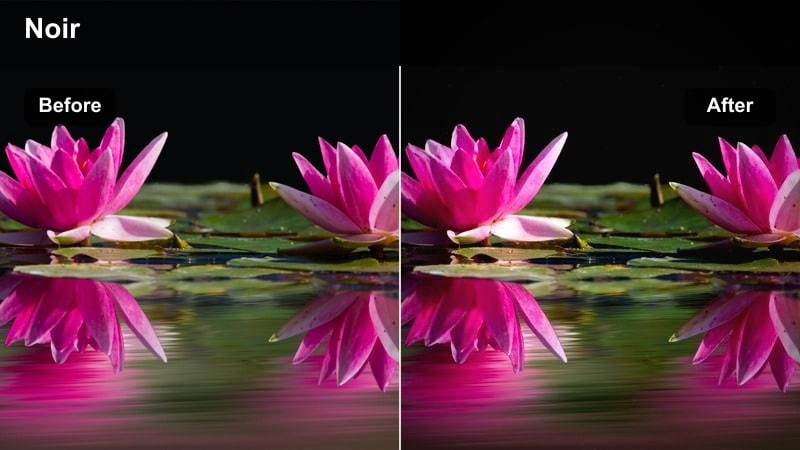
- Effect look: High contrast, saturated neon colors with a subtle bloom around lights.
- Best for: Night city b-roll, cyberpunk-inspired edits, and moody street sequences.
- Editing tip: Dial back saturation on magentas if neon signs overpower skin tones in close-up shots.
Neon Noir Glow pushes your night footage toward a stylized, cyberpunk-inspired grade with vivid colors and soft blooming around the brightest signs. Deep shadows and saturated neons transform ordinary city streets into atmospheric, story-rich environments.
In Filmora, apply this filter to footage that already features strong colored lights, reflections, or rain-soaked surfaces. Protect skin tones by selectively reducing magenta and red saturation when your subject is close to signage, and slightly lower exposure to keep the neon glow cinematic rather than overexposed.
Cool Midnight Film
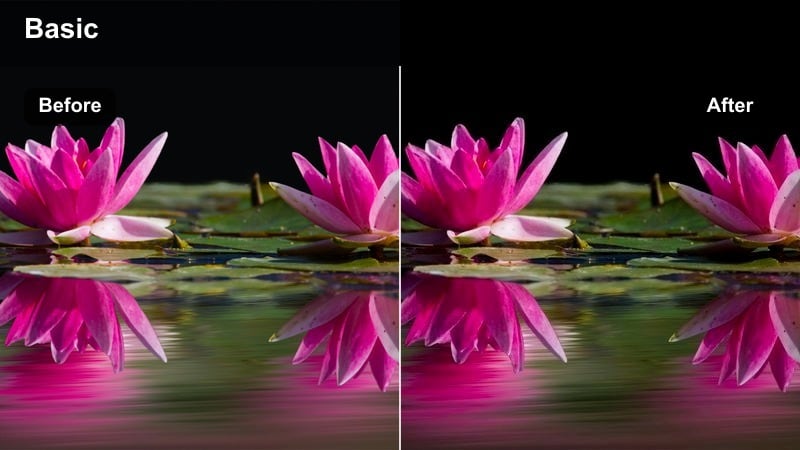
- Effect look: Cool-toned film grade with deep blues and lifted shadows for night visibility.
- Best for: Handheld night walks, urban exploration, and low-light storytelling.
- Editing tip: Use noise reduction before applying the filter on high ISO footage to avoid emphasizing grain in the lifted shadows.
Cool Midnight Film shifts your palette toward cinematic blues while carefully lifting shadows so important details remain visible. The look captures the mood of late-night streets and quiet city corners without fully crushing the dark areas of your image.
When grading in Filmora, run light noise reduction on high-ISO clips first, then add this filter to create a cohesive night-time atmosphere. Adjust the filter intensity to taste and consider adding a subtle film grain layer afterward, which helps the lifted shadows feel intentional and organic rather than digitally noisy.
Amber Night Drive
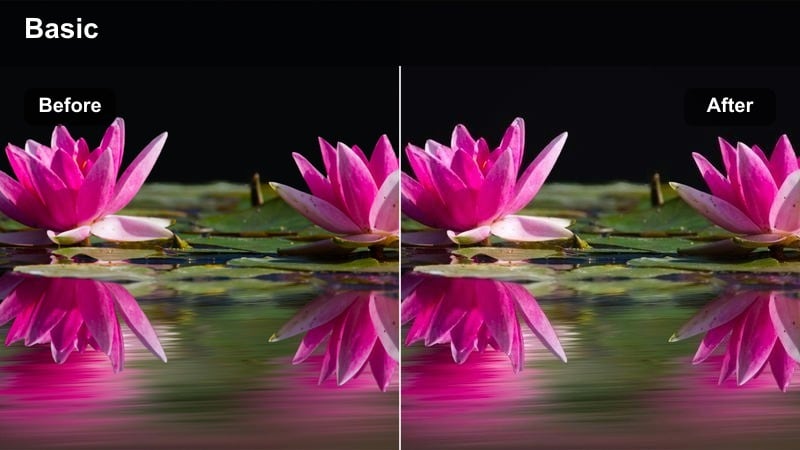
- Effect look: Warm amber highlights and gentle contrast ideal for car interiors and streetlights.
- Best for: Driving sequences, car vlogs, and road trip montages at night.
- Editing tip: Lower saturation in reds slightly to keep brake lights and traffic signals from clipping.
Amber Night Drive focuses on the intimacy of car interiors and passing streetlights, warming highlights while keeping overall contrast relatively soft. The result is a cozy, story-rich mood that draws attention to faces illuminated by dashboards and passing lamps.
Use this filter in Filmora for road trip sequences, ride-along vlogs, and narrative scenes set inside vehicles. Balance exposure so faces do not blow out, and gently tame red saturation so taillights and signs stay vibrant without clipping, preserving a controlled yet cinematic nighttime aesthetic.
Daylight Exteriors and Travel Sequences
Cinema Day Balance
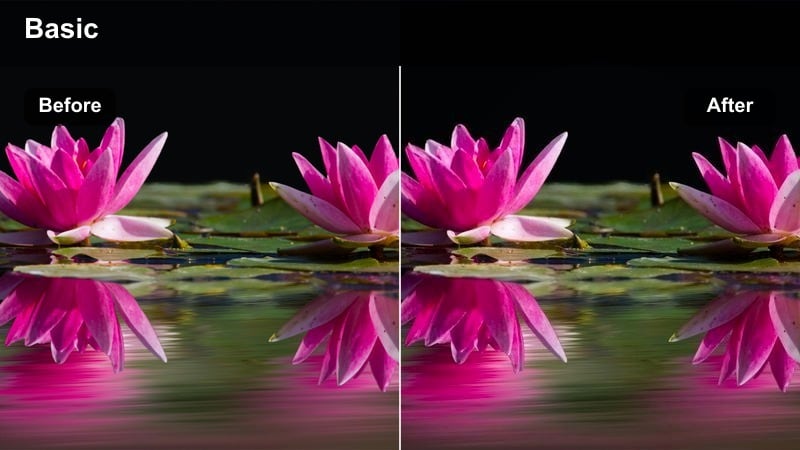
- Effect look: True-to-life cinematic daylight with controlled highlights and rich midtones.
- Best for: Travel vlogs, establishing shots, and scenic walk-and-talk scenes.
- Editing tip: Bring down highlights slightly and add a touch of contrast to keep skies detailed and colors grounded.
Cinema Day Balance is a versatile daylight filter that enhances outdoor footage without pushing it into an overly stylized direction. Highlights are tamed for better sky detail, midtones gain a gentle richness, and colors remain close to reality with a subtle filmic twist.
In Filmora, apply this look across an entire travel sequence using an adjustment layer so every exterior shot feels cohesive. Then, make small per-clip tweaks to exposure and white balance to compensate for shifting sunlight while keeping the core cinematic grade consistent from start to finish.
Retro Travel Film
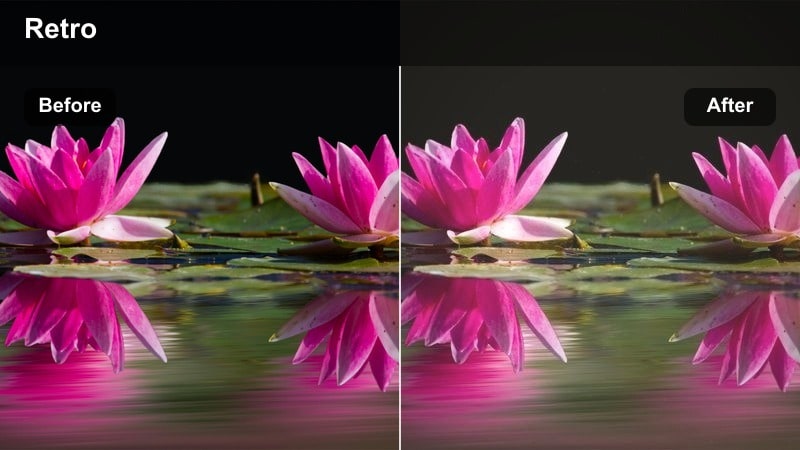
- Effect look: Slightly faded colors, warm highlights, and nostalgic film-style contrast.
- Best for: Vacation montages, handheld sightseeing, and nostalgic city exploration.
- Editing tip: Add a subtle vignette and reduce sharpness a little to complement the retro feel.
Retro Travel Film delivers a warm, memory-like grade with gently faded colors and softer contrast, echoing the feel of old travel film stock. Highlights lean warm, while overall saturation is pulled back just enough to evoke nostalgia without losing clarity.
In Filmora, pair this filter with handheld clips, family moments, or city explorations you want to feel like old postcards. Introduce a light vignette and slightly reduce digital sharpness so the final result looks more analog and cohesive, especially when combined with soft background music and slower-paced edits.
Cool Documentary Day
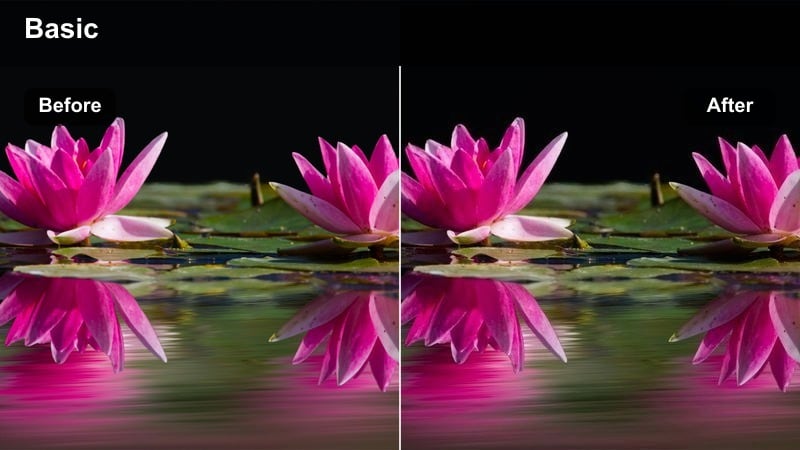
- Effect look: Slightly cool, clean documentary-style film grade with crisp contrast.
- Best for: City documentaries, street interviews, and educational outdoor content.
- Editing tip: Increase micro-contrast or clarity a touch to keep architectural lines and textures sharp.
Cool Documentary Day keeps your footage honest to real-world colors while adding a subtle cool cast and precise contrast. The look favors clarity and readability, making city textures, buildings, and on-screen graphics stand out clearly without distracting color shifts.
Use this filter in Filmora when producing educational content, journalistic pieces, or factual city stories that still need cinematic polish. Boost clarity slightly to accentuate architecture and street details, and keep saturation under control so your subjects and lower thirds remain easy to see and interpret on any screen.
Tips for Using Film Look Color Correction Lut Filters in Filmora
- Always correct exposure and white balance before adding heavier film look filters so your grade stays clean and predictable.
- Use adjustment layers for film looks whenever possible so you can refine one layer instead of tweaking every individual clip.
- Dial back filter intensity if skin tones start to look unnatural, overly orange, or if highlights begin to clip aggressively.
- Add a small amount of film grain at the end of your color pipeline to help unify shots from different cameras and codecs.
- Save your favorite combinations of filters, LUTs, and manual tweaks as custom presets to keep a consistent style across projects.
- Preview several cinematic filters in real time on a key shot from your edit to decide on a direction before grading the whole timeline.
- Use masks and keyframes in Filmora to apply film looks selectively to subjects, midtones, or backgrounds for more control.
- Combine a neutral base filter with a creative LUT to separate technical correction from stylized color, making later changes much easier.
Filmora's film look color correction LUT-inspired filters give content creators a fast, flexible way to push their footage toward a cinematic finish without getting lost in complex grading tools. You can move from flat, uncorrected clips to stylized looks that match your story in just a few steps.
Start with the filter that best fits your scene, make small exposure and color tweaks, then build on that base as you explore more advanced LUTs and lighting-driven looks like cinematic mood lighting LUTs in your future edits.
secure download