

 100% Security Verified | No Subscription Required | No Malware


 ChatGPT
 Perplexity
 Gemini
 Claude
 Grok
Grok
The Film Style Cinematic LUT filter collection in Filmora helps content creators quickly achieve a polished, movie-inspired look, with rich contrast, subtle tones, and controlled color that feels like professional film grading.
Whether you are building narrative shorts, travel reels, or social content, these cinematic filters give you ready-made starting points that emulate the feel of classic and modern film stocks with minimal tweaking.
In this article
Urban Dusk Dramas
Neo Noir Street Glow
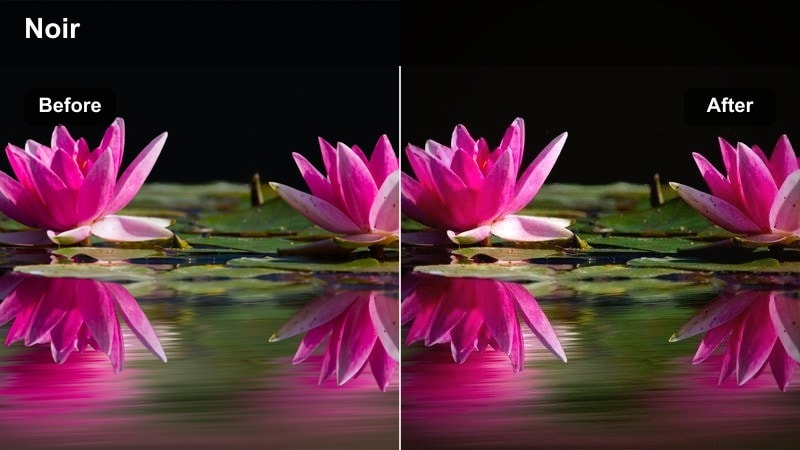
- Effect look: High-contrast, cool shadows with glowing warm highlights on practical street lights for a neo-noir feel.
- Best for: Night city vlogs, moody street B-roll, and narrative scenes with rain-soaked pavements or reflective surfaces.
- Editing tip: Lower overall exposure slightly, then add a soft vignette to keep attention on the brightest street lamps and faces.
Neo Noir Street Glow pushes shadows into a cool, inky tone while amplifying warm light sources so your city nights feel like stylized thriller frames. In Filmora, this filter is ideal for footage lit by signs, storefronts, and car headlights, adding a polished cinematic contrast without complex manual grading.
Apply it to handheld B-roll, narrative walk-and-talks, or rainy street sequences, then fine-tune intensity in the Effects panel to match different locations. Combine it with Filmora masking tools to protect important skin areas, and use the built-in vignette controls to guide the viewer toward key characters and story beats.
AI-Assisted Cinematic Color in Filmora
Filmoras AI color tools can prep your footage before you apply Film Style Cinematic LUT-inspired filters like Neo Noir Street Glow. By automatically balancing exposure and white balance, AI ensures that your highlights and shadows respond predictably when you layer on your cinematic look.
You can also use AI scene detection and color matching to keep shots from different cameras visually consistent. This gives you a stronger foundation, so your chosen film-style filter feels cohesive across your entire sequence.
 secure download

Preview Film Style Cinematic Filters in Real Time
Filmora lets you hover over each Film Style Cinematic LUT-style filter to preview how it will transform your clip before committing. This real-time feedback makes it easy to find the right mood, from moody noir to warm city glow, without wasting time on test renders.
You can stack multiple filters, adjust their strength, and compare before-and-after views side by side. This helps you quickly refine contrast, color, and softness until the look matches the story you are telling.
secure download1000+ Video Filters and 3D LUTs
Beyond this Film Style Cinematic collection, Filmora includes hundreds of additional filters, overlays, and 3D LUTs to cover everything from everyday vlogs to stylized short films. You can mix and match these assets to create a unique signature grade that reflects your brand or channel aesthetic.
Use HSL and color wheels alongside LUTs to refine specific hue ranges, protect skin tones, and dial in precise contrast curves. Once you have a combination you like, save it as a preset so you can apply the same cinematic treatment across future projects instantly.
secure downloadGolden Avenue Cinema
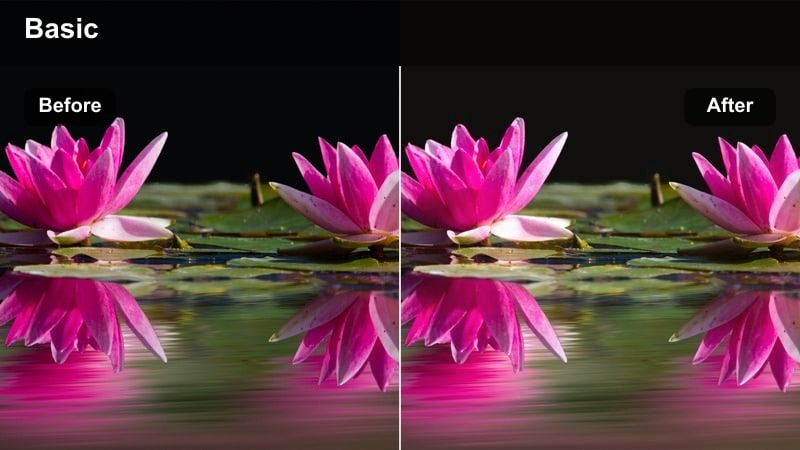
- Effect look: Warm, amber-tinted highlights with soft contrast for a late-afternoon city boulevard cinematic glow.
- Best for: Golden hour walk-and-talk scenes, lifestyle vlogs, and establishing shots of sunlit city streets.
- Editing tip: Reduce highlight intensity slightly and lift the shadows to keep detail in backlit faces while preserving the golden flare.
Golden Avenue Cinema leans into rich amber highlights and smooth contrast transitions, turning ordinary streets into glowing, cinematic avenues. In Filmora, this filter helps you tame harsh sunset light while exaggerating warm tones for dreamy lifestyle and travel visuals.
Apply it to backlit portraits, walk-and-talk vlogs, or sweeping boulevard shots, then fine-tune exposure and highlight roll-off in the Color panel. For cohesive sequences, copy and paste the filter settings or use adjustment layers so every clip in your golden hour montage carries the same filmic warmth.
Subway Cyan Drift
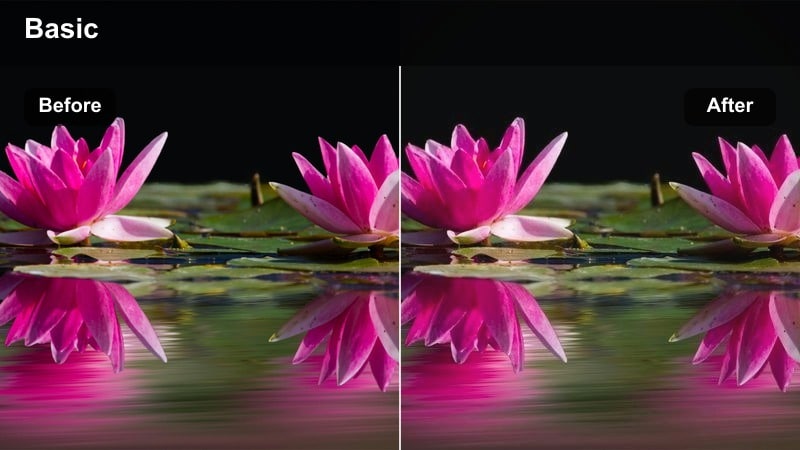
- Effect look: Cool cyan-leaning mids with neutral highlights and slightly faded blacks for an urban underground thriller vibe.
- Best for: Subway sequences, underground parking scenes, and dynamic handheld metro B-roll.
- Editing tip: Use masked color correction to keep skin tones slightly warmer while allowing the environment to stay distinctly cyan.
Subway Cyan Drift cools your midtones into a stylized cyan cast while keeping highlights relatively neutral and blacks gently faded. This creates a clean, modern metro feel that works perfectly for underground sequences, escalators, and transit transitions between locations.
In Filmora, drop this filter onto your clips, then adjust intensity to balance atmosphere and realism. Use color masks or HSL controls to retain warmer skin tones and key subjects, so your characters feel alive against the sleek, cool-toned environment of tunnels, stations, and platforms.
Intimate Interior Stories
Soft Room Cinema
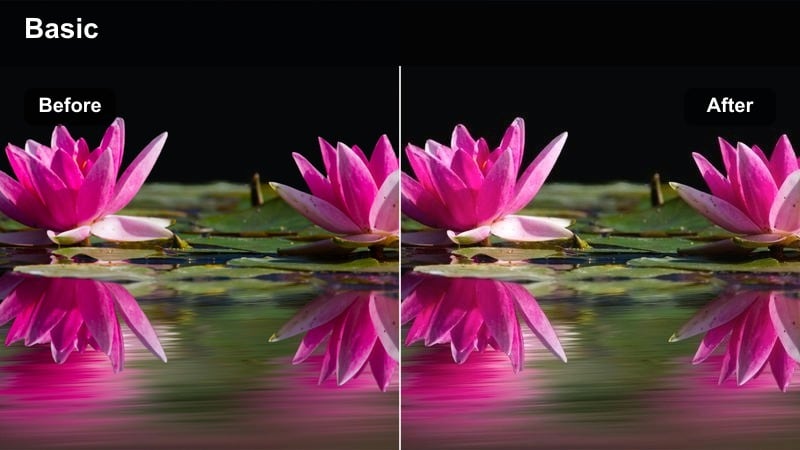
- Effect look: Muted saturation with gently lifted blacks and soft highlights for a cozy, cinematic interior tone.
- Best for: Dialog scenes in apartments, desk setups, and calm lifestyle content shot in small rooms.
- Editing tip: Reduce clarity slightly and add a tiny bit of film grain to avoid overly digital-looking details in close-ups.
Soft Room Cinema subtly desaturates colors and lifts shadows to create a gentle, lived-in mood that suits small interior spaces. It smooths contrast and highlights, helping window light feel natural and flattering while avoiding harsh digital edges.
Use this filter in Filmora for talking-heads, study-with-me content, or quiet narrative moments shot in bedrooms and living rooms. After applying, slightly tweak color temperature and add a low-strength grain overlay to reinforce the film-like softness without sacrificing detail on faces and key props.
Lamplit Dialogue
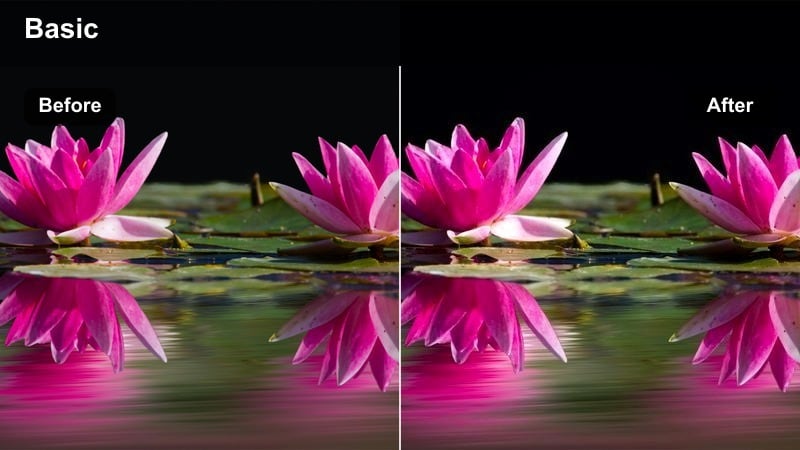
- Effect look: Warm tungsten push in mids, rich shadows, and gentle falloff around practical lamps for classic interior drama.
- Best for: Conversation scenes at tables, podcast recordings, and late-night desk monologues.
- Editing tip: Dial down saturation in oranges slightly to keep warm lamps from overpowering skin tones in close-ups.
Lamplit Dialogue emphasizes warm lamp light, deepens surrounding shadows, and adds a soft falloff that spotlights your subjects. It recreates the feeling of classic interior dramas where practical bulbs and table lamps shape the entire scene.
In Filmora, apply this filter to interviews, podcasts, or night-time desk setups, then fine-tune orange saturation and midtone contrast. Combine it with subtle vignettes and noise reduction so faces stay clean and expressive while the environment remains moody and cinematic.
Studio Neutral Film
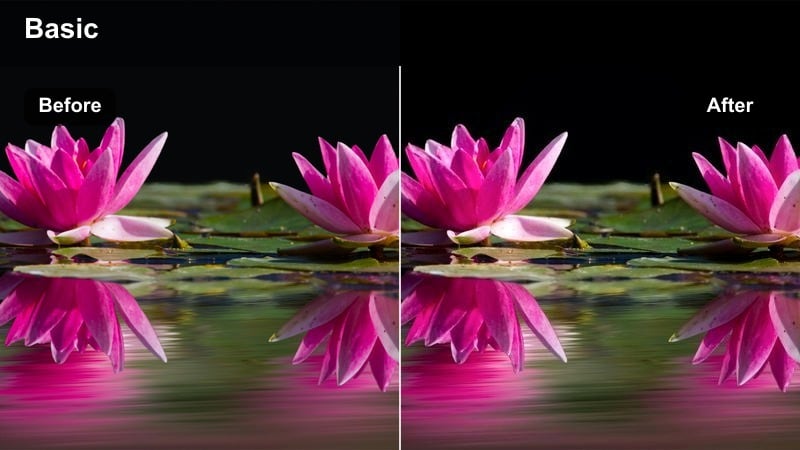
- Effect look: Balanced, low-contrast look with gentle film-style roll-off in highlights and neutral color for versatile interiors.
- Best for: YouTube talking heads, tutorial videos, and product shots in controlled studio or home-office setups.
- Editing tip: Treat this as a base grade, then use local adjustments to add emphasis to products or faces where needed.
Studio Neutral Film gives you a clean, low-contrast base with soft highlight roll-off and neutral color balance, perfect for professional-looking studio work. It avoids heavy stylization so your graphics, overlays, and brand colors sit naturally on top of the image.
In Filmora, use this filter as your default grade for tutorials, explainers, and unboxings. After applying it on an adjustment layer, refine exposure, sharpen key details like eyes or products, and keep backgrounds slightly subdued so your on-screen information remains the hero.
Open Road and Cityscape Cinema
City Drive Teal Fade
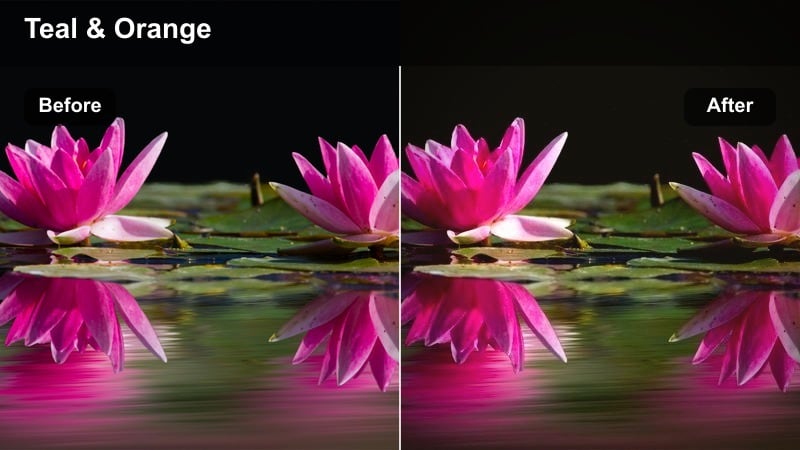
- Effect look: Teal-leaning shadows with softly faded blacks and preserved warm midtones for cinematic driving shots.
- Best for: Car POV scenes, dashboard camera reels, and driving montages through downtown streets.
- Editing tip: Add slight speed ramps and match the filter strength between clips to keep a consistent color story across the entire drive.
City Drive Teal Fade shifts shadows toward teal, lifts the darkest areas, and protects warm midtones like car interiors and skin. This creates a modern blockbuster-inspired color contrast that makes even simple commutes feel like cinematic transitions.
Apply it in Filmora to dashcam POVs, tracking shots from the passenger seat, or exterior drive-bys. Use speed ramping and crossfades alongside this filter to build rhythm, and sync your color intensity across all driving clips so your road sequence plays as one unified visual chapter.
Overlook Cinematic Skyline
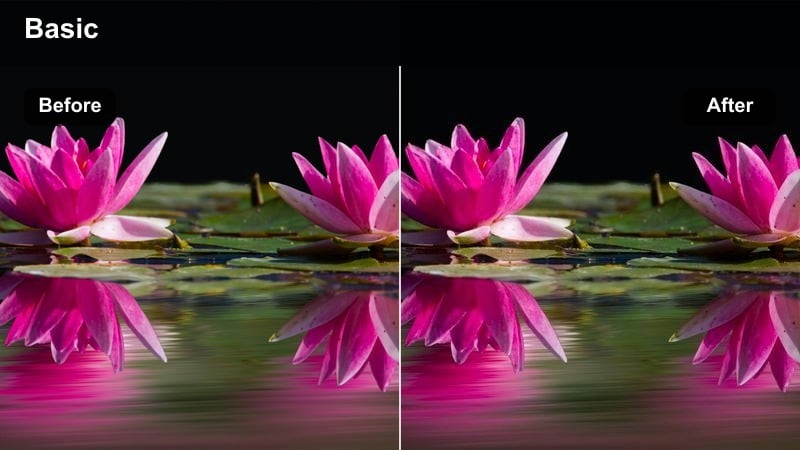
- Effect look: Deepened blues and slightly desaturated buildings with punchy contrast for sweeping skyline shots.
- Best for: Drone flyovers, rooftop city panoramas, and establishing shots for urban stories.
- Editing tip: Push clarity and sharpness modestly on wide shots, then mask and soften any areas with visible noise in the shadows.
Overlook Cinematic Skyline intensifies sky and city blues while gently desaturating buildings to create strong separation and depth. The boosted contrast turns rooftops and skylines into striking establishing shots that frame your storys location.
In Filmora, use this filter on drone arcs, timelapse cityscapes, or static rooftop views. Adjust clarity and sharpness for crisp silhouettes, then selectively soften noisy shadow areas using masks so your final image retains a high-end, cinematic finish even on compressed platforms.
Highway Movie Matte
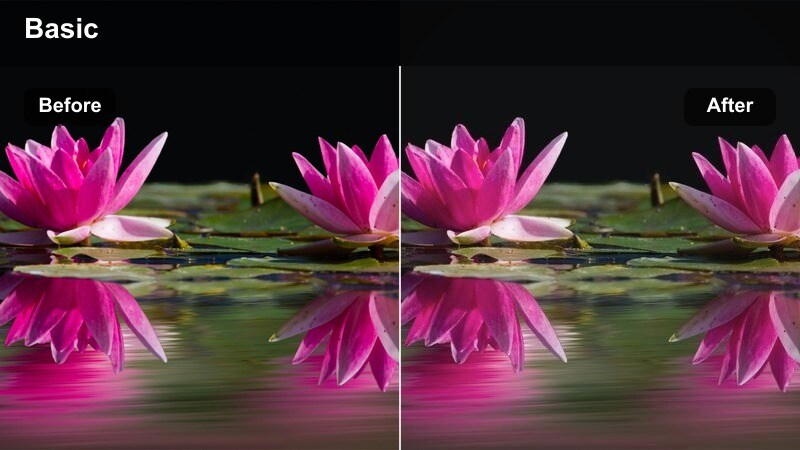
- Effect look: Slightly desaturated colors with soft highlight roll-off and a subtle matte curve in the blacks for road-trip vibes.
- Best for: Travel vlogs, highway timelapses, and transitional shots between cities.
- Editing tip: Combine with a cinematic 2.35:1 letterbox crop and gentle speed variations to turn simple drives into stylized sequences.
Highway Movie Matte lowers saturation a touch, softens bright skies, and introduces a matte curve to the blacks for a nostalgic, road-trip feel. It turns ordinary highway shots into reflective transitions that link one chapter of your story to the next.
In Filmora, pair this filter with time-lapses, bridge crossings, and long stretches of highway. Add letterbox bars using overlays and apply subtle speed changes in the timeline so your montage flows with the music, while the matte look keeps every angle feeling like part of the same cinematic journey.
Nightlife and Rain-Soaked Scenes
Rainy Street Cinema
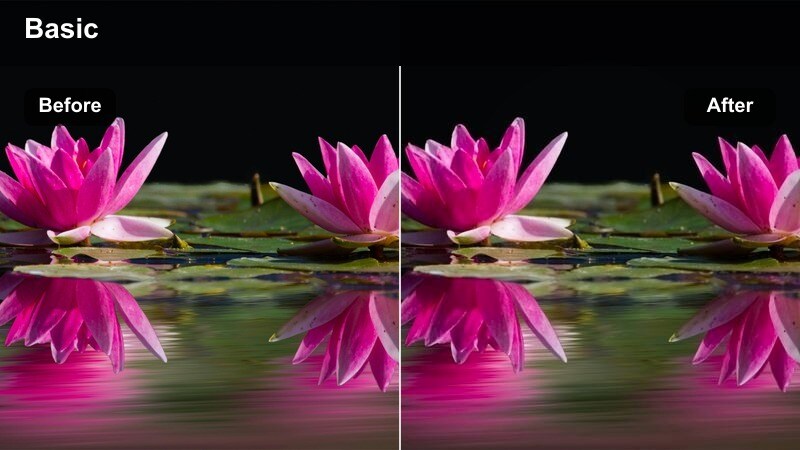
- Effect look: Rich contrast with saturated reflections and slightly cool midtones for dramatic wet pavement at night.
- Best for: Rainy night B-roll, umbrella walk scenes, and emotional city dramas shot after dark.
- Editing tip: Increase saturation on blues and reds selectively to make reflected signs and tail lights pop on wet streets.
Rainy Street Cinema pushes contrast and enriches color to emphasize glowing reflections on wet asphalt and puddles. With slightly cooled midtones, it brings out the drama in rain-soaked nights, making every passing car and neon sign feel story-worthy.
Apply this filter in Filmora to slow-motion raindrops, umbrella walks, or contemplative night walks, then fine-tune saturation for specific hues like traffic lights or storefronts. Combine with gentle slowdowns and ambient sound design to create emotionally charged sequences that feel lifted from a cinematic drama.
Club Neon Film
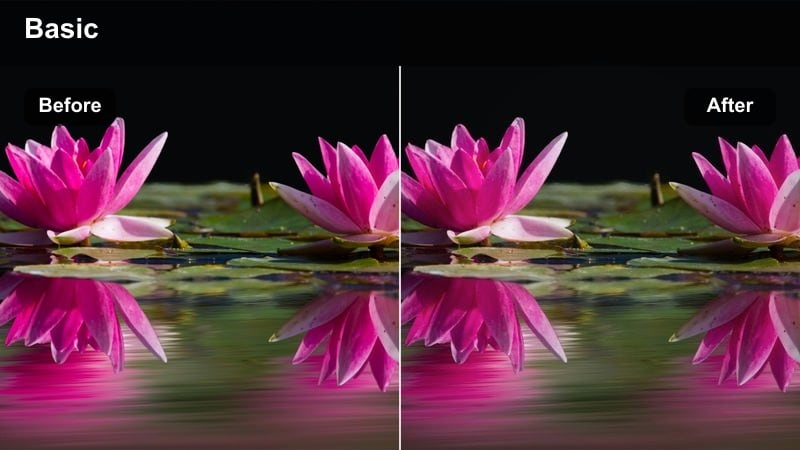
- Effect look: Punchy neon colors with controlled highlights and deep blacks for stylized nightlife interiors.
- Best for: Clubs, bar scenes, rooftop parties, and performance shots with colored LED lighting.
- Editing tip: Use keyframed color adjustments to keep different neon signs from clipping as lights change intensity.
Club Neon Film enhances saturated neon hues while anchoring the image with deep blacks and managed highlights. It keeps the energy of clubs and concerts intact without letting strobes and LEDs blow out your footage.
In Filmora, pair this filter with handheld crowd shots, DJ close-ups, or rooftop party scenes. Use keyframes on exposure and color wheels to adapt to changing light patterns, and combine with subtle stabilization so your energetic footage remains watchable and visually cohesive.
Alleyway Thriller Tone
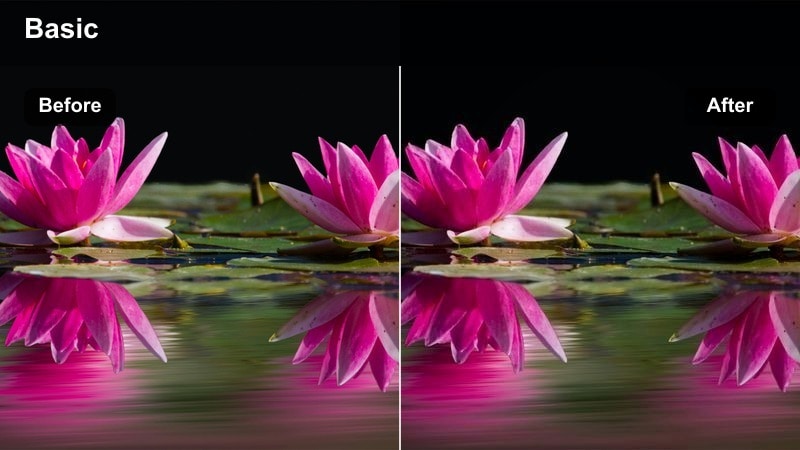
- Effect look: Desaturated environment with cool shadows, strong contrast, and subtle green tint in dark areas for suspenseful alleys.
- Best for: Chase sequences, suspenseful walk scenes, and dramatic reveals in backstreets and service lanes.
- Editing tip: Apply a gentle blur to the background only, using masking, to keep attention fixed on your character as they move through the frame.
Alleyway Thriller Tone pulls color out of the environment, cools and greens the shadows, and boosts contrast for a tense, uneasy atmosphere. It is designed to make alleys, backstreets, and service corridors feel dangerous and cinematic.
In Filmora, use this filter on stalking shots, reveals, or POV chases, then experiment with masking to soften backgrounds and enhance subject separation. Add sound design and subtle camera shake or motion blur to complete the thriller mood while the cool, desaturated palette heightens suspense.
Tips for Using Film Style Cinematic Lut Filters in Filmora
- Shoot as flat as your camera allows to give Film Style Cinematic LUT filters more room to shape contrast and color without clipping.
- Keep white balance consistent across your timeline before adding filters so the cinematic look feels unified from shot to shot.
- Use adjustment layers in Filmora to apply one cinematic filter across multiple clips instead of grading each shot individually.
- Lower filter intensity slightly for talking-head shots to keep skin tones natural while still benefiting from the cinematic mood.
- Experiment with Filmoras AI color tools before adding LUT-style filters to fix exposure and white balance issues that could limit your grade.
- Toggle before-and-after previews frequently to ensure your chosen Film Style Cinematic LUT filter is enhancing, not hiding, important story details.
- Save your favorite filter and color combinations as presets so you can quickly build a consistent visual identity across series or playlists.
With Film Style Cinematic LUT-inspired filters in Filmora, content creators can transform everyday footage into polished, story-driven visuals without needing a full colorists toolkit. Each filter provides a fast starting point that mimics classic and modern film looks, so you spend less time tweaking and more time telling your story.
Experiment with different scene-based looks, tweak intensity and local corrections, and then save your favorite grading setups as presets to build a recognizable, cinematic style across all your videos. As you combine filters, LUTs, and Filmoras AI tools, you can craft a signature film-style aesthetic that scales from quick social edits to full narrative projects.
secure download