

 100% Security Verified | No Subscription Required | No Malware

High Dynamic Color LUT-style filters in Filmora help content creators keep detail in both bright highlights and deep shadows while maintaining rich color and natural skin tones.
Use these filters to quickly achieve a cinematic dynamic range look, protect important details in your footage, and create a consistent visual style across vlogs, travel videos, product promos, and more.
In this article
Golden Hour Cityscapes with Expanded Range
Skyline Dynamic Glow
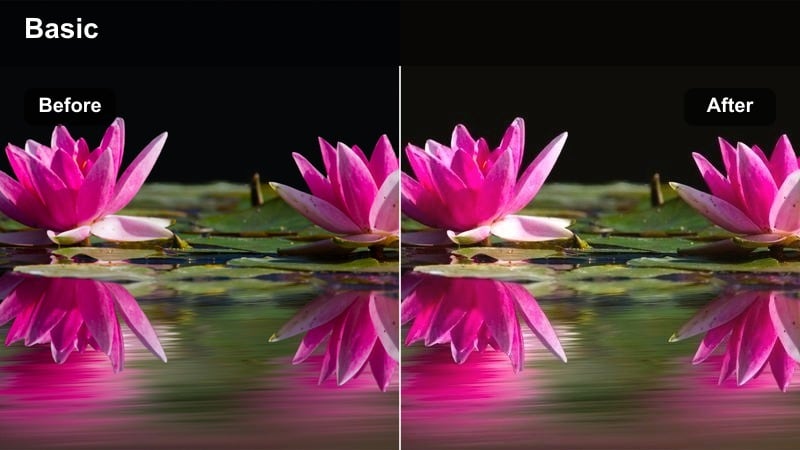
- Effect look: Soft cinematic contrast that protects window lights and sky highlights while lifting urban shadows for a polished city look.
- Best for: Dusk city B-roll, rooftop vlogs, timelapses of traffic and skyline shots with lots of bright signs.
- Editing tip: Lower overall exposure slightly, then increase saturation just a touch to avoid neon colors from clipping.
Skyline Dynamic Glow is designed to hold onto the glimmer of neon signs and window lights while still revealing texture in buildings and streets. By gently stretching the dynamic range, it keeps glowing highlights from turning into flat white blobs and rescues detail in underexposed alleys, giving your dusk city footage a refined, cinematic finish directly inside Filmora.
In practice, apply this filter after you nudge exposure a bit darker so there is room for the brightest elements to breathe. It works especially well on city vlogs and rooftop sequences where billboards, traffic lights, and the remaining golden-hour sky all compete for attention, helping you keep skin tones natural while the skyline stays vibrant and controlled.
Match High Dynamic Color LUT Filters with AI Color Tools
Filmora's AI-driven color tools can quickly prep your footage before you apply any High Dynamic Color LUT-style filter. AI analysis of brightness, contrast, and color balance creates a cleaner base so your dynamic filters can focus on smooth highlight roll-off, rich midtones, and accurate skin tones.
Use AI scene detection and auto color balance on mixed lighting clips, then stack your chosen high dynamic filter to fine-tune shadows, highlights, and contrast without digging into advanced color grading controls.
 secure download

See High Dynamic Filters in Action on Real Footage
To understand how much extra range these filters unlock, test them on clips with backlit windows, glowing signs, or strong sunlight. Watching the before-and-after difference on real-world shots makes it easy to pick the filter that best matches your channels style.
Compare cityscapes, indoor studios, and neon streets by toggling filters on and off in Filmora so you can quickly lock in a dynamic, cinematic base look for your full edit.
secure download1000+ Video Filters and 3D LUTs
Beyond high dynamic range looks, Filmora includes a large library of creative filters and 3D LUTs so you can shape the tone of your videos in just a few clicks. Mix cinematic LUT-style filters with dynamic range tools to create everything from clean documentary looks to bold stylized color grades.
Once you dial in a combination that works, save it as a preset so your intros, vlogs, and promos all share the same polished visual identity without manual rebuilding each time.
secure downloadUrban Highlight Halo
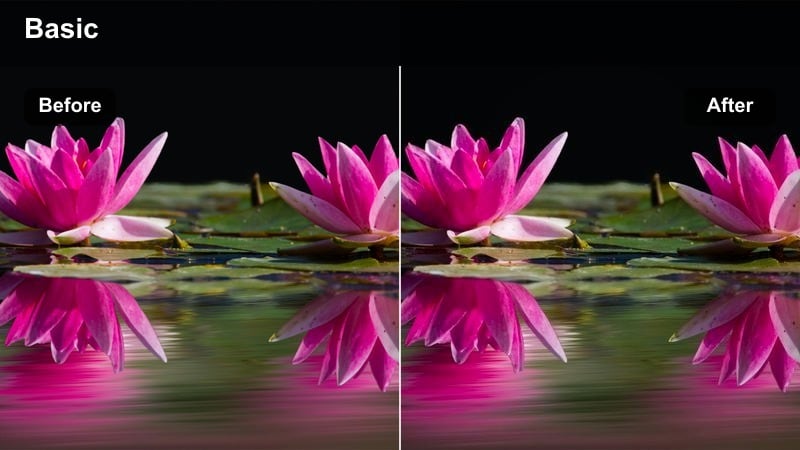
- Effect look: Adds crisp contrast while gently rolling off highlight edges on windows, cars, and street lamps for a smooth cinematic halo.
- Best for: Night city walks, handheld street vlogs, and handheld B-roll with moving light sources.
- Editing tip: Turn down Filmora sharpness a bit to prevent light halos from looking too crunchy in low bitrate footage.
Urban Highlight Halo targets strong light sources like headlights, streetlamps, and bright windows, softening their edges so they glow instead of spike. Contrast remains strong across midtones and shadows, which helps maintain punch and depth in fast-moving handheld sequences through busy streets.
When you edit in Filmora, slightly lowering the global sharpness before applying this filter ensures the light halos appear smooth and filmic, even on compressed footage. It is ideal for night city walk vlogs where you want to keep the energy of moving lights without overwhelming your viewers with harsh glare or clipped spots.
Metro Shadow Depth
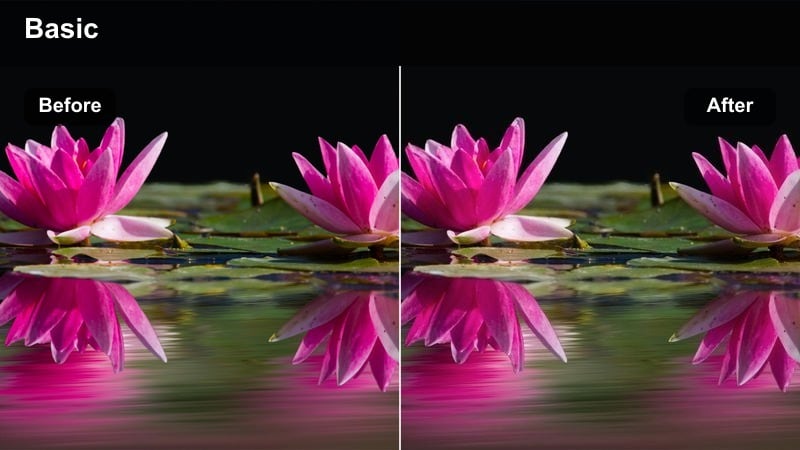
- Effect look: Deepens midtones while preserving shadow detail in tunnels, stations, and underground areas for a moody urban feel.
- Best for: Subway sequences, parking garages, indoor urban transitions between bright exteriors and darker interiors.
- Editing tip: Raise midtone brightness slightly if faces are in shadows to keep the cinematic depth without losing expression.
Metro Shadow Depth is tuned for low-light, underground spaces where you want a dramatic atmosphere without crushing everything into black. It pulls midtones down for mood but keeps enough detail in tunnels, platforms, and walls so textures remain visible and the scene stays readable.
Use this filter in Filmora when cutting from bright exterior streets into darker subway or garage footage to preserve continuity while adding a cinematic sense of depth. If your subject is partially hidden in shadow, a small boost to midtones after applying the filter will bring out facial expressions while maintaining that rich, urban contrast.
Controlled Studio and Creator Workspace Scenes
Soft Studio Dynamic
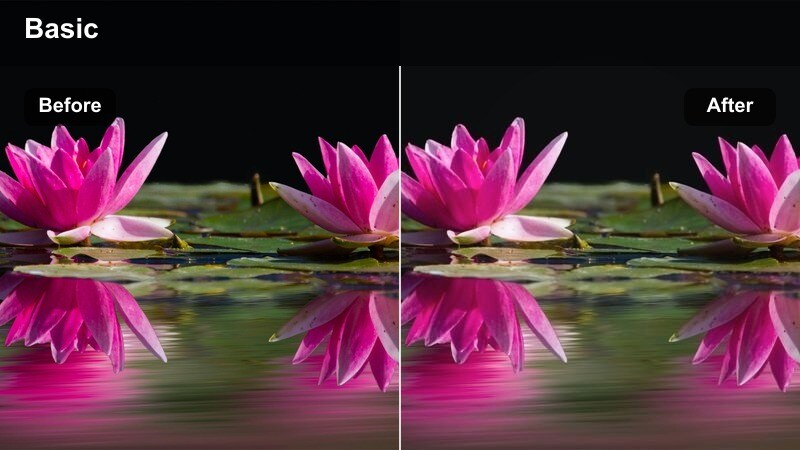
- Effect look: Gently expands dynamic range in key lights while keeping skin tones smooth and midtones slightly lifted.
- Best for: Talking-head YouTube videos, tutorials, and product explainers filmed under softbox or ring lights.
- Editing tip: Dial back contrast by a small amount if your camera already has a flat profile to avoid over-flattening the image.
Soft Studio Dynamic focuses on preserving highlight detail on faces and reflective surfaces in controlled lighting setups. It slightly opens up shadows around the subject and lifts midtones so your talking-head footage looks bright and welcoming without losing the softness of your key light.
In Filmora, it is a natural choice for YouTube educators and product reviewers who rely on ring lights or softboxes. Apply it after basic exposure correction, then fine-tune contrast and skin tone warmth to make sure your subject remains the focal point while background shelves, decor, and gear stay gently detailed.
Monitor Glow Balance
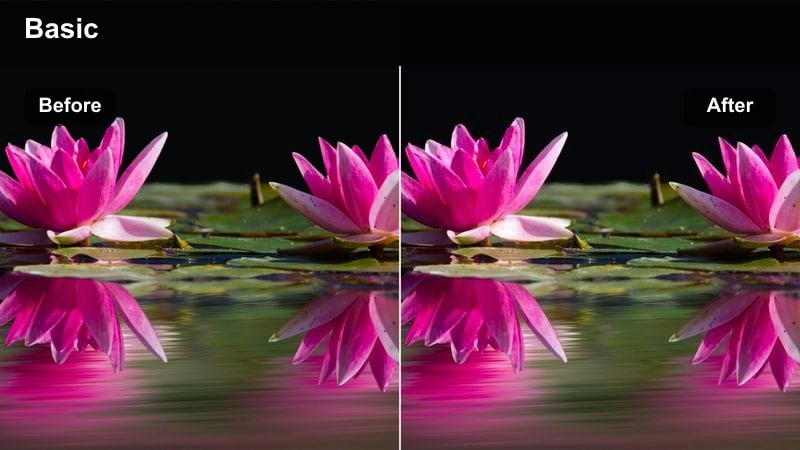
- Effect look: Controls bright monitors and accent lights so they stay vivid without blowing out, while lifting darker corners of the room.
- Best for: Editing desk shots, streaming setups, and gaming intros with RGB lighting and bright screens.
- Editing tip: Lower saturation slightly on blues and cyans in HSL if RGB lights overpower skin tones in the frame.
Monitor Glow Balance is built for RGB-heavy desks and streaming setups where monitors and LED strips can easily overpower the shot. It compresses the brightest screen highlights while gently raising exposure in the corners of the room, keeping both the tech and the environment clearly visible.
Apply this filter in Filmora when shooting desk tours, streaming intros, or keyboard B-roll so that your displays remain readable and your RGB lights do not wash out your skin. A small HSL adjustment to cool colors helps retain the mood of your lighting design while preserving natural tones on faces and hands.
Desk Detail Focus
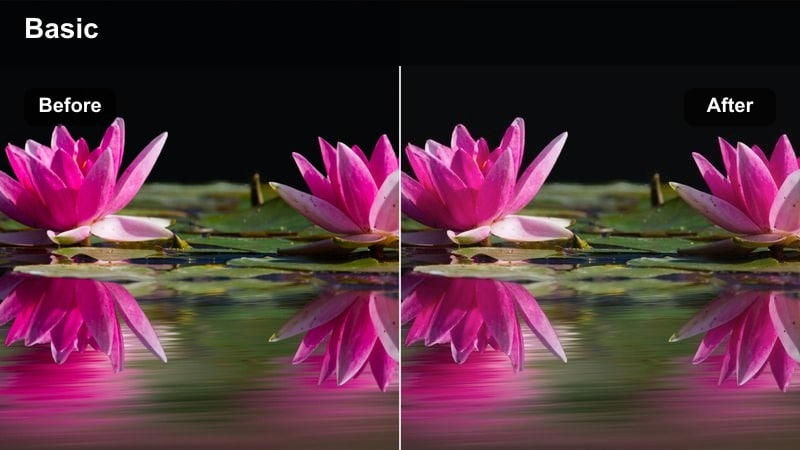
- Effect look: Boosts micro-contrast and texture on desk items while gently stretching dynamic range to keep highlights in check.
- Best for: B-roll of keyboards, tablets, camera gear, and close-up product shots in controlled lighting.
- Editing tip: Use slower, smoother camera movements and let the added micro-contrast emphasize detail rather than handheld shake.
Desk Detail Focus enhances the fine textures in keyboards, gadgets, and camera gear, making product B-roll feel crisp and premium. At the same time, it prevents specular highlights on metal, glass, and glossy keys from clipping, so reflections look controlled and intentional.
When editing in Filmora, pair this filter with slow, stable shots to let the boosted micro-contrast work for you rather than emphasizing shake. It is ideal for overlay clips in tutorials, reviews, and build logs where you want every logo, label, and texture on the desk to be clearly visible and consistent from shot to shot.
Travel Vlogs and High-Contrast Outdoor Adventures
Sun Trail Keeper
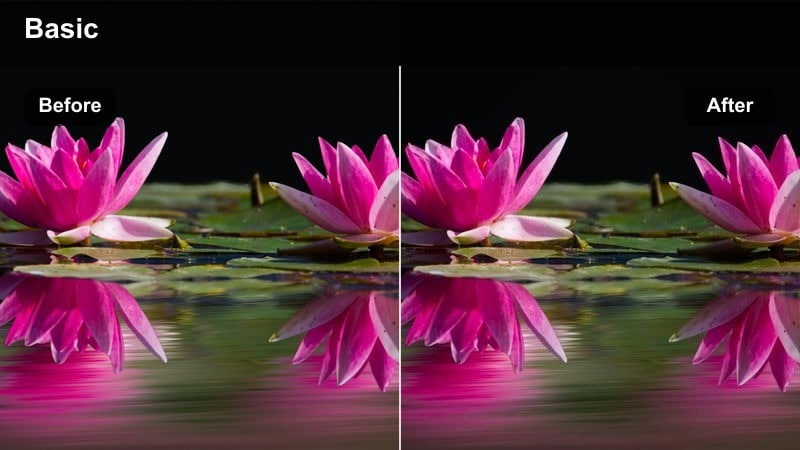
- Effect look: Protects bright skies and sun patches while lifting deep ground shadows to reveal more landscape detail.
- Best for: Hiking vlogs, mountain paths, and outdoor adventures recorded under harsh midday sun.
- Editing tip: Adjust white balance slightly cooler if the sunlight feels too yellow, then add a tiny warmth in midtones only.
Sun Trail Keeper is optimized for harsh daylight hikes where the sky is bright and the ground is patchy with deep shadows. It preserves highlight detail in the clouds and sunlit areas while raising darker sections of the trail, rocks, and trees so your viewers can see the full environment.
In Filmora, use this filter on wide scenic shots and POV walking clips to keep skies from blowing out while still revealing the texture of paths and foliage. A gentle white-balance tweak followed by subtle midtone warmth can keep the overall look natural and cinematic, even when you film during midday.
City Sun Balance
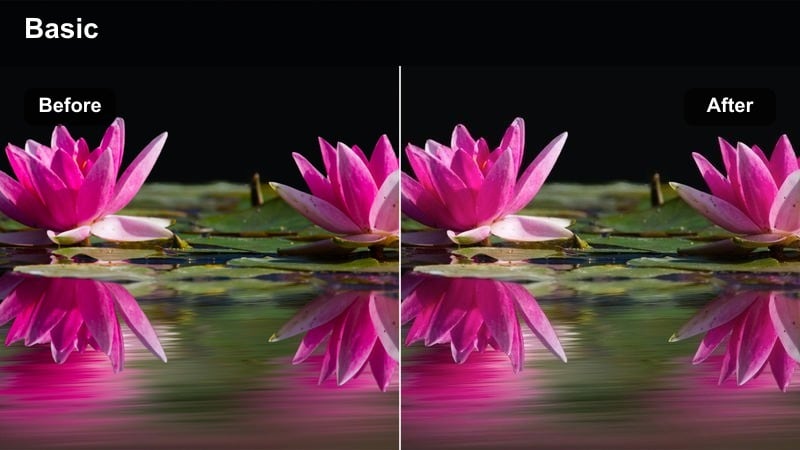
- Effect look: Balances strong overhead sun with reflective city surfaces, preventing blown pavements and washed-out building facades.
- Best for: Daytime city walks, street interviews, and urban drone shots in bright conditions.
- Editing tip: Reduce highlights slightly after applying the filter if your camera has very contrasty baked-in footage.
City Sun Balance helps you manage harsh reflections from concrete, glass, and metal that are common in bright urban environments. It compresses highlight intensity on pavements and building facades while retaining enough contrast to keep the scene lively and three-dimensional.
When editing city walkthroughs, drone passes, or street interviews in Filmora, apply this filter to protect detail in bright sidewalks and reflective windows. If you shot with a highly contrasty profile, a small highlight reduction after the filter will smooth out any remaining blown areas without flattening the whole frame.
Coastline Dynamic Balance
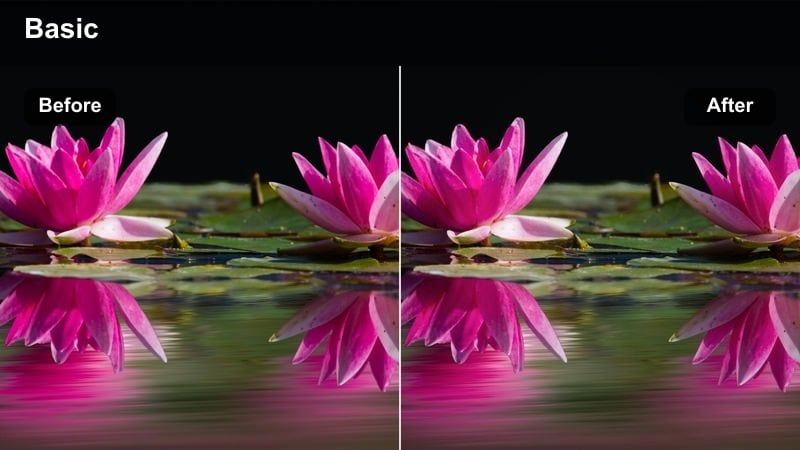
- Effect look: Preserves highlight detail in waves and bright sand while revealing depth in rocks, cliffs, and shaded elements.
- Best for: Beach vlogs, coastal drone passes, and travel intros filmed near water under strong sun.
- Editing tip: If water appears too cyan, reduce aqua saturation slightly and increase luminance to keep the sea bright but natural.
Coastline Dynamic Balance manages the strong contrast between reflective water, bright sand, and dark rocks along shorelines. It holds onto highlight detail in waves and foam while pulling out subtle textures in shaded cliffs and beach accessories, creating a balanced travel look.
Use this filter in Filmora for beach walks, drone flyovers, and coastal intros where you want deep color in the ocean without losing detail to glare. Fine-tune the aqua and blue channels in HSL to keep the water vivid but believable, then reuse the same settings as a preset across your entire coastal series.
Night Life, Neon Streets, and Low-Light Energy
Neon Dynamic Range
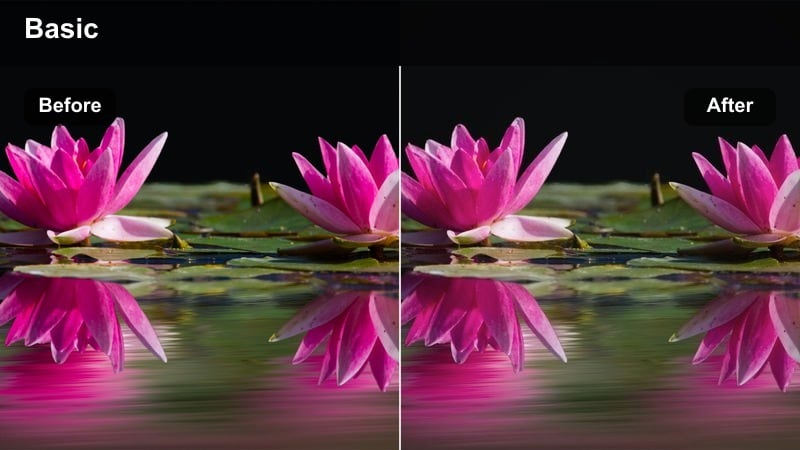
- Effect look: Controls ultra-bright neon signs while lifting deep street shadows to show people and textures around the lights.
- Best for: Night markets, downtown nightlife, handheld street B-roll with colorful signs.
- Editing tip: Reduce noise by slightly lowering shadow brightness if your camera introduces grain in dark areas.
Neon Dynamic Range is crafted for colorful night scenes where bright signage sits above very dark streets. It tames the intensity of neon while lifting shadows enough to reveal pedestrians, stalls, and pavement detail, so your footage feels alive instead of blown out and murky.
In Filmora, apply this filter to footage from night markets, bar streets, or festival areas to keep sign text readable and people properly exposed. If your camera produces heavy noise in lifted shadows, pull shadows back slightly after the filter and rely on midtones to keep the scene bright without amplifying grain.
Soft Night Street
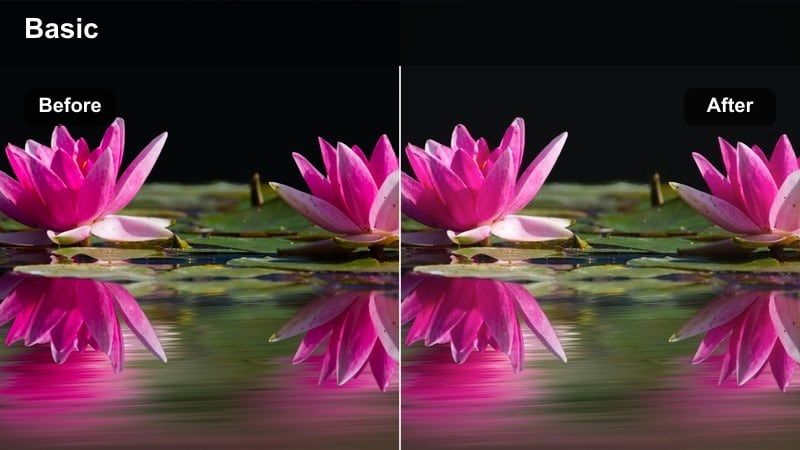
- Effect look: Softens contrast slightly, preserves streetlamp glows, and adds subtle lift to faces in low-light street scenes.
- Best for: Night vlogs, handheld corridor walks, and walk-and-talk segments in dimly lit areas.
- Editing tip: Raise midtone brightness instead of overall exposure to keep the background moody while faces remain readable.
Soft Night Street is designed to keep low-light vlogs flattering and cinematic rather than harsh and noisy. It protects the natural glow of streetlights and storefronts while slightly lifting exposure on faces so your audience can follow your expressions even in dim alleys or corridors.
Use this filter in Filmora on walk-and-talk content where the background should stay moody and atmospheric. Focus your adjustments on midtones rather than global exposure so you brighten your subject without washing out the night ambiance that makes these scenes compelling.
Rain Reflection Control
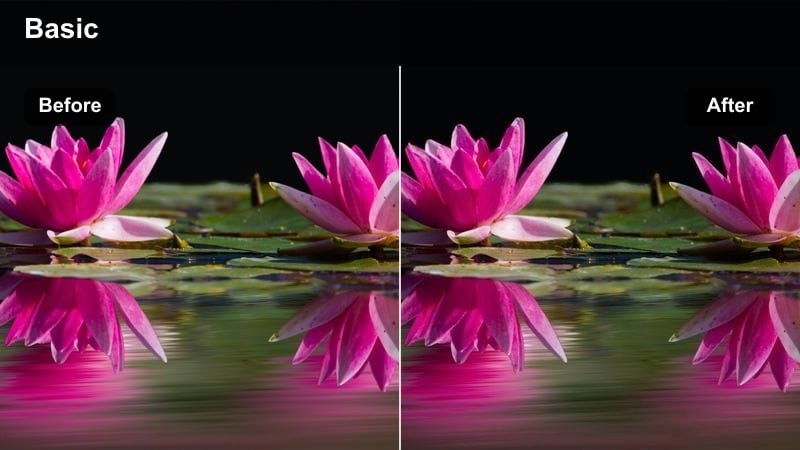
- Effect look: Maintains highlight detail in wet asphalt reflections while keeping building windows and sky from clipping.
- Best for: Rainy night streets, reflective sidewalks, and cinematic opener shots after a storm.
- Editing tip: Boost local contrast slightly in Filmora after applying this filter to emphasize reflections without losing range.
Rain Reflection Control focuses on the delicate balance between bright reflections in puddles and the darker surroundings of a wet city. It pulls back the strongest highlights on asphalt and water so color and shape remain visible, while holding detail in buildings and sky for a cohesive night scene.
Apply this filter in Filmora when editing rainy B-roll, moody openers, or post-storm sequences where reflections are a key storytelling element. A small boost to local contrast after the filter can make the reflections pop without sacrificing the preserved highlight and shadow detail across the frame.
Tips for Using High Dynamic Color Lut Filters in Filmora
- Expose slightly darker than you think in-camera so High Dynamic Color LUT-style filters have room to recover highlight details.
- Use Filmora's scopes or histogram to make sure your brightest areas are not clipped before applying dynamic range filters.
- Keep saturation moderate; dynamic filters can intensify colors, so small saturation changes make a big difference.
- Match white balance across clips before applying filters to avoid inconsistent color shifts in your final edit.
- Save different high dynamic presets for day, dusk, and night scenes so you can switch quickly while editing a series.
- Test each filter on a variety of shots from the same project to confirm it works consistently across close-ups and wide angles.
- Combine high dynamic filters with gentle sharpening and noise reduction settings instead of pushing any single control too far.
- Periodically toggle filters on and off during editing to ensure you are enhancing, not hiding, important scene details.
High Dynamic Color LUT-style filters in Filmora give content creators a fast way to protect highlight detail, open up deep shadows, and maintain a cinematic look across challenging lighting conditions.
By pairing these filters with careful exposure, subtle color tweaks, and saved presets, you can keep every vlog, travel video, or studio tutorial visually consistent and professional without advanced color grading skills.
secure download