

 100% Security Verified | No Subscription Required | No Malware


 ChatGPT
 Perplexity
 Gemini
 Claude
 Grok
Grok
These high rise building skyline filters are designed for content creators who want sharp, cinematic cityscapes straight from Filmora, whether you shoot b-roll, travel videos, or urban vlogs.
Use these presets to shape city light, deepen building contrast, and control the mood of your skyline shots so your high rises look consistent across daytime, sunset, and night scenes.
In this article
Warm Golden-Hour High Rise Skylines
Sunlit Glass Towers
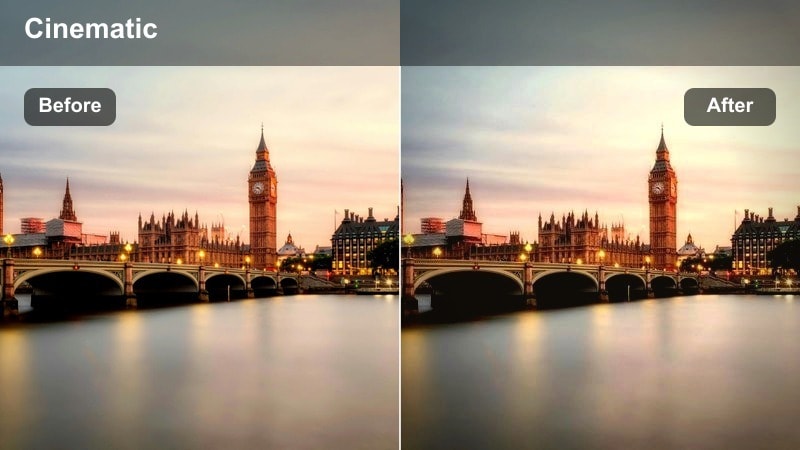
- Effect look: Warm golden highlights with crisp reflections on skyscraper windows and soft roll-off in the sky.
- Best for: Late afternoon drone passes, rooftop vlogs, and establishing shots of modern business districts.
- Editing tip: Slightly lower exposure and add a touch of clarity if your original footage was shot under harsh midday sun.
Sunlit Glass Towers is ideal when you want your high rises to shimmer like they were all captured in perfect golden hour conditions. It warms highlights, enhances reflections on glass, and softens the sky transition so blown-out areas are less distracting, giving your skyline a premium, cinematic sheen inside Filmora.
Use this filter on clips that feel a bit too flat or clinical, especially drone sweeps and rooftop vlogs where glass towers dominate the frame. Combine it with gentle exposure tweaks and Filmora masks to protect skin tones, so your subject stays natural while the surrounding skyline glows with rich, golden light.
Dial in Skyline Colors Faster with Filmora AI
Filmora AI tools help you quickly match the mood of your high rise skyline clips, from golden-hour warmth to cooler, futuristic towers. Instead of manually pushing sliders for every shot, you can let AI analyze your reference look and automatically bring other skyline angles closer.
Load a skyline frame you love, run AI color matching, and then refine the result with your favorite skyline filter so all your shots share the same overall mood. This is especially useful when you mix drone, handheld, and rooftop footage in one project.
 secure download

Fine-Tune Skyline Color with HSL Controls
After applying a high rise building skyline filter, Filmora HSL tools let you isolate specific hues like sky blues, glass cyans, or sodium-vapor oranges. You can push city lights to a more stylized palette while keeping neutral buildings and skin tones intact.
Use HSL to gently separate building materials or accent colors in your skyline so signs, window reflections, and rooftop details have just the right intensity to match your brand or story.
secure downloadPreview High Rise Filters in Real Time
Filmora lets you hover over each filter to preview how it reshapes your skyline clips directly in the Viewer before committing. You can quickly compare warm, cool, neon, and moody presets on the same shot to see which one best supports your narrative.
Drop a short skyline clip on the timeline, open the Filters panel, and skim across multiple looks until you find the perfect base grade. From there, you can add text, transitions, and additional color tweaks without starting from scratch.
secure downloadAmber City Haze
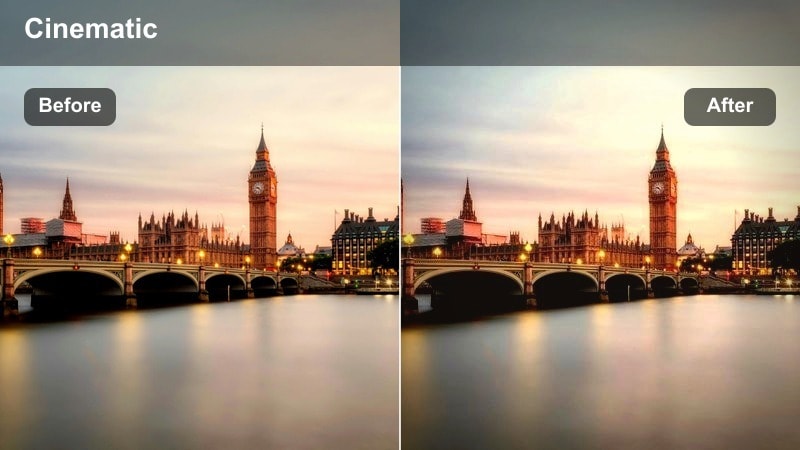
- Effect look: Soft amber tint with gentle haze that smooths midtones across the skyline.
- Best for: Travel b-roll overlooking dense city blocks, high-rise hotel balcony shots, and handheld city walks at sunset.
- Editing tip: Increase vibrance slightly for muted cameras, but avoid heavy saturation to keep the cinematic haze intact.
Amber City Haze wraps your skyline in a soft, travel-film warmth that feels nostalgic and cinematic. The subtle haze smooths out midtones so busy building clusters look cohesive instead of chaotic, especially in dense downtown views.
Apply this filter to balcony views, hotel windows, or long-lens shots across the city when you want a dreamy overlay on your narrative. In Filmora, pair it with gentle vignetting and slower BGM to turn ordinary city views into emotionally rich b-roll between story beats.
Golden Rim Skyline
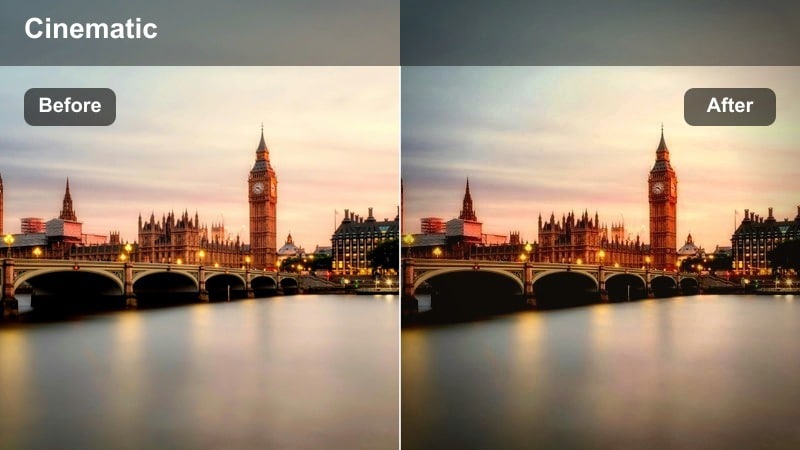
- Effect look: Strong golden rim light on edges of buildings with balanced neutral shadows.
- Best for: Backlit high rise silhouettes, architectural b-roll, and cinematic skyline transitions for city reels.
- Editing tip: Boost contrast gently and add a small S-curve to emphasize the glowing edges of buildings against the sky.
Golden Rim Skyline is built for those backlit moments when the sun sits behind your towers and outlines them with a dramatic halo. It enhances the glowing edges while keeping shadows relatively neutral, so buildings stay readable and not just solid black shapes.
Use it on skyline transitions, title cards, or architectural b-roll to get a graphic, poster-like feel. In Filmora, combine it with slow push-ins, lens flare overlays, or stylized text animations to introduce a city or landmark with maximum cinematic impact.
Cool Daytime Business District Skylines
Steel Blue Downtown
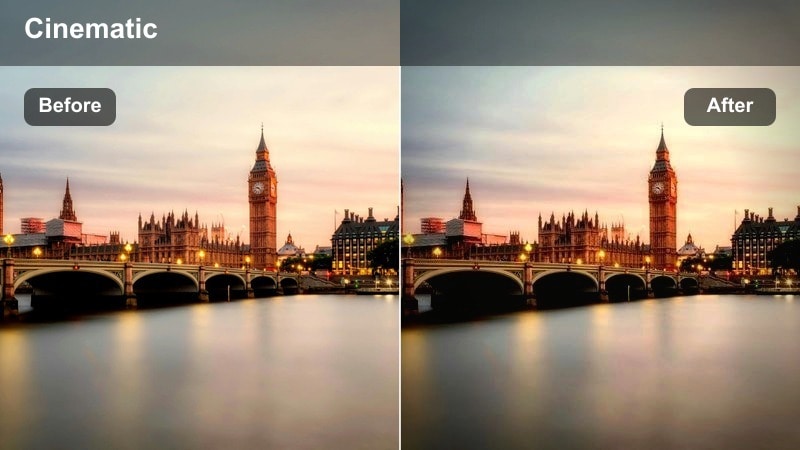
- Effect look: Cool blue and steel tones with high clarity for concrete and glass textures.
- Best for: Corporate city intros, tech startup videos, and architectural walkthroughs filmed around skyscraper clusters.
- Editing tip: If skin tones look too cold, add a warm mask on your subject while keeping the skyline cool and metallic.
Steel Blue Downtown gives your business districts a sleek, high-tech character by cooling overall tones and sharpening structure. Glass, steel, and concrete gain extra definition, which is perfect for corporate intros, tech explainers, or architecture-focused content.
Drop this filter onto drone passes and tripod shots around office towers, then adjust Filmora masks to keep presenters or models slightly warmer for natural skin. The result is a modern, polished skyline background that instantly communicates professionalism and innovation.
Bright Urban Contrast
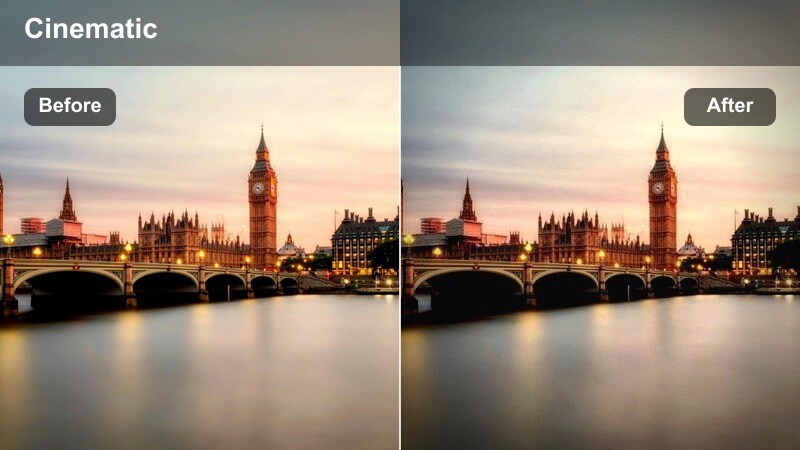
- Effect look: Neutral city colors with punchy contrast and bright, clean whites in the skyline.
- Best for: Daytime city walk vlogs, urban lifestyle content, and wide establishing shots from overpasses.
- Editing tip: If clouds clip, pull down highlights and whites slightly while keeping midtone contrast to retain punch.
Bright Urban Contrast is a go-to look when you want a clean, camera-ready city without heavy color stylization. It boosts contrast and brightens whites so high rises stand out crisply against the sky, while keeping colors close to what you saw in real life.
This filter works especially well for lifestyle vlogs, street POV shots, and fast-paced reels where authenticity matters. In Filmora, apply it across multiple angles to unify your entire city sequence, then add text overlays and motion graphics without worrying about clashing hues.
Clean Skyline Neutral
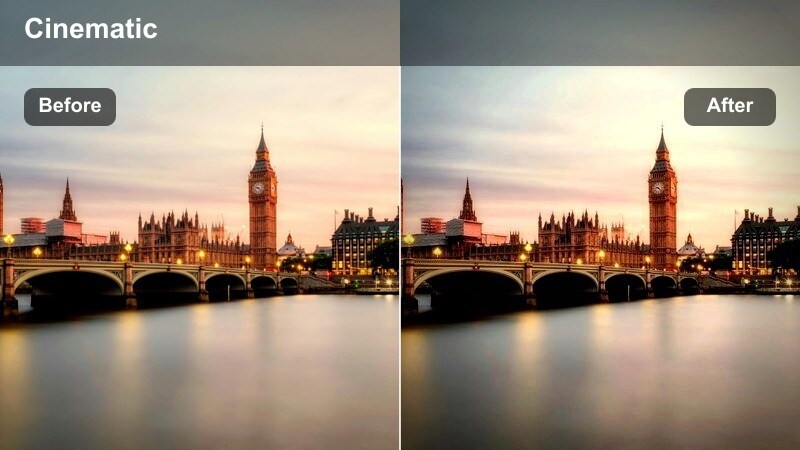
- Effect look: Low-saturation, clean neutral tone with gentle contrast and soft skies.
- Best for: Documentary-style city pieces, real estate skylines, and informational videos with text overlays.
- Editing tip: Leave saturation as-is and adjust only luminance to avoid color shifts that fight against on-screen graphics.
Clean Skyline Neutral dials back saturation and contrast to create a calm, design-friendly background. It softens skies and evens out building colors, which is ideal when your skyline sits behind titles, UI animations, or data graphics.
Use it for corporate explainers, real estate promos, or documentary segments where clarity and readability are more important than drama. In Filmora, layer lower thirds, infographics, or callouts over these neutral skylines to keep your information front and center.
Neon Night High Rise Skylines
Neon Strip Towers
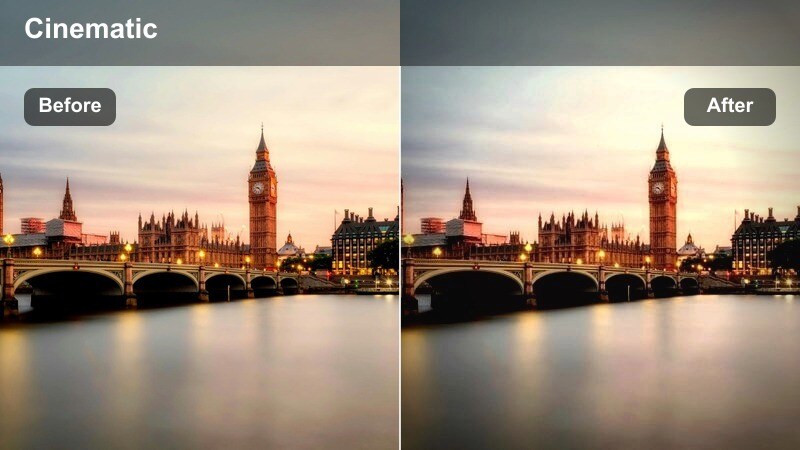
- Effect look: Deep contrast night look that amplifies neon signage and glowing windows on towers.
- Best for: Night city b-roll, cyberpunk-style edits, and time-lapse sequences of busy downtown streets.
- Editing tip: Crush blacks slightly but preserve midtone detail to avoid losing silhouettes of smaller buildings.
Neon Strip Towers pushes your night skylines toward a bold, high-contrast look where neon signs and office windows become the stars. It deepens blacks to give the city a sense of depth while boosting saturation in bright light sources for a vivid, cyberpunk-inspired feel.
Apply it to time-lapses, gimbal walks, or high-angle shots of entertainment districts when you want the nightlife energy to jump off the screen. Inside Filmora, pair this filter with speed ramps, glitch transitions, or electronic soundtracks to build energetic city edits.
Midnight Skyline Mood
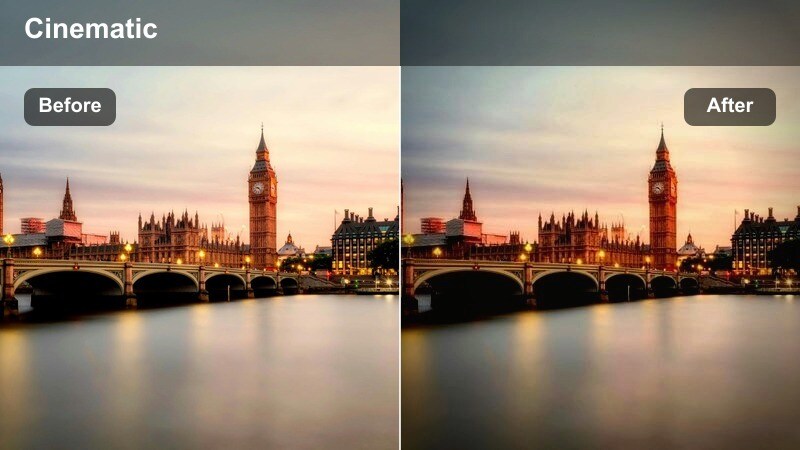
- Effect look: Moody, cool-tinted night grade with subtle blue shadows and controlled highlights.
- Best for: Late-night rooftop vlogs, quiet city reflections, and cinematic b-roll between scenes.
- Editing tip: Lower saturation slightly for a more cinematic feel and use a vignette to keep focus on the tallest tower.
Midnight Skyline Mood cools your night shots and softens the harshness of urban lighting, turning the city into a reflective, late-hour backdrop. Blue shadows and tamed highlights reduce glare from streetlights and windows, helping your footage feel more like a movie scene than raw camera footage.
Use it for calm rooftop monologues, introspective montages, or story bridges that take place after dark. In Filmora, combine this filter with slower cuts, gentle camera moves, and atmospheric music to build moody sequences that feel thoughtful instead of hectic.
City Lights Time-Lapse
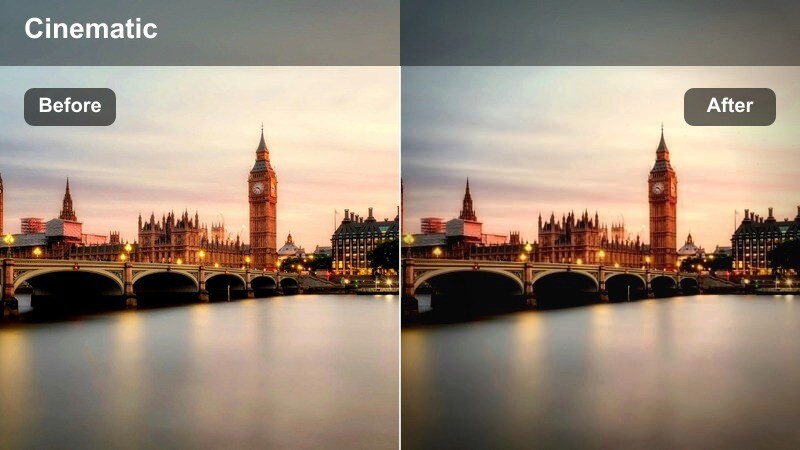
- Effect look: Brightened windows and street trails with balanced, noise-conscious contrast.
- Best for: Time-lapse cityscapes, hyperlapses of high rise corridors, and drone fly-bys at dusk-to-night.
- Editing tip: Avoid excessive sharpening and instead use local contrast to keep light trails crisp without boosting noise.
City Lights Time-Lapse is tuned so that windows, car trails, and street grids pop clearly even when your footage is sped up. It lifts important highlights without destroying detail and keeps shadows controlled to avoid muddy blacks in motion-heavy scenes.
Apply it to interval or hyperlapse shots where the skyline changes over time, like day-to-night transitions or sweeping traffic views. In Filmora, blend this filter with smooth speed ramps, motion blur, and dynamic music cuts to turn your time-lapses into polished centerpieces.
Moody Rooftop and Overlook Skylines
Overcast City Drift
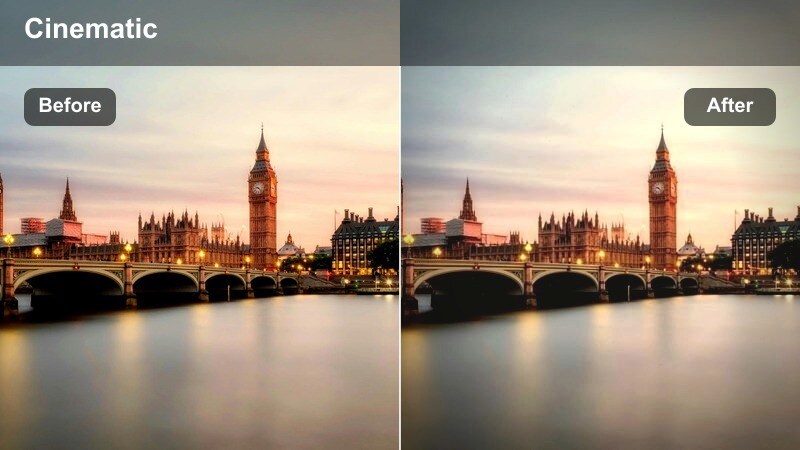
- Effect look: Soft, low-contrast matte look that embraces grey skies and flattened shadows.
- Best for: Rooftop monologues, reflective city stories, and rainy-day b-roll across high rise lines.
- Editing tip: Lift blacks slightly to get a filmic matte effect, then selectively add micro-contrast to building edges.
Overcast City Drift turns dull weather into a stylistic choice by leaning into the softness of grey skies and diffused light. It lowers contrast, mutes color, and introduces a matte finish that feels cinematic instead of lifeless.
Use this filter whenever your skyline looks flat due to clouds or drizzle, especially for storytelling pieces or emotional vlogs. In Filmora, match it with slower pacing, subtle sound design, and minimal text to let the mood of the city support your voice or narration.
Cinematic Rooftop Focus
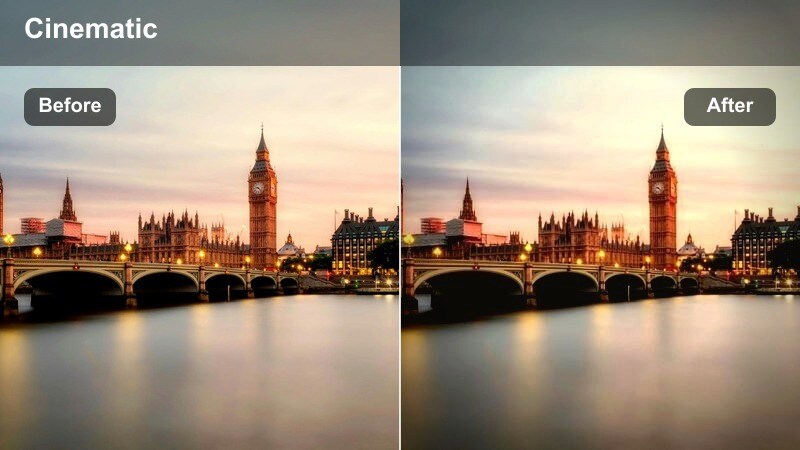
- Effect look: Subject-friendly contrast with slightly softened background skyline and warm midtones.
- Best for: Talking-head rooftop vlogs, music videos shot on parking decks, and fashion content with city backdrops.
- Editing tip: Add a subtle blur or depth-of-field effect to the skyline in post to push more attention to your subject.
Cinematic Rooftop Focus is designed to keep people flattering while turning the skyline into a supportive backdrop. It gently warms midtones, protects skin, and softens overall background intensity so the viewer naturally looks at the subject first.
Apply it to rooftop interviews, performance shots, or lookbook videos filmed against tall buildings. In Filmora, combine this look with masking, background blur, and selective sharpening on your subject to achieve a strong sense of depth and separation without needing an expensive lens.
Fog Layer Skyline
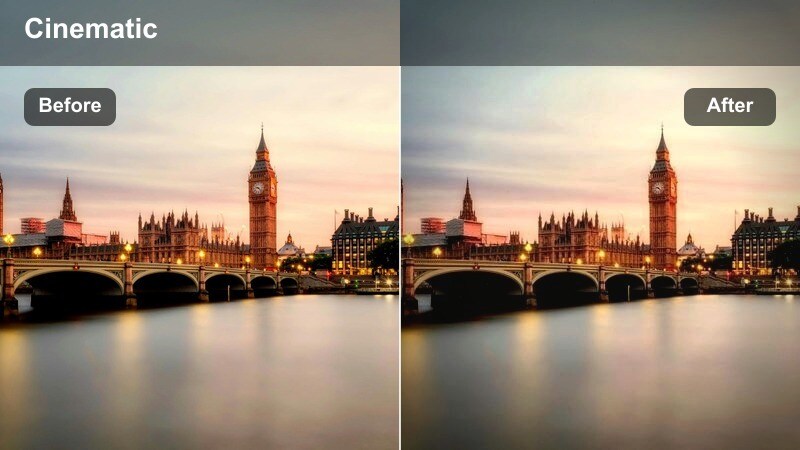
- Effect look: Layered depth effect with lifted blacks, soft highlights, and subtle cool fog tones.
- Best for: Early morning roof views, drone shots above low clouds, and cinematic establishing shots in misty weather.
- Editing tip: Increase dehaze only in specific regions if your tallest towers disappear too much into the fog.
Fog Layer Skyline embraces mist, low clouds, and atmospheric haze to create dramatic depth between foreground towers and distant blocks. It lifts blacks slightly and cools tones so the city feels expansive and layered rather than simply low-contrast.
Use it on sunrise drone shots, high lookouts, or any skyline where fog hides parts of the architecture. In Filmora, combine this filter with slow dollies or fades and gentle music to open a video with a sense of scale, mystery, or calm.
Tips for Using High Rise Building Skyline Filter Filters in Filmora
- Shoot skyline footage slightly flatter in-camera so Filmora filters have more room to shape contrast and color.
- Avoid clipping highlights in the sky and windows; underexpose a bit and lift exposure later with your chosen filter.
- Group your city shots by time of day in the timeline and apply similar filters to each group for a cohesive look.
- Use masks to protect skin tones or key buildings when a strong color filter changes them too dramatically.
- Add a subtle vignette on wide skyline shots to pull attention toward the brightest, most important towers.
- Adjust sharpening carefully on night skylines to keep building edges crisp without exaggerating digital noise.
With the right high rise building skyline filter, your city footage can instantly feel more cinematic, cohesive, and on-brand without complex color grading.
Test a few of these looks on your favorite skyline clip in Filmora, then refine your go-to presets so every new urban vlog or travel film starts from a strong visual base.
secure download