

 100% Security Verified | No Subscription Required | No Malware


 ChatGPT
 Perplexity
 Gemini
 Claude
 Grok
Grok
Lifestyle portraits shot by a window can look soft, cinematic, and intimate when the right filter is applied. These Filmora-ready filters are designed to shape natural light, keep skin tones flattering, and create a consistent look across your content.
Below you will find 12 lifestyle portrait window light filters arranged by real-world scenes so you can quickly match a preset to your lighting, shooting angle, and mood while keeping your editing workflow fast and repeatable.
In this article
Soft Morning Window Portraits
Hazy Morning Glow
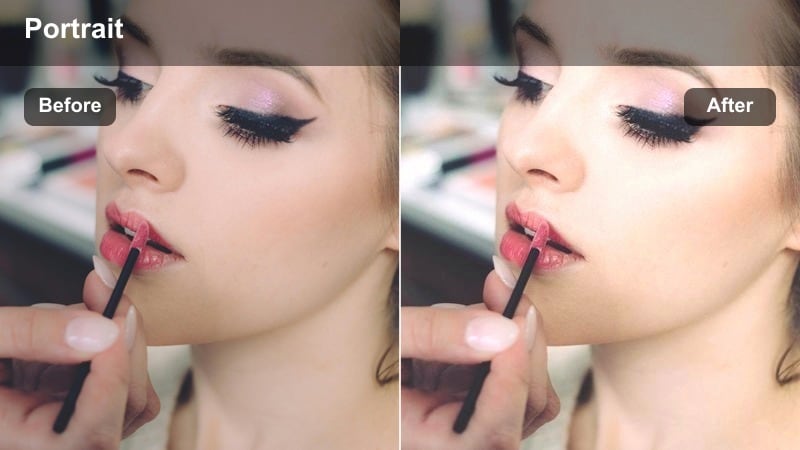
- Effect look: Soft, low-contrast glow with lifted blacks and gentle warm highlights.
- Best for: Early-morning lifestyle portraits facing a large window with diffused light.
- Editing tip: Lower the filter intensity slightly if your background is already very bright to avoid clipping highlights around the window frame.
Hazy Morning Glow wraps your subject in a delicate haze, lifting shadows and adding a gentle warm sheen to the brightest areas. In Filmora, this creates a soft-focus, cinematic feel around windows where the light can otherwise look harsh or clinical, while still preserving enough detail on the face for expressive close-ups.
Apply this filter to your A-roll or portrait clips, then fine-tune intensity on the Effects panel to balance glow and clarity for each shot. If the window is strongly backlighting your subject, slightly lower overall exposure first, add Hazy Morning Glow, and then use Filmora masks or face-enhancement tools to keep eyes and facial features crisp inside the dreamy atmosphere.
Match Your Window Light With Filmora’s AI Color Tools
Filmora’s AI-powered color tools help you quickly adapt each lifestyle portrait window light filter to your exact scene, from cool overcast mornings to amber sunset interiors. Let AI normalize exposure and white balance so your Hazy Morning Glow and other presets start from a clean, neutral base.
Use AI auto-correction on a reference clip shot by your window, then stack your preferred filter and make small tweaks to temperature and tint. This keeps skin tones consistent across multiple angles and takes without spending extra time on manual grading.
 secure download

Preview Window Light Filters in Real Time
With Filmora’s real-time preview, you can quickly scroll through filters on a paused frame to see how each preset shapes window light, highlight glow, and skin smoothness. This makes it simple to compare Hazy Morning Glow against stronger contrast or cooler-toned looks before committing.
Test your favorite filters on both a tight portrait and a wider room shot from the same setup, then adjust exposure or saturation so the chosen style works consistently across your entire sequence.
secure downloadTurn Your Favorite Filters Into a Reusable LUT Look
After you fine-tune a lifestyle portrait window light filter with your own contrast and color tweaks, you can turn that look into a reusable Filmora preset. This LUT-style workflow helps you keep vlogs, portrait series, and reels visually consistent even as lighting changes from morning to evening.
Grade one hero clip until the mood and skin tone feel perfect, then save the settings and apply them across your entire timeline to speed up editing on future projects.
secure downloadLinen Coffee Soft
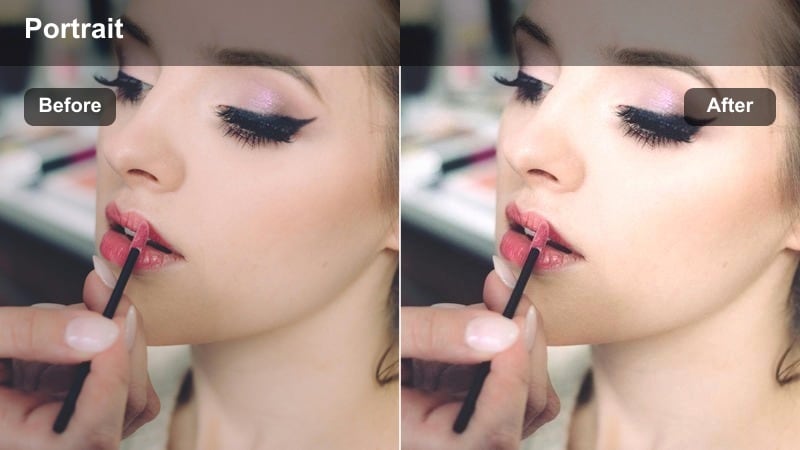
- Effect look: Muted contrast with creamy highlights and gently desaturated colors.
- Best for: Cozy morning portraits on a couch or chair near a side window with neutral interiors.
- Editing tip: Use the color controls to slightly warm the midtones if your space has cool gray walls so skin still looks inviting.
Linen Coffee Soft is ideal when you want a calm, editorial lifestyle feel with soft edges and subdued color. In Filmora, it smooths contrast so bright cushions, walls, and mugs do not pull attention away from your subject, while creamy highlights keep the image feeling clean and modern.
Apply this filter across all clips from the same cozy corner to create a mini visual series for vlogs or reels. If your room leans cold because of gray upholstery or blue-tinted daylight, nudge the midtone temperature slider slightly warmer after the filter is applied to restore natural, flattering skin tones without making the whole scene look orange.
Sheer Curtain Bloom
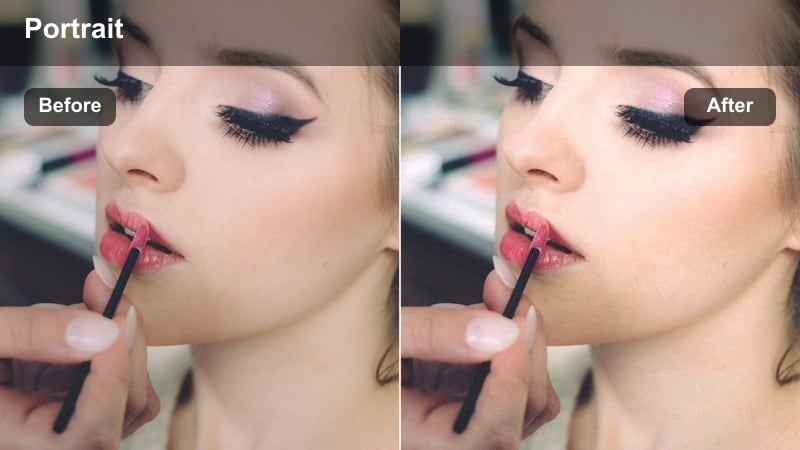
- Effect look: Highlight bloom around the window with softened skin texture and cool shadows.
- Best for: Portraits shot through or beside sheer curtains where light wraps around the subject.
- Editing tip: Dial back sharpness slightly after applying the filter so the blooming highlights feel intentional and cinematic.
Sheer Curtain Bloom emphasizes the glowing edges of curtains and window frames, making daylight feel dreamy and romantic instead of flat. The filter softens skin texture while cooling shadows a touch, which works especially well when shooting in white rooms or minimalist bedrooms.
Use this preset in Filmora when your subject is framed by or peeking through sheer curtains, then slightly reduce sharpness or add a bit of film grain for a cinematic finish. If your overall exposure is high, drop the highlights slider a little to keep details in the curtains while still holding on to that signature bloom effect around bright window areas.
Warm Golden Hour Window Portraits
Golden Sill Glow
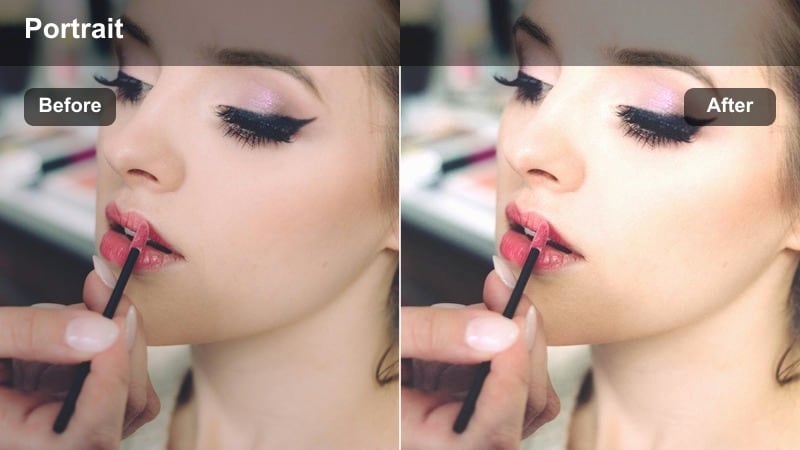
- Effect look: Rich golden highlights with soft contrast and slightly warm skin tones.
- Best for: Portraits seated on a window sill late in the afternoon when sunlight is angled and warm.
- Editing tip: Use keyframes on filter intensity to keep warmth consistent as the sun dips and color temperature shifts.
Golden Sill Glow takes natural late-afternoon sunlight and enhances it into rich, cinematic warmth without overpowering your scene. It emphasizes golden highlights on hair and skin while maintaining soft contrast, making window-sill portraits look like stills from a film.
In Filmora, apply this filter to both close-ups and wider shots that share the same golden hour window light, then use keyframed filter intensity to compensate as the sun moves. If the outside scene appears too cool compared to the subject, gently increase orange saturation and use a vignette to keep the viewer’s eye anchored on the face.
Sunset Reflection Soft
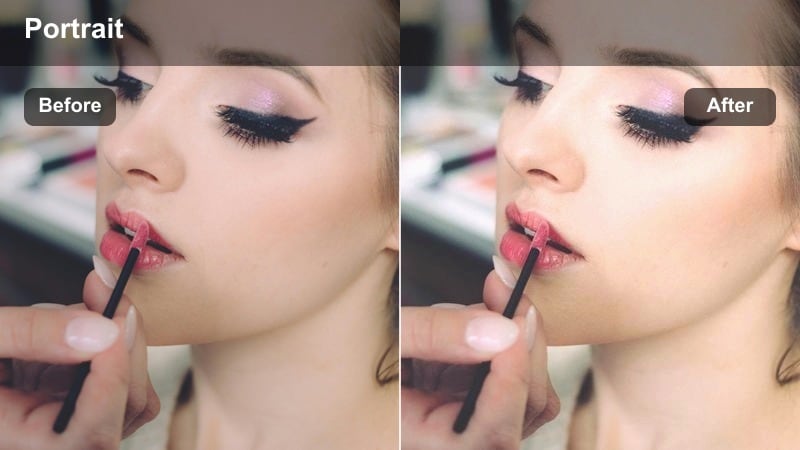
- Effect look: Soft fade in the shadows with gently warm midtones and a subtle magenta tint.
- Best for: Window portraits facing city or neighborhood views at sunset with reflective glass.
- Editing tip: Reduce magenta slightly for subjects wearing strong red or pink clothing to keep colors from overpowering skin.
Sunset Reflection Soft is made for windows that capture the last light of the day along with city or neighborhood reflections. The filter gently warms midtones and adds a hint of magenta, which flatters skin while creating a nostalgic sunset vibe, especially when reflections occupy a portion of the frame.
In Filmora, use this preset on clips where your subject is looking out a window and the sky or buildings are visible in the glass. If your subject is wearing bold reds or pinks, open the HSL controls after applying the filter and pull magenta or red saturation down slightly to keep skin natural yet still bathed in sunset color.
Amber Room Calm
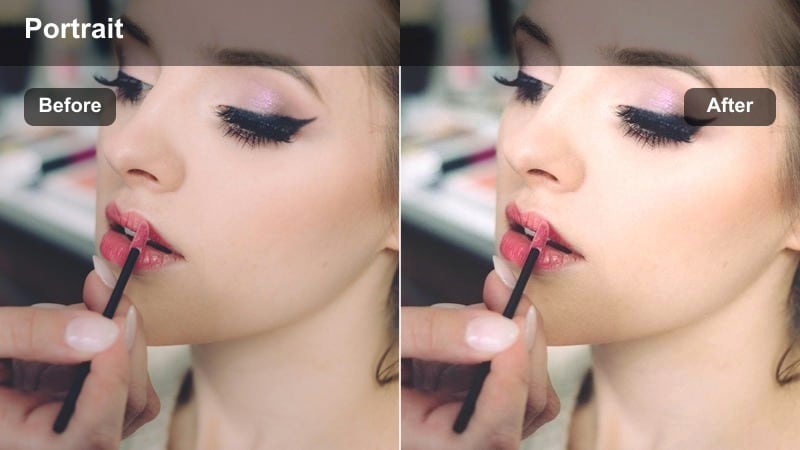
- Effect look: Balanced contrast with rich amber highlights, neutral shadows, and smooth skin rendition.
- Best for: Late-afternoon lifestyle portraits in living rooms where side windows catch the last sunlight.
- Editing tip: Use local adjustments to keep white walls from going too yellow while preserving the warm effect on skin.
Amber Room Calm gives your living-room portraits a cozy, late-afternoon glow without sacrificing clean whites and natural depth. Amber highlights roll softly across skin and furniture while shadows remain fairly neutral, so the scene stays grounded and not overly stylized.
Apply this filter in Filmora when shooting in spaces with side windows that catch low sun, then protect curtains and walls with local adjustments or color masking. Drop yellow saturation slightly on walls or bright fabrics while keeping warmth on faces and hands so the overall mood stays golden but still believable.
Moody Overcast Window Portraits
Soft Rainy Day
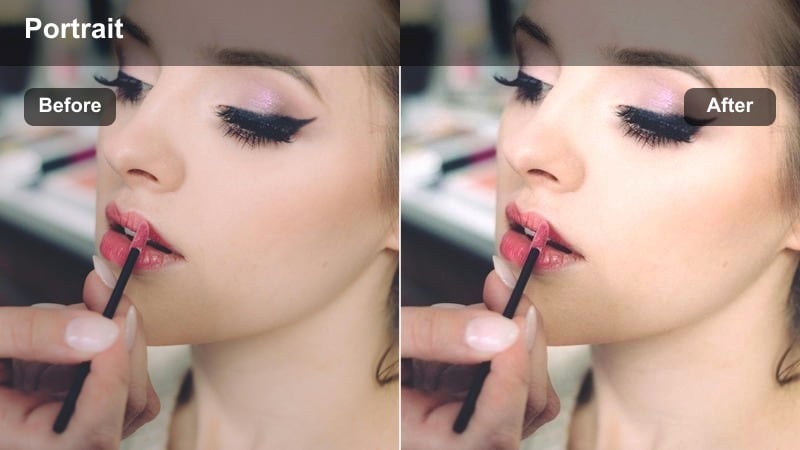
- Effect look: Low saturation, lifted blacks, and gentle cool shadows for a moody but soft feel.
- Best for: Portraits by a window on cloudy or rainy days where light is flat and diffused.
- Editing tip: Increase midtone contrast slightly to keep eyes sharp while allowing the rest of the scene to stay subdued.
Soft Rainy Day transforms flat overcast window light into a gentle, introspective mood with cool shadows and muted colors. Lifted blacks give your portraits a filmic softness, making raindrops, reflections, and quiet interiors feel more emotional and story-driven.
In Filmora, use this filter when shooting beside rainy or cloudy windows, then add a bit of midtone contrast or clarity around the face so eyes remain engaging. If skin starts to look too cool, warm the midtones just a touch after applying the preset to keep your subject looking alive while the environment stays subdued and cinematic.
Cinematic Shadow Frame
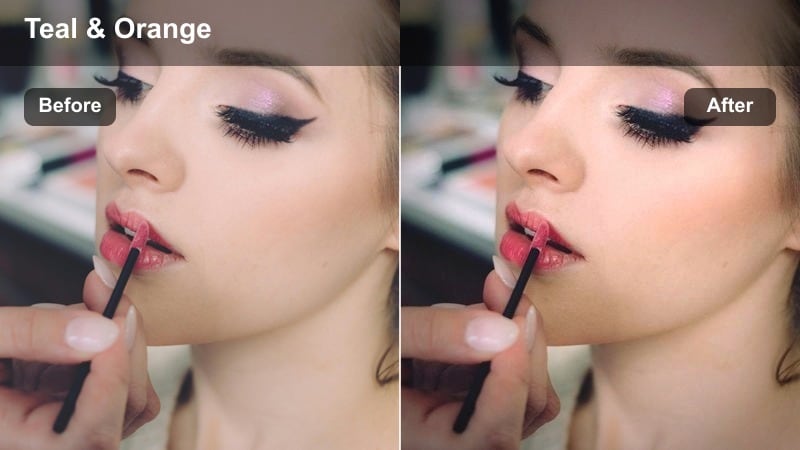
- Effect look: Deeper shadows, slight teal in dark areas, and soft highlight roll-off around the face.
- Best for: Dramatic portraits where the subject is side-lit by a narrow window, leaving part of the face in shadow.
- Editing tip: Rotate your subject toward the window until one eye catches a small specular highlight, then use this filter to emphasize that contrast.
Cinematic Shadow Frame is designed for high-drama portraits where light from a narrow window carves across the face. Shadows deepen with a subtle teal tint while highlights roll off smoothly, giving you that classic cinematic contrast between light and darkness.
In Filmora, apply this filter to clips where one side of the frame is mostly shadow and the other side carries the window light. If you want to accentuate the mood even more, darken the background with a mask or vignette and slightly boost exposure only on the lit part of the face so the eyes and expressions remain the focal point within the moody frame.
Cool Loft Muted
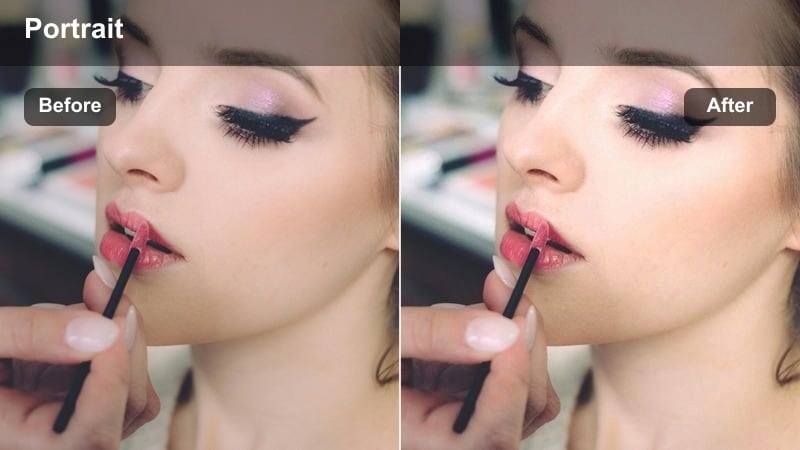
- Effect look: Cool, desaturated palette with gentle clarity in midtones and soft skin handling.
- Best for: Urban loft window portraits on gray days, especially with concrete or brick interiors.
- Editing tip: Reduce clarity slightly around the jawline to keep the urban texture in the background without making skin appear harsh.
Cool Loft Muted gives urban window portraits a refined, editorial mood with desaturated colors and cool undertones. It works especially well with concrete, brick, and metal textures, adding enough midtone clarity to keep the environment interesting while preserving soft, flattering skin.
Use this filter in Filmora for gray-day loft sessions or city views, then fine-tune clarity and sharpness selectively. You can keep high texture in the background by masking it separately, while slightly softening skin around the face and neck so your subject stands out against the detailed architecture and cityscape behind them.
Nighttime Window and Ambient Portraits
City Glow Window
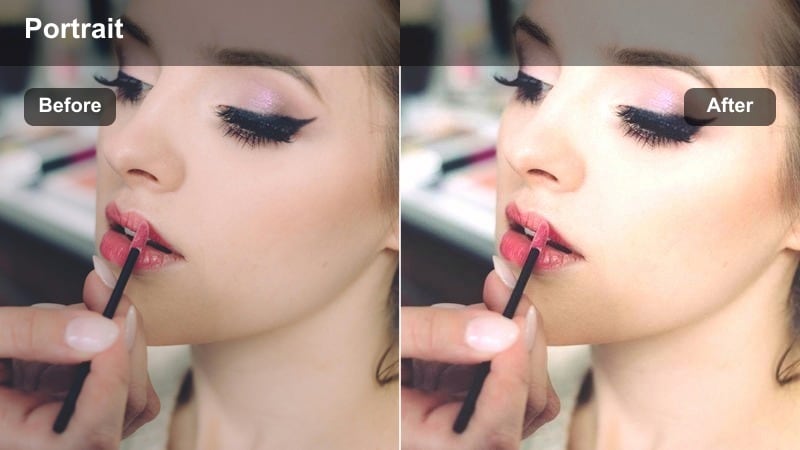
- Effect look: Rich contrast with warm indoor skin tones and soft, slightly blurred city lights outside.
- Best for: Night portraits shot next to a window overlooking city lights or street lamps.
- Editing tip: Increase luminance in oranges to keep skin bright without raising noise levels in the dark background.
City Glow Window balances warm indoor light on your subject with cool, blurred city lights outside the window. The filter deepens nighttime contrast while preserving soft, flattering warmth on skin, ideal for cinematic talking-head shots, night vlogs, or intimate portrait sequences.
In Filmora, apply the filter, then use color controls to slightly raise orange luminance so the face stays bright without pushing ISO noise in the darker parts of the frame. If your city bokeh feels too distracting, dial down saturation in blues or greens, and consider a subtle vignette so the glow outside supports the story instead of stealing focus.
Lamp and Window Warmth
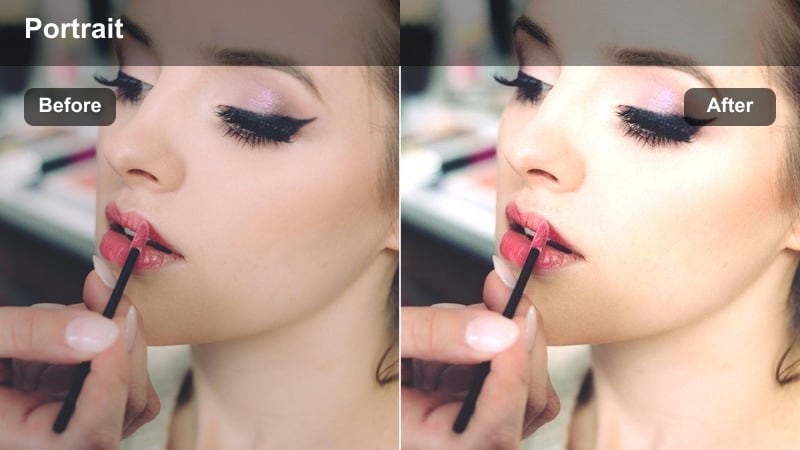
- Effect look: Soft warm glow from indoor lamps with controlled deep shadows near the window edges.
- Best for: Evening portraits where the primary light is a lamp near a dark window frame.
- Editing tip: Pull highlights down a bit after applying the filter so lamp shades maintain texture instead of turning into flat shapes.
Lamp and Window Warmth enhances cozy evening scenes lit by practical lamps next to dark window frames. The filter leans into warm tones around your subject while holding onto rich, deep shadows in the background, giving portraits a cinematic, at-home ambience.
In Filmora, apply this preset to clips where a single lamp lights the face and the window falls into darkness, then gently reduce highlights so lamp shades and nearby objects keep their texture. If the overall room color becomes too orange, selectively cool shadows or desaturate yellows so skin stays inviting but the environment feels balanced and natural.
Screen Light Noir
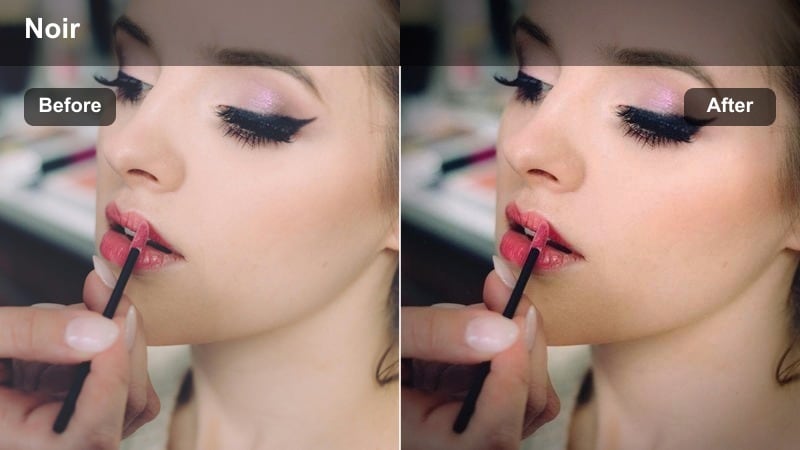
- Effect look: Cool, contrasty look with emphasis on screen light and faint window reflections.
- Best for: Night lifestyle portraits where a laptop or TV is the main light source near a dark window.
- Editing tip: Lower saturation slightly so colored screen light does not overpower skin tones in darker scenes.
Screen Light Noir is tailored for scenes where a laptop, tablet, or TV is the only significant light source near a nighttime window. It adds cool contrast and leans into the moody, modern feel of screen lighting, while preserving enough detail in reflections and shadows to keep the frame visually rich.
Use this filter in Filmora when editing late-night productivity shots, gaming sessions, or quiet browsing moments by a window. After applying it, slightly lower overall saturation to prevent vivid screen colors from casting unrealistic tones on skin, and, if needed, brighten the face locally so expressions remain readable against the darker, noir-inspired background.
Tips for Using Lifestyle Portrait Window Light Filter Filters in Filmora
- Expose slightly darker than your camera’s suggestion when shooting window portraits so Filmora filters have more highlight detail to work with.
- Keep your subject one to two steps away from the window for softer light and smoother skin tones before you apply any filters.
- Use the same filter family for all A-roll shots in a vlog segment to maintain a cohesive lifestyle look.
- Adjust temperature and tint after applying a filter, not before, so you can correct small skin tone shifts quickly.
- Shoot a short five-second reference clip at the start of each scene and grade that first, then copy the look to your other clips.
Lifestyle portrait window light filters give content creators a fast way to turn simple natural light into a cinematic storytelling tool while keeping skin tones flattering and consistent.
Choose a filter that matches your time of day and mood, fine-tune exposure and warmth in Filmora, and save your favorite looks so every new vlog or portrait session starts with a polished visual style.
secure download