

 100% Security Verified | No Subscription Required | No Malware

Low contrast soft color filters are ideal when you want your video to feel dreamy, cinematic, and easy on the eyes without losing detail. By gently flattening contrast and softening saturation, these presets help you smooth harsh lighting and skin tones while keeping the story front and center.
Below are curated Filmora-style low contrast soft color filter presets designed for content creators. Each one is tuned for specific real-world scenarios so you can quickly match the mood of your vlog, reel, or cinematic sequence with just a few clicks.
In this article
Soft City Evening and Blue Hour Vibes
Soft Street Dusk
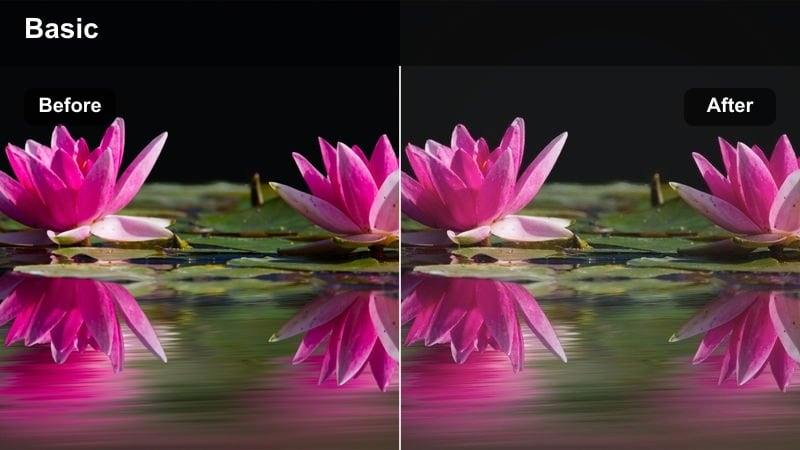
- Effect look: Muted contrast with soft, hazy midtones for a calm dusk-in-the-city feel.
- Best for: Handheld street vlogs, walking talks, and casual city B-roll during sunset or early blue hour.
- Editing tip: Lower overall sharpness slightly and add a subtle vignette to draw focus toward the subject's face.
Soft Street Dusk gives your footage a gentle, low contrast base that takes the sting out of bright streetlights and mixed city lighting. In Filmora, this look is perfect when you want dusk scenes to feel relaxed and cinematic without heavy color grading work. The softened midtones help smooth transitions between sky, buildings, and skin tones so nothing feels too harsh on screen.
Apply this preset to handheld city walks, travel vlogs, or talking segments on the sidewalk, then fine-tune with Filmora's exposure and vignette controls. Slightly lift the shadows instead of adding contrast to keep the dreamy quality intact, and combine it with mild stabilization for smoother, more watchable evening B-roll. This way, your viewers stay focused on your story while the city becomes a soft, atmospheric backdrop.
Speed up soft color grading with AI tools
Filmora's AI-powered color tools can quickly build a low contrast soft color base on any clip, making it easy to reach a dreamy look even if you are not comfortable with manual grading. Start with an AI suggestion that flattens contrast and balances exposure, then gently tweak saturation and temperature to suit your city or lifestyle footage.
Once the AI color palette is in place, you can stack your favorite Filmora soft filters on top, adjusting intensity and blending until the scene feels cinematic but still natural. This workflow saves time while giving you plenty of room for creative control.
 secure download

Preview low contrast soft filters in real time
With Filmora's real-time preview, you can scroll through different soft filters directly on your footage and instantly see how they treat highlights, shadows, and skin tones. This makes it easy to compare multiple low contrast soft color filters and choose the one that best matches your story and shooting conditions.
As you audition filters, toggle them on and off while playing the timeline to feel how each look affects pacing and emotion. Once you find a favorite, adjust the filter strength slider so the softness enhances your footage without overpowering it.
secure downloadCombine filters with LUTs for natural results
Filmora includes 1000 plus video filters and 3D LUTs, so you can build layered looks that stay soft yet authentic. A common workflow is to apply a natural correction LUT first to fix white balance and skin tones, then stack a low contrast soft color filter on top to shape mood and texture.
This separation between correction and style helps you keep details intact while still achieving pastel, cinematic visuals. If the final image feels too flat, slightly raise midtone contrast or clarity without touching the overall low contrast base.
secure downloadBlue Hour Glow
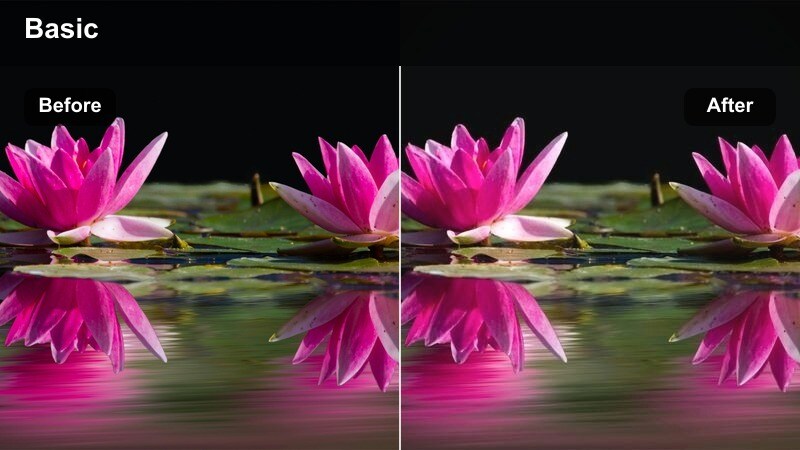
- Effect look: Cool soft tones with gentle contrast, emphasizing blues and cyans for a dreamy evening glow.
- Best for: Rooftop shots, skyline B-roll, cinematic city transitions filmed just after sunset.
- Editing tip: Add a slow push-in or pan to enhance the cinematic feel and keep saturation of blues slightly reduced for a clean, modern look.
Blue Hour Glow wraps your cityscapes in cool, airy tones while keeping contrast low so the scene feels calm and cinematic. In Filmora, this preset works especially well for skyline B-roll, rooftop moments, and transition shots between daytime and night segments, giving your edit a cohesive twilight mood.
After applying the filter, gently refine the blues with Filmora's color tools to avoid oversaturation, particularly in the sky and building lights. If you are including people in the frame, add a slight warmth adjustment or use skin tone correction so faces stay natural against the cooler background, preserving realism within the stylized palette.
Soft Neon Drift
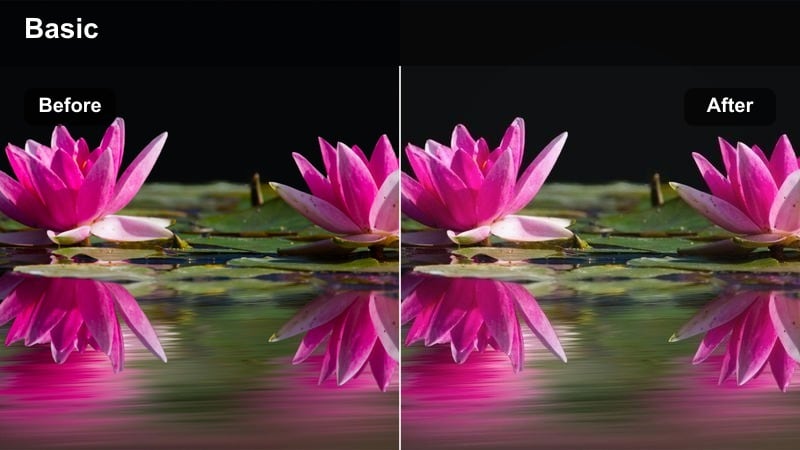
- Effect look: Desaturated low contrast base with softened neon colors that glow without looking harsh.
- Best for: Night city B-roll, street portraits under neon signs, cinematic travel montages.
- Editing tip: Reduce clarity slightly and add a light film grain layer for a nostalgic neo-noir aesthetic.
Soft Neon Drift is designed to tame aggressive neon signs and billboards, turning them into smooth glows that complement your subject instead of stealing attention. In Filmora, this is ideal for nighttime walks, portraits under store signs, or travel sequences in nightlife districts where lights can easily clip or look overly saturated.
Use this preset to create a desaturated, low contrast base, then fine-tune highlight saturation and exposure to prevent color bleeding. Adding subtle film grain and a touch of motion blur in Filmora can push the look toward a retro neo-noir style while keeping the overall image clean and modern for social platforms.
Soft Indoor Lifestyle and Home Studio Scenes
Cozy Room Matte
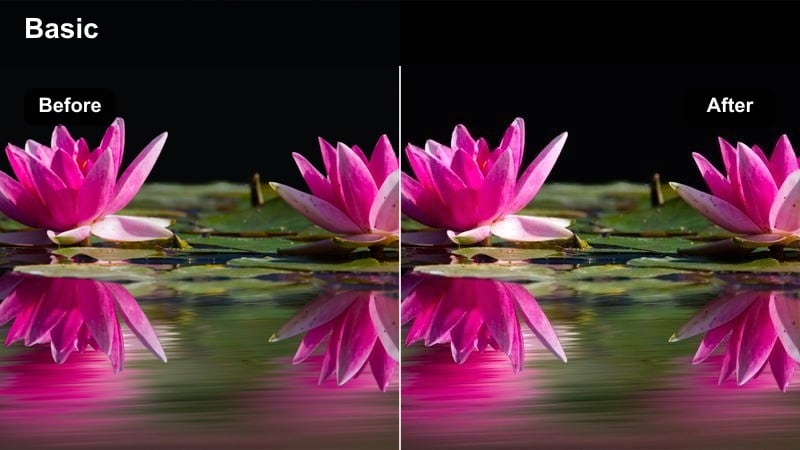
- Effect look: Warm low contrast matte look that gently lifts blacks and softens highlights for cozy interiors.
- Best for: Talking-head videos, study-with-me content, and lifestyle vlogs shot in bedrooms or living rooms.
- Editing tip: Slightly increase exposure rather than contrast to avoid crushing soft shadows in dimly lit rooms.
Cozy Room Matte gives indoor scenes a warm, matte finish that instantly feels intimate and inviting. In Filmora, this preset works well for study-with-me sessions, morning routines, or chill evening vlogs where you want soft shadows, smooth skin, and gently glowing lamps without harsh contrast.
Apply the filter first, then nudge exposure up instead of adding contrast so your lifted blacks stay soft and cinematic. If mixed lighting makes the room look messy, refine the white balance and reduce saturation a bit, letting the preset carry the warmth while keeping colors clean and unified across the entire video.
Desk Daydream
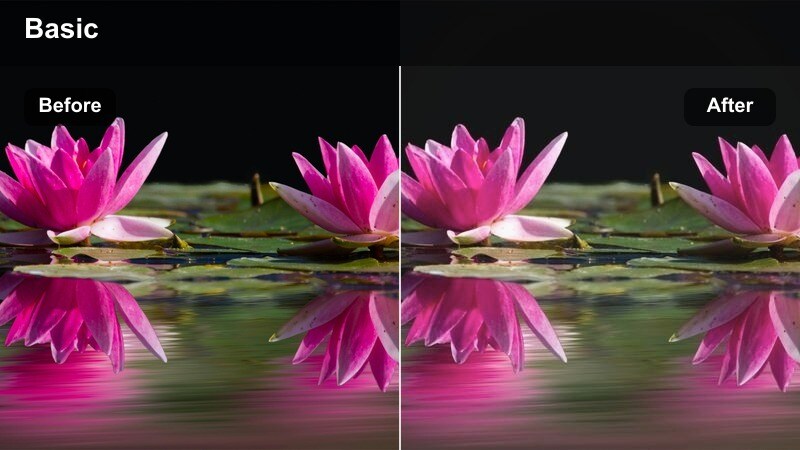
- Effect look: Soft, low contrast neutral tones that smooth skin and reduce clutter distraction around your workspace.
- Best for: Desk setups, productivity videos, and tutorial screen recordings with a face-cam window.
- Editing tip: Mask your face and increase brightness slightly on that area to keep attention on you while the background remains softly muted.
Desk Daydream is tailored for creators who film at their workstations and want a calm, focused atmosphere. The low contrast neutral tones help reduce visual noise from books, cables, and decor so the viewer's eye naturally gravitates toward your face and whatever is on the screen.
In Filmora, combine this preset with a subtle face mask and localized brightness increase to shape viewer attention. If your monitor or on-screen text looks a bit soft after applying the filter, add a touch of local sharpening only on the screen area, keeping the rest of the frame in that gentle, distraction-free look.
Studio Softbox Glow
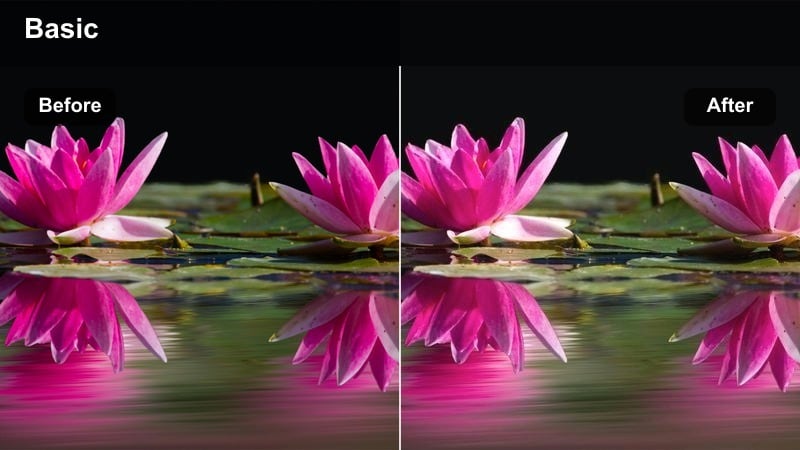
- Effect look: Gentle, low contrast treatment that smoothes softbox lighting and reduces shine on skin.
- Best for: YouTube sit-down videos, product talk-throughs, and interviews in a controlled home studio.
- Editing tip: Slightly reduce highlights and whites, then nudge saturation up a bit to keep colors pleasant but not punchy.
Studio Softbox Glow is built for controlled setups where you already have decent lighting and want a polished, flattering finish. It lowers contrast just enough to soften shadows and shine from softboxes, giving your face a smooth, professional look that is ideal for long-form YouTube content and interviews.
After applying the filter in Filmora, gently pull back highlights and whites to prevent hot spots on the forehead or cheeks, then raise saturation a touch so your set does not look washed out. If you are shooting against a bright or white backdrop, use the highlights and exposure tools to retain subtle texture behind you while keeping the low contrast aesthetic consistent.
Gentle Outdoor Daylight and Travel Moments
Hazy City Morning
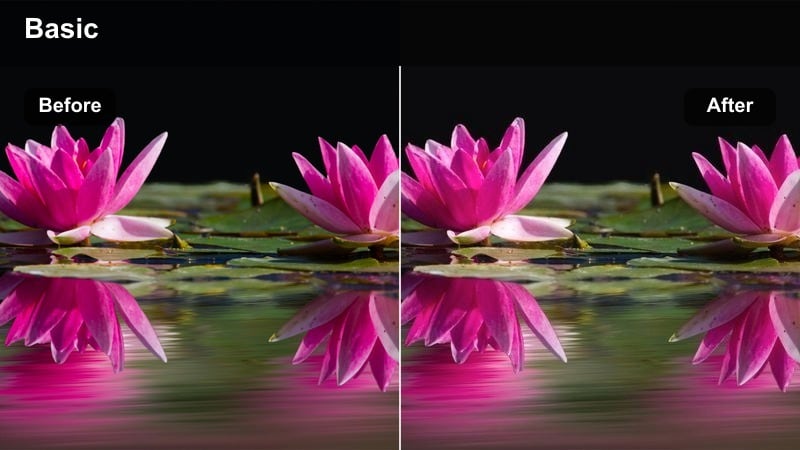
- Effect look: Soft, slightly warm haze that reduces midday contrast and gives streets a calm, early-morning feel.
- Best for: City travel vlogs, walking tours, and B-roll of streets, cafes, and plazas in bright daylight.
- Editing tip: Dial down highlights to tame blown-out skies and use a subtle radial blur around the frame edges for a dreamy effect.
Hazy City Morning is perfect for turning harsh daylight into something more cinematic and easy to watch. By adding a gentle warm haze and lowering contrast, the preset helps tame strong sun and reflective surfaces, making your city travel vlogs and walking tours feel like calm early-morning scenes even if they were shot at noon.
In Filmora, apply this preset to bright street and cafe shots, then reduce highlights to rescue sky detail and avoid blown-out pavements. If you want an extra dreamy touch, add slight radial blur or vignette to the edges while keeping your subject and key details sharp, maintaining both clarity and softness in the same frame.
Soft Urban Travel
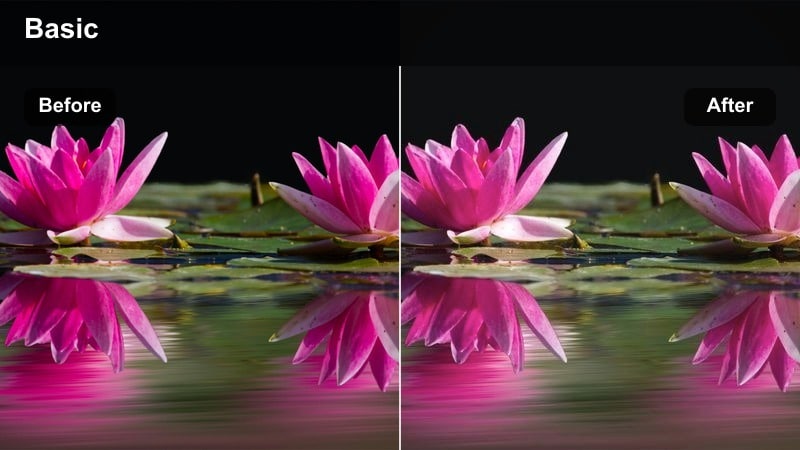
- Effect look: Balanced, low contrast color palette that slightly mutes strong hues for a relaxed travel aesthetic.
- Best for: Cityscapes, street markets, and travel montage sequences where you want a cohesive visual tone.
- Editing tip: Keep color temperature consistent across clips by copying and pasting color settings to maintain a unified travel story.
Soft Urban Travel is a versatile preset designed to unify city footage from different locations and cameras into one cohesive, cinematic look. The low contrast palette gently mutes intense colors from signs, clothing, and storefronts so your travel vlog feels relaxed and visually consistent from clip to clip.
In Filmora, apply this filter across your city montages, then copy and paste the color settings to keep temperature and saturation aligned. Make small exposure or white balance tweaks per clip only when necessary, aiming for a soft, story-first flow rather than perfectly matched technical color, which helps the entire sequence feel naturally connected.
Pastel City Overlook
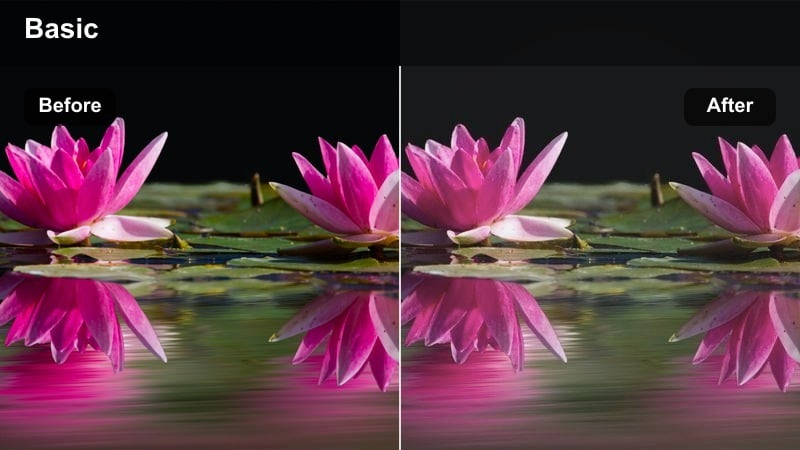
- Effect look: Low contrast pastel tones that soften building edges and turn cityscapes into dreamy postcards.
- Best for: Drone shots, rooftop views, and timelapses overlooking the city in soft daylight.
- Editing tip: Speed ramp slow sweeping shots while keeping motion blur natural to complement the pastel softness.
Pastel City Overlook transforms skylines into soft, postcard-like visuals with muted edges and gentle colors. This preset shines on drone footage, rooftop pans, and wide establishing shots, giving your travel films and city reels a high-end, cinematic feel without heavy manual grading.
In Filmora, pair the preset with speed ramps and smooth keyframed motion to glide over the city while preserving natural motion blur. If the scene becomes too flat, add a touch of local contrast or clarity to midtones only, avoiding strong sharpening on building edges so the dreamy pastel character of the filter stays intact.
Narrative B-Roll and Emotional Storytelling
Memory Fade
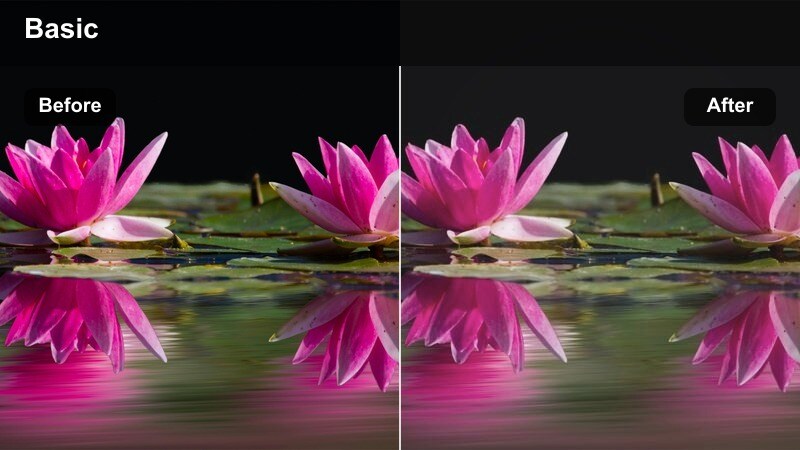
- Effect look: Subtle faded contrast with soft colors and slightly lifted blacks for a nostalgic, memory-like feel.
- Best for: Flashbacks, reflective monologues, and emotional story breaks within your vlog or short film.
- Editing tip: Pair with slower frame rates or gentle slow motion to reinforce the reflective tone of the scene.
Memory Fade is designed to make modern footage feel like a soft recollection, perfect for emotional cutaways and reflective storytelling. The lifted blacks and faded contrast give alleys, parks, and small details a nostalgic, almost dreamlike quality that pairs beautifully with voiceovers and diaries.
In Filmora, use this preset on B-roll that bridges different chapters of your story, then slow the footage slightly or add gentle slow motion to enhance the introspective mood. Simple transitions like cross dissolves and fade-ins complement the look, ensuring your audience stays focused on emotion and narrative rather than flashy edits.
Quiet Transit
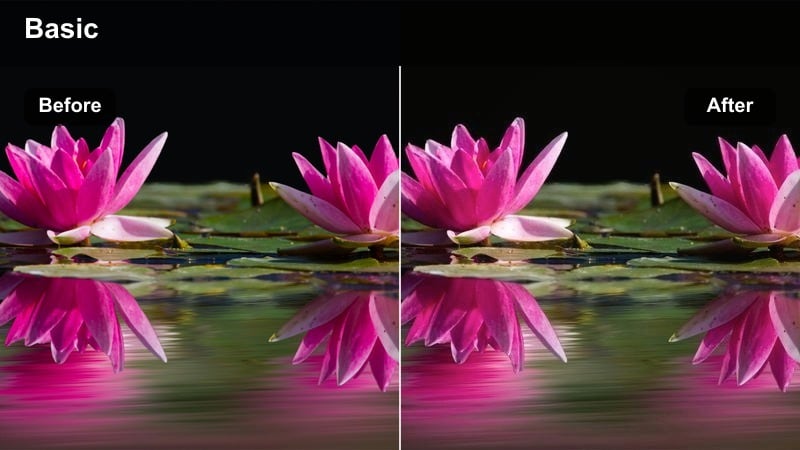
- Effect look: Low contrast, slightly cool tones that soften buses, trains, and stations into calm transitional imagery.
- Best for: Metro rides, bus windows, airport walkways, and other travel-in-between moments.
- Editing tip: Stabilize handheld clips lightly and use longer crossfades to connect different transit shots smoothly.
Quiet Transit turns hectic travel environments into calm, reflective passages between scenes. The low contrast and cool tint soften flickering lights, mixed color temperatures, and busy backgrounds, making buses, trains, and terminals feel like emotional pauses in your journey.
Apply this preset in Filmora to window shots, escalators, and airport corridors, then add light stabilization and longer crossfades to link each moment into a flowing transition sequence. If flicker or exposure shifts appear, slightly reduce contrast and consider adding subtle motion blur so the viewer focuses on mood and movement rather than imperfections.
City Rain Soft
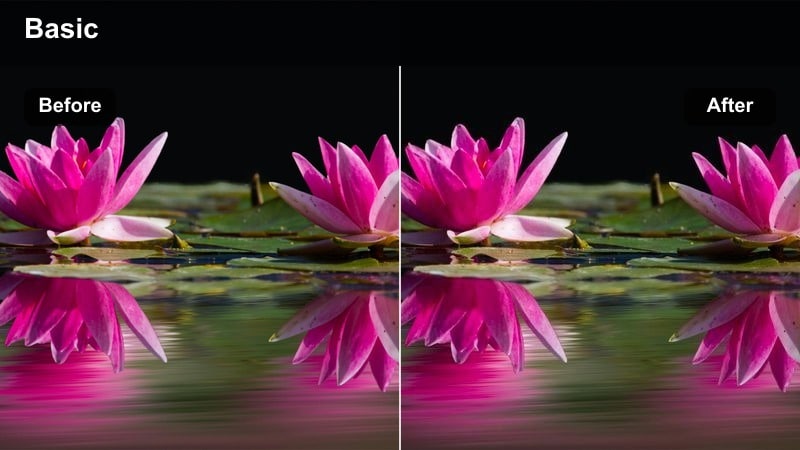
- Effect look: Muted, low contrast treatment that softens reflections and wet surfaces for a moody, cinematic rain feel.
- Best for: Rainy sidewalks, car window shots, and umbrella walks through city streets at night or late afternoon.
- Editing tip: Lower saturation on primary colors while keeping a hint of warmth in skin tones to avoid a lifeless gray image.
City Rain Soft is tuned to bring out the beauty of wet streets and reflections without the harshness that often comes with bright car lights and street lamps. The lowered contrast and controlled saturation make puddles, umbrellas, and headlights feel painterly and cinematic, ideal for moodier sequences in your vlog or short film.
In Filmora, use this preset on rainy sidewalks and through-the-glass shots, then gently pull down saturation on strong primary colors like reds and yellows. Preserve a touch of warmth in skin tones and window light so the scene stays emotional rather than flat, and manage highlights on wet surfaces to avoid clipping while keeping blacks slightly lifted for a soft, rainy-night atmosphere.
Tips for Using Low Contrast Soft Color Filter Filters in Filmora
- Lower contrast and clarity first, then adjust saturation so colors remain soft and dreamy without becoming dull or washed out.
- Check how skin tones look in different parts of the clip, adjusting midtones and warmth so faces never appear gray or lifeless.
- Use adjustment layers in Filmora to apply one low contrast soft color look across multiple clips for a consistent visual style.
- Fine-tune shadows and blacks instead of using strong global contrast changes to preserve the gentle, cinematic softness.
- Combine a natural correction LUT with your soft filter so exposure and skin tones stay realistic while the filter adds mood.
- Play your sequence on both desktop and mobile previews to make sure subtle softness does not turn into blur on smaller screens.
- Use Filmora's keyframing to subtly vary filter intensity across scenes, keeping bright exteriors and dim interiors balanced.
- Export a short test montage with several filters applied to compare which low contrast soft style best fits your overall story.
Low contrast soft color filters are powerful tools for content creators who want cinematic, gentle visuals that feel modern and easy to watch.
Experiment with different presets for city, indoor, and travel scenes, then refine them with natural color correction LUTs to create a signature style that fits every story.
secure download