100% Security Verified | No Subscription Required | No Malware

This moody film color grading LUT-inspired filter collection is designed for content creators who want cinematic shadows, muted tones, and a rich, atmospheric feel straight from their Filmora timeline.
Use these filters to quickly shape a consistent visual style across vlogs, short films, and social content, all while keeping skin tones natural and storytelling front and center.
In this article
Dusk Street Scenes and Urban Shadows
Noir Dusk Alleys
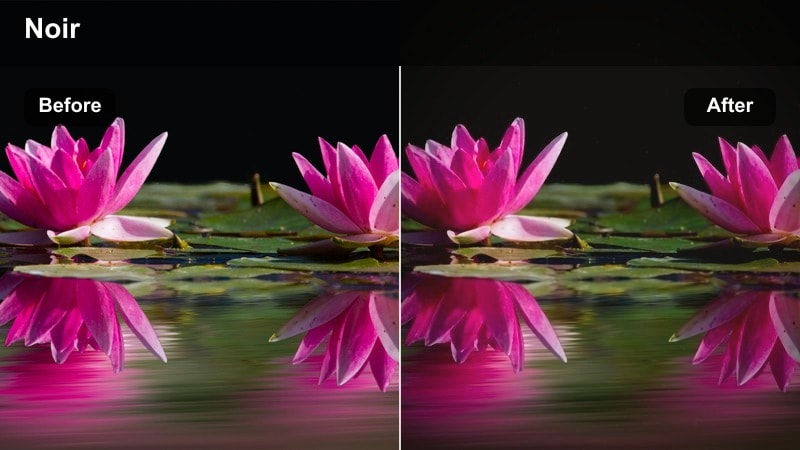
- Effect look: Low-key, high-contrast shadows with subtly cool highlights and a gentle fade in the blacks for a vintage film noir feel.
- Best for: Urban street b-roll, rainy sidewalks, neon-lit storefronts, and handheld night sequences with practical light sources.
- Editing tip: Lower overall exposure slightly and add a touch of film grain after this filter to reinforce the gritty, analog noir mood.
Noir Dusk Alleys is ideal when you want city dusk to feel like a stylized crime thriller, with deep shadows that hide detail and cool-toned highlights that pick out wet pavement and neon reflections. In Filmora, apply this filter on an adjustment layer over your night street footage so you can fine-tune opacity and preserve important detail in faces and signage.
After the base grade is in place, gently pull down exposure and blacks in the Color panel, then add Filmoras grain or texture effects to simulate old celluloid. Combine this look with slow push-ins, subtle handheld motion, and natural practical lights such as cars and shop windows to guide the viewer through your frame and support a tense, narrative-driven mood.
Dial in a Moody Palette Faster with Filmora's AI Tools
Pair these moody film color grading LUT-style filters with Filmoras AI-powered color correction to quickly normalize exposure, white balance, and contrast before you start stylizing. Let AI do the heavy lifting on technical balance so your creative grading decisions remain consistent from clip to clip.
Once your base image is stable, use Filmoras color wheels and curves to refine how each filter handles shadows, midtones, and highlights, nudging the intensity until the scene feels cinematic without losing realism.
 secure download

See Moody Film Filters in Action on Real Footage
Before locking in a look for your entire project, test different moody filters on a short sequence that includes streets, interiors, and night shots. Toggling effects on and off in Filmora makes it easy to see how each style deepens shadows, rolls off highlights, and shifts skin tones.
Duplicate your timeline and assign a unique filter to each version so you can compare them side by side, then choose the grade that best matches your story and shooting conditions.
secure download1000+ Video Filters and 3D LUTs
Filmora includes an extensive library of creative filters and 3D LUTs so you can stack moody film looks with subtle finishing effects like glow, vignettes, or film emulation. Treat these tools like building blocks to refine your style without leaving the Filmora timeline.
Apply your chosen moody grade on an adjustment layer, then experiment with additional filters at lower opacity to add texture, depth, and a polished cinematic finish.
secure downloadConcrete Blue Hour
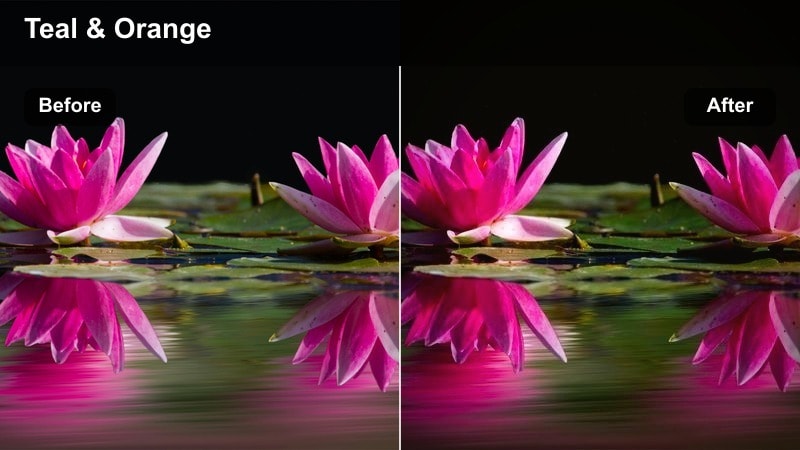
- Effect look: Cool teal-blue midtones with desaturated colors and lifted blacks for a cinematic blue hour city atmosphere.
- Best for: City skylines after sunset, rooftop scenes, empty streets just before night, and time-lapse transitions from day to night.
- Editing tip: Balance this cool grade with a slight warmth in the skin tone hue or white balance so subjects still feel lifelike against the moody background.
Concrete Blue Hour gives outdoor scenes a stylized, teal-tinted mood that emphasizes silhouettes, skyline shapes, and reflective surfaces. It is especially effective on footage captured just after sunset, when ambient light is soft and the sky still holds a deep, rich gradient.
In Filmora, apply this filter and then gently push the temperature slider a touch warmer on skin tones using masks or the color wheels, so characters remain natural against the cooler city backdrop. This contrast between warm faces and cool architecture immediately creates a cinematic, professional look suitable for vlogs, travel films, or narrative shorts.
Lonely Streetlamp
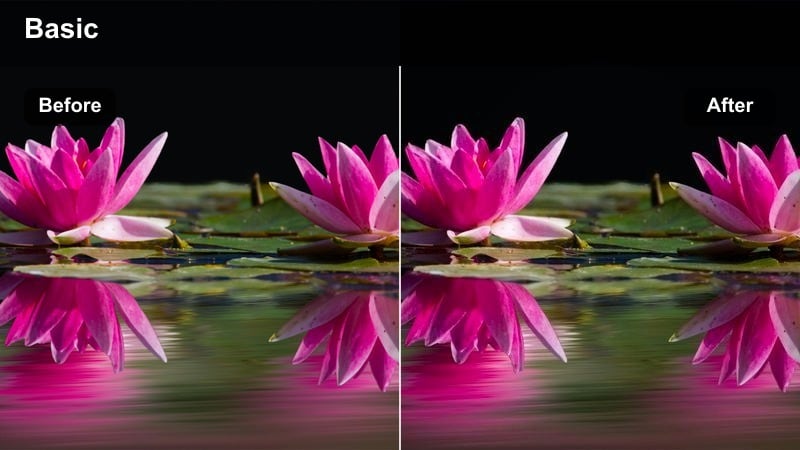
- Effect look: Warm spotlit highlights surrounded by deep, cool shadows to emphasize isolation and quiet city moments.
- Best for: Solo characters under a streetlight, empty parking lots, late-night walks, and introspective narrative scenes.
- Editing tip: Keep your subject close to the brightest light in frame and reduce saturation slightly so the glow feels cinematic instead of cartoony.
Lonely Streetlamp centers the frame around a single pool of warm light, letting everything else fall into rich, cool-toned darkness. It is a strong choice for emotional beats, character reflections, or dramatic reveals where negative space and silence matter more than busy backgrounds.
Inside Filmora, place the filter on an adjustment layer and combine it with a subtle vignette to pull extra focus to the subject standing in the light. Dial saturation down slightly in the Color panel and, if needed, use masks to keep faces readable, allowing the surrounding darkness to heighten the sense of solitude and tension.
Intimate Interiors and Quiet Stories
Window Silhouette
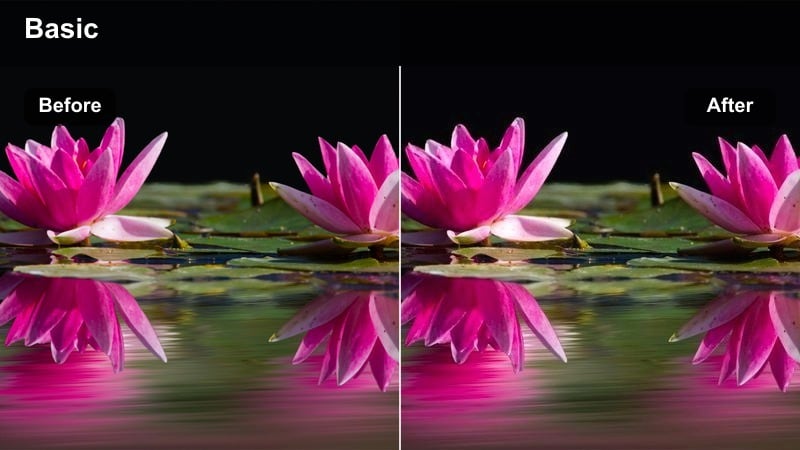
- Effect look: Soft contrast with slightly crushed blacks and a cool shadow tint, keeping window light natural and guiding focus to silhouettes.
- Best for: Subjects sitting by a window, morning introspection scenes, and quiet documentary interviews in small rooms.
- Editing tip: Position your subject sideways to the window and lower highlights a touch so the shape of their profile becomes more defined against the light.
Window Silhouette is designed to let natural window light sculpt your subject, while the rest of the room falls gently into cooler, subdued tones. It works particularly well for reflective, emotional storytelling, where the focus is on shape and gesture rather than every detail in the environment.
In Filmora, use this filter with clips framed in profile or three-quarter angles, then refine highlight and shadow sliders to keep the window from clipping. If the background is distracting, combine the filter with a light vignette and a subtle blur around the edges using Filmoras effects so the viewers eye stays on the subject closest to the window.
Amber Lamp Glow
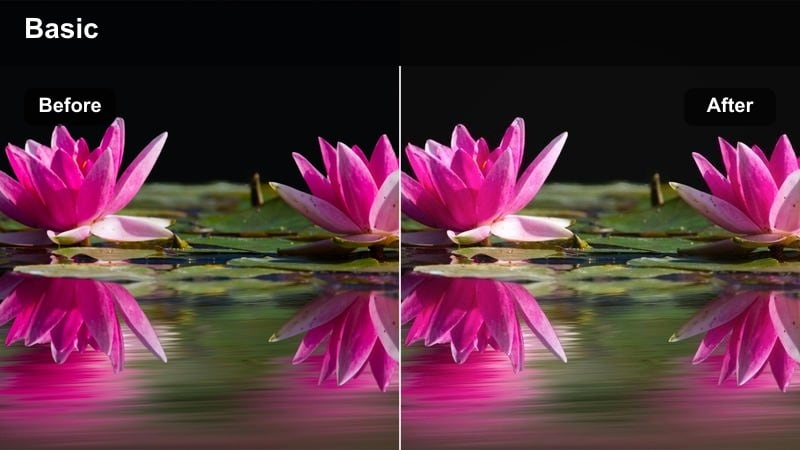
- Effect look: Warm amber highlights with gently muted colors and soft roll-off in the midtones, like a cozy tungsten-lit film scene.
- Best for: Desk setups, reading nooks, podcast recordings, and lifestyle vlogs shot in bedrooms or living rooms at night.
- Editing tip: Turn down any harsh overhead lights and rely on a single lamp to avoid mixed color temperatures that fight the warmth of this filter.
Amber Lamp Glow turns ordinary home interiors into cinematic pockets of warmth by emphasizing practical lamp light and soft midtones. It is perfect for content that needs to feel inviting and intimate, such as talking-head vlogs, study sessions, or nighttime routines.
After applying the filter in Filmora, adjust the white balance a touch warmer if your original footage was shot too cool, and lower saturation on overly bold colors to keep the amber tone tasteful. Add a slight blur or glow effect to the lamp itself so the source of light feels gentle, and let the filter carry that warmth across skin tones and nearby surfaces.
Hazy Room Memory
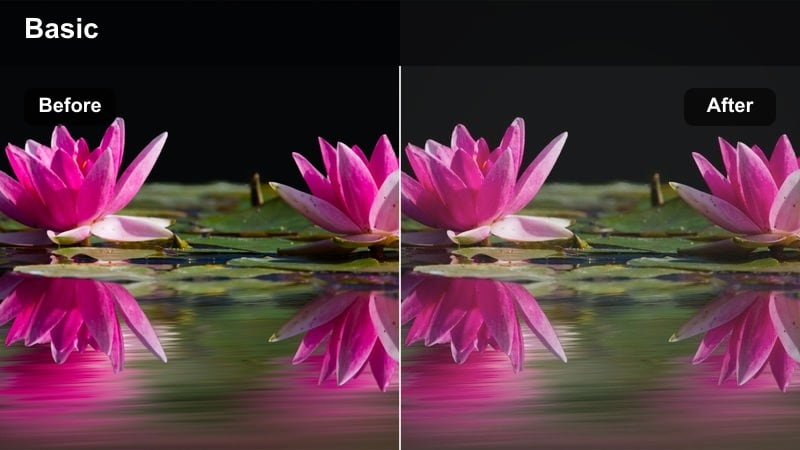
- Effect look: Low contrast with lifted blacks, a subtle matte finish, and a hint of green in the shadows for a nostalgic film memory vibe.
- Best for: Flashback scenes, childhood home sequences, moody lifestyle montages, and narrative B-roll inside apartments or houses.
- Editing tip: Dial in a bit of blur or reduce clarity around the edges of the frame to reinforce the dreamlike, hazy memory effect.
Hazy Room Memory introduces a soft, matte aesthetic that makes everyday interiors feel like distant recollections. The lifted blacks and slight greenish tint in the shadows suggest aged film stock, making it a strong choice for flashbacks, diary-style voiceovers, or nostalgic home sequences.
Within Filmora, blend this filter with diffusion or blur effects at low intensity to keep faces recognizable while softening the periphery of the frame. Use slower cuts, gentle camera moves, and perhaps a lower playback speed to strengthen the sense of dreamy recollection that this look naturally supports.
Rainy Exteriors and Overcast Drama
Wet Asphalt Dream
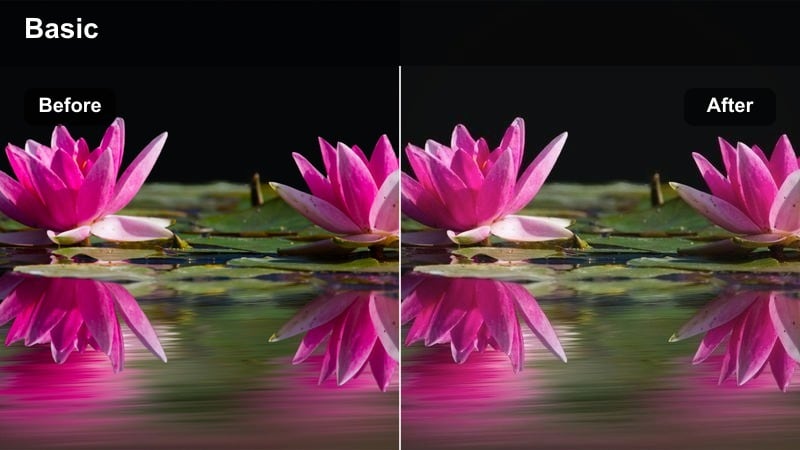
- Effect look: Deepened blacks with a mild cyan tint and muted saturation, highlighting reflections on wet streets and puddles.
- Best for: Rain-soaked roads, umbrellas in the city, walking shots after a storm, and car sequences on reflective streets.
- Editing tip: Boost contrast just a touch after applying the filter so reflections on the ground pop without clipping the highlights.
Wet Asphalt Dream is crafted to make rain and wet surfaces feel cinematic, turning puddles and shiny roads into powerful compositional tools. The cooler shadows and deep blacks emphasize reflections of headlights, neon, and streetlamps, ideal for moody transitions or contemplative city walks.
In Filmora, apply this filter and then push contrast slightly while monitoring scopes to keep detail in highlights. You can also add a mild vignette and stabilize handheld shots enough to avoid distraction while preserving natural movement, letting the reflections and muted palette create a strong emotional undertone.
Overcast Cinema Gray
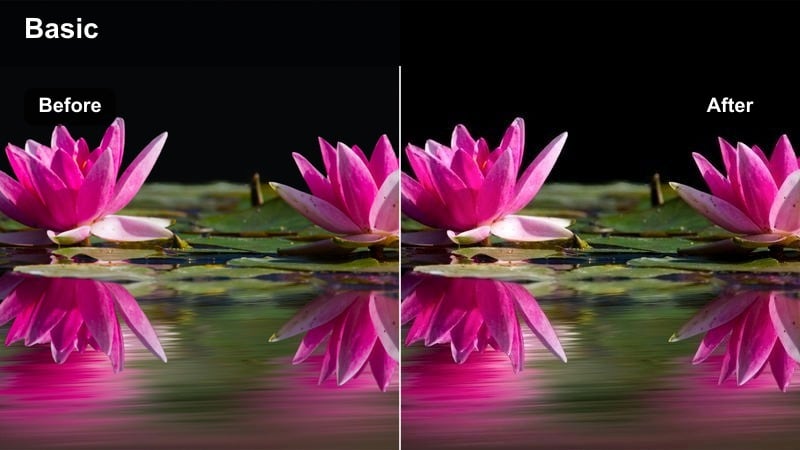
- Effect look: Neutral-cool tones with balanced contrast, slightly desaturated colors, and soft highlights to embrace cloudy skies.
- Best for: Overcast park scenes, city bridges, coastal cliffs, and any exterior where flat natural light needs cinematic definition.
- Editing tip: Use local adjustments or masks to darken the sky slightly and let this filter keep faces gently brighter than the background.
Overcast Cinema Gray leans into gray, cloudy days instead of fighting them, turning flat lighting into a controlled, cinematic canvas. The subtle desaturation and soft highlights keep details intact while giving your footage a calm, thoughtful atmosphere that suits dramas, travel pieces, and minimalist vlogs.
In Filmora, you can pair this filter with masks to subtly darken skies or bright backgrounds, ensuring your subject remains the brightest element in the frame. Small tweaks to midtone contrast and a gentle vignette help maintain depth in otherwise flat conditions, creating a premium look from everyday overcast weather.
Fog-Bound Crosswalk
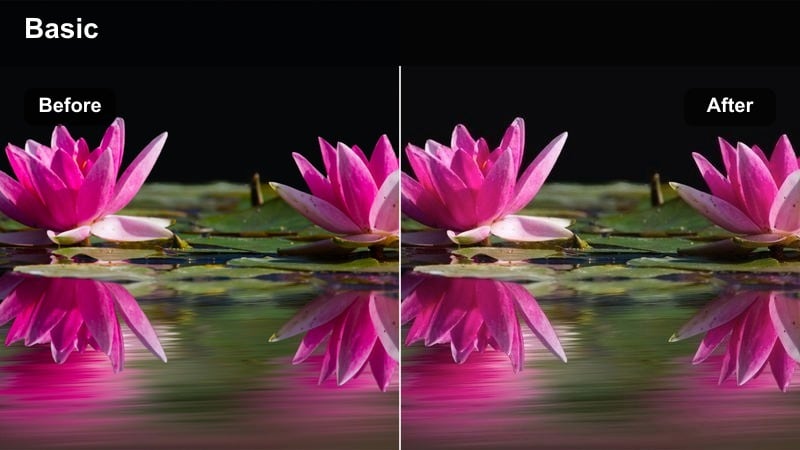
- Effect look: Soft, low-contrast highlights with a milky haze and slightly cool shadows for a suspenseful, foggy city presence.
- Best for: Misty mornings, foggy intersections, pedestrians crossing streets, and thriller-style establishing shots.
- Editing tip: Reduce clarity a bit and add a subtle glow effect to lights so the fog illusion feels convincing and atmospheric.
Fog-Bound Crosswalk enhances naturally misty or rainy scenes by adding a milky softness to highlights and gently cooling the shadows. It is perfect for building suspense or mystery, especially in wide shots where streetlights, headlights, and silhouettes interact with the haze.
After applying the filter in Filmora, decrease clarity and sharpen slightly less than usual to maintain the smooth, foggy atmosphere. Layer in a glow or light diffusion effect on bright sources, and use longer focal lengths or tighter compositions to make the fog feel dense and enveloping around your subjects.
Night Neon Stories and Cinematic City Light
Neon Mood Film
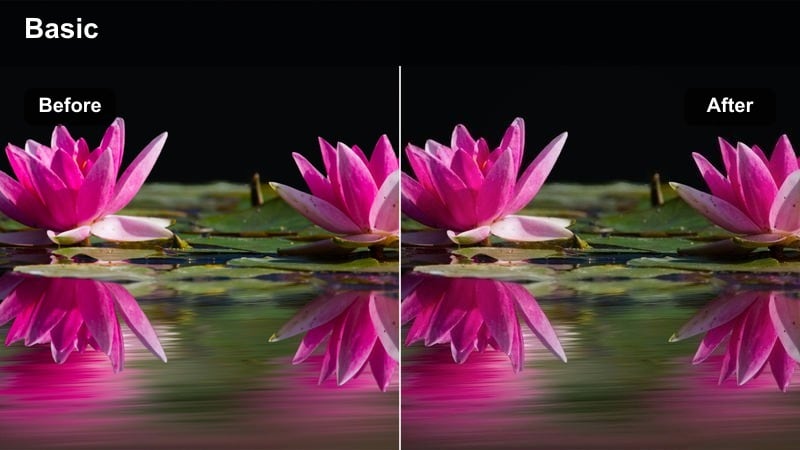
- Effect look: Punchy neon colors with slightly lowered overall saturation, deep blacks, and a teal-magenta bias reminiscent of modern urban cinema.
- Best for: Neon signs, night markets, arcades, reflective shop windows, and stylized music video visuals in the city.
- Editing tip: Keep the frame simple and avoid too many clashing colors so the teal and magenta bias can steer the palette with intention.
Neon Mood Film pushes city lights into a modern, stylized palette where teal and magenta dominate, while overall saturation drops just enough to feel cinematic. This look thrives on surfaces that catch and reflect neon, including wet streets, glass windows, and metallic details.
Inside Filmora, apply the filter and then refine intensity using the effect opacity slider or an adjustment layer to avoid oversaturating your frame. Consider cropping or reframing shots to remove distracting color elements, letting the teal-magenta bias lead the design; this is especially effective for music videos, nightlife vlogs, or fashion-driven shorts.
Subway Amber Shadows
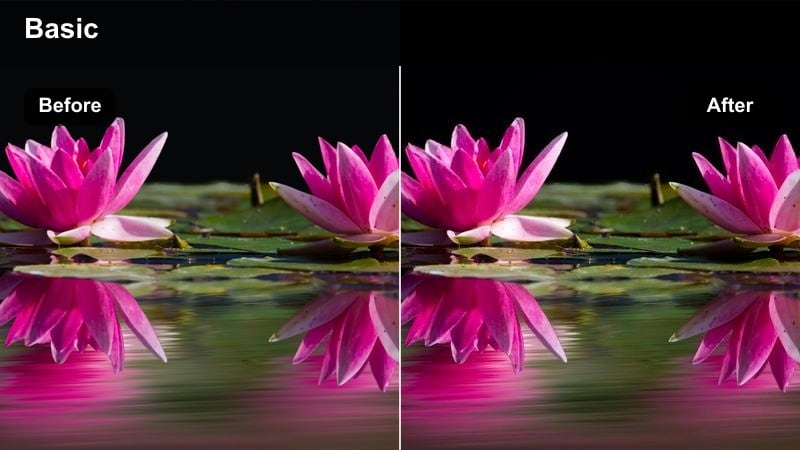
- Effect look: Warm amber highlights with cooler greenish shadows, strong contrast, and subtle grainy vibe to emulate underground film sequences.
- Best for: Subway platforms, underground tunnels, station escalators, and handheld shots inside train cars.
- Editing tip: Stabilize just enough to remove distracting shake but keep some handheld energy so the gritty mood feels authentic.
Subway Amber Shadows captures the gritty charm of underground transit with amber-tinted lights and deep, greenish shadows that suggest fluorescent bulbs and worn concrete. It is built for kinetic, documentary-style sequences where characters move quickly through tunnels, platforms, and train cars.
In Filmora, run a light stabilization pass on your footage to smooth the harshest bumps while maintaining handheld texture. Apply the filter, add a touch of grain, and consider using Filmoras noise reduction only sparingly so some texture remains, supporting the raw, cinematic underground feeling.
Midnight Parking Lot
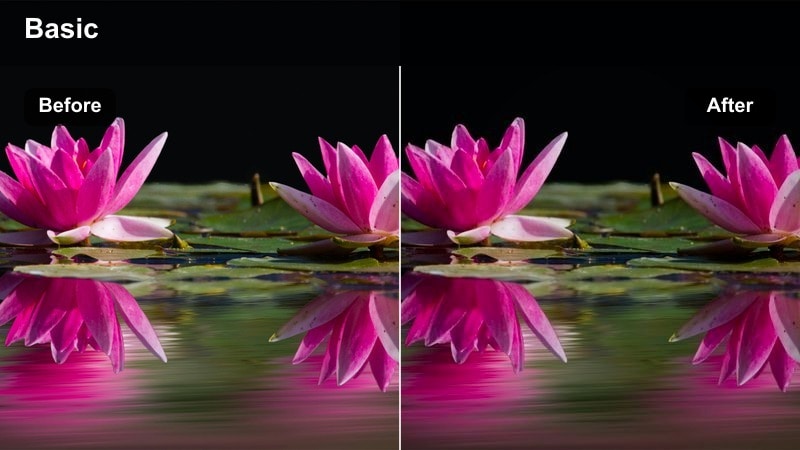
- Effect look: Crushed blacks, subtle cyan in shadows, and controlled highlights around overhead lamps for a lonely late-night vibe.
- Best for: Empty parking lots, rooftop garages, car meet scenes, and solitary night monologues beside vehicles.
- Editing tip: Expose slightly brighter in camera than you think, then let this filter bring the blacks down so you retain more detail in faces.
Midnight Parking Lot is tuned for stark, isolated night scenes where overhead lamps carve sharp pools of light into otherwise empty spaces. Crushed blacks and cyan shadows contribute to a tense, late-night mood that suits thrillers, character monologues, or minimalist car-centric visuals.
After adding the filter in Filmora, watch facial detail in the Color panel and slightly lift shadows or midtones if important elements are disappearing into black. Use framing that places your subject or vehicle directly under a lamp, and consider adding a modest vignette to accentuate the void surrounding them for maximum cinematic impact.
Tips for Using Moody Film Color Grading Lut Filters in Filmora
- Shoot slightly flatter in camera so these moody filters have more latitude to shape contrast and color without crushing detail.
- Keep a consistent key light direction within each scene so the filters can work with your lighting, not fight against it.
- Use adjustment layers in Filmora when possible so you can quickly swap or tweak filters across entire sequences.
- Protect skin tones by avoiding extreme saturation boosts after applying a strong moody look.
- Test a filter on both wide shots and close-ups to make sure the mood holds up at different framing distances.
- Balance your soundtrack and sound design with the visual tone; darker grades often call for more restrained audio choices.
- Avoid mixing too many radically different looks in one project unless you are clearly signaling time jumps or emotional shifts.
- When in doubt, pull back intensity; subtle moody grading often feels more premium and cinematic than heavy-handed effects.
Moody film color grading LUT-style filters can instantly transform everyday footage into atmospheric, cinematic visuals that better support your storytelling.
By pairing these Filmora filters with thoughtful lighting, consistent exposure, and a deliberate color strategy, content creators can build a recognizable visual tone that keeps viewers watching from the first frame to the last.
secure download