

 100% Security Verified | No Subscription Required | No Malware

Moody Instagram reel filters lean into rich shadows, deep color, and controlled highlights to turn everyday footage into bold, atmospheric visuals that feel cinematic and intentional.
Whether you shoot concert reels, city nightlife, or stylized editorial story clips, these Filmora filters give you dark Instagram effects and atmospheric reel color grading that stay scroll-stopping without losing important detail.
In this article
Moody Filters for High-Energy Night Concert Reels
Noir Stage Glow
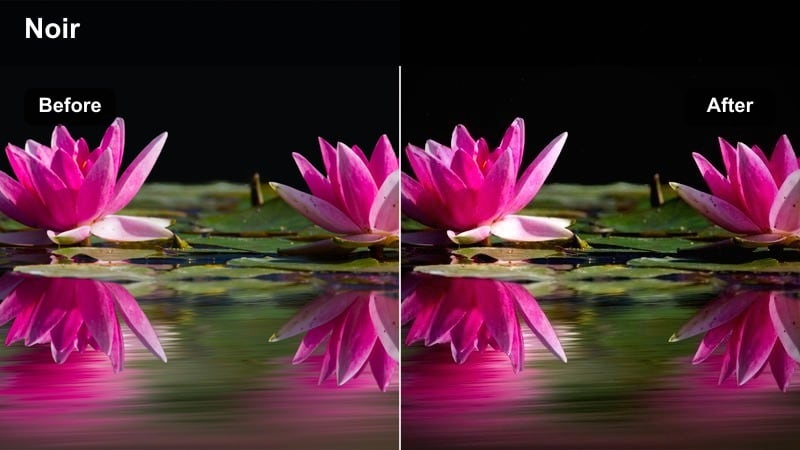
- Effect look: High-contrast shadows with soft halation around stage lights and a subtle desaturated crowd.
- Best for: Indoor concert reels where bright spotlights blow out faces and the background feels flat.
- Editing tip: Lower exposure slightly, then raise contrast and clarity to carve out silhouettes while keeping light halos gentle.
Noir Stage Glow is built to tame chaotic stage lighting and translate it into a stylized, cinematic frame. In Filmora, this filter deepens the dark areas around your subject so performers stand in crisp silhouette, while halation around spotlights adds that dreamy glow you see in live tour visuals. The crowd sinks into subtle, desaturated tones so the artist and stage detail stay front and center.
Apply Noir Stage Glow to handheld pit shots, balcony angles, or side-of-stage clips where LEDs and moving heads create messy exposure. In Filmora, combine the filter with a slight reduction in global exposure, then tweak contrast and clarity to define edges without crushing midtones. If the lights are clipping, pull down highlights and whites so signage, smoke, and hair texture return, then soften skin with a light touch of smoothing to keep the moody look without emphasizing low-light noise.
Dial in Moody Color in Seconds with AI Tools
Filmora's AI-driven color tools help you find the right balance of darkness, contrast, and saturation before you start pushing your footage into heavier moody looks. With a single click, you can correct exposure, neutralize odd color casts from stage lights, and even out differences between clips shot in different parts of a venue.
Once your base is clean, stacking moody Instagram reel filters on top becomes much more predictable. Use AI to refine skin tones, avoid muddy blacks, and auto-match color between multiple cameras, then finish the grade with your favorite dark Instagram effect for a cohesive, cinematic reel.
 secure download

Preview Moody Filters on Real Concert and Nightlife Clips
Seeing moody filters in action on your own footage is the fastest way to choose a look that fits your brand. In Filmora, drop a short sequence of concert shots, city nightlife b roll, or editorial story clips on the timeline and cycle through presets like Noir Stage Glow, Velvet Bass, and Neon Rain Drift.
Use the split screen preview to compare how each filter handles deep shadows, skin tone, and neon colors under identical lighting. Pay attention to strobes, LED panels, and dim corners of the frame, then lock in the filter that keeps detail where you need it while still pushing the vibe into bold, stylized territory.
secure downloadSave Your Moody Looks as Reusable LUTs and Presets
Once you dial in a moody look that perfectly fits your concert reels or night vlogs, you do not want to rebuild it from scratch every time. Filmora lets you save your grading adjustments as reusable presets or export them as LUTs, so you can reapply the same aesthetic across entire series, tours, or campaigns.
This workflow keeps your visual identity consistent, even when venues, lighting setups, and cities change. Grade one hero clip to perfection, save the filter stack, then apply it in one click to new reels so your followers instantly recognize your atmospheric style.
secure downloadVelvet Bass
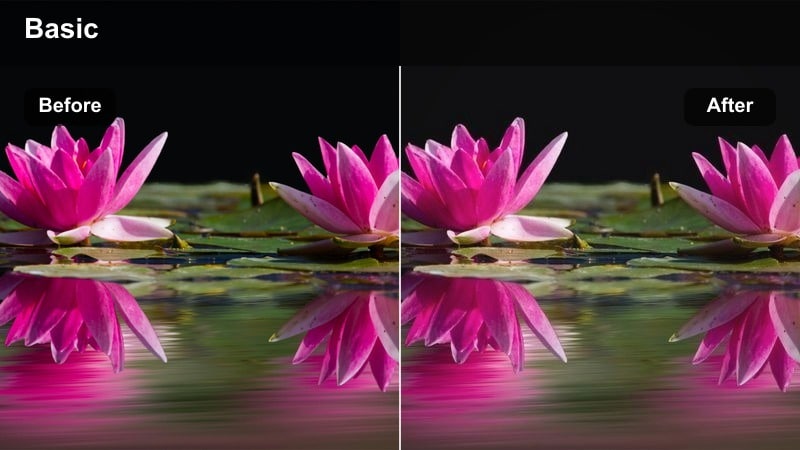
- Effect look: Deep matte blacks, rich warm mids, and slightly lifted shadows for a velvety, immersive concert atmosphere.
- Best for: Bass-heavy performance reels and DJ sets with colored lights and dense crowds.
- Editing tip: Increase saturation in reds and ambers while keeping blues muted to guide the viewer's eye toward performers and stage elements.
Velvet Bass wraps your club and festival footage in soft matte contrast so the darkest parts of the frame feel rich instead of crushed. In Filmora, this filter emphasizes warm midtones around skin and stage decor while gently lifting shadows just enough to keep detail in the crowd and environment. The end result is a thick, almost tangible atmosphere that feels synced with low-end-heavy tracks.
Use Velvet Bass on DJ booth close ups, slow crowd pans, and moments where lasers or LED walls create strong color fields. After applying the preset in Filmora, push saturation slightly in reds and ambers to keep attention near faces and hands, and tone down blues so background lights fall back. Match the filter intensity to your track by keyframing strength around drops and breakdowns, creating a subtle visual swell that complements the music.
Smoke Haze Embers
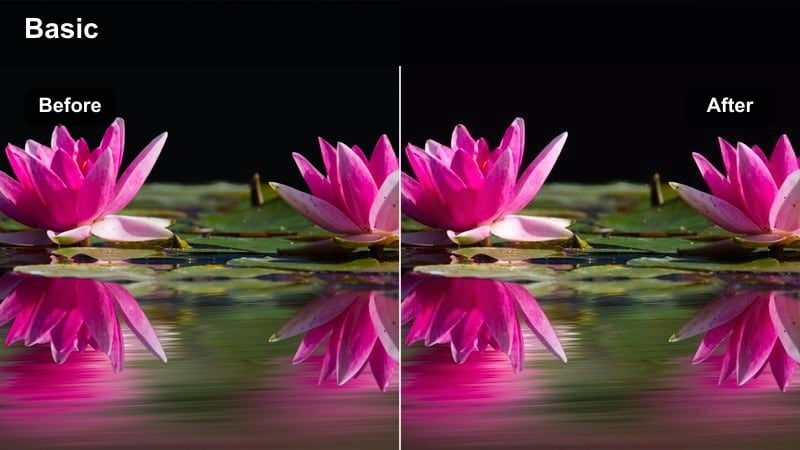
- Effect look: Cool cyan shadows with warm amber highlights to mimic stage smoke and glowing embers around performers.
- Best for: Reels that feature fog machines, pyrotechnics, or backlit haze in small concert venues.
- Editing tip: Dial back saturation on greens and push a bit more warmth into highlights so skin tones stay natural against cool backgrounds.
Smoke Haze Embers leans into a classic teal and amber color contrast that makes fog and haze look dramatically lit. In Filmora, cyan shadows cool down the background and stage rigging, while amber highlights wrap around hair, instruments, and edges of smoke to simulate glowing embers. It is a powerful way to make small venues feel like big tour productions.
Apply this filter to backlit silhouettes, drummer close ups through smoke, or guitar shots shot across the stage with haze between you and the subject. After adding the preset, tame greens in the HSL controls so the mix of cyan and amber stays clean, then warm your highlights slightly to keep skin tones believable. Use Filmora's curve tool to deepen only the darkest areas so haze retains its soft, textured presence instead of turning into flat gray.
Dark Filters for City Nightlife and Street Reels
Neon Rain Drift
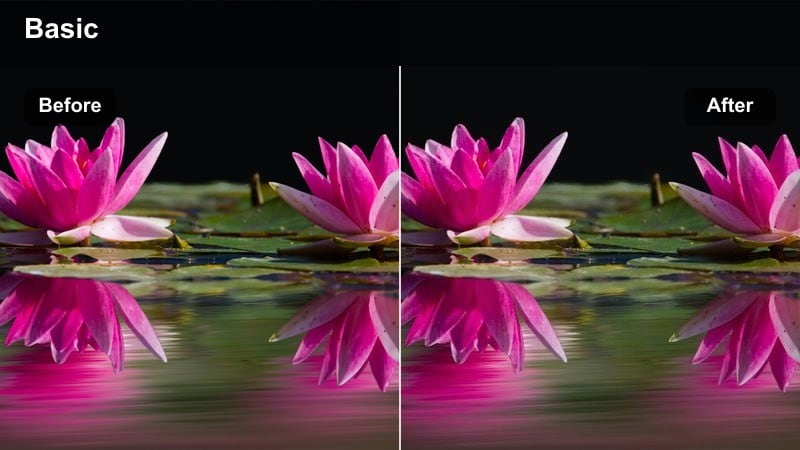
- Effect look: Crushed blacks with glossy highlights and neon colors that bleed softly into wet pavements.
- Best for: City nightlife reels with reflections on streets, puddles, and car windows under neon signs.
- Editing tip: Gently increase clarity only in the midtones to keep signage sharp while allowing deep blacks to stay soft and inky.
Neon Rain Drift is designed for rainy nights and reflective surfaces, turning city streets into neon-soaked frames. In Filmora, the filter deepens blacks so doorways and alleys fade away, while boosting saturation in neon tones to make signs, taillights, and reflections on wet pavement glow. The subtle softness added to highlights helps light bleed realistically across puddles and glass.
Use this preset on tracking shots down sidewalks, low angle shots of car wheels driving through puddles, or POV clips of nightlife districts. After applying it in Filmora, add a touch of clarity in midtones so signage and key details remain legible while shadows stay smooth. If you notice noise creeping into the darkest parts of the frame, run light noise reduction first, then sharpen selectively in mids so the image feels polished but still moody and cinematic.
Subway Noir
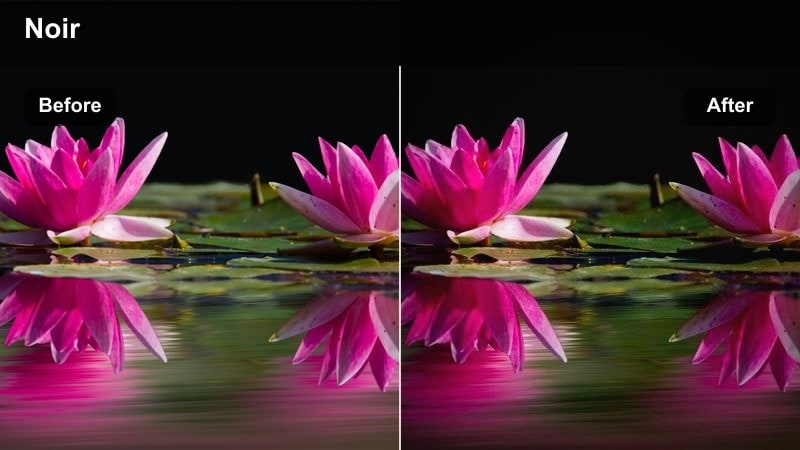
- Effect look: Gritty contrast with cool, desaturated tones and a subtle green tint in fluorescent-lit scenes.
- Best for: Underground subway shots, alleyway transitions, and handheld city movement clips.
- Editing tip: Drop saturation globally, then selectively warm skin tones so people feel alive against the cold environment.
Subway Noir emulates the harsh, industrial lighting of underground transit systems and back alleys. In Filmora, it flattens overly bright fluorescents, lifts fine detail in midtones, and adds a faint green cast to emphasize the gritty, utilitarian feel of tiles and concrete. Overall saturation drops, pushing your reel into a more austere, cinematic space.
Apply Subway Noir to walking shots along platforms, stairway transitions, and handheld city snippets between main scenes. Once the filter is active, use Filmora's color tools to warm just the skin tones so subjects pop subtly against the colder, desaturated world around them. A slight radial exposure boost around faces and a layer of soft film grain completes the noir mood while disguising low-light sensor noise.
Rooftop Cinder
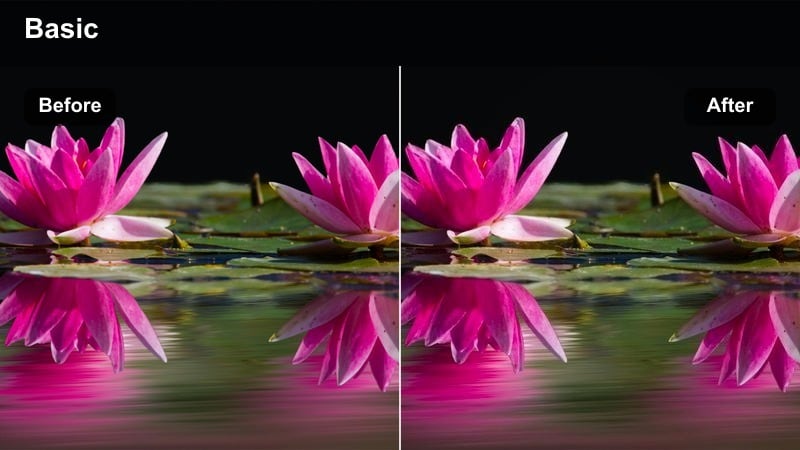
- Effect look: Muted city colors, low saturation, and warm highlights with charcoal shadows along the skyline.
- Best for: Rooftop reels, skyline b-roll, and slow pans over city lights at blue hour.
- Editing tip: Reduce vibrance more than saturation to keep lights glowing while pulling back distracting midtone colors.
Rooftop Cinder takes wide city views and sculpts them into subdued, cinematic tableaus. In Filmora, it mutes most building colors while letting window lights and signage hold onto a gentle warmth, creating the feel of ember-like pockets of life in a dark grid. Charcoal shadows along rooftops and facades give skylines a defined, graphic edge.
Use this filter on static tripod shots, slow pans, or timelapses across the skyline during blue hour or late night. After enabling it, adjust vibrance rather than global saturation so bright windows and key accents retain their glow while midtone clutter recedes. A soft highlight curve prevents billboards and windows from clipping to pure white, and a light gradient darkening the top of the sky keeps focus on the city pattern below.
Atmospheric Filters for Editorial Story Clips
Inked Journal
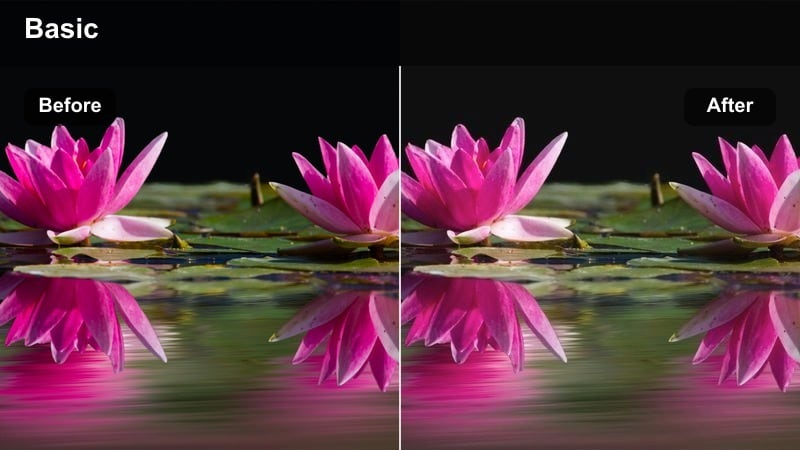
- Effect look: Soft, low-contrast shadows with slightly faded colors and a gentle brownish tint for a diary-like mood.
- Best for: POV story clips, quiet narrative reels, and text-on-screen storytelling edits.
- Editing tip: Lower saturation in blues and greens while warming midtones to make text overlays feel more intimate and legible.
Inked Journal is perfect for turning everyday moments into soft, reflective story beats. In Filmora, it lowers contrast slightly, lifts shadows, and adds a faint brown tint that mimics the warmth of aged paper or ink. Colors become gently faded, making your footage feel like a visual diary rather than a hyper-polished commercial.
Apply this filter to POV clips of typing, journaling, scrolling a phone, or capturing quiet apartment scenes. Once it is on, pull back blues and greens so the palette leans into warm neutrals, then position your captions in negative space within the frame. A slight vignette behind text and a careful check of text color against the image will keep your storytelling clear while preserving the moody, intimate vibe.
Cigarette Script
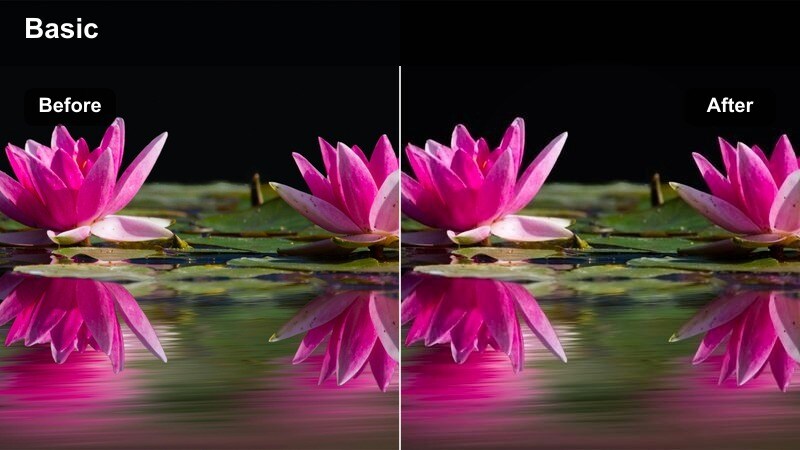
- Effect look: High-contrast monochrome leaning toward warm tones with smoky, cinematic midtones.
- Best for: Moody character portraits, introspective voiceover reels, and stylized slow-motion moments.
- Editing tip: Use this filter on shots with strong directional light and let shadows fall off naturally without lifting black levels too much.
Cigarette Script takes your footage into a warm monochrome space that feels like an arthouse still frame. In Filmora, it strips away most color while pushing contrast so directional light creates deep, expressive shadows on faces, walls, and props. The midtones stay slightly soft and smoky, preventing the look from becoming too harsh.
Use this filter on window light portraits, slow-motion hair or smoke shots, or any character-driven moment with strong side lighting. After applying it, resist the urge to lift your blacks; let them stay deep so the composition feels deliberate and graphic. A subtle camera move, such as a slow push in or lateral slide, paired with a touch of film grain in Filmora, adds motion and texture that make the high-contrast look feel alive instead of static.
Paperback Dusk
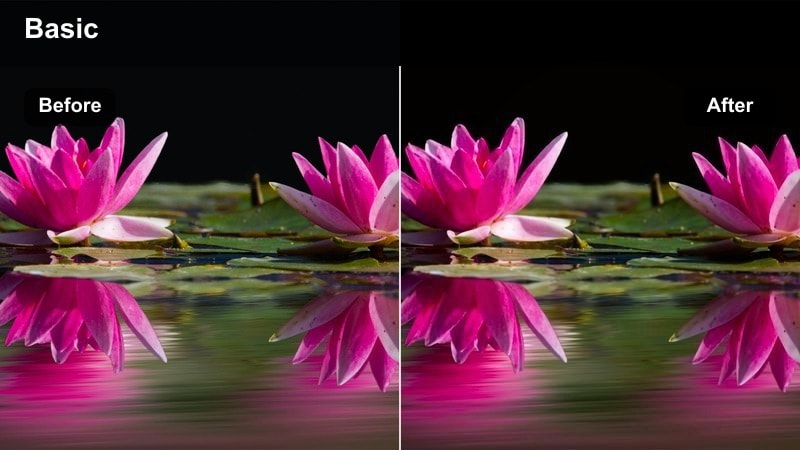
- Effect look: Soft, low-saturation image with warm highlights and cool shadows, echoing old book covers at dusk.
- Best for: Narrative edits, over-the-shoulder shots, and quiet room scenes with window light or desk lamps.
- Editing tip: Reduce sharpness slightly and add a minimal vignette to frame the subject and de-emphasize busy room details.
Paperback Dusk delivers a gentle, editorial grade that mixes warm highlights with cool shadows for a balanced, storybook atmosphere. In Filmora, saturation steps back so colors feel restrained, while light sources like lamps and windows retain a soft glow. The split between warm and cool tones gives your scene depth without overwhelming the viewer.
Apply this preset to over-the-shoulder writing shots, quiet conversations at a desk, or reading scenes near a window. Once enabled, nudge sharpness down a bit to smooth digital edges and use a light vignette to keep attention on your subject. This filter pairs well with on-screen text or graphics, because the controlled contrast and muted palette ensure overlays stay readable even on small mobile screens.
Cinematic Filters for Music Visuals and Night Vlogs
Midnight Chorus
- Effect look: Deep blue-toned shadows with soft roll-off in highlights and slightly emphasized midtone contrast.
- Best for: Night vlogs walking through the city, music visual loops, and handheld street narratives.
- Editing tip: Shoot slightly brighter than usual, then let the filter pull shadows down so you keep flexibility in post.
Midnight Chorus is tuned for night vlogs where you move through city lights and want a cool, music-video feel. In Filmora, shadows pick up a blue tint while highlights stay soft, preventing streetlamps and storefronts from turning into harsh hotspots. Midtones gain a little extra contrast so faces and clothing remain defined even in low light.
Use this filter on walk and talk segments, B roll of traffic and signage, and looping visuals set to chill tracks. Capture your footage a bit brighter in camera, then let Midnight Chorus darken the scene while preserving detail. In Filmora, refine white balance to avoid overly cyan skin tones and sync filter intensity with your soundtrack by easing the effect in or out across verses and hooks.
Amber Alley Echo
- Effect look: Warm amber highlights with slightly green shadows for a nostalgic but uneasy night alley feel.
- Best for: Music visuals in narrow streets, parking lots, or alleys lit by sodium-vapor streetlamps.
- Editing tip: Push up local contrast on your subject while keeping background saturation dialed back to avoid messy color patches.
Amber Alley Echo plays into the classic orange streetlamp aesthetic while sneaking in greener shadows for tension. In Filmora, pools of light from lamps and storefronts glow warmly, while areas in between drift toward cooler, greenish tones. This duality makes alleys, side streets, and empty parking lots feel like stylized music video sets.
Apply the filter to performance shots in narrow spaces, walking sequences past parked cars, or slow-motion scenes under a single overhead light. After applying it, raise local contrast or clarity around your subject so they cut through the background, and gently lower saturation in the rest of the frame to avoid distracting color noise. A hint of background blur or reduced clarity at a distance keeps focus locked on the artist and the emotional core of the scene.
Vinyl Flicker
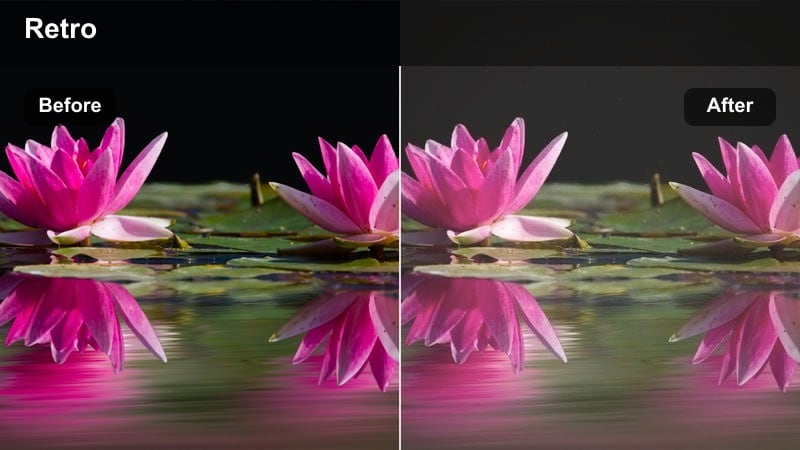
- Effect look: Muted overall color, soft contrast, and a subtle flicker-style variation in brightness to echo analog music visuals.
- Best for: Looping music reels, lyric snippets, and behind-the-scenes studio or backstage clips.
- Editing tip: Combine this filter with gentle film grain and static framing to let the audio take center stage visually.
Vinyl Flicker is inspired by analog playback and lo-fi music visuals, giving your reels a gentle, lived-in feel. In Filmora, this filter dials back saturation, softens contrast, and adds a subtle brightness variation that mimics old projectors or tape. The look is intentionally understated so the sound carries most of the emotional weight.
Use it on lyric cards, studio sessions, or intimate backstage moments where you want viewers to lean in and listen. After applying Vinyl Flicker, keep your framing relatively static and add a light film grain layer for extra analog character. Make sure the flicker intensity stays mild so it feels like texture rather than a distraction, then rely on close shots of instruments, hands, or faces to stay hypnotic in a loop.
Tips for Using Moody Instagram Reels Filters in Filmora
- Expose slightly brighter in camera than your final moody look and let Filmora's filters handle deepening the shadows for cleaner results.
- Always check skin tones after applying dark Instagram effects and adjust warmth or saturation so faces do not look gray or lifeless.
- Use vignettes and gradient masks to guide the viewer's eye toward your subject when working with very dark city nightlife or concert scenes.
- Match filter intensity and color temperature to the music's tempo and emotion so your visuals and audio feel tightly unified.
- Keep text and overlays high contrast and minimal when using heavy moody filters, especially for viewers watching on smaller phone screens.
- Preview your reel on different brightness levels and devices to ensure important details remain visible in shadows and highlights.
- Save your favorite Filmora presets as LUTs so you can apply the same moody style quickly across new shoots and locations.
Moody Instagram reel filters let you push your concert reels, night vlogs, and editorial story clips into bold, cinematic territory without getting lost in complicated color grading.
Start with the presets above in Filmora, tweak them to your footage, then save your favorite looks so every new reel stays atmospheric, cohesive, and unmistakably yours. Use the warm instagram reel filters collection next to blend cozy highlights and soft tones into your moody edits when your story needs a gentler vibe.
