

 100% Security Verified | No Subscription Required | No Malware


 ChatGPT
 Perplexity
 Gemini
 Claude
 Grok
Grok
Moody selfie video filters are perfect when you want your portraits to feel intimate, cinematic, and full of emotion instead of bright and polished. With the right mix of contrast, shadows, and muted color, even a simple late-night selfie or handheld vlog can look like a scene from an indie film.
This guide shares 12 Filmora-style moody selfie video filters that help portrait editors and storytelling creators carve out deep shadows, sculpt the face, and add dark, expressive tones to every frame.
In this article
Shadow-Sculpted Moody Selfie Filters
Inked Shadows
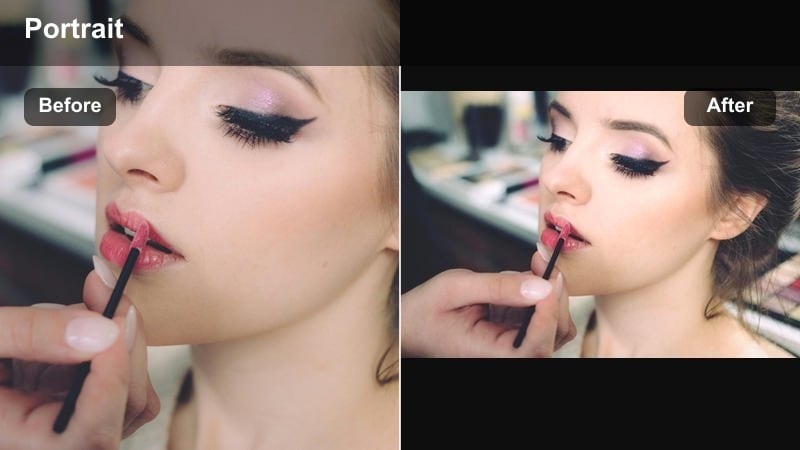
A stark, ink-like shadow filter that turns your selfie into a bold, graphic portrait.
Effect look: High-contrast monochrome with deep blacks that wrap around the face and leave only key facial features in the light.
Best for: Late-night selfies under a single lamp, storytelling close-ups where you want the eyes and jawline to dominate the frame.
Editing tip: Lower exposure slightly, then raise contrast and clarity; use a vignette to pull the corners into darkness and keep focus on the center of the face.
Inked Shadows is ideal when you want your selfie to feel like a stark illustration rather than a casual snapshot. In Filmora, you can start with a black-and-white preset, then push contrast and clarity to carve out the eyes, nose, and jawline while letting the rest of the frame sink into rich black.
This style works especially well for vertical late-night clips recorded near a single lamp or phone screen. Use Filmora vignettes and local adjustments to deepen the outer edges, so viewers are drawn straight to your expression and nothing distracts from the mood.
Pro tip: Lean into asymmetric light
For maximum intensity, angle your face so only one cheek or eye catches the light, letting the other side fall into deep shadow.
Combine this with a narrow vertical framing to make the dark space feel intentional and cinematic rather than underexposed.
Dial in Your Moody Selfie Tone with AI Color Tools
Filmora s AI-driven color tools help you quickly match the exact moody selfie video filters you see in your head, from blue-tinted solitude to ember-warm shadows. Instead of manually guessing every curve and slider, you can start from smart presets that already emphasize skin while protecting your shadows.
Use AI to balance exposure on your face while keeping the rest of the frame dark, then fine-tune contrast and saturation so your deep shadow selfie look stays expressive instead of underexposed. This is especially helpful when handheld vlogs or quick bedroom setups give you inconsistent lighting from clip to clip.
 secure download

Preview Moody Selfie Filters in Real Time
With Filmora s real-time preview, you can scroll through moody selfie video filters while recording or editing to see exactly how each style reshapes your face and background. This makes it easy to try intense deep-shadow looks next to softer, faded options without committing or re-editing from scratch.
Switch between dark face video effects, high-contrast portraits, and muted cinematic palettes until you find a look that fits your late-night monologue or emotional reel. Seeing changes live helps you fine-tune framing, expression, and light to match each filter s vibe.
secure downloadSave Your Signature Moody Look as a LUT
Once you build a moody selfie grade you love in Filmora, you can save it as a LUT so the same deep, cinematic tone instantly applies to future clips. This keeps your moody vlogs, storytime series, or late-night confessionals visually consistent across episodes.
Applying a saved LUT speeds up your workflow and prevents you from having to remember exact contrast, color, and shadow settings every time. It also helps define a recognizable aesthetic that viewers start to associate with your channel and storytelling style.
secure downloadNoir Frame
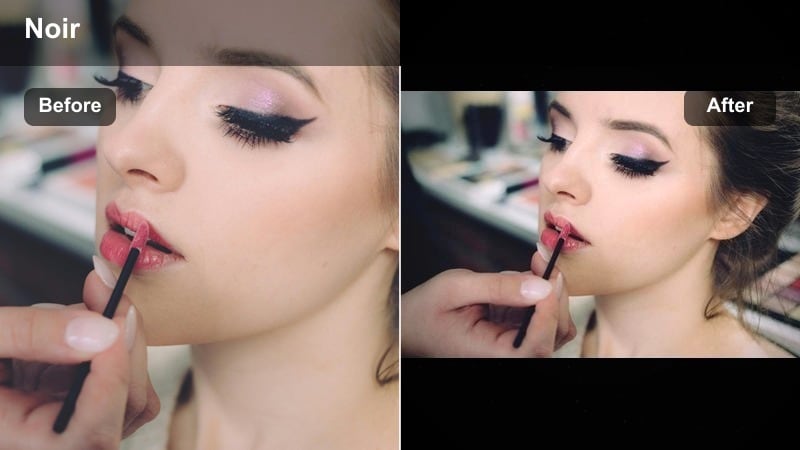
A classic noir-inspired selfie filter that turns your vlog into a moody black-and-white story.
Effect look: Soft black and white with lifted midtones, moody grain, and gentle halation around highlights.
Best for: Dramatic vlogs, reflective monologues, and storytelling intros where mood is more important than color.
Editing tip: Desaturate completely, then add a subtle film grain and a slight blur or glow on highlights to mimic old noir cinema.
Noir Frame leans into vintage black-and-white aesthetics, making your selfie feel like a frame pulled from a classic film. In Filmora, convert your footage to monochrome, then add grain and a soft glow on bright areas like windows or desk lamps for a dreamy noir texture.
This look is perfect for slow, reflective talking heads and quiet storytelling. Frame yourself slightly off-center and let your gaze drift toward the darkest part of the frame so the viewer feels pulled into your thoughts and the surrounding shadows.
Pro tip: Use negative space to tell the story
Frame your selfie off-center, leaving empty darkness on one side of the frame to enhance the noir feel.
Let your gaze drift into that negative space to sell a reflective, cinematic moment.
Velvet Shadow
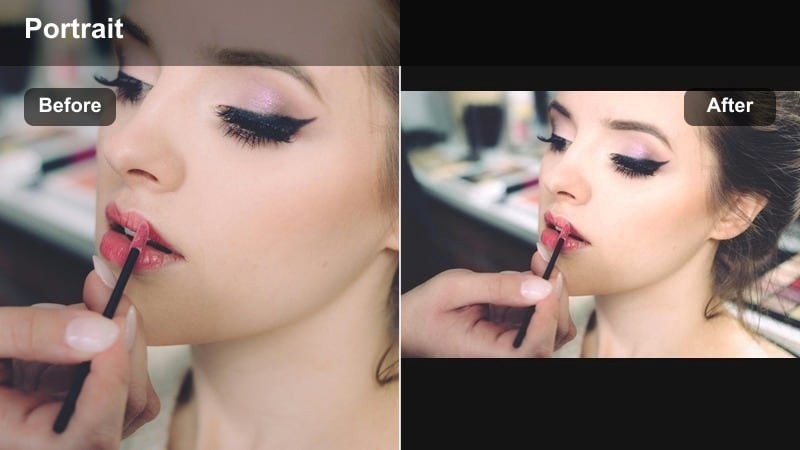
A smooth, low-contrast filter that gives your dark selfies a plush, cinematic softness.
Effect look: Low-contrast, velvety shadows with softened highlights that smooth skin while keeping a dark, intimate tone.
Best for: Soft, moody beauty selfies and quiet nighttime diary-style videos where you want gentle shadows instead of harsh contrast.
Editing tip: Reduce clarity slightly, add a bit of blur to skin tones, and gently raise the blacks so the shadows look rich instead of crushed.
Velvet Shadow wraps your face in a soft, plush darkness that still feels flattering. In Filmora, lightly lift the blacks and reduce overall contrast to avoid harsh lines, then add a small amount of skin smoothing or blur so your features feel dreamy but still recognizable.
This filter shines in close-up, handheld clips filmed on beds, sofas, or at a desk with minimal light. Pair it with slower movement or even subtle slow motion within Filmora to highlight micro-expressions and quiet emotional beats.
Pro tip: Match the tone with slow motion
If you are recording a video selfie, slow down key moments to emphasize the softness of the filter and the emotional beats.
Pair the filter with quiet ambient audio or a subtle soundscape to reinforce the gentle, moody mood.
High-Contrast Dark Face Video Effects
Midnight Carve
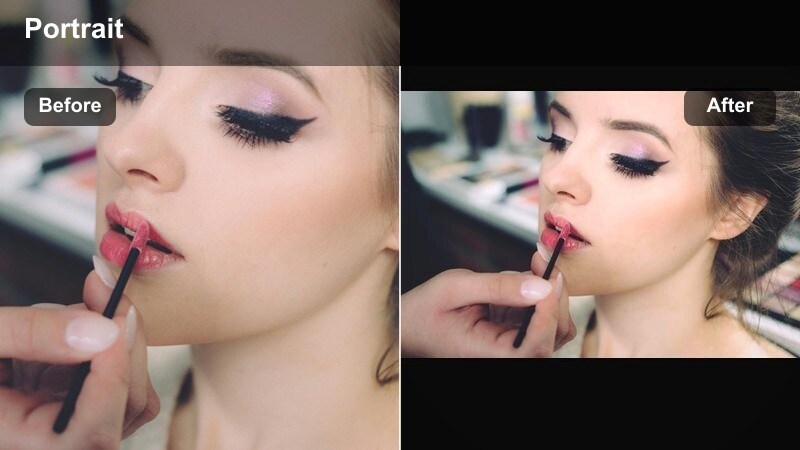
A sharply defined dark face video effect that chisels your features for maximum drama.
Effect look: Bold, carved contrast that sculpts cheekbones and jawline with dramatic darks and crisp edges.
Best for: Dramatic vlogs, late-night confessionals, and stylized performance clips shot near windows or doorways.
Editing tip: Increase contrast and local sharpening, then slightly desaturate colors to keep skin from looking too vivid under the strong shadows.
Midnight Carve is built to emphasize structure and intensity. In Filmora, boost contrast and clarity, then use sharpening to define cheekbones, jawline, and eyes while pulling saturation down so skin tone does not become overly aggressive under strong light.
This effect thrives when you use a single hard light source positioned above and to the side. Capture your selfie or monologue in this setup, then refine with Filmora s color and sharpening tools so your face looks sculpted and three-dimensional against a nearly black background.
Pro tip: Angle your light source
Place a phone screen or small lamp slightly above and to the side of your face to emphasize the carved look of this filter.
Avoid front-facing, flat light; it will undo the dramatic sculpting that makes this style powerful.
Storm Window
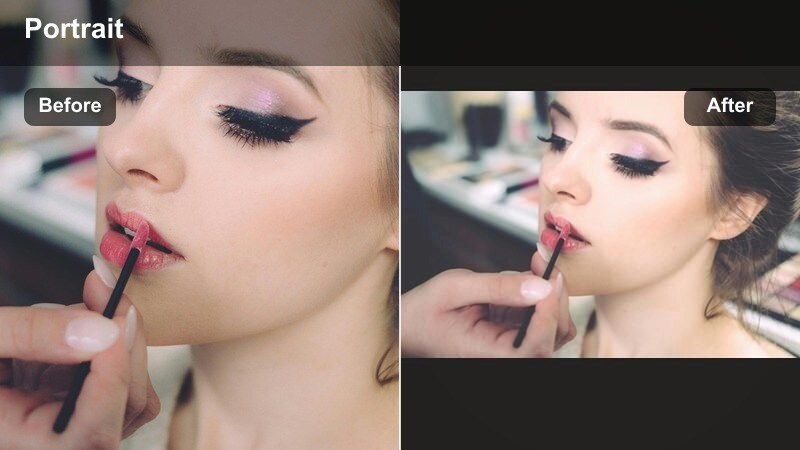
A stormy, cinematic filter that makes your selfie feel like a rainy-night movie scene.
Effect look: Cold, bluish shadows with slightly lifted highlights and a subtle fade in the blacks for a stormy atmosphere.
Best for: Moody talking-head segments, introspective travel vlogs filmed in cars, and rainy-night room selfies.
Editing tip: Cool down the temperature, add a hint of teal in the shadows, and lower saturation of warm colors while keeping eyes bright.
Storm Window adds a cool wash of melancholy to your selfies, mimicking the light you get from street lamps and rainy-night windows. In Filmora, lower the white balance temperature, nudge teal into your shadows, and tame warm tones so blues and cyans dominate.
This filter is particularly strong in car vlogs, near windows, or when using reflective surfaces. Keep your eyes sharp and slightly brightened in Filmora to cut through the misty blues and maintain emotional clarity.
Pro tip: Layer reflections for depth
Shoot through glass or next to reflective surfaces so the cool tones create layered reflections around your face.
In editing, gently reduce clarity on the background to keep your eyes as the sharpest element in frame.
Ember Edge
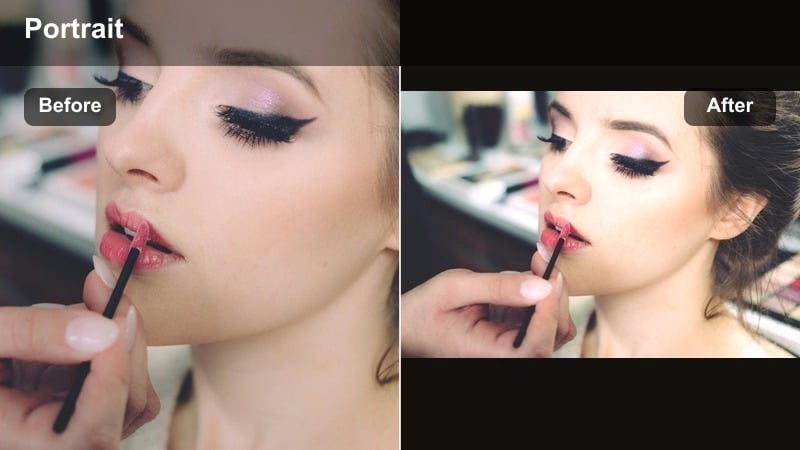
A dark, fiery filter that makes skin glow like embers in a mostly shadowed frame.
Effect look: Dark overall exposure with warm, ember-like highlights on skin that glow against the surrounding shadow.
Best for: Late-night storytelling with candles or warm bulbs, dramatic reaction shots, and cozy but intense bedroom vlogs.
Editing tip: Lower overall exposure, then push warmth and saturation in the highlights channel to make skin look like it is lit by firelight.
Ember Edge is designed to mimic candlelight or flickering fire near your face. In Filmora, reduce overall brightness, then increase warmth and saturation in highlights while leaving midtones and shadows dark. This creates the illusion that your features are glowing in the dark.
Use this filter for intimate storytelling clips or close reaction shots where you want your expression to feel intense yet cozy. Position small, warm light sources near your face and let Filmora handle the contrast and color grading for a cinematic ember effect.
Pro tip: Use tiny warm light sources
Light your face with a candle, fairy lights, or a dim tungsten bulb to enhance the ember-like glow of this effect.
Keep the background nearly black so the viewer s eye goes straight to the warm edges of your features.
Deep Shadow Selfie Looks
Hollow Room
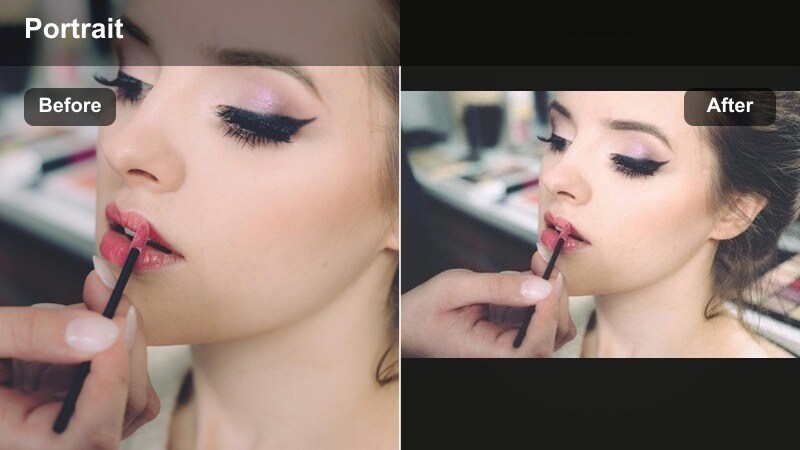
A deep, hollow-looking filter that emphasizes the emotional space around your selfie.
Effect look: Muted colors, sunken shadows, and a slight fade in midtones that make the room feel empty while your face stays present.
Best for: Storytelling creators who want to show loneliness, late-night overthinking, or reflective mood in a small space.
Editing tip: Pull saturation down, raise shadows just enough to keep detail, and reduce brightness in the background while maintaining light on your face.
Hollow Room is all about making your environment feel as heavy and emotional as your expression. In Filmora, desaturate your background, darken walls and furniture with masking or global exposure tweaks, and keep a soft pool of light only on your face.
This creates a subtle separation between you and the space, as if the room is receding into emptiness. It works well for solo late-night monologues, mental-health check-ins, or storytime clips where you want viewers to sense isolation or quiet reflection.
Pro tip: Let the background speak quietly
Step a little away from the wall so it falls deeper into shadow, allowing your background to feel distant and detached.
Include one or two subtle props in the shadows, like a chair or lamp, for visual storytelling without clutter.
Silhouette Whisper
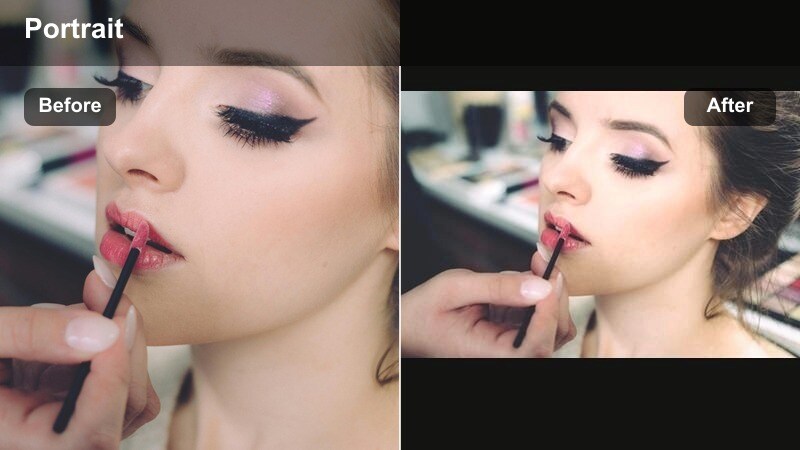
A moody silhouette filter that hints at emotion more than it fully reveals the face.
Effect look: Backlit silhouette with a soft halo around the head and barely-there facial details emerging from the darkness.
Best for: Introspective voiceovers, poetic monologues, and dramatic transitions between vlog scenes.
Editing tip: Position a bright source behind you, then lower exposure and lift blacks slightly; add a subtle glow around highlights for a dreamlike edge.
Silhouette Whisper reduces your selfie to outlines and gestures, letting viewers feel your presence without seeing every detail. In Filmora, you can drop exposure and contrast while lifting blacks slightly to avoid harsh clipping, then add glow around the backlight for a soft halo.
Use this style between scenes or during voiceovers when you want to protect privacy or keep emotions more suggestive. Small motions like turning your head or adjusting your posture become powerful storytelling tools framed by the backlight.
Pro tip: Use movement instead of detail
Focus on gentle motions like turning your head, brushing hair back, or shifting shoulders to convey emotion without relying on full facial visibility.
Combine with slow fades or cross-dissolves between clips to keep the atmosphere subtle and poetic.
Corridor Glow
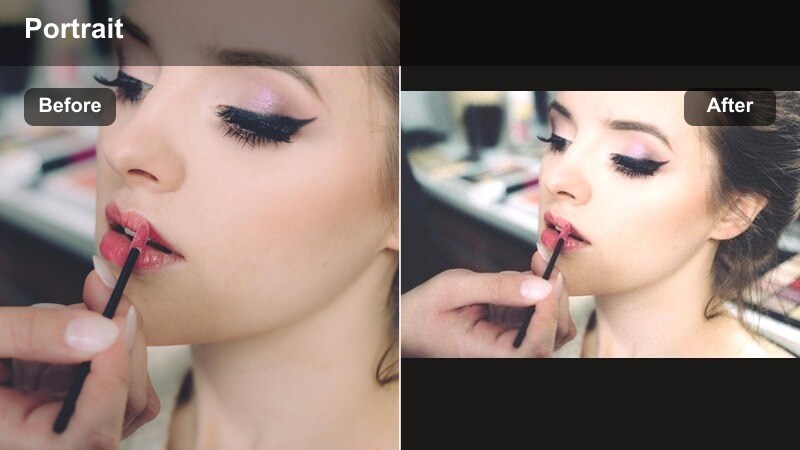
A tunnel-style deep shadow look that makes corridors and narrow spaces feel cinematic.
Effect look: Long, tunnel-like shadows that recede into the background while the face catches a strip of soft, directional light.
Best for: Dramatic walk-and-talk vlogs, moody hallway selfies, and narrative shots moving from light to dark.
Editing tip: Add a vignette, darken the midtones, and keep highlights controlled so the brightest part of the frame is the light across your face.
Corridor Glow creates the feeling of standing in a tunnel of darkness with only a sliver of light touching your features. In Filmora, emphasize this by applying vignettes, lowering midtones, and keeping highlight levels modest so your face strip is bright but not blown out.
This filter suits hallway shots, doorways, or any narrow passage with contrasty light. Use slow walking shots or gentle camera pushes and pull focus to draw attention from the deep corridor shadows into your expression and back again.
Pro tip: Walk through the light
Record yourself walking slowly through a narrow beam of light so the filter accentuates how your face emerges, peaks, and disappears again.
In editing, cut on the moment your face is half in light and half in shadow to transition into or out of key story beats.
Cinematic Moody Selfie Video Filters
Midnight Cinema
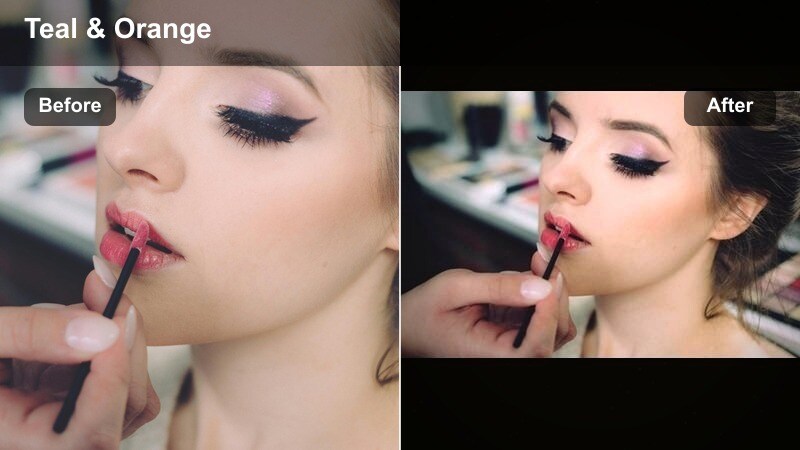
A classic teal-and-amber look that turns your moody selfie videos into mini movie scenes.
Effect look: Teal and amber cinematic tone with rich blacks, slightly grainy texture, and spotlighted skin tones.
Best for: Cinematic vlogs, short narrative scenes, and stylized TikTok or Reels where you want a movie-night feel.
Editing tip: Push blues and teals into shadows, warm up highlights, and add gentle film grain to avoid a plastic digital look.
Midnight Cinema brings big-screen color contrast to handheld selfies, wrapping your background in cool teals while keeping skin in warm amber tones. In Filmora, adjust your color wheels or curves so shadows lean teal while highlights and midtones on skin tilt toward orange.
Adding a touch of film grain and deep blacks keeps everything feeling rich and cinematic rather than overly digital. This filter is ideal for narrative-style vlogs, stylized intros, or selfie scenes that cut into short films or TikTok stories.
Pro tip: Build a simple color story
Wear neutral or dark clothing and let the background carry the teal tones while your skin and lights stay warm.
Keep any on-screen text or titles in matching colors so the entire frame feels cohesive and cinematic.
Dusty Reverie
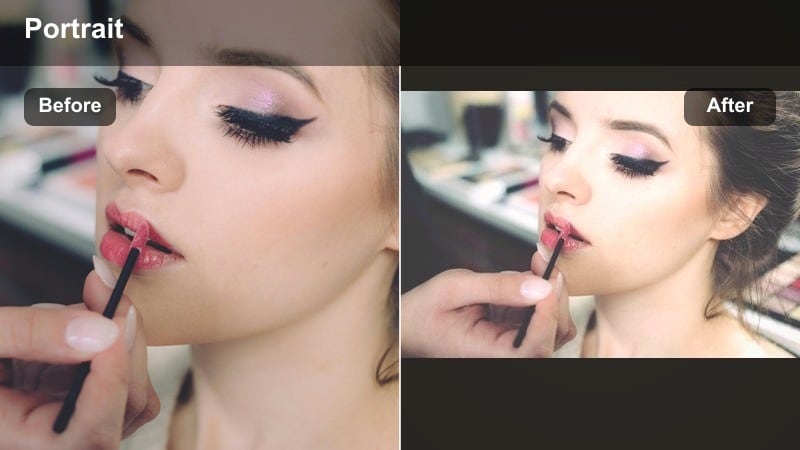
A dreamy, faded filter that turns moody selfies into warm, nostalgic memories.
Effect look: Soft faded blacks, slightly lifted shadows, and a dusty, dreamlike warmth that feels nostalgic and introspective.
Best for: Memory-style vlogs, reflective storytimes, and late-night bedroom diaries shot on a bed or couch.
Editing tip: Pull highlights down, lift blacks for a faded look, and add a warm tint plus a touch of blur to the background.
Dusty Reverie treats your selfie like an old memory, with raised blacks and gentle warmth that suggest time and distance. In Filmora, soften the contrast curve, slightly fade blacks, and add a warm white-balance shift so your image feels like a cherished, moody snapshot.
This effect pairs well with comfortable settings like beds, couches, or desk setups. Leave a bit of grain or texture in your footage and avoid heavy retouching so the nostalgia feels authentic rather than overly polished.
Pro tip: Let imperfections stay
Do not over-smooth skin; a bit of natural texture keeps the nostalgic look grounded and believable.
Add very subtle camera shake or handheld movement to mimic the feel of an old home video or diary recording.
Void Neon
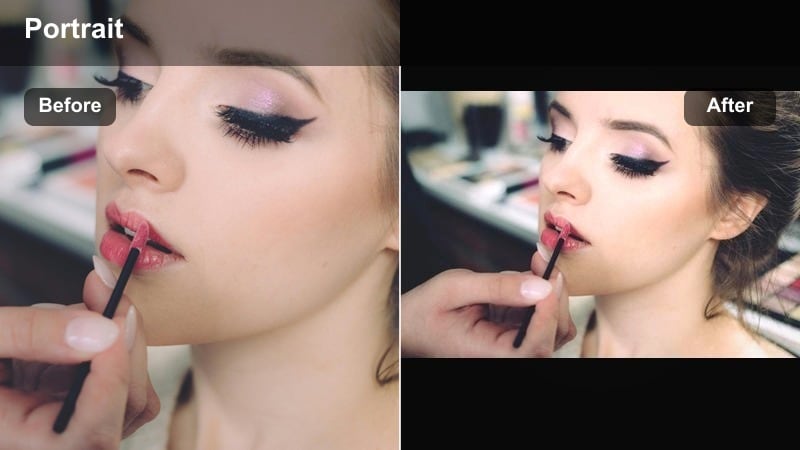
A bold neon-in-the-dark filter that makes your selfie feel like a frame from a cyberpunk film.
Effect look: Ultra-dark environment with pockets of neon color reflecting on the face, giving a futuristic yet moody vibe.
Best for: Night city vlogs, gaming-inspired selfies, and stylized storytelling where color and darkness both matter.
Editing tip: Crush blacks, bump saturation in specific neon hues, and selectively brighten reflections on the cheeks and eyes.
Void Neon thrives on deep black backgrounds and strong hits of neon from screens, LEDs, or city lights. In Filmora, push your blacks down for a true void, then selectively raise saturation on magentas, cyans, and blues so neon strips and reflections glow on your skin.
This style is great for gaming setups, nightlife content, or futuristic storytelling. Let most of your frame disappear into darkness while Filmora highlights the colored light sliding across your cheeks and eyes for a bold, graphic mood.
Pro tip: Use screens as light sources
Let your phone, monitor, or LED strips provide neon light and keep the rest of the room unlit to maximize the void feeling.
Move slowly toward or away from the screen so the neon reflections slide across your features during the shot.
Tips for Using Selfie Moody Tone Filters in Filmora
- Keep one clear light source for moody selfies and let the rest of the frame fall naturally into darkness.
- Lower saturation slightly before increasing contrast so skin does not look overly harsh in deep shadows.
- Use vignettes to guide attention to your eyes, especially in high-contrast dark face video effects.
- Record a few seconds of neutral expression, then a few of strong emotion to see how each filter responds to subtle changes in the face.
- Avoid mixing too many different color temperatures in one shot; pick either cool or warm for your key light to maintain mood.
- Stabilize your camera or phone so micro-shakes do not break the carefully shaped shadows on your face.
Moody selfie video filters give portrait editors and storytelling creators a powerful way to turn simple late-night shots into emotional, cinematic moments.
Experiment with deep shadows, selective highlights, and subtle color shifts until you find a dark, expressive style that feels true to your personal story on camera.
secure downloadNext: Warm Selfie Video Filters for Golden, Story-Driven Portraits
