

 100% Security Verified | No Subscription Required | No Malware


 ChatGPT
 Perplexity
 Gemini
 Claude
 Grok
Grok
The right morning routine vlog filter can turn an ordinary daily clip into a calm, inspiring start-of-the-day story that your viewers want to come back to. In Filmora, a few simple adjustments to light, contrast, and color can instantly create a cozy, fresh, or productivity-focused vibe for your content.
Below are 12 scene-based morning routine vlog filters designed for content creators who film at home, on the balcony, or during a quick neighborhood walk. Use these ideas as ready-made recipes in Filmora to build your own Morning Routine Vlog Filter preset and keep your channel visually consistent.
In this article
Soft Bedroom Light and Wake-Up Moments
Gentle Sunrise Glow
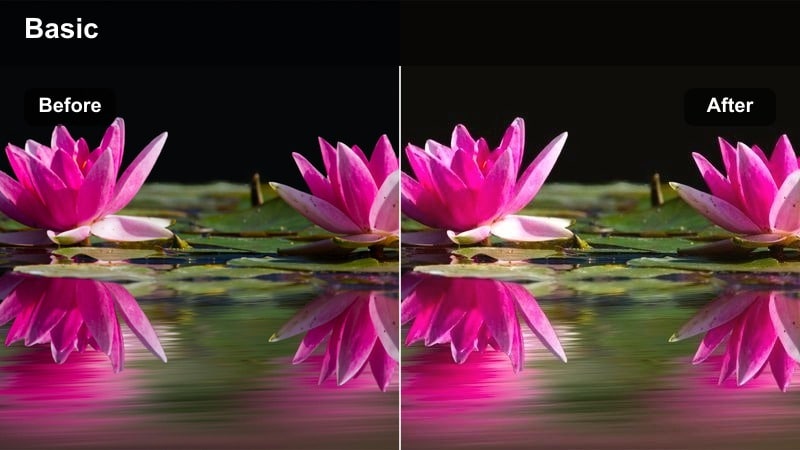
- Effect look: Soft, low-contrast highlight boost with warm tones that mimic first light sneaking through curtains.
- Best for: Wake-up shots, stretching on the bed, pulling open curtains, and quiet close-ups of your face in early light.
- Editing tip: Lower contrast slightly, raise exposure just a touch, add a warm temperature shift, and apply a subtle vignette to keep focus toward the center.
Gentle Sunrise Glow is perfect when you want your bedroom scenes to feel like real sunrise without needing perfect weather outside. In Filmora, start by brightening your clip slightly, then warm up the color temperature until skin tones look cozy but still natural. The low contrast and lifted highlights help mimic that soft, filtered light that comes through sheer curtains.
To keep the mood cinematic, add a mild vignette in the Effects panel so your viewers eyes stay on your face while you wake up, stretch, or pull back the curtains. If your camera profile is a bit flat, increase saturation only in the midtones so blankets, pillows, and hair color look alive without creating harsh color blocks. For consistency, copy these settings to all your wake-up clips and tweak only exposure per shot.
Build a Consistent Morning Palette with Filmora’s AI Tools
Instead of grading each morning clip individually, let Filmora’s AI color tools do the heavy lifting. Tune one hero bedroom shot with your Gentle Sunrise Glow style, then use AI color match so all your other wake-up, skincare, and balcony clips follow the same cozy palette.
This keeps whites, skin tones, and background colors aligned even when you film on different days or under changing window light. You get a recognizable Morning Routine Vlog Filter look that feels professional and bingeable across episodes.
 secure download

Fine-Tune Color With HSL for a Softer Morning Look
Once your base palette is matched, use Filmora’s color controls and HSL adjustments to gently refine each morning scene. Desaturate harsh yellows or greens from indoor lighting and keep skin tones smooth so every shot feels soft and flattering.
This targeted control is especially useful when your morning routine moves from warm bedroom light to cooler bathroom tiles or outdoor sidewalks, helping you maintain a unified aesthetic without losing natural color detail.
secure downloadCustomize Morning Filters in the Filmora Effects Panel
In Filmora, you can stack glow, color correction, and vignette effects to recreate any of these Morning Routine Vlog Filter styles. Save your favorite combination as a custom preset, so every new morning vlog gets the same polished look with one click.
Create small variations for different scenes, such as a brighter version for planner flatlays or a deeper, warmer look for coffee b roll. Keeping them under one preset family name makes your routine fast and your channel branding consistent.
secure downloadLinen Morning Minimal
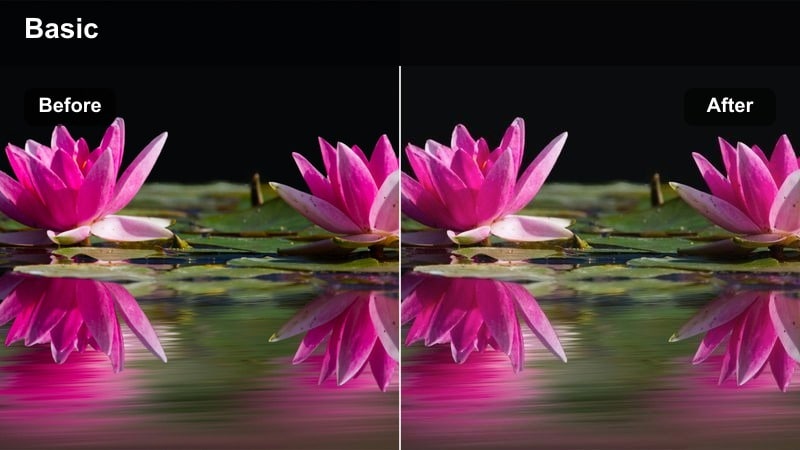
- Effect look: Soft, matte whites with slightly muted colors for a clean, minimalist bedroom aesthetic.
- Best for: Filming neutral-toned sheets, bedside tables, journals, and minimalist decor during quiet morning shots.
- Editing tip: Reduce saturation in yellows and greens, add a light fade in the shadows, and keep sharpness low to maintain a cotton-soft texture.
Linen Morning Minimal works well when your room is styled with neutrals, beige, and white decor, and you want the frame to feel airy rather than high contrast. In Filmora, add a slight fade to blacks using color curves or basic color tools, then gently lower saturation so linens, walls, and furniture appear soft and cohesive.
This look is ideal for aesthetic b roll, such as close-ups of sheets, a nightstand, or a morning journal session. Keep sharpness and clarity modest so fabric textures remain cozy, and if your lighting is artificial, push temperature toward neutral while taming yellow and green channels in HSL for cleaner, editorial-style frames.
Slow Awakening Neutral
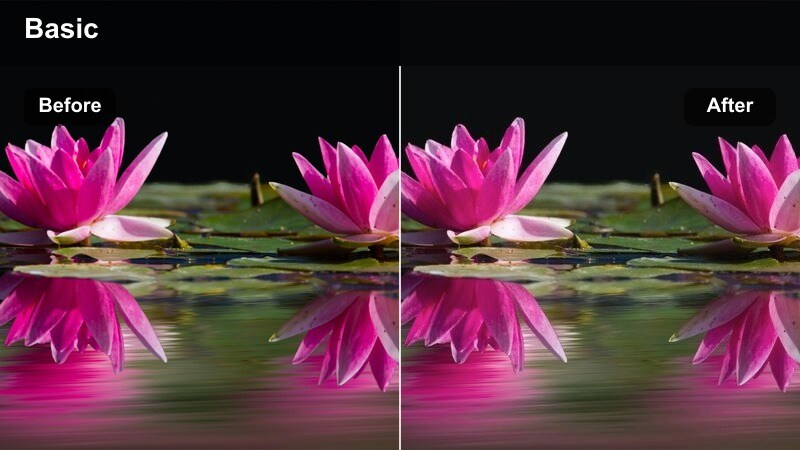
- Effect look: Balanced, true-to-life color with gentle contrast that feels calm and documentary-style.
- Best for: Real-time shots of getting out of bed, opening blinds, and placing slippers on the floor with a natural look.
- Editing tip: Keep saturation close to default, refine skin tones with HSL, and adjust exposure individually per clip to avoid flickering brightness between cuts.
Slow Awakening Neutral is for creators who prefer a realistic, vlog-first feel without heavy stylization. In Filmora, leave overall saturation near default, then make small tweaks in the color panel to smooth out skin tones and keep walls and furniture close to what they look like in real life.
Because neutral grading highlights continuity, use one well-lit reference clip to set your contrast and white balance, then copy those settings to other bedroom shots. Only adjust exposure per clip to correct for minor camera shifts. This keeps your waking-up sequence from feeling jumpy or overly processed while still looking polished and cohesive.
Bathroom Skincare and Coffee Corner Shots
Steam and Mirror Soften
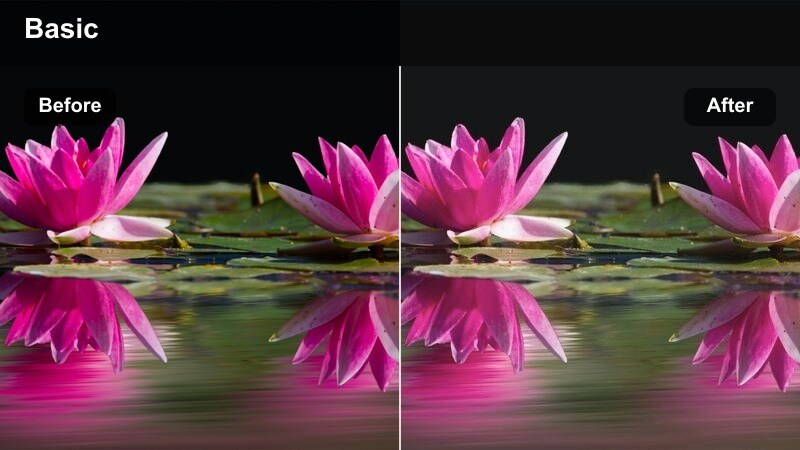
- Effect look: Low-clarity, softly glowing highlights that mimic steam and bathroom haze without losing facial features.
- Best for: Brushing teeth, skincare routines, and mirror talk segments under typical bathroom lighting.
- Editing tip: Slightly reduce clarity, increase highlight softness, and push temperature a touch warmer to balance the cool tone of most bathroom lights.
Steam and Mirror Soften is ideal when you want your bathroom to feel spa-like and gentle, even if your actual lighting is a bit harsh. In Filmora, add a softening or glow effect to the highlights and reduce clarity so the edges of tiles, lights, and the mirror soften just enough to look dreamy.
Because bathrooms tend to be cool and clinical, raise the temperature slightly to introduce warmth back into skin, while avoiding overly orange tones. Use Filmora’s masking and sharpening on your eyes and mouth to keep expressions clear, so viewers can follow your skincare steps while still enjoying the hazy, relaxed mood.
Clean Tile Cool Tone
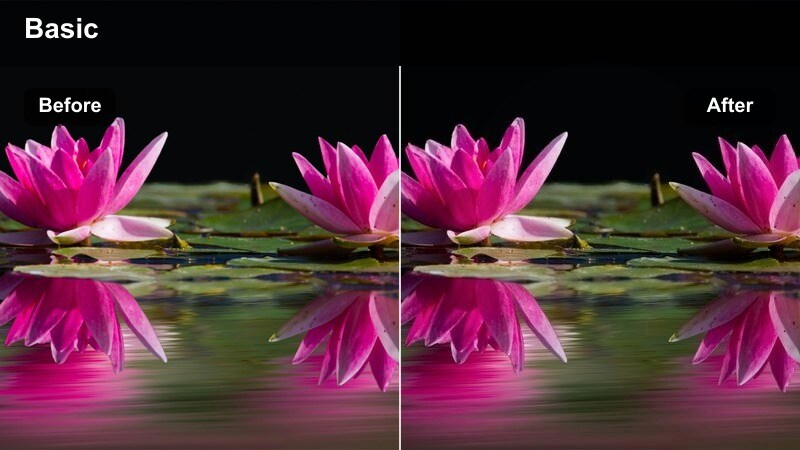
- Effect look: Cool, crisp whites with boosted clarity and subtle teal shadows for a polished, refreshing feel.
- Best for: Close-ups of sinks, faucets, tiles, and handwashing shots that should feel fresh and hygienic.
- Editing tip: Drop temperature slightly, increase clarity and micro-contrast, then desaturate oranges just a bit to stop skin from looking too warm against cool tiles.
Clean Tile Cool Tone gives your bathroom b roll a fresh, almost commercial finish that emphasizes water, glass, and ceramic details. In Filmora, cool down the white balance, lift clarity, and add subtle contrast so water droplets and faucet reflections stand out crisply.
Because cooler grading can make skin tones clash, lightly desaturate oranges and balance them with a small tint adjustment so your hands still look natural. This filter is great for cutaways showing running water, soap lather, or tidy tile surfaces that break up the narrative of your morning routine while reinforcing a clean, energized vibe.
Espresso Warm Focus
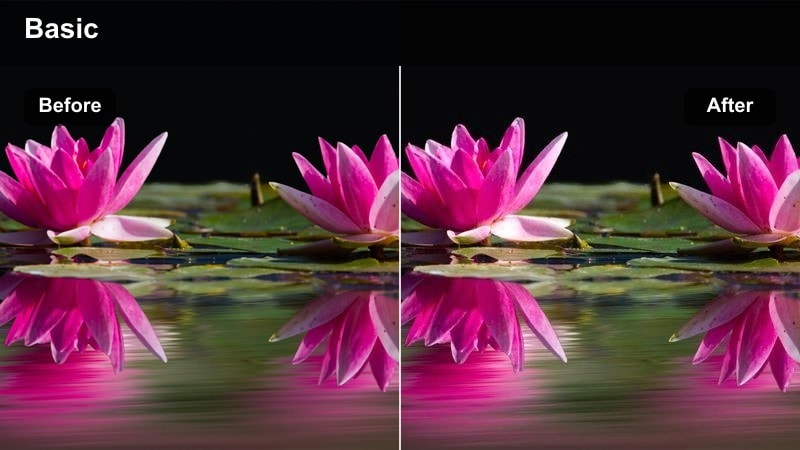
- Effect look: Warm, rich midtones with a slight vignette that draws attention to your hands and mug at the coffee corner.
- Best for: Pouring coffee, setting mugs on a counter, or filming your first sip at a small kitchen or coffee station.
- Editing tip: Increase warmth and midtone contrast, add a subtle vignette, and lightly raise saturation in reds and browns to emphasize mugs and coffee details.
Espresso Warm Focus centers your coffee ritual as the emotional anchor of your morning vlog. In Filmora, push warmth into the midtones and raise saturation for reds and browns so coffee, wooden counters, and mugs feel rich and comforting.
Add a mild vignette to subtly darken the frame edges and keep the viewers attention on your hands, pour, and first sip. This filter works especially well on close-up b roll, but also on wider shots of your coffee corner, tying them together into one cozy, inviting sequence that viewers begin to associate with your channel.
Desk Planning and Productive Start Scenes
Planner Flatlay Bright
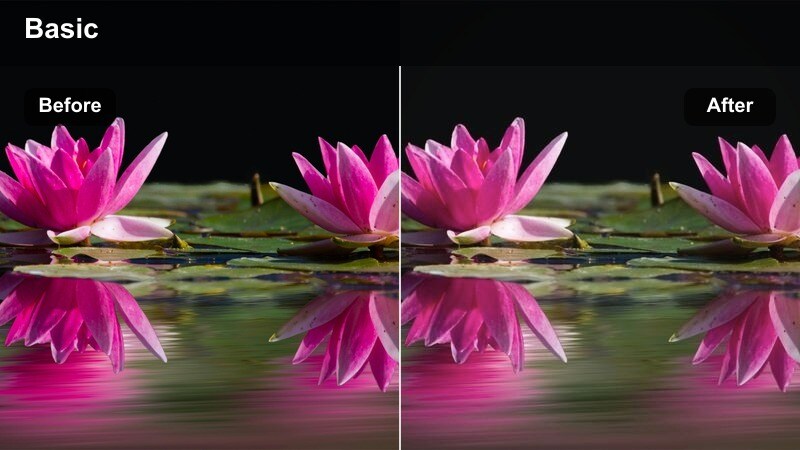
- Effect look: High-key exposure with clean whites and subtle pastel saturation for overhead desk shots.
- Best for: Filming planners, notebooks, laptops, and pens from above on a bright desk or table.
- Editing tip: Increase exposure and whites, slightly lower contrast, and gently boost saturation in pastel tones without blowing out text on the page.
Planner Flatlay Bright is made for top-down desk compositions where you want the page and stationery to look crisp and optimistic. In Filmora, raise exposure and whites until your desk feels airy, then lower overall contrast slightly so shadows under pens or hands do not become too harsh.
Boost saturation gently in pastel colors like pinks, blues, and light greens so stickers, highlighters, and planner accents pop just enough on screen. Use the scopes or histogram to avoid clipping paper whites, ensuring that lines and writing in your planner remain legible even at a bright, high-key setting.
Focused Keyboard Cool
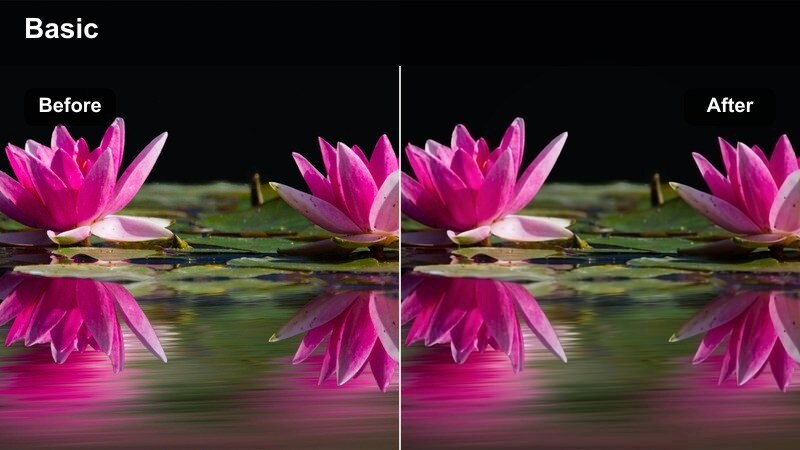
- Effect look: Slightly cool, contrasty look with crisp details for typing and productivity shots.
- Best for: Keyboard close-ups, working on a laptop, and productivity segments that should feel focused and energetic.
- Editing tip: Increase clarity and sharpness, cool the temperature a bit, and selectively boost blues in the shadows for a tech-oriented tone.
Focused Keyboard Cool shifts your desk scenes into a more productive, tech-forward mood. In Filmora, lower the color temperature slightly and add clarity and sharpness so keycaps, hands, and desk textures appear clean and precise.
Adding a touch of blue to the shadows and raising contrast will help typing clips feel snappy and purposeful, especially when cut to upbeat music. Keep skin tones in check by slightly reducing orange saturation if they become too warm against the cooler environment, ensuring the clip feels modern without looking cold or uninviting.
Notion Screen Soft Neutral
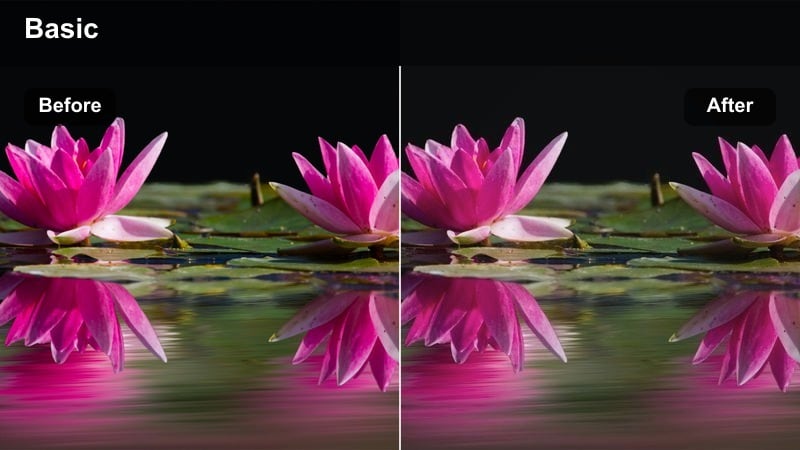
- Effect look: Soft, neutral color grading that keeps screen content legible while reducing harsh blue light.
- Best for: Screen recordings or over-the-shoulder shots of planning apps, calendars, or to-do lists on a monitor or laptop.
- Editing tip: Lower saturation of blues slightly, reduce contrast, and fine-tune gamma so on-screen text stays clear without glowing too bright.
Notion Screen Soft Neutral is designed to make digital planning segments easy on the eyes while keeping text and UI elements readable. In Filmora, gently lower blue saturation and reduce contrast so your laptop or monitor does not emit a harsh blue cast on camera.
Adjust midtones and gamma to ensure both your face and the on-screen content are visible, especially if you are filming over-the-shoulder. If needed, use masks to independently fine-tune the brightness of the screen area, making app interfaces clear and sharp without blowing out light backgrounds or fatiguing viewers with too much brightness.
Hallway, Balcony, and Casual Morning Walk Scenes
Hallway Transition Warm
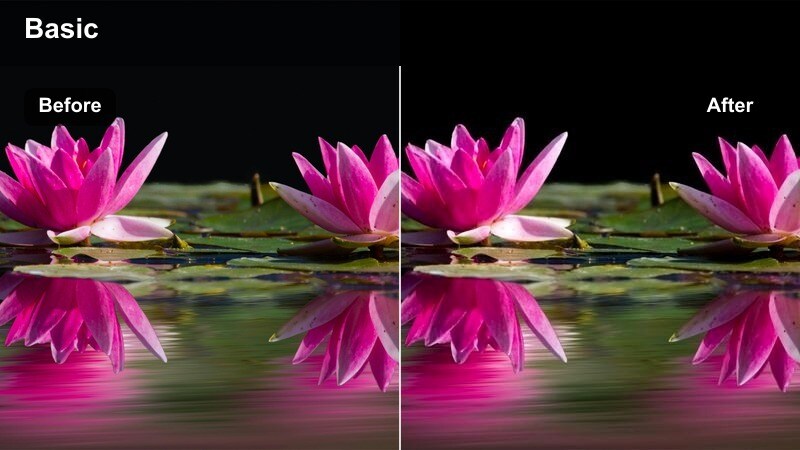
- Effect look: Gently warm tones with moderate contrast to smooth transitions between indoor rooms.
- Best for: Walking through hallways, grabbing keys, putting on shoes, and quick transition shots between spaces.
- Editing tip: Add a small warm shift, lift shadows slightly, and keep saturation moderate so clips blend nicely with both bedroom and outdoor scenes.
Hallway Transition Warm helps connect different parts of your home so that moving from bedroom to front door feels like one continuous visual story. In Filmora, apply a light warm tint and lift the shadows a bit to keep narrow hallways from looking too dark or contrasty.
Because these shots often act as transitions, avoid extreme grading; instead, aim for a balanced warmth that can sit comfortably next to both cozy bedroom clips and brighter outdoor scenes. Small stabilization adjustments can smooth handheld movement, while consistent color treatment ensures each cut feels like part of the same calm morning flow.
Balcony Soft City Morning
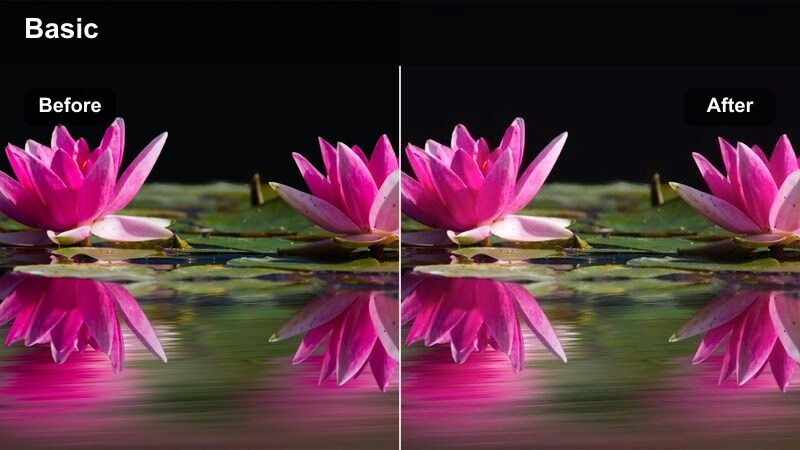
- Effect look: Soft, low-contrast highlights with a balanced mix of warm skin tones and cooler city backgrounds.
- Best for: Balcony clips of sipping coffee, looking at the skyline, or filming a quick morning check-in with the city behind you.
- Editing tip: Reduce contrast slightly, brighten shadows, and separately tame saturation in blues so the sky or buildings do not overpower your face.
Balcony Soft City Morning balances your presence with the urban backdrop, keeping the skyline visible without stealing the frame. In Filmora, lower contrast and lift shadows so details in both your face and the cityscape stay clear, especially if you are slightly backlit.
Use HSL or color wheels to reduce saturation in blues and cyans if the sky or buildings become too dominant. This keeps viewers focused on your check in or coffee moment while still appreciating the sense of place. Saving this as a preset will help your balcony intros look consistent across different episodes and weather conditions.
Neighborhood Walk Fresh
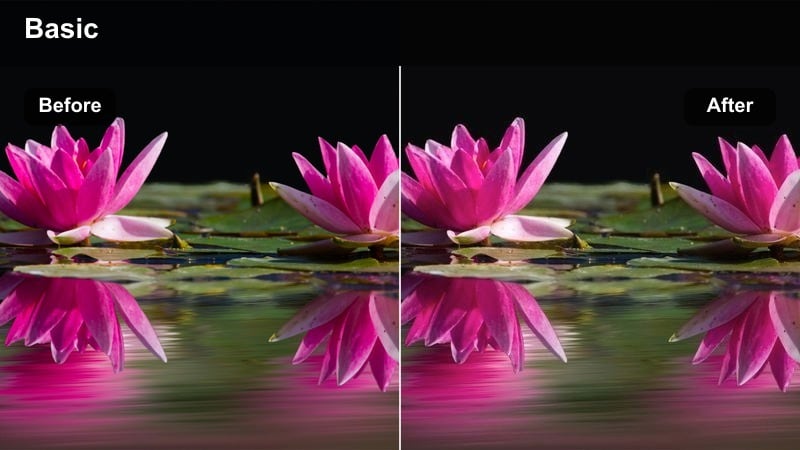
- Effect look: Bright, slightly cool tones with natural saturation that make sidewalks, parked cars, and buildings feel airy and awake.
- Best for: Casual morning walk vlog segments through city streets or quiet residential blocks.
- Editing tip: Raise exposure and shadows, cool the white balance slightly, and keep greens and reds under control so street signs and cars do not distract.
Neighborhood Walk Fresh is tailored to outdoor walking clips where you want the world to look awake but not overly stylized. In Filmora, brighten the footage and introduce a mild cool shift so the morning light feels crisp and energizing.
Use HSL to tame oversaturated greens from trees or grass and strong reds from cars or signage, keeping the overall palette calm and viewer friendly. Apply stabilization first, then color grade, so the filter reinforces a smooth, relaxed walking pace that nicely caps off your morning routine.
Tips for Using Morning Routine Vlog Filter Filters in Filmora
- Film your full morning on one main camera profile so your Filmora filters respond consistently across bedroom, bathroom, and outdoor clips.
- Save separate versions of your Morning Routine Vlog Filter for indoor, desk, and outdoor scenes to handle different lighting while keeping one overall mood.
- Record short test clips in each location before your actual routine, then apply your preset in Filmora to see how it handles color shifts and adjust as needed.
- Use skin tones as your main reference when changing warmth and saturation; if faces look natural, the rest of the scene will usually fall into place.
- Rely on Filmora’s AI color match to quickly unify different scenes, then fine-tune each clip with small exposure and white balance tweaks.
- Limit each vlog episode to one or two core filter families so your story feels visually cohesive from wake up to neighborhood walk.
- Save updated versions of your presets as your style evolves, but keep naming consistent so you can easily reuse looks that resonate with your audience.
A well-designed morning routine vlog filter helps content creators keep their daily uploads visually consistent, cozy, and easy to watch from the first alarm to the final sidewalk shot.
Build your own Morning Routine Vlog Filter in Filmora using the scene-based looks above, then refine it over a few episodes until it becomes a recognizable part of your channel’s visual style.
secure download