

 100% Security Verified | No Subscription Required | No Malware


 ChatGPT
 Perplexity
 Gemini
 Claude
 Grok
Grok
Mountain light changes fast, and getting your footage to look as dramatic as the view can be tough. Well chosen mountain video filters in Filmora help you keep snow bright, skies rich, and rocky textures crisp without turning your hiking clips into overedited cartoons.
Below you will find 12 Filmora mountain video filters designed for hikers, outdoor videographers, and travel vloggers who shoot mountain hikes, alpine landscapes, and peak shots. Use them as ready made presets or starting points to build your own signature alpine color grade.
In this article
Crisp Daylight Ridge Looks
Alpine Clear Sky
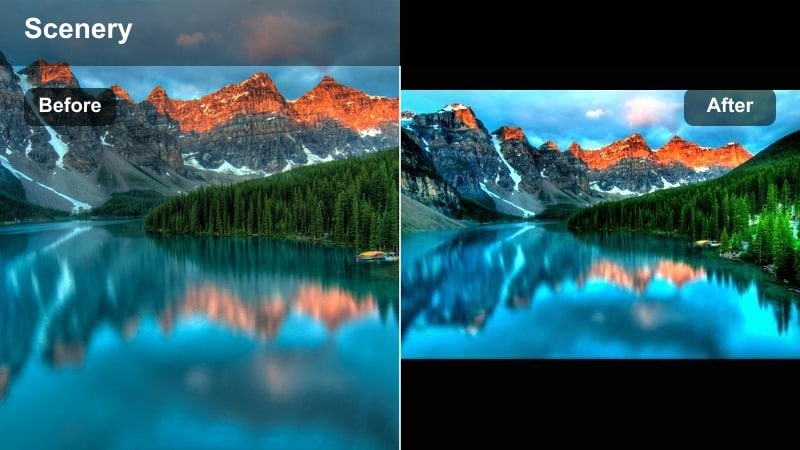
- Effect look: Clean, high contrast look that deepens blue skies and keeps snow and rock details sharp without crushing shadows.
- Best for: Wide establishing shots of clear blue sky days on exposed ridges or open alpine meadows.
- Editing tip: Reduce overall contrast slightly if hikers wear dark jackets so you keep detail in their faces while preserving the punchy sky.
This versatile clear weather mountain video filter makes blue skies richer and adds crisp definition to ridgelines, meadows, and distant peaks. In Filmora, Alpine Clear Sky works well as a one click upgrade for drone passes and wide hiking shots that feel a little flat straight out of camera.
Apply it to your base graded footage, then fine tune contrast and saturation with the Color tools so skin tones remain natural. If the sky becomes too intense, pull back blue saturation and nudge highlights up so the scene still feels like a realistic day in the mountains instead of a heavy HDR effect.
Speed up mountain grading with Filmora’s AI color tools
Instead of adjusting every slider from scratch, start with Filmora’s AI color options to quickly balance exposure and white balance on your hiking clips. AI can neutralize strange color casts from mixed light, haze, or snow glare before you add any creative mountain filters.
Once the base is corrected, apply your favorite mountain video filters or mountain LUT combinations to add the alpine color grade and mood you want. This workflow helps you move faster on big projects while keeping your ridges, lakes, and summit shots looking consistent.
 secure download

Preview mountain video filters in real time
Filmora lets you hover over filters in the Effects panel to preview mountain looks instantly on your selected clip. You can quickly compare different alpine grades like neutral documentary, teal and orange, or stormy desaturated styles without committing.
Load a ridge shot, a lake scene, and a talking clip in your timeline, then move your cursor over several filters to see how each one treats sky, rock, and skin tones. When you find a combo you like, apply it as your base look for the entire hike.
secure downloadCombine filters with mountain LUTs for custom styles
For a more refined alpine color grade, stack Filmora filters with a subtle mountain LUT. Lower the intensity of both layers so they blend together, giving you cinematic depth without pushing colors too far.
This flexible approach lets you adapt to changing light on long mountain days. You can keep the same LUT across a project, then swap filters on top for sunny ridges, misty forests, or golden hour summits and save each combination as a reusable preset.
secure downloadGranite Trail Pop
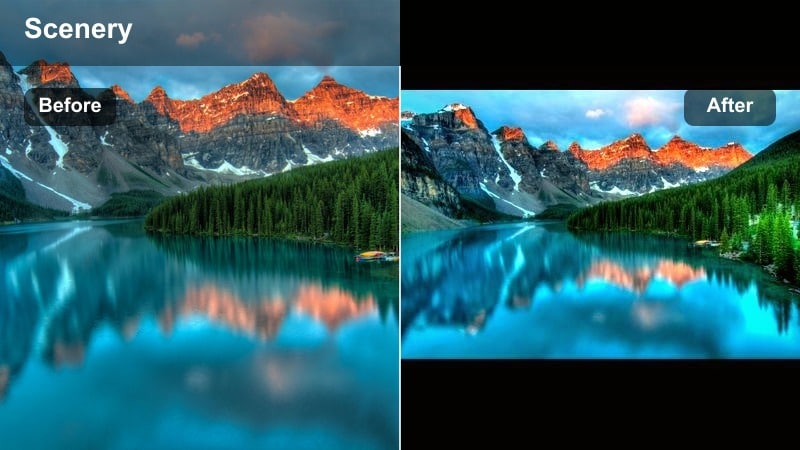
- Effect look: Punchy midtone contrast with boosted warm tones to make gray rocks and dusty switchbacks feel more alive.
- Best for: Daytime hiking footage on rocky trails, boulder fields, and granite slabs where textures matter.
- Editing tip: Use keyframed exposure adjustments when you move in and out of shade so the strong contrast stays consistent between trail sections.
Granite Trail Pop is designed to make rocky terrain stand out with more energy and depth. In Filmora, this filter pushes midtones and warmth, helping flat gray stone, gravel, and dust pick up color and texture without blowing out bright areas.
Apply it to trail level shots, boots on rock, and handheld clips weaving through boulders. Then use Filmora keyframes on exposure or brightness to smooth transitions between shaded and sunlit sections so the filter feels consistent across your entire ascent.
Ridge Wind Neutral
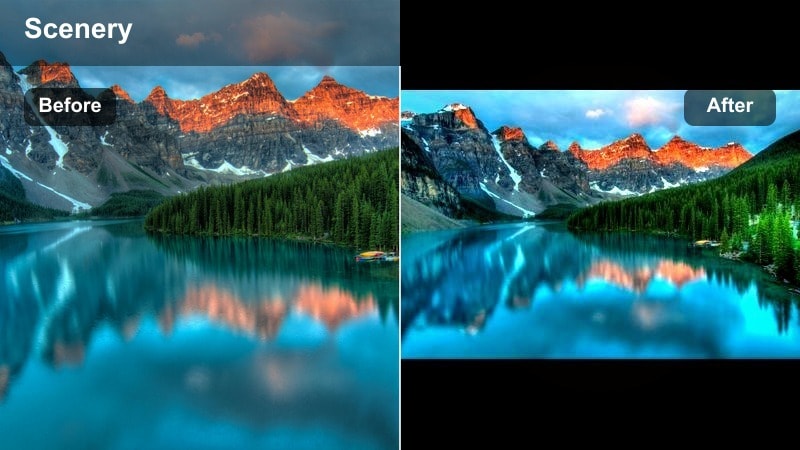
- Effect look: Natural, balanced color grade that tames harsh midday sun while keeping grass, rock, and sky tones true to life.
- Best for: Documentary style ridge walks, talking to camera segments, and travel vlog B roll shot in hard light.
- Editing tip: Slightly lower saturation but increase clarity to maintain a documentary feel without making the scene look washed out.
Ridge Wind Neutral is your go to filter for honest, documentary style coverage when the sun is high and contrasty. It softens extreme highlights and evens out colors so your hiking story feels real but still polished.
Use it across full episodes that jump between ridges, meadows, and quick interviews on the trail. In Filmora, save the adjusted look as a custom preset so you can apply the same neutral grade on future hikes for a consistent channel identity.
Golden Hour Summit Filters
Summit Gold Glow
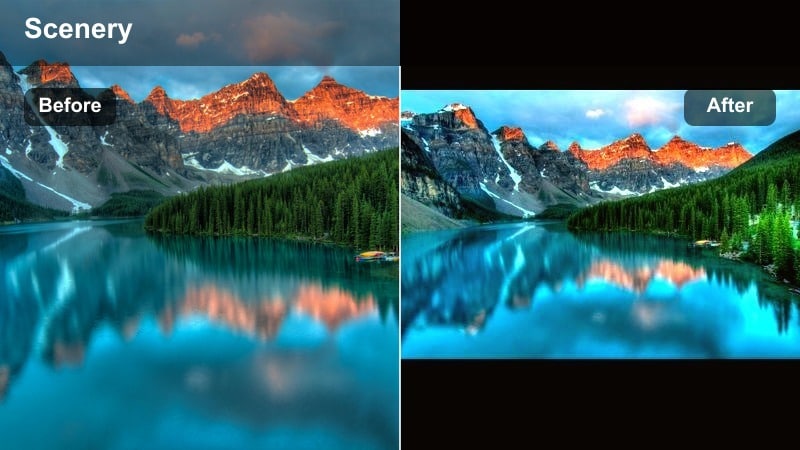
- Effect look: Warm, glowing highlights with soft contrast that wrap your subject in gentle golden light.
- Best for: Sunrise or sunset peak shots, camp scenes near the summit, and emotional reveal moments.
- Editing tip: Push temperature slightly warmer only if the sun is visible in frame; keep it neutral on cloudy golden hours to avoid orange skin.
Summit Gold Glow amplifies the natural warmth of sunrise and sunset, turning simple summit clips into cinematic hero moments. It gently softens contrast so faces, jackets, and ridge edges feel wrapped in golden light instead of harshly lit.
In Filmora, drop this filter on your best reveal shots, drone orbits, and slow pans over camp. Then open the HSL or Color panel to pull back orange saturation if skin tones creep toward overcooked, keeping your hikers looking natural under dramatic skies.
Peak Silhouette Cinema
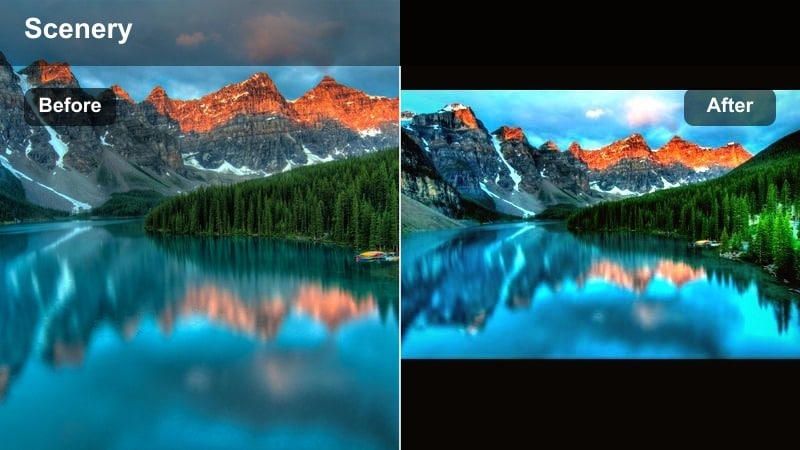
- Effect look: High contrast, moody silhouette effect that sets hikers and ridgelines against dramatic sunset skies.
- Best for: Backlit summit shots, ridge lines, and drone passes where the sky is brighter than the landscape.
- Editing tip: Drop blacks further only if the horizon is clean; keep a bit of shadow detail when there are trees or rocks you want to see.
Peak Silhouette Cinema is built to turn backlit hikes into bold graphic shapes against glowing skies. It crushes shadows just enough to create strong outlines while preserving color in the clouds and horizon.
Use it in Filmora on clips where the sky is the star and your hikers are secondary. Adjust black levels and curves to control how deep the silhouettes go, and add a tiny bit of noise if you see banding in smooth gradients before exporting for social platforms.
Alpine Ember Fade
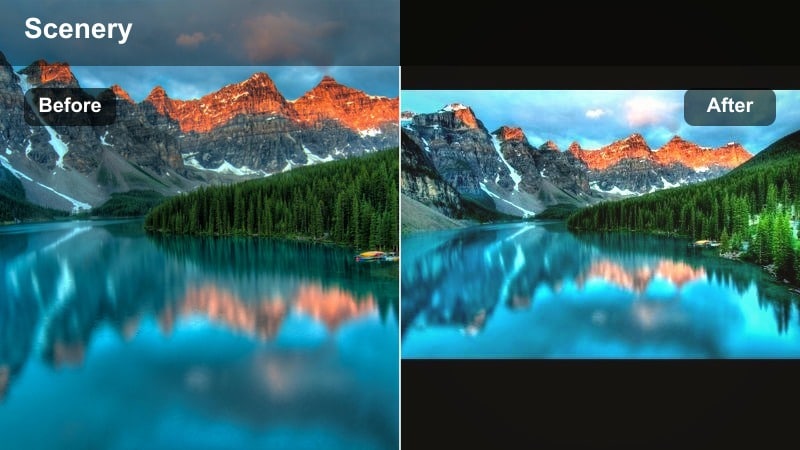
- Effect look: Muted shadows with gentle warm highlights and a slight fade that gives your footage a nostalgic film inspired tone.
- Best for: Campfire moments above tree line, quiet tent shots, and reflective hiking monologues at dusk.
- Editing tip: Raise blacks a little more if you want a dreamy diary feel, or lower them for a slightly more modern cinematic look.
Alpine Ember Fade leans into soft, nostalgic moods, perfect for storytelling clips where action slows down. The faded blacks and warm highlights echo film stock, making lanterns, stoves, and campfires feel cozy against the cool evening air.
Drop it onto tripod shots, gear closeups, and intimate conversations in Filmora. Then fine tune the fade level with the Curves and Color controls to match your narrative tone, from dreamy travel diary to more grounded documentary style.
Misty, Snowy, and Stormy Mountain Looks
Cloudline Mist Soft
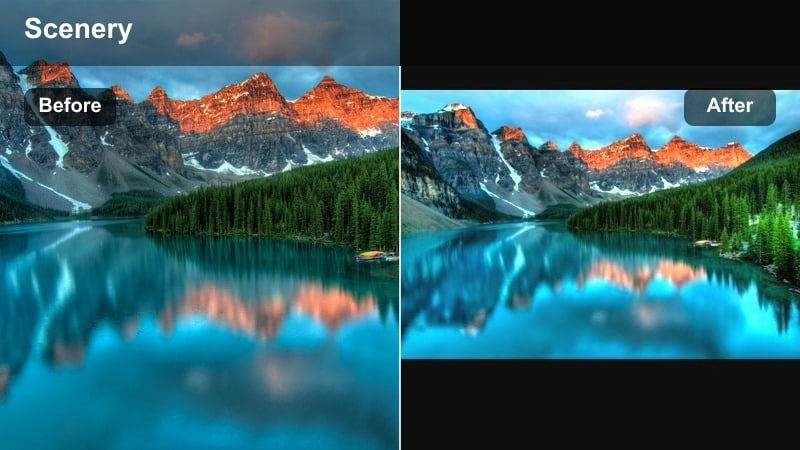
- Effect look: Low contrast, cool toned look that adds softness to fog, cloud inversions, and rainy ridges.
- Best for: Cloudy switchbacks, fog filled valleys, and moody forest to alpine transitions on stormy days.
- Editing tip: Increase local contrast only on your subject to keep hikers from disappearing into the misty background.
Cloudline Mist Soft enhances the atmosphere of foggy or rainy days by lowering contrast and cooling the overall palette. It helps you lean into the mood of low visibility and shifting clouds instead of fighting to make everything bright.
In Filmora, pair this filter with selective adjustments or masks to gently boost clarity and contrast around faces and jackets. That way your hikers stay visible and sharp, while the background remains dreamy and diffused, emphasizing scale and mystery.
Snowfield Crisp Blue
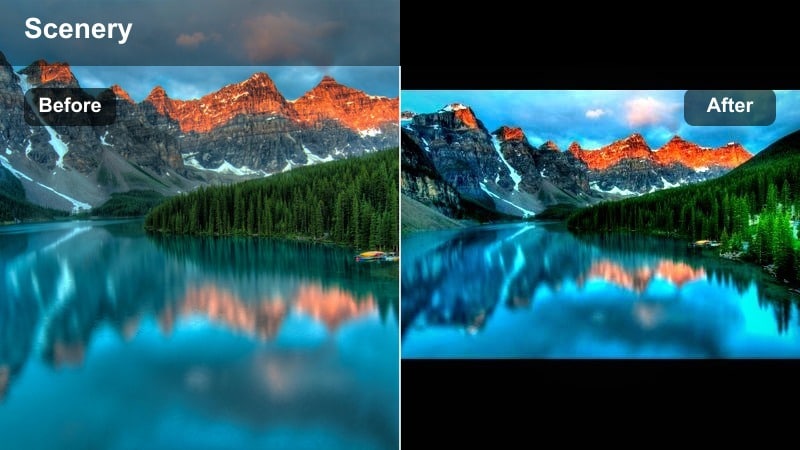
- Effect look: Bright, neutral snow with subtle cyan blues in shadows to keep white fields clean and avoid yellow casts.
- Best for: Winter hiking, ski touring, and glacier travel clips where snow covers most of the frame.
- Editing tip: Use the white balance eyedropper on a patch of clean snow, then apply the filter and fine tune exposure to preserve texture.
Snowfield Crisp Blue is tuned for winter and glacier scenes where snow controls the exposure. It keeps whites bright but not blown out, and slips a hint of blue into the shadows to avoid muddy or yellow snow.
Before adding the filter in Filmora, correct white balance with the eyedropper on neutral snow. Then apply Snowfield Crisp Blue and lower highlights or add a bit of texture so ski tracks, crampon marks, and wind ripples stay visible and crisp.
Storm Ridge Drama
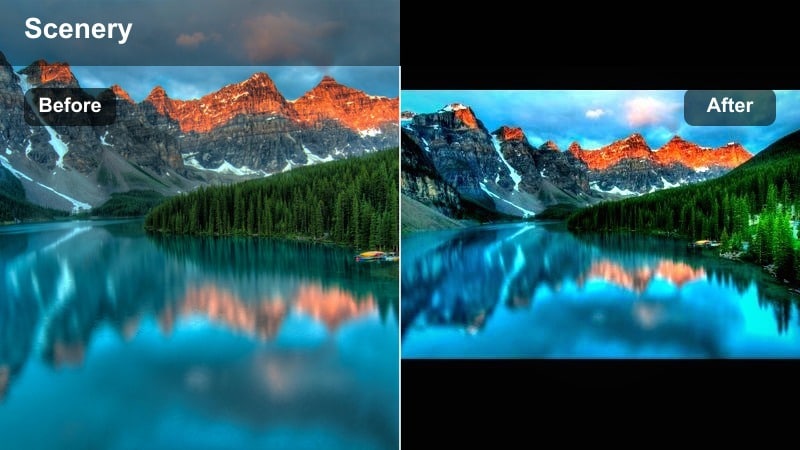
- Effect look: Deep contrast and desaturated colors with a cool tint that emphasizes incoming storms and heavy clouds.
- Best for: Time lapses of storm fronts, gusty ridge walks, and darkening skies over distant peaks.
- Editing tip: Use this filter sparingly on a sequence so the most intense moments stand out from your regular hiking footage.
Storm Ridge Drama is designed to make building weather feel threatening and epic, cooling down colors and deepening shadows. It works especially well on wide shots where clouds stack over jagged ridges or valleys.
In Filmora, save this filter for sections where you want viewers to feel tension, such as approaching rain or sudden wind shifts. Alternate between neutral graded clips and Storm Ridge Drama shots in your edit to clearly show the change in conditions.
Cinematic Mountain Vlog Mixes
Traveler Alpine Teal
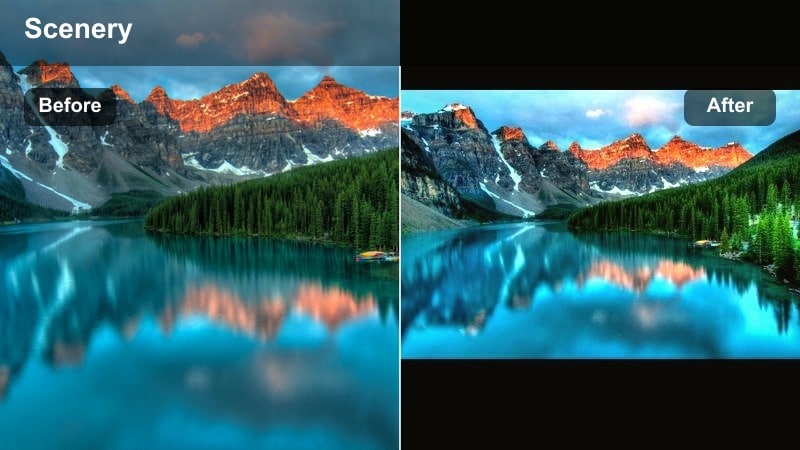
- Effect look: Modern teal and warm color split that makes blue lakes pop and skin tones gently warm for a travel film vibe.
- Best for: Travel vlogs with alpine lakes, blue rivers, and shots that mix city transit with mountain hikes.
- Editing tip: Reduce teal saturation slightly if green forests start to look unnatural, keeping the focus on water and sky.
Traveler Alpine Teal gives your mountain vlog a modern cinematic palette, pushing blues and cyans toward teal while keeping skin tones inviting. It is ideal when your story jumps between turquoise lakes, rivers, and urban transitions.
Apply it as a base look in Filmora across your full trip edit, then use the HSL panel to moderate greens so forests do not turn too neon. Save different variations for city heavy, forest heavy, or glacier trips to keep your overall style consistent but adaptable.
Peak Journal Soft Film
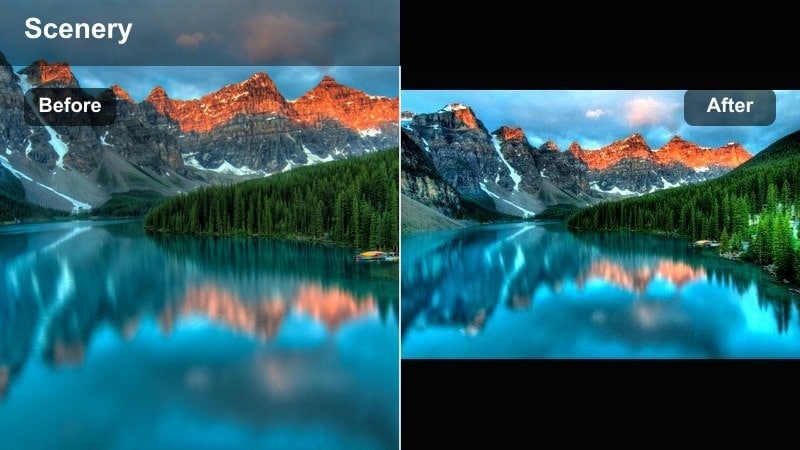
- Effect look: Soft highlights, lifted blacks, and a hint of grain that mimic a subtle 35mm film scan for personal story segments.
- Best for: Voiceover sequences, packing shots, and reflective moments on the trail or at scenic viewpoints.
- Editing tip: Keep motion blur natural by avoiding extra blur effects so handheld hiking shots still feel grounded and real.
Peak Journal Soft Film is made for introspective storytelling, adding a gentle filmic softness and slight grain to your shots. It works best on slower footage like journaling, packing, or looking out over a valley while recording voiceover.
In Filmora, reserve this look for narrative sections to clearly separate them from action sequences. Combine the filter with subtle grain and quiet background music so the visuals and audio both support a diary like feel.
Ridge Runner Action
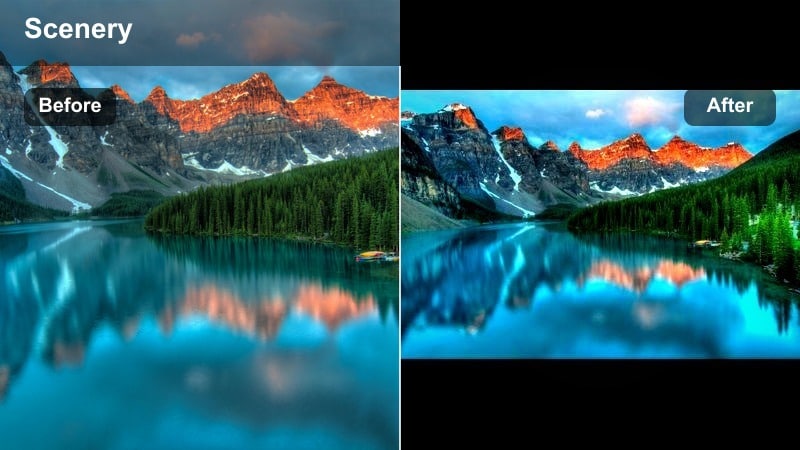
- Effect look: High clarity, controlled saturation, and slightly cooler shadows that emphasize motion and athleticism.
- Best for: Fast paced trail running, scrambling, drone chases, and dynamic gimbal moves along ridges.
- Editing tip: Increase shutter speed in camera and add only very light sharpening to keep movement crisp without jittery edges.
Ridge Runner Action is tuned for speed and motion, adding crispness and cool depth to fast moving shots. It keeps saturation controlled so colorful gear still looks natural while movement and muscle definition stand out.
Apply it to your trail running, scrambling, and chase sequences in Filmora, then cut to the beat of energetic music. Add only subtle sharpening and avoid heavy motion blur effects to maintain a clean, athletic aesthetic from start to finish.
Tips for Using Mountain Video Filter Filters in Filmora
- Shoot a simple gray card or patch of neutral gear at the start of your hike so you can quickly dial in white balance before applying filters.
- Group similar lighting conditions on your timeline and apply the same mountain video filter to each batch for faster, more consistent grading.
- Lower filter intensity to around 60 to 80 percent when editing for YouTube so compression artifacts do not exaggerate strong color shifts.
- Export a short one minute test cut with different filters and watch it on your phone outdoors to see which alpine look feels most natural.
- Save your favorite combinations of exposure tweaks, filters, and LUTs as custom presets like sunny ridge or storm valley for reuse.
- Use Filmora keyframes to gradually adjust filter intensity when walking from bright ridges into shaded forests to keep transitions smooth.
- Check scopes like waveform and vectorscope when grading snow and sky so your mountain filters stay cinematic without clipping highlights.
- Duplicate an adjustment layer with your preferred mountain filter across multiple clips to update an entire sequence with one tweak.
Mountain video filters are a fast way to turn raw hiking clips into polished alpine stories, whether you are shooting quick peak shots or multi day travel vlogs.
Use the presets above as starting points, then fine tune contrast, saturation, and filter intensity in Filmora until your mountain landscapes look as powerful as they felt in person.
secure download