

 100% Security Verified | No Subscription Required | No Malware

This collection of Filmora filters is inspired by movie color LUT cinematic style, giving content creators quick one-click looks that feel like professional color grading.
Use these presets to shape contrast, color, and atmosphere so your footage instantly feels like a polished film, even when you are working on tight deadlines.
In this article
Urban Dusk Dramas
Neon Noir Streets
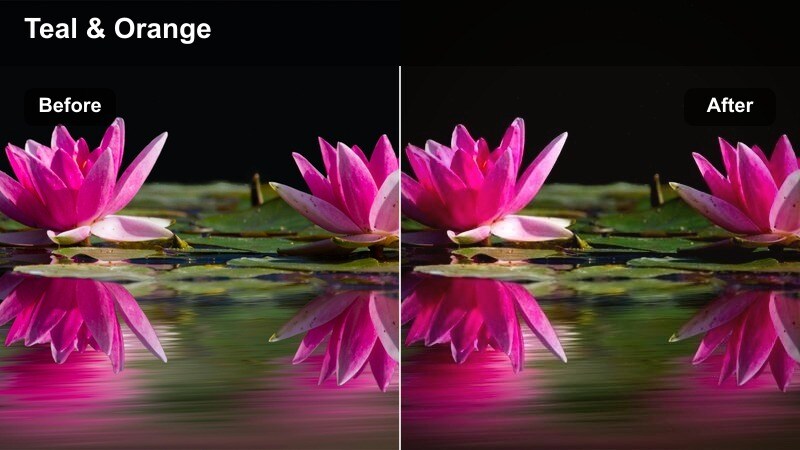
- Effect look: Deep teal shadows and saturated neon highlights that turn night city scenes into a stylized crime thriller.
- Best for: Night city b-roll, cyberpunk vlogs, moody street narratives, and rainy downtown sequences.
- Editing tip: Lower overall exposure slightly and add a subtle vignette so the neon colors pop without clipping.
Neon Noir Streets pushes city lights into rich teals and magentas, echoing the look of stylized crime dramas and cyberpunk films. Applied in Filmora, it instantly transforms flat night footage into a heightened cinematic world, with deep, moody shadows that make glowing signs and reflections the star of the frame.
Use this filter on wet pavement, reflective windows, and narrow alleyways where neon and streetlights create natural highlights. In Filmora, refine the look by adjusting exposure and vignettes, then fine-tune skin tones with HSL so characters stay believable while the environment leans into a bold movie-inspired palette.
Speed Up Grading with AI-Powered Color Matching
Filmora can analyze a reference frame that uses your favorite movie color LUT cinematic style and automatically push your clip toward a similar palette. This gives you a fast, consistent starting point before you fine-tune with filters like Neon Noir Streets.
Load a still from a film you love, run AI Color Matching, and then stack your chosen cinematic filters on top to refine contrast, saturation, and mood across an entire sequence.
 secure download

Preview Filters in Real Time on Your Timeline
Filmoras real-time preview lets you hover over cinematic filters and see how they will affect your footage instantly. You can test several movie-style looks back to back without applying each one, which is ideal when you are on a tight deadline.
Drop filters onto adjustment layers, toggle their visibility, and compare how different movie color LUT cinematic styles handle motion, lighting changes, and skin tones in your scene.
secure downloadBlend Filters with LUTs for Custom Film Looks
Combine Filmoras cinematic filters with your favorite highlight shadow LUTs to create layered looks that feel unique but are still quick to apply. LUTs can provide the foundation of your color science, while filters shape contrast, depth, and mood.
For a refined result, lower the intensity of both the LUT and the filter until they support each other instead of fighting, then make final tweaks in HSL or Curves for skin tones and critical details.
secure downloadGolden Commute
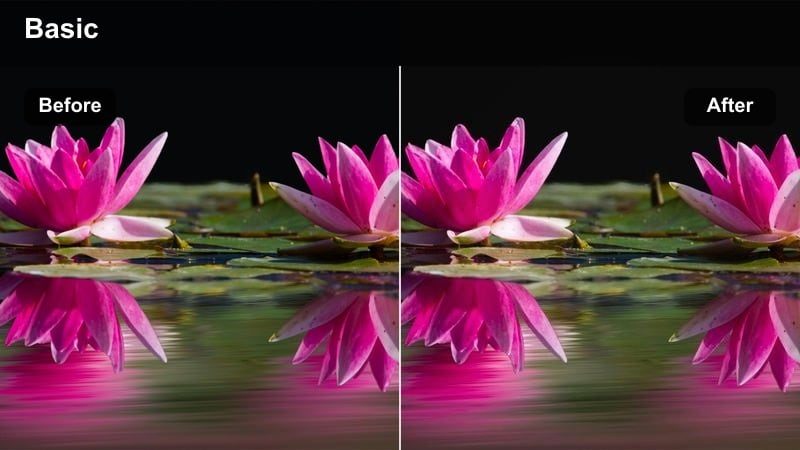
- Effect look: Warm golden highlights with soft lifted shadows that emulate a sunset commute montage.
- Best for: Rush-hour city shots, window reflections, travel vlogs, and romantic city transitions.
- Editing tip: Add slow push-in or lateral motion to static shots so the warm tones feel like a moving cinematic sequence.
Golden Commute wraps your city frames in soft sunset warmth, adding glowing highlights to buildings and subtle lift in the shadows. It turns everyday rush-hour scenes into emotional montage material, ideal for transitions between chapters in your story.
In Filmora, pair this filter with slow camera moves or gentle zooms on b-roll of streets, trains, or car rides. Slightly lower contrast if your source footage is harsh, and use keyframed exposure to maintain a consistent golden glow throughout the sequence.
Subway Thriller
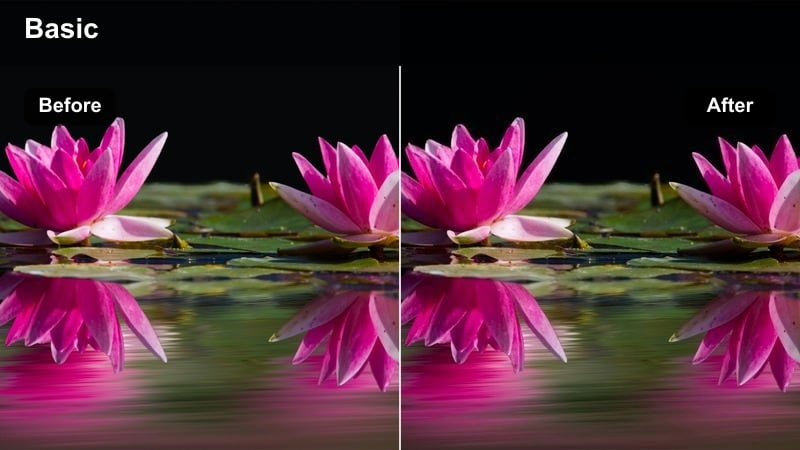
- Effect look: Cool green-tinted midtones with high contrast and subtle grain for tense underground scenes.
- Best for: Subway platforms, underground parking lots, tunnel chases, and suspenseful walk-and-talks.
- Editing tip: Tighten your cuts and add low rumbling ambience so the gritty look amplifies the sense of danger.
Subway Thriller brings a gritty, high-contrast finish with greenish midtones that echo classic psychological and crime thrillers. The added grain and cool cast make fluorescent lighting feel harsh and unforgiving, perfect for underground or enclosed locations.
Apply this filter in Filmora to sequences with repeating lines, tunnels, and shadowy corners, then trim your edits tightly to build momentum. Combine it with ambient rumbles, distant train sounds, and reverb-heavy footsteps in the timeline to fully sell the tension that the color palette suggests.
Intimate Character Studies
Soft Portrait Cinema
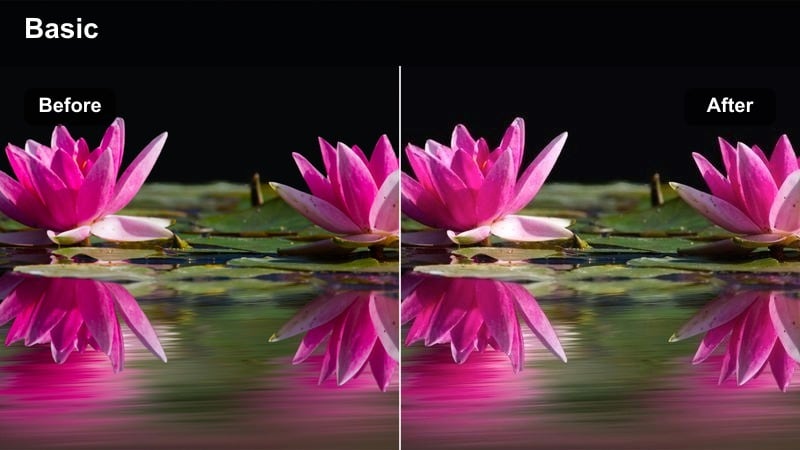
- Effect look: Muted colors, gentle contrast, and slightly lifted blacks that focus attention on faces and emotions.
- Best for: Dialogue scenes, character monologues, lifestyle interviews, and close-up vlogs.
- Editing tip: Use slower cuts and let shots breathe so the subdued color lets viewers read subtle expressions.
Soft Portrait Cinema dials back saturation and contrast so the viewer naturally locks onto a subjects face and eyes. The lifted blacks give a filmic, slightly hazy depth that softens distractions in the background and keeps emotional beats front and center.
In Filmora, apply this filter to A-roll interviews or character-driven vlogs, then tweak white balance and skin tone sliders to maintain a natural complexion. Allow longer shot durations, minimal motion graphics, and gentle music so the calm visual style supports reflective or heartfelt storytelling.
Cool Apartment Drama
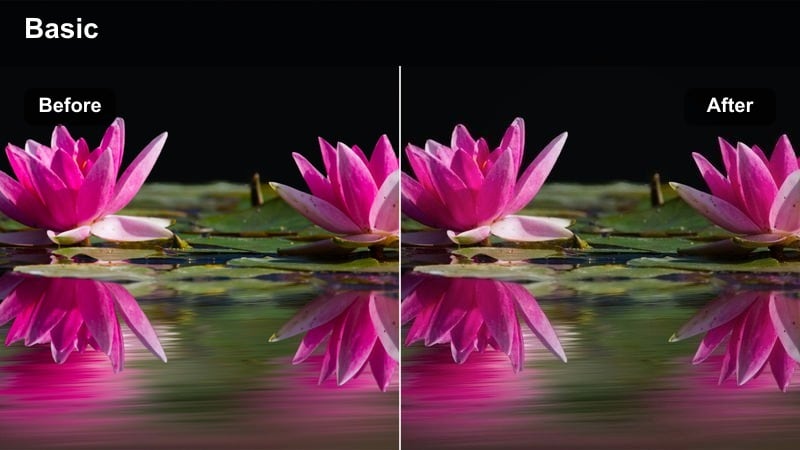
- Effect look: Cool blue shadows and desaturated colors that create a somber, introspective interior mood.
- Best for: Small room scenes, late-night editing shots, quiet character moments, and reflective diary-style vlogs.
- Editing tip: Layer in room tone and subtle ambience to keep the quiet atmosphere from feeling empty or flat.
Cool Apartment Drama leans heavily into blue-tinted shadows and reduced saturation to evoke loneliness, focus, or late-night introspection. It makes computer screens, window light, and practical lamps feel cooler and more isolated within the frame.
Use this filter in Filmora on interior shots where your subject is working alone, journaling, or reflecting. Preserve shadow detail with gentle curve adjustments, and add soft ambient audio loops like city hum or fan noise so the quiet does not feel lifeless, but intentionally intimate.
Warm Café Conversation
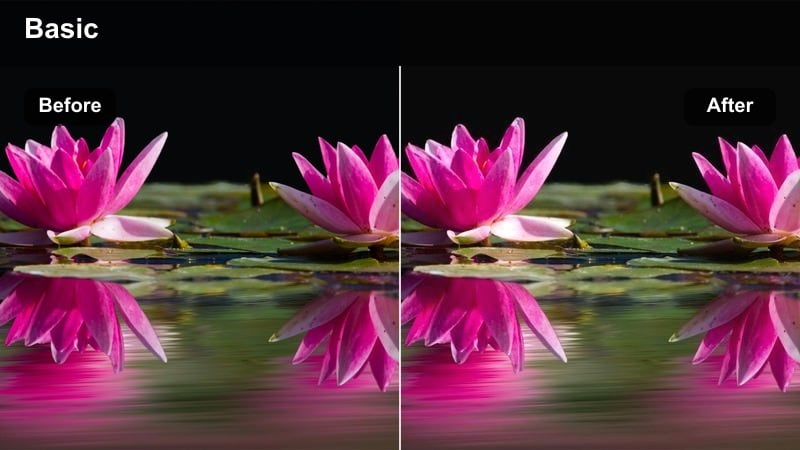
- Effect look: Rich caramel highlights with soft falloff and slightly filmic contrast for cozy interior conversations.
- Best for: Coffee shop scenes, podcast video recordings, casual interviews, and lifestyle chat segments.
- Editing tip: Cut on reactions as well as dialogue so the warm tone supports connection between characters.
Warm Cafe Conversation bathes your interiors in golden, caramel-toned highlights that make table lamps and window light feel inviting. The softer contrast preserves a gentle roll-off in skin tones, giving conversations a friendly, relaxed cinema look.
Apply this filter in Filmora to two-shots, podcast setups, or cafe b-roll when you want to visually emphasize comfort and connection. Expose for your warm practical lights first, then adjust temperature and tint slightly if the image leans too orange while keeping the overall welcoming mood intact.
Epic Outdoor Adventures
Cinematic Road Trip
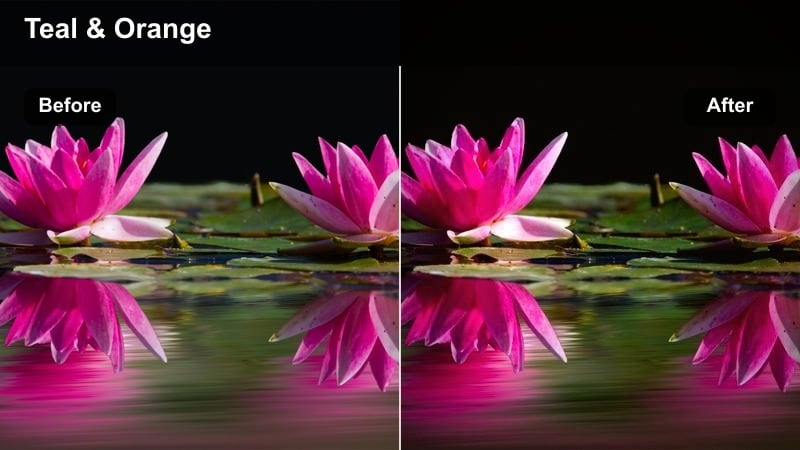
- Effect look: Balanced teal and orange separation with crisp contrast designed for sweeping travel montages.
- Best for: Highway driving shots, drone passes over cities, and fast-cut adventure highlight reels.
- Editing tip: Sync cuts to music beats and use speed ramps to maximize the dynamic feel of the color separation.
Cinematic Road Trip delivers the familiar teal-and-orange blockbuster palette, separating skies and shadows from skin and sunlit surfaces. The controlled contrast makes landscapes, highways, and city skylines feel bold and energetic, ideal for travel edits and journey sequences.
In Filmora, combine this filter with beat-synced cuts, time remapping, and dynamic transitions to build high-energy montages. Watch for sky saturation and, if needed, reduce blues slightly or add subtle grain so gradients remain smooth across different platforms and exports.
Gritty Skate Park
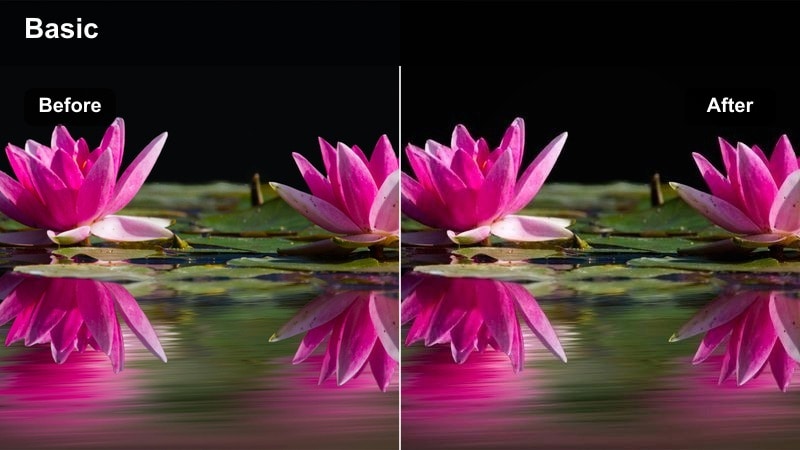
- Effect look: Punchy contrast with slightly faded blacks and cool shadows for energetic urban sports footage.
- Best for: Skate park sessions, BMX clips, rooftop chases, and fast handheld action.
- Editing tip: Use jump cuts and speed changes to match the rough texture of the color and keep energy high.
Gritty Skate Park brings out the hard edges of concrete, metal rails, and urban textures with high contrast and cool-leaning shadows. Slightly lifted blacks keep the look edgy without crushing detail, giving action clips a stylized but authentic street vibe.
Apply this filter in Filmora to handheld sequences, ramps, and fast turns, letting some camera shake remain to match the rough aesthetic. If skin tones drift too cold, gently warm just the midtones, and use speed ramps or jump cuts to align visual intensity with the filters crisp, punchy character.
City Rooftop Epic
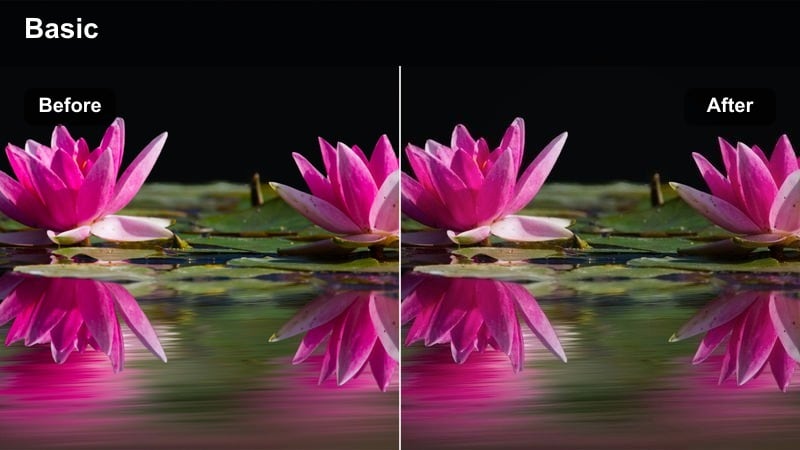
- Effect look: High dynamic contrast with emphasized skyline edges and subtle cyan tint in the shadows.
- Best for: Rooftop reveals, establishing shots of the city, drone city flyovers, and hero moments.
- Editing tip: Combine with slow motion or time-lapses so the strong contrast underlines the scale of the city.
City Rooftop Epic makes skyscrapers, horizon lines, and city details stand out with crisp edges and strong contrast, cooled by cyan-tinted shadows. It turns simple establishing shots into memorable, poster-like frames that define your locations identity.
Use this filter in Filmora for opening and closing city shots, or key hero moments on rooftops and balconies. If you are starting with log or flat footage, gently increase contrast before applying the filter, and consider slow motion or time-lapse footage to emphasize the scale and drama of the skyline.
Highlight and Shadow Storytelling
High Contrast Suspense
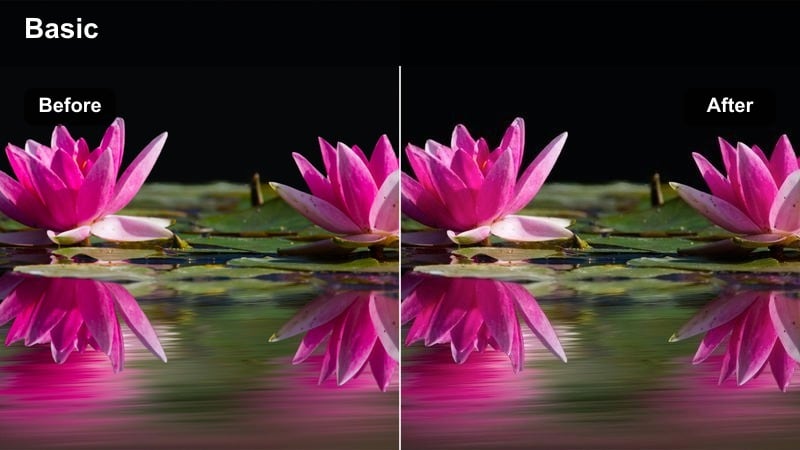
- Effect look: Strong deep shadows with controlled highlights, inspired by thriller-style highlight shadow LUTs.
- Best for: Interrogation rooms, alleyway walks, mystery reveals, and tense dialogue.
- Editing tip: Frame key details half in shadow to let the contrast carry narrative tension before reveals.
High Contrast Suspense accentuates deep blacks and focused highlights, creating a stark, moody frame where darkness is an active storytelling tool. It mimics thriller-style lighting, making single lamps or windows carve out islands of visibility against largely obscured surroundings.
In Filmora, apply this filter to sequences with interrogations, confrontations, or hidden clues. Use masks and local exposure adjustments to keep faces readable while backgrounds fall into shadow, and shape your sound design around moments where new details exit or enter the darkness.
Soft Fade Memory
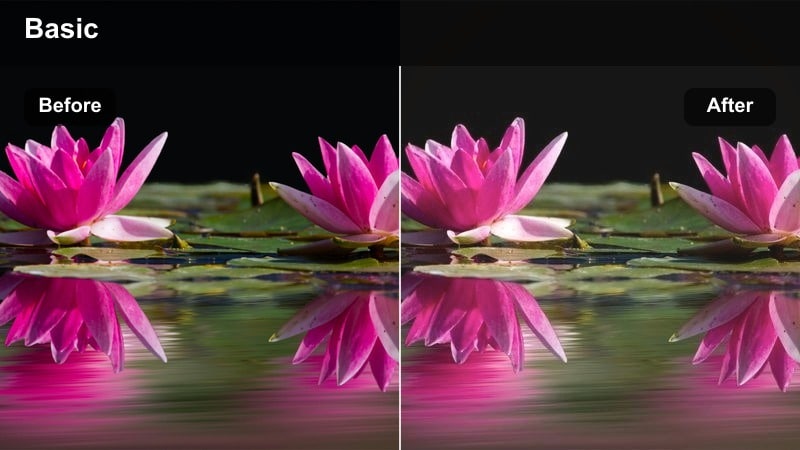
- Effect look: Gently lifted blacks and slightly bloomed highlights for a nostalgic, dream-like memory feel.
- Best for: Flashbacks, childhood recollections, city walk memories, and reflective narration.
- Editing tip: Use slower dissolves and mix in subtle sound reverb so the faded contrast reads as memory, not just low contrast.
Soft Fade Memory softens your images by raising black levels and letting bright areas bloom slightly, giving the impression of hazy recollection. Colors remain present but less intense, making the viewer feel like they are looking back rather than watching events unfold in real time.
Use this filter in Filmora to clearly signal flashbacks or daydreams, especially when intercutting with more contrasty present-day footage. Pair it with dissolves, slower pacing, and gentle echo or reverb on dialogue or sound effects to reinforce the idea that these images exist in memory.
Balanced Drama Log Fix
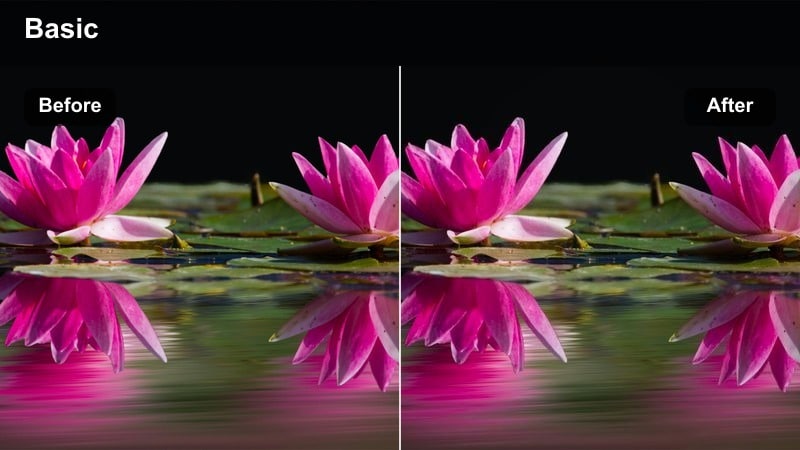
- Effect look: Neutral cinematic contrast that restores punch to flat footage while protecting highlight roll-off.
- Best for: Log or flat profile shots, low-contrast interiors, and multi-camera dialogue scenes.
- Editing tip: Apply this as your base correction before stacking more stylized filters on adjustment layers.
Balanced Drama Log Fix is designed as a foundational look, restoring contrast and richness to flat or log footage without pushing colors too far. It adds a gentle S-curve to highlights and shadows to achieve a cinematic shape that works across different cameras and lighting setups.
In Filmora, use this filter early in your color workflow as a normalization step, then layer more stylized filters or LUTs above it on adjustment layers. Once your footage shares a consistent base contrast, your additional movie color LUT cinematic styles will match more easily from scene to scene.
Tips for Using Movie Color Lut Cinematic Style Filters in Filmora
- Keep one consistent cinematic filter for each story segment so the audience subconsciously understands when the timeline shifts.
- Adjust white balance before adding any movie-style filter so the preset does not have to fight strong color casts.
- Use adjustment layers for filters instead of applying them clip by clip to save time and maintain consistent looks.
- Lower filter intensity for close-ups where skin tones are critical, and keep stronger intensity on wide city or action shots.
- Always check your grade on both bright and dark monitors to ensure your highlight and shadow choices still read clearly.
- Combine subtle film grain with cinematic filters to hide minor compression issues and add texture.
- Trim extreme saturation in reds and blues if social platforms are re-compressing your uploads aggressively.
- Create a folder of reference movie frames to guide your choices when picking filters for a new series or channel style.
Movie color LUT cinematic style filters in Filmora give content creators a fast way to turn ordinary footage into film-like stories built around intentional highlight and shadow control.
Start with a base cinematic filter from this collection, refine it for your locations and skin tones, then save your own presets so every new project can instantly match your signature movie look.
secure download