

 100% Security Verified | No Subscription Required | No Malware


 ChatGPT
 Perplexity
 Gemini
 Claude
 Grok
Grok
This Natural Skin Tone Cinematic LUT-inspired filter collection in Filmora is crafted for content creators who want clean, true-to-life skin tones with a subtle movie-like finish, without hours of manual color grading.
Use these filters across interviews, YouTube portraits, vlogs, and lifestyle scenes to balance color casts, gently shape contrast, and keep faces looking natural while still feeling cinematic and polished.
In this article
Soft Window-Light Portrait Scenes
Dawn Soft Portrait
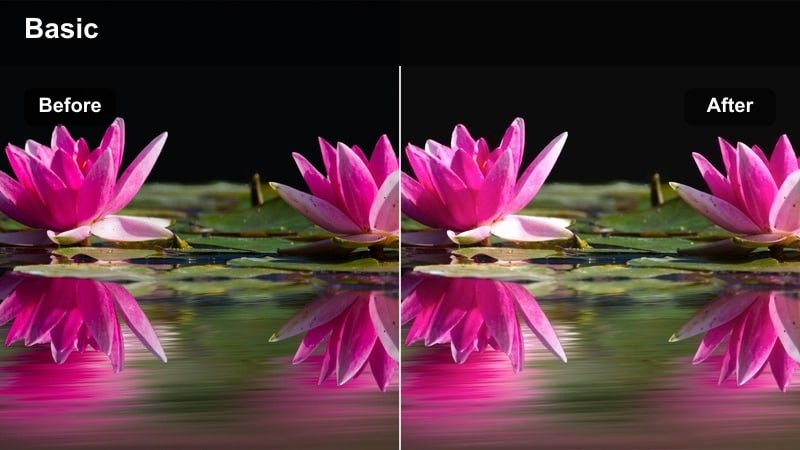
- Effect look: Soft, low-contrast portrait filter that keeps skin tones neutral with a slight warm morning glow.
- Best for: Sit-down YouTube intros, talking-head tutorials, and lifestyle vlogs shot near a window with natural light.
- Editing tip: Lower the filter intensity to around 60-70 percent and slightly reduce highlights to preserve natural skin details on the forehead and cheeks.
Dawn Soft Portrait is designed to flatter subjects in gentle window light, adding a subtle warm cast while keeping skin tones believable and true. In Filmora, it slightly lifts shadows and smooths contrast so facial features stay soft and inviting without losing clarity, which works especially well for casual, personal content where viewers focus on expression and delivery.
Apply this filter to your portrait clip, then fine-tune the intensity slider until the warmth matches the ambient light in your room. For the most natural look, adjust highlights and exposure so bright areas on the face never clip, and use Filmora's white balance controls first so the filter refines the tone rather than correcting heavy color shifts.
AI-powered color tools that respect natural skin tones
Filmora's AI color features help you quickly correct white balance and exposure, giving these natural skin tone cinematic filters a clean, consistent starting point across different cameras and setups. With automatic detection of faces and tonal ranges, the AI tools reduce color casts that often make skin look too red, green, or washed out.
Once your base is corrected, you can apply your preferred portrait filter and make smaller, more precise tweaks to contrast and saturation. This speeds up grading for interviews, vlogs, and talking-head content while keeping skin tones stable from clip to clip.
 secure download

Preview cinematic skin tone filters in real time
Filmora's filter preview makes it easy to test multiple natural skin tone cinematic looks without committing to any single one. By hovering over different presets, you instantly see how each filter shifts warmth, contrast, and saturation around the face.
You can compare options side by side to find the filter that best suits your lighting, background colors, and channel style. This helps you quickly decide whether you want a neutral, documentary feel or a slightly warmer, more filmic portrait look.
secure downloadCombine filters with LUTs for advanced portrait grading
If you already grade footage with camera-specific LUTs, you can stack Filmora's natural skin tone filters on top to refine how faces look. The LUT establishes overall contrast and color, while the filter lets you gently tune midtones so skin stays realistic instead of overly stylized.
After applying your LUT, adjust filter intensity and basic HSL controls until skin hue, saturation, and brightness feel natural on different displays. This layered approach gives you a cinematic base with precise control over portraits in interviews, vlogs, and branded videos.
secure downloadCream Glow Balance
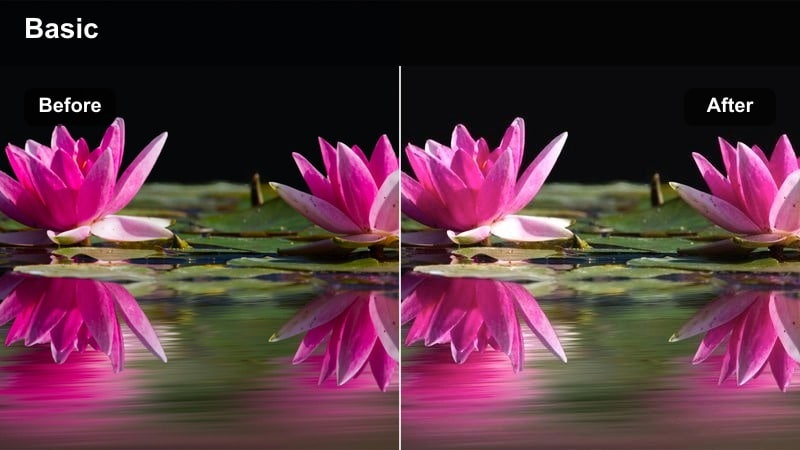
- Effect look: Smooth, creamy skin rendition with lifted shadows and a gentle cinematic roll-off in highlights.
- Best for: Beauty tutorials, product close-ups with faces in frame, and cozy lifestyle portrait shots.
- Editing tip: Pair this filter with a small reduction in clarity or sharpness to avoid over-emphasizing skin texture in close-up shots.
Cream Glow Balance focuses on creating a soft, creamy luminance curve that flatters skin in close-up portraits. In Filmora, it lifts darker midtones while smoothing highlight transitions, so foreheads, cheeks, and noses look luminous without appearing oily or harsh.
Use this filter when filming makeup routines or product demos where skin appears large in frame. After applying it, slightly reduce sharpness or clarity so pores and fine texture are not exaggerated, and fine-tune midtone contrast to keep features like eyes, brows, and lips sharp and engaging.
Neutral Daylight Portrait
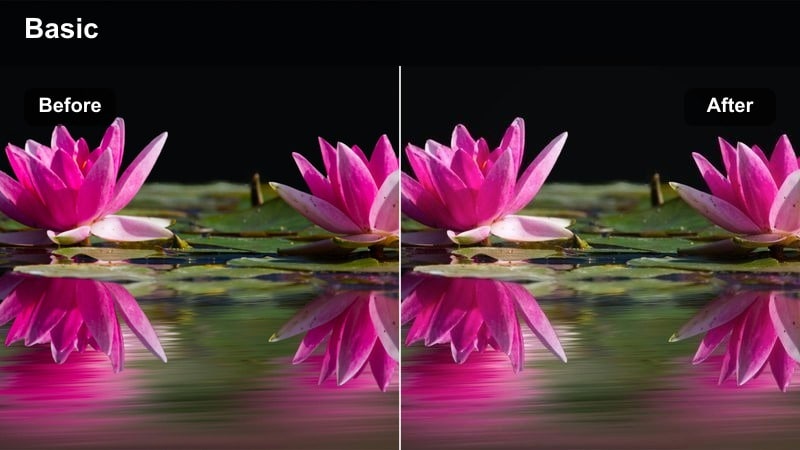
- Effect look: Clean, color-accurate skin tones with minimal stylization and a subtle cinematic contrast curve.
- Best for: Educational content, interview setups, and any talking-head shots where you want accurate, documentary-style color.
- Editing tip: Use this as a base filter and then adjust saturation per color channel, keeping global saturation modest to avoid unnatural skin.
Neutral Daylight Portrait is built for reliability, focusing on accurate color reproduction with only a slight cinematic curve. When applied in Filmora, it keeps skin tones grounded and realistic, making it ideal for courses, explainers, and interviews where credibility and consistency matter more than heavy stylization.
Apply this filter across an entire series to maintain a unified look, then use HSL controls to gently adjust specific channels like greens or blues without pushing overall saturation too high. Add global finishing touches such as a subtle vignette or grain on separate adjustment layers so you can reuse the same balanced skin tone base in future projects.
Golden Hour Outdoor Portraits
Sunset Warm Skin
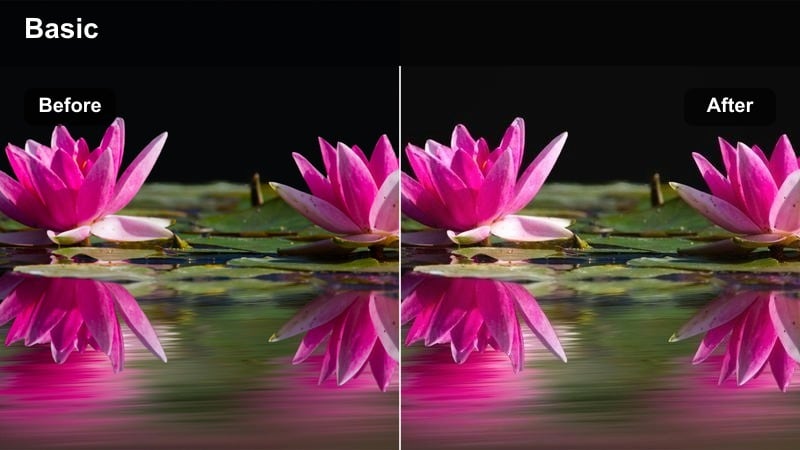
- Effect look: Warm, golden skin tones with slightly deepened shadows that echo late-afternoon sunlight.
- Best for: Golden hour vlogs, outdoor portraits in parks, and cinematic B-roll of people walking through city streets at sunset.
- Editing tip: Lower global saturation slightly if your camera already bakes in warmth, focusing the warmth more in midtones than in highlights.
Sunset Warm Skin enhances the natural glow of late-afternoon light, pushing skin toward a tasteful golden tone without drifting into heavy orange. In Filmora, it subtly deepens shadows and enriches midtones, giving outdoor footage a film-like warmth that pairs well with backlit hair and long shadows.
Use this filter on golden hour shoots, then pull back overall saturation if your camera profile is already warm. Adjust midtone saturation to keep the richness mainly in the skin while preserving highlight detail in the sky, ensuring your subject remains flattering and readable against bright or colorful backgrounds.
Backlight Soft Orange
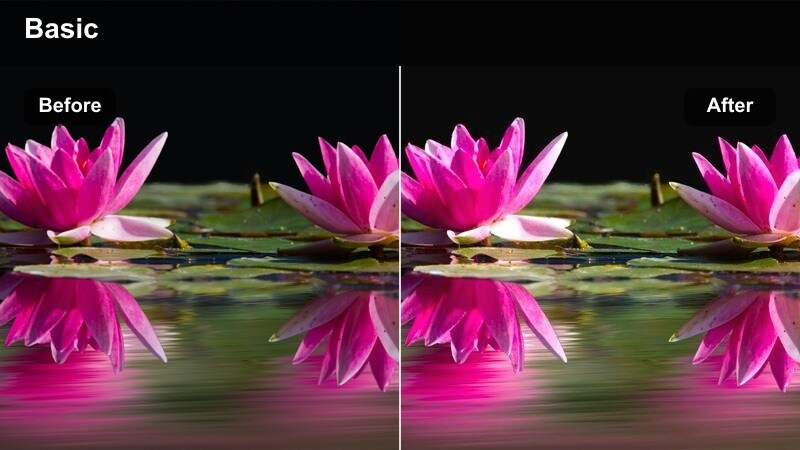
- Effect look: Soft, backlit glow with controlled orange tones so faces stay readable against bright skies.
- Best for: Outdoor portraits where the subject is backlit by the sun, walking-and-talking vlogs, and silhouette-style city shots with visible faces.
- Editing tip: Raise shadows just a touch after applying the filter so backlit faces stay clear without flattening the whole image.
Backlight Soft Orange is tuned to manage strong backlighting where the sun sits behind the subject, creating a halo without blowing out faces. In Filmora, it tames orange saturation while gently opening up shadow detail so viewers can still see expressions even when the background is bright.
Apply this filter to your backlit portraits, then slightly lift the shadow slider to recover detail in the eyes, mouth, and jawline. Use Filmora's exposure and highlight controls sparingly to keep the sky and rim light feeling dramatic, letting the filter handle most of the warmth and contrast balance on skin.
City Golden Hue
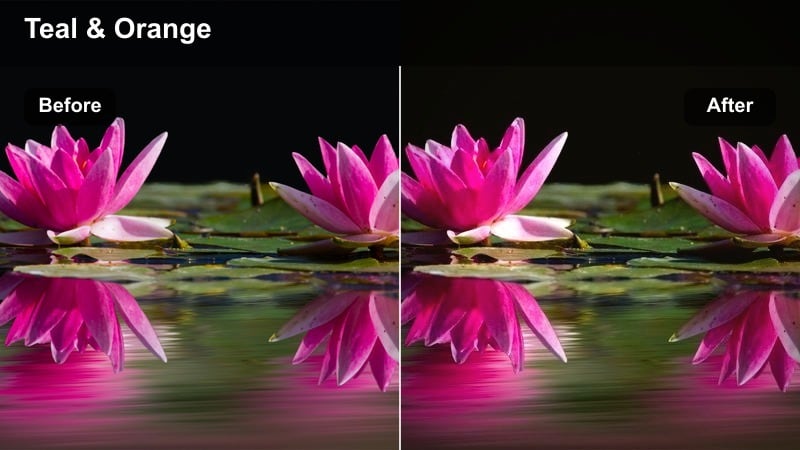
- Effect look: Warm, soft contrast with subtle teal balance in shadows so skin pops against urban backgrounds.
- Best for: Lifestyle city vlogs, walking interviews along city streets, and travel shorts filmed around sunset.
- Editing tip: Reduce the filter strength if your background already has strong color; you want skin to be the warmest element in frame.
City Golden Hue introduces a classic warm-skin, cool-shadow color contrast that works especially well in urban settings. In Filmora, it adds a touch of teal into darker areas while keeping skin warm and inviting, making your subject stand out from streets, buildings, and concrete.
Use this filter for travel and lifestyle content where you want a cinematic city feel without heavy grading. Dial back filter intensity if surrounding billboards or signs are already saturated, and keep building saturation moderate so skin remains the main warm focal point in each frame.
Indoor Studio and Creator Setup Shots
Studio True Tone
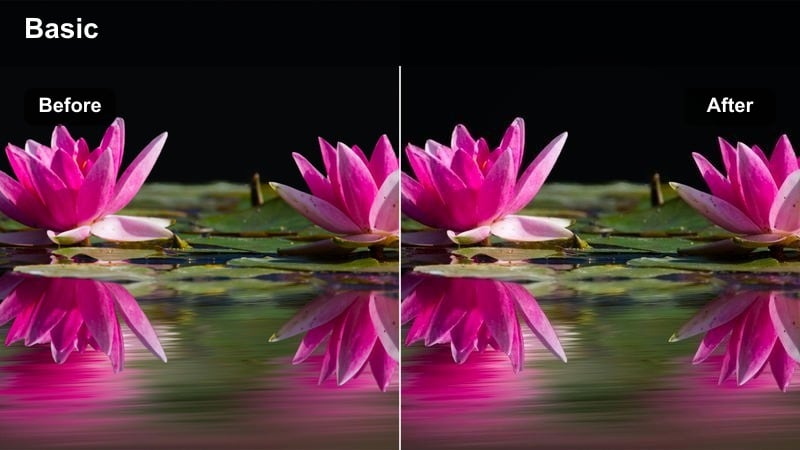
- Effect look: Balanced, color-true skin tones optimized for LED panels and RGB background lighting.
- Best for: Studio talking-head content, tech reviews, and desk setups with colorful LED accents behind the subject.
- Editing tip: Dial back saturation in magenta and blue channels so background RGB lights stay stylized without bleeding into skin.
Studio True Tone is built around the way modern LED and RGB lighting behave on skin, helping you keep faces neutral even when the background glows with vivid colors. In Filmora, it refines midtones and reduces color contamination so your main light on the face feels natural, not tinted by nearby LEDs.
Apply this filter to desk setups and studio shots, then use HSL controls to gently lower blue and magenta saturation so neon strips and RGB panels do not spill onto cheeks and foreheads. Keep skin slightly brighter and less saturated than the background so the subject remains the visual anchor of your studio scene.
Monitor Glow Soften
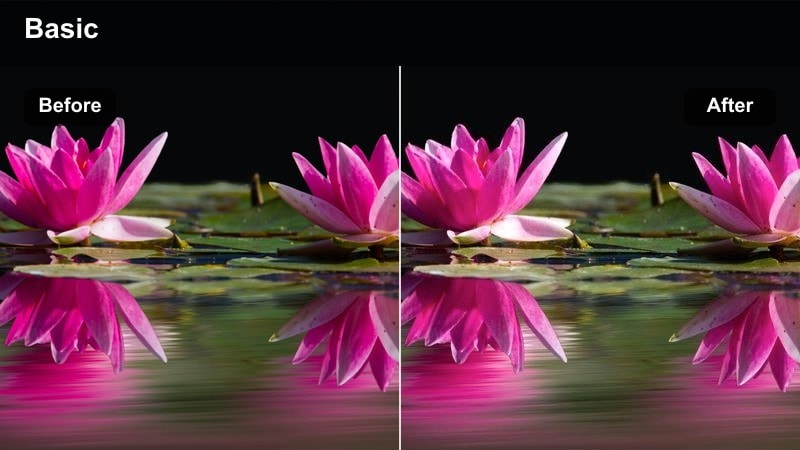
- Effect look: Softens harsh monitor or screen light on the face while keeping colors accurate and cinematic.
- Best for: Screen-record intros, gaming content, and late-night desk vlogs lit mainly by monitors.
- Editing tip: After applying the filter, slightly desaturate blues and cyans if the monitor reflection is too strong on cheeks and forehead.
Monitor Glow Soften targets the cold, contrasty light coming from screens and turns it into a more flattering, cinematic source. In Filmora, it calms down blue spikes and evens out facial contrast so night-time desk shots feel intentional instead of harsh.
Use this filter for gaming videos, coding streams, or tutorial intros recorded in front of bright monitors. After applying it, gently reduce blue and cyan saturation and keep exposure slightly under to protect bright areas on the face, then lift only the shadows around the eyes so your subject stays clear without losing the night-time mood.
Creator Setup Neutral
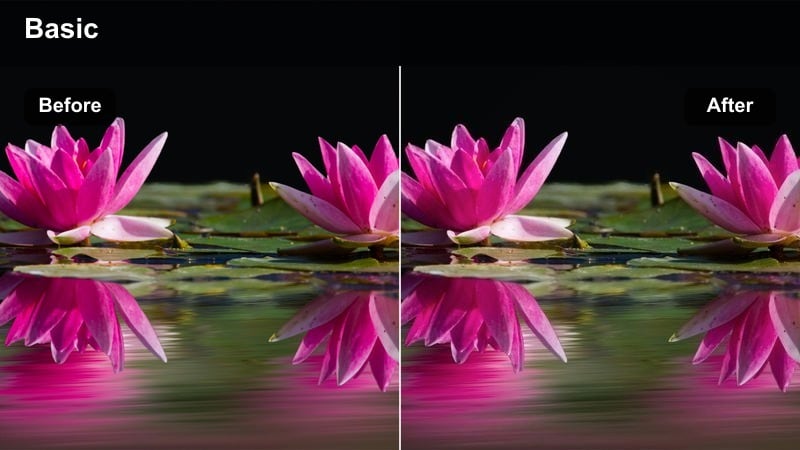
- Effect look: Clean, neutral skin rendering tuned for typical creator desk setups with practical background lights.
- Best for: Regular upload series, tutorials, and brand collaborations filmed at a desk or in front of a shelf backdrop.
- Editing tip: Use this filter at near full strength, then refine specific brand colors in props without shifting skin hue.
Creator Setup Neutral is a dependable everyday look for channels that film in the same room or desk environment. In Filmora, it keeps skin tones consistent and realistic under soft boxes, lamps, or ceiling fixtures, making it easier to maintain a recognizable visual identity across many uploads.
Apply this filter close to full strength, then adjust individual colors in props, logos, or product packaging so branding stands out without affecting skin. Save the combination as a preset or template project in Filmora so every new video starts with the same polished, neutral base on your face.
Low-Light and Night Portrait Scenes
Night Soft Amber
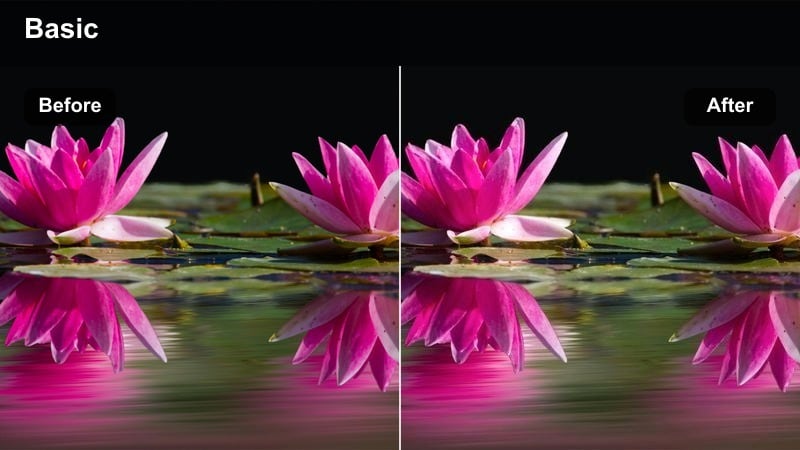
- Effect look: Gentle amber warmth that cleans up muddy skin tones in dim, tungsten or street-lit environments.
- Best for: Night vlogs, handheld walk-and-talk scenes under streetlights, and indoor bars or cafes with warm bulbs.
- Editing tip: Reduce noise first, then apply the filter so the softer contrast works with cleaner shadows and skin.
Night Soft Amber is tailored for low-light scenes lit by tungsten bulbs or streetlights, where skin can easily turn muddy or overly orange. In Filmora, it adds a controlled amber tone and smooths contrast so faces feel cozy and readable without amplifying noise.
Before applying the filter, run Filmora's noise reduction to clean up grain in shadows, then let Night Soft Amber restore warmth and shape. Keep saturation moderate and focus warmth mainly in the midtones, leaving highlights and deep shadows more neutral so your night footage looks cinematic instead of color-smeared.
Neon Skin Guard
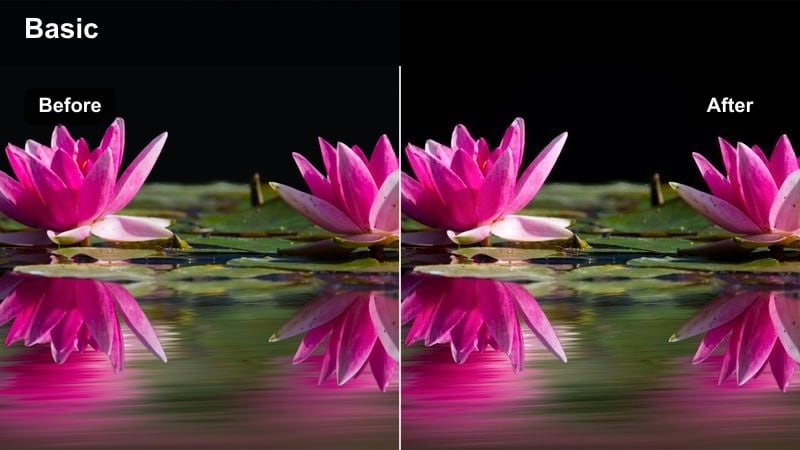
- Effect look: Protects skin tone from extreme neon color casts while keeping the surrounding lights vivid and stylized.
- Best for: City nightlife vlogs, street portraits with neon signage, and night markets with colorful lighting.
- Editing tip: Use a mask to lightly increase exposure on the face, then apply the filter globally so skin stays neutral against intense neon colors.
Neon Skin Guard separates faces from intense colored light, keeping skin closer to neutral while allowing neon signs and LEDs to stay vivid. In Filmora, it subtly pulls extreme magentas, greens, and cyans off the skin while preserving saturation in the background.
For best results, brighten the face slightly with a mask or local adjustment, then apply the filter to the entire frame. This gives Filmora more information to protect skin tones while you keep contrast and saturation high in the environment, creating a cinematic nightlife look without sacrificing natural-looking portraits.
Cinema Night Neutral
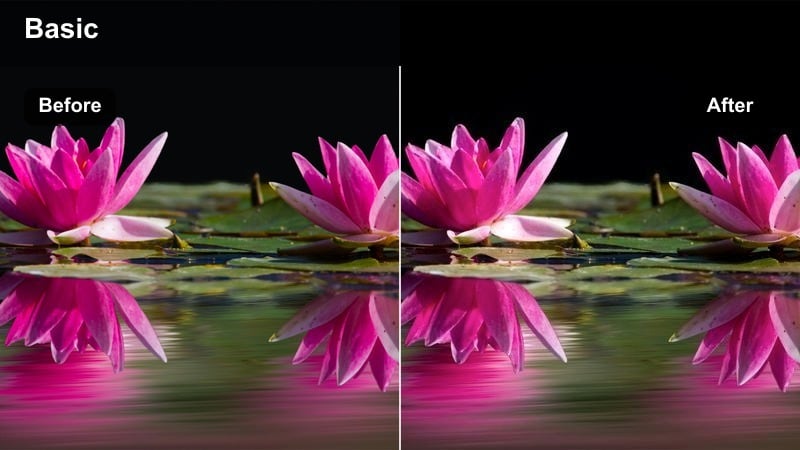
- Effect look: Subtle, low-saturation night look with carefully balanced skin tones and softened highlights.
- Best for: Dialogue scenes on dim streets, intimate indoor night conversations, and handheld story-driven vlogs.
- Editing tip: Slightly lower overall saturation after applying the filter so skin feels grounded and cinematic rather than bright and digital.
Cinema Night Neutral aims for a restrained, story-focused night aesthetic where color supports the mood instead of dominating it. In Filmora, it gently lowers saturation, softens highlights, and stabilizes skin tone so expressions and interactions stay at the center of attention.
Use this filter for narrative sequences, late-night talks, or reflective vlogs where you want a calm, filmic feel. After applying it, decrease global saturation a bit more if needed, then use local exposure adjustments on faces rather than large overall exposure changes to keep the night ambiance intact.
Tips for Using Natural Skin Tone Cinematic Lut Filters in Filmora
- Always correct exposure and white balance in Filmora before applying any natural skin tone cinematic filter so your look remains predictable across different shoots and cameras.
- Avoid maxing out saturation; keep colors moderate so skin feels believable, letting lighting, contrast, and composition create most of the cinematic impact.
- When dealing with mixed lighting, try to keep your subject's face lit primarily by one dominant color temperature to simplify later color correction and grading.
- Use masks or adjustment layers on problem areas such as red cheeks or green color casts from walls so you can correct them without affecting the entire frame.
- Maintain consistent skin tone across a series by reusing the same Filmora filter preset and saving it into your project or export template.
- Watch skin mainly in the midtones; if the forehead or nose is clipping, lower highlights and exposure before pushing contrast or adding stronger filters.
- If your footage was shot in log or flat profiles, first apply a technical LUT or basic correction, then stack natural skin tone filters for final polish and character.
- Preview your grade on multiple screens or devices to confirm that skin still looks natural, adjusting warmth and saturation if it appears overly stylized on smaller displays.
Natural skin tone cinematic filters give content creators an efficient way to keep faces looking honest and flattering while still achieving a polished, film-inspired aesthetic. They streamline color work so you can focus more on storytelling, performance, and production value.
By pairing Filmora's portrait-friendly filters with simple corrections and consistent presets, you can develop a recognizable visual style that audiences trust and return to. Whether you film interviews, vlogs, or branded content, carefully tuned skin tones help your videos look professional and cohesive across your entire channel.
secure download