

 100% Security Verified | No Subscription Required | No Malware


 ChatGPT
 Perplexity
 Gemini
 Claude
 Grok
Grok
The Neon City Night Vlog Filter preset collection is designed for content creators who love shooting in glowing streets, busy intersections, and futuristic skylines after dark.
These Filmora filters bring out neon signs, deepen shadows, and balance skin tones so your night vlogs feel cinematic and polished without heavy manual color grading.
In this article
Electric Crosswalks and Downtown Energy
Electric Glow Crosswalk
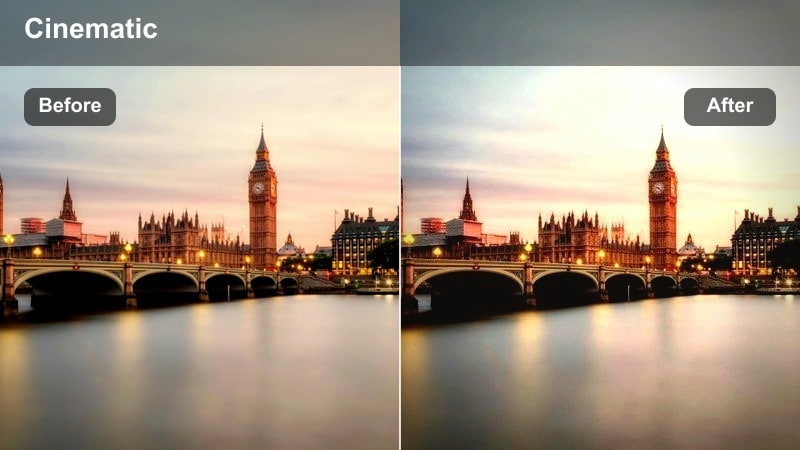
- Effect look: Punchy neon highlights with crisp contrast and cool-tinted shadows.
- Best for: Walking shots on busy crosswalks, handheld street vlogs, POV city walks at night.
- Editing tip: Lower the brightness slightly if streetlights blow out details in faces or road markings.
Electric Glow Crosswalk is your go-to preset when you want every traffic light, billboard, and storefront to leap off the screen while still keeping the streets gritty and real. In Filmora, this filter tightens contrast and cools down the shadows so the asphalt, reflections, and background buildings feel sharp and defined without turning your frame into a washed-out blur of light.
Apply it to walk-and-talk segments, POV crossings, and tracking shots where you are moving with the city flow. Then use Filmora sliders to pull back exposure just a touch so faces retain detail under strong streetlighting. After you have the look dialed in, copy and paste the filter settings across similar clips to maintain a consistent neon punch throughout your entire night vlog.
AI-Assisted Neon Night Balancing
Filmora AI tools make it much easier to control difficult neon lighting, preventing glowing signs from overpowering darker areas of the frame. After you apply a Neon City Night Vlog Filter, AI color correction can automatically neutralize strange color casts from mixed street lights and bring exposure into a clean, cinematic range.
Use this combo when your night vlog shifts quickly between alleys, crosswalks, and bright storefronts. Let the preset define the creative mood, then let AI refine details like skin tones and highlight roll-off so your video looks intentional instead of randomly lit.
 secure download

Preview Neon Filters on Real Street Footage
Before you commit to a full color grade, Filmora lets you quickly preview different Neon City Night Vlog Filters on sample footage or short clips from your shoot. This helps you see how each preset handles extreme highlights, deep shadows, and subtle midtones in real-world city conditions.
Drop a 10 to 20 second test clip on the timeline and cycle through the presets, toggling visibility on and off. Scrub the playhead to check how the filter reacts to moving lights, reflections, and changing exposure as you walk past signs, stores, or traffic.
secure downloadMatch Filters With Cinematic LUTs
Once you lock in a Neon City Night Vlog Filter that fits your story, you can push the look further by layering Filmora LUTs on top. Subtle teal-and-orange, cyberpunk, or filmic fade LUTs add extra character while preserving the base contrast and color shifts from your chosen preset.
Keep LUT intensity low so the filter remains the star of your grade. This stacked approach gives your night vlogs a polished, professional finish that feels closer to big-budget urban dramas while still being fast to achieve on a laptop.
secure downloadMidnight Sidewalk Vibes
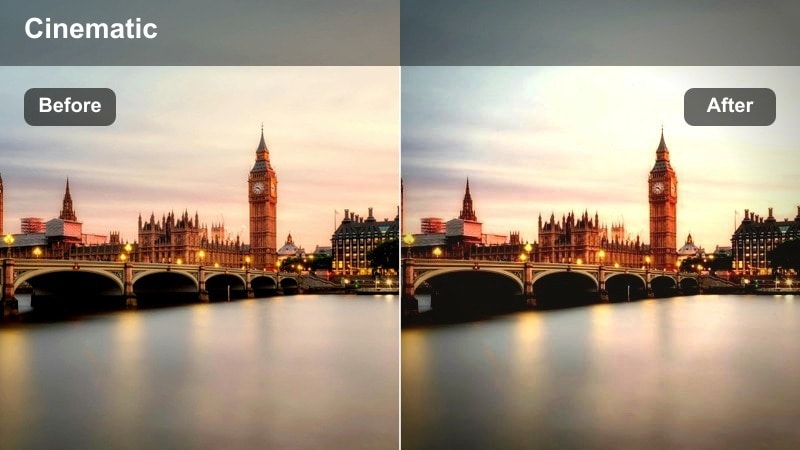
- Effect look: Soft neon glow with reduced harshness and a subtle teal-magenta balance.
- Best for: Chill talking-to-camera segments on sidewalks, casual hangout vlogs, and intro monologues.
- Editing tip: Add a light blur or lower sharpness a touch to reinforce the relaxed, dreamy nighttime mood.
Midnight Sidewalk Vibes tones down the intensity of harsh city lighting to create a more relaxed, cinematic glow around your subject. In Filmora, this preset softens contrast, gently balances teal and magenta tones, and keeps neon from stinging the eyes, making it ideal for intros, outros, and personal storytelling moments.
Use it on static or slow-moving shots where you are speaking directly to camera with shop signs and streetlights behind you. Combine the filter with a slight reduction in sharpness or an added blur effect on the background layer to deepen the dreamy feel, and pair it with smooth panning or slider moves for calm, watchable sidewalk sequences.
Street Sign Pulse
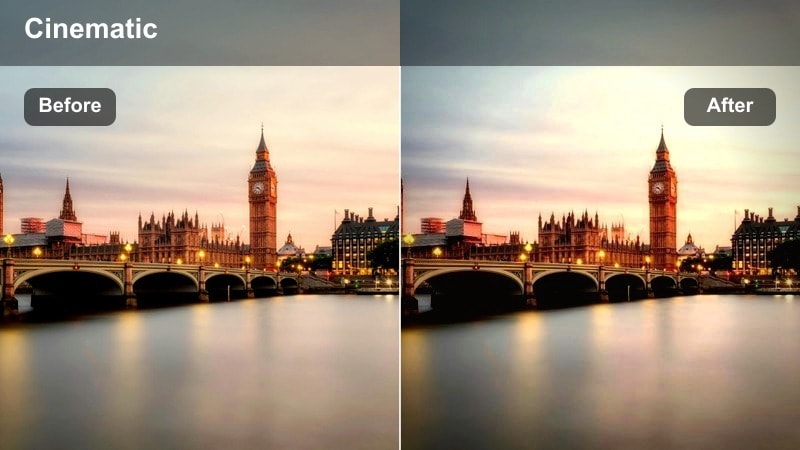
- Effect look: High-contrast neon look with saturated sign colors and darker streets.
- Best for: Capturing storefronts, glowing billboards, and quick B-roll of urban signage.
- Editing tip: Trim your clips tighter and cut to the beat so the pulsing signs match your music's rhythm.
Street Sign Pulse is built to turn city signage into bold graphic elements that drive your edit. It deepens shadows around the streets while pushing saturation in the neon colors, so logos, wayfinding signs, and billboards become natural visual anchors for transitions and B-roll.
Apply this preset to short, punchy clips and cut them on the beat of your soundtrack in Filmora for rhythmic city sequences. Combine it with speed ramping, quick zooms, and sharp sound effects to underline each sign change, and intercut these shots between talking segments to keep your night vlog energetic and visually engaging.
Rooftop Views and Futuristic Skylines
Neon Skyline Drift
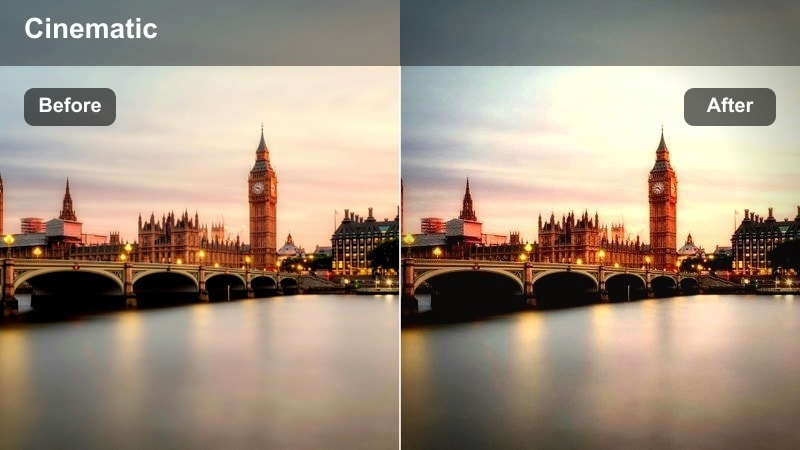
- Effect look: Moody skyline contrast with cool shadows and deepened blues, keeping neon edges crisp.
- Best for: Rooftop cityscapes, drone shots over downtown, and establishing shots for your vlog.
- Editing tip: Boost clarity slightly on wide shots so building outlines stay sharp against the night sky.
Neon Skyline Drift is tailored for wide city views where the skyline itself is the star of the frame. It leans into cool blues, strengthens contrast, and maintains crisp neon outlines so windows, light strips, and tower accents feel clean and futuristic even in hazy conditions.
Use this filter on establishing shots, drone passes, or wide rooftop panoramas that open or close sections of your vlog. In Filmora, add a subtle clarity boost and maybe a slow pan or keyframed zoom to give static views motion, then arrange three to five of these clips at the start of your timeline to instantly set a cyberpunk-inspired night mood.
Rooftop Talk Glow
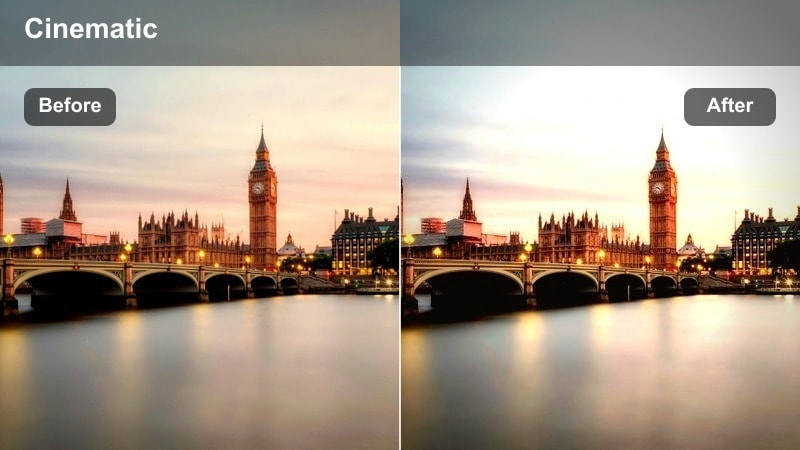
- Effect look: Balanced neon city background with slightly warmed skin tones for talking-head shots.
- Best for: Storytime segments, reflections, or announcements shot on rooftops with city lights behind you.
- Editing tip: Use shallow depth-of-field footage and keep the subject centered so the neon bokeh frames your face.
Rooftop Talk Glow focuses on keeping faces natural and flattering while still showcasing the neon cityscape behind you. The preset warms skin tones slightly and tames contrast in the midtones so your expression remains readable, while distant lights bloom into a soft, cinematic bokeh.
Apply it to sit-down rooftop talks, channel updates, or reflective monologues with the skyline as your backdrop. In Filmora, combine this filter with gentle background blur and a light vignette to pull attention toward your face, then tweak blue and magenta saturation if the background starts competing too hard with your subject.
Cyber Horizon Fade
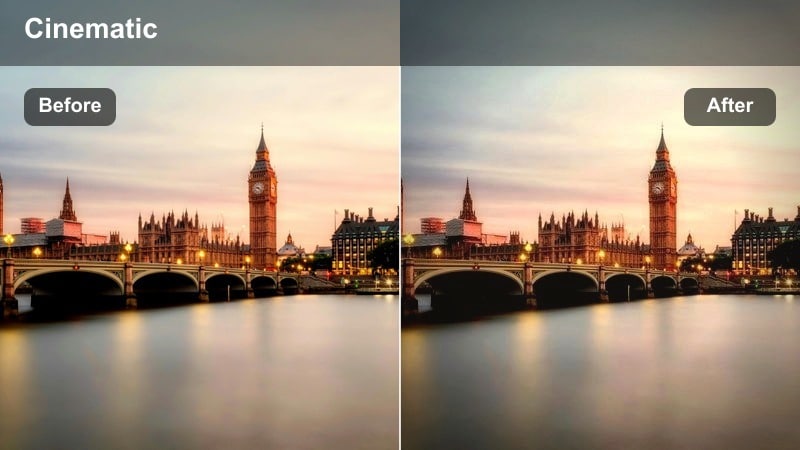
- Effect look: Faded blacks with teal shadows and magenta highlights, for a softer cyberpunk horizon feel.
- Best for: Static skyline shots, time-lapses of traffic, and reflective mood segments overlooking the city.
- Editing tip: Add a slow zoom-in or zoom-out animation to give life to still horizon shots.
Cyber Horizon Fade gives your skyline and horizon shots a dreamy, pastel take on classic cyberpunk color schemes. By lifting the blacks slightly and tinting shadows teal and highlights magenta, it softens contrast and transforms harsh city edges into a more atmospheric, reflective landscape.
Use it for timelapses, slow traffic views, or quiet cutaway clips that bridge high-energy scenes. In Filmora, combine this preset with slow zoom keyframes or speed-ramped time-lapses to keep still compositions from feeling static, and place these shots between louder segments to reset your viewers attention and mood.
Neon Alleyways and Side-Street Stories
Neon Alley Mystery
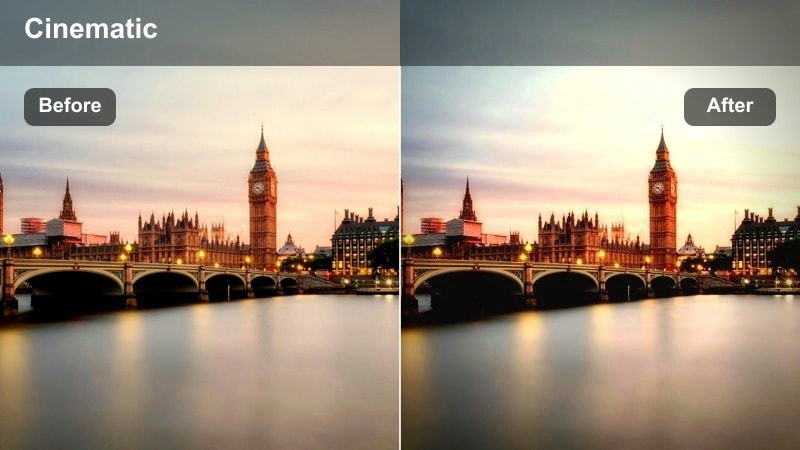
- Effect look: High contrast with lifted shadows, emphasizing colored signs in darker alleyways.
- Best for: Exploring backstreets, hidden bars, street art, and behind-the-scenes segments.
- Editing tip: Stabilize handheld shots in Filmora to avoid motion sickness in narrow, dark spaces.
Neon Alley Mystery is designed to pull detail out of dark, narrow streets while still preserving a moody, cinematic feel. It lifts shadows just enough to reveal textures on walls and ground, but keeps contrast high so illuminated signs, graffiti, and doorways glow with intensity against the darkness.
Apply this preset to exploration segments where you move through back alleys, nightlife districts, or hidden venues. In Filmora, run stabilization on shaky handheld footage first, then add a subtle vignette and perhaps some on-screen titles or subtitles so the visuals and story stay clear even when ambient audio is noisy or echoey.
Side Street Chill
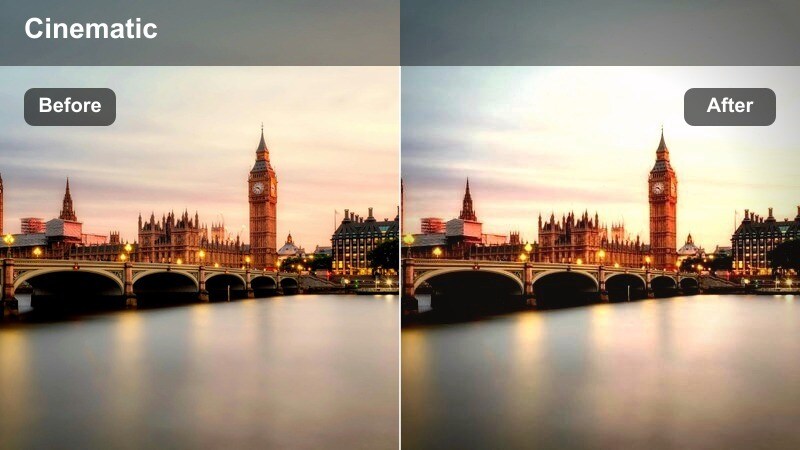
- Effect look: Muted contrast with gentle neon saturation and a slightly warm midtone lift.
- Best for: Quiet conversations, late-night snack runs, or casual walking shots on side streets.
- Editing tip: Lower the overall saturation a step if your camera already records very vibrant colors.
Side Street Chill gives calmer night scenes a soft, cinematic finish without overwhelming them with contrast or color. It slightly warms midtones to flatter skin while keeping neon saturation in a gentle range, perfect for low-stakes moments like snack runs, end-of-night recaps, or relaxed walks with friends.
Use it when the vibe of your vlog shifts to something more intimate and conversational. In Filmora, you can dial saturation up or down depending on how punchy your camera footage already is, then favor longer cuts and slower pacing so the visuals and mood feel laid-back and unhurried.
Lantern Lane Pop
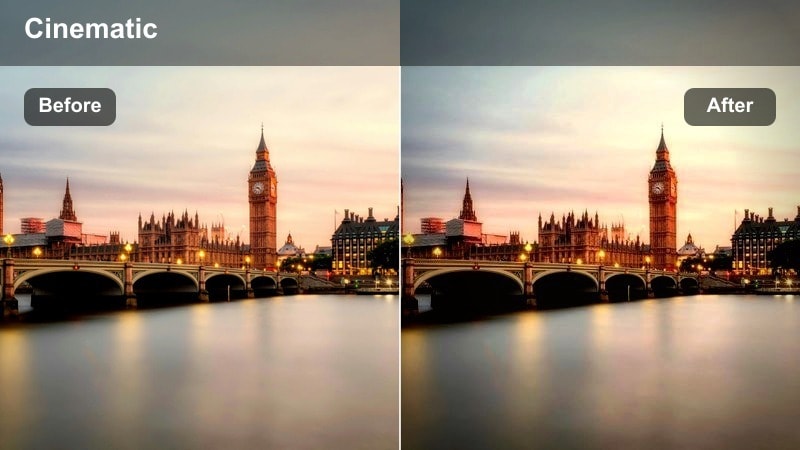
- Effect look: Vibrant reds and pinks with bright highlights that emphasize hanging lights and signage.
- Best for: Night markets, lantern-filled lanes, and crowded side streets with colorful lighting.
- Editing tip: Dial back red saturation if skin starts to look oversaturated under strong lantern lights.
Lantern Lane Pop is built for markets and streets dominated by warm, colorful hanging lights. It boosts reds and pinks, enhances highlight glow, and makes lanterns and banners feel vivid and lively, turning crowded lanes into eye-catching set pieces for your vlog.
Apply it to B-roll of night markets, festival corridors, or anywhere suspended lights fill the top of your frame. In Filmora, use HSL controls to gently rein in reds if faces become too flushed, and consider adding a bit of directional blur to the background crowd so your subject and the lanterns stay clear and visually separated.
Train Stations, Subways, and Transit Nights
Subway Neon Flow
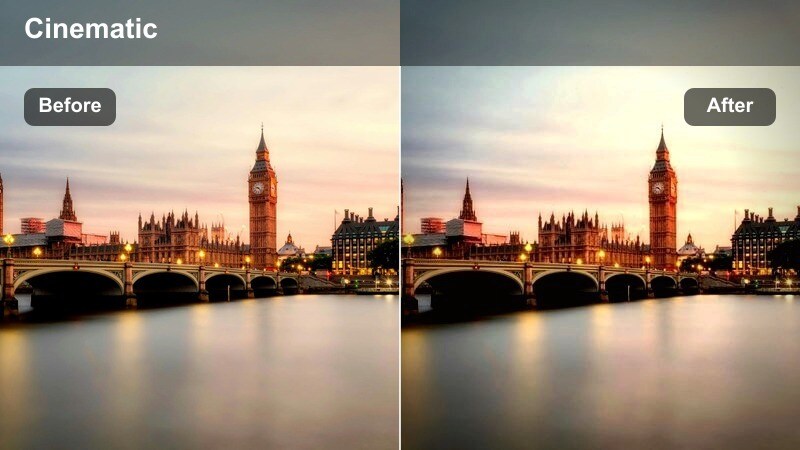
- Effect look: Cool-toned with boosted neon signage and slightly desaturated walls and floors.
- Best for: Subway platforms, underground corridors, and escalator rides in transit hubs.
- Editing tip: Use motion blur on train pass-bys to emphasize speed and energy in tight spaces.
Subway Neon Flow cools down the overall palette of your transit footage while spotlighting the colorful signs and wayfinding graphics that define underground spaces. Walls, floors, and ceilings become more neutral and slightly desaturated, allowing arrows, advertisements, and platform signage to stand out clearly.
Use this preset on clips of walking through tunnels, waiting on platforms, or riding escalators. In Filmora, layer in motion blur or speed ramps on train arrivals and departures to accentuate movement, and cut these beats together into short montages that turn routine commutes into purposeful story transitions.
Terminal Sign Glow
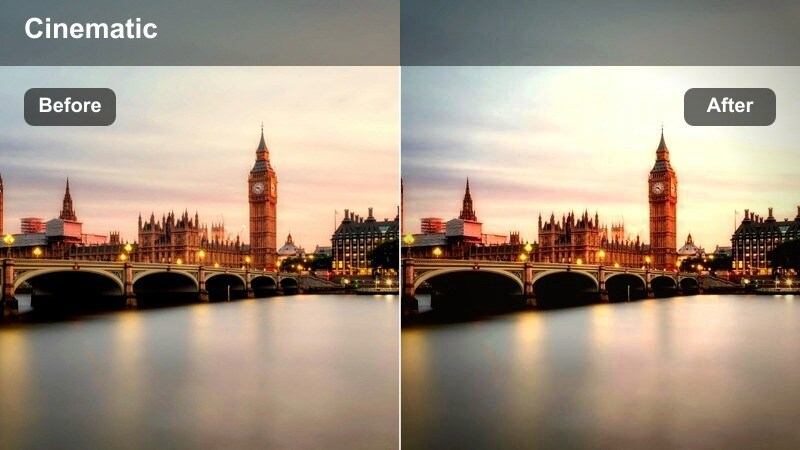
- Effect look: Crips whites with glowing colored sign edges and slightly lowered midtone contrast.
- Best for: Bus terminals, airport train links, and any transit area with strong overhead lighting and signs.
- Editing tip: Reduce highlights a bit if overhead lights start to clip and wash out your subject.
Terminal Sign Glow is designed to tame harsh fluorescent lighting while preserving clean, readable signage. It holds whites crisp, softens midtone contrast, and adds a subtle glow to edges of colored signs, so information boards and direction markers remain legible and visually appealing.
Apply it to walking shots through stations, airport connectors, or bus terminals where overhead lights can easily blow out your camera sensor. In Filmora, follow up with fine-tuned white balance and tint adjustments to remove any green cast from cheap lighting, and slightly pull down highlights if you notice hotspots on foreheads or reflective surfaces.
Ride Home Reflections
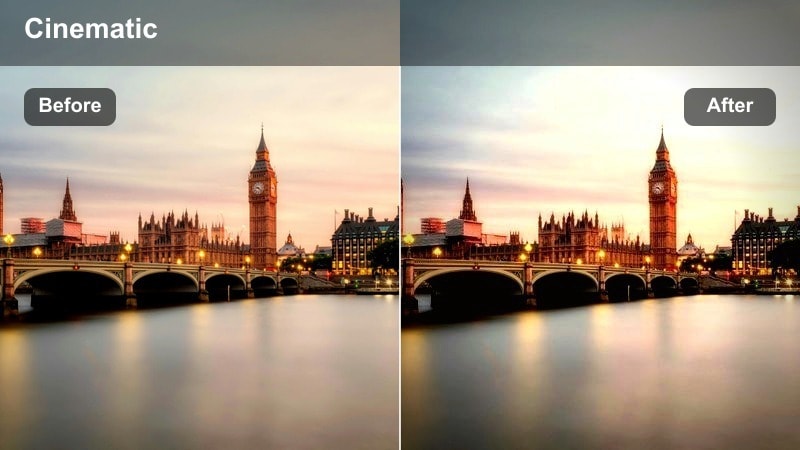
- Effect look: Soft cinematic contrast with visible reflections on windows and muted backgrounds.
- Best for: Taxi rides, bus windows, and late-night ride-share segments with city lights outside.
- Editing tip: Lower the sharpness slightly to enhance reflections and minimize low-light noise.
Ride Home Reflections is tailored for introspective segments shot through car or bus windows. It softens contrast just enough to highlight reflections on the glass while gently muting the background, creating a layered, cinematic look where your face and the city move together in the frame.
Use it on end-of-night recaps, quiet ride-along commentary, or moody B-roll of passing lights. In Filmora, reduce overall sharpness a bit to hide low-light noise and emphasize the dreamy look of the reflections, and pair these clips with slower music and longer cuts so the reflective feeling has time to land with your audience.
Tips for Using Neon City Night Vlog Filter Filters in Filmora
- Shoot in slightly flatter or neutral camera profiles when possible so Neon City Night Vlog Filters have more latitude to shape contrast and color.
- Protect your highlights in-camera by avoiding overexposed signs and streetlights, which gives Filmora more detail to work with in the neon areas.
- Keep white balance as consistent as you can while filming so your chosen filter creates a unified look instead of fighting mixed color temperatures.
- Stabilize handheld city shots in Filmora before applying heavy contrast or sharpening to prevent jitter from becoming more noticeable.
- Mix wide establishing shots, medium frames, and tight close-ups of signs, reflections, and faces to fully showcase your neon color grade.
- Use Filmora keyframes for subtle zooms and pans on static skyline or alleyway shots so your graded footage feels dynamic without extra reshoots.
- Experiment with stacking a Neon City Night Vlog Filter and a low-intensity LUT, then adjust opacity until the combo supports your story rather than distracting from it.
- Create custom presets in Filmora once you find a favorite neon look so you can apply the same style quickly to future city night vlogs.
Neon City Night Vlog Filter presets in Filmora give content creators an easy way to turn ordinary nighttime streets into cinematic, glowing backdrops for their stories.
Combine these filters with smart exposure, stable shots, and thoughtful pacing to build night vlogs that feel polished, immersive, and distinctly urban.
secure download