

 100% Security Verified | No Subscription Required | No Malware


 ChatGPT
 Perplexity
 Gemini
 Claude
 Grok
Grok
Warm night video filters add golden tones and an amber glow to your city footage, turning ordinary streets, skylines, and travel clips into cozy, cinematic night scenes. For travelers and photographers, these filters are perfect for transforming cool, flat night shots into warm evening memories that feel alive.
In Filmora, the Warm Night Filter: Golden City Lights preset helps you enhance night photography and city lights footage with rich warmth, subtle contrast, and soft highlights. Use the filters below as a guide to build your own warm night style or refine the look of your existing travel videos.
In this article
Core Warm Night Filters for City Lights
Warm Night Filter: Golden City Lights
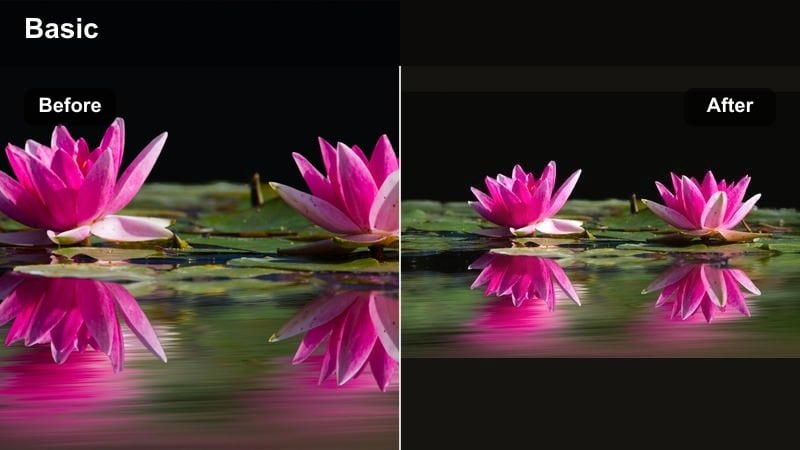
- Effect look: Deep golden glow on city lights with soft contrast and slightly lifted shadows for a cinematic warm night cityscape.
- Best for: Handheld city walks, skyline timelapses, and travel vlogs that feature glowing windows, traffic trails, and busy streets.
- Editing tip: Lower highlights slightly to keep neon and street lamps from clipping, then add a soft vignette for a cozy tunnel-of-light feeling.
This signature Filmora warm night preset wraps city lights in a golden, cinematic glow while preserving important detail in windows, signage, and traffic trails. By lifting shadows and softening contrast just a bit, it gives your footage a polished night-city look that still feels natural, perfect for skyline timelapses or dynamic street views.
In Filmora, start by applying Warm Night Filter: Golden City Lights, then fine-tune exposure so the brightest lamps and neon do not blow out. Add a subtle vignette and small highlight reduction to guide the eye toward the center of the frame. This creates a cozy tunnel effect that works especially well for travel vlogs and walking tours through illuminated downtown districts.
Use AI to Lock In Your Warm Night Palette
Filmora’s AI-driven color tools help you quickly create a consistent warm night palette across all your travel clips. Apply your favorite warm night filter, then let AI match the tone to other shots filmed in different locations or lighting conditions.
This keeps your golden nights, warm evenings, and amber glow scenes visually connected, so your city lights story feels like one cohesive experience instead of a patchwork of random tones.
 secure download

Preview Warm Night Filters on City Clips
Before you commit to a final look, test several warm night video filters side by side on the same night photography and city lights clip. Switch between subtle amber glows, strong golden night filters, and creative vintage styles to find the mood that best matches your travel story.
Use split-screen comparisons inside Filmora to judge how each filter treats highlights, skin tones, and deep shadows so you pick a style that enhances, not hides, your best details.
secure downloadSave Your Warm Night Look as Reusable LUTs
Once you have dialed in the perfect golden night balance, save your settings as a LUT or preset inside Filmora so you can reuse the same look on future trips. This is especially useful for creators who document multiple cities and want a recognizable warm evening signature.
By building a small library of warm night LUTs, you can quickly grade new footage, keep your channel or portfolio consistent, and spend more time filming rather than repeating the same manual color steps.
secure downloadPro tip: Balance Warmth with True Blacks
If your city shots start to look too orange, pull back temperature slightly and deepen the blacks to keep contrast strong while preserving a warm mood.
Use Filmora’s color wheels to push midtones slightly toward orange while keeping shadows closer to neutral or a hint of teal to avoid muddy, oversaturated scenes.
Amber City Glow
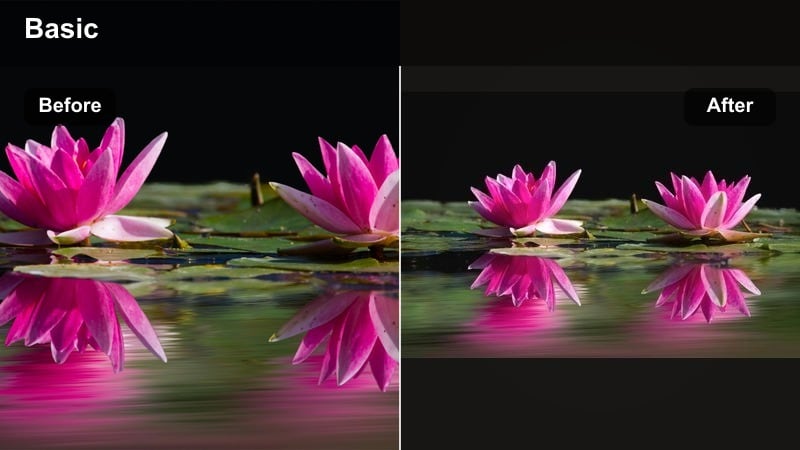
- Effect look: Soft amber hue that wraps around street lamps and windows, with gentle bloom and smooth roll-off in the highlights.
- Best for: Evening strolls through historic districts, riverside promenades, and city bridges lit by warm lamps.
- Editing tip: Increase local contrast slightly to keep architectural lines sharp, then adjust clarity down a touch for a dreamy, romantic glow.
Amber City Glow gives your night scenes a delicate, nostalgic character ideal for cobblestone streets, bridges, and riverside paths. The filter adds a soft amber cast around lamps and windows, creating a hazy bloom that flatters stone textures and water reflections without overwhelming the frame.
In Filmora, pair this filter with modest contrast boosts in buildings and streets so edges remain defined while the glow stays soft. Slightly reduce clarity to introduce a romantic haze, then fine-tune saturation in the orange and yellow channels to keep the warmth rich but controlled for refined travel storytelling.
Pro tip: Use Reflections to Double the Glow
Look for puddles, river surfaces, and glass storefronts where the amber glow can reflect and intensify the warm night atmosphere.
Shoot from a lower angle to place reflections in the lower third of the frame, then slightly boost saturation in the orange and yellow channels only.
Golden Night Street
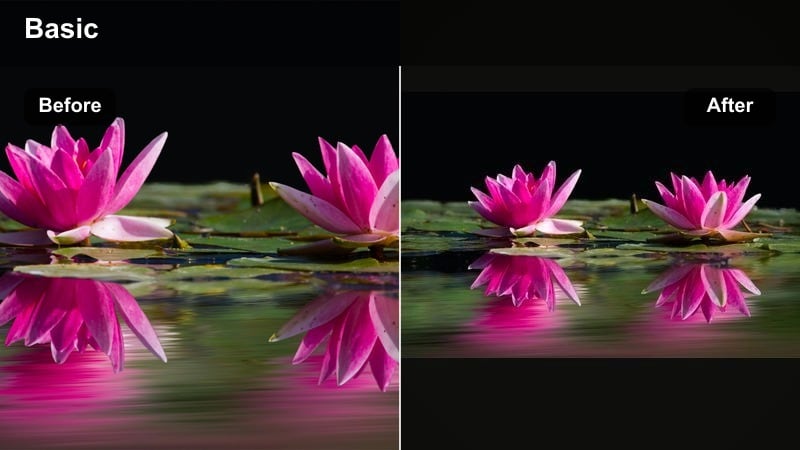
- Effect look: Rich golden tones in midtones and highlights with slightly cooler shadows for depth and street-level contrast.
- Best for: Busy main streets, food markets, and nightlife scenes where warm signboards and traffic lights dominate the frame.
- Editing tip: Mask faces or key subjects and protect skin tones with HSL so they stay natural while the environment gets a strong golden push.
Golden Night Street delivers a bold, energetic city look by pushing midtones and highlights into a saturated gold while leaving shadows a bit cooler. This separation creates depth, making food stalls, signage, and traffic stand out against darker alleys and building facades.
Inside Filmora, add this filter to crowded markets or nightlife sequences, then use masking tools to keep skin tones realistic while the environment goes richly golden. Subtle sharpening and a touch of noise reduction in darker areas will help maintain clarity in fast-paced handheld shots.
Pro tip: Control Noise in Dark Alleys
Warm street filters can exaggerate noise in underexposed corners, so apply light noise reduction before pushing exposure and warmth.
If details still look rough, slightly soften the darkest shadows while keeping midtones sharp to avoid a smeared, over-processed look.
Warm Evening Filters for Travel Storytelling
Twilight Warm Evening
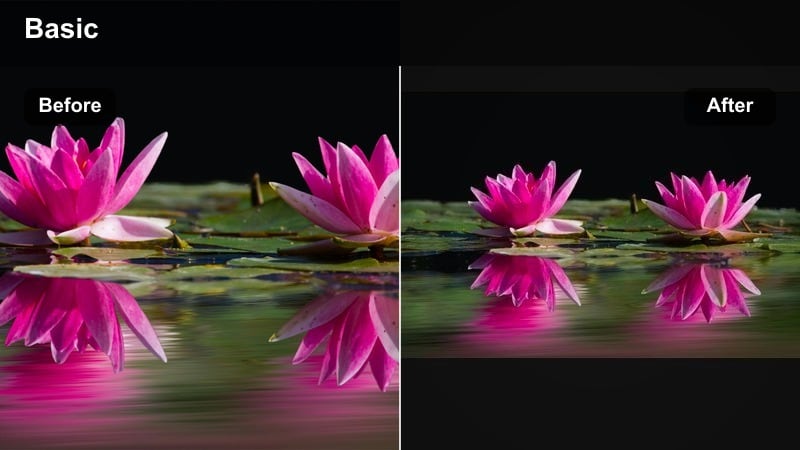
- Effect look: Gentle golden tint blended with preserved blue hour skies, giving a balanced warm-cool twilight atmosphere.
- Best for: Rooftop views, seaside promenades after sunset, and wide shots of city horizons during blue hour.
- Editing tip: Boost saturation only in oranges and yellows while reducing blues slightly to keep skies calm but buildings warm and inviting.
Twilight Warm Evening is designed for blue hour, when the sky still holds deep blues but artificial lights are switching on. The filter keeps the sky cool and calm while gently warming buildings and street lights, creating a cinematic contrast between the two color zones.
In Filmora, apply this filter to rooftop or waterfront vistas, then adjust HSL so orange and yellow tones pop while blues stay slightly subdued. This gives your travel montages a clean, modern twilight mood that still feels cozy and welcoming.
Pro tip: Expose for the Highlights First
When filming twilight scenes, expose to protect the brightest building edges and signs, then use Filmora’s color tools to raise shadows.
This preserves detail in lit areas so the warm evening filter can amplify them without causing harsh clipping or color banding.
Sunset Street Amber
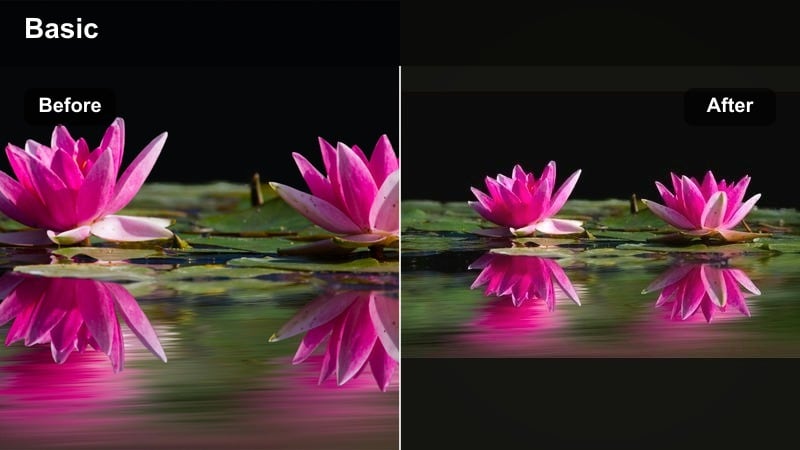
- Effect look: Sunset-inspired amber wash across the frame, with subtle magenta shifts in highlights for a dreamy postcard vibe.
- Best for: Golden night transitions, streets shot just after sunset, and travel montages that bridge day to night.
- Editing tip: If skin tones tilt too pink, use HSL to pull magenta and red saturation down while preserving the overall amber cast in the environment.
Sunset Street Amber extends golden hour into early night, bathing streets and buildings in a soft, postcard-like amber wash. Slight magenta in the highlights adds a romantic character that works beautifully for couples’ walks, city squares, or scenic avenues after sundown.
Within Filmora, blend this filter into sequences that transition from day into night to create smooth visual continuity. Dial back magenta and red saturation when you have close-up faces to avoid overly pink skin while keeping the surrounding atmosphere richly amber.
Pro tip: Use Motion to Sell the Warmth
Capture passing traffic, walking silhouettes, or swaying trees so the amber light feels like it is flowing through the scene.
In Filmora, pair the filter with gentle speed ramps or slow motion moments to accentuate the dreamy, lingering warmth.
Cozy Square Nights
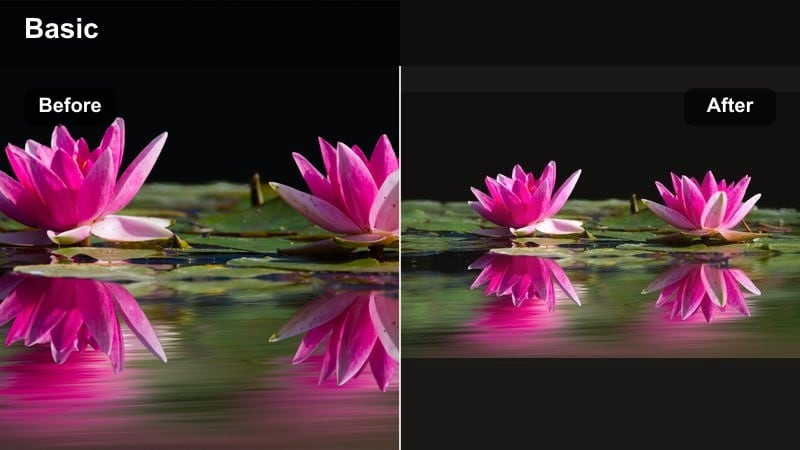
- Effect look: Warm, low-contrast look that softens edges around cafes, plazas, and public squares, emphasizing comfort over sharpness.
- Best for: Nighttime cafe terraces, plazas with string lights, and small town squares filled with people and ambient glow.
- Editing tip: Lower clarity and add a touch of film grain so the warm glow feels organic and nostalgic instead of purely digital.
Cozy Square Nights focuses on comfort and atmosphere, reducing contrast and sharpness slightly to make cafes and plazas feel inviting. String lights and storefronts appear soft and glowing, while faces and crowds blend gently into the background.
Apply this filter in Filmora to scenes of outdoor dining, buskers, or town gatherings, then add subtle grain for a filmic, lived-in feel. Reducing clarity and avoiding heavy sharpening will keep the vibe relaxed and nostalgic, ideal for reflective segments in your travel edits.
Pro tip: Guide the Viewer with Light Pockets
Compose your frame so the brightest warm pockets of light fall where you want viewers to look, like tables, doorways, or performers.
Use subtle vignettes and selective brightness masks in Filmora to push attention toward these warm focal areas.
Warm Night Filters for Portraits and Details
Lantern Warm Portrait
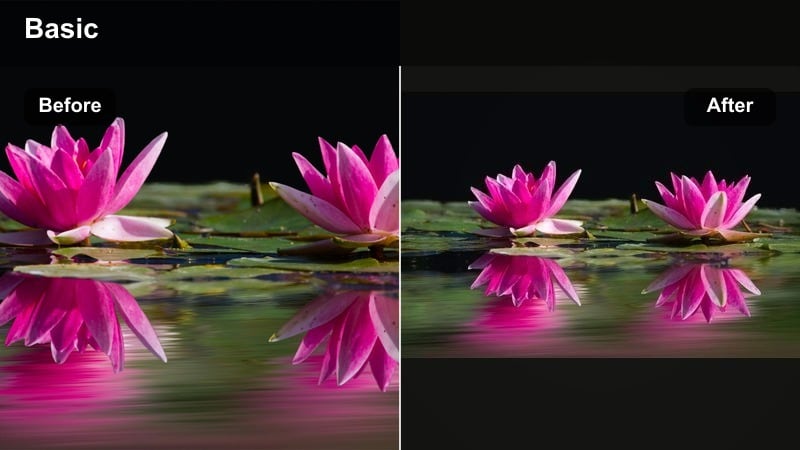
- Effect look: Face-focused golden softness that brightens skin tones while darkening the background for intimate, lantern-lit portraits.
- Best for: Close-up travel portraits near lanterns, shop windows, and street food stalls where the subject is near a light source.
- Editing tip: Use Filmora’s masking to lightly blur the background, then increase warmth and exposure inside the mask to mimic lantern light falloff.
Lantern Warm Portrait emphasizes your subject’s face by brightening and warming skin while gently darkening the surroundings. The result is a cinematic, lantern-lit look where eyes catch soft reflections and the city fades into a moody backdrop.
In Filmora, draw a soft mask around the face and upper body, then apply slight exposure and warmth boosts inside that area. Add a touch of blur and reduced saturation to the background so the warm portrait stands out cleanly within the night environment.
Pro tip: Position Subjects Close to Light Sources
Encourage your subject to stand within one arm’s length of a warm light so their eyes catch reflections and their skin glows naturally.
Then, use the filter to gently boost midtone warmth instead of over-brightening the whole frame, preserving the surrounding night mood.
Neon Gold Mix
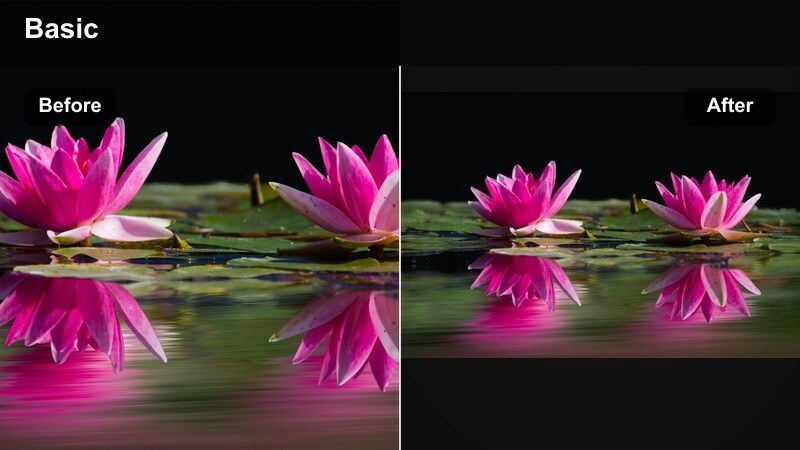
- Effect look: Blends golden warmth with neon signs by shifting cool neon hues slightly toward teal and magenta while keeping lights vibrant.
- Best for: Downtown nightlife districts, alleyway signs, and urban travel edits featuring colorful advertisements and billboards.
- Editing tip: Increase saturation in teals and magentas, then add a gentle golden split tone in highlights to tie the colors into a unified palette.
Neon Gold Mix is ideal when your scene combines neon signs with street lighting and you want everything to feel cohesive. It keeps neon rich and vibrant but tames harsh blues by nudging them toward teal and magenta, while a golden highlight tint unifies the whole frame.
Within Filmora, use HSL controls to push teal and magenta saturation where you want neon energy, then add warm split toning to highlights. This creates a stylish, modern color mix perfect for urban portraits, nightlife montages, and city B-roll.
Pro tip: Avoid Overexposed Neon Signs
Neon can blow out quickly, so underexpose slightly during shooting, then use the filter to bring midtones and colors back up.
If signs are already clipped, reduce highlights and add a soft glow effect so blown areas look intentional and stylized.
Golden Detail Highlights
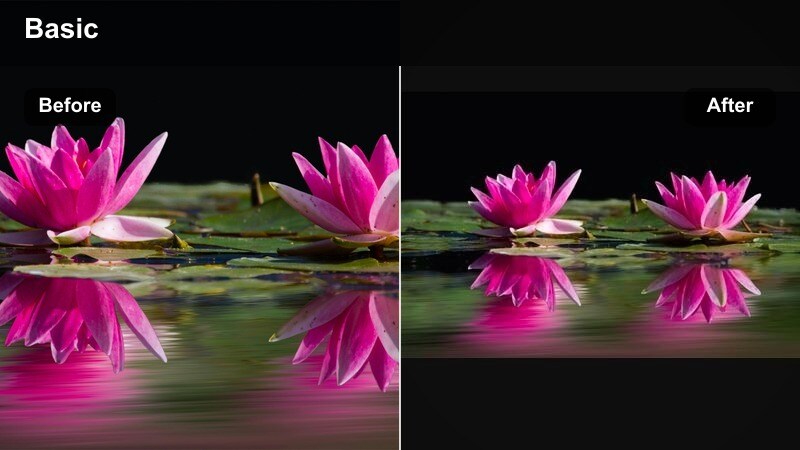
- Effect look: Targeted golden accents on specular highlights with preserved neutral base tones for textured urban detail shots.
- Best for: Close-ups of wet streets, metal railings, fountains, and stone textures catching stray city lights at night.
- Editing tip: Use highlight-focused curves to lift only the brightest areas, then apply a warm tint so details sparkle without oversaturating the whole frame.
Golden Detail Highlights focuses on the brightest points in your frame, turning tiny reflections and specular hits into glowing golden accents. The base tones stay mostly neutral, making it perfect for macro-style shots of pavement, rails, fountains, and architectural details.
In Filmora, combine this style with precise curve adjustments to lift only highlights, then add warmth in those lifted areas. This method keeps midtones and shadows controlled while making the city’s tiny light reflections visually striking for cutaway shots and transitions.
Pro tip: Shoot for Reflections and Angles
Move around your subject to find angles where small light sources create strong highlights on surfaces like stone, metal, or water.
Then, in Filmora, gently exaggerate those highlights with this filter so the city’s golden reflections become visual anchors.
Creative Warm Night Styles for City Adventures
Vintage Golden Night
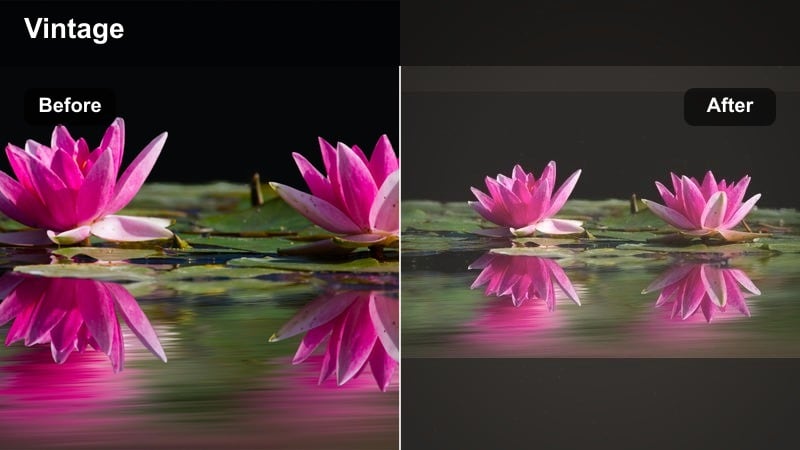
- Effect look: Faded contrast with golden midtones and a slight green offset for a retro film-inspired warm night look.
- Best for: Old districts, tram lines, classic architecture, and nostalgic travel edits that feel like they were shot on film.
- Editing tip: Lift blacks slightly and add a touch of grain, then reduce saturation in blues and greens to keep the vintage warmth dominant.
Vintage Golden Night gives your city footage an aged film character with softened contrast, lifted blacks, and golden midtones. A subtle green offset mimics old analog stocks, making trams, cobbled streets, and historical facades feel timeless.
In Filmora, pair the filter with a bit of grain and lower saturation in cooler hues so warm tones lead the palette. This style works especially well in narrative travel films or sequences meant to evoke memory and nostalgia.
Pro tip: Lean into Imperfections
Allow slight motion blur, flare, and soft focus around lights to support the vintage character of this filter.
In Filmora, combine it with subtle film burn overlays or frame jitter to fully sell the retro warm night mood.
Golden Rooftop Vibes
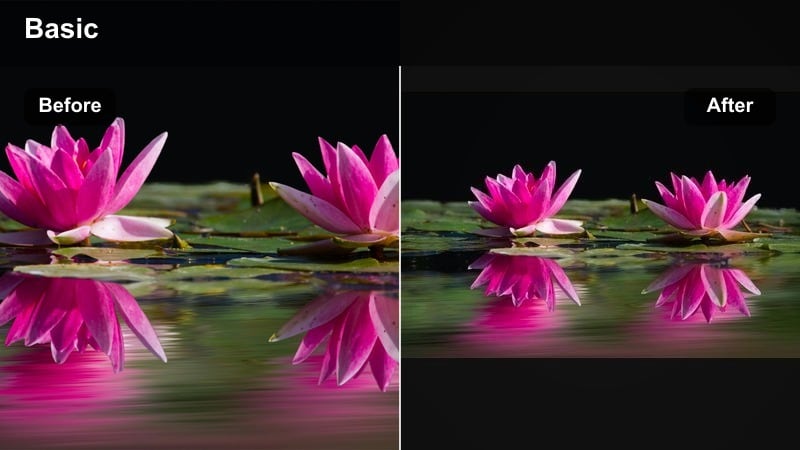
- Effect look: Crips city skyline lines with a strong golden accent on windows and light trails, plus slightly deepened blues in the sky.
- Best for: Rooftop bars, skyline time-lapses, and wide establishing shots in travel films that show the full city at night.
- Editing tip: Add a slight tilt-shift blur to foreground and extreme background so mid-frame skyscrapers and light trails stand out even more.
Golden Rooftop Vibes is built for wide, cinematic cityscapes, emphasizing grid-like windows and light trails with a bold golden tint. Darker, richer blues in the sky contrast with the warm buildings, making the skyline feel sharp and dramatic.
Use this style in Filmora for establishing shots, rooftop bar scenes, or timelapses. A gentle tilt-shift effect can further separate key skyscrapers and traffic streams, giving your travel videos a polished, big-city aesthetic.
Pro tip: Stabilize for Clean Light Trails
Use a tripod or sturdy surface so your skyline shots stay perfectly still while cars and trains create smooth golden streaks.
In Filmora, combine the filter with a touch of stabilization and sharpen details to keep buildings crystal clear.
Midnight Amber Walk
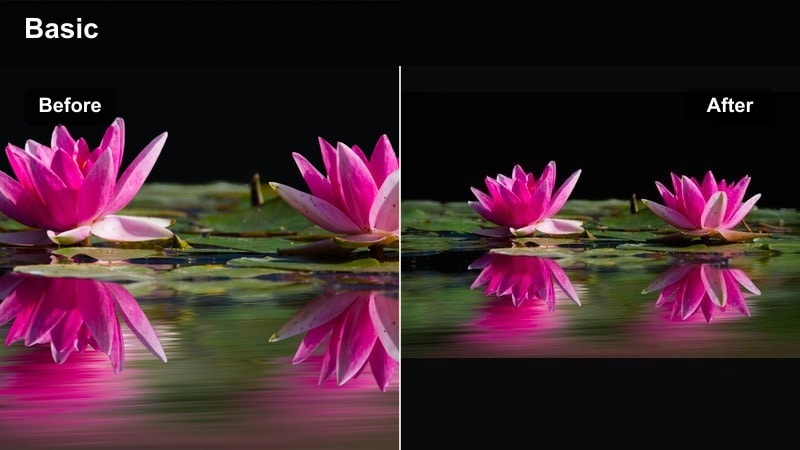
- Effect look: Low-key contrast with enveloping amber tones that give sidewalks, alleyways, and crosswalks a cinematic, late-night feel.
- Best for: Solo walking shots, POV sequences, and moody B-roll of traffic lights and crosswalks during late-night city exploration.
- Editing tip: Slow your footage slightly and add gentle camera movement or digital pans to match the smooth, wandering mood of the amber tone.
Midnight Amber Walk wraps your frame in deep, cinematic amber, perfect for introspective late-night walks and POV shots. Shadows stay strong and moody while pools of light on sidewalks and crossings take on a rich, dramatic tone.
In Filmora, try subtle slow motion or smooth digital pans to match the relaxed pacing this style suggests. Use vignettes and selective brightening on key light pools so footsteps, reflections, and traffic signals become emotional anchors in your story.
Pro tip: Pair Color with Sound Design
Match the warm, slow feel of this filter with soft ambient city sounds or gentle music to strengthen the emotional tone.
Use longer cuts and fewer jumpy edits so viewers can sink into the late-night amber atmosphere of your travel story.
Tips for Using Night Warm Filters in Filmora
- Shoot at slightly higher exposure than you think you need, then bring down highlights and add warmth in Filmora to keep noise under control.
- Use practical light sources like shop windows, headlights, and street lamps as your key lights to support warm filters naturally.
- Keep white balance slightly on the warm side in-camera so your filters enhance color rather than having to fight a very cool base image.
- Stabilize night shots whenever possible, because warm, low-light scenes magnify camera shake and can quickly look messy.
- Combine gentle vignettes with bright, warm centers to guide attention toward your main subject in busy night city scenes.
- Test different warm filters on the same clip in split-screen mode to see which style best preserves detail in highlights and shadows.
- Use Filmora’s masking tools to keep skin tones natural while pushing backgrounds into stronger golden or amber tones.
- Save your favorite warm night settings as LUTs or presets so you can maintain a consistent look across multiple travel projects.
Warm night video filters are a powerful way to turn ordinary city lights into golden, story-rich scenes that match the feeling of your travels. By choosing the right combination of subtle amber glows, bold golden filters, and portrait-friendly warmth, you can shape how viewers experience each night location.
Experiment with Filmora’s Warm Night Filter: Golden City Lights and the related styles above on different city and travel clips, then refine exposure, contrast, and color to suit your personal taste. Once you have a look you love, save it as a preset so every new night adventure can share the same cinematic glow.
